Dataphin Data Integration's offline pipeline feature provides a visual, drag-and-drop approach to building data pipelines. After creating an offline pipeline script, you can drag components from the component library onto the canvas to assemble your pipeline, reducing development complexity and making source-to-destination data flows easy to trace.
Prerequisites
To develop an offline pipeline, you must first create the corresponding development script. For more information on creating an offline pipeline script, see create an integration task through a single pipeline.
Offline pipeline component development entry
-
Navigate to the Dataphin home page and select Development -> Data Integration from the top menu bar.
-
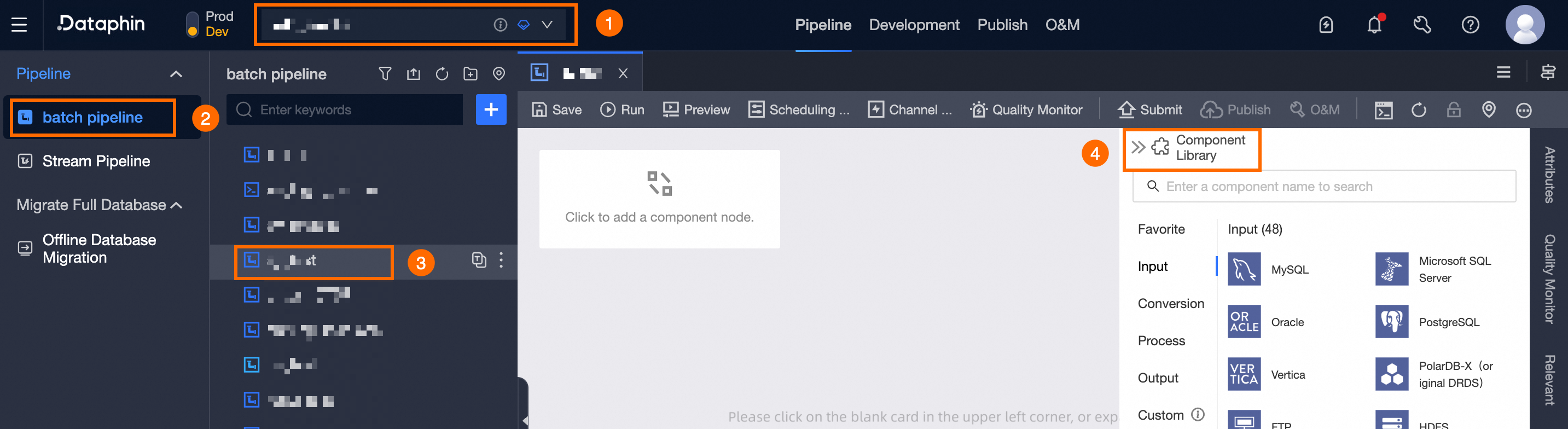
To access the Offline Pipeline Component development page, follow these steps:
Choose a Project (Dev-Prod mode requires selecting an environment) -> click Batch Pipeline -> select and click the offline pipeline you wish to develop -> click Component Library.
Offline component library development instructions
Typically, a complete offline pipeline is composed of one or more Inputs, zero or more Transforms and Flows, and one or more Outputs.
On the development page for a single offline pipeline script, click Component Library in the upper right corner to reveal components such as Favorite, Inputs, Transforms, Flows, Outputs, and Custom components.
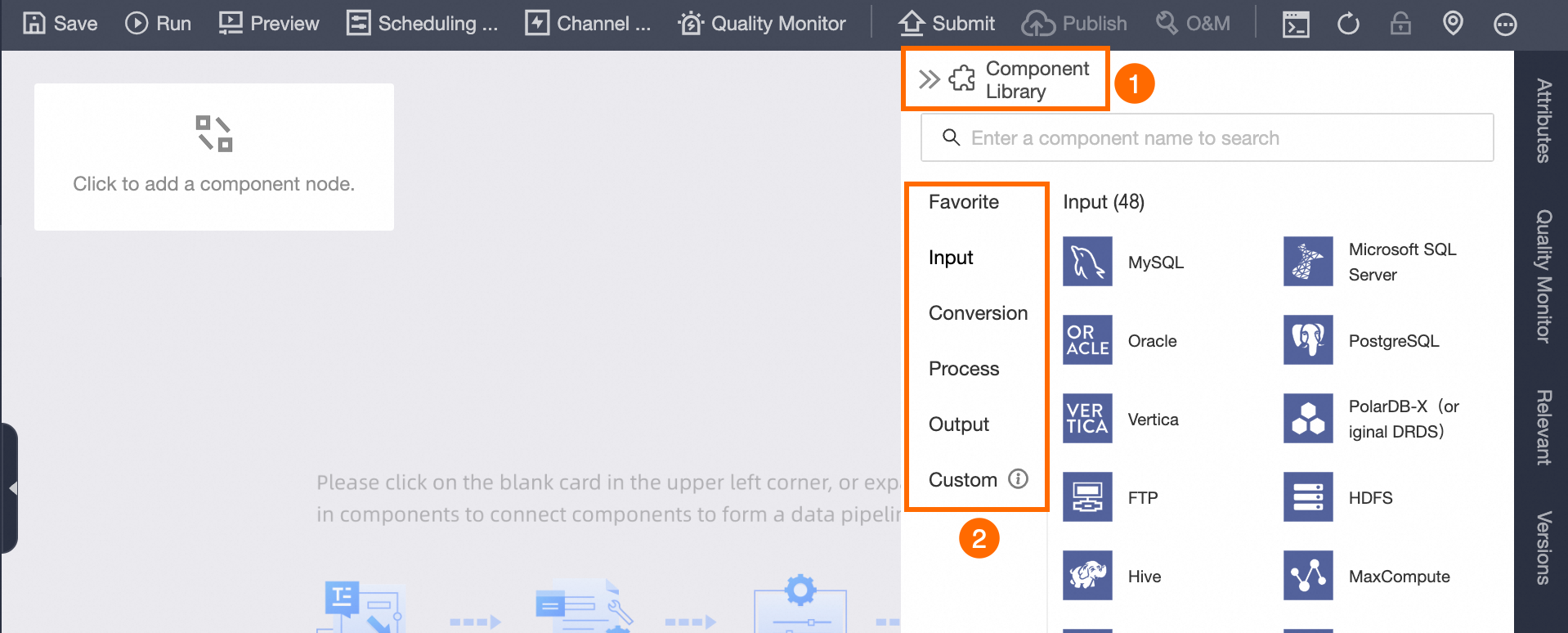
Favorite components
Click  to access components favorited by your account in other component libraries, letting you quickly reuse frequently used components.
Input components
Input components define the data source. Select the component that matches your data type and drag it onto the pipeline canvas to start data ingestion. For details about each input component, see the configuration details for each component.
-
Input components are not compatible with ancestor nodes.
-
The descendant node of an Input can be a Transform, Output, or Flow.
-
When the Input component is connected to multiple descendant nodes, such as Outputs or Transforms, it is necessary to select a Data Sending Method for the Input component.
-
Replication: The data from the ancestor node is replicated equally among the descendant nodes, with each descendant node receiving the full data set from the ancestor node.
-
Round-robin Distribution: The data from the ancestor node is distributed in a round-robin fashion among the descendant nodes, ensuring the combined data of all descendant nodes equals that of the ancestor node.
-
Output components
Select the output component that matches your target data store and drag it onto the pipeline canvas. For details about each output component, see the configuration details of each component.
Output components are not compatible with descendant nodes.
Flow components
Dataphin provides two flow control components for data integration: throttling and conditional distribution. For details about each component, see the configuration details of each component.
-
Flow components cannot serve as the initial or terminal nodes in an offline pipeline; however, they can be positioned anywhere between the start and end of the pipeline script.
-
When the Flow component is connected to multiple descendant nodes, such as Transforms, Outputs, or Flows, it is necessary to select a Data Sending Method from the Input component.
-
If the Flow component selects the Conditional Distribution component, you must specify the distribution condition when connecting the components:
-
Select Condition Result Is True to send data downstream when the ancestor node's result is true.
-
Select Condition Result Is False to send data downstream when the ancestor node's result is false.
-
Transform components
Transform components process source data from input components by computing, filtering, or encrypting data fields. For details about each transform component, see the configuration details of each component.
Transform components can be connected to multiple Downstream components, such as Transforms, Outputs, and Flows. It is necessary to specify the Input component's Data Sending Method when establishing these connections.
Directed connections
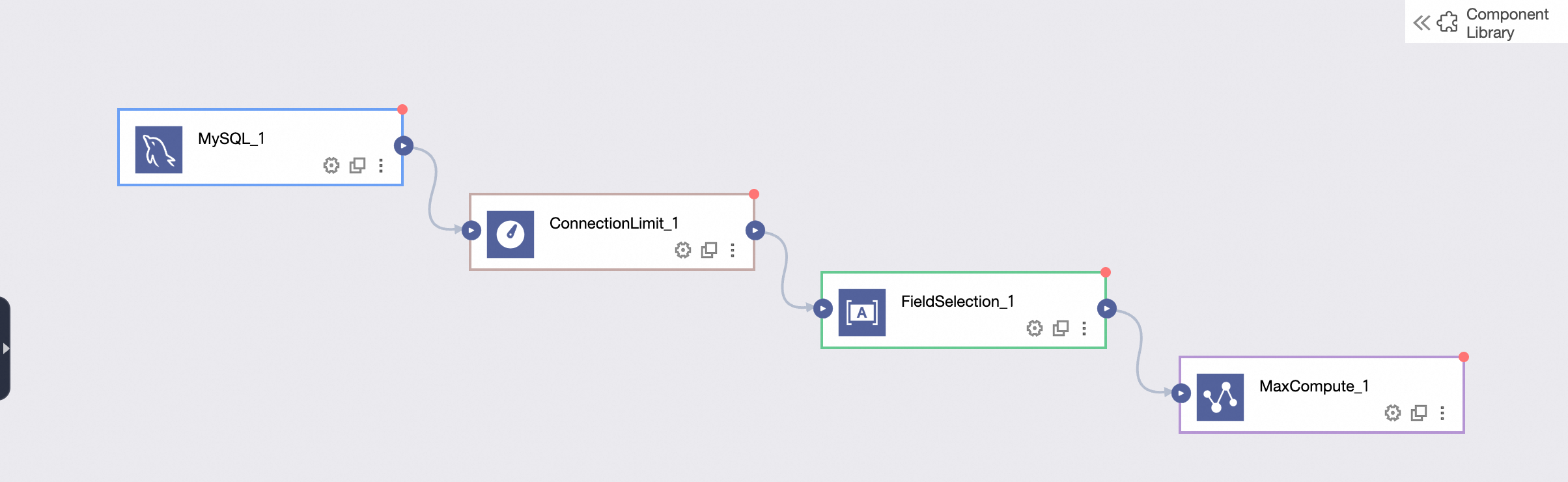
After selecting components, use directed connections to link upstream input components to downstream transform, flow, and output components. The runtime executes each component sequentially along these connections. The following figure shows the upstream and downstream relationships.
Canvas operations
The pipeline canvas supports building multiple pipeline scripts simultaneously. Right-click the canvas to access the following operations.
|
Operation |
Description |
|
Copy |
Copy existing components on the pipeline canvas. |
|
Paste |
Paste the copied pipeline components onto the pipeline canvas. |
|
Delete |
Delete the selected components from the canvas. |
|
Select All |
Select all components on the pipeline canvas. |
|
Lasso Select |
Use the mouse to lasso and select multiple components on the canvas. |
Switch to code editor components
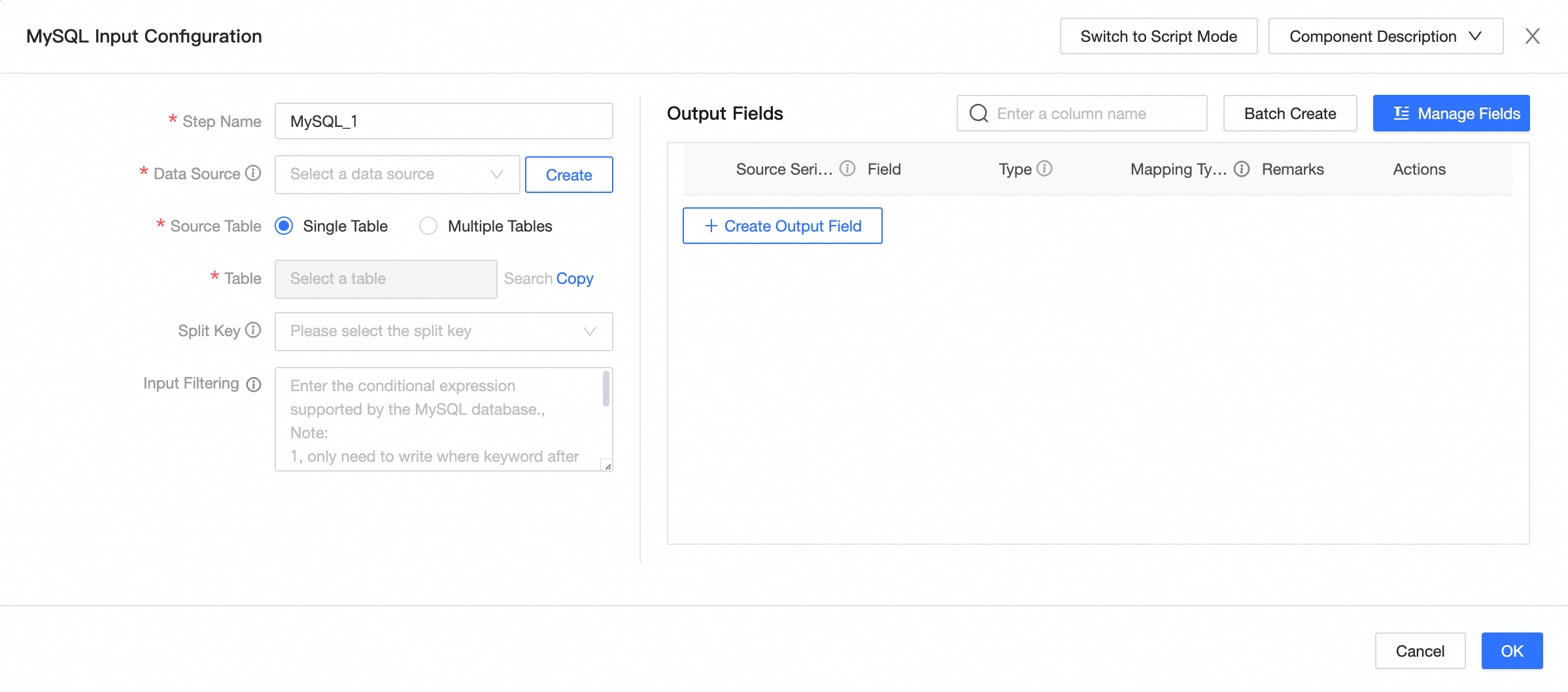
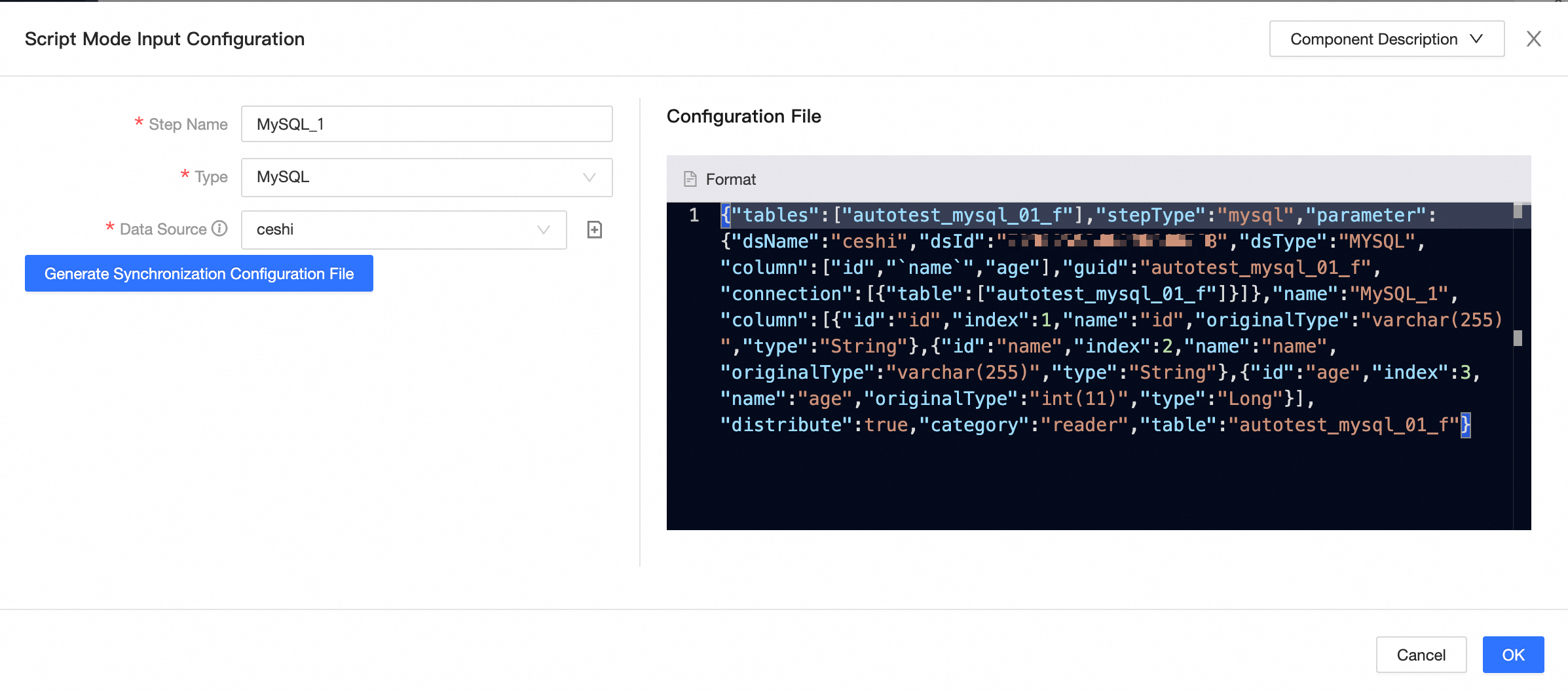
For components other than LogicalTable, code editor, and local file, input and output components support switching to Code Editor mode in the configuration dialog box. This switch is irreversible. The following table uses the MySQL input component as an example.
|
Before switching |
After switching |
|
|
|
Component configuration instructions
For configuration instructions for each Dataphin component, see the following tables:
Input components
|
Component Name |
Component Configuration |
|
MYSQL |
|
|
Oracle |
|
|
Vertica |
|
|
FTP |
|
|
Hive |
|
|
HBase |
|
|
LogicalTable |
|
|
AnalyticDB for PostgreSQL |
|
|
PolarDB |
|
|
Local file |
|
|
Teradata |
|
|
OceanBase |
|
|
Hologres |
|
|
TDH Inceptor |
|
|
DataHub |
|
|
DM |
|
|
TiDB |
|
|
GBase 8a |
|
|
SAP Table |
|
|
StarRocks |
|
|
Elasticsearch |
|
|
ArgoDB |
|
|
Salesforce |
|
|
SelectDB |
|
|
Microsoft SQL Server |
|
|
PostgreSQL |
|
|
PolarDB-X (formerly DRDS) |
|
|
HDFS |
|
|
MaxCompute |
|
|
MongoDB |
|
|
AnalyticDB for MySQL 3.0 |
|
|
Log Service |
|
|
OSS |
|
|
SAP HANA |
|
|
IBM DB2 |
|
|
Code editor input |
|
|
ClickHouse |
|
|
Kafka |
|
|
API |
|
|
KingbaseES |
|
|
GoldenDB |
|
|
Impala |
|
|
OpenGauss |
|
|
Kudu |
|
|
Greenplum |
|
|
Doris |
|
|
Amazon S3 |
|
|
Lindorm (Compute Engine) |
Output components
|
Component Name |
Configuration Instructions |
|
MYSQL |
|
|
Oracle |
|
|
Vertica |
|
|
FTP |
|
|
Hive |
|
|
HBase |
|
|
AnalyticDB for MySQL 2.0 |
|
|
AnalyticDB for MySQL 3.0 |
|
|
PolarDB |
|
|
SAP HANA |
|
|
IBM DB2 |
|
|
Output from the code editor |
|
|
ClickHouse |
|
|
Kafka |
|
|
KingbaseES |
|
|
GoldenDB |
|
|
Impala |
|
|
StarRocks |
|
|
Greenplum |
|
|
ArgoDB |
|
|
Amazon S3 |
|
|
Microsoft SQL Server |
|
|
PostgreSQL |
|
|
PolarDB-X (formerly known as DRDS) |
|
|
HDFS |
|
|
MaxCompute |
|
|
MongoDB |
|
|
Elasticsearch |
|
|
AnalyticDB for PostgreSQL |
|
|
OSS |
|
|
Teradata |
|
|
OceanBase |
|
|
Hologres |
|
|
TDH Inceptor |
|
|
DataHub |
|
|
DM |
|
|
TiDB |
|
|
GBase 8a |
|
|
OpenGauss |
|
|
API |
|
|
Redis |
|
|
Doris |
|
|
SelectDB |
|
|
Lindorm (compute engine) |
Transform components
|
Component Name |
Component Configuration |
|
Field Selection |
|
|
Signature Calculation |
|
|
Filter |
|
|
Encryption |
|
|
Decryption |
Flow components
|
Component Name |
Configuration Instructions |
|
Throttling |
|
|
Conditional Distribution |
Custom components
To use custom components in Dataphin, you must first create them on the platform. For instructions, refer to creating an offline custom source type.