Encrypt sensitive fields from upstream data by selecting an encryption algorithm and key.
Prerequisites
An offline single pipeline has been created. Create an integration node using a single pipeline.
Procedure
-
From the top menu bar on the Dataphin homepage, choose Develop > Data Integration.
-
On the top menu bar of the integration page, select a Project and an environment (Dev-Prod mode only).
-
In the left navigation pane, click Batch Pipeline. On the Batch Pipeline page, click the target offline pipeline to open its configuration page.
-
In the upper-right corner, click Component Library to open the Component Library pane.
-
In the Component Library pane, select Transform on the left, then drag the Encryption component to the canvas.
-
Drag the
 icon from the input component to the Encryption component to connect them.
 -
Click
 on the Encryption component card to open the Field Encryption Configuration dialog box.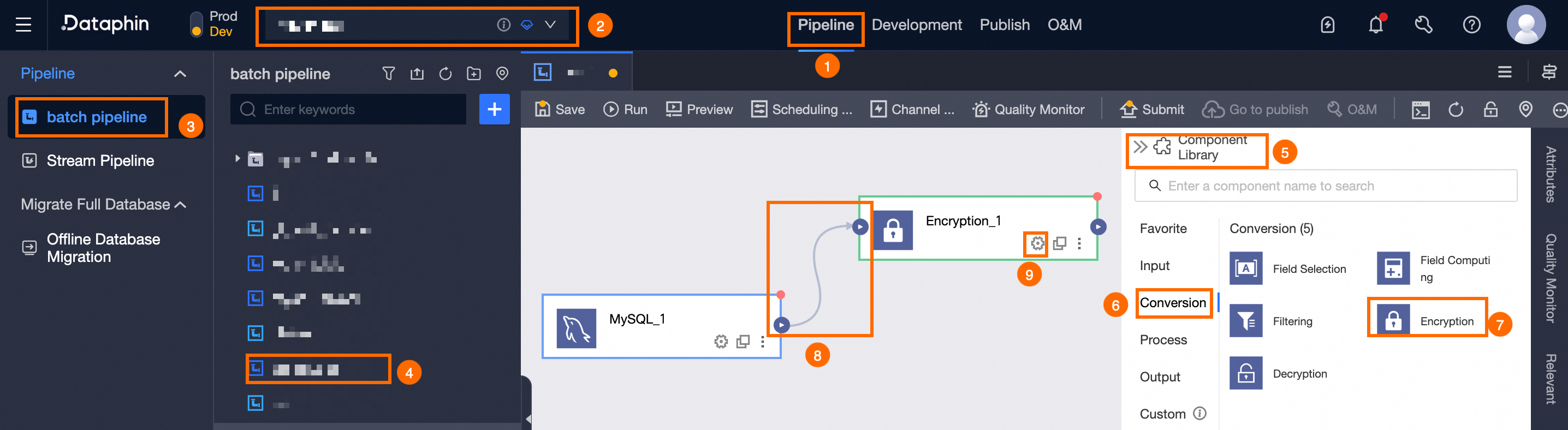
-
In the Field Encryption Configuration dialog box, in the Select Fields step, select the fields to encrypt from the upstream component. If a field name contains a table name, the table name is also displayed.
-
Click Next.
Important-
Selected fields are encrypted before passing downstream. Other fields pass through with original values.
-
Because encryption consumes extra resources, encrypt only sensitive data.
-
Encrypted fields are converted to String type. When decrypting, specify the Output Field Type to restore the original data type.
-
-
In the Encryption Configuration step, configure the encryption parameters.
Configuration varies by algorithm. Select an algorithm and configure its parameters. Encryption and decryption algorithms.
-
AES, DES, 3DES, SM4, SM2, and RSA encryption algorithms.
Parameter
Description
Key
Select a key created for the chosen algorithm. Manage keys.
Only keys you have permissions for are available. To use other keys, request permissions first. For more information, see Request, renew, and return key permissions.
Advanced Configuration
AES, DES, 3DES, SM4, and RSA support advanced configurations for parameters such as output encoding. Defaults are sufficient for most cases.
When exchanging data with external systems, ensure consistent advanced configurations across encryption and decryption:
-
Encryption Mode: Options include ECB, CBC, CFB, CTR, and OFB. ECB has no initialization vector (IV). Encryption and decryption modes must match.
-
Padding: Options include NoPadding, PKCS5Padding, and PKCS7Padding. Available options vary by algorithm. Encryption and decryption padding must match. The actual options on the page prevail.
-
IV: An initialization vector (offset). The IV must be a 16-digit number. Different IVs produce different ciphertext. Use the same IV for encryption and decryption.
-
Encoding Format: The output can be in Base64 or Hex format.
If you select SM4 and the output destination is AnalyticDB for PostgreSQL, select Output destination is AnalyticDB PostgreSQL. Otherwise, encrypted data cannot be decrypted in AnalyticDB for PostgreSQL.
-
-
Format-Preserving Encryption (FPE) FF1 algorithm.
Parameter
Description
Encryption Range
Configure the Encryption Range for Format-Preserving Encryption (FPE) FF1. Options: Specify Range or All.
-
Specify Range: Define the start and end positions of characters to encrypt. Decryption must use the same range configuration. Add ranges by sliding or direct input (maximum 10 ranges).
ImportantEach digit, letter, Chinese character, and symbol counts as 1 character. For example, in 'test', the 3rd character is 's'.
-
Add by sliding: Slide or click to define a range, then click OK. For ranges exceeding 24 characters, use direct input instead.
-
Add by direct input: Enter the Start Position, End Position, Range Length, and Encryption Alphabet.
-
Start Position: The start position of the encryption range.
-
Range Length: A positive integer
>=1, or a hyphen (-) for the remainder of the string. -
End Position: A positive integer
>=1, or select End. -
Encryption Alphabet: Supported alphabets:
-
Built-in: Digits, Uppercase letters, Lowercase letters, Digits + Uppercase letters, Digits + Lowercase letters, Digits + Letters, and Special symbols.
-
Custom: Enter single characters in the Custom Encryption Alphabet dialog box. Spaces are not supported. Duplicates are removed automatically. Maximum: 10,000 characters. Select check boxes for space, line feed (\n), carriage return (\r), or tab (\t) to include them. Without selection,
\nis treated as two characters:\andn.
-
-
View Encryption Alphabet: For a Built-in encryption alphabet, click
 to view its encryption characters.
 -
Edit Custom Encryption Alphabet: For a Custom encryption alphabet, click
 to edit its encryption characters.
 -
Delete: Click
 to delete the current range.
-
-
-
All: Encrypts all characters in the field.
Key
Select a key created for the chosen algorithm. Manage keys.
Only keys you have permissions for are available. To use other keys, request permissions first. For more information, see Request, renew, and return key permissions.
Compatibility Issues
When plaintext fails algorithm requirements, the key does not match, or the encoding format is inconsistent, data is handled by the selected policy: Return Null or Return Plaintext.
-
-
-
Click OK to complete the encryption configuration.