The AnalyticDB for MySQL 2.0 output component writes data to an AnalyticDB for MySQL 2.0 data source. After you configure the source data source, configure this output component as the target.
Procedure
In the top navigation bar of the Dataphin homepage, choose Develop > Data Integration.
In the top navigation bar of the Integration page, select a project. In Dev-Prod mode, you need to select an environment.
In the left navigation bar, click Batch Pipeline. In the Batch Pipeline list, click the offline pipeline that you want to develop to open its configuration page.
Click Component Library in the upper-right corner of the page to open the Component Library panel.
In the left navigation bar of the Component Library panel, select Outputs. In the output component list on the right, find the AnalyticDB for MySQL 2.0 component and drag it to the canvas.
Click and drag the
 icon of the target input, transform, or flow component to connect it to the current AnalyticDB for MySQL 2.0 output component.
Click the
 icon on the AnalyticDB for MySQL 2.0 output component card to open the Output Configuration dialog box.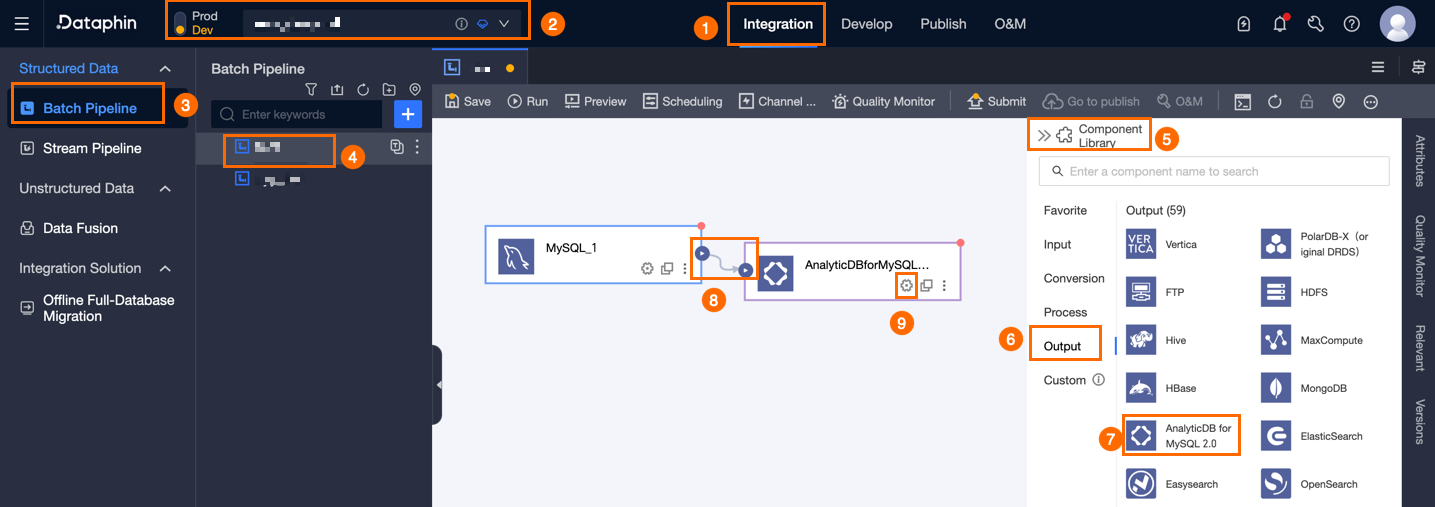
In the AnalyticDB For MySQL 2.0 Output Configuration dialog box, configure the parameters.
Parameter
Description
Basic Settings
Step Name
Dataphin automatically generates a step name. You can modify it as needed. The name must meet the following requirements:
It can contain only Chinese characters, letters, underscores (_), and digits.
It cannot exceed 64 characters in length.
Datasource
Lists all AnalyticDB for MySQL 2.0 data sources, including those you have write-through permissions for and those you do not. Click the
 icon to copy the data source name.
For data sources without write-through permissions, click Request next to the data source to request permissions. For more information, see Apply for, Renew, and Return Data Source Permissions.
If you do not have an AnalyticDB for MySQL 2.0 data source, click Create Data Source to create one. For more information, see Create an AnalyticDB for MySQL 2.0 data source
Time Zone
The time zone for processing time-formatted data. Defaults to the time zone of the selected data source and cannot be modified.
NoteFor tasks created before V5.1.2, you can select Data Source Default Configuration or Channel Configuration Time Zone. The default is Channel Configuration Time Zone.
Data Source Default Configuration: The default time zone of the selected data source.
Channel Configuration Time Zone: The time zone configured in Properties > Channel Configuration for the current integration task.
Table
Select the target table for output data. Enter a keyword to search for a table, or enter the exact table name and click Exact Match. After you select a table, the system automatically checks the table status. Click the
 icon to copy the selected table name.
Mode
The data output mode. Mode includes:
Insert Mode: Suitable for writing small amounts of data (less than 10 million records). Configure Preparation Statement and Completion Statement.
Preparation Statement: The SQL script to execute before import.
Completion Statement: The SQL script to execute after import.
Load Mode: Suitable for writing large amounts of data (more than 10 million records). Configure Loading Policy, Load parameters, and Alibaba Cloud account.
Loading Policy: The policy for writing data to the target table.
Overwrite Data overwrites the historical data in the target table with data from the current source table.
Append Data appends data to the target table without modifying historical data.
Load Parameters: The connection parameters for MaxCompute transfer, specified in JSON format. For example:
{"accessid":"XXX","accessKey":"XXX","odpsServer":"XXX","tunnelServer":"XXX","accountType":"aliyun","project":"transfer_project"}Alibaba Cloud Account: Required in Load mode. The Alibaba Cloud account used to authorize data loading. Use the format: ALIYUN$****_data@aliyun.com.
Batch Write Data Volume (optional)
The size of data to write per batch. You can also set Batch Write Count. The system writes data when either limit is reached. The default is 32M.
Field Mapping
Input Fields
The input fields from the upstream component.
Output Fields
The output fields for the target table. You can perform the following operations:
Field Management: Click Field Management to select output fields.
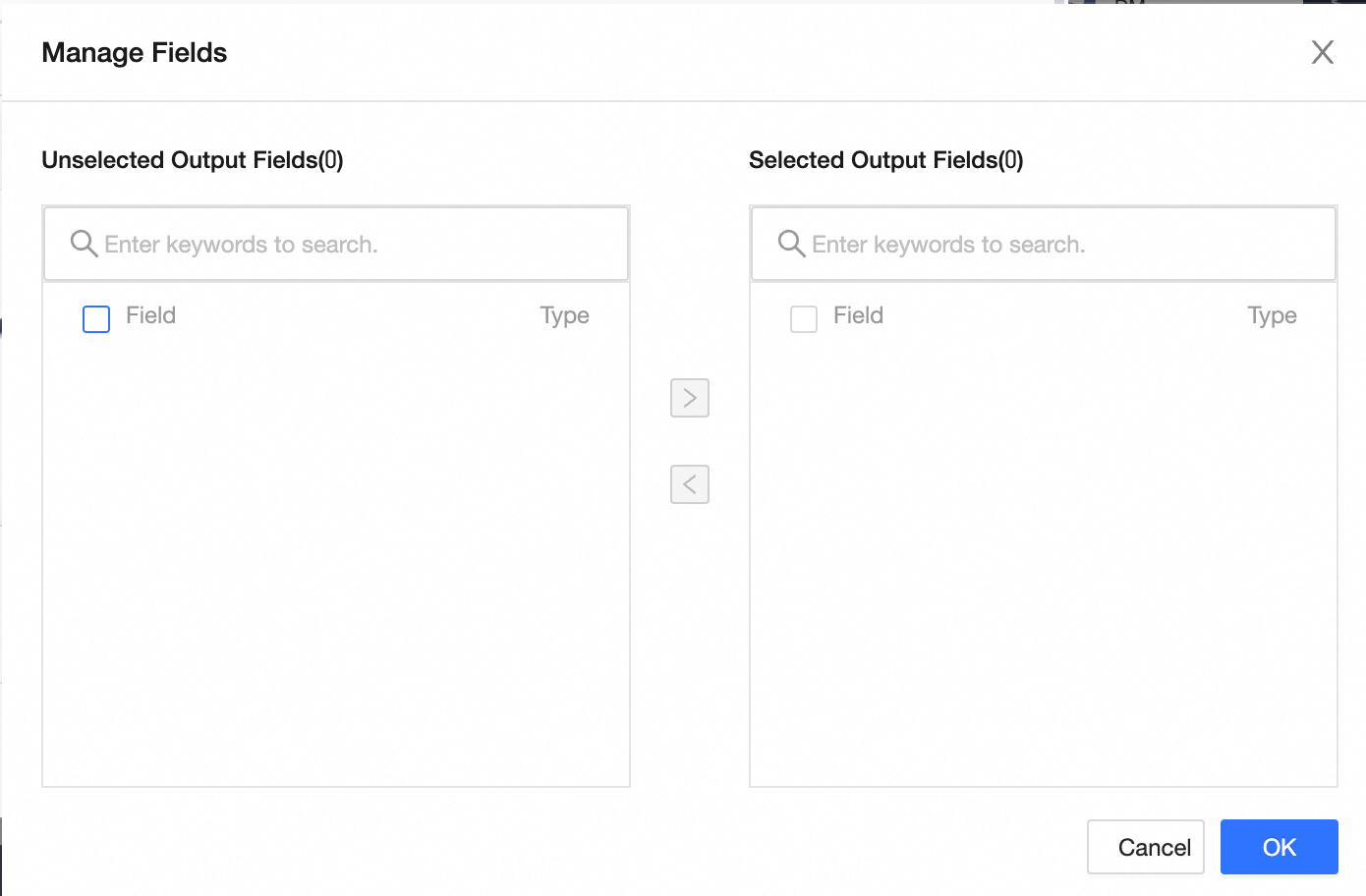
Click the
 icon to move Selected Input Fields to Unselected Input Fields.
Click the
 icon to move Unselected Input Fields to Selected Input Fields.
Batch Add: Click Batch Add to configure in JSON, TEXT, or DDL format.
Configure in JSON format, for example:
// Example: [{ "name": "user_id", "type": "String" }, { "name": "user_name", "type": "String" }]Notename specifies the field name, and type specifies the data type after import. For example,
"name":"user_id","type":"String"imports the user_id field with the String data type.Configure in TEXT format, for example:
// Example:
user_id,String
user_name,String
The row delimiter separates field entries. The default is a line feed (\n). Supported delimiters: line feed (\n), semicolon (;), and period (.).
The column delimiter separates the field name and type. The default is a comma (,).
Configure in DDL format, for example:
CREATE TABLE tablename (
    id INT PRIMARY KEY,
    name VARCHAR(50),
    age INT
);
Create a new output field: Click +Create Output Field, enter the Column and select the Type. After you configure the row, click the
 icon to save.
Mapping
Maps upstream input fields to target table fields. Mapping includes Same Row Mapping and Same Name Mapping.
Same Name Mapping: Maps fields with the same name.
Same Row Mapping: Maps fields in the same row position when field names differ between the source and target tables.
Click OK to complete the property configuration of the AnalyticDB for MySQL 2.0 output component.