The Hologres output component writes data to a Hologres data source. After configuring the source data, you must configure the target Hologres data source in this component to complete the synchronization pipeline.
Prerequisites
A Hologres data source must be created and write-through permission must be granted:
To create a data source, see Create Hologres Data Source.
To obtain write-through permissions for a data source, see Apply for, Renew, and Return Data Source Permissions.
Limits
The Hologres database does not support writing to views.
Procedure
Navigate to the Dataphin home page, select Development > Data Integration from the top menu bar.
At the top menu bar of the integration page, choose Project (select an environment if using the Dev-Prod pattern).
In the navigation pane on the left, click Batch Pipeline. Then, from the Batch Pipeline list, select the Offline Pipeline you want to develop to access its configuration page.
To open the Component Library panel, click Component Library in the upper right corner of the page.
Within the Component Library panel's left-side navigation pane, select Output, locate the Hologres component in the list on the right, and drag it onto the canvas.
Connect the target input component to the Hologres output component by clicking and dragging the
 icon.
icon.Click the
 icon on the Hologres output component card to open the Hologres Output Configuration dialog box.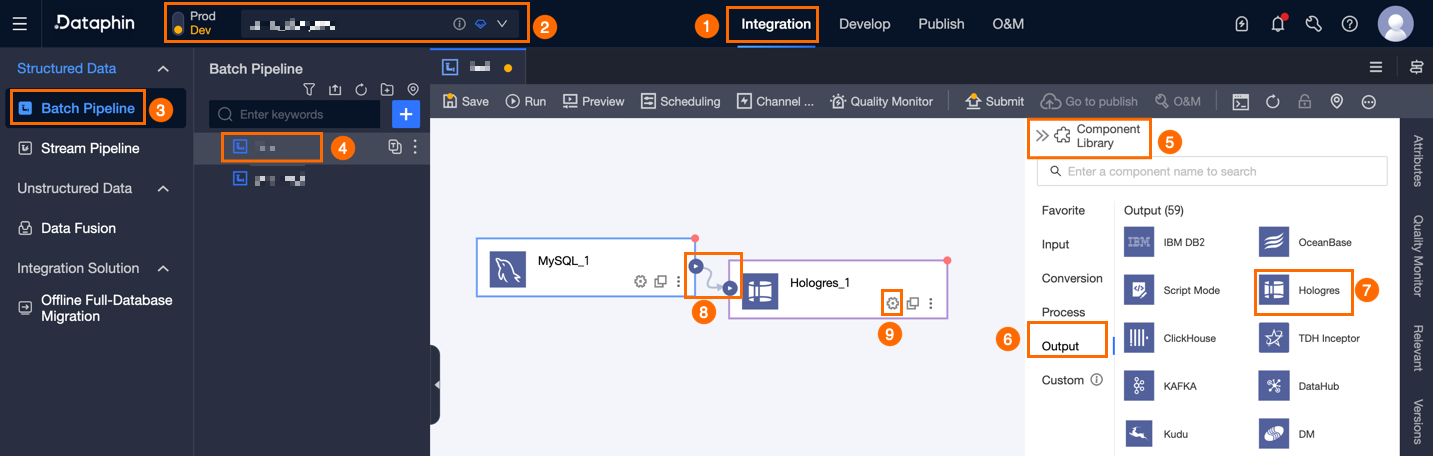
In the Hologres Output Configuration dialog box, set the following parameters:
Parameter
Description
Basic Settings
Step Name
The name of the Hologres output component. Dataphin generates a default step name, which you can customize. The name must meet the following requirements:
May only include Chinese characters, letters, underscores (_), and numbers.
Cannot exceed 64 characters in length.
Datasource
Select a Hologres data source.
If no Hologres data source exists, click Create to create one. For details, see Create Hologres Data Source.
Schema
You can select tables across different schemas. Select the schema where the target table is located. If not specified, the default schema defined in the data source is used. If the data source does not define a schema, tables from all schemas are available.
Table
Select the desired table from the Hologres data source.
Write Mode
The method for writing data to the Hologres data source. Available modes are SDK and SQL:
SDK mode is advised for Hologres version 0.8.
SQL mode is recommended for Hologres version 0.9 and above.
Loading Policy
The policy for loading data into the Hologres data source. Options are overwrite and ignore:
Overwrite: New data replaces existing data when a primary key is present; otherwise, data is appended.
Ignore: New data is disregarded when a primary key is present; without a primary key, data is appended.
Field Mapping
Input Field
Shows the fields retrieved from the source table.
Output Field
Shows the fields of the destination table.
Mapping
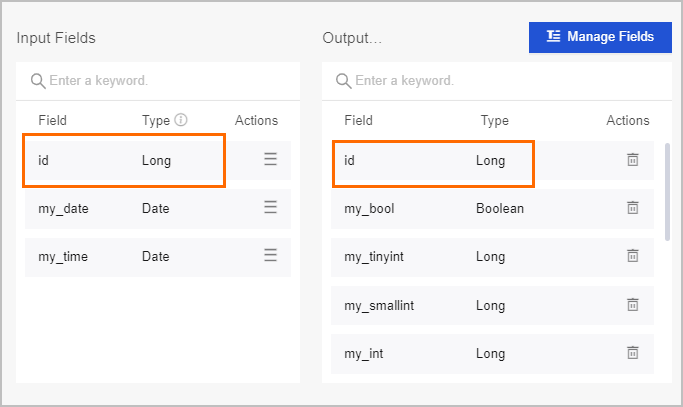
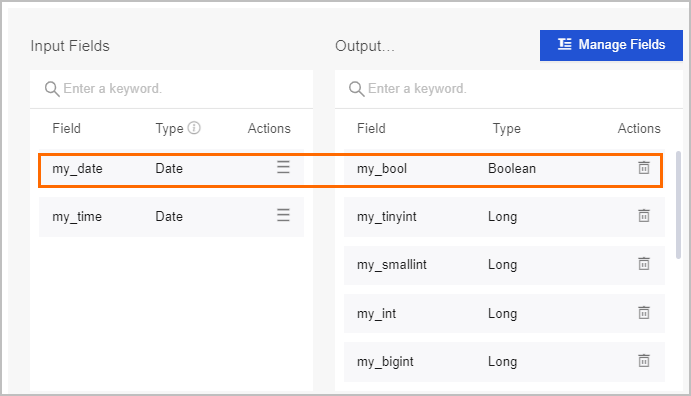
Define how input fields from the source table map to output fields in the destination table. Mapping options are same-name and same-row:
Same-name mapping: Aligns fields that share the same name.
For instance, after selecting same-name mapping, the data from the input field id is mapped to the output field id.
Same-row mapping: Maps fields that correspond to the same row but have different names.
For example, the data from the endpoint_type field is mapped to the id field.
Click Confirm to finalize the configuration of the Hologres Output Component.