The Impala output component writes data to an Impala data source. After configuring the source component in a sync task, configure the Impala output component to specify the write destination.
Prerequisites
An Impala data source is created. Create an Impala data source.
Your account has write-through permission for the Impala data source. If not, request it through Apply for, Renew, and Return Data Source Permissions.
Procedure
On the Dataphin home page, select Development > Data Integration from the top menu bar.
In the integration page's top menu bar, select Project (Dev-Prod mode requires selecting Environment).
In the left navigation pane, click Batch Pipeline. In the Batch Pipeline list, click the target offline pipeline to open its configuration page.
Click Component Library in the upper right corner of the page to open the Component Library panel.
In the Component Library panel's left-side navigation pane, select Output, find the Impala component in the list on the right, and drag it to the canvas.
Drag the
 icon from the upstream input, transform, or flow component to the Impala output component to connect them.
Click the
 icon on the Impala output component card to open the Impala Output Configuration dialog box.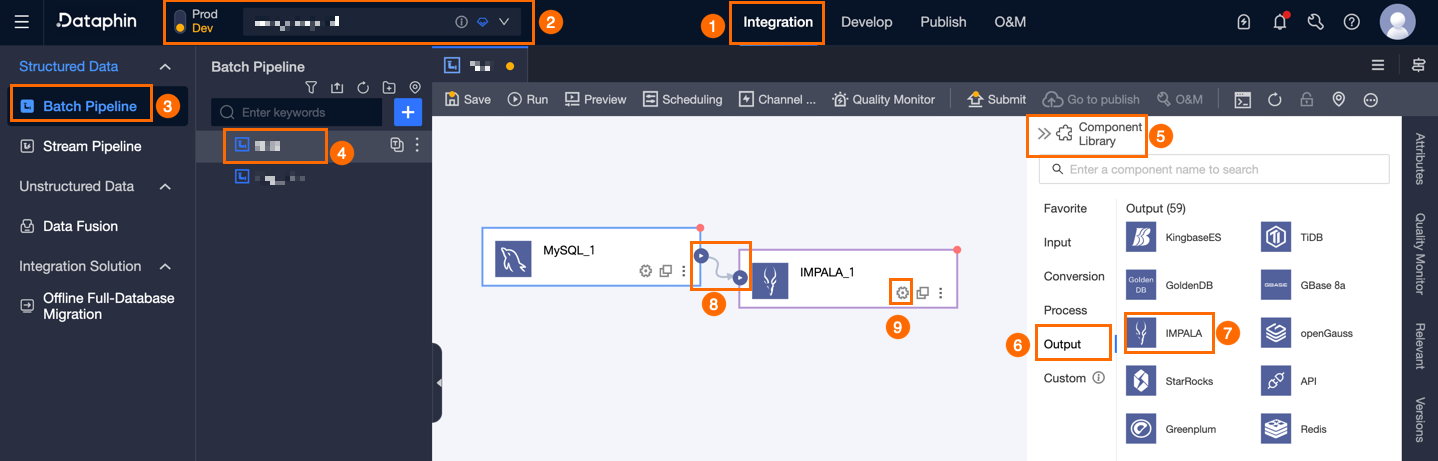
In the Impala Output Configuration dialog box, configure the parameters.
Parameter
Description
Basic settings
Step name
The component name. Dataphin auto-generates a name, which you can modify. Requirements:
Can only contain Chinese characters, letters, underscores (_), and numbers.
Cannot exceed 64 characters.
Data source
Lists all Impala-type data sources, including those you have write-through permission for and those you do not.
For data sources without write-through permission, click Request next to the data source to apply. Apply for, Renew, and Return Data Source Permissions.
If no Impala data source exists, click Create Data Source. Create an Impala data source.
Table
Select the target table for the output data. Click the
 icon to copy the name of the currently selected table.
Loading policy
Only the append policy is supported. A dirty data error is reported when a primary key or constraint violation occurs.
Batch write data volume
Maximum data size per batch write. Works with Batch Write Count — the system writes whichever limit is reached first. Default: 32M.
Batch write count
Maximum number of records per batch write. Default: 2048 entries. Works with Batch Write Count and Batch Write Data Volume.
A batch write is triggered when either the data volume limit or count limit is reached first.
Recommended batch write data volume: 32 MB. Set batch write count higher than (data volume / record size) to let the data volume limit trigger writes. Example: for 1 KB records with a 16 MB data volume, set count above 16384 (e.g. 20000 entries) so the 16 MB threshold triggers each write.
Field mapping
Input field
Shows input fields from the upstream component output.
Output field
Displays the output fields. Click Field Management to select output fields.
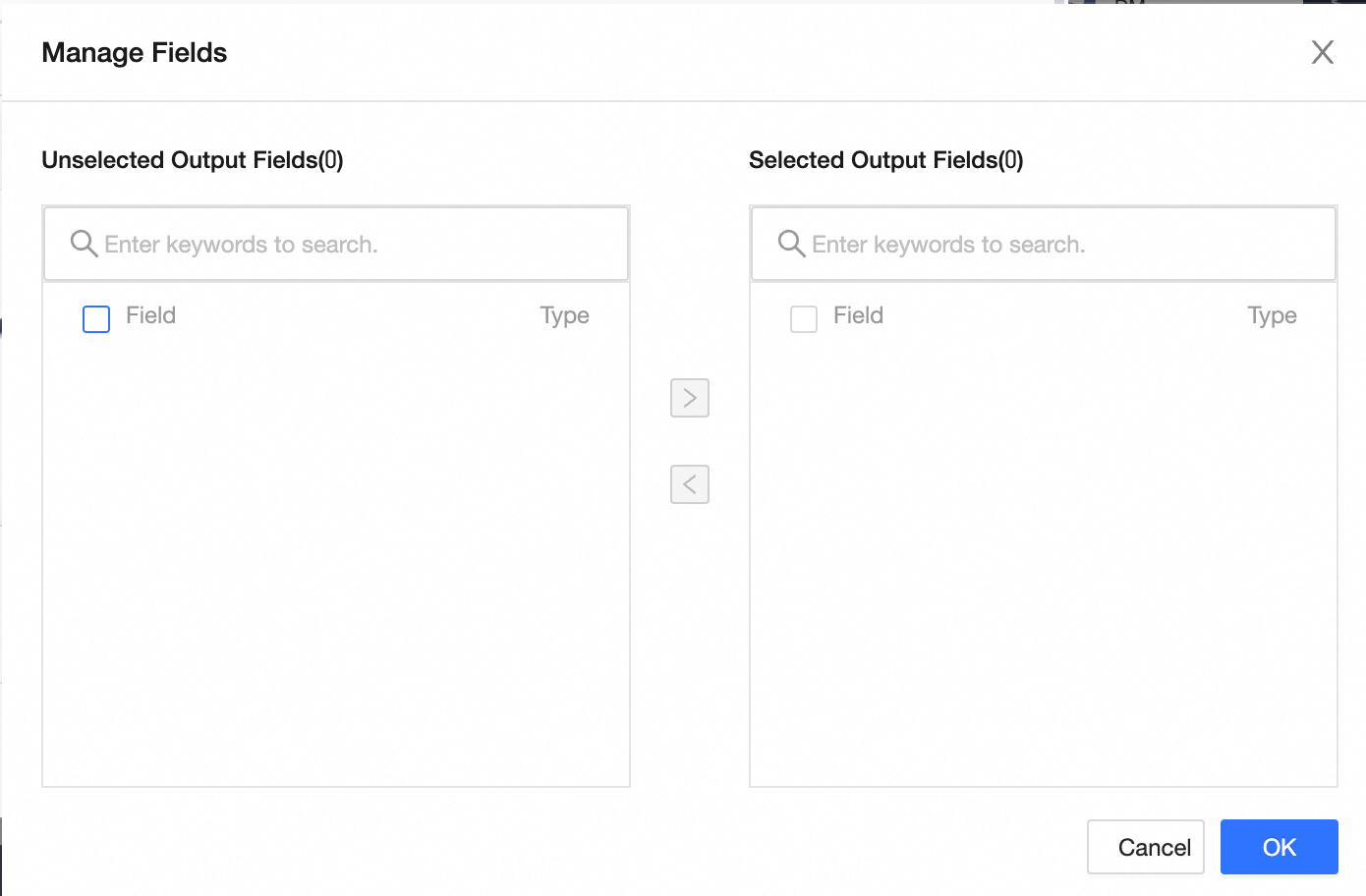
Click the
 icon to move the Selected Input Fields to Unselected Input Fields.
Click the
 icon to move the Unselected Input Fields to Selected Input Fields.
Mapping relationship
Map upstream fields to target table fields manually, or use Quick Mapping (Row Mapping or Name Mapping).
Name Mapping: Maps fields with the same field name.
Row Mapping: Maps fields by row position when source and target field names differ.
Click OK.