The filter component filters input fields from an upstream component and outputs the results to a downstream component. This topic describes how to configure the filter component.
Procedure
In the top navigation bar of the Dataphin homepage, choose Develop > Data Integration.
In the top navigation bar of the Data Integration page, select a project. If you are in Dev-Prod mode, you also need to select an environment.
In the left-side navigation pane, click Batch Integration. In the Batch Integration list, click the batch pipeline you want to develop to open its configuration page.
In the upper-right corner of the page, click Component Library to open the Component Library panel.
In the left-side navigation pane of the Component Library panel, select Transform. In the list of components on the right, find the filter component and drag it onto the canvas.
Drag the
 icon from an upstream component or a downstream component to the filter component to connect them.
Click the
 icon on the filter component card to open the Transform-Filter Configuration dialog box.
In the Transform-Filter Configuration dialog box, configure the following parameters.
Can only contain Chinese characters, letters, underscores (_), and digits.
Cannot exceed 64 characters in length.
Logical operators: Use
&&for AND and||for OR. The keywordsandandorare not supported.Null values: Use
col == nilfor null andcol != nilfor not null.Equality: Use
==for comparison. The=operator is not supported.Text matching (The
LIKEfunction is not available)Contains:
string.indexOf(col,'xx') > -1Does not contain:
string.indexOf(col,'xx') <= -1Starts with:
string.startsWith(col,'xx')Ends with:
string.endsWith(col,'xx')
Enclose strings and dates in single quotation marks (').
Click OK to finish configuring the filter component.
Parameter | Description |
Step name | The name of the filter component. Dataphin automatically generates a step name, which you can modify based on your business needs. The naming rules are as follows: |
Input fields | Displays the input fields based on the output of the upstream component. If a field name includes a table name, the table name is also displayed. |
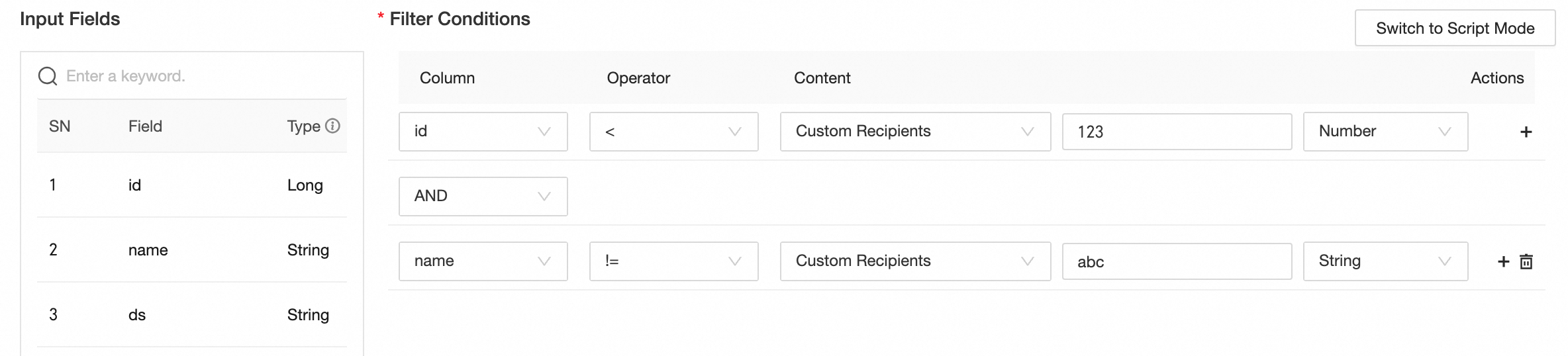
Filter condition | You can set the condition in script mode or UI mode. Script mode: Set filter conditions by using a script. You do not need to enter WHERE. Directly enter the content that follows the WHERE clause. For example, UI mode: Use the graphical interface to set the filter condition. Configure the field, operator, and value in sequence. If a field name includes a table name, the table name is also displayed. Supported filter condition operators include =, !=, >, >=, <, <=, LIKE, NOT LIKE, IS NULL, IS NOT NULL, START WITH, and END WITH. You can combine multiple conditions by using the AND and OR logical operators. For example, if your input fields are Important The LIKE operator does not support using the percent sign (%) as a wildcard. It only matches data that contains the specified characters. To filter based on the start or end of a string, use the START WITH and END WITH operators. For example, |