The StarRocks Output Component writes data to a StarRocks data source. To synchronize data to StarRocks, first configure the source, then configure the StarRocks Output Component for the destination.
Prerequisites
A StarRocks data source is created. For more information, see Create a StarRocks data source.
The account used for configuration must have data synchronization write permission for the data source. If you do not have the required permission, you must request it. For more information, see Request, renew, and return data source permissions.
Data Latency With stream load
When using stream load to import data into a StarRocks database, a task can return several statuses. The Publish Timeout status indicates the task succeeded, but query results may be delayed.
Success: The data is imported and visible.
Publish Timeout: The import is committed, but the data is not immediately visible. This job is considered successful, and a retry is not required.
Label Already Exists: The label is already in use by another job, which may be running or may have already succeeded.
Fail: The import failed. You can retry the job with the same label.
Procedure
In the top navigation bar of the Dataphin homepage, choose Development > Data Integration.
In the top navigation bar of the Data Integration page, select a Project. If you are using the Dev-Prod mode, you must also select an environment.
In the left-side navigation pane, click Batch Synchronization. In the Batch Synchronization list, click the desired batch synchronization task to open its configuration page.
In the upper-right corner of the page, click component library to open the component library panel.
In the left-side navigation pane of the component library panel, select writer. Find the StarRocks component in the list on the right and drag it to the canvas.
Click and drag the
 icon on the source component to connect it to the StarRocks writer.
Click the
 icon on the StarRocks writer card to open the StarRocks writer configuration dialog box.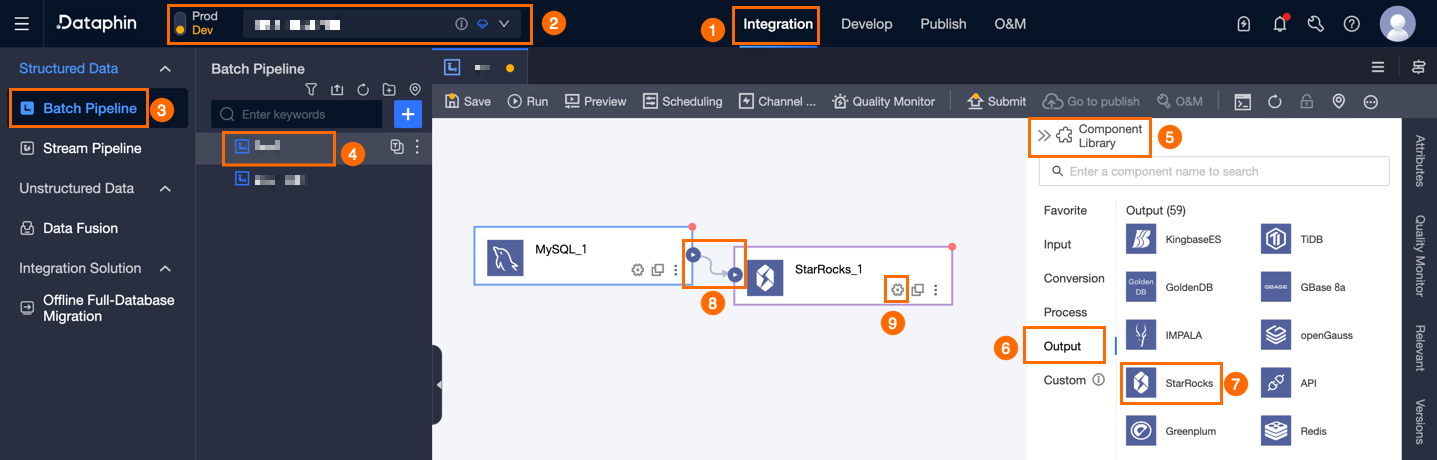
In the StarRocks writer configuration dialog box, configure the following parameters.
Parameter
Description
Basic settings
step name
The name of the StarRocks writer step. Dataphin generates a default step name, which you can change as needed.
It can contain only Chinese characters, letters, underscores (_), and digits.
It must be 64 characters or less in length.
data source
From the drop-down list, select a StarRocks data source. The list includes all available StarRocks data sources, regardless of whether you have data synchronization write permission. To copy the current data source name, click the
 icon.
icon.If you lack data synchronization write permission for a data source, click Request to apply for it. For more information, see Request data source permissions.
If you do not have a StarRocks data source, click New Data Source to create one. For more information, see Create a StarRocks data source.
table
Select a destination table for the output data. You can search for a table by entering a keyword, or enter the exact table name and click exact match. After you select a table, the system automatically checks its status. To copy the name of the selected table, click the
 icon.
icon.If a destination table does not exist in the StarRocks data source, you can use the one-click table creation feature to quickly create one. Follow these steps:
Click one-click table creation. Dataphin automatically generates an SQL script to create the destination table. The script includes a table name (source table name by default) and converts Dataphin field types to compatible destination types.
You can modify the SQL script as needed, and then click Create. Once created, Dataphin automatically uses it as the destination.
NoteIf a table with the same name already exists in the development environment, an error occurs when you click Create.
If no match is found, you can still perform integration by manually entering a table name.
Views cannot be selected in copy mode.
policy for handling missing production tables
Specifies the policy for handling cases where a table does not exist in the production environment. You can select Do Nothing or Auto Create. The default value is Auto Create. If you select Do Nothing, no table is created when the task is published. If you select Auto Create, a table with the same name is created in the destination environment when the task is published.
Do Nothing: If the destination table does not exist, a warning appears upon task submission, but publishing is not blocked. You must manually create the table in the production environment before the task can run.
Auto Create: You must Edit DDL Statement. A DDL statement for the selected table is automatically provided, which you can modify. The table name in the DDL statement must be the
${table_name}placeholder. This placeholder is replaced with the actual table name at runtime.If the destination table does not exist, the system creates it by using the DDL statement. If the creation fails, the pre-publish check fails. You can then modify the DDL statement based on the error message and publish the task again. If the destination table already exists, the DDL statement is not executed.
NoteThis parameter is available only in Projects that use the Dev-Prod mode.
data format
You can select CSV or JSON.
If you select CSV, you must also configure CSV import column delimiter and CSV import row delimiter.
CSV import column delimiter (Optional)
Specifies the column delimiter for importing CSV files with stream load. The default is
_@dp@_. If your data contains the_@dp@_string, you must use a different delimiter.CSV import row delimiter (Optional)
Specifies the row delimiter for importing CSV files with stream load. The default is
_#dp#_. If your data contains the_#dp#_string, you must use a different delimiter.batch write (Optional)
When Enabled, data is written to the destination in batches. The system submits batches based on the batch write size and batch size (records) to reduce the pressure of a single write operation and avoid oversized transactions. When Disabled, data is written in a single operation, which may consume more memory and increase the risk of write failures.
batch write size (Optional)
The maximum size of a single data batch, with a default of 32 MB. Data is written when either the batch write size or batch size (records) limit is reached.
batch size (records) (Optional)
The default value is 2,048. Data synchronization uses a batch write strategy based on the batch size (records) and batch write size parameters.
When the accumulated data reaches either the specified size or record count, the system considers the batch complete and writes it to the destination.
A batch write size of 32 MB is recommended. Adjust the batch size (records) based on your average record size. For example, to fully utilize a 16 MB batch write size when each record is 1 KB, the batch size (records) should be at least 16,384. Setting it to 20,000 ensures that the batch write is triggered by reaching the 16 MB size limit, not the record count.
pre-SQL statement (Optional)
An SQL script to execute on the database before the data import.
For example, to maintain service availability, use a pre-SQL statement to create a temporary table (
Target_A). After data is written toTarget_A, a post-SQL statement can atomically swap the tables: rename the live table (Service_B) toTemp_C, renameTarget_AtoService_B, and then dropTemp_C.post-SQL statement (Optional)
An SQL script to execute on the database after the data import.
field mapping
Input fields
Displays fields from the upstream component.
Output fields
Displays the fields to be written to the destination. You can perform the following operations:
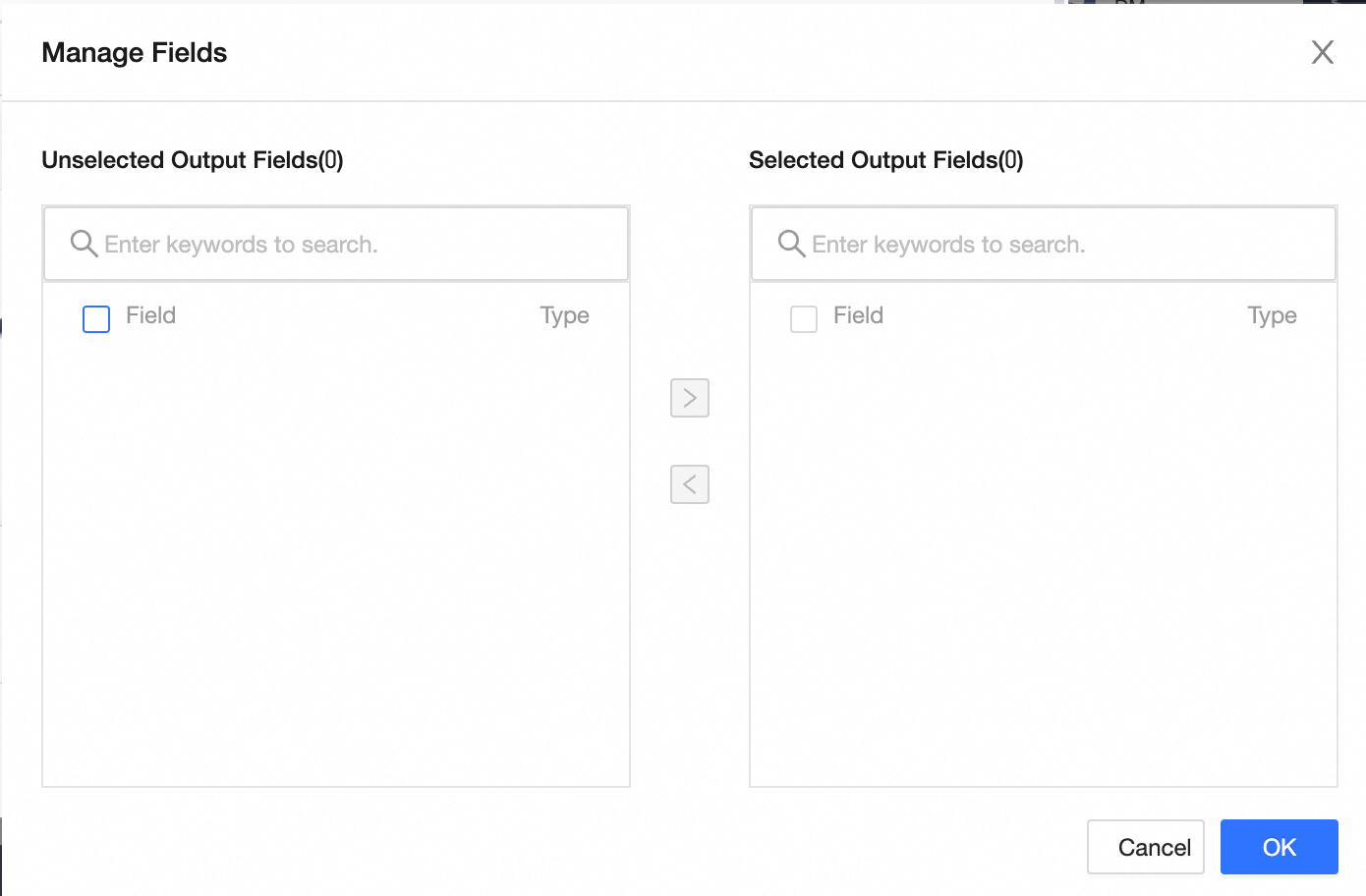
Field management: Click Field management to select output fields.
Click the
 icon to move fields from Selected input fields to Unselected input fields.
Click the
 icon to move fields from Unselected input fields to Selected input fields.
batch add: Click batch add to add multiple fields at once using JSON, TEXT, or DDL format.
Example of JSON format:
// Example: [{ "name": "user_id", "type": "String" }, { "name": "user_name", "type": "String" }]Notenamespecifies the imported field name, andtypespecifies the field type after import. For example,"name":"user_id","type":"String"imports a field named user_id and sets its type to String.Example of TEXT format:
// Example:
user_id,String
user_name,String
The row delimiter separates each field definition. The default is a newline character (\n). You can also use a semicolon (;) or a period (.).
The column delimiter separates the field name and field type. The default is a comma (,).
Example of DDL format:
CREATE TABLE tablename (
    id INT PRIMARY KEY,
    name VARCHAR(50),
    age INT
);
New output field: Click + New output field, enter a Field name, and select a Type. After you configure the row, click the
 icon to save.
mapping method
You can manually map fields based on the upstream input and destination table fields. The mapping method options are map by name and map by position.
map by name: Maps fields that have the same name.
map by position: Maps fields by their sequential order. Use this method when source and destination field names differ, but their order corresponds.
Click OK to save the StarRocks writer configuration.