Configure the Amazon S3 output component to write data from an external database to Amazon S3, or to copy and push data from a connected storage system to the big data platform for data integration and reprocessing. This topic explains the configuration process for the Amazon S3 output component.
Prerequisites
An Amazon S3 data source has been created. For more information, see Create an Amazon S3 data source.
To configure the Amazon S3 output component properties, the account must have read-through permission for the data source. If you lack this permission, you need to request it. For more information, see Apply for, Renew, and Return Data Source Permissions.
Procedure
On the Dataphin home page, select Development > Data Integration from the top menu bar.
In the integration page's top menu bar, select Project (Dev-Prod mode requires selecting the environment).
In the navigation pane on the left, click Batch Pipeline. On the Batch Pipeline list, click the offline pipeline you want to develop to open its configuration page.
Click Component Library in the upper right corner of the page to open the Component Library panel.
In the Component Library panel's left-side navigation pane, select Output. Then, in the right-side list of output components, find the Amazon S3 component and drag it to the canvas.
Click and drag the
 icon from the target upstream component to connect it to the Amazon S3 output component.
Click the
 icon on the card for the Amazon S3 output component to open the Amazon S3 Output Configuration dialog box.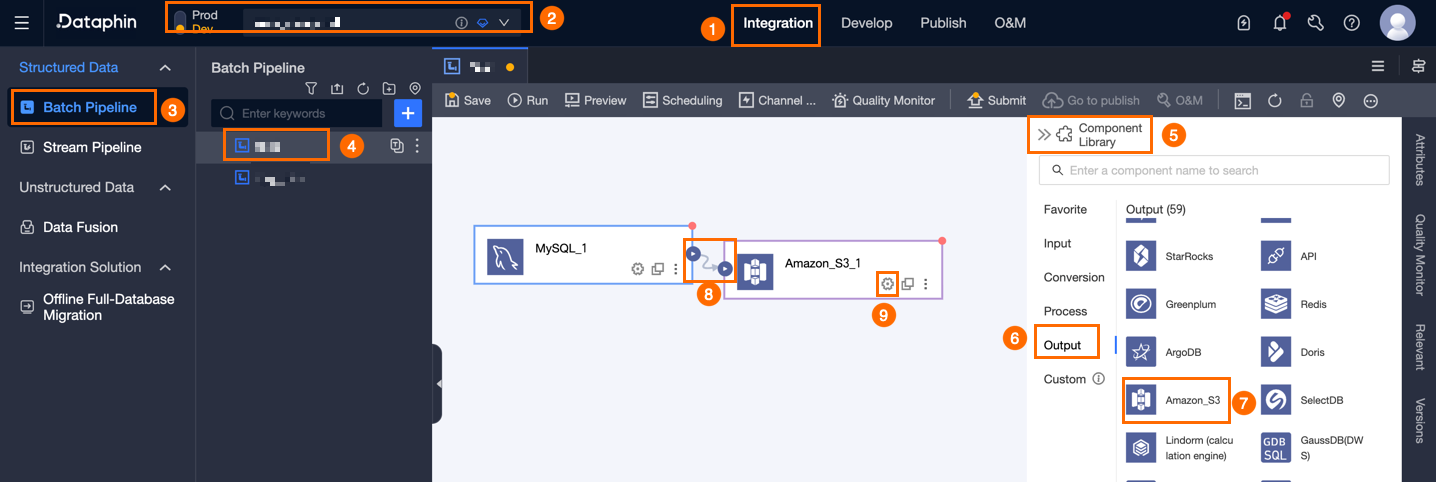
In the Amazon S3 Output Configuration dialog box, set the parameters as outlined in the following table.
Parameter
Description
Basic settings
Step Name
This is the name of the Amazon S3 output component. Dataphin automatically generates the step name, but you can modify it according to your business scenario. The naming convention is as follows:
It can only contain Chinese characters, letters, underscores (_), and numbers.
It cannot exceed 64 characters.
Datasource
The data source drop-down list displays all Amazon S3 type data sources, including those for which you have write-through permission and those for which you do not. Click the
 icon to copy the current data source name.
For data sources without write-through permission, you can click Request after the data source to request write-through permission. For more information, see Apply for, Renew, and Return Data Source Permissions.
If you do not have an Amazon S3 type data source, click Create Data Source to create a data source. For more information, see Create an Amazon S3 data source.
File Type
Select the file type to which the data is converted for storage. File Type includes Text and CSV.
File Encoding
Select the codec for file storage in the target data source. File Encoding includes UTF-8 and GBK.
Object Prefix
Fill in the Object Prefix information for the Amazon S3 object. An object is the basic unit of data storage in Amazon S3, also known as an Amazon S3 file. An object consists of metadata, user data, and a key. The key uniquely identifies the object within the bucket. If a directory is configured in the data source, it will automatically display here. You can modify it, but please ensure you have permission for other directories, otherwise, the task will fail.
Prefix Conflict
The execution policy when an object prefix conflict occurs. It supports replacing the original file, appending to the original file, or reporting an error when a conflict occurs.
Replace the original file: Clear all objects that match the specified object prefix before writing. For example, if the object prefix is Dataphin, all objects starting with Dataphin will be cleared.
Append to the original file: No processing is performed before writing. The configured object prefix is directly used for writing, and a random UUID suffix is used to ensure that the file name does not conflict.
Report an error when a conflict occurs: If an object that matches the specified prefix appears in the specified path, an error is reported directly. For example, if the object prefix is Dataphin and there is an object named Dataphin, an error will be reported directly.
Number Of Files To Write
The file writing policy for the target Amazon S3. It supports writing to a single file or multiple files.
Single file: Write to a single file on the target Amazon S3.
Multiple files: Data is written to multiple files in the destination Amazon S3 service. You must also configure the suffix format. You can generate a sequence suffix, such as
_0,_1, or_2. You can also generate a random UUID suffix. The number of files is the same as the concurrency of the node.NoteWhen you write data to multiple files, a suffix is generated even if the node concurrency is set to 1. The suffix can be
_1or a randomuuidsuffix.When the prefix conflict policy is to append to the original file, only a UUID random number suffix can be generated.
Advanced configuration
Column Delimiter
Use a column delimiter to write to the target table. If not specified, the default is a comma (,).
Row Delimiter
Use a row delimiter to write to the target table. If not specified, the default is a line feed (\n).
Null Value
Optional. Represents the string for NULL values.
File Name Extension
You can specify a file name extension, such as
.csvor.text, as the final suffix of the object. If you leave this parameter empty, no suffix is added.Is output field name
Select Yes to use the field name of the upstream component as the first line of the output file. Select No to not output the field name.
Field mapping
Input Field
Displays the output fields of the upstream input component.
Output Field
Displays the output fields. Dataphin supports configuring output fields by Batch Add and Create New Output Field:
Batch Add: Click Batch Add to support batch configuration in JSON or TEXT format.
Batch configuration in JSON format, for example:
// Example: [{"name": "user_id","type": "String"}, {"name": "user_name","type": "String"}]Notename specifies the name of the imported field, and type specifies the data type of the field after it is imported. For example,
"name":"user_id","type":"String"specifies that the field named user_id is imported and its data type is set to String.Batch configuration in TEXT format, for example:
// Example:
user_id,String
user_name,String
The row delimiter is used to separate each field's information. The default is a line feed (\n). It supports line feed (\n), semicolon (;), and period (.).
The column delimiter is used to separate the field name and field type. The default is a comma (,).
Create New Output Field.
Click + Create New Output Field and fill in Column and select Type according to the page prompts.
Copy upstream field.
Click Copy Upstream Field. The system will automatically generate output fields based on the upstream field names.
Manage output fields.
You can also perform the following operations on the added fields:
Click the Actions column's
 icon to edit the existing fields.
Click the Actions column
 icon to delete the existing field.
Mapping
The mapping relationship is used to map the input fields of the source table to the output fields of the target table, facilitating subsequent data synchronization. The mapping relationship includes same-name mapping and same-row mapping. The applicable scenarios are described as follows:
Same-name Mapping: Map fields with the same field name.
Same-row Mapping: The field names of the source table and target table are inconsistent, but the data in the corresponding rows of the fields need to be mapped. Only fields in the same row are mapped.
Click Confirm to finalize the configuration of the Amazon S3 output component.