You can write data from an external database into ArgoDB, or transfer and synchronize data from a connected storage system to ArgoDB for integration and reprocessing.
Limits
The ArgoDB output widget supports writing to ArgoDB data tables in ORC, Parquet, text, and holedesk formats. ORC-format transactional tables are not supported.
Prerequisites
Before you begin, make sure that you have completed the following:
An ArgoDB data source has been created. For more information, see Create an ArgoDB data source.
The account used to configure the ArgoDB output component must have read-through permission for the data source. If you do not have the required permissions, request access to the data source. For more information, see Apply for, Renew, and Return Data Source Permissions.
Procedure
On the Dataphin home page, select Development > Data Integration from the top menu bar.
On the integration page's top menu bar, select Project (Dev-Prod mode requires selecting an environment).
In the navigation pane on the left, click Offline Integration. In the Offline Integration list, click the desired Offline Pipeline to open its configuration page.
Click Component Library in the upper right corner of the page to open the Component Library panel.
In the Component Library panel's left-side navigation pane, select Output. Find the ArgoDB widget in the output widget list on the right and drag it onto the canvas.
Click and drag the
 icon from the target upstream widget to connect it to the ArgoDB output widget.
Click the
 icon on the ArgoDB output component card to open the ArgoDB Output Configuration dialog box.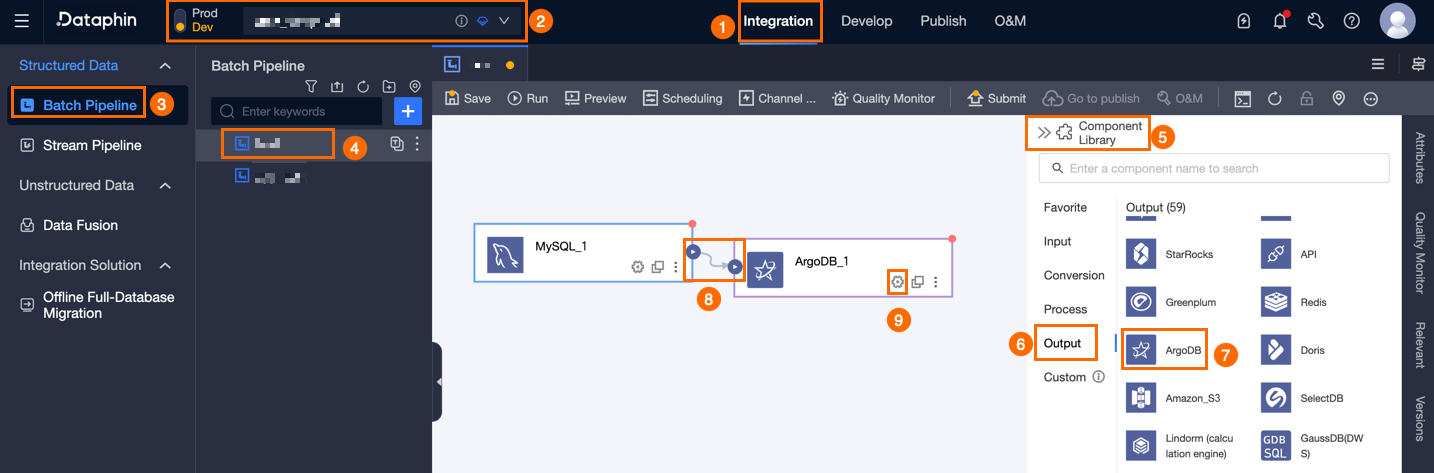
In the ArgoDB Output Configuration dialog box, set the parameters as outlined in the table below.
Parameter
Description
Basic Settings
Step Name
The name of the ArgoDB output widget. Dataphin automatically generates the step name, but you can modify it as needed. The naming rules are as follows:
Can only contain Chinese characters, letters, underscores (_), and numbers.
Cannot exceed 64 characters.
Datasource
The dropdown list displays all ArgoDB-type data sources, including those you have write-through permission for and those you do not. Click the
 icon to copy the data source name.
For data sources without write-through permission, click Request next to the data source to request write-through permission. For more information, see Apply for, Renew, and Return Data Source Permissions.
If you do not have an ArgoDB-type data source, click Create Data Source to create one. For more information, see Create an ArgoDB Data Source.
Table
Select the target data table based on your requirements. Click the
 icon to copy the table name.Important
If the table schema changes, you need to reconfigure the pipeline task.
File Encoding
Select the encoding format based on your data. Supported formats: UTF-8 and GBK.
Loading Policy
Overwrite Data: Uses the source table data to overwrite historical data in the target table. When a primary key or constraint violation occurs, the original data is deleted first, and then the new row is inserted.
Append Data: Appends data to the target table without modifying historical data. When a primary key or constraint violation occurs, a dirty data error is reported. The append data policy does not support merging.
Compression Format
Optional. If the file is compressed, select the compression format so that Dataphin can decompress it.
Field Separator
The separator used when writing data to the target data source. Default: \u0001.
Preparation Statement
An SQL script to run on the database before data import. Maximum length: 128 characters.
End Statement
An SQL script to run on the database after data import. Maximum length: 128 characters.
Field Mapping
Input Field
Displays the input fields based on the output of the upstream widget.
Output Field
Displays all fields of the selected table. To exclude fields from the downstream output, delete them:
To delete a few fields, click the
 icon in the Actions column.
To delete many fields, you can click Field Management, select multiple fields on the Field Management page, and then click the
 icon to move the Selected Input Fields to Unselected Input Fields.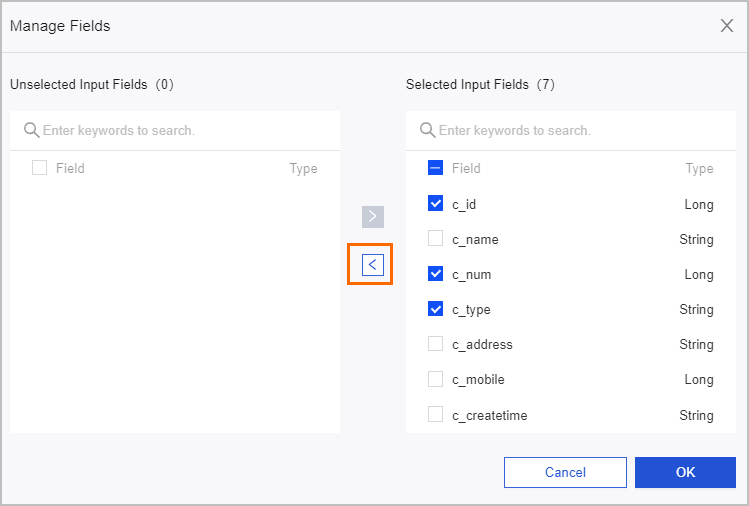
Mapping
Maps input fields from the source table to output fields of the target table. Two mapping modes are supported:
Same-name Mapping: Maps fields with the same field name.
Same-row Mapping: Maps fields by their row position when the source and target field names are inconsistent. Only fields in the same row are mapped.
Click Confirm to complete the ArgoDB output widget configuration.