The MaxCompute output component writes data to a MaxCompute data source. Configure this component to define how data is written when you synchronize it from a source to a MaxCompute target.
Procedure
In the top navigation bar of the Dataphin homepage, choose Develop > Data Integration.
In the top navigation bar of the data integration page, select a project. In Dev-Prod mode, you must also select an environment.
In the left-side navigation pane, click Offline Integration. In the Offline Integration list, click the offline pipeline you want to develop.
In the upper-right corner of the page, click Component Library to open the Component Library panel.
In the left-side navigation pane of the Component Library panel, select Output. Find the MaxCompute component in the list on the right and drag it onto the canvas.
Click and drag the
 icon from the source component to connect it to the MaxCompute output component.
Click the
 icon on the MaxCompute output component card to open the MaxCompute Output Configuration dialog box.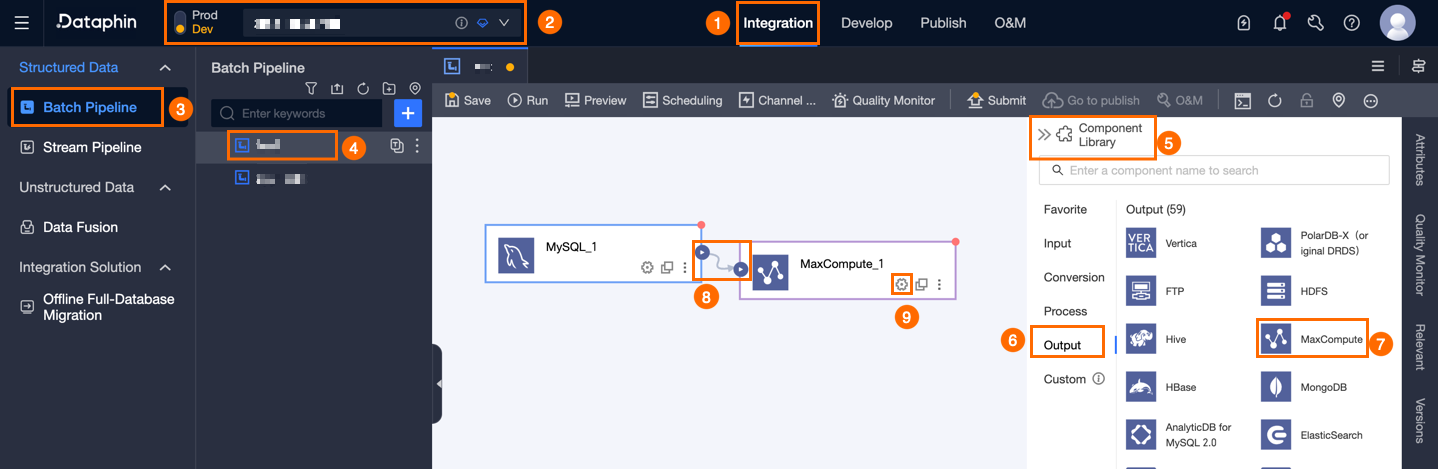
In the MaxCompute Output Configuration dialog box, configure the parameters.
Parameter
Description
Basic Settings
Step name
A custom name for the component. Dataphin automatically generates a step name, which you can customize. The name must meet the following requirements:
Can contain only Chinese characters, letters, underscores (_), and digits.
Cannot exceed 64 characters.
Data source
In the Data Source drop-down list, select the target MaxCompute data source. The list displays all MaxCompute data sources, including those for which you have or do not have sync write permissions. You can click the
 icon to copy the data source name.
If you lack sync write permissions for a data source, click Apply to request them. For details, see Apply for, renew, and release data source permissions.
If you do not have a MaxCompute data source, click Create a MaxCompute data source to create one. For details, see Create a MaxCompute data source.
Table
Select the target table for the output data. If the target table does not exist, you can use the one-click table creation feature to create it. The following steps describe how to do this:
Click One-click Table Creation.
Select Regular Table or Delta table. The default is Regular Table. Switching the table format updates the DDL statement in the code editor below.
Dataphin automatically generates a DDL statement for the target table. The statement includes a table name (defaulting to the source table name) and field types (converted from Dataphin's data types). You can modify the SQL script as needed and then click Create. Dataphin then sets the newly created table as the target.
Missing production table policy
Specifies the action to take if the production table does not exist. You can select Do nothing or auto-create. The default is auto-create. If you select Do nothing, the production table is not created when the task is published. If you select auto-create, a table with the same name is created in the target environment when the task is published.
Do nothing: If the target table does not exist, a warning is displayed upon submission, but the task can still be published. You must manually create the target table in the production environment before the task can run.
Auto-create: You must edit the table creation statement. A default DDL statement for the selected table is provided, which you can modify. The table name in the statement must use the
${table_name}placeholder, which is the only placeholder supported for the table name. It is replaced with the actual table name at runtime.If the target table does not exist, the system attempts to create it using the provided statement. If table creation fails, the publication check fails. You can then modify the statement based on the error message and try to publish again. If the target table already exists, the creation statement is not executed.
NoteThis parameter is available only in projects that use Dev-Prod mode.
Load policy
Specifies how data is written to the target MaxCompute table. The available load policies are:
Overwrite data: Replaces all existing data in the target table with the new data from the source.
Append data: Adds the new data to the target table without modifying existing data. This option is available only for regular tables.
Update data: If a primary key conflict occurs, the existing record is updated with the new data from the mapped fields. This option is available only for Delta tables.
Partition
If you select a partitioned table, you must specify the target partition. For example, you can use a static value such as
ds=20230101or a system parameter such asds=${bizdate}.To enable a dynamic partition, add the
/*dynamic*/keyword before the partition specification. This allows you to use values from source fields to determine the partition for each row. For example, in/*dynamic*/ds=$date,dateis a field from the source. You can also combine parameters and source fields, as in/*dynamic*/ds=${bizdate},hh = $hour, wherebizdateis a parameter andhouris a source field.ImportantThe maximum number of dynamic partitions is 10,000. We recommend that you create no more than 1,000 to avoid long execution times or failures.
SET statement (Optional)
This parameter is effective only when you write data to dynamic partitions. When you write a large volume of data to many dynamic partitions, the system first writes to a temporary table and then uses SQL to insert the data into the final table. This process can generate an excessive number of small files and cause the SQL execution to fail. To improve task stability and efficiency, configure SET statements to optimize resource parameters before the data is loaded into the final table.
For more information about SET statements, see MaxCompute flag parameters. The following are examples:
Set the memory for each Map worker:
set odps.stage.mapper.mem=1024 MB.Set the memory for each Reduce worker:
set odps.stage.reducer.mem=1024 MB.Set the split size for a single Mapper:
set odps.stage.mapper.split.size=256 MB.Set the number of concurrent Reducers:
set odps.stage.reducer.num=64.
Pre-statement (Optional)
An SQL script to execute on the database before the data import begins.
For example, to ensure continuous service availability when updating a production table, you can use a pre-statement to create a temporary table that will receive the new data during the write operation.
Post-statement (Optional)
An SQL script to execute on the database after the data import is complete. For example, after data is written to a temporary table, you can use a post-statement to atomically swap the temporary table with the production table using a sequence of
RENAMEandDROPstatements.Field mapping
Input fields
Lists the input fields from the upstream component.
Output fields
Lists all fields from the selected target table. To exclude fields from the data write, you can remove them:
To remove a single field, click the
 icon in its Actions column.
To remove multiple fields at once, click Field Management. In the Field Management panel, select the fields to remove and click the
 icon to move them from the Selected Input Fields list to the Unselected Input Fields list.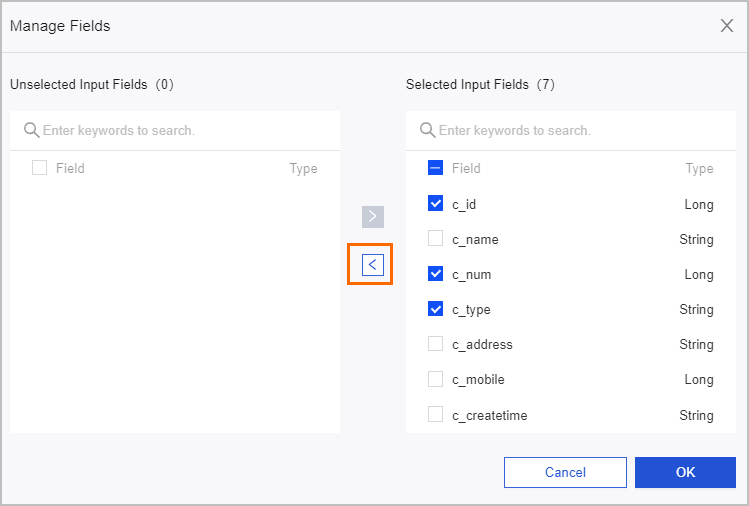
Mapping method
Defines how input fields are mapped from the source to output fields in the target. The available mapping methods are:
Map by name: Maps fields that have the same name.
Map by position: Maps fields based on their order (position). Use this method when source and target field names differ, but their data is arranged in the same column order.
Click Confirm to save the configuration for the MaxCompute output component.