The PostgreSQL output component writes data to a PostgreSQL data source. When syncing data from another source to PostgreSQL, configure the target data source in the PostgreSQL output component after setting up the source data.
Prerequisites
You have created a PostgreSQL data source. For more information, see Create a PostgreSQL data source.
The account used to configure the PostgreSQL output component must have write-through permission on the data source. If you do not have this permission, request it. For more information, see Apply for, Renew, and Return Data Source Permissions.
Procedure
On the Dataphin homepage, in the top menu bar, click Development, and then click Data Integration.
On the integration page, in the top menu bar, select a project. In Dev-Prod mode, also select an environment.
In the left navigation pane, click Offline Integration. In the Offline Integration list, click the offline pipeline that you want to develop to open its configuration page.
In the upper-right corner of the page, click Component Library to open the Component Library panel.
In the left navigation pane of the Component Library panel, click Output. In the output component list on the right, locate the PostgreSQL component and drag it onto the canvas.
Click and drag the
 icon from the target input widget to the PostgreSQL output widget.
On the PostgreSQL output component card, click the
 icon to open the PostgreSQL Output Configuration dialog box.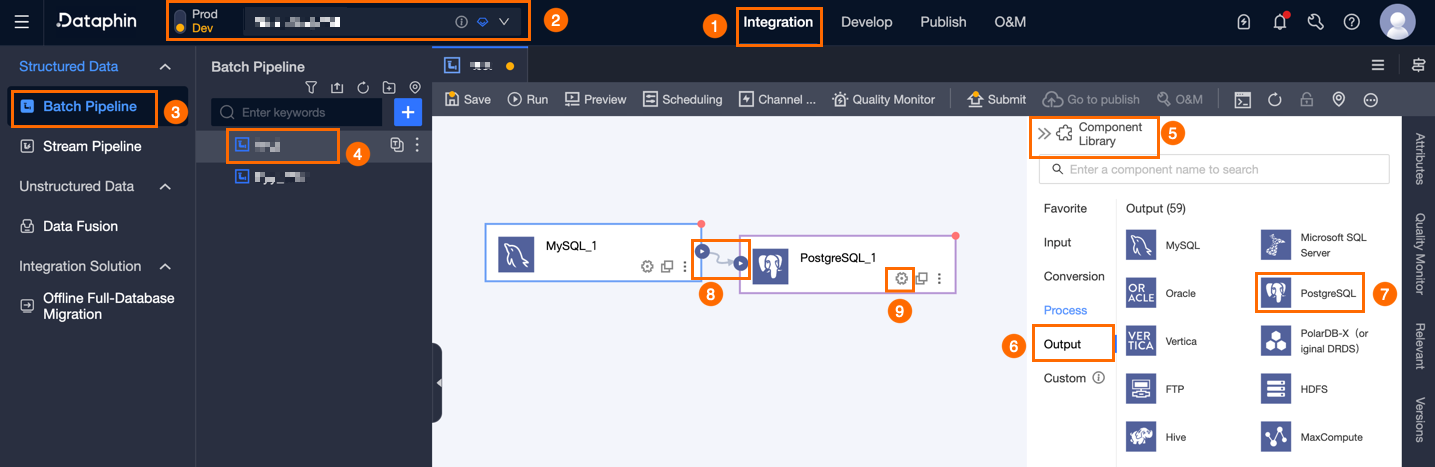
In the PostgreSQL Output Configuration dialog box, configure the following parameters.
Parameter
Description
Basic Settings
Step Name
The name of the PostgreSQL output component. Dataphin automatically generates a step name, which you can modify. The naming convention is as follows:
Can contain only letters, digits, underscores (_), and Chinese characters.
Must be no longer than 64 characters.
Datasource
The drop-down list shows all PostgreSQL-type data sources, regardless of whether you have write-through permission. Click the
 icon to copy the current data source name.
For data sources without write-through permission, click Request next to the data source to apply for write-through permission. For more information, see Apply for, Renew, and Return Data Source Permissions.
If you do not have a PostgreSQL-type data source, click the
 New icon to create one. For more information, see Create a PostgreSQL data source.
Time Zone
Dataphin processes time-formatted data based on the current time zone. By default, this is the time zone of the selected data source and cannot be changed.
NoteFor tasks created before version V5.1.2, you can choose either Data Source Default Configuration or Channel Configuration Time Zone. The default selection is Channel Configuration Time Zone.
Data Source Default Configuration: The default time zone of the selected data source.
Channel Configuration Time Zone: The time zone configured under Properties > Channel Configuration for the current integration task.
Schema (optional)
Select the schema where the table resides to enable cross-schema table selection. If not specified, the schema configured in the data source is used by default.
Table
Select the target table for output data. You can enter a keyword to search for tables or enter the exact table name and click Exact Search. After selecting a table, Dataphin automatically checks its status. Click the
 icon to copy the selected table name.
If the target table does not exist in the MySQL data source, you can use the one-click table creation feature to create the target table quickly and easily. The detailed procedure is as follows:
Click One-Click Table Creation. Dataphin automatically generates SQL code to create the target table, including the table name (defaulting to the source table name) and field types (preliminarily converted based on Dataphin fields).
Modify the SQL script as needed for your business scenario, then click Create. After successful creation, Dataphin automatically sets the new table as the output target.
NoteIf a table with the same name already exists in the development environment, Dataphin returns an error when you click Create.
If no matching table is found, you can still proceed by manually entering a table name.
Production Table Missing Policy
The action to take if the production table does not exist. Options are Do Nothing or Automatic Creation. The default is Automatic Creation. If you select Do Nothing, the system skips table creation during task publishing. If you select Automatic Creation, the system creates a table with the same name in the target environment during publishing.
Do Nothing: If the target table does not exist, the system displays a warning during submission but allows publishing. You must manually create the target table in the production environment before running the task.
Automatic Creation: You must Edit Table Creation Statement. The system pre-fills the statement based on the selected table, which you can adjust. Use the placeholder
${table_name}for the table name—this is the only supported format. The system replaces it with the actual table name at runtime.If the target table does not exist, the system attempts to create it using the provided statement. If creation fails, publishing fails, and you must correct the statement and republish. If the table already exists, no creation occurs.
NoteThis setting is available only for projects in Dev-Prod mode.
Loading Policy
Specify how data is written to the target table. Options:
Append Data (INSERT INTO): Reports a dirty data error if a primary key or constraint violation occurs.
Update on Primary Key Conflict (ON CONFLICT DO UPDATE SET): Updates mapped fields in existing records when a primary key or constraint violation occurs.
Synchronous Write
The primary key update syntax is not an atomic operation. If your data contains duplicate primary keys, enable synchronous write. Otherwise, use parallel write. Synchronous write has lower performance than parallel write.
NoteThis option is available only when Update on Primary Key Conflict is selected as the loading policy.
Batch Write Data Volume (optional)
The amount of data written in a single batch. You can also set Batch Write Record Count. The system writes data as soon as either limit is reached. The default is 32 MB.
Batch Write Record Count (optional)
Default: 2,048 records. During data synchronization, Dataphin uses a batch-write strategy governed by two parameters: Batch Write Record Count and Batch Write Data Volume.
When the accumulated data reaches either limit (record count or data volume), the system considers the batch full and immediately writes it to the target.
We recommend setting the batch data volume to 32 MB. Adjust the record count based on your average record size to maximize batch efficiency. For example, if each record is about 1 KB, set the batch data volume to 16 MB and the record count to more than 16,384 (16 MB ÷ 1 KB). Setting it to 20,000 records ensures the system triggers writes based on data volume—every time 16 MB accumulates, a write occurs.
Preparation Statement (optional)
An SQL script executed on the database before data import.
For example, to maintain service availability, you might create a temporary table Target_A before writing data, write to Target_A, then rename the live table Service_B to Temp_C, rename Target_A to Service_B, and finally delete Temp_C.
Completion Statement (optional)
An SQL script executed on the database after data import.
Field Mapping
Input Fields
Displays input fields based on upstream output.
Output Fields
Displays output fields. You can perform the following actions:
Field Management: Click Field Management to select output fields.
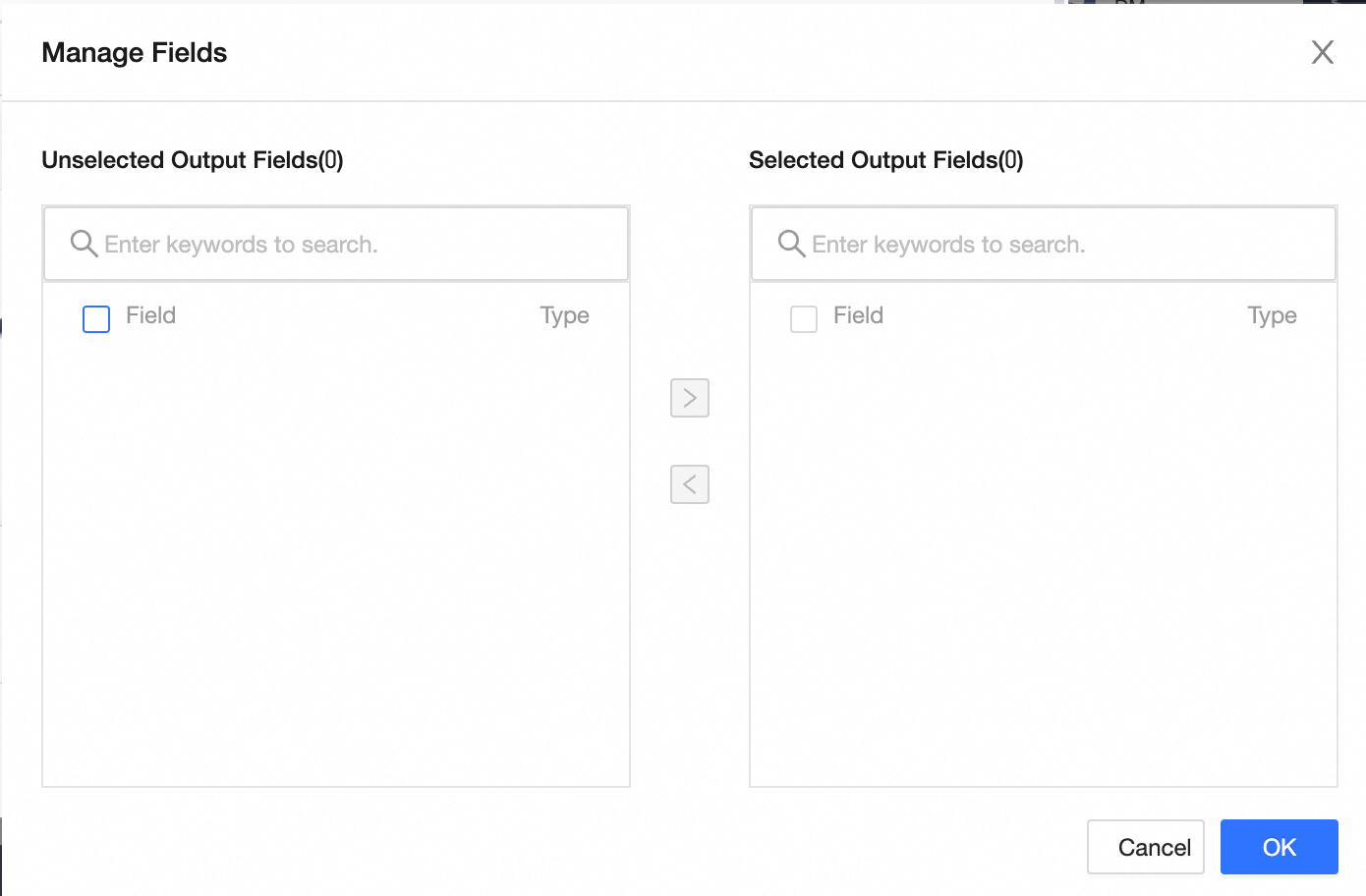
Click the
 icon to move a Selected Input Field to Unselected Input Fields.
Click the
 icon to move an Unselected Input Field to Selected Input Fields.
Batch Add: Click Batch Add to configure fields in JSON, TEXT, or DDL format.
Perform batch configuration in JSON format. For example:
// Example: [{ "name": "user_id", "type": "String" }, { "name": "user_name", "type": "String" }]Notenamespecifies the name of the imported field, andtypespecifies the data type of the field after it is imported. For example,"name":"user_id","type":"String"imports the field nameduser_idand sets its data type toString.TEXT format example:
// Example:
user_id,String
user_name,String
Row delimiter separates field entries. Default: line feed (\n). Supported delimiters: line feed (\n), semicolon (;), and period (.).
Column delimiter separates field names from types. Default: comma (,).
Configure multiple objects at once in DDL format, such as:
CREATE TABLE tablename (
    id INT PRIMARY KEY,
    name VARCHAR(50),
    age INT
);
Create Output Field: Click + Create Output Field, enter a Column name, and select a Type. After configuring the row, click the
 icon to save.
Mapping
Map fields between upstream input and the target table. Quick Mapping includes Row-Based Mapping and Name-Based Mapping.
Name-Based Mapping: Maps fields with identical names.
Row-Based Mapping: Maps fields that occupy the same row position when source and target field names differ.
Click Confirm to complete the property configuration for the PostgreSQL output component.