Use the SelectDB writer to write data from external databases or copy it from big data storage systems to SelectDB for consolidation and processing. This topic explains how to configure the writer.
Prerequisites
-
A SelectDB data source is created. For more information, see Create a SelectDB data source.
-
Your account must have sync write permissions for the data source. If you do not have these permissions, you must apply for them. For more information, see Apply for data source permissions.
Procedure
-
In the top menu bar of the Dataphin homepage, choose Development > data integration.
-
In the top menu bar, select a Project. If you are in Dev-Prod mode, also select an environment.
-
In the left navigation bar, click Batch Synchronization, and in the Batch Synchronization list, click the desired batch pipeline to open its configuration page.
-
In the upper-right corner of the page, click component library to open the component library panel.
-
In the left-side navigation pane of the component library panel, select Output. Find the SelectDB component in the list on the right and drag it to the canvas.
-
Drag the
 icon from the source, transform, or process component, and connect it to the SelectDB writer.
 -
Click the
 icon on the SelectDB writer card to open the SelectDB writer configuration dialog box.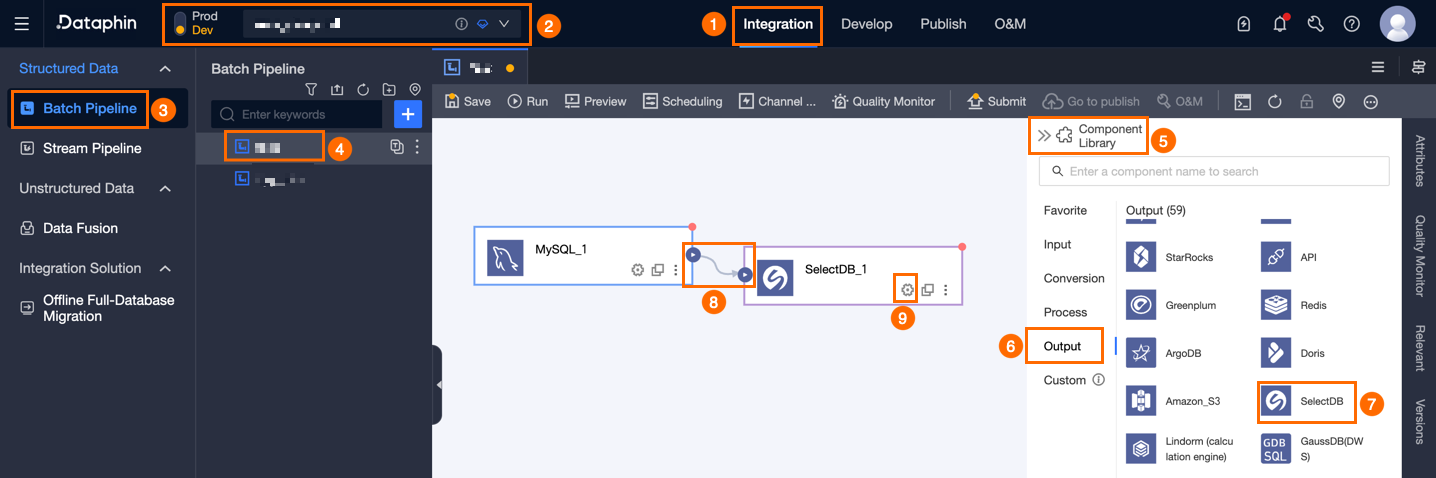
-
In the SelectDB writer configuration dialog box, configure the following parameters.
Parameter
Description
Basic settings
Step name
The name of the SelectDB writer. Dataphin automatically generates a step name, which you can change.
-
Can contain only Chinese characters, letters, digits, and underscores (_).
-
Must be 64 characters or less in length.
Data source
From the drop-down list, select a SelectDB data source. The list shows all available SelectDB data sources, regardless of your permission status. Click the
 icon to copy the current data source name.
-
If you lack permissions for a data source, click Apply to request them. For more information, see Apply for data source permissions.
-
If you do not have a SelectDB data source, click new data source to create one. For more information, see Create a SelectDB data source.
Table
Select the destination table. You can enter keywords to search for a table, or enter the exact table name and click Exact Match Search. After you select a table, the system automatically checks its status. Click the
 icon to copy the selected table name.
If the destination table does not exist in the SelectDB data source, you can use the one-click table creation feature to create it.
-
Click One-click table creation. Dataphin generates an SQL script with a pre-filled table name (defaulting to the source table name) and mapped field types.
-
Modify the script as needed and click Create. Dataphin then sets the new table as the destination.
Note-
An error occurs if a table with the same name already exists when you click Create.
-
If no matches are found, you can still perform the integration by manually entering a table name.
-
Policy for missing production table
Specifies the policy to apply when the production table does not exist. You can select Do not process or Auto-create. The default is Auto-create. If you select Do not process, the table is not created during task deployment. If you select Auto-create, a table with the same name is created in the target environment during task deployment.
-
Do not process: A warning is displayed if the table is missing, but deployment can proceed. You must create the table in the production environment before the task can run.
-
Auto-create: You must Edit table creation statement. The statement for the selected table is pre-filled and can be modified. The table name in the statement must use the placeholder
${table_name}, which is the only placeholder supported. During execution, the placeholder is replaced with the actual table name.If the table does not exist, the system attempts to create it using your statement. A creation failure causes the deployment check to fail. If the table already exists, this step is skipped.
NoteThis parameter is available only in projects that use the Dev-Prod mode.
Data format
Select CSV or JSON.
If you select CSV, you must also configure CSV import column separator and CSV import row separator.
CSV import column separator (Optional)
The column separator for StreamLoad CSV imports. The default is
_@dp@_. If your data contains_@dp@_, you must specify a custom separator.CSV import row separator (Optional)
The row separator for StreamLoad CSV imports. The default is
_#dp#_. If your data contains_#dp#_, you must specify a custom separator.Batch write (Optional)
If enabled, data is written to the destination in batches. The system commits a batch when either the batch write data size or batch size in rows limit is reached. This reduces the load of a single write and prevents large transactions. If disabled, data is written in a single transaction, which consumes more memory and increases failure risk.
Batch write data size (Optional)
The maximum data size for a single batch. A write is triggered when either this limit or the batch size in rows is reached. The default is 32 MB.
Batch size in rows (Optional)
The default value is 2,048. When writing data, the system uses a batching strategy based on the batch size in rows and batch write data size parameters.
-
A write is triggered when the accumulated data reaches either this row limit or the data size limit.
-
We recommend configuring the batch size to optimize performance. For example, if a single record is about 1 KB, you could set the batch write data size to 16 MB. To ensure the write is triggered by data size instead of row count, set the batch size in rows to a value greater than 16,384 (16 MB / 1 KB), such as 20,000. With this configuration, a batch write is triggered whenever the accumulated data reaches 16 MB.
Pre-SQL statement (Optional)
An SQL script to execute on the database before the data import begins.
For example, you can use a pre-SQL statement to write data to a temporary table and then use a post-SQL statement to swap it with the production table, ensuring zero downtime during the update.
Post-SQL statement (Optional)
An SQL script to execute on the database after the data import is complete.
Field mapping
Input fields
Displays the input fields from the upstream component.
Output fields
Displays the output fields. You can perform the following operations:
-
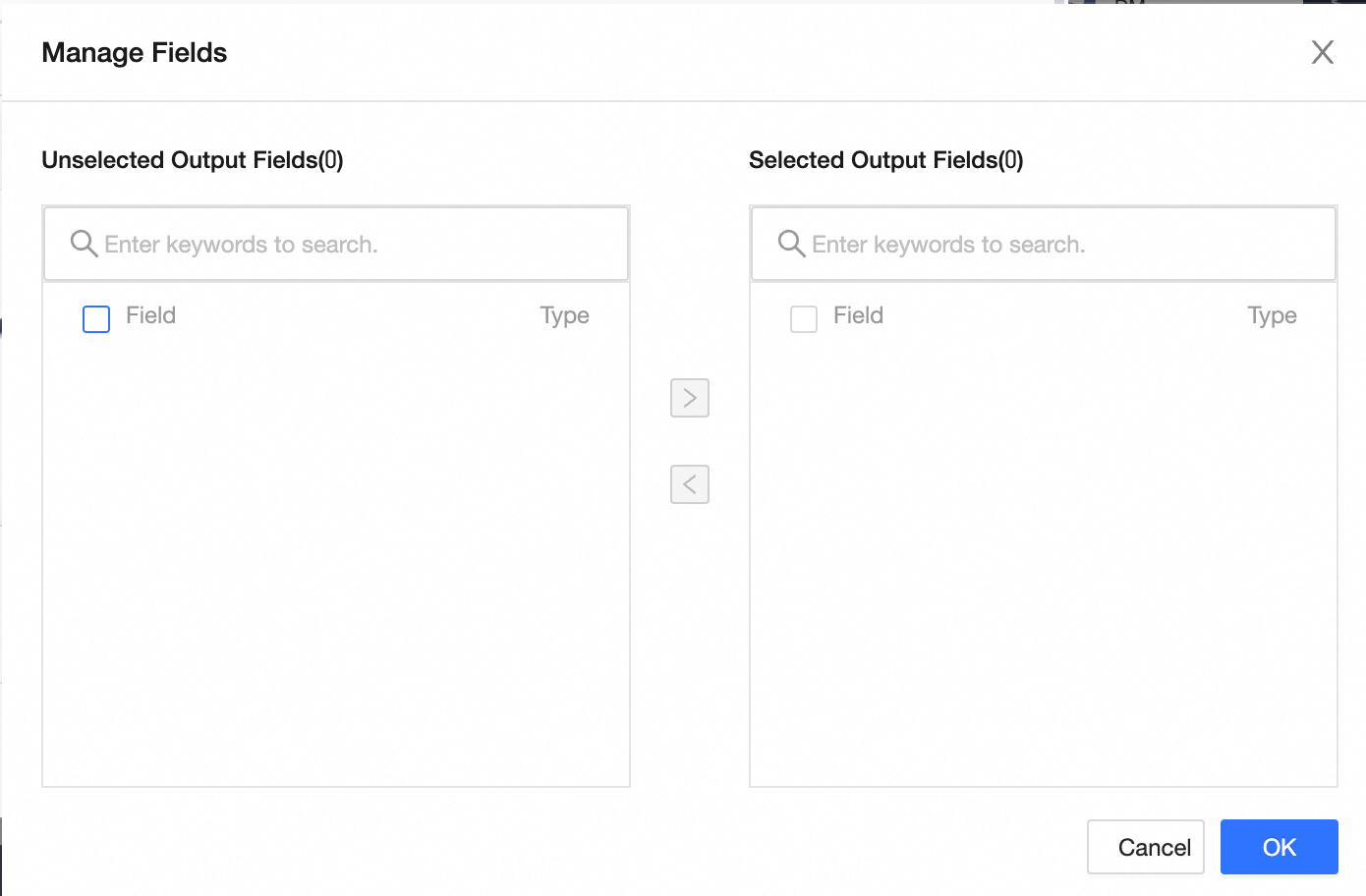
Field management: Click Field management to select the output fields.
-
Click the
 icon to move the Selected input fields to the Unselected input fields.
 -
Click the
 icon to move the Unselected input fields to the Selected input fields.
-
-
Batch add: Click Batch add to configure fields in bulk by using the JSON, TEXT, or DDL format.
-
To configure fields in JSON format, use the following structure:
// Example: [{ "name": "user_id", "type": "String" }, { "name": "user_name", "type": "String" }]Notenamespecifies the name of the imported field, andtypespecifies the data type of the field. For example,"name":"user_id","type":"String"indicates that the field nameduser_idis imported and its data type is set toString. -
To configure fields in TEXT format, use the following structure:
// Example: user_id,String user_name,String-
The row separator delimits individual field definitions. The default is a newline character (\n). Semicolons (;) and periods (.) are also supported.
-
The column separator delimits the field name from the field type. The default is a comma (,).
-
-
To configure fields in DDL format, use a
CREATE TABLEstatement as an example:CREATE TABLE tablename ( id INT PRIMARY KEY, name VARCHAR(50), age INT );
-
-
New output field: Click + New output field, enter a Field name, select a Type, and click the
 icon to save.
Mapping method
A mapping connects the input fields of a source table to the output fields of a target table. The two mapping methods are map by name and map by position. The applicable scenarios are described as follows:
-
map by name: Maps fields that have the same name.
-
map by position: Maps fields based on their order. Use this when source and destination field names differ but their order corresponds.
-
-
Click OK to save the configuration for the SelectDB writer.