The SAP HANA input component reads data from an SAP HANA data source. To synchronize data from SAP HANA to other data sources, configure the SAP HANA input component first, and then configure the target data source.
Prerequisites
Before you begin, make sure that the following prerequisites are met:
-
An SAP HANA data source is created. For more information, see Create an SAP HANA Data Source.
-
Your account has read-through permissions on the data source. If not, request the required permissions. For more information, see Manage Data Source Permissions.
Procedure
-
On the Dataphin home page, navigate to the top menu bar and select Development > Data Integration.
-
At the top of the integration page, choose Project (select the environment in Dev-Prod mode).
-
In the left-side navigation pane, click on the Batch Pipeline. From the Batch Pipeline list, select the offline pipeline you want to develop to access its configuration page.
-
Click Component Library in the upper-right corner to open the Component Library panel.
-
In the Component Library panel's left-side navigation, select Input. Locate the SAP HANA component in the input component list and drag it onto the canvas.
-
Click the
 icon on the SAP HANA input component card to open the SAP HANA Input Configuration dialog box.
 -
In the SAP HANA Input Configuration dialog box, set the required parameters.
Parameter
Description
Step Name
The name of the SAP HANA input component. Dataphin automatically generates a name, which you can modify as needed. The naming conventions are as follows:
-
It can contain only Chinese characters, letters, underscores (_), and numbers.
-
It can be up to 64 characters in length.
Datasource
Lists all SAP HANA data sources, including those you have read-through permissions on and those you do not. Click the
 icon to copy the data source name.
For data sources without read-through permissions, click Request next to the data source to request permissions. For more information, see Request, Renew, and Return Data Source Permissions.
If no SAP HANA data source exists, click Create Data Source to create one. For more information, see Create an SAP HANA Data Source.
Schema (Optional)
The schema of the table in the data source. If you do not specify a schema, the default schema named after the current user is used.
Table
The source table for data synchronization. You can search by keyword or enter the exact table name and click Exact Search. After you select a table, the system automatically checks the table status. Click the
 icon to copy the table name.
Shard Key (Optional)
Works with concurrency configuration. Specify an integer column in the source table as the shard key. We recommend that you use the primary key or an indexed column.
Batch Read Count (Optional)
The number of records read per batch. For example, you can set this to 1024 instead of reading one record at a time. Batch reads reduce data source interactions, improve I/O efficiency, and lower network latency.
Input Filter (Optional)
The filter condition for input data, such as
ds=${bizdate}. Input filters apply to the following scenarios:-
Filtering a fixed portion of data.
-
Parameter-based filtering.
Output Fields
Displays all fields of the selected table. To exclude fields from downstream components, delete the unwanted fields:
-
To delete a small number of fields, click the
 icon in the Actions column.
 -
To delete many fields at once, click Field Management. On the Field Management page, select the fields and click the
 icon to move them from Selected Input Fields to Unselected Input Fields.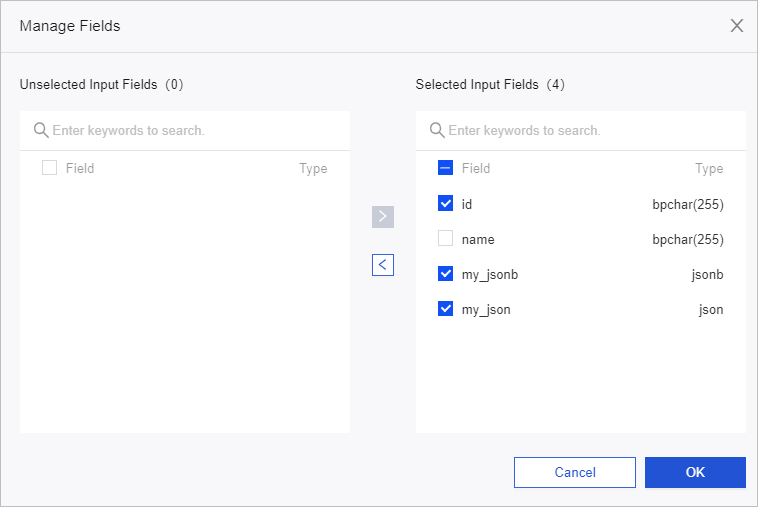
-
-
Click Confirm to save the SAP HANA Input Component configuration.