Cloud Backup uses the Alibaba Cloud snapshot service to create agentless, crash-consistent backups of all disks on an ECS instance. You can restore the entire instance, a single disk, or clone a new instance from these backups.
Prerequisites
-
You have activated Cloud Backup. Activation is free, but ECS instance backups incur software usage fees (Cloud Backup Pricing).
-
You have enabled the ECS snapshot service.
-
For an instance-level crash-consistent backup, all disks of the ECS instance must be Enhanced SSDs (ESSDs). Otherwise, Cloud Backup creates crash-consistent backups for individual disks.
Background information
-
ECS instance backup protects entire instances or specific disks through periodic backup policies.
-
Restore the original instance, clone a new instance, or clone new disks from a backup. What are the differences between an instance backup and the snapshot service?.
Usage notes
-
Cloud Backup automatically enables the ECS snapshot service on first use. ECS snapshot fees apply. Cloud Backup also charges a software usage fee for ECS instance backups (Cloud Backup Pricing).
ECS instance backup is built on the native ECS snapshot feature, so ECS bills you for snapshot storage. Enabling Replication to Other Region adds charges for snapshot storage in the destination region and cross-region traffic (Snapshot billing).
-
When you create a backup plan or associate a backup policy for the first time, Cloud Backup automatically creates a service-linked role to access the required resources.
-
ECS instance backup supports both unencrypted and encrypted cloud disks. Snapshots of encrypted cloud disks inherit the encryption properties and remain encrypted at rest, in transit, across regions, and during recovery.
-
ECS instance backup does not support backing up or restoring local disks.
Data stored on local disks is at risk of being lost. Use ECS File Backup to protect files on your local disks or use Database Backup to protect databases deployed on your local disks.
-
When you edit an existing backup plan, Cloud Backup converts the backup plan into a backup policy by default. This operation does not affect the backup parameter settings.
-
You can associate only one backup policy with an ECS instance. You do not need to create a backup vault for ECS instance backups. You can set parameters such as the backup interval and retention period in the backup policy. For more information about the parameters in a backup policy, see Policy Center.
-
To avoid potential conflicts in snapshot creation times, do not use both Cloud Backup's instance backup and the native ECS snapshot service on the same disk concurrently. Select a backup method as needed. For more information, see ECS instance backup vs. snapshot service
Back up an ECS instance
Backup policies are available only in the regions displayed in the console. To view the supported regions, click Policy Center in the navigation pane on the left.
Log on to the Cloud Backup console.
-
In the navigation pane on the left, choose .
In the top navigation bar, select a region.
-
In the top-left corner, click Add ECS Backup.
-
In the Add ECS Backup panel, configure the following parameters.
-
Select the backup objects and click Next.
Important-
Select the ECS instances that you want to back up. By default, all disks are backed up. Click All Disks to select which disks to back up in the Backup Object dialog box.
The Protect All Disks switch is enabled by default, which protects all currently attached disks and any new disks that are attached in the future. You can disable the Protect All Disks switch and select specific disks to protect.
-
You can back up multiple ECS instances at a time. A maximum of 99 instances can be backed up in a single operation.
-
Cloud Backup automatically checks whether the selected ECS instances support consistent snapshot groups. If the instances support this feature, consistent snapshot groups are created by default. Otherwise, crash-consistent backups are created for individual disks. Consistent snapshot group limits apply (Notes on creating a consistent snapshot group).
-
The consistent group backup feature doesn't work for ECS instances with disks that support Multi-attach. Instead, a separate crash-consistent backup is created for each disk. If you back up multiple ECS instances attached to the same disk at the same time, the backup may fail.
-
-
Configure the backup options and click OK.
Select Manual Backup or Associate Backup Policy to specify a backup method. The following tables describe the parameters.
After the backup plan is created, Cloud Backup performs backups at the specified start time and interval.

Backup successful
When the scheduled backup time is reached, Cloud Backup starts the backup job. The backup is complete when the Backup Status is Completed. View and manage backup points in the backup history. Use backup points for recovery and cloning. If Immutable Backup is enabled in the backup policy that created the backup point, the backup point cannot be deleted before it expires.
NoteThe job list shows only the records from the last 6 months. To export older records, see Backup audit reports.

Backup size description
-
The ECS Instance Backup console displays the backup size, which is the total snapshot size of all disks managed by Cloud Backup. This value may have a latency of up to 24 hours.

-
The backup size is the total snapshot chain size for protected ECS instances. View individual instance or disk snapshot sizes in the snapshot console (View the size of a snapshot).
-
Snapshot retention period
Snapshots created by the ECS instance backup feature are also displayed in the Disk Snapshots list in the ECS console. These snapshots are marked as "Source from Cloud Backup" in the Attribute column. The snapshot's retention period is determined by the Retention Period set in the ECS instance backup policy.
The following figure shows the retention period for the ECS instance backup (76 days). You can extend the retention period of the ECS instance backup point.
-
Due to a technical limitation, the DescribeSnapshots API operation may incorrectly display the retention period as permanent. This value can be safely ignored.
-
If the service is suspended for more than 15 days due to an overdue payment, the system automatically deletes all ECS instance backup points, disk backup points, and their associated snapshots from the account with the overdue payment and from other accounts that it manages. Deleted data cannot be recovered. We recommend that you renew your subscription in a timely manner to avoid the loss of backup assets. If a snapshot has been used to create a disk or an image, the snapshot is not deleted but is disassociated from Cloud Backup.

-
Before expiration, snapshots created by Cloud Backup can only be managed through the Cloud Backup service.
-
Before the retention period of an ECS instance backup point expires, you can delete the corresponding snapshots if "Immutable Backup" is not enabled and the "Keep At Least One Backup Version" option is not configured for the associated backup policy. How do I delete disk snapshots created by ECS instance backup? or call the DeleteSnapshot - Delete a backup snapshot API operation. This also applies to individual disk snapshots.
-
When the retention period of an ECS instance backup point expires, the Cloud Backup service automatically removes the backup point and deletes all its associated snapshots.
If the snapshot has been used to create a disk or an image, Cloud Backup no longer manages the lifecycle of the snapshot. You can go to the ECS console - Snapshots page or call the DeleteSnapshot - Delete a snapshot API to manually delete the snapshot.
-
-
Snapshots generated from ECS instance backups can be shared. You must check the retention period of shared snapshots in the ECS console or the Cloud Backup console to prevent them from becoming invalid due to automatic deletion after their retention period expires.
Extend the retention period of a backup point
To retain a backup longer, extend the retention period of its backup point. Snapshots for extended backup points cannot be deleted before expiry. When the retention period expires, the system automatically deletes the backup point and its associated snapshots.
-
The retention period of a backup point can only be extended. It cannot be shortened.
-
You can extend the retention period only for ECS instance backup points.
-
You can extend the retention period only by an integer number of days. The maximum extension cannot exceed 999 years. The new retention period is synchronized to the snapshot.
-
On the Backed-Up ECS Instances tab, click the
 icon for the target ECS instance.
 -
On the Instance Protection tab, click a historical backup point to set its retention period.

-
Click Save.
After the configuration is complete, the new expiration time is displayed in the Expires At column, and the retention period is synced to the snapshot.

Enable automatic archiving
In the Backup Policy, specify the number of days after which a backup point is archived to the Archive storage tier. Click the backup policy link to edit this archiving period. The number of days can range from 14 to 65,535.
To balance data access frequency, recovery needs, storage costs, and data lifecycle, backup points must be retained in the Standard storage tier for at least 14 days before they can be automatically archived.
-
This setting takes effect only for new ECS instance backup points that are created after the setting is configured or modified. Backup points that were created before the setting was configured do not support archiving.
-
The minimum retention period for data in the Archive storage tier is 60 days. If you manually delete archived data within 60 days, you will be charged for the remaining duration.
-
Data in the Archive storage tier is billed by ECS based on archive snapshot storage. Before an ECS instance backup point is moved to the Archive storage tier, snapshots that have not been successfully archived are billed as standard snapshots. Snapshots that have been successfully archived are billed as archive snapshots (Snapshot billing).

When automatic archiving begins after the specified number of days, you can click a backup point to view its backup status and backup storage tier.
-
The Backup Status is Archiving if at least one snapshot in the backup point has not been archived.
-
When all snapshots in the backup point are archived, the Backup Status is Completed, and the Storage Tier is Archive Tier.

After an ECS instance backup point is archived, on the Disk Snapshots page in the ECS console, the Snapshot Type of the corresponding snapshots is Archive Snapshot and the Attribute is Source from Cloud Backup.

View all associated policies
If an ECS instance is associated with two or more backup policies, select the target instance from the Backed-up ECS Instances list and click View All Associated Policies. In the View All Associated Policies panel, perform the following operations on each backup policy:
-
Run Now: Click Run Now in the Actions column to manually trigger the backup job for the policy.
-
Modify Plan: In the Actions column, choose to modify the backup plan for the policy.
-
Delete Plan: In the Actions column, choose to remove the backup plan.
-
Suspend Plan: In the Actions column, choose to pause the automatic execution of the backup plan.


Restore an ECS instance
For more information, see Restore an ECS instance.
Restore an ECS disk
For more information, see Restore a disk.
Cross-region replication and recovery
Enable cross-region replication
After you enable Replication to Other Region in a backup policy, backups are automatically replicated to the Destination Region that you specify. You can click the backup policy to edit the destination region, the retention period in that region, and the number of days before backups are archived.
When you set Archive after days, cross-region backup data is automatically moved to the Archive storage tier after the specified number of days. To balance data access frequency, recovery needs, storage costs, and the data lifecycle, backup points must be retained in the Standard storage tier for at least 14 days before they are archived.
The minimum retention period for data in the Archive tier is 60 days. If you manually delete archived data within 60 days, you will be charged for the remaining duration.

After replication to the destination region, if the source ECS instance is infected by a virus or its data is accidentally deleted, use the replicated backup to create a new instance and recover the data.
Cross-region replication complete
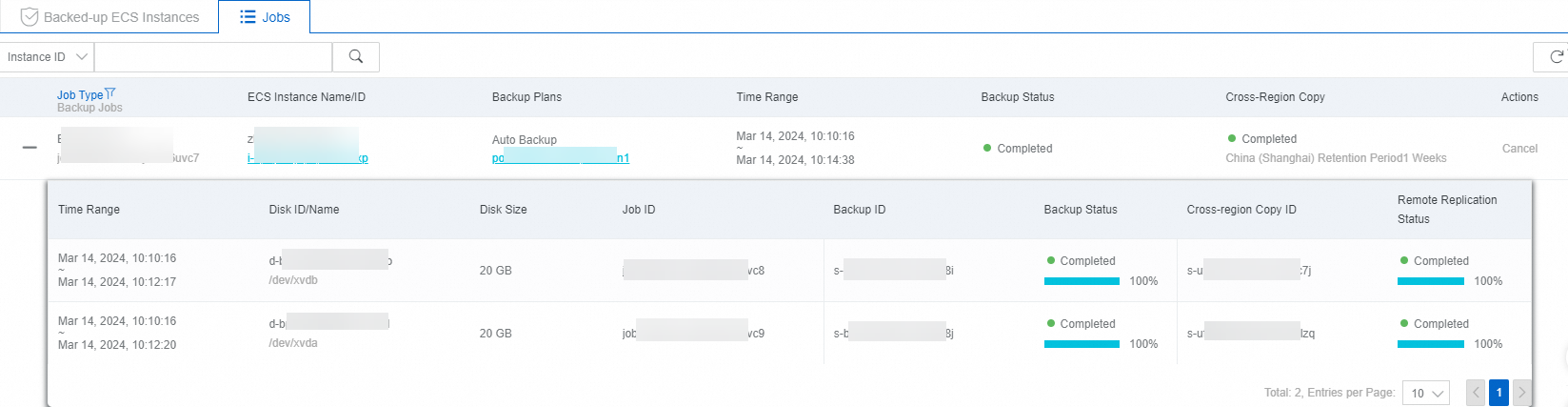
On the Jobs tab, view the Remote Replication Status. A status of Completed indicates that your backup data has been successfully replicated to another region.
Restore an ECS instance (Disaster Recovery)
For example, if the destination region for cross-region replication is Shanghai, and the source ECS instance is infected by a virus or its data is accidentally deleted, perform a disaster recovery in Shanghai to create a new ECS instance and recover the data.
Log on to the Cloud Backup console.
-
In the navigation pane on the left, choose .
-
In the upper-left corner of the top menu bar, select the region. For example, China (Shanghai).
-
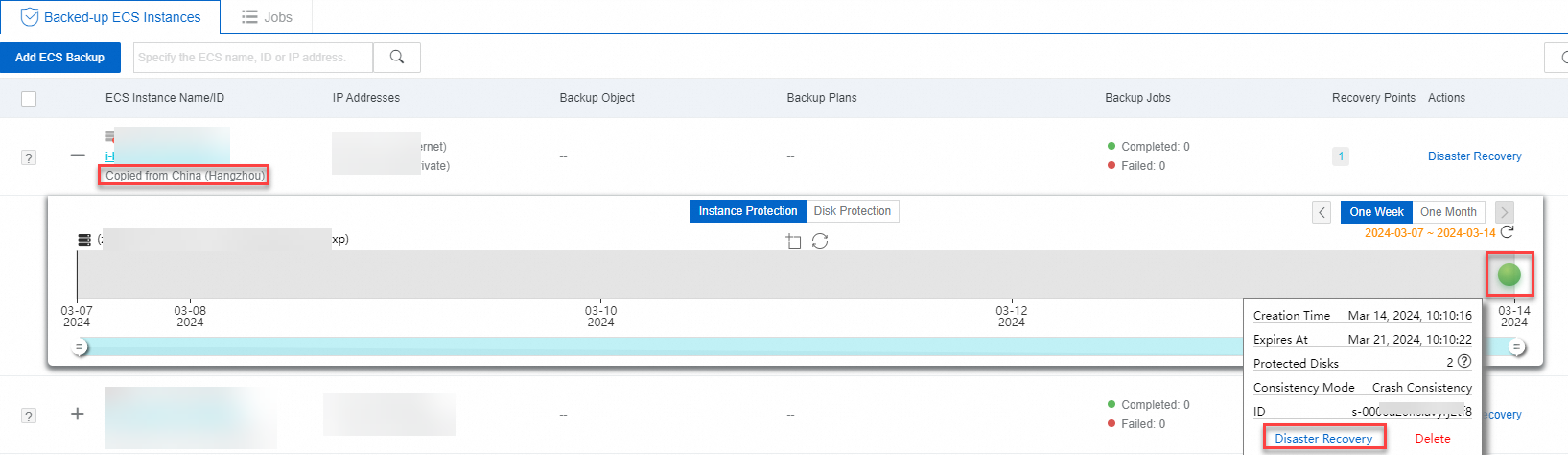
On the Backed-Up ECS Instances tab, find the ECS instance that was replicated from another region.
-
Select a backup point from an appropriate time range and click Disaster Recovery.
-
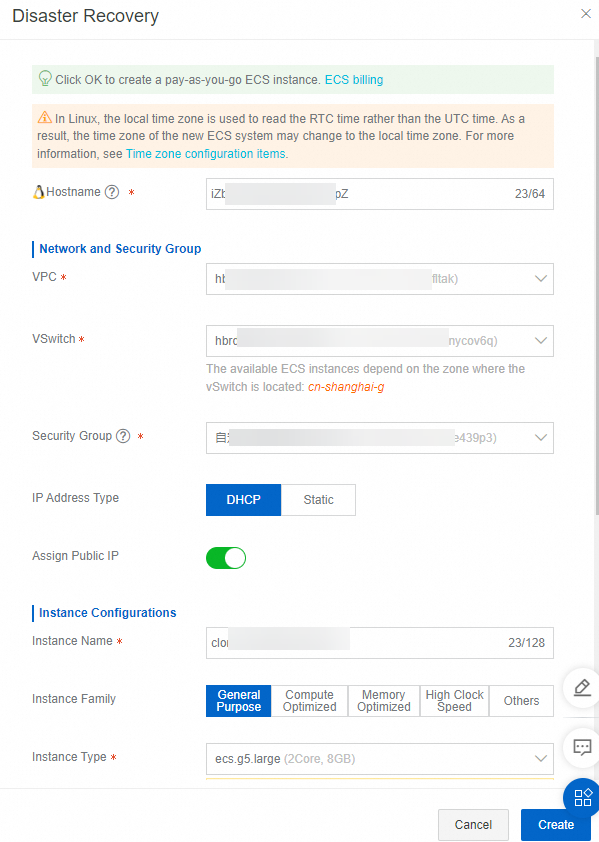
On the Disaster Recovery panel, configure parameters such as the network, security group, and instance type, and click Create to create a pay-as-you-go ECS instance.
ImportantCreating a new ECS instance incurs fees based on ECS billing rules. For more information, see Pay-as-you-go.
After the instance is created, monitor its recovery progress in the Jobs tab. Once the recovery is complete, click the ECS instance link to access the instance.

Troubleshooting
This section provides solutions to common backup errors.
Error: Retention Period cannot be set to Permanent for ECS instance backup.
Error: No destination region is specified.
Error: This ECS instance has been released.
Error: The backup plan has been suspended.
Error: Failed-Failed to synchronize metadata.
Related operations
ECS instance backup also supports these operations.
|
Tab |
Description |
Related operations |
|
Backed-Up ECS Instances |
Displays the tasks for your protected ECS instances. |
|
|
Jobs |
Displays the status of executed tasks. |
You can cancel a task that is in progress. |