This article describes how to use Data Transmission Service (DTS) to migrate data from a self-managed SQL Server database to the cloud, enabling a seamless transition to ApsaraDB RDS for SQL Server 2012 Standard Edition.
Take note of the following items:
If the source database meets one of the following conditions, we recommend that you migrate data by using the backup feature of ApsaraDB RDS for SQL Server.
i) Execute the following SQL statement to check for heap tables:
SELECT s.name AS schema_name, t.name AS table_name FROM sys.schemas s INNER JOIN sys.tables t ON s.schema_id = t.schema_id AND t.type = 'U' AND s.name NOT IN ('cdc', 'sys') AND t.name NOT IN ('systranschemas') AND t.object_id IN (SELECT object_id FROM sys.indexes WHERE index_id = 0);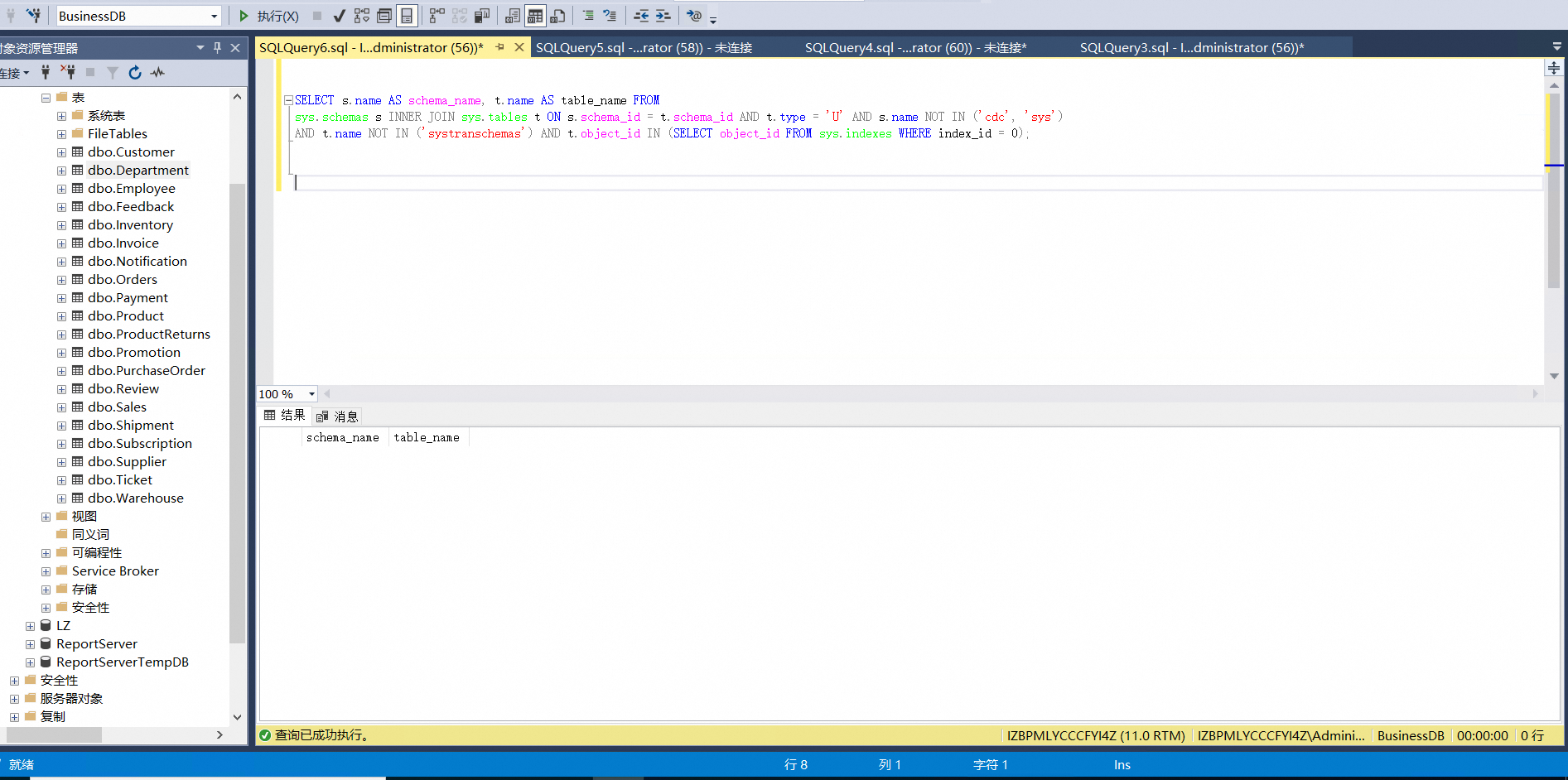
ii) Execute the following SQL statement to check for tables without primary keys:
SELECT s.name AS schema_name, t.name AS table_name FROM sys.schemas s INNER JOIN sys.tables t ON s.schema_id = t.schema_id AND t.type = 'U' AND s.name NOT IN ('cdc', 'sys') AND t.name NOT IN ('systranschemas') AND t.object_id NOT IN (SELECT parent_object_id FROM sys.objects WHERE type = 'PK');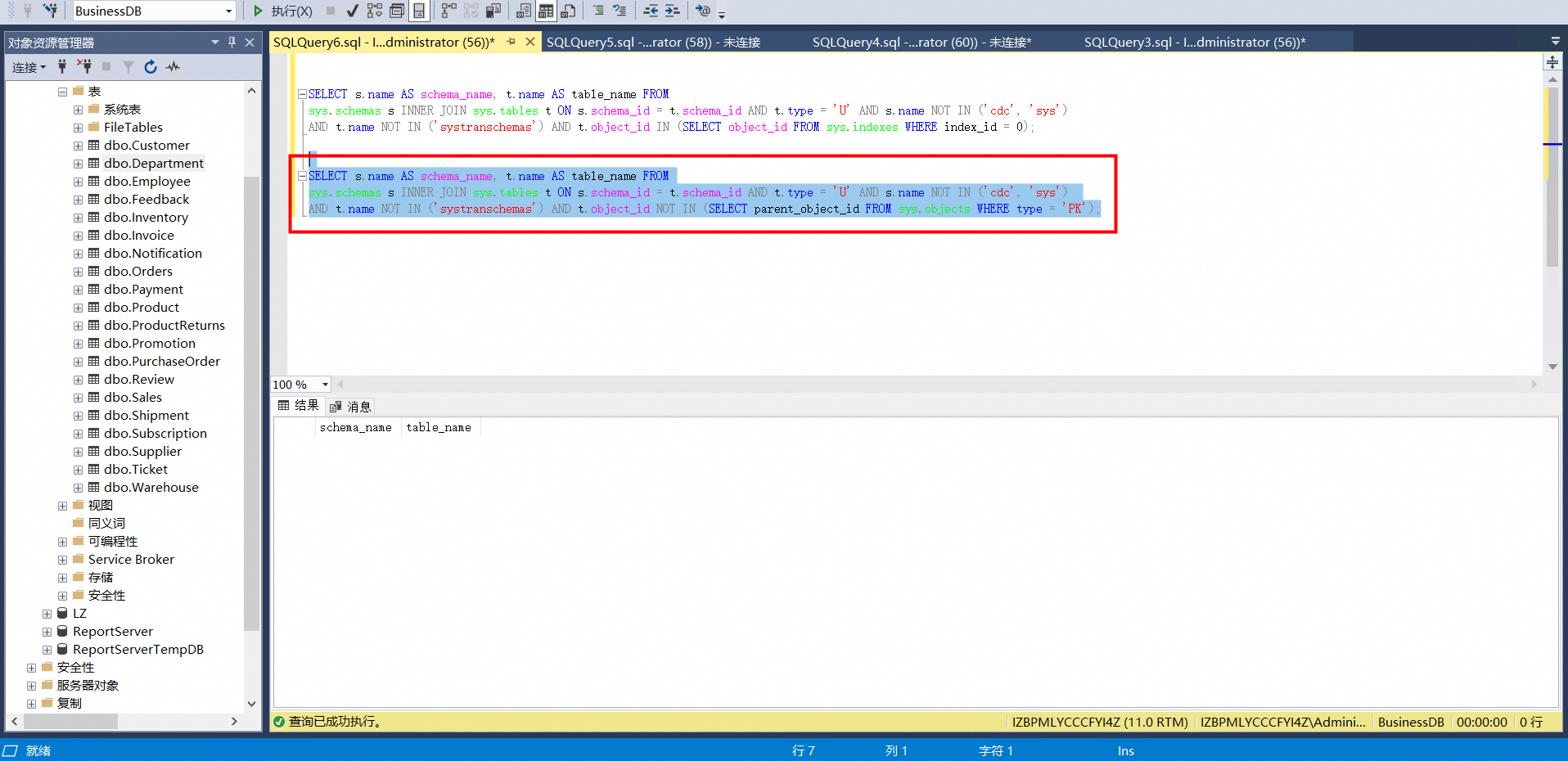
iii) Execute the following SQL statement to check for primary key columns that are not contained in clustered index columns:
SELECT s.name schema_name, t.name table_name FROM sys.schemas s INNER JOIN sys.tables t ON s.schema_id = t.schema_id WHERE t.type = 'U' AND s.name NOT IN('cdc', 'sys') AND t.name NOT IN('systranschemas') AND t.object_id IN ( SELECT pk_colums_counter.object_id AS object_id FROM (select pk_colums.object_id, sum(pk_colums.column_id) column_id_counter from (select sic.object_id object_id, sic.column_id FROM sys.index_columns sic, sys.indexes sis WHERE sic.object_id = sis.object_id AND sic.index_id = sis.index_id AND sis.is_primary_key = 'true') pk_colums group by object_id) pk_colums_counter inner JOIN ( select cluster_colums.object_id, sum(cluster_colums.column_id) column_id_counter from (SELECT sic.object_id object_id, sic.column_id FROM sys.index_columns sic, sys.indexes sis WHERE sic.object_id = sis.object_id AND sic.index_id = sis.index_id AND sis.index_id = 1) cluster_colums group by object_id ) cluster_colums_counter ON pk_colums_counter.object_id = cluster_colums_counter.object_id and pk_colums_counter.column_id_counter != cluster_colums_counter.column_id_counter);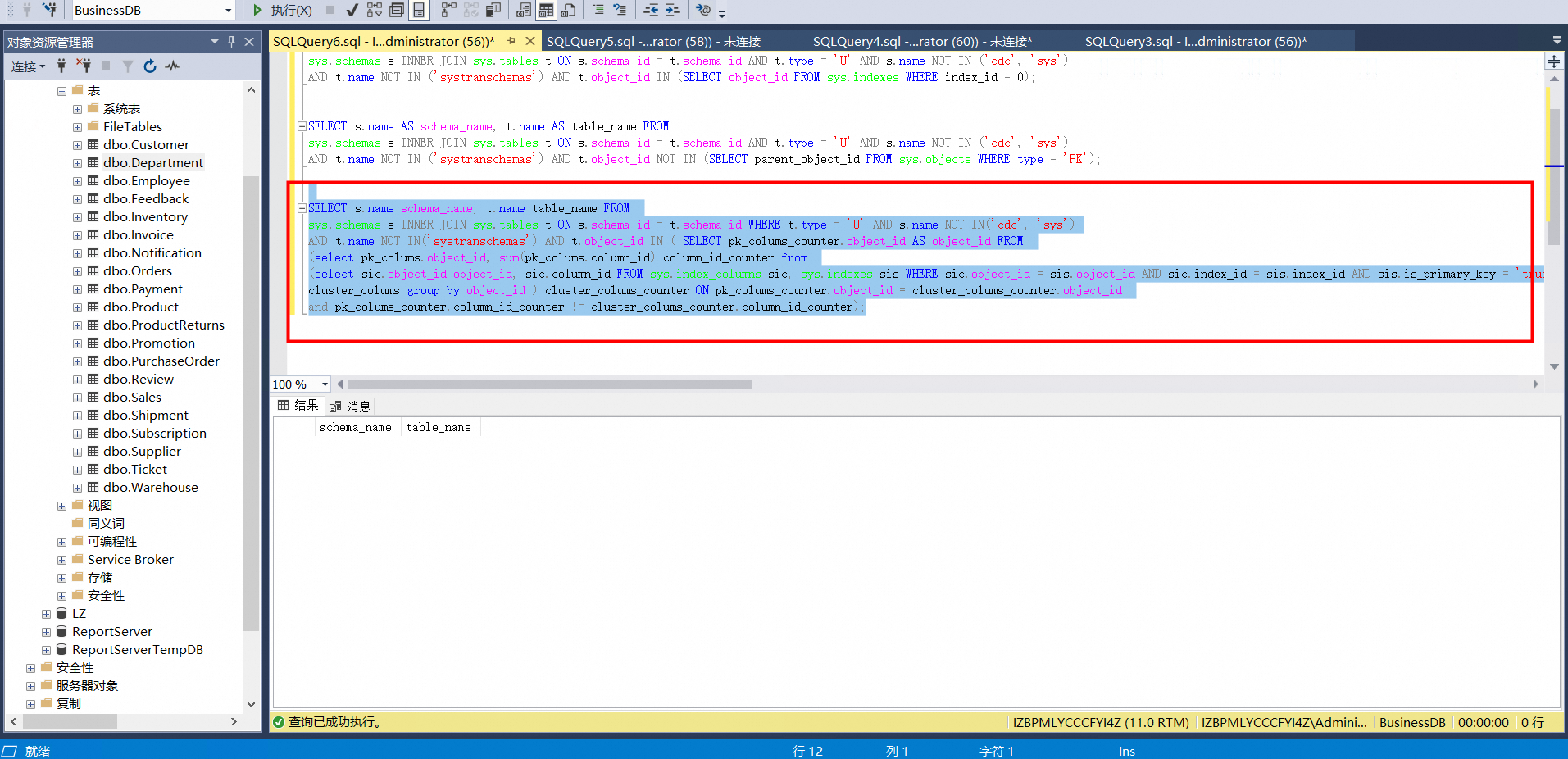
iv) Execute the following SQL statement to check for compressed tables:
SELECT s.name AS schema_name, t.name AS table_name FROM sys.objects t, sys.schemas s, sys.partitions p WHERE s.schema_id = t.schema_id AND t.type = 'U' AND s.name NOT IN ('cdc', 'sys') AND t.name NOT IN ('systranschemas') AND t.object_id = p.object_id AND p.data_compression != 0;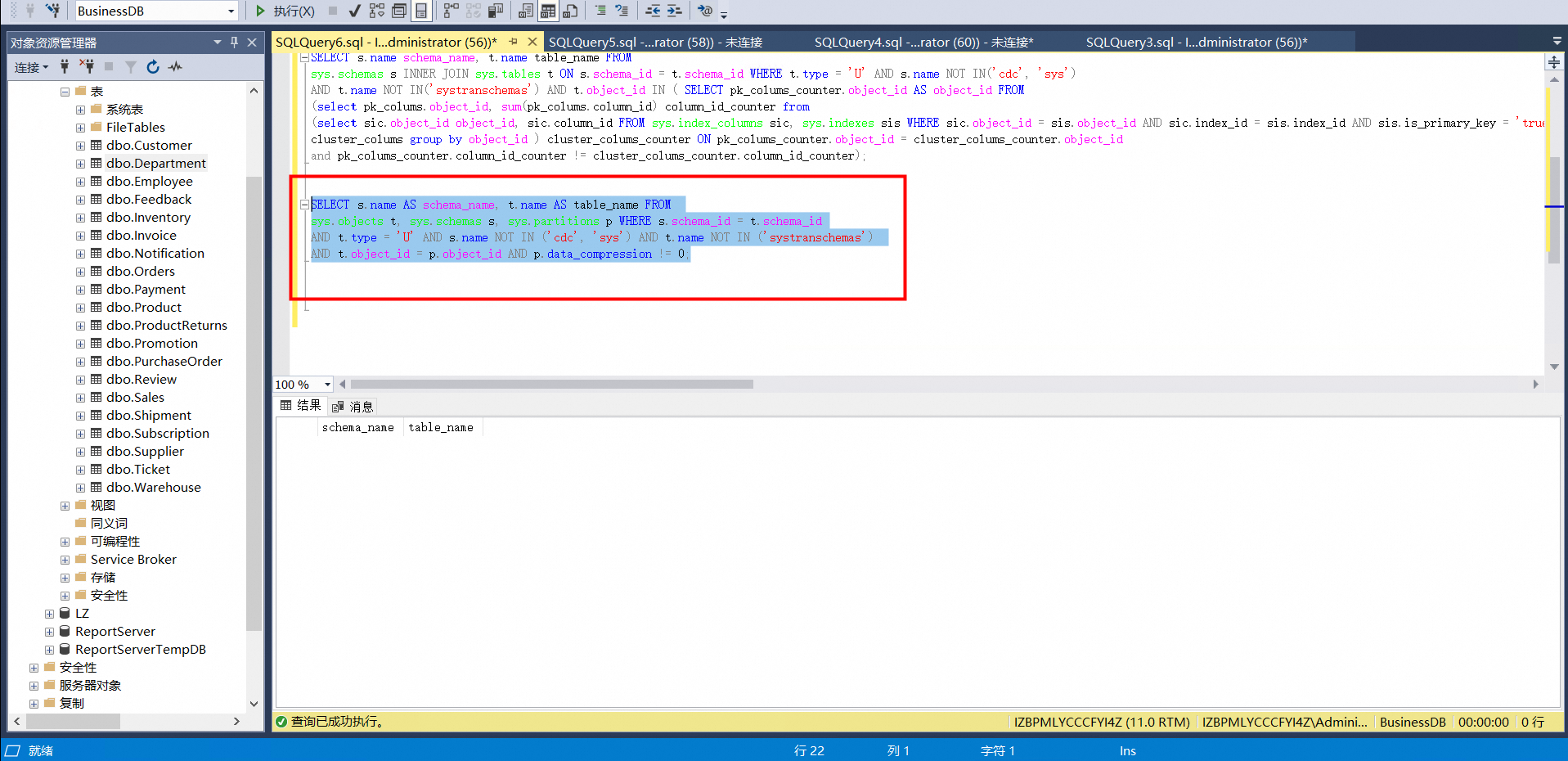
v) Execute the following SQL statement to check for tables with computed columns:
SELECT s.name AS schema_name, t.name AS table_name FROM sys.schemas s INNER JOIN sys.tables t ON s.schema_id = t.schema_id AND t.type = 'U' AND s.name NOT IN ('cdc', 'sys') AND t.name NOT IN ('systranschemas') AND t.object_id IN (SELECT object_id FROM sys.columns WHERE is_computed = 1);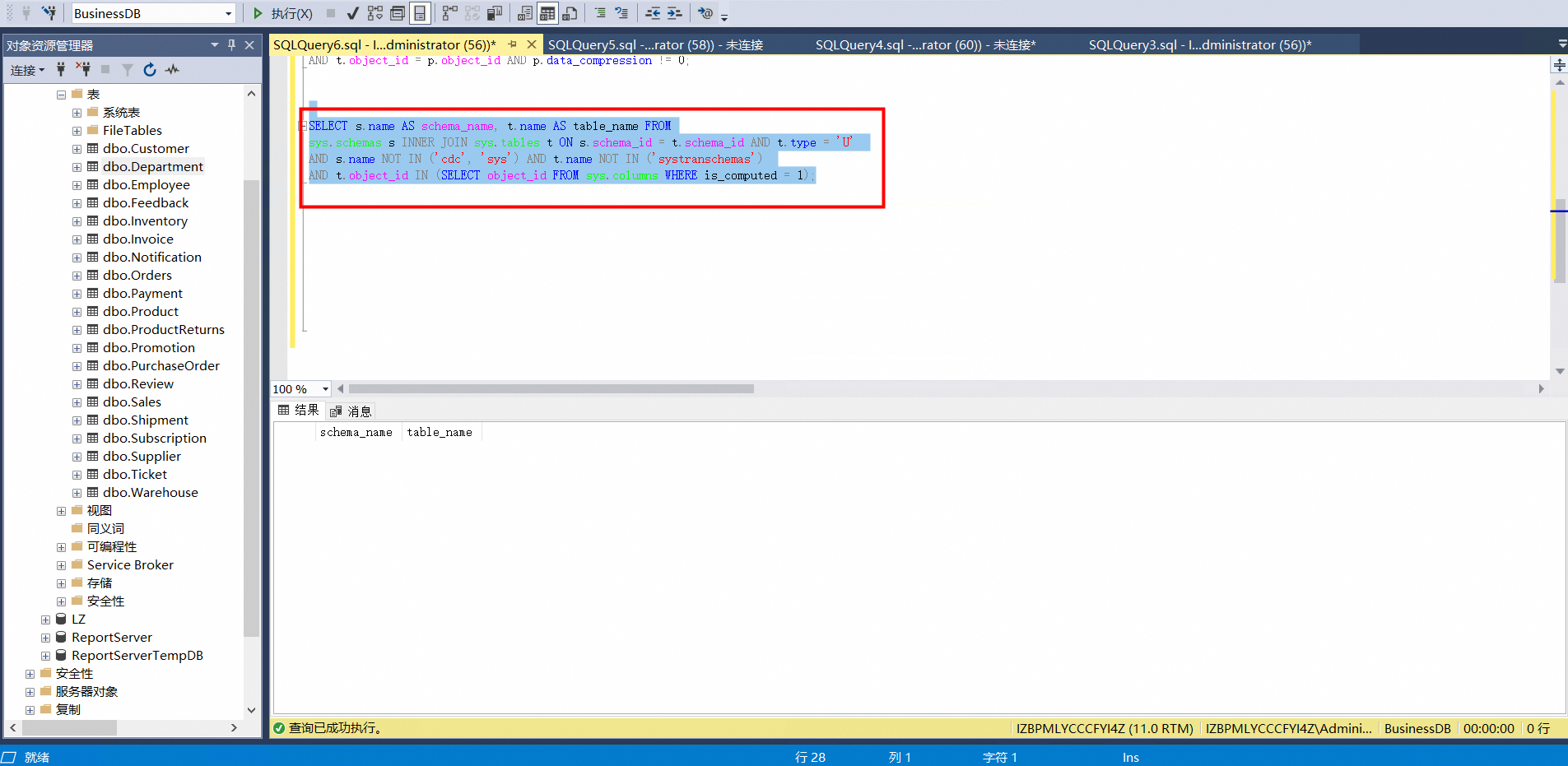
Schema migration
DTS migrates the schemas of selected objects from the source database to the destination database.
• DTS supports schema migration for the following types of objects: table, view, trigger, synonym, SQL stored procedure, SQL function, plan guide, user-defined type, rule, default, and sequence.
• DTS does not migrate the schemas of assemblies, service brokers, full-text indexes, full-text catalogs, distributed schemas, distributed functions, Common Language Runtime (CLR) stored procedures, CLR scalar-valued functions, CLR table-valued functions, internal tables, systems, or aggregate functions.
Full data migration
• DTS migrates the historical data of the selected objects from the source database to the destination database.
Incremental data migration
• After full data migration is completed, DTS migrates incremental data from the source database to the destination database. Incremental data migration allows data to be migrated smoothly without interrupting the services of self-managed applications during data migration.
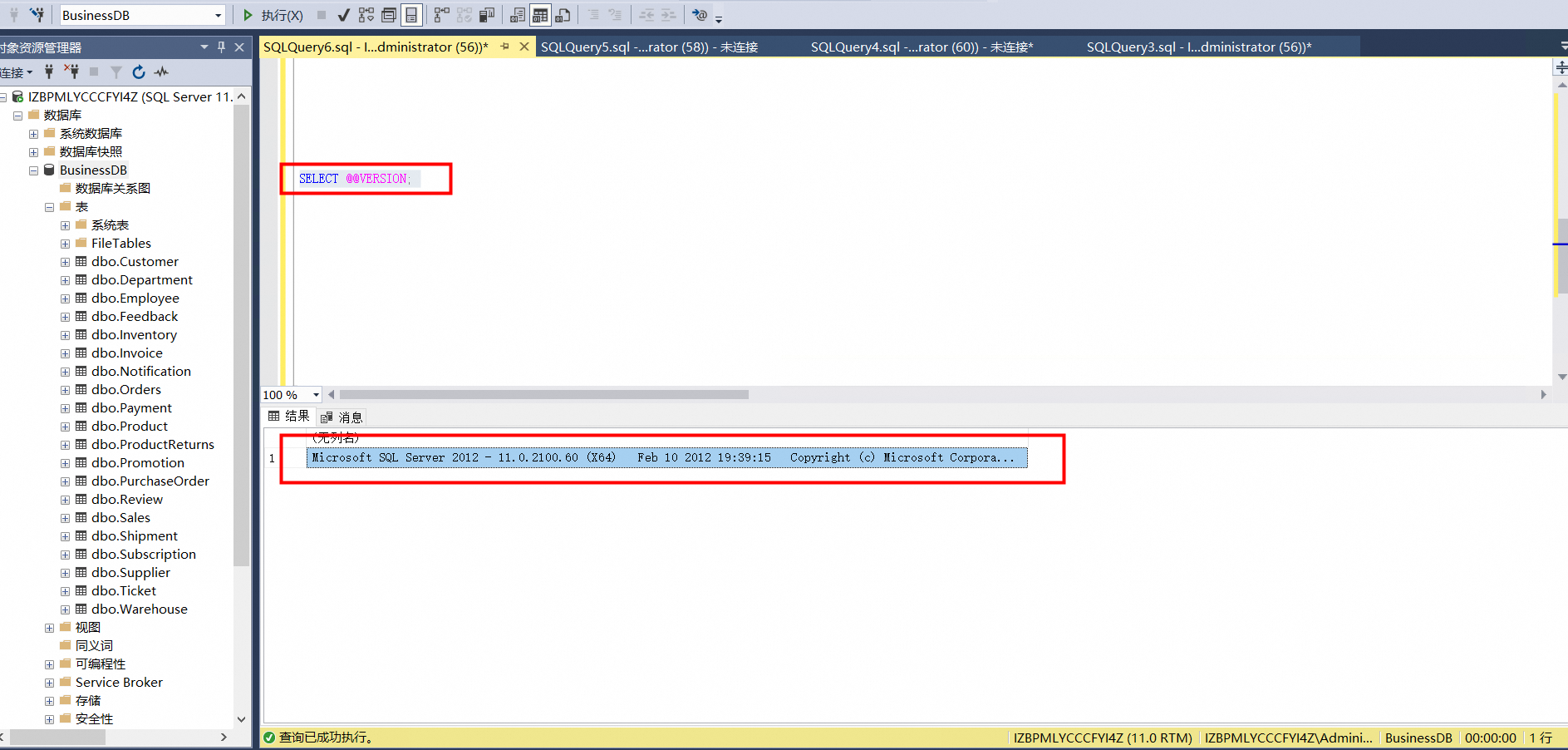
Query the database version:
Before you configure a task to migrate incremental data, you must configure log settings on the self-managed SQL Server database and create clustered indexes.
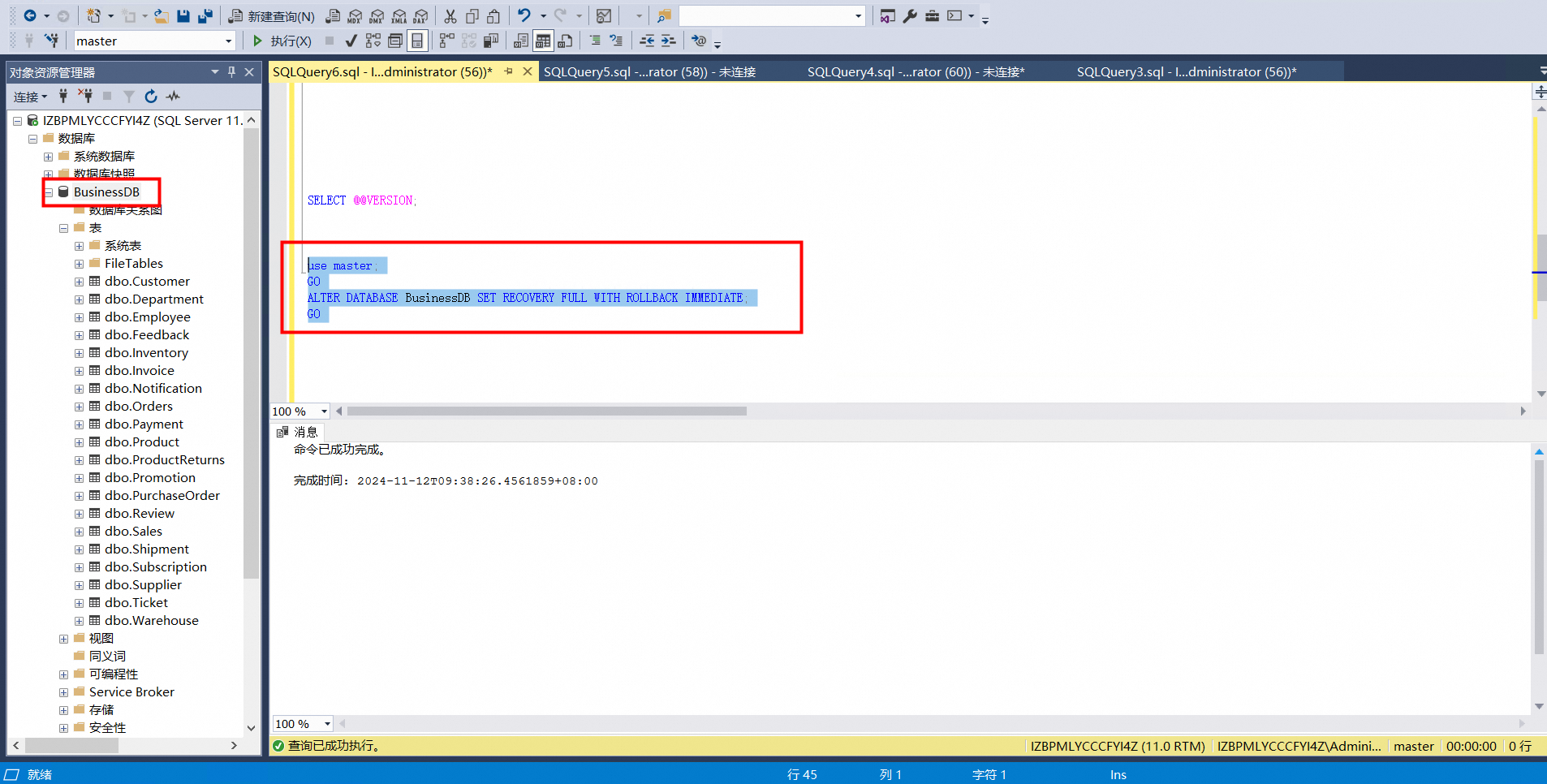
Execute the following statement on the self-managed SQL Server database to change the recovery model to full.
use master;
GO
ALTER DATABASE <database_name> SET RECOVERY FULL WITH ROLLBACK IMMEDIATE;
GO
Parameters:
<database_name>: the name of the source database.
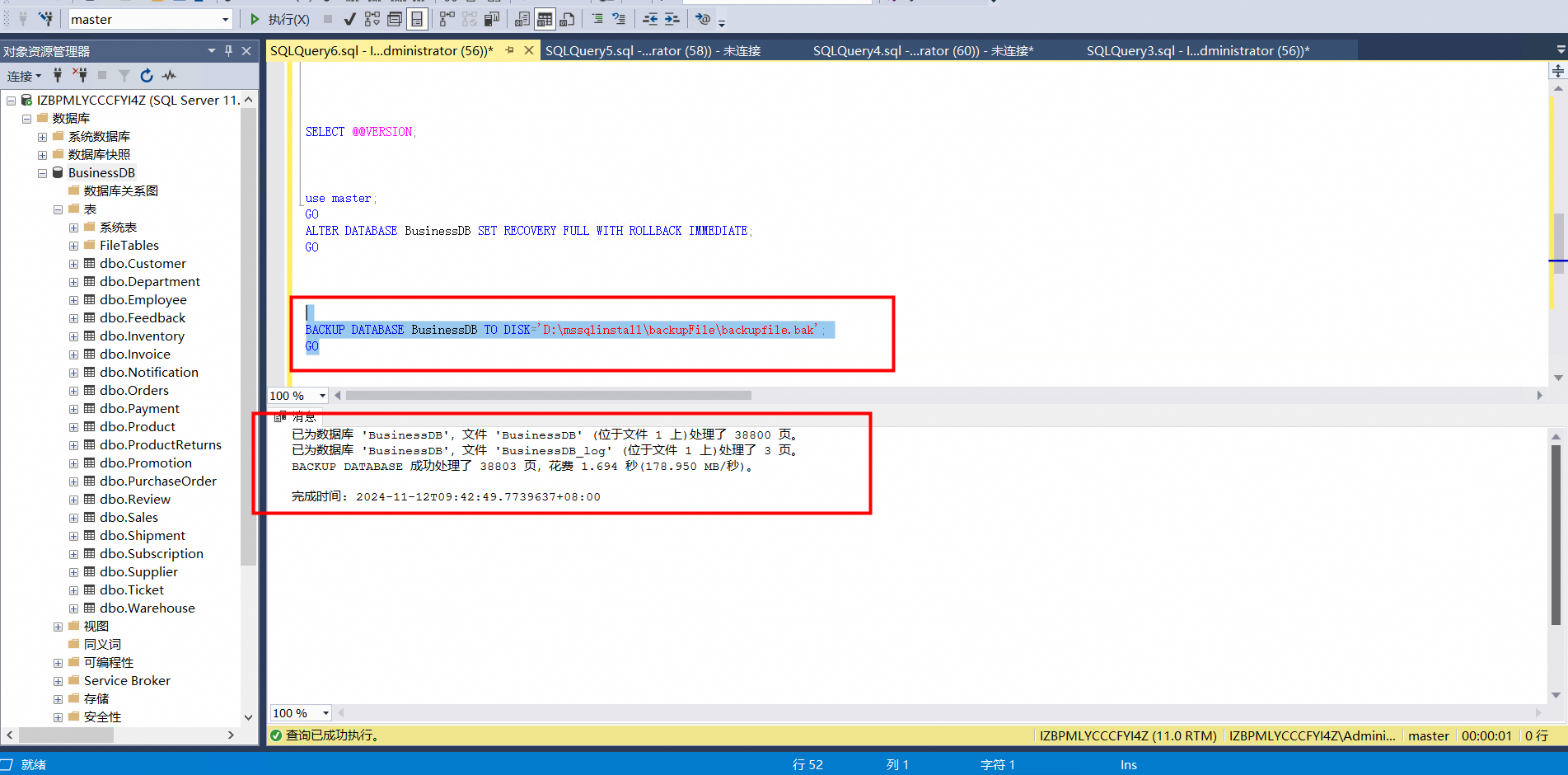
Execute the following statement to create a logical backup for the source database. Skip this step if you have already created a logical backup.
BACKUP DATABASE <database_name> TO DISK='<physical_backup_device_name>';
GO
Parameters:
<database_name>: the name of the source database.
<physical_backup_device_name>: the storage path and file name of the backup file.
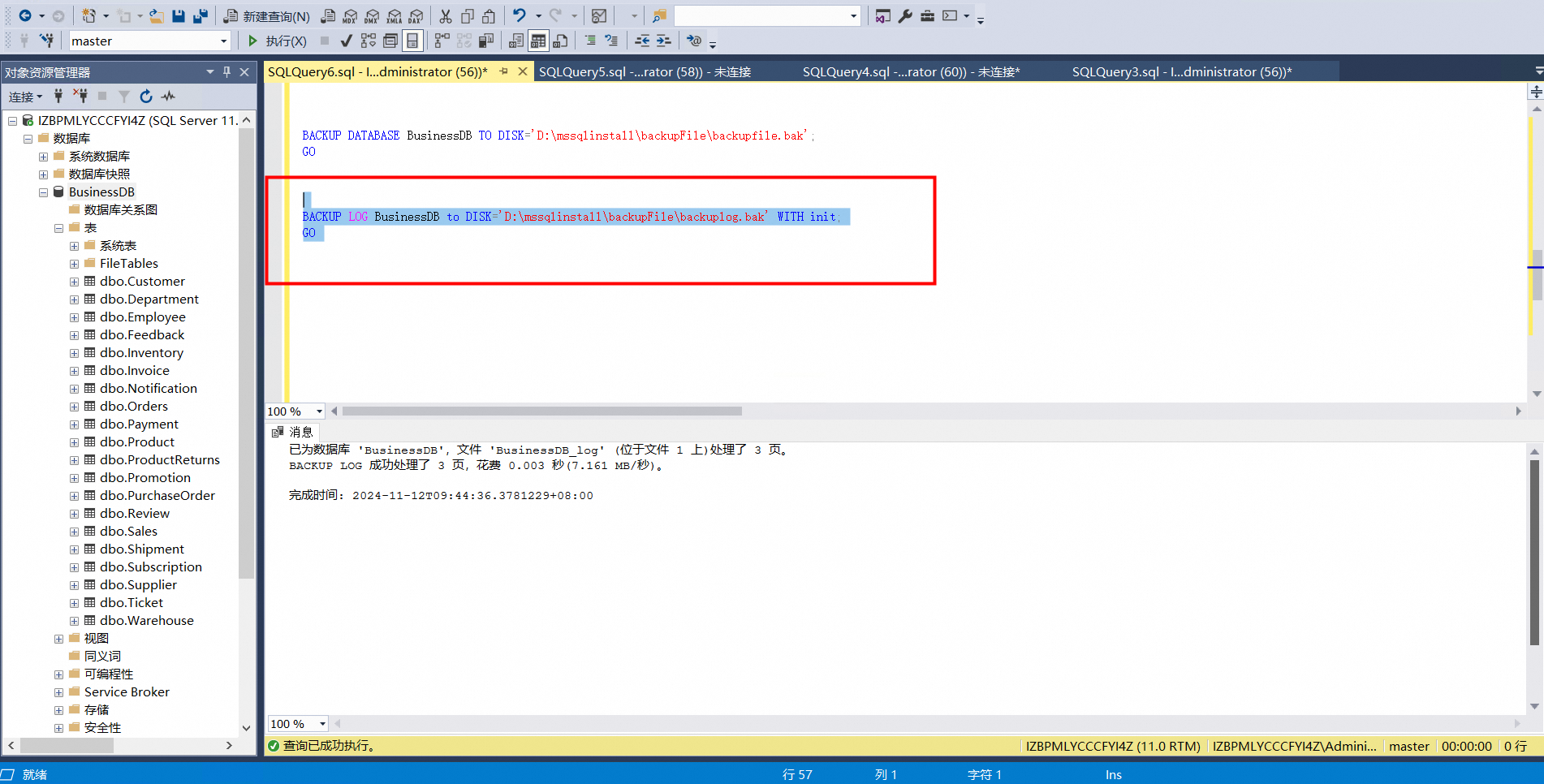
Run the following statement to back up the log entries of the source database:
BACKUP LOG <database_name> to DISK='<physical_backup_device_name>' WITH init;
GO
Parameters:
<database_name>: the name of the source database.
<physical_backup_device_name>: the storage path and file name of the backup file.
Go to the Data Migration Tasks page.
1. In the left-side navigation pane, choose DTS > Data Migration.
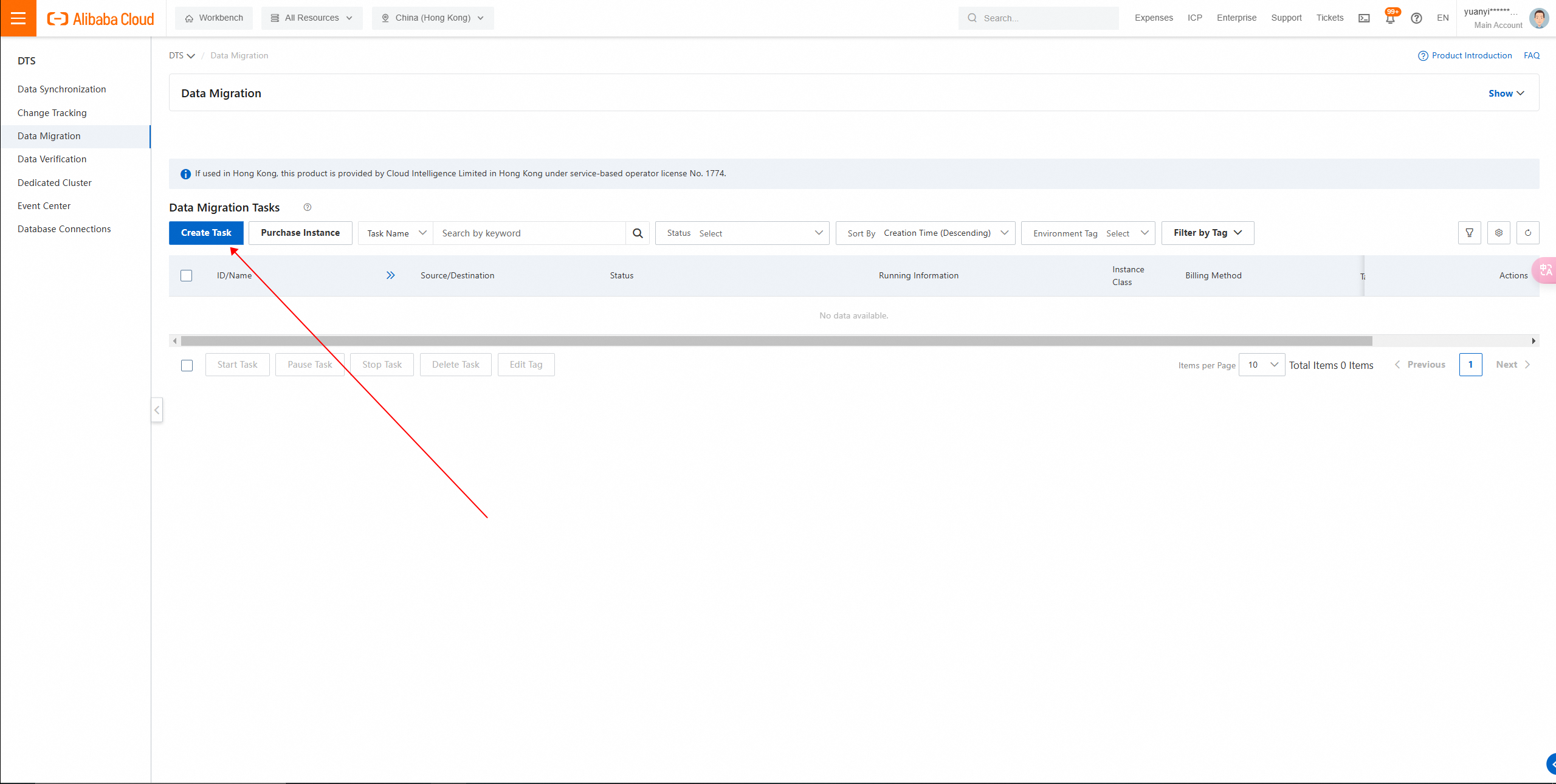
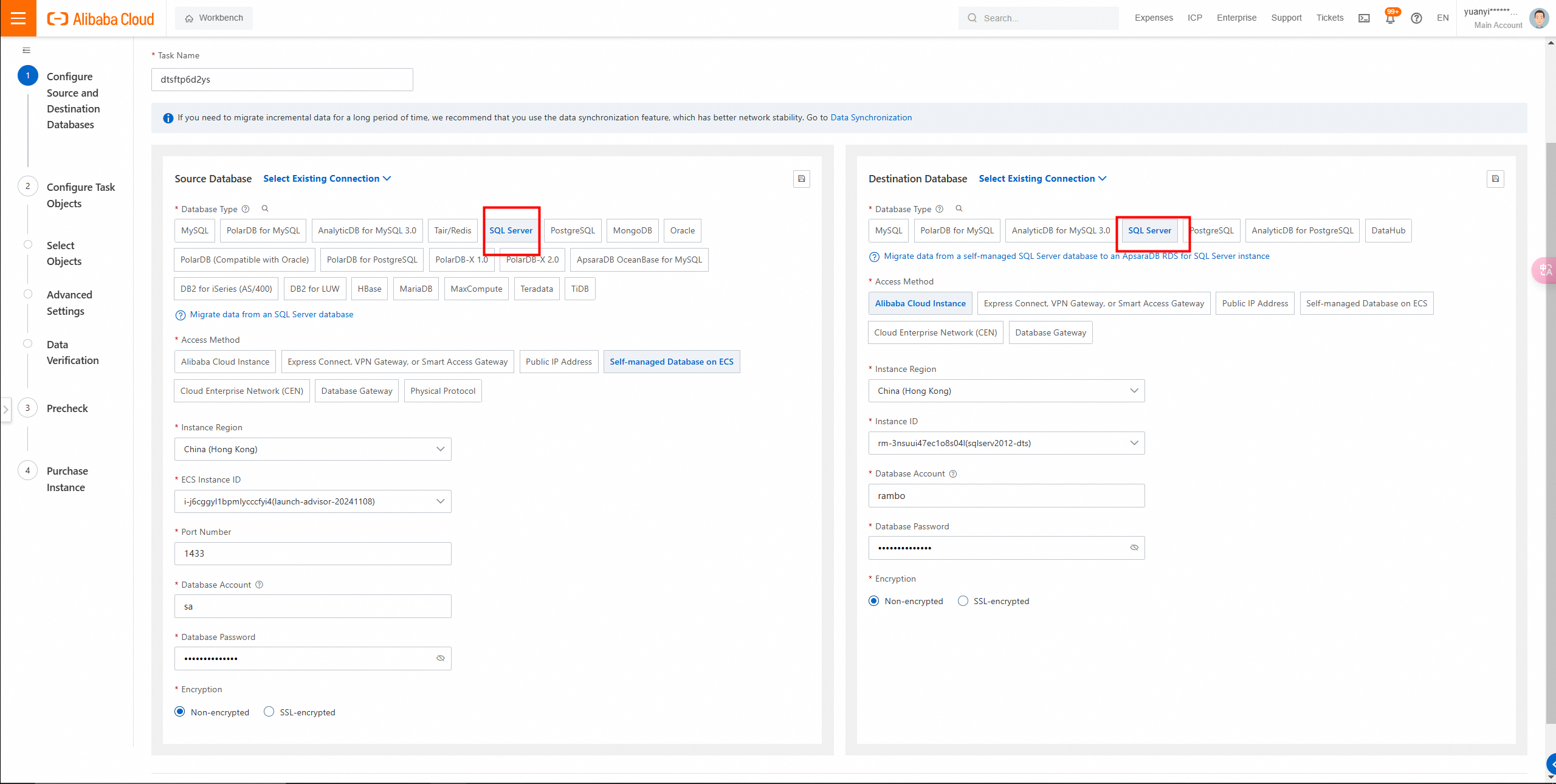
2. Click Create Task and configure the source and destination databases.
3. Select the objects to be migrated and configure advanced settings.
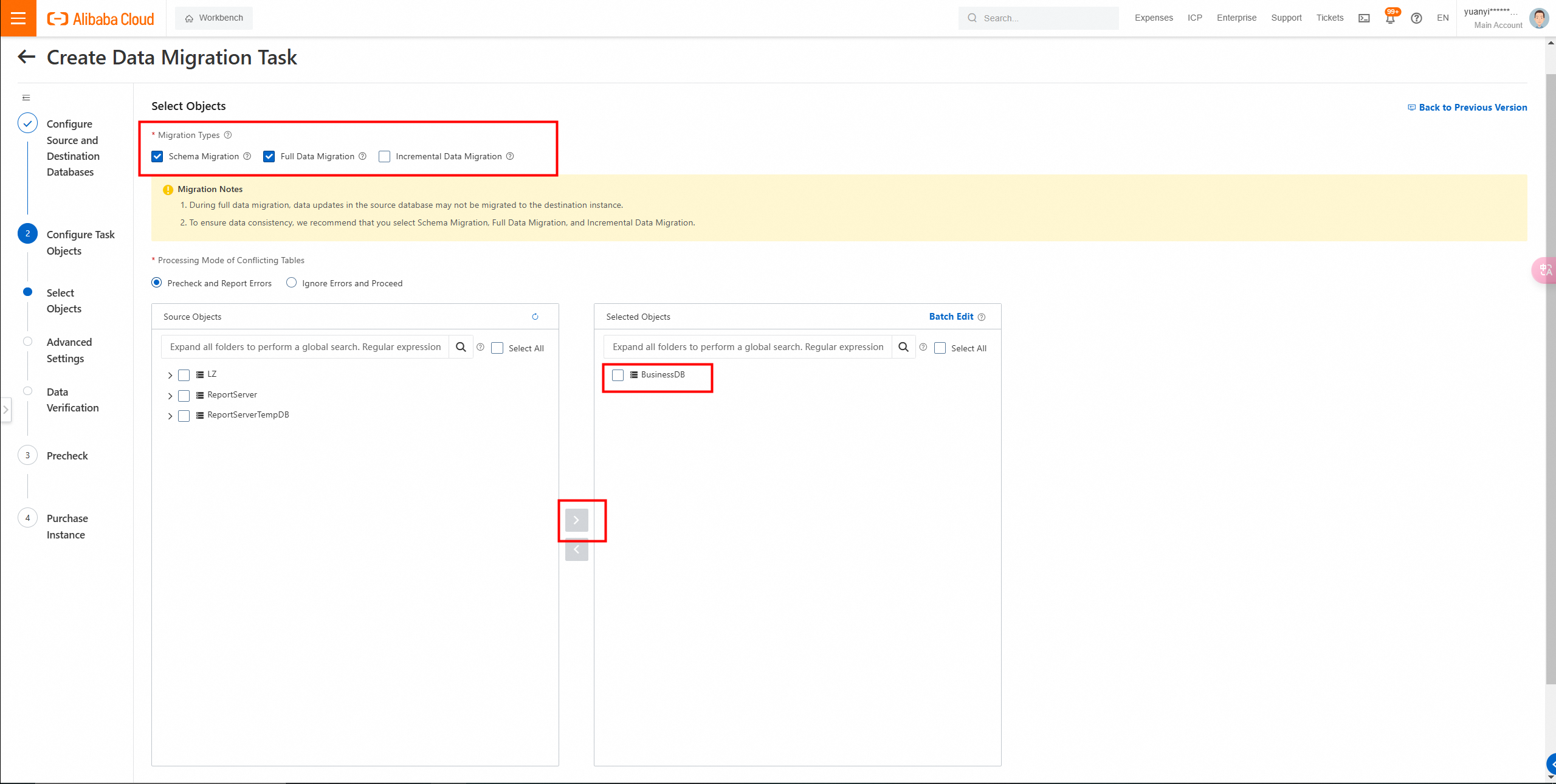
4. Click Next: Advanced Settings to configure advanced settings.
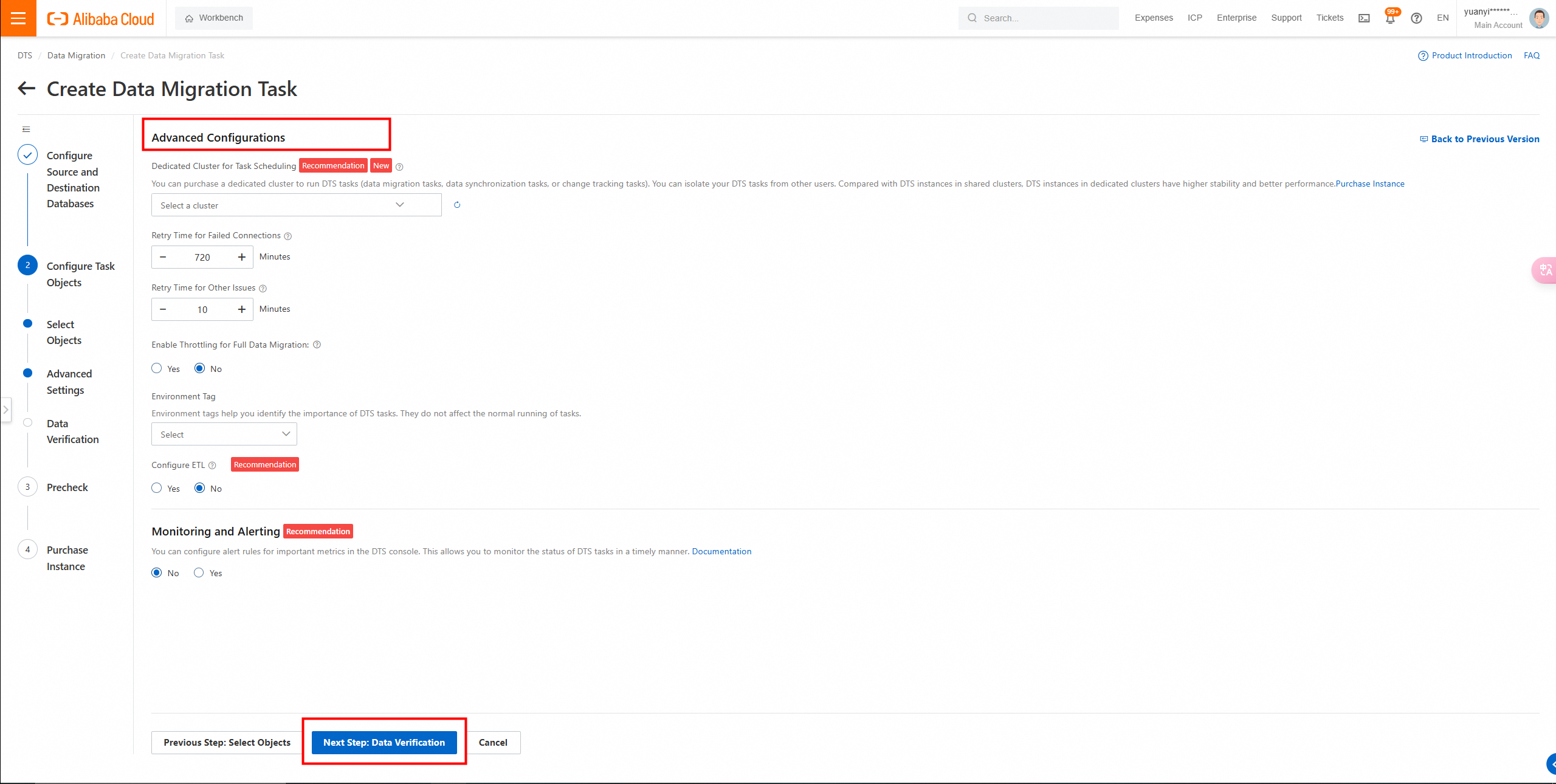
5. Data verification settings.
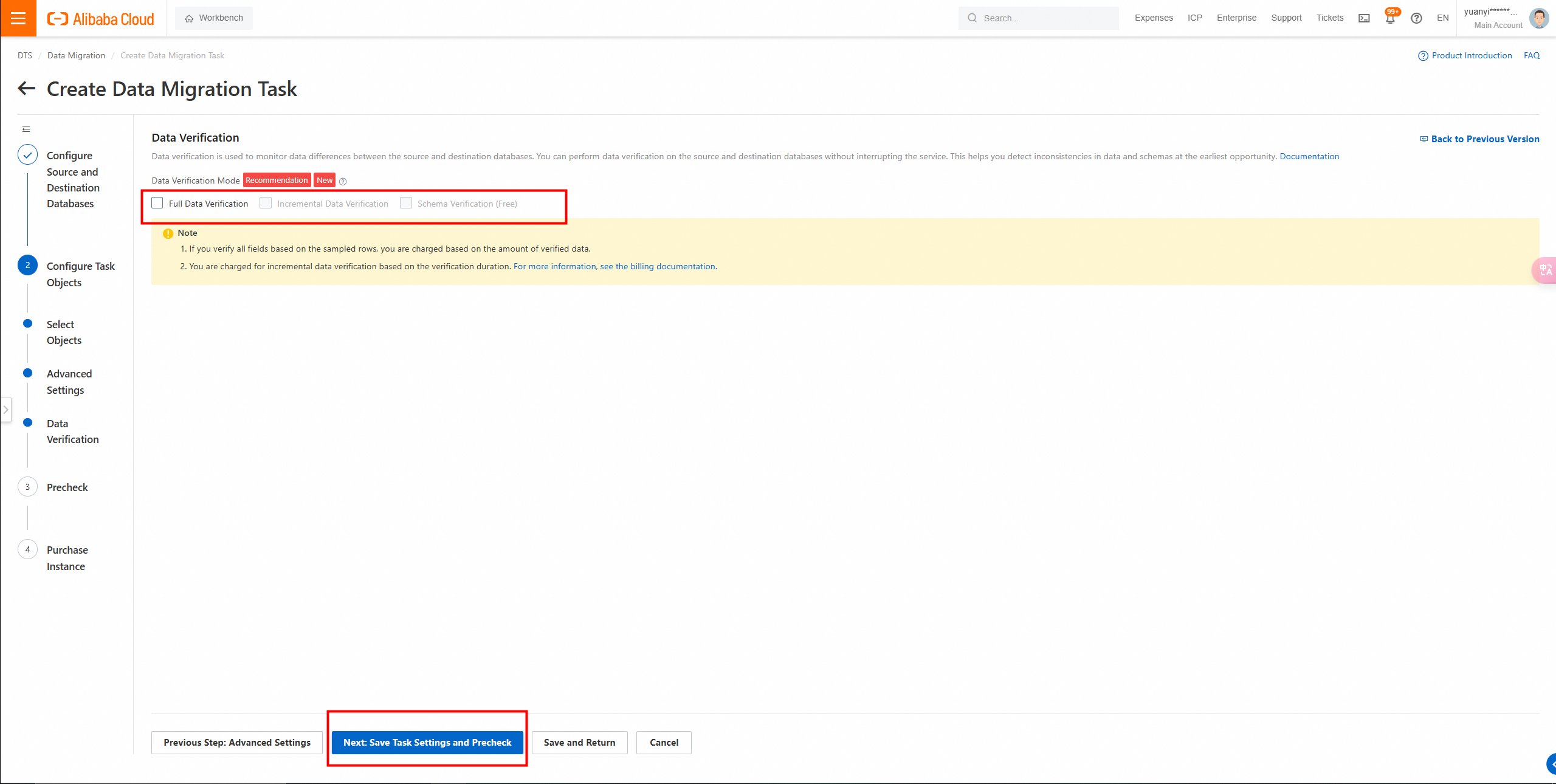
6. Click Next: Save Task Settings and Precheck in the lower part of the page.
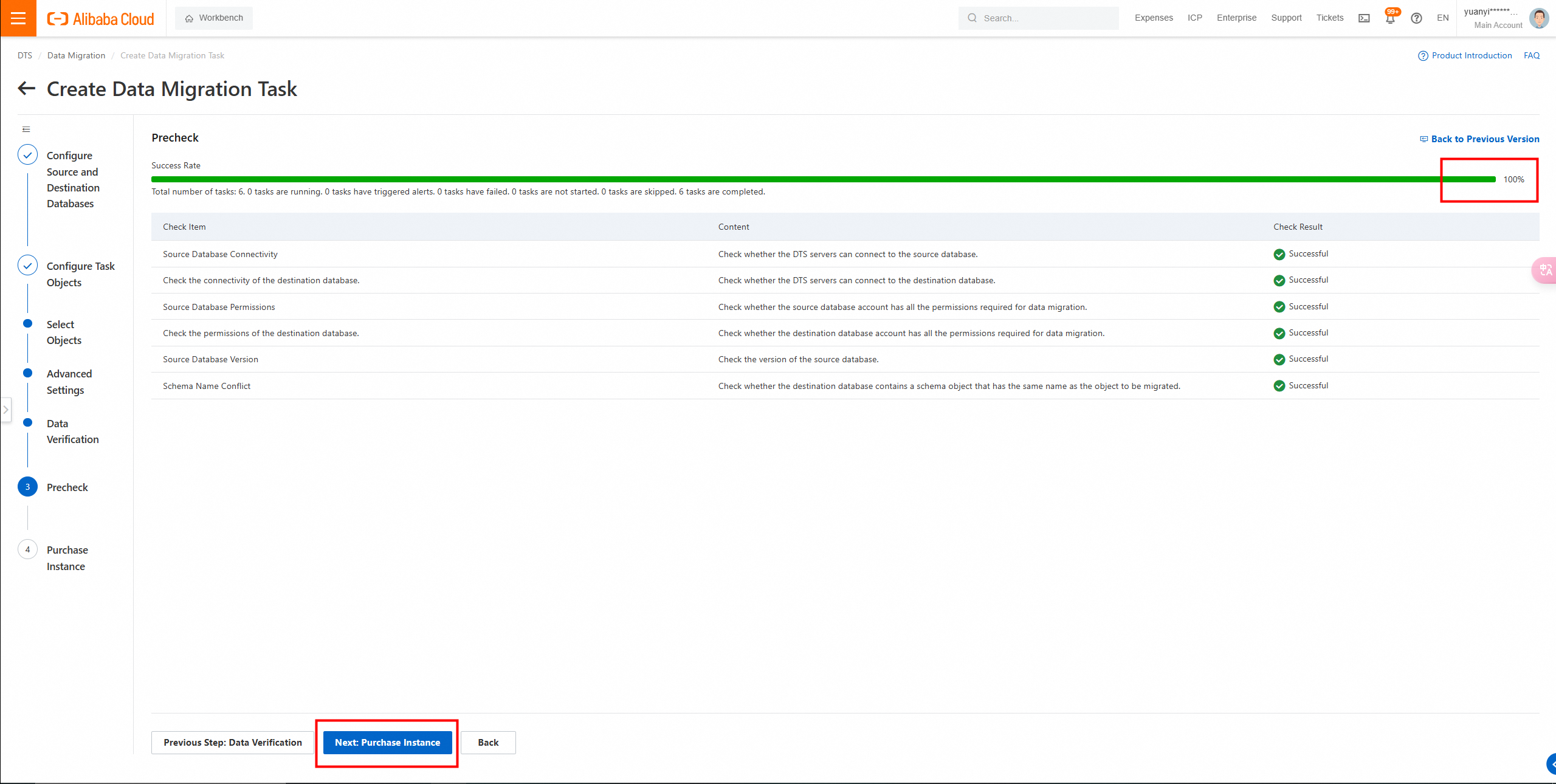
7. Click Buy and Start. In the message that appears, click OK.
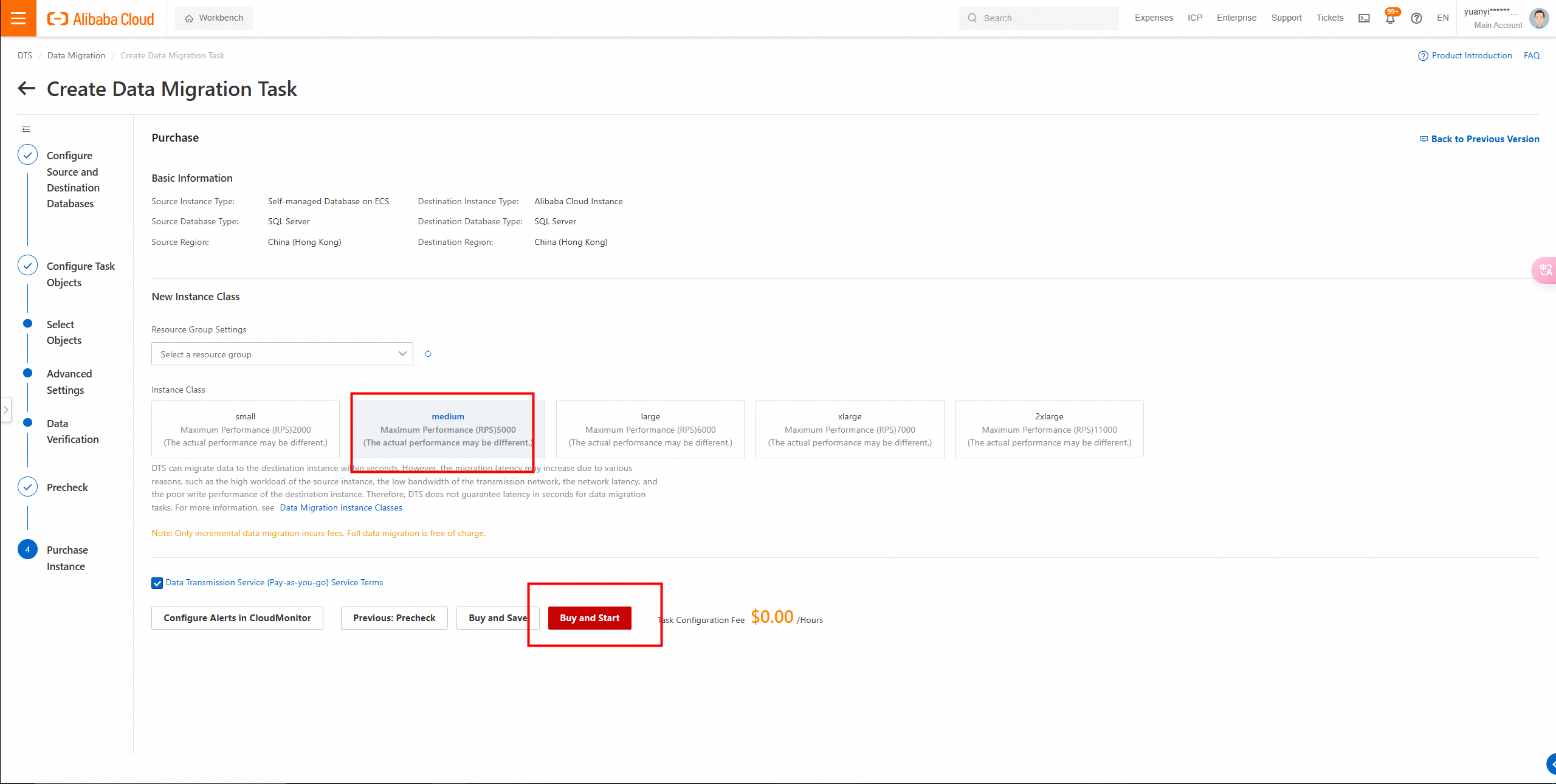
8. View the migration task in the task list.
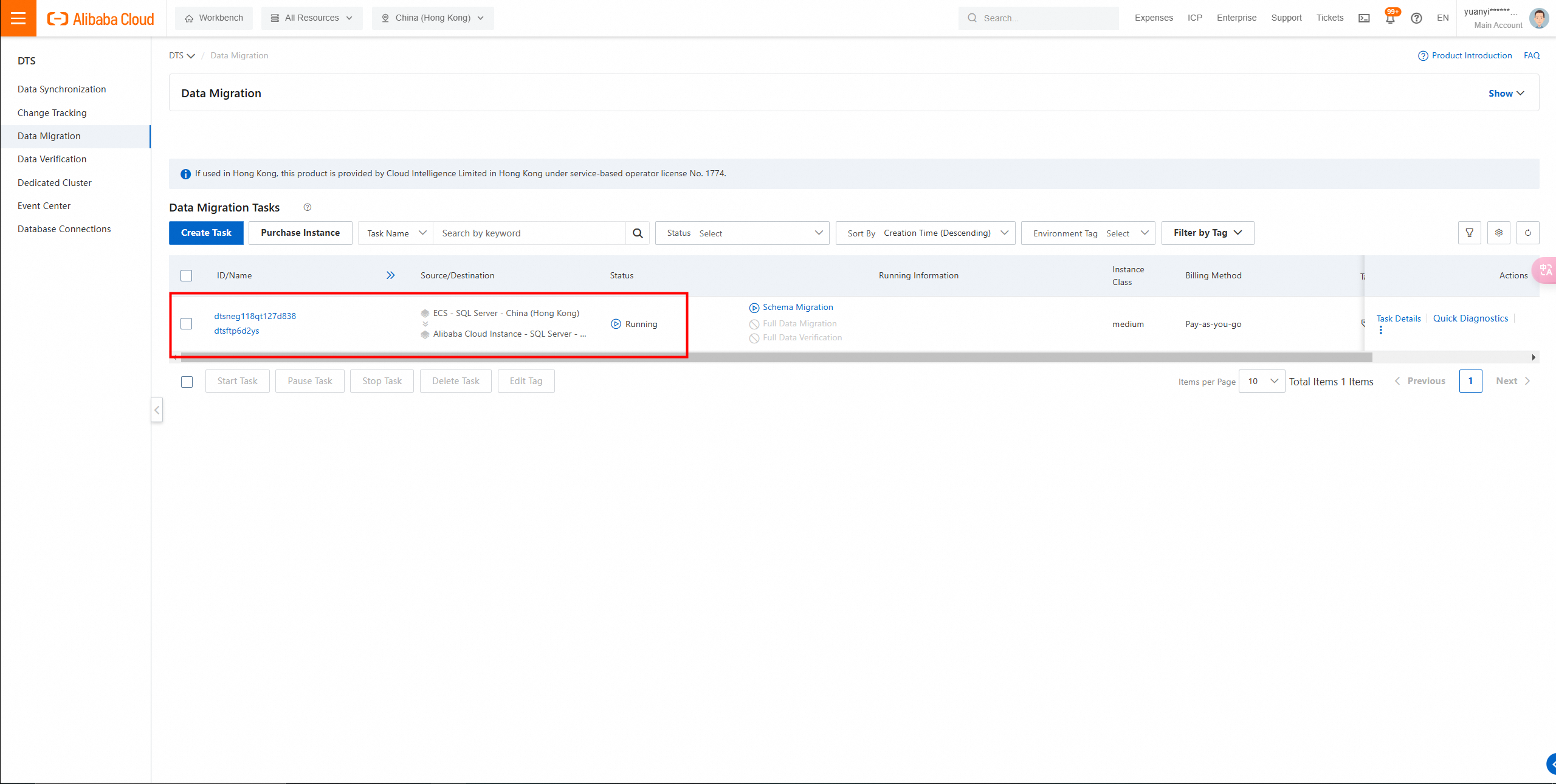
9. View the progress of the migration task.
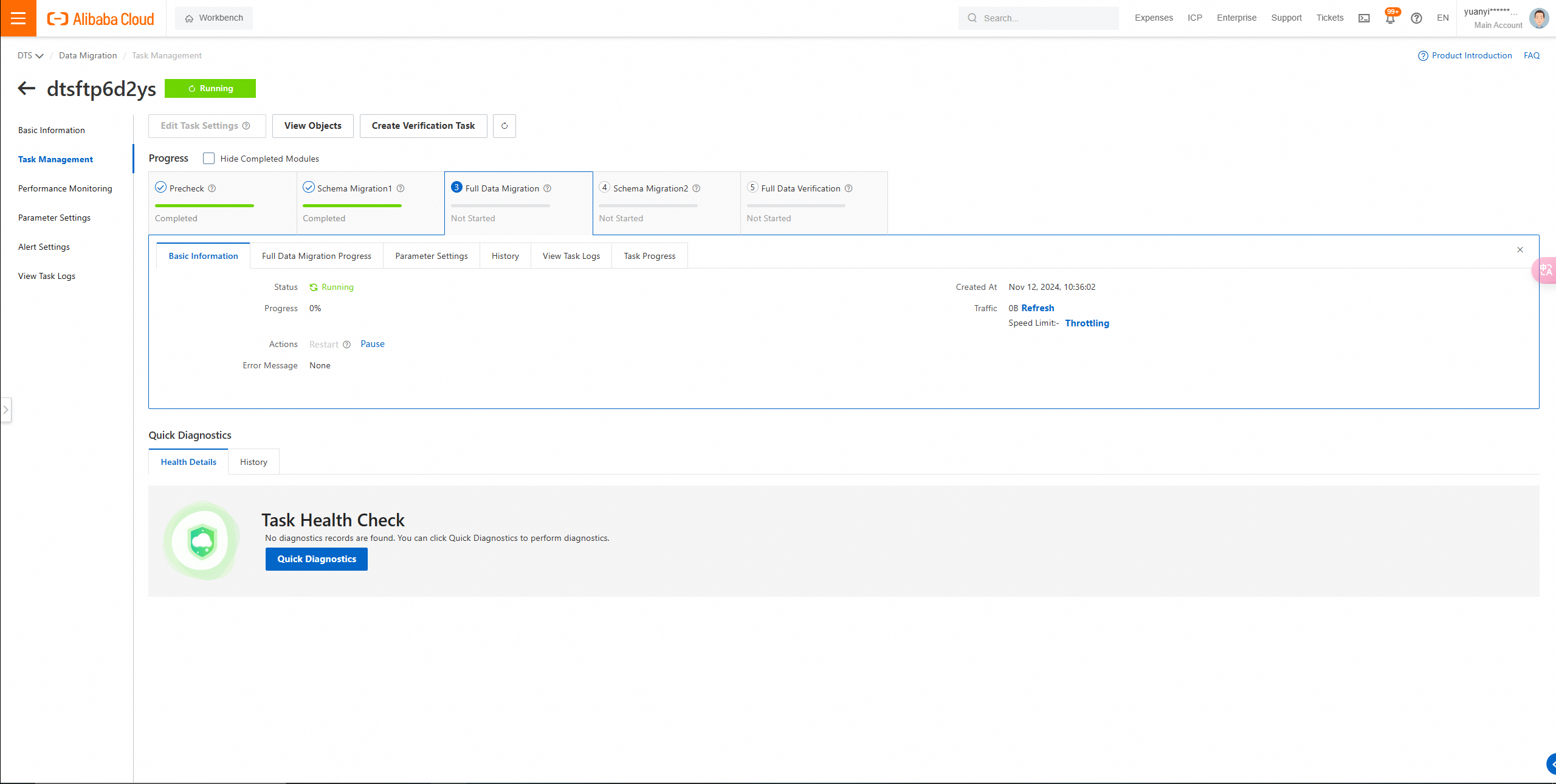
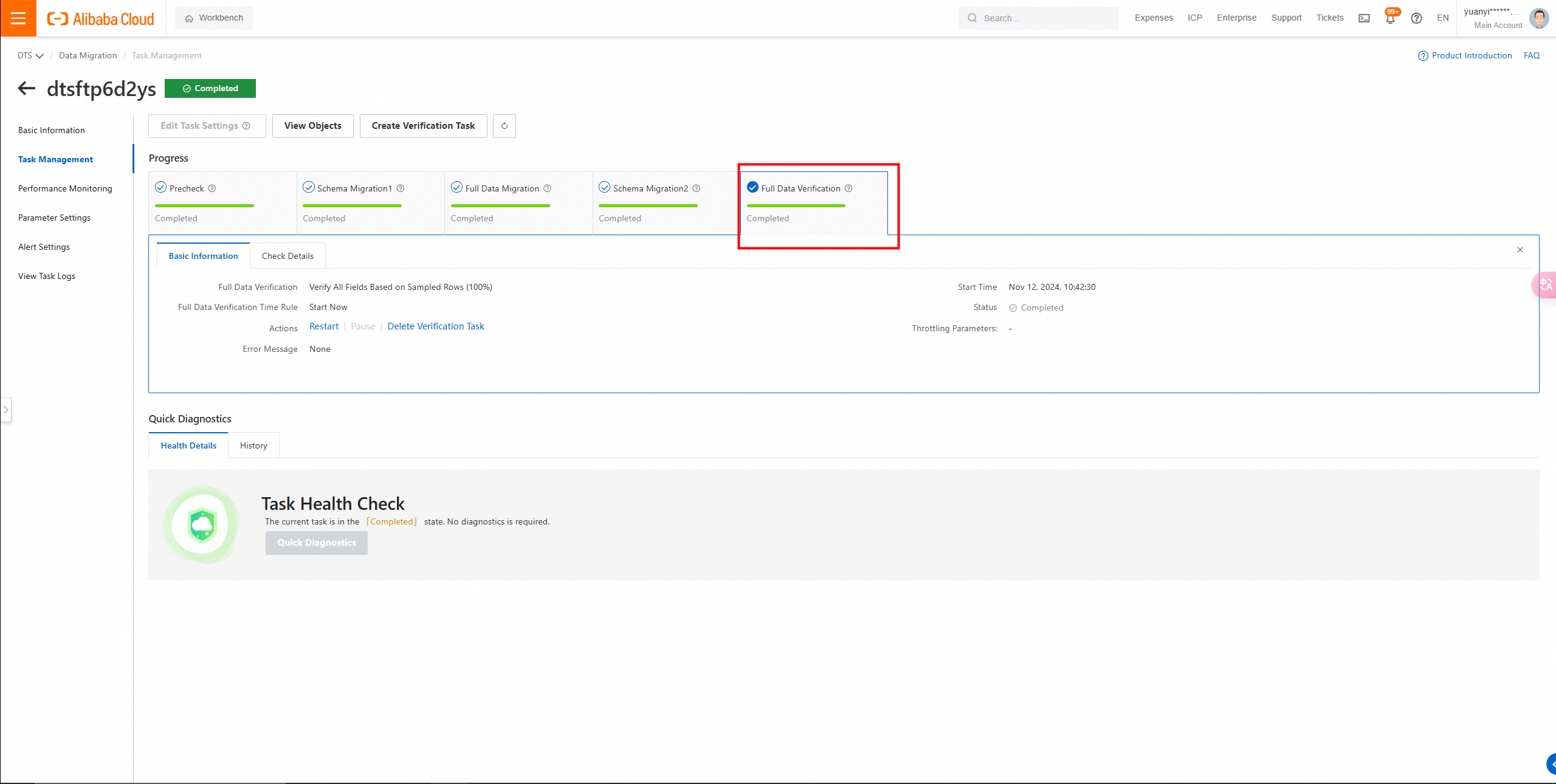
Check data verification.
Check the migrated database in the RDS console.
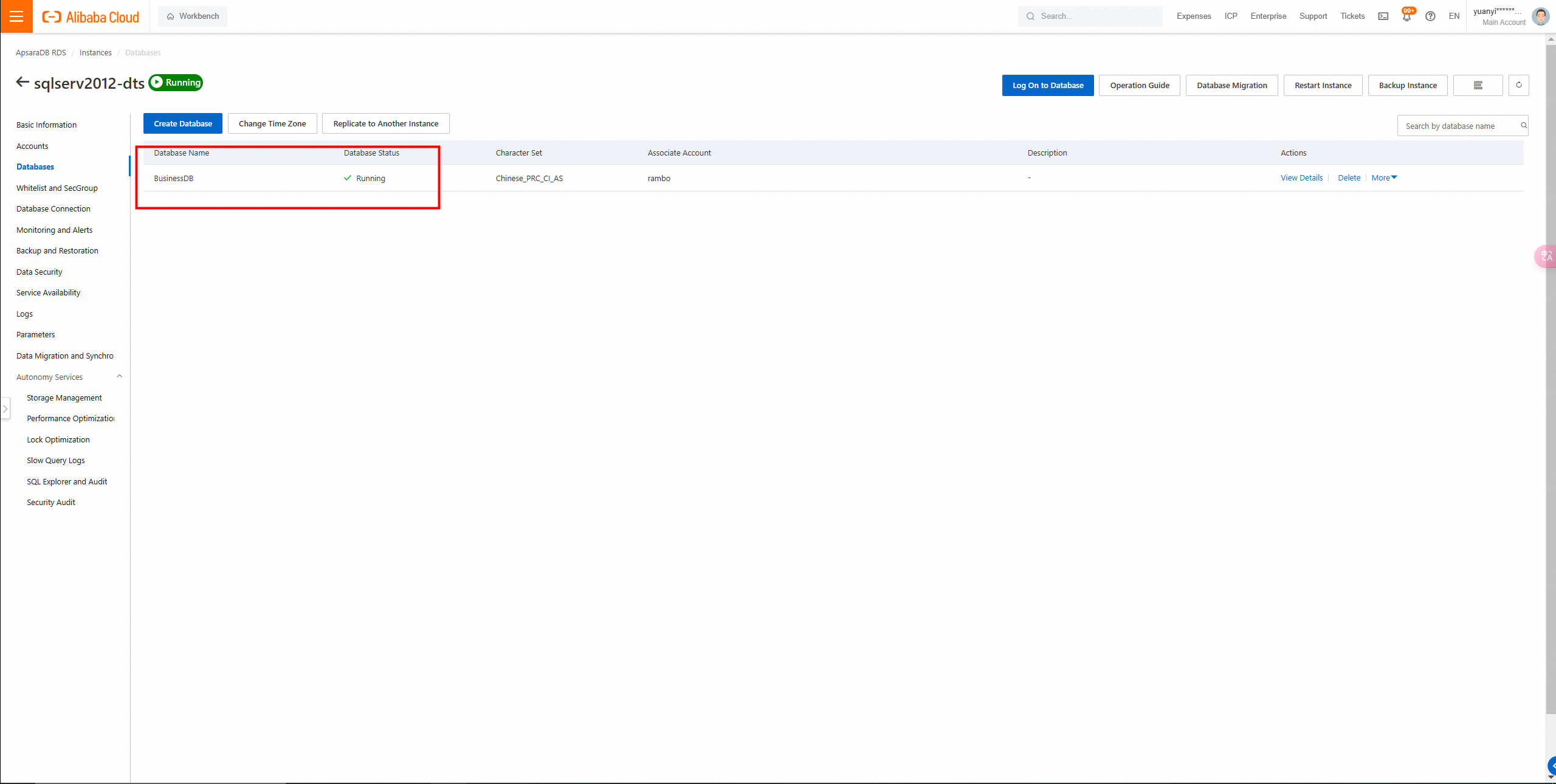
Go to the Databases page.
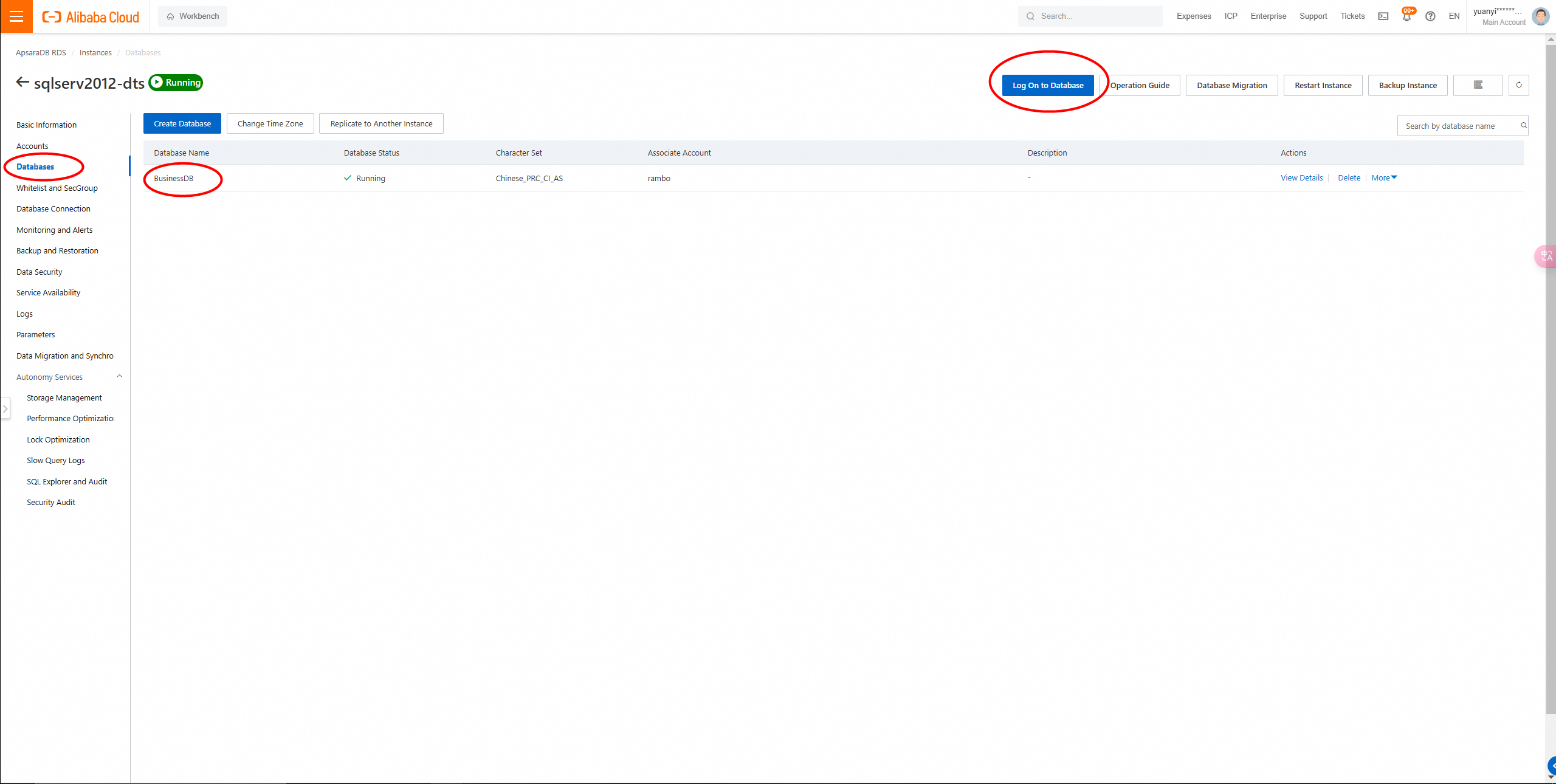
Click Log on to Database to go to the DMS page.
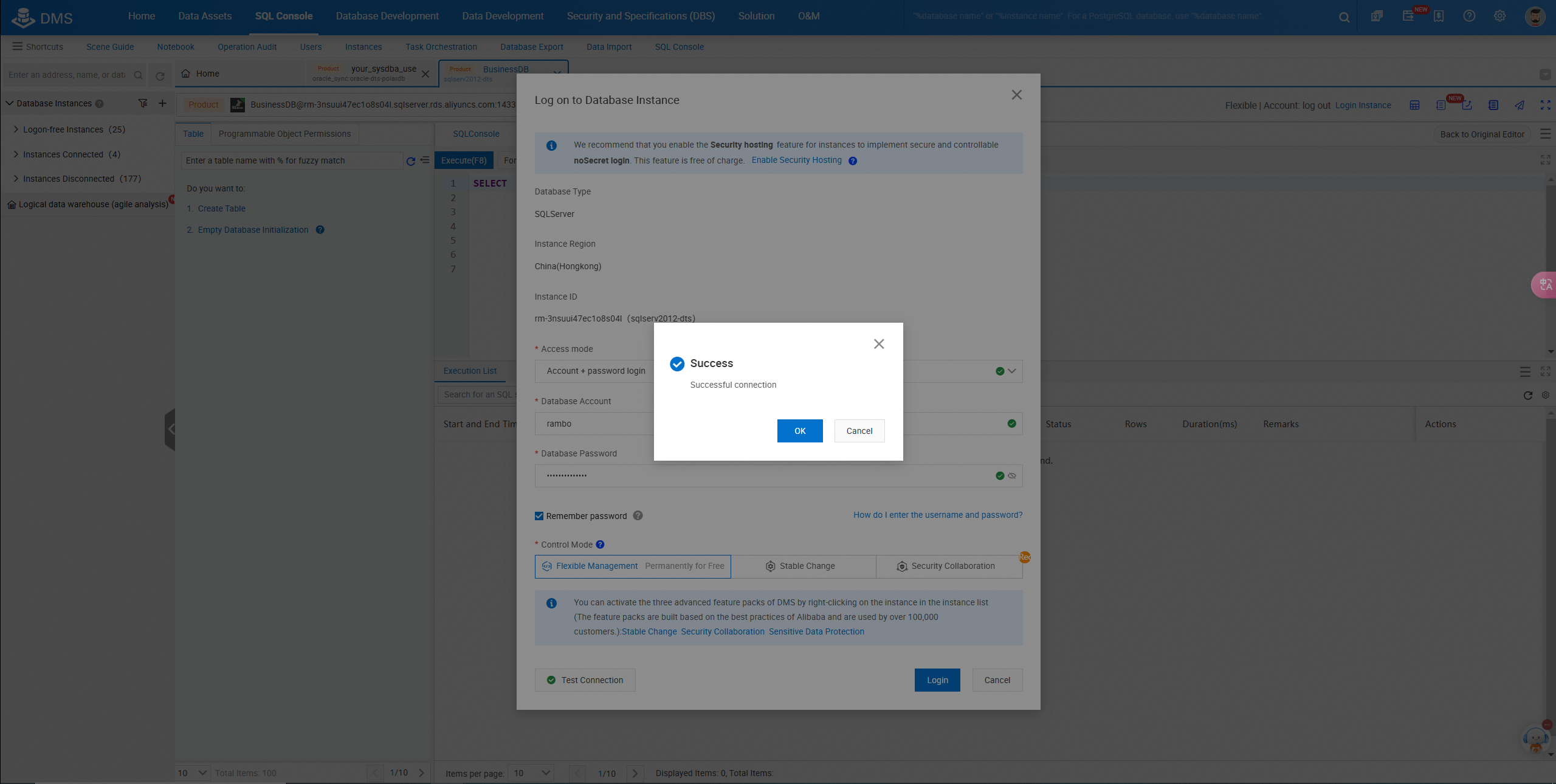
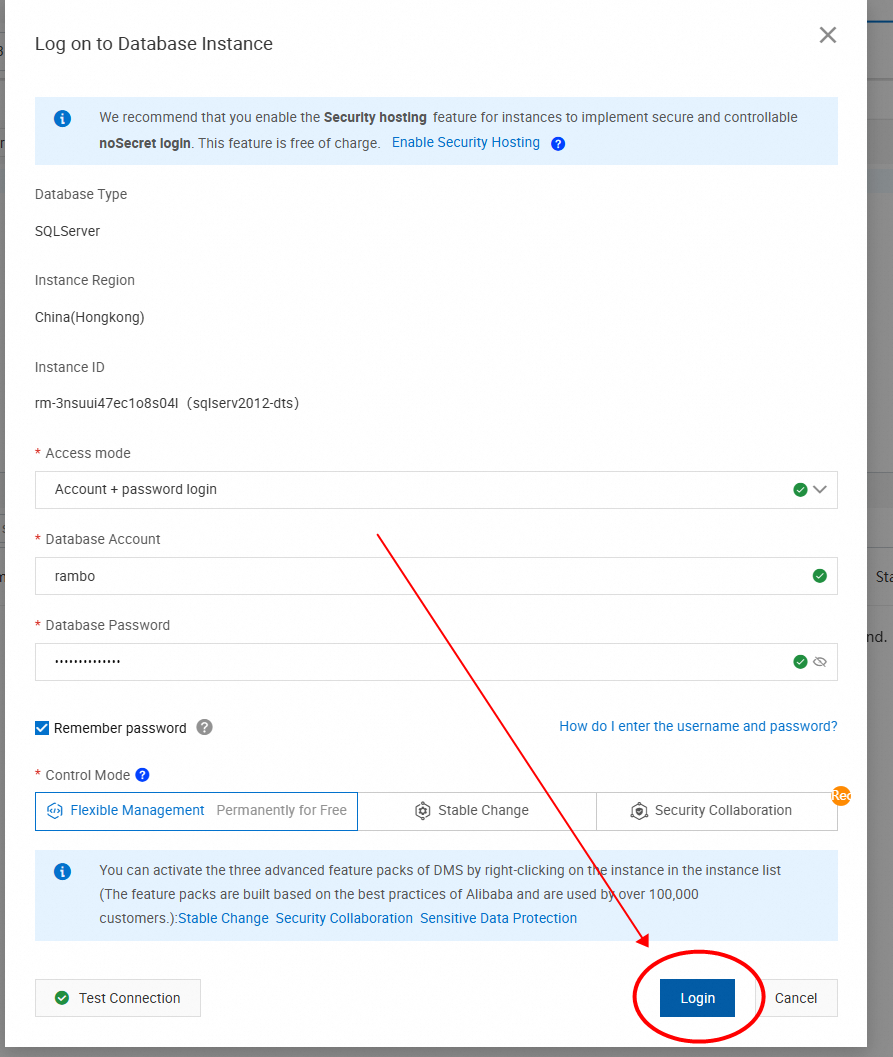
View logon database instances.
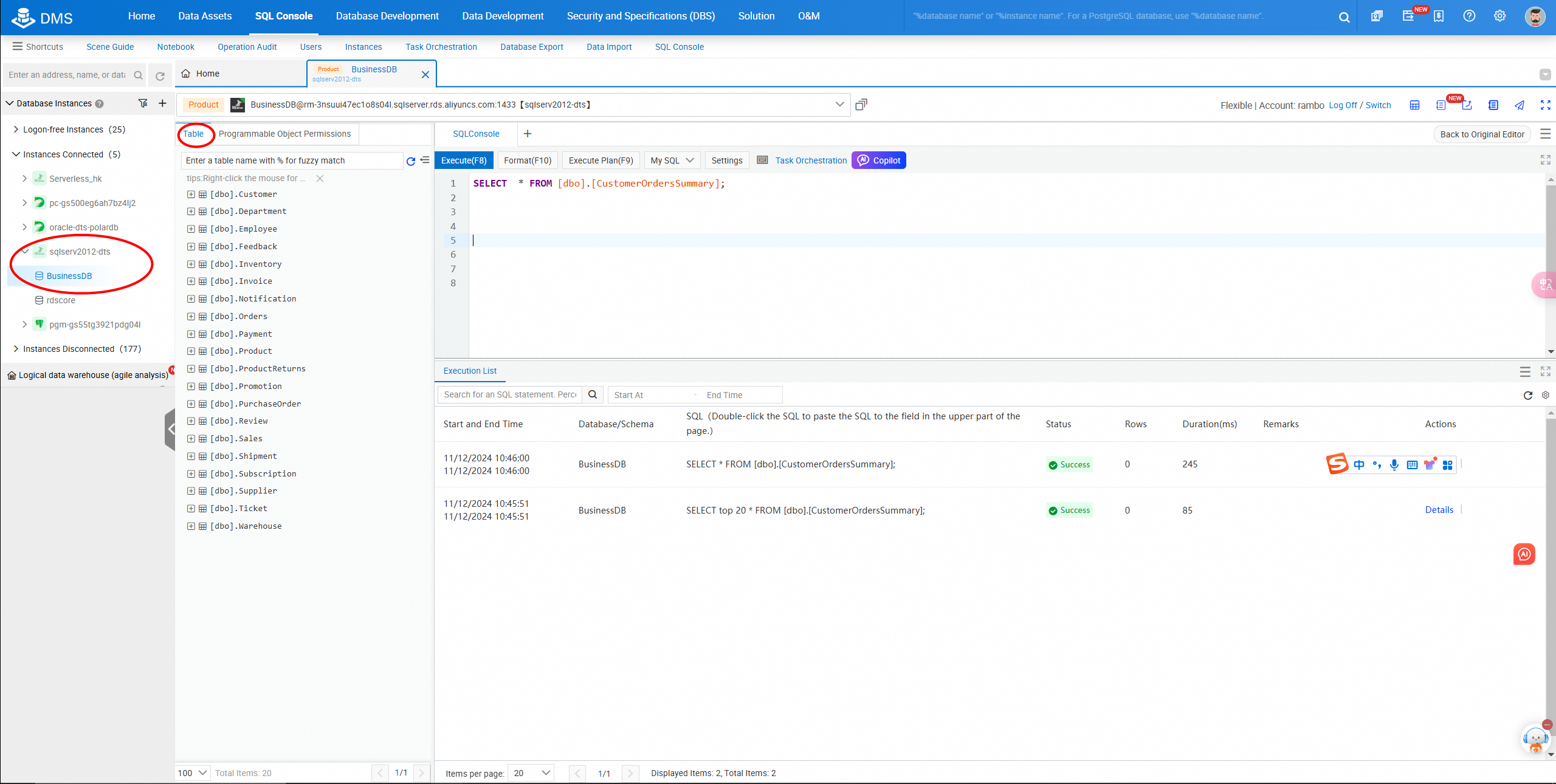
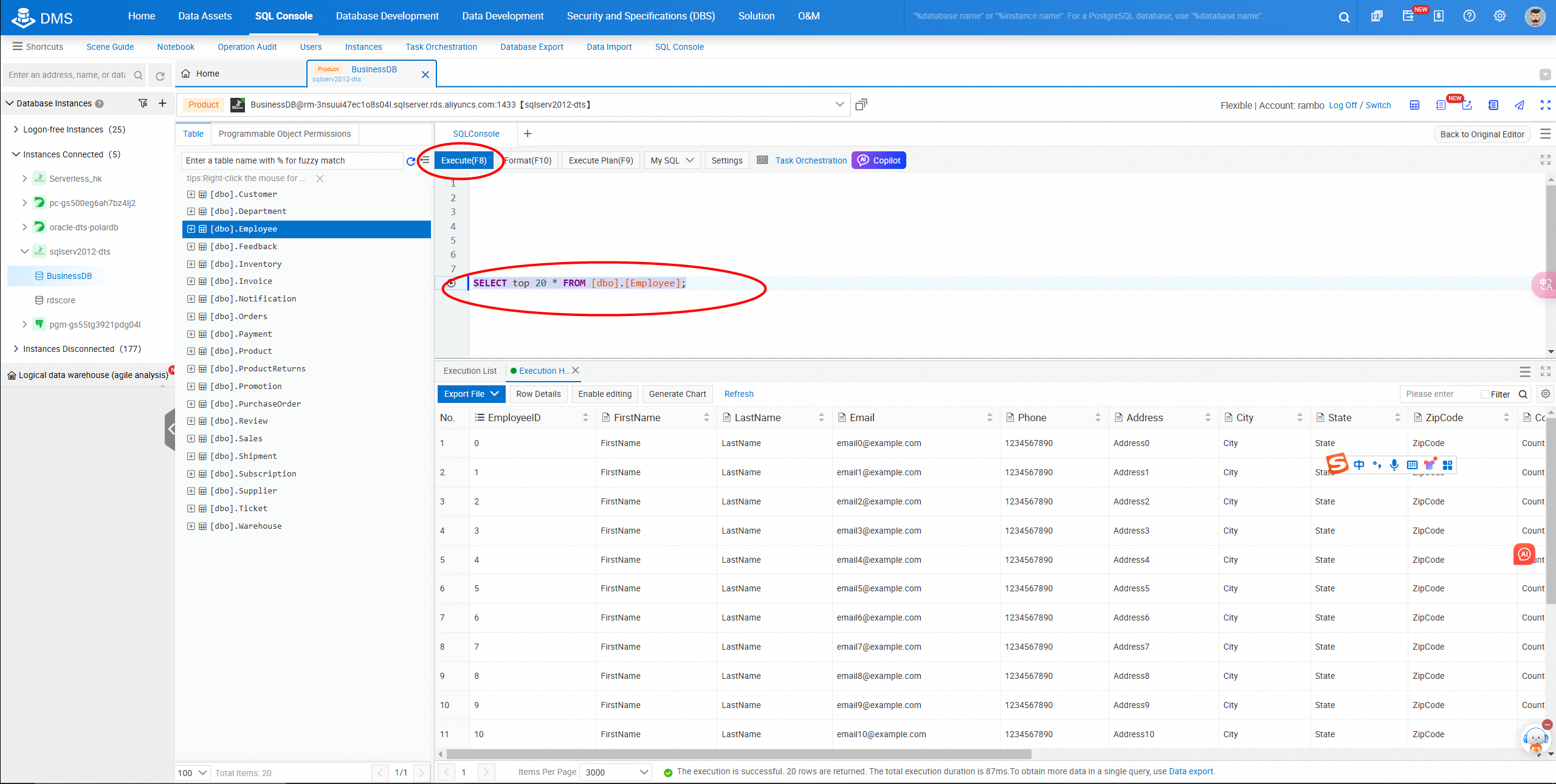
Perform query operations in the SQL console.
Cross-region Read and Write Performance Testing for PolarDB GDN
Cherish Wang - February 20, 2019
Cherish Wang - February 20, 2019
ApsaraDB - November 5, 2024
Alibaba Clouder - August 6, 2020
Alibaba Clouder - February 26, 2019
ApsaraDB - August 13, 2025
 Data Transmission Service
Supports data migration and data synchronization between data engines, such as relational database, NoSQL and OLAP
Learn More ApsaraDB RDS for SQL Server
An on-demand database hosting service for SQL Server with automated monitoring, backup and disaster recovery capabilities
Learn More Cloud Migration Solution
Secure and easy solutions for moving you workloads to the cloud
Learn More Time Series Database (TSDB)
TSDB is a stable, reliable, and cost-effective online high-performance time series database service.
Learn MoreMore Posts by ApsaraDB


