All Products
Search
Document Center

WUYING Terminal:Desktop client

Last Updated:Nov 26, 2025

This topic describes the release history of the WUYING Workspace desktop client (Windows client and macOS client).

2025

V8.1 - November 2025

Download Windows client V8.1 | Download macOS client V8.1

Text version

Applicable edition

Change type

Change

Description

Enterprise Edition

New

Added a policy for external disk mapping

Administrators can control whether users are allowed to read from or write to external hard disks connected to their on-premises computers. They can also control whether files on external hard disks can be copied to workspaces.

Enterprise Edition

Improved

Optimized the network connection type for the client

A new connection type is added for the client. You can choose to first log on over the Internet. If the connection fails, the client tries to log on over the enterprise's private network.

Image version

桌面端-中文

V7.13 - August 2025

Download Windows client V7.13 | Download macOS client V7.13

Text version

Applicable edition

Change type

Change

Description

Enterprise Edition

Improved

Added support for custom save directories for file transfers and migrations

You can set the default save directory for file transfers or migrations by choosing File Transfer > Preferences in the floating bar menu. [Change the default save path for uploaded files]

Enterprise Edition

Optimization

Added clipboard control within workspaces for local disk mapping

After an administrator sets the local disk mapping policy to Read-only or Read/Write in the console, you can be prohibited from or allowed to copy files from the mapped local disk to the workspace. [Method 1: Transfer files using local disk mapping]

Enterprise Edition

Improved

Added support for configuring the visibility of the "Metering module" in the floating bar

Administrators can go to the workspace policy page in the console and use the Workspace Floating Bar Management > Metering Information switch to control the visibility of the "Metering module" in the first-level menu of the floating bar. This module mainly displays connection duration information. [Set the display content of the floating bar menu panel]

V7.12 - July 2025

Download Windows client V7.12 | Download macOS client V7.12

Text version

Applicable edition

Change type

Change

Description

Enterprise Edition

New

Added data transfer audit for workspaces

Logs are retained for all data transfers that end users perform between workspaces and on-premises devices through channels such as file transfer, data migration, and the clipboard. Enterprise administrators can preview, download, or delete the data on the Security And Auditing > Operation Logs > File Transfer Logs page in the console. [View file transfer logs]

Enterprise Edition

New

Added a full-speed mode for file transfers

A full-speed transfer mode is added for file transfer and data migration. Enterprise administrators can enable or disable this mode in workspace policies, or allow end users to configure it. [Method 3: Transfer files using the file transfer module]

Enterprise Edition

Improved

Optimized immersive mode

After the client enters immersive mode, a portal authentication entry for the on-premises Wi-Fi network is added. The UI layout of on-premises system features in immersive mode is also optimized.

V7.11 - May 2025

Text version

Applicable edition

Change type

Change

Description

Enterprise Edition

New

Added a keyboard shortcut in the floating bar to open the workspace system's Security Center

The Ctrl+Alt+Del keyboard shortcut is added to the first-level menu of the floating bar to open the workspace system's Security Center. Administrators can control whether to provide this feature in the floating bar. [Floating bar (Workspace Assistant)]

V7.10 - April 2025

Applicable edition

Change type

Change

Description

Enterprise Edition

New

Added support for configuring the visibility of the WUYING Butler entry in the floating bar

IT administrators can configure whether to display the WUYING Butler entry in the first-level menu of the workspace floating bar.

Enterprise Edition

New

macOS client supports USB security key-like peripherals

On the User Center > Settings > Peripherals panel of the macOS client, you can grant the WUYING peripheral service permission to start with administrator privileges. After authorization, the workspace can recognize and connect to USB security key-like devices plugged into your Mac. [Grant permissions to the WUYING peripheral service]

Enterprise Edition

Optimization

Optimized the immersive mode for the Windows client

After an IT administrator enables the Local System Settings switch for immersive mode, you can open the Control Panel of your on-premises operating system from the User Center > Settings > System panel of the Windows client to configure on-premises system settings such as Bluetooth and network.

V7.9 - March 2025

Applicable edition

Change type

Change

Description

Enterprise Edition

New

Added the feature to upgrade Windows system plugins

Click the red dot for upgrade on the workspace card to upgrade the Windows system plugins for the workspace. You can choose to upgrade immediately or schedule an upgrade time, and customize the status of the workspace after the upgrade. [Manage and maintain workspaces]

Enterprise Edition

New

Added the feature to reset workspace images

If an administrator enables the "Reset Workspace Image" policy, you can click Manage on the workspace card and reset the workspace image to its initial state in the new Image module. [Recover data]

Important

After the reset, the data in the workspace will be deleted.

Enterprise Edition

New

Added a feature for administrators to configure a fixed resolution for workspaces

The Enterprise Edition console now allows administrators to configure a fixed resolution for workspaces. After configuration, you cannot change the workspace resolution. [Set keyboard and mouse modes]

Enterprise Edition

New

Added a feature for administrators to configure a pop-up window for peripheral connection guidance

If an administrator enables the "Peripheral Connection Guidance" policy, a pop-up window will appear in your workspace when a peripheral is connected, allowing you to define peripheral connection settings.

Enterprise Edition

New

Added a cross-device account logout feature

A Device Management module is added to the Security Center of the client. For user accounts not activated by an administrator, you can perform a cross-device Logout. You must pass Captcha verification before logging out. [Configure the desktop client]

V7.8 - January 2025

Applicable edition

Change type

Change

Description

General

New

Added custom configurations to the peripheral connection guidance pop-up window

The guidance pop-up window now includes the following configuration items: whether to automatically connect to the workspace the next time the same peripheral is connected, and whether to remember the current configuration and not show the guidance pop-up again. The default mechanism for triggering the pop-up window has also been optimized.

General

New

The floating bar now displays the on-premises battery level and charging status

When you run the WUYING client on a laptop, the floating bar will display the laptop's battery level and charging status.

General

Improved

Optimized the workspace restore point feature

Optimized the display logic for restore points. Restore points for the system disk and data disks are displayed and can be operated separately. You can also view the history of restore point recoveries.

General

Improved

Optimized the file transfer feature

File transfer now supports folder uploads.

2024

V7.7 - December 2024

Change type

Change

Description

References

New

Added a keyboard shortcut to exit full screen

The Windows client can use the Ctrl+Q keyboard shortcut to exit the full-screen mode of the workspace. You can also customize this shortcut in Workspace Assistant > Manage > Control.

Note

This does not apply to the macOS client.

Exit full-screen mode

New

Added a WUYING Butler entry to the floating bar

WUYING Butler provides the following features: manage and configure peripherals, optimize workspace system performance, and fix common workspace issues. You can quickly open WUYING Butler from the first-level menu of the floating bar.

Workspace usage overview

New

Enhanced message notification capabilities

Added a client message sending feature. Administrators can send notifications and workspace image wallpaper messages to end users.

None

New

Added support for configuring features in the workspace floating bar

Enterprise IT administrators can configure the features of the floating bar on the O&M > Policies > Workspace Floating Bar Management page of the WUYING Workspace Enterprise Edition console.

None

Improved

Optimized connection guidance for peripherals

Optimized the guidance experience when connecting peripherals, including the trigger logic for the connection guidance pop-up and automatic connection configurations.

None

Improved

Optimized the dual-screen experience for workspaces

In dual-screen mode, you can adjust the resolution and DPI of the extended screen.

None

V7.6 - November 2024

Change type

Change

Description

References

New

Added support for automatic installation of network printer drivers

After a network printer is successfully added, the Driver Installation wizard will automatically appear to guide you through all the configurations for the network printer.

None

New

Added a limit on the number of logged-on terminals

IT administrators can set a limit on the number of terminals you can log on to in the workspace console. If the limit is exceeded, the first terminal you logged on to will be automatically logged out.

Terminal logon limit

New

Added support for enabling and disabling automatic logon

IT administrators can enable or disable the automatic logon feature for the client in the workspace console.

Automatic logon

Optimization

Added support for configuring network printers

You can open WUYING Butler from the floating bar to complete the network printer configuration process.

None

Improved

Optimized the experience of scheduled tasks for inactivity

A countdown reminder will be sent 180 seconds before a scheduled task for inactivity is triggered.

None

Optimization

Optimized the response mode for system keyboard shortcuts and function keys

You can customize whether system keyboard shortcuts and function keys are handled by the workspace or the on-premises operating system when the workspace is in windowed or full-screen mode.

Set keyboard and mouse modes

Improved

Optimized the dual-screen experience

When the on-premises device is in dual-screen mode, the extended screen of the workspace supports keyboard shortcut operations.

None

Improved

Optimized the file transfer experience

File transfer supports drag-and-drop uploads.

None

Improved

Optimized the SSO logon page

The SSO logon page is now displayed in full-page mode.

None

V7.5 - September 2024

Change type

Change

Description

References

New

Added support for automatically waking up a workspace after logging on to the client

When you have only one workspace under your account, you can configure whether to automatically start and connect to a shutdown workspace, or wake up and connect to a hibernating workspace, after logging on to the client.

Configure the desktop client

New

Added campaign messages to the notification center

A campaign message category is added to the notification center. You can receive promotional information about WUYING Workspace in a timely manner.

View notifications

Optimization

Optimized the client logon experience

The entry points for switching between password logon and text message logon are clearer, and the QR code for code-scanning logon is displayed directly. The interaction for switching between Enterprise Edition & Commercial Edition and Personal Edition is also optimized.

Configure the desktop client

Improved

Improved the workspace floating bar experience

Optimized the layout design of the first-level menu of the workspace floating bar. The feature categories are clearer and easier to operate.

Workspace usage overview

Optimization

Enhanced the self-O&M capabilities for workspaces

When a GPU-accelerated workspace encounters a driver exception, a one-click fix is provided to automatically download and install the driver.

None

Improved

Optimized the workspace window operation experience

Unified the window maximization behavior for the Windows client and macOS client. Now, double-clicking the workspace window title bar switches to a maximized window.

None

Improved

Enhanced peripheral capabilities

Added support for OBS virtual cameras.

None

Improved

Enhanced the dual-screen experience

In dual-screen mode, the main screen resolution retains your set parameters, and you can adjust the resolution of the workspace's main screen.

None

Improved

Optimized the WUYING component disk upgrade experience

Component disk upgrades support scheduling an upgrade time. You can schedule the workspace upgrade task to run automatically in 4 hours, 8 hours, or 12 hours.

Note

The automatic upgrade will only be performed when the workspace is not shut down.

Manage and maintain workspaces

Improved

Optimized network access configuration

When you select the Enterprise Private Network connection type, you can configure a custom enterprise private network address.

Step 3: Configure an enterprise private network address or Alibaba Cloud service route

Optimization

Optimized the keyboard shortcut for releasing cursor capture

When using games and 3D applications in a workspace, you must enable Cursor Capture to ensure a good experience when rotating the view with the mouse. You can now double-press the Esc key to release cursor capture for easier operation.

Set keyboard and mouse modes

V7.4 - August 2024

Change type

Change

Description

References

New

Added support for administrator control over image quality policies

Administrators can set a specific image policy in the workspace policies. After it is specified, end users do not need to configure it separately and cannot modify it.

Set keyboard and mouse modes

Improved

Optimized the image version upgrade experience

After the workspace is restarted, the component disk of the image is automatically updated.

None

Improved

Optimized the file transfer experience

  • Added a workspace file transfer feature that supports downloading files from a workspace to an on-premises device and uploading files from an on-premises device to a workspace (requires image version V2.1.0 or later).

  • Optimized the download speed limit for file transfers for more stable limiting.

  • Optimized file transfer stability.

Note

This feature is in invitational preview. To use this feature, submit a ticket to request access.

Transfer files

V7.3 - July 2024

Change type

Change

Description

New

Added a Security Center module

The Security Center lets you view information such as the logon history of the logged-on account on various WUYING terminals, on-premises system versions, IP addresses, and logon and logout times.

New

Added file transfer capability via clipboard

Supports copying and pasting files between workspaces and on-premises devices through WUYING's encrypted transfer channel, with speeds up to 3 MB/s.

Optimization

Workspaces that have been in hibernation for 15 consecutive days will be automatically shut down

After a workspace enters hibernation, computing power is no longer billed (storage is still billed). When a workspace has been in hibernation for 15 consecutive days, it will be automatically shut down. Save your data in the workspace promptly.

Optimization

Enhanced the experience of starting, restarting, and waking up workspaces

After clicking Start or Wake Up on the workspace card, the workspace window will immediately open and display the startup or wake-up process, which is closer to the power-on/off experience of an on-premises computer.

Optimization

Enhanced the security of workspace connections

Connecting to workspaces through an encrypted channel improves connection security.

V7.2 - June 2024

Change type

Change

Description

New

Added support for customizing the automatic logon period

With administrator permission, you can configure the period for which the client remains automatically logged on in User Center > Settings > General.

New

Added Plug and Play guidance for peripherals

When you try to connect a new peripheral, a wizard will guide you through the configuration and connection steps.

New

Added Internet connection detection and repair for workspaces

When connecting to a workspace, its Internet connection will be checked. If there is an issue, you can view the cause and repair suggestions in a pop-up window. This does not apply to cases where Internet connection is blocked by administrator-configured policies.

New

Added logon guidance for new users

Guidance is added for new users using the client for the first time to help them select the appropriate version to log on.

New

Added QR code logon capability

Supports logging on by scanning a QR code with the WUYING Workspace app.

New

Workspaces can now be purchased with monthly hour packages

You can choose a 120 hours/month or 250 hours/month package. The available hours in each monthly cycle can only be used within that cycle. If the hours are used up and you choose to continue using the service, subsequent usage will be pay-as-you-go. The total monthly fee is capped at the standard for the unlimited monthly package, at which point it is equivalent to purchasing the unlimited monthly package.

Improved

Optimized the client upgrade experience

Supports displaying a new version upgrade prompt while logged on, and supports downloading the new version in the background.

Improved

Optimized the image update experience

You can update the image on the workspace card even when the workspace is shut down or in hibernation.

Improved

Optimized the workspace power operation experience

After selecting Power > Restart in the floating bar menu, the workspace will automatically connect after restarting, eliminating the need for manual operation. In some scenarios, you can also start and connect, or wake up and connect, from within the workspace window.

Improved

Enhanced client security capabilities

Enhanced security in multiple aspects, including new client version downloads, client logon, and workspace connections.

Optimization

Upgraded the mouse experience

(Windows client) The mouse mode for GPU-accelerated workspaces is upgraded to cursor capture, and supports custom cursor release shortcuts.

Improved

Optimized the MFA (Multi-Factor Authentication) binding and verification process experience

The interface now provides instructional steps on how to bind a virtual MFA device (using the Alibaba Cloud app as an example) and how to enter a security token when the MFA verification process is triggered.

Improved

Optimized the power management experience on the workspace card

The workspace card now directly displays the Start button (when shut down), Wake Up button (when in hibernation), and Connect button (when running), without needing to hover the mouse over the card.

V7.1 - April 2024

Change type

Change

Description

New

Added WUYING AI Assistant

The WUYING AI Assistant is now available. Hover your mouse over the floating bar to open it. The assistant is connected to Alibaba Cloud's Tongyi large model and can answer questions about O&M and usage.

Bug fixes

Fixed known issues with workspace reconnection experience

The workspace maintains reconnection service after the on-premises device's network is restored.

V7.0 - March 2024

Change type

Change

Description

New

Added a detection and repair tool

Click the floating bar and select Detect And Repair to use the diagnosis and repair functions for various high-frequency keyboard and mouse issues.

New

Added a logon risk governance verification mechanism

When a user logs on to the client, if the system detects a change in the on-premises terminal's environment, a security authentication mechanism is triggered. Environmental changes include the following: the user switching the terminal device running the client, or a change in the on-premises network.

New

Optimized the prompt for workspace startup failures

Optimized the reasons and repair guidance provided in the prompt for workspace startup failures.

V6.9 - February 2024

Change type

Change

Description

New

Enhanced self-O&M capabilities for abnormal workspace scenarios

When a workspace with a Windows operating system encounters a domain disjoin issue, a one-click repair is supported.

V6.8 - January 2024

Change type

Change

Description

New

Added an alert and one-click release for insufficient workspace system disk space

When the system disk space usage of a workspace exceeds the specified threshold, an alert is triggered, and you can clean up the disk space. You can disable or enable this prompt via Floating Bar > Manage > Preferences > Workspace Assistant > Insufficient Disk Space Prompt.

New

Added an alert for high CPU load on workspaces

When the CPU usage of a workspace exceeds the specified threshold, an alert is triggered. You can disable or enable this prompt via Floating Bar > Manage > Preferences > Workspace Assistant > High CPU Load Prompt.

New

Added self-diagnosis and self-healing capabilities for abnormal issues

Some abnormal issues encountered when using workspaces, such as image update failures and workspace connection failures, support self-diagnosis and one-click repair.

2023

V6.7 - December 2023

Change type

Change

Description

New

WUYING Butler version update

Wuying Butler released a new version with features including Image Doctor, improved configuration for shared printers, high memory load alerts for elastic desktops, and one-click optimization.

Optimization

Display preference supports smart mode.

In Smart Mode, the cloud computer automatically adjusts the frame rate and image quality based on the scenario, device, and network conditions. Select this mode in Floating Ball > Manage > Preference > Display.

Note

This feature is supported on cloud computer image version 1.7 or later.

Optimization

Workspace window now supports minimization

The Windows client now supports minimizing the workspace window, optimizing the experience of using both an on-premises computer and a workspace simultaneously.

V6.6 - October 2023

Change type

Change

Description

New

Introduced WUYING Butler

WUYING Butler is a tool for end users to self-resolve common workspace issues. It can be used after upgrading to workspace image version 1.6. This version's features include the following:

  • WUYING health check and issue repair

  • Printer service

  • Display of system configuration information

New

Clipboard now supports rich text

You can now paste copied rich text content into software that supports rich text format via the clipboard, retaining the original format (font, font size, color, alignment, etc.).

V6.5 - September 2023

Change type

Change

Description

New

The floating bar now displays the battery level of the on-premises device

The outer ring of the floating bar displays the battery level of the on-premises device. Hover your mouse over the floating bar to view the battery percentage.

New

The floating bar's Manage panel now includes a Policy module

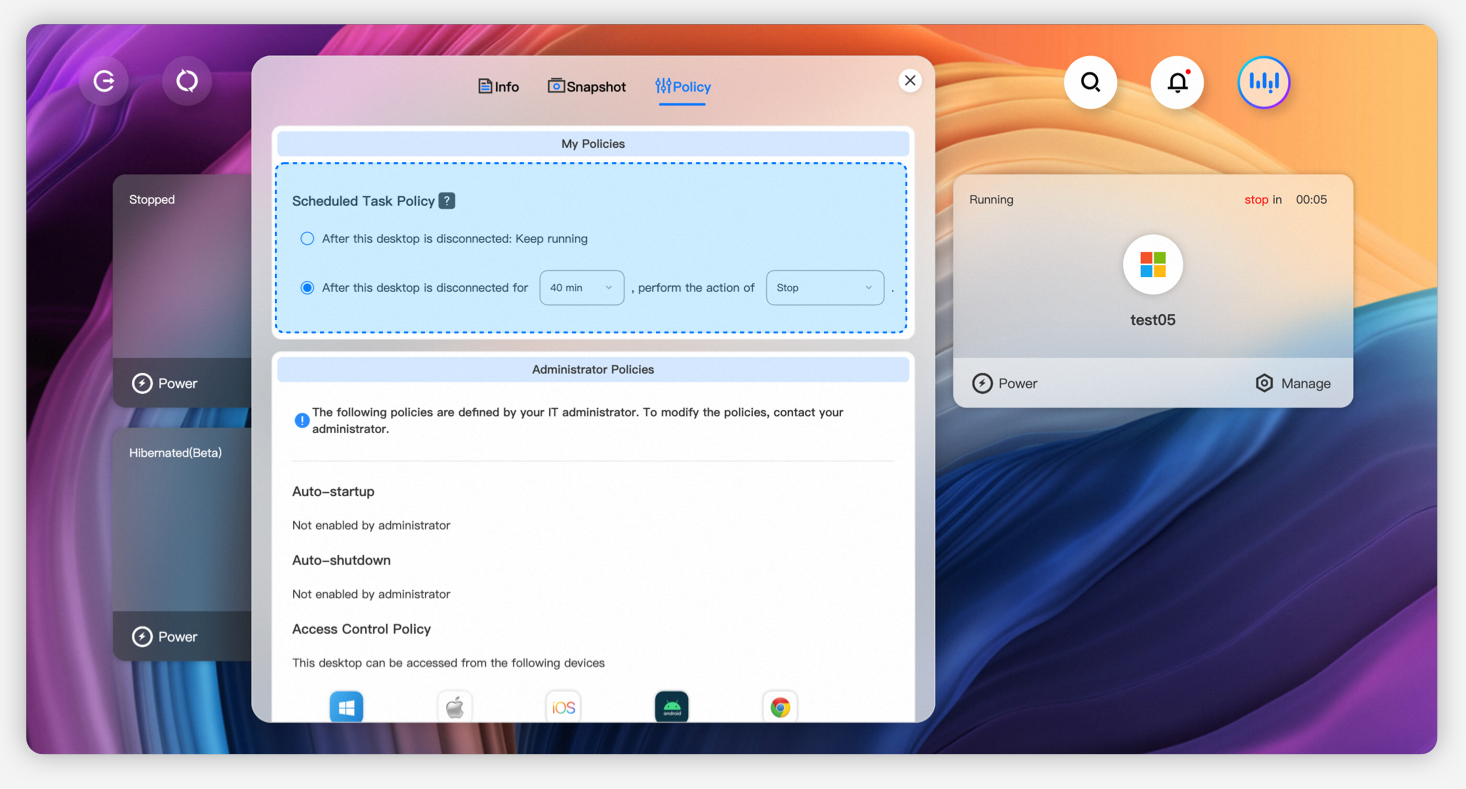
In the new Policy module, you can view administrator-configured policies, such as automatic startup/shutdown policies and logon control policies, and configure scheduled disconnection policies for the workspace.

New

The About panel now provides ways to obtain the WUYING software client

The new information includes download links for the Windows client and macOS client, download QR codes for the Android client, and a link to the Web client.

New

Added support for establishing shared collaboration via a shared URL

Collaborators can click the URL shared by the sharer to start a shared collaboration session, which makes the process more convenient and faster.

Improved

Usernames are now displayed when ending or exiting collaboration

When the collaboration initiator ends the collaboration or a collaborator exits, the relevant username is displayed.

V6.4 - July 2023

Change type

Change

Description

Diagram

References

Other

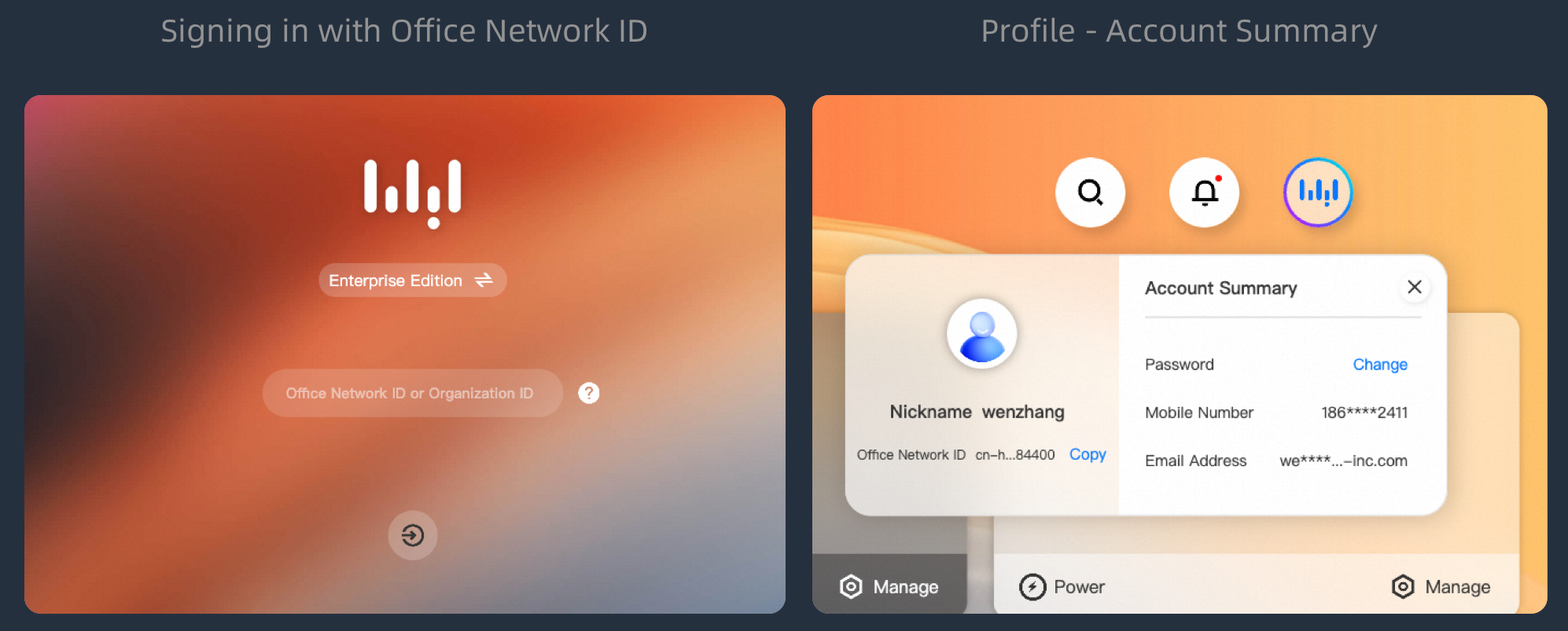
Workspace ID renamed to Office Network ID

On pages such as logon, the floating bar's Manage > Information, and the User Center's Account Information, Workspace ID has been renamed to Office Network ID. The user account and logon logic remain unchanged.

releasenote_win_mac_6.4_orgid_zh-cn.png

Log on to the desktop client

Optimization

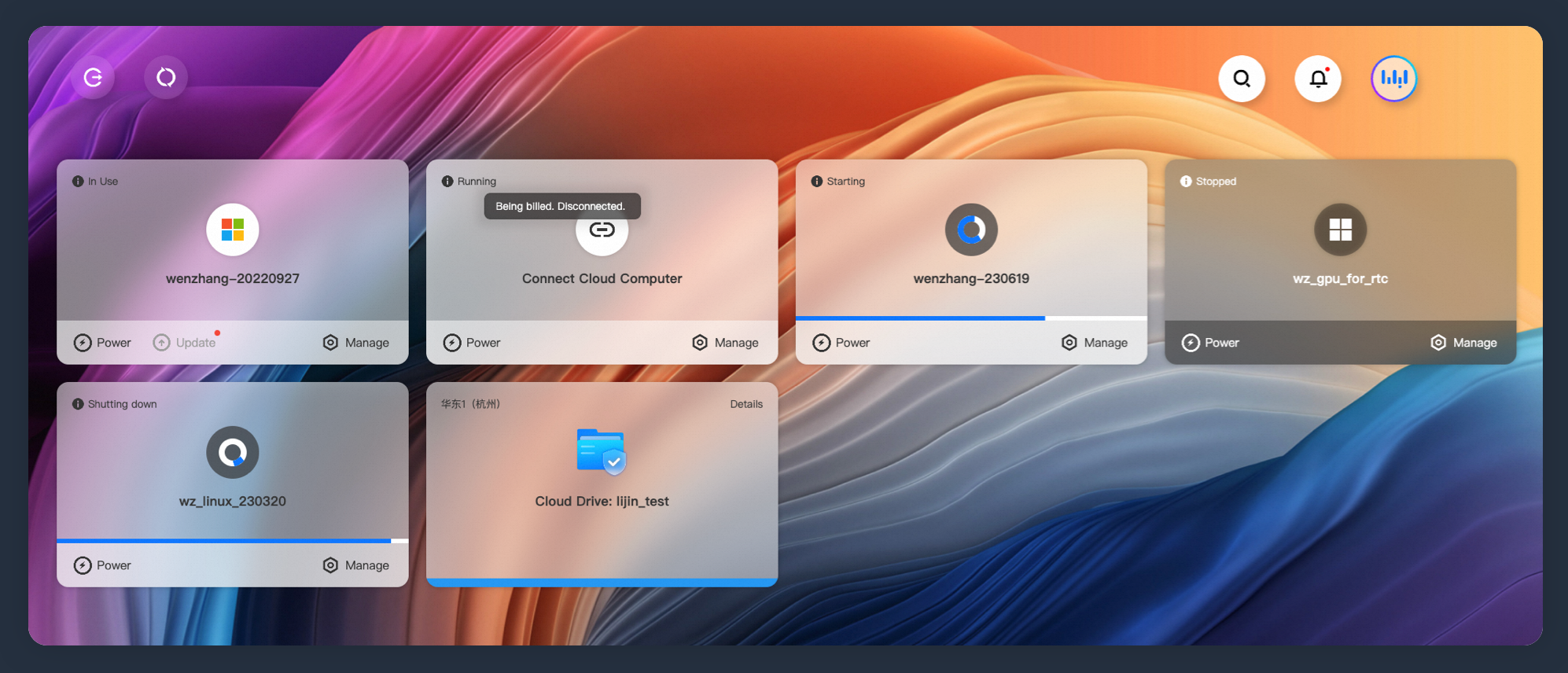
Optimized workspace resource status prompts

Hovering the mouse over the status text in the upper-left corner of the workspace card will reveal a detailed status description, including whether the resource is being billed, and the estimated time for startup, shutdown, and restart.

releasenote_win_mac_6-4_status_indicator_zh-cn.png

None

New

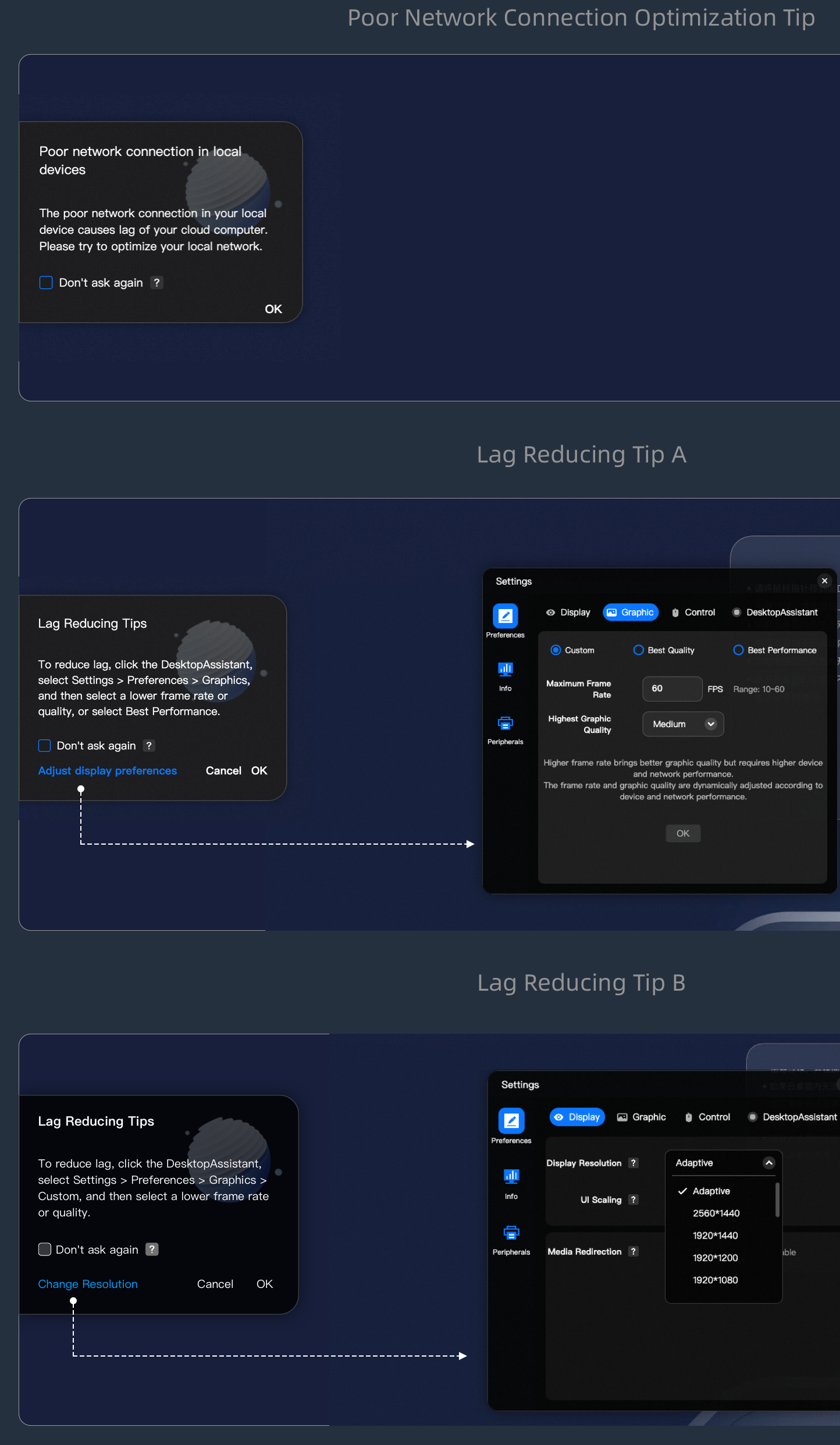
Added prompts for poor network conditions and stuttering in workspaces

When a user experiences stuttering while using a workspace, WUYING will provide corresponding optimization prompts for poor network conditions and stuttering based on a comprehensive analysis of downlink traffic, on-premises network conditions, and resolution and image configuration parameters. This guides the user to adjust the resolution and image configuration to alleviate stuttering.

releasenote_win_mac_6-4_poor_connection_zh-cn.png

None

Improved

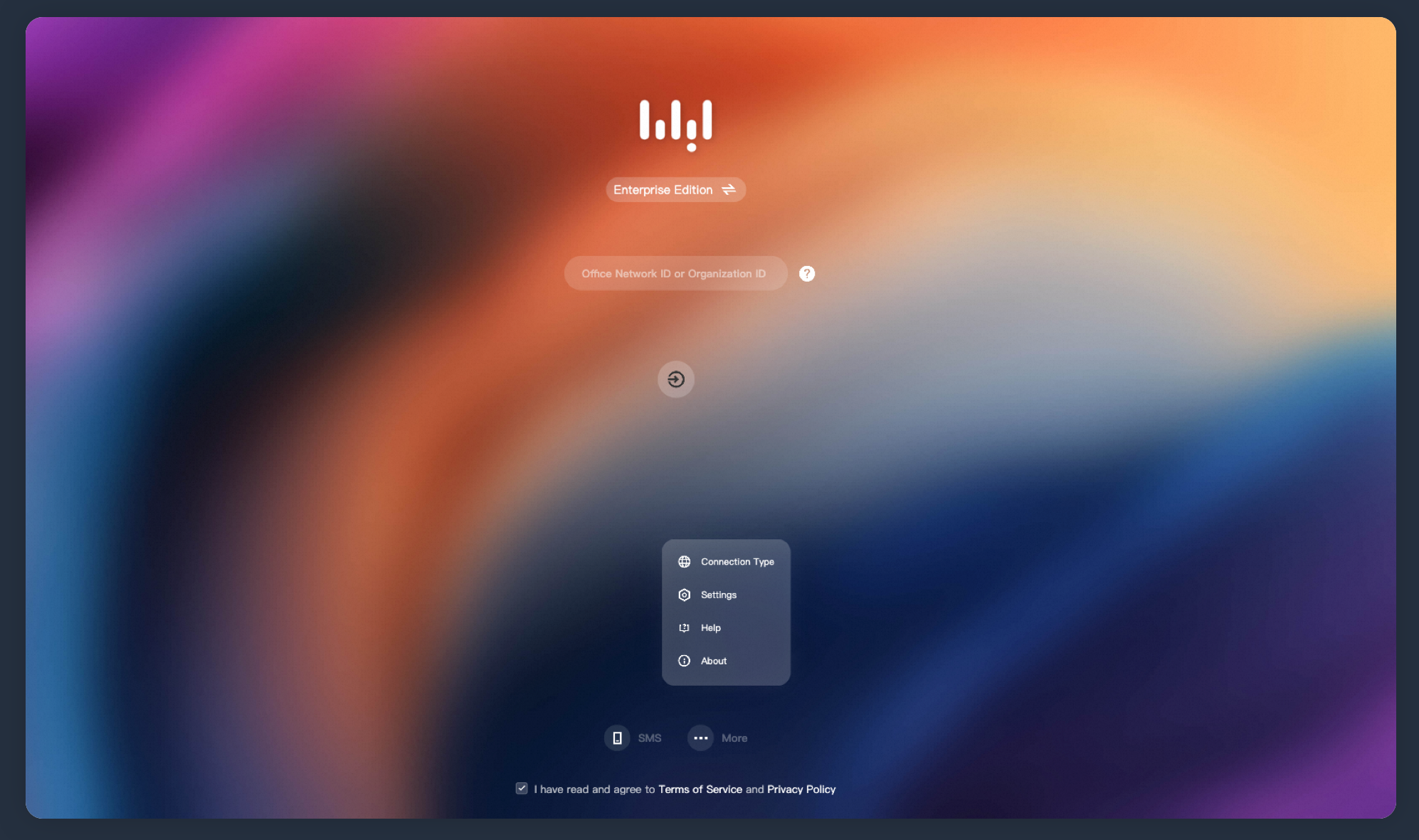
Optimized logon experience

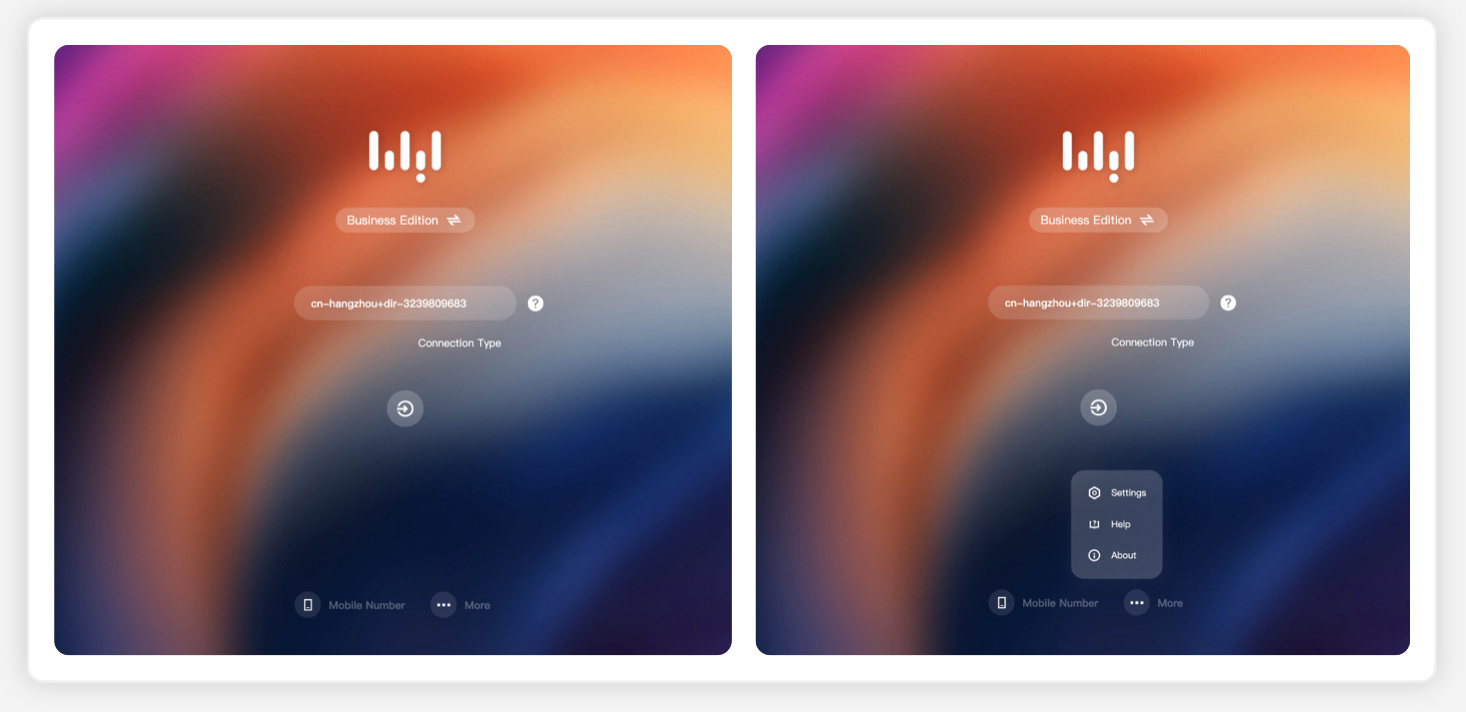
The Network Connection Type has been moved to the More menu, optimizing the logon experience.

releasenote_win_mac_6-4_layout_improved_zh-cn.png

Log on to the desktop client

New

Collaborator session windows now have a floating bar

The floating bar can be used to view on-premises client performance data and enter full-screen mode.

None

Start collaboration

V6.3 - June 2023

Change type

Change

Description

Diagram

References

Optimization

Optimized the taskbar layout at the bottom of the logon page

The layout has been optimized based on the importance of information. The Settings, Help, and About feature entries have been moved to the More menu.

releasenote_win_mac_6-3_zh-cn_03.png

Log on to the desktop client

Improved

Enhanced network detection capabilities

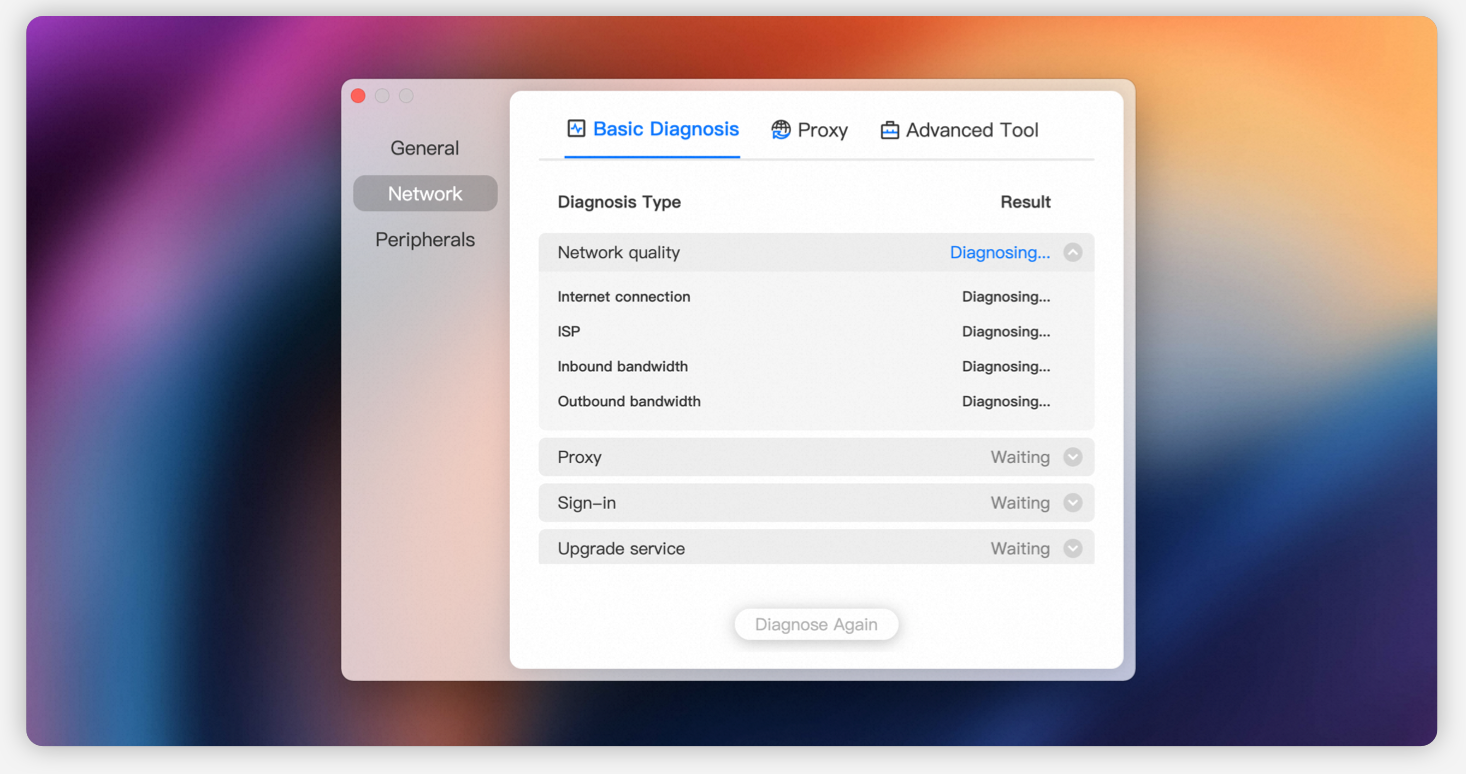
In addition to the existing network detection capabilities, a network check function within the workspace has been added to help you troubleshoot network issues more accurately.

releasenote_win_mac_6-3_zh-cn_06.png

None

New

Added Message Center

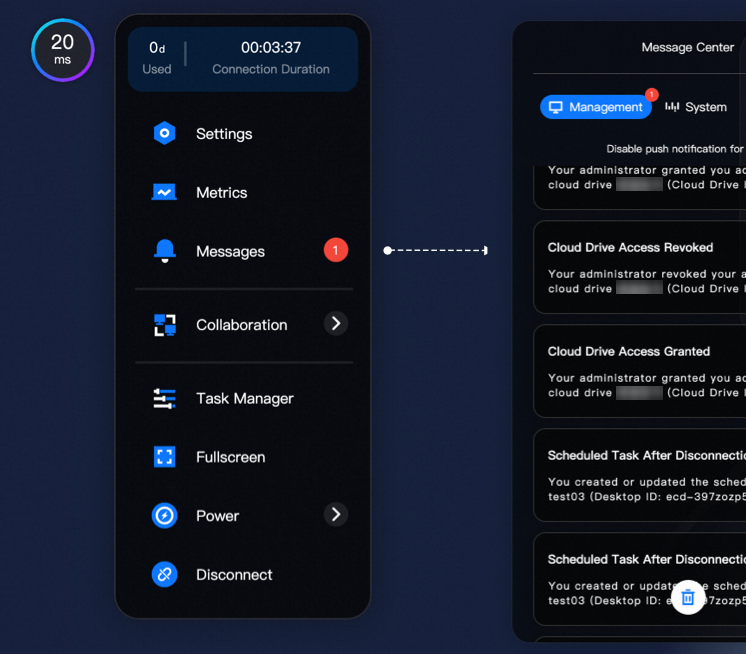
A Message Center has been added to the workspace. You can receive three types of messages: Control Messages, System Messages, and Collaboration Messages. This includes interactive messages, such as scheduling image update times or skipping the execution of an administrator's scheduled task for the day. You can also query and manage historical messages.

releasenote_win_mac_6-3_zh-cn_08.png

View notifications

New

Added power operations to the floating bar

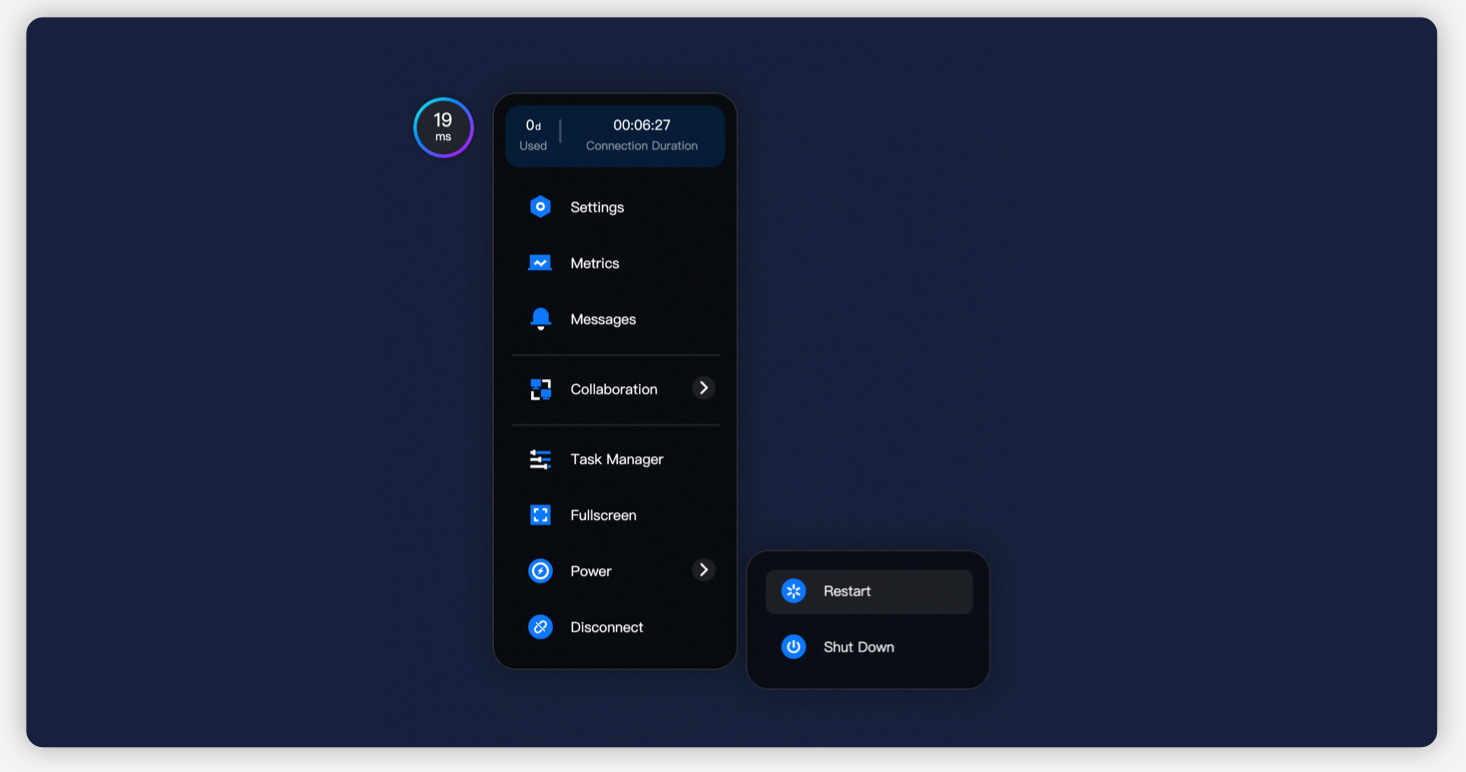
Shutdown and Restart buttons have been added to the floating bar, allowing you to use power operations directly within the workspace without returning to the client.

releasenote_win_mac_6-3_zh-cn_10.png

Manage and maintain workspaces

New

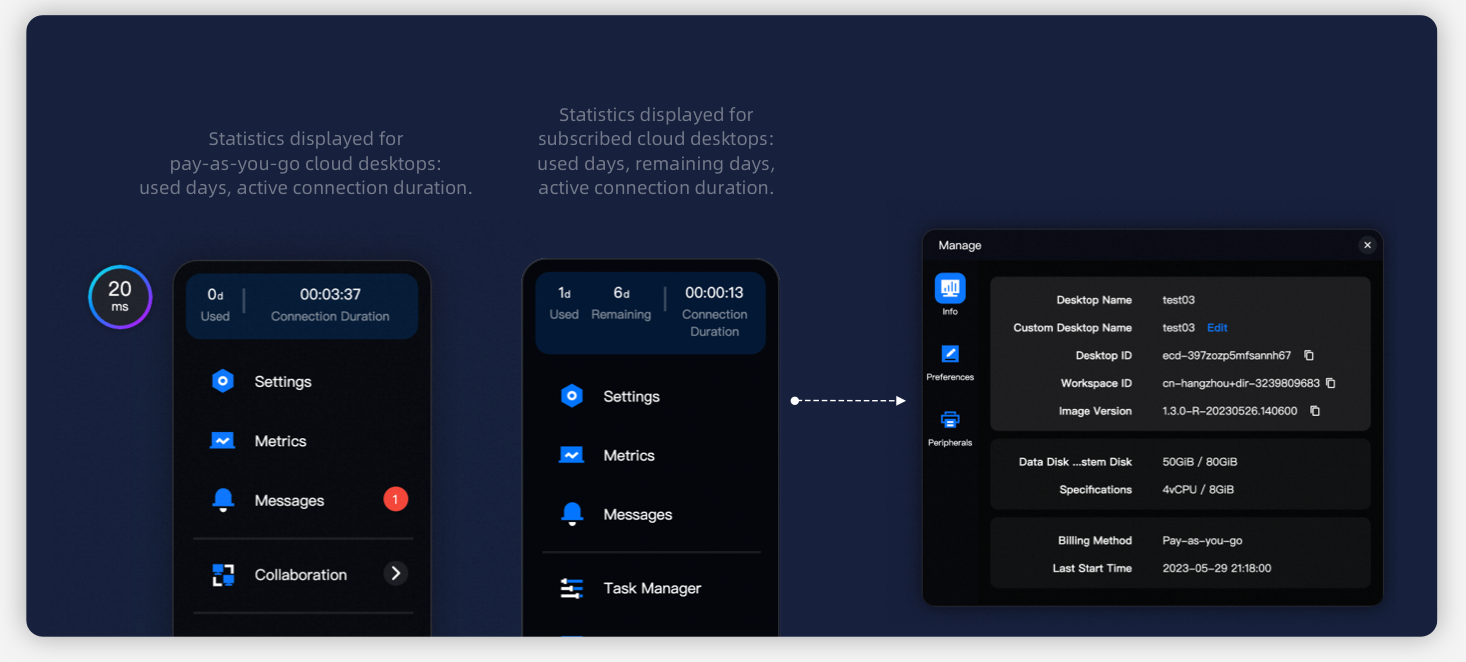
Added workspace-related information to the floating bar

You can get workspace metering and specification information:

  • The first-level list displays workspace metering information, including the following: current connection duration, days used, and remaining days (subscription only).

  • The management module now includes an Information section, which includes: configuration information and usage information.

releasenote_win_mac_6-3_zh-cn_12.png

None

Optimization

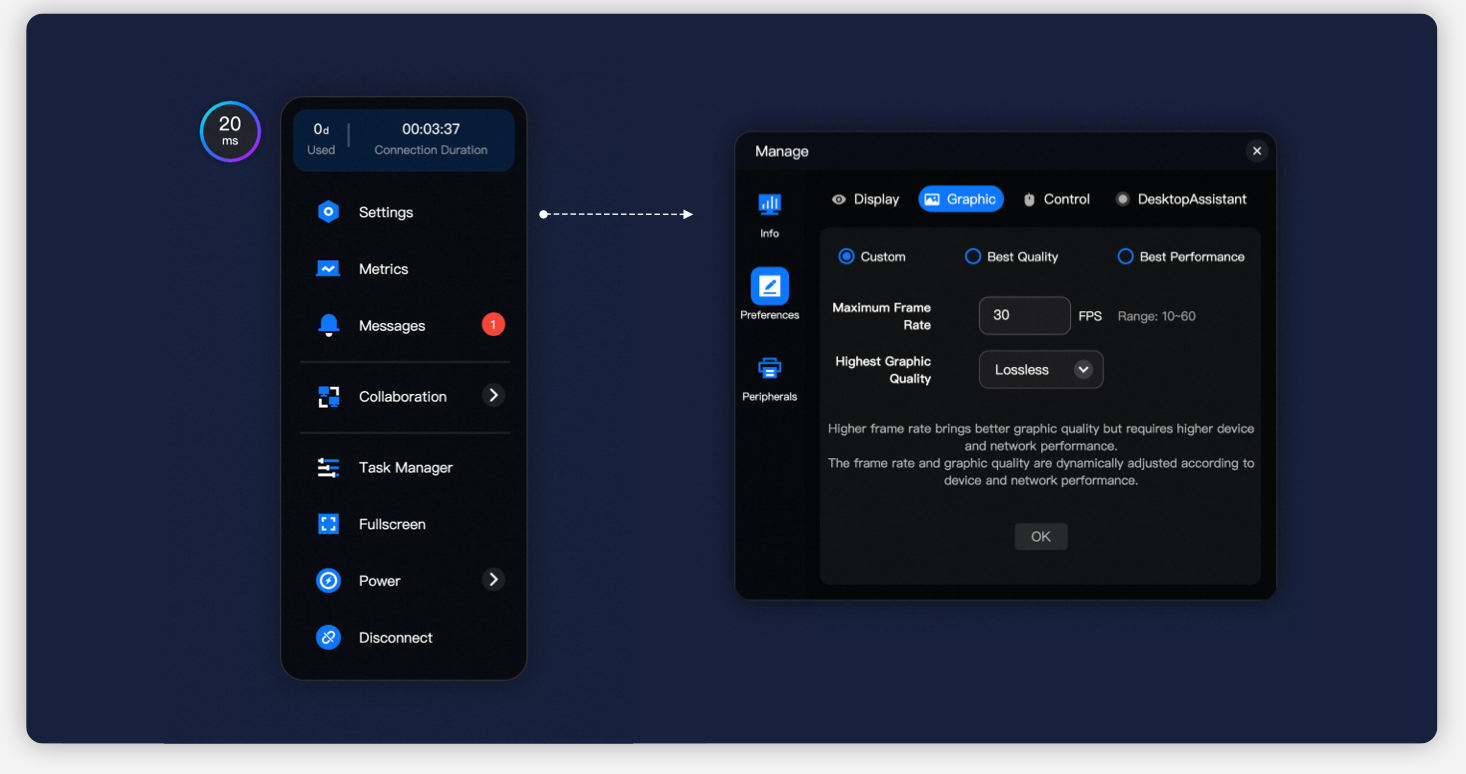
Optimized image setting policies in the floating bar management

The image quality setting policy has been optimized and now supports three options: Custom, Low Definition, and High Definition. You can choose as needed.

releasenote_win_mac_6-3_zh-cn_14.png

Set keyboard and mouse modes

New

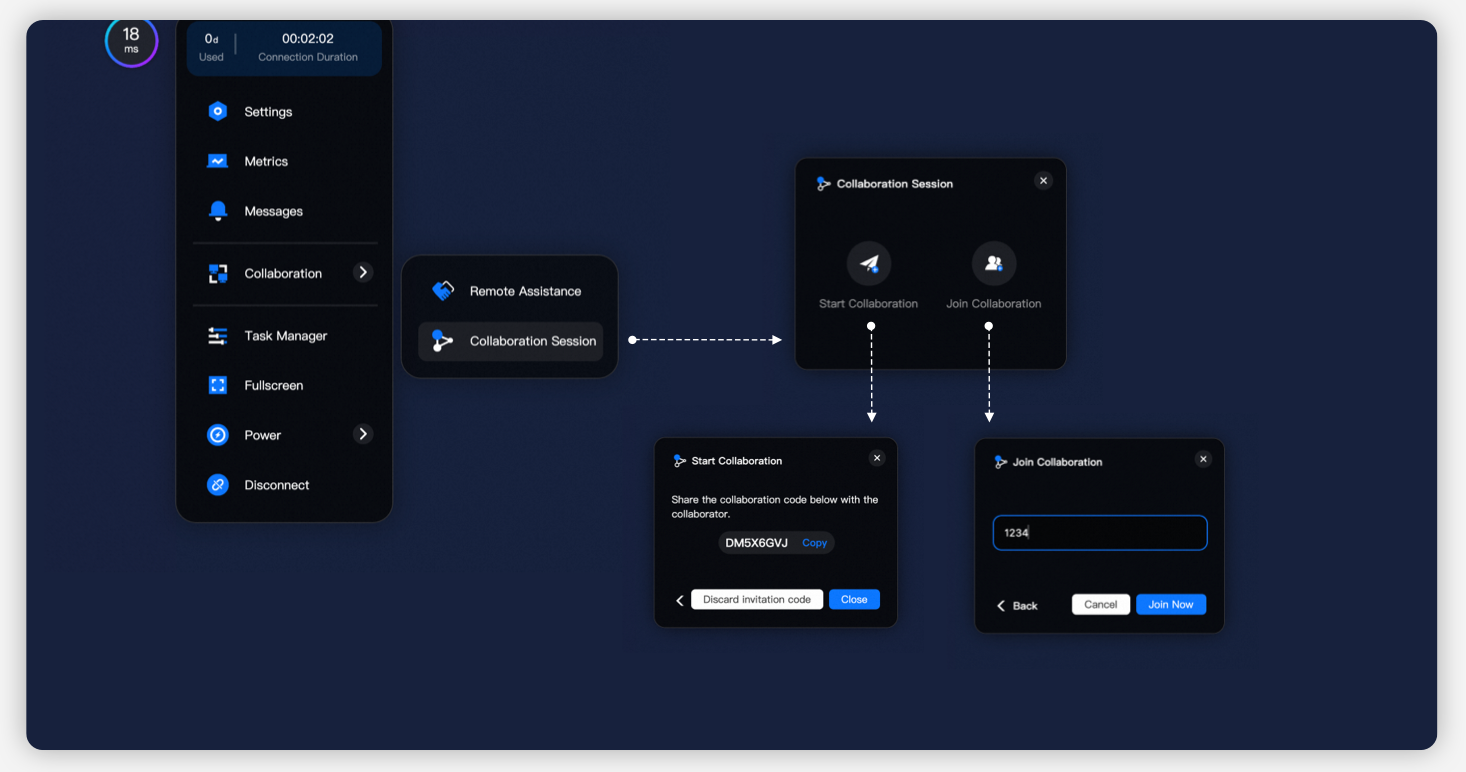
Added shared collaboration to the floating bar

The mechanism for joining shared collaboration has been optimized. Collaborators can join by pasting the collaboration code within the workspace, without returning to the client.

releasenote_win_mac_6-3_zh-cn_16.png

Start collaboration

Optimization

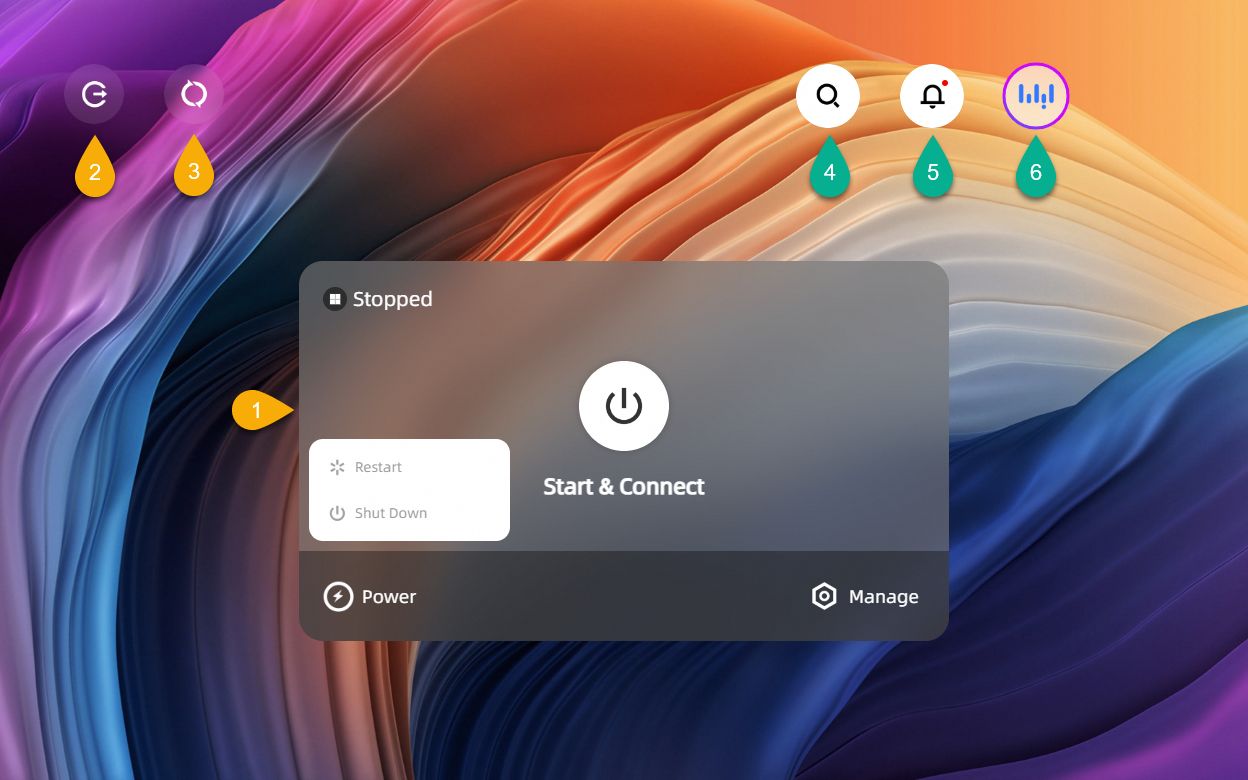
Optimized the taskbar layout on the cloud resource list page

The Log Out and Refresh icon buttons have been moved to the upper-left area of the client home page for easier access.

releasenote_win_mac_6-3_zh-cn_18.png

Configure the desktop client

Optimization

Optimized the scheduled disconnection policy experience

Improved the certainty of the Scheduled Disconnection Policy experience:

  • The disconnection pop-up reminder content in the workspace changes according to the configured policy.

  • When the scheduled disconnection policy is triggered, the workspace card displays a countdown prompt.

releasenote_win_mac_6-3_zh-cn_20.png

Manage policies

New

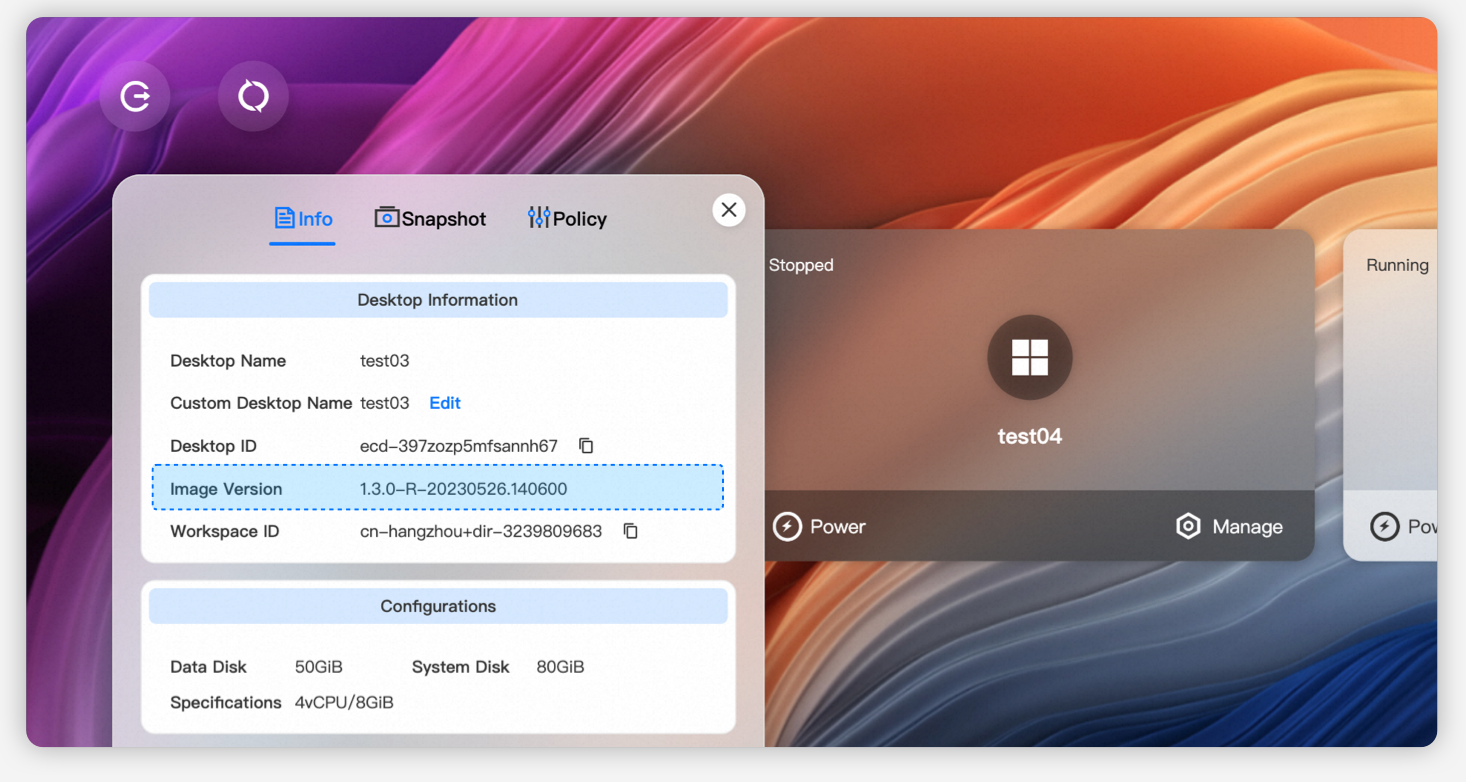
Added image version information to the workspace product page

The workspace product page now displays the image version information of the current workspace.

releasenote_win_mac_6-3_zh-cn_22.png

None

New

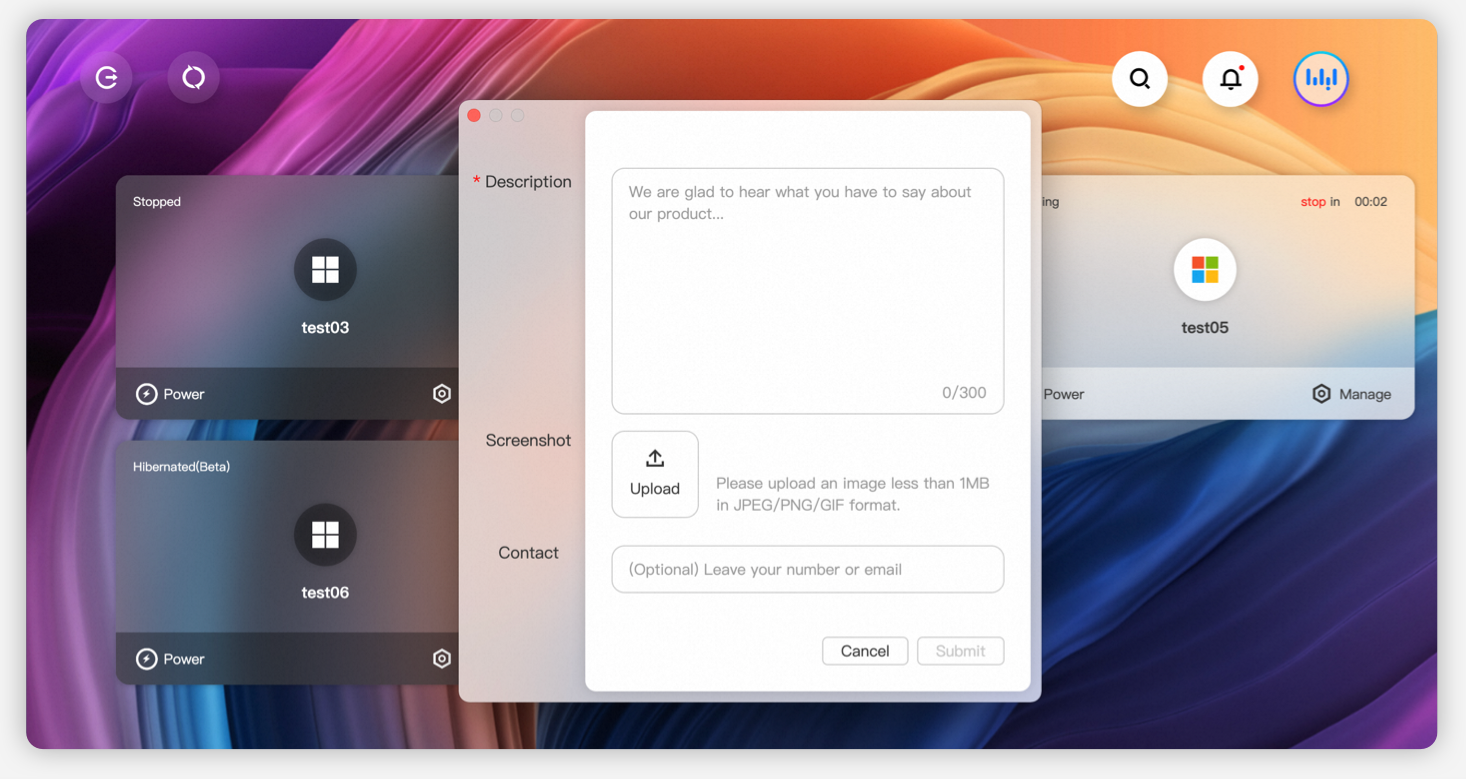
Added a Product Suggestions module

A Product Suggestions module has been added, which supports uploading screenshots. You can submit feedback about your product experience here.

releasenote_win_mac_6-3_zh-cn_24.png

Configure the desktop client

V6.2 - March 2023

Change type

Change

Description

References

New

Added client logon guidance bubbles

Logon process guidance has been added to the organization or workspace logon interface, the username/password logon interface, and the mobile number logon interface to optimize the logon experience.

None

Improved

Optimized the image update process

Added support for restarting the workspace when there is an image update task, and optimized the content of the image update confirmation pop-up message.

None

New

Added a workspace policy page

Click Manage on the workspace card. On the Policy tab, you can set a scheduled disconnection task (requires administrator authorization) and view the logon control policy set by the administrator for this workspace.

Manage policies

Improved

Optimized the client upgrade prompt and version details pop-up windows

Added support for resizing the client upgrade prompt and version details pop-up windows, and improved the clarity of the version description images.

None

New

Added a workspace search feature

Added support for exact or fuzzy search for workspaces by workspace name, custom workspace name, and workspace ID.

None

Improved

Optimized the feature list and management panel of the floating bar (Workspace Assistant)

The overall interaction framework of the Workspace Assistant module has been optimized: the first-level feature list is now arranged vertically, and Peripherals and Settings (renamed to Preferences) are included in the Manage panel.

Set keyboard and mouse modes

New

Added keyboard shortcut response for workspace windowed mode

After enabling keyboard shortcut response in the management panel of the Workspace Assistant (floating bar), the workspace will respond to keyboard shortcuts even when used in windowed mode (non-full-screen mode).

None

New

Added workspace UI scaling (DPI) configuration

The management panel of the Workspace Assistant (floating bar) now includes a UI Scaling (DPI) configuration feature, supporting scaling ratios from 100% to 200%.

Set keyboard and mouse modes

New

Added workspace resolution setting

The management panel of the Workspace Assistant (floating bar) now includes a resolution configuration feature, allowing you to freely configure the workspace resolution in full-screen or windowed mode. This provides a stable running environment for some applications that depend on specific resolutions. An adaptive mode is also provided, where the workspace automatically matches the hardware resolution of the main screen or the window resolution.

Set keyboard and mouse modes

V6.1 - January 2023

Change type

Change

Description

References

Improved

Optimized the full-screen mode experience

Added support for the macOS client to hide the top system toolbar in full-screen mode, reducing the impact of the system toolbar on the workspace experience.

None

New

Added an administrator-set automatic logout feature

To prevent data breaches during workspace use, an administrator-set automatic logout feature has been added. This feature automatically logs out the current client when no WUYING services such as workspaces, cloud applications, or WUYING Drive are connected.

None

New

Added new user operation guidance for the workspace floating bar

When connecting to a workspace, the screen freezes to display the new user guidance for the floating bar, showing the user how to show and hide it.

None

New

Added a position memory feature for the floating bar

Remembers the position of the floating bar after the user drags it, ensuring the position is the same the next time the workspace is connected.

None

New

Added media redirection for workspaces

After an administrator enables media redirection in the console, you can watch lossless high-definition videos using the pre-installed VLC player in the workspace.

Set keyboard and mouse modes

New

Added a status indicator for screen recording in workspaces

After an administrator enables screen recording, a Recording floating window is always displayed in the workspace window. It switches between an icon and full view based on mouse hover, addressing the issue of administrator-configured security policies being non-transparent to users.

Workspace usage overview

New

Added UI adaptation to Windows system scaling ratio

The UI scaling parameter of the workspace changes with the UI scaling parameter of the on-premises system, improving consistency between the client and cloud experience.

None

New feature

Added administrator configuration for endpoint-cloud coordinated power control.

An administrator can configure an interactive scheduled policy to shut down the cloud computer N minutes after a user logs out or closes the client. This provides a consistent user experience between the client and the cloud.

Configure scheduled tasks

New

Added network configuration to the logon page in Windows client immersive mode

Added support for network configuration in immersive mode, solving device usage issues after network environment changes.

None

New

Added a Resource Expiring Soon badge to cloud resource list cards

For certain specifications of subscription workspaces, a Resource Expiring Soon badge is displayed, with a hyperlink to the renewal page on the official website.

None

New

Notification messages in the Message Center support some quick operations

Notifications in the Message Center support copy and hyperlink jumps, optimizing the experience of forwarding and processing information.

Configure the desktop client

Other

Pop-up windows now have a frosted glass texture

In-app and system-level pop-up windows in the macOS client now have a frosted glass texture, improving the overall visual consistency of the product.

None