You can use Alibaba Cloud Workspace services, such as Elastic Desktop Service (EDS) and App Streaming, from a desktop client (Windows client or macOS client). This topic describes how to log on to a desktop client.
This topic uses the macOS client V7.13 and the Enterprise Edition as an example. If your experience differs from the description in this topic, you may be using a different client or an outdated version. Upgrade to the latest version.
Simplified logon
Alibaba Cloud Workspace terminals support multiple logon methods, such as single sign-on (SSO) and multi-factor authentication (MFA), and provide various advanced features. This section describes only the username-password-based logon method that is suitable for most use cases. To learn about other logon methods and the advanced features of Alibaba Cloud Workspace terminals, see Alternative logon methods and advanced features.
Prerequisites
The administrator has allocated cloud resources to you. Check the mailbox specified by your administrator for your logon credentials, including the organization ID or office network ID, username, and password.
You have installed the client. For more information, see Install and update a desktop client.
Procedure
Open the Windows client, select Enterprise Edition in the upper part of the page, select the check box next to the privacy policy, enter an organization ID or office network ID from the received logon credentials, and then click the icon.

On the Account Sign-in tab, enter the username and password, and then click the icon.
NoteIf you log on to the client for the first time, use the initial password provided. You will then be prompted to specify a new password by following on-screen instructions. The initial password is valid for three days. If the initial password expires, click Forgot Password to obtain a new initial password.

After you log on to the client, cloud resources, such as cloud computers, that your administrator assigns to you are displayed.
On the cloud resource list, click the icon on a cloud resource card to use the resource.
Alternative logon methods and advanced features
This section describes the related concepts, alternative logon methods, and advanced features of Alibaba Cloud Workspace terminals. If you use username-password-based logon and do not require advanced features, see Simplified logon.
Background
Roles of Alibaba Cloud Workspace users fall into the following categories:
End users: individuals who access cloud computers from Alibaba Cloud Workspace terminals. Example: Jack, a designer from a design company.
Administrators: O&M personnel who are responsible for resource purchase and renewal, resource creation and assignment, policy creation and binding, O&M and monitoring, and end user management. Example: Steven, the IT administrator of the company in which the designer Jack works.

Prerequisites
The administrator has created an end user account for you and allocated Alibaba Cloud Workspace resources (cloud computers and cloud applications) to the account. If you are an administrator, you must first purchase and allocate cloud resources as described in the following topics.
You have received the logon credentials required to log on to the client. After the administrator purchases and allocates Alibaba Cloud Workspace service resources, you, as an end user, will receive logon credentials, such as the organization ID or office network ID, username, and password. The method for getting the logon credentials varies based on the end user account type and the activation type:
NoteFor more information about end user account types and their differences, see Account systems.
Convenience account
Administrator-activated: The administrator sets the logon credentials and password reset notification settings for the end user account in the EDS console and informs the end user offline. App Streaming supports only administrator-activated convenience accounts.
User-activated: The logon credentials and password reset notification settings for the end user account are sent to the end user's mailbox.
Enterprise Active Directory (AD) account: The administrator informs the end user of the logon credentials offline.
Procedure
Open the desktop client.
Configure the network connection type:
In the upper-right corner, click the icon and select Connection Type.
In the Connection Type panel, select Internet or Alibaba Cloud VPC, and click Yes.
NoteConsult your enterprise IT administrator to determine which connection type to select.
At the top, select Enterprise Edition & Business Edition. At the bottom, agree to the privacy policy.
Use one of the following methods to log on to the client:
Username-and-password-based logon
On the logon page, the username-and-password-based logon method is selected by default. If it is not selected, click Account Sign-in.
Enter the organization ID or office network ID you get from your logon credentials and click the icon.
NoteWhen you log on with an organization ID, you can access all Alibaba Cloud Workspace resources under your account, regardless of the resource's office network. When you log on with an office network ID, you can access only the resources that belong to that specific office network. For more information about the differences, see Differences between office network IDs and organization IDs.
Perform one of the following operations based on whether the administrator has enabled single sign-on (SSO) for the organization ID or office network:
If SSO is not enabled, enter your username and password and click the icon. To stay logged on, you can select Auto Sign-in.
NoteWhen you log on for the first time, enter the initial password you got from your logon credentials and follow the prompts to set a new password. Use this new password for all future logons.
The initial password is valid for 3 days. If you are notified that your password has expired when you log on, or if you forget your password, click Forgot Password and follow the prompts to reset your password.
ImportantEnter the correct password when you log on to the client. If you enter an incorrect password 10 consecutive times, the system automatically locks your account for 20 minutes. You cannot attempt to log on again for 20 minutes.
If SSO is enabled, enter the SSO username and password as prompted, and click the icon.
Log on by scanning a QR code
If you are already logged on to an Android client or iOS client, you can log on by scanning a QR code.
Open the Android client or iOS client that you are logged on to. In the upper-right corner of the cloud resource list screen, click the icon and scan the QR code on the desktop client logon screen.
NoteOnly the Android client or iOS client with version 7.0 or later support QR code scanning.
On the Confirmation screen on your Android client or iOS client, click Confirm Sign In.
(Conditional) If your administrator has enabled multi-factor authentication (MFA), enter the dynamic password generated by the virtual MFA device.
NoteIf your IT administrator enables time-based one-time password (TOTP) dynamic passwords, follow the on-screen prompts to associate a virtual MFA device the first time you log on. You can use various virtual MFA applications, such as the Alibaba Cloud app or Google Authenticator app.
(Conditional) If your administrator has enabled client logon verification, you must check your email for a verification code and enter it to complete the client logon when you log on from a new device.
NoteClient logon verification applies only when the network connection type is the Internet. It does not apply if the network connection type is a VPC.
After you log on, Alibaba Cloud Workspace services and resources are displayed as cards or icons. Click an icon to access the service.
NoteIf a cloud computer is in the Stopped or Hibernated state, start it or wake it up to use it.
FAQ
This issue may be caused by the disabled port 55556. To resolve the issue, perform the following operations:
Go to the directory in which the client is installed.
By default, the client is installed in
C:\Program Files (x86)\Wuying Cloud Computer.Open the
binfolder, find thesdbus_daemon.conffile, and edit the file in a text editor.Change the port number.
The default port number is 55556. You must change the port number to another port number that is not occupied. The port number ranges from 0 to 65535.
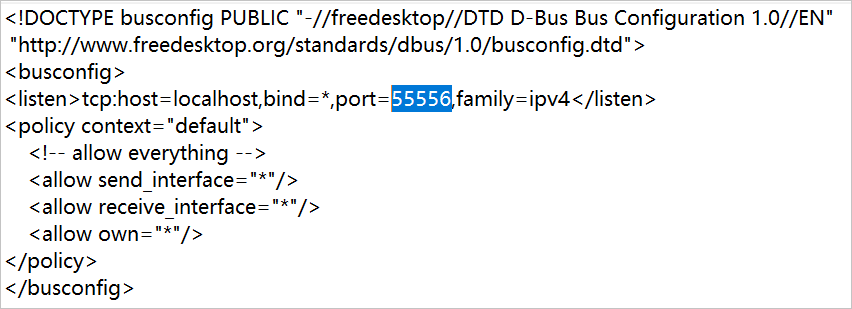
Relaunch the client.
If the issue persists, check whether the root certificate of the Windows OS on the local PC is valid.
For more FAQ, see FAQ about clients.
Next steps
Enable and set auto sign-in
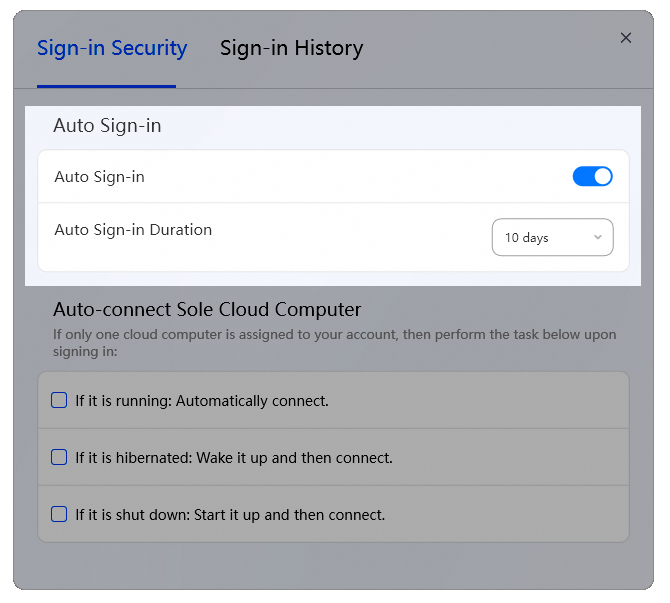
If you enable auto sign-in, you do not need to re-enter your logon credentials for a period of time after you log on.
Open the desktop client. On the Account Sign-in screen, select Auto Sign-in.
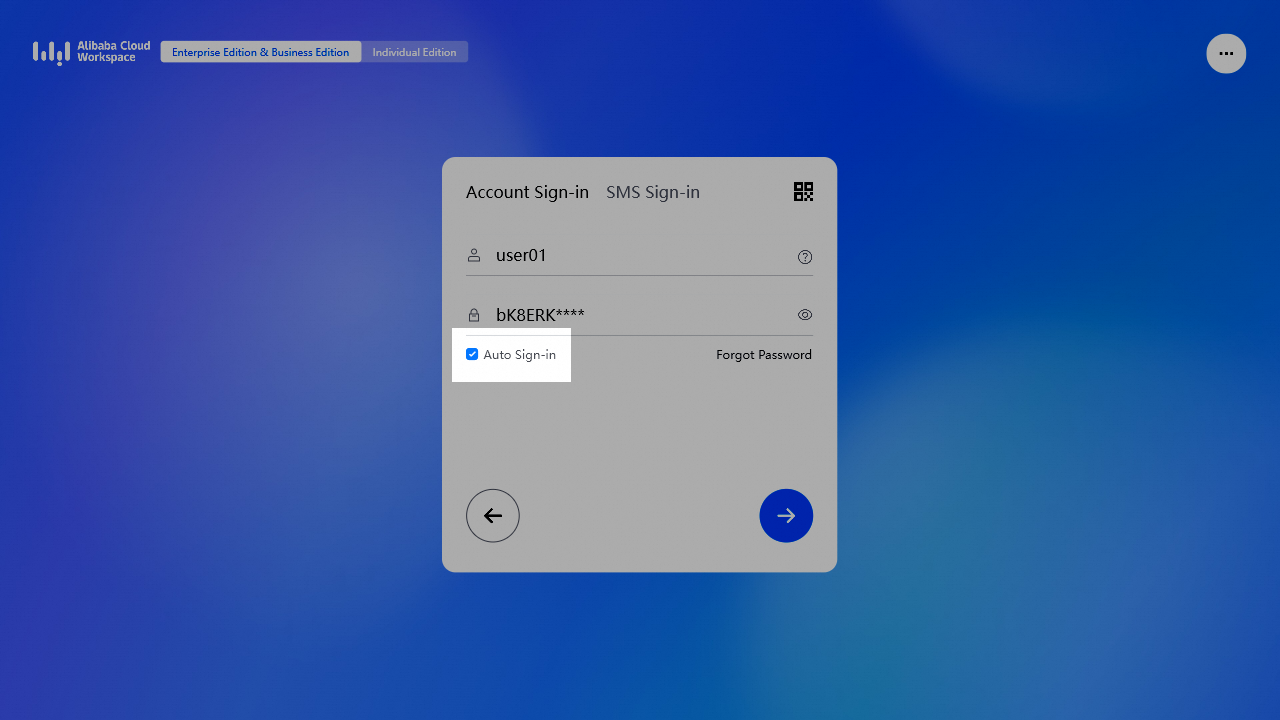
(Optional) The default validity period for auto sign-in is 10 days. To change the validity period, log on, click the icon in the upper-right corner, and then click Security. On the Sign-in Security tab, select a new validity period in the Auto Sign-in section.
Use cloud computers and cloud applications
After you log on to an Alibaba Cloud Workspace terminal, you can view, use, and manage the assigned cloud resources.
For information about how to use cloud resources, see the following topic:
Log out
Log out from the current terminal
On the cloud resource list screen, use one of the following methods to log out:
In the upper-left corner, click Sign Out, and then click Sign Out again in the confirmation dialog box.
In the upper-right corner, click the icon, and then select Sign Out. In the confirmation dialog box, click Sign Out.
Log out from other terminals
In the upper-right corner of the cloud resource list, click the icon and select Security.
On the Devices tab, find the other logged-on terminal and click Sign Out.
NoteTo ensure information security, you must enter a verification code to authenticate your identity before you log out from a device.
