If your business workloads demand high concurrency, scalability, and availability, or require complex searches and big data analysis, and your current database architecture is inadequate or too costly to upgrade, use DataWorks Data Integration to migrate data from your existing databases to Tablestore. DataWorks Data Integration can also migrate Tablestore data across different instances and accounts, or to OSS and MaxCompute for backup and analysis.
Use cases
DataWorks Data Integration is a stable, efficient, and scalable data synchronization platform. It supports data migration and data synchronization between various heterogeneous data sources, such as MySQL, Oracle, MaxCompute, and Tablestore.
You can use DataWorks Data Integration for various Tablestore data migration scenarios. These include migrating data from databases to Tablestore, synchronizing Tablestore data across instances or accounts, and migrating Tablestore data to OSS or MaxCompute.
Database to Tablestore
DataWorks Data Integration lets you migrate data from various heterogeneous data sources to Tablestore.
For more information, see Supported data source types, Reader plug-ins, and Writer plug-ins.
Across instances or accounts
You can copy data from Tablestore data tables or time series tables by configuring the appropriate Reader and Writer plug-ins in DataWorks. The following table describes the relevant plug-ins.
Plug-in | Description |
OTSReader | Reads data from Tablestore tables. You can also specify a data range for incremental data extraction. |
OTSStreamReader | Incrementally exports data from Tablestore tables. |
OTSWriter | Writes data to Tablestore. |
To OSS or MaxCompute
You can migrate data from Tablestore to OSS or MaxCompute.
MaxCompute is a fast and fully managed data warehouse service that processes data at the terabyte or petabyte scale. You can use MaxCompute to back up data from Tablestore or migrate data to MaxCompute for processing.
OSS is a highly secure, cost-effective, and reliable cloud storage service that can store massive amounts of data. You can use OSS to back up data from Tablestore or synchronize data to OSS and then download the data as files to a local computer.
Migration solutions
Use DataWorks Data Integration to migrate data between Tablestore and other data sources.
Data import solutions allow you to synchronize data from sources like MySQL, Oracle, Kafka, HBase, MaxCompute, and PolarDB-X 2.0 to Tablestore. You can also synchronize data between Tablestore data tables or time series tables.
Data export solutions allow you to synchronize data from Tablestore to MaxCompute and OSS.
Import data
Migration solution | Description |
Synchronize MySQL data to Tablestore | You can migrate data from MySQL databases to Tablestore data tables only. This process uses the MySQL Reader and Tablestore Writer scripts. Configure the data sources as follows:
|
Synchronize Oracle data to Tablestore | You can migrate data from Oracle databases to Tablestore data tables only. This process uses the Oracle Reader and Tablestore Writer scripts. Configure the data sources as follows:
|
Synchronize Kafka data to Tablestore | You can migrate data from Kafka to Tablestore data tables or time series tables. Important
This process uses the Kafka Reader and Tablestore Writer scripts. Configure the data sources as follows:
|
Synchronize HBase data to Tablestore | You can migrate data from HBase databases to Tablestore data tables only. This process uses the HBase Reader and Tablestore Writer scripts. Configure the data sources as follows:
|
Synchronize MaxCompute data to Tablestore | You can migrate data from MaxCompute to Tablestore data tables only. This process uses the MaxCompute Reader and Tablestore Writer scripts. Configure the data sources as follows:
|
Synchronize PolarDB-X 2.0 data to Tablestore | You can migrate data from PolarDB-X 2.0 to Tablestore data tables only. This process uses the PolarDB-X 2.0 Reader and Tablestore Writer scripts. Configure the data sources as follows:
|
Synchronize data between Tablestore data tables | You can migrate data between Tablestore data tables. This process uses the Tablestore Reader and Writer scripts. For details about data source configuration, see Tablestore data source. When configuring the scripts, refer to the instructions for reading and writing wide table data. |
Synchronize data between Tablestore time series tables | You can migrate data between Tablestore time series tables. This process uses the Tablestore Reader and Writer scripts. For details about data source configuration, see Tablestore data source. When configuring the scripts, refer to the instructions for reading and writing time series data. |
Export data
Migration solution | Description |
Synchronize Tablestore data to MaxCompute | You can use MaxCompute to back up Tablestore data or migrate the data to MaxCompute. This process uses the Tablestore Reader and MaxCompute Writer scripts. Configure the data sources as follows:
|
Synchronize Tablestore data to OSS | You can download files synchronized to OSS at any time or store them in OSS as backups. This process uses the Tablestore Reader and OSS Writer scripts. Configure the data sources as follows:
|
Prerequisites
After selecting a migration solution, complete the following prerequisites:
Ensure network connectivity between DataWorks and both the source and destination.
For the source, confirm its version, prepare the required account, and configure the necessary permissions and service-specific settings. For more information, see the source documentation.
For the destination, activate the service and create the required resources. For more information, see the destination documentation.
Usage notes
If you encounter any issues, submit a ticket.
Ensure that DataWorks Data Integration supports data migration for your specific product version.
The data types in the source and destination data sources must match. Otherwise, the migration will result in dirty data.
After you select a migration solution, carefully review the limits and usage notes for your source and destination data sources.
Before you migrate Kafka data, choose the Table Store data model that best fits your business scenario.
Configuration process
Based on your migration solution, follow this process to migrate data using DataWorks Data Integration.

The following table describes the steps in the process.
No. | Step | Description |
1 | Create the required data sources based on your migration solution.
| |
2 | DataWorks Data Integration provides the codeless UI and step-by-step guidance. You can enter settings in a visual interface and follow prompts to configure a batch synchronization task. The codeless UI is easy to learn but lacks some advanced features. | |
3 | Verify the migration results | View the data in the destination data source based on your migration solution.
|
Configuration example
Data import
Use DataWorks Data Integration to synchronize data from databases like MySQL, Oracle, and MaxCompute to Tablestore data tables, or to synchronize Tablestore data across accounts or instances. Examples include synchronizing data from one data table to another.
This topic shows how to use the codeless UI to synchronize data from MaxCompute to a Tablestore data table.
Prerequisites
Obtain the information about the MaxCompute project and the source table.
Activate Tablestore, and create an instance and a destination data table. Obtain the instance name, instance endpoint, and region ID.
NoteYou do not need to pre-define attribute columns for the data table; they are dynamically specified when data is written.
Create an AccessKey for your Alibaba Cloud account or for a RAM user with permissions on Tablestore and MaxCompute.
Activate DataWorks and create a workspace in the same region as your MaxCompute or Tablestore instance.
Create a serverless resource group and bind it to the workspace.
If your MaxCompute and Tablestore instances are in different regions, create a VPC peering connection to establish cross-region network connectivity.
This example assumes the DataWorks workspace and MaxCompute instance are in the China (Hangzhou) region, and the Tablestore instance is in the China (Shanghai) region.
Bind a VPC to the Tablestore instance.
Log on to the Tablestore console and select a region in the top navigation bar.
Click the instance alias to go to the Instance Management page.
Go to the Network Management tab, click Bind VPC, select a VPC and a vSwitch, enter a name for the VPC, and then click Yes.
After the VPC is bound, the page refreshes automatically. You can then view the VPC ID and VPC endpoint in the VPC list.
NoteUse this VPC endpoint when you add a Tablestore data source in the DataWorks console.
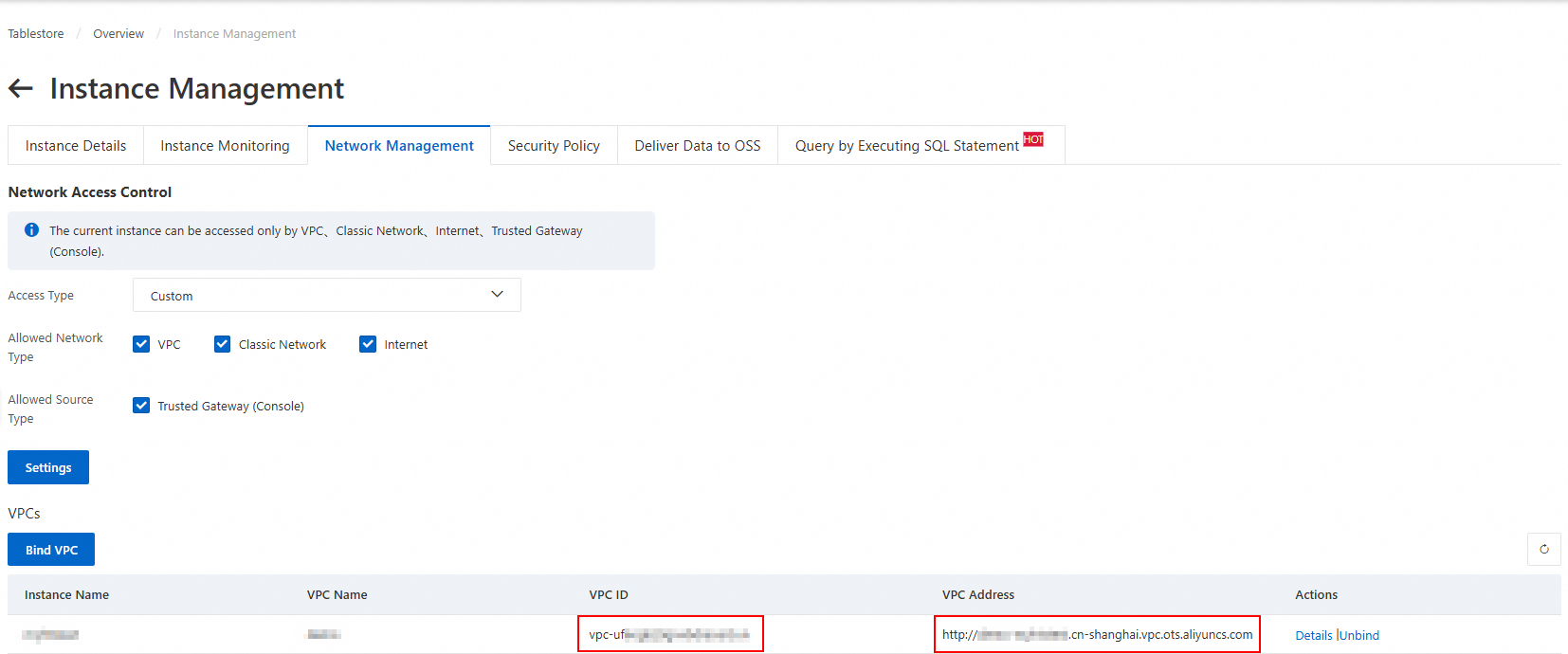
Obtain the VPC information of the DataWorks workspace resource group.
Log on to the DataWorks console, select the region of the workspace from the top navigation bar, and then click Workspaces in the navigation pane on the left to go to the Workspace list page.
Click the workspace name to go to the Workspace Details page. In the navigation pane on the left, click Resource Group to view the list of resource groups bound to the workspace.
Click Network Settings to the right of the target resource group. In the Resource Scheduling & Data Integration area, view the VPC ID of the bound VPC.
Create a VPC peering connection and configure routes.
Log on to the VPC console. In the navigation pane on the left, click VPC. Select the regions of the Tablestore instance and the DataWorks workspace, and record the CIDR block for each VPC.

In the navigation pane on the left, click VPC Peering Connection. On the VPC Peering Connection page, click Create VPC Peering Connection.
On the Create VPC Peering Connection page, enter a name for the peering connection, select the requester VPC, accepter account type, accepter region, and accepter VPC, and then click OK.
On the VPC Peering Connection page, find the VPC peering connection that you created. In the Requester VPC and Accepter VPC columns, click Configure route.
The destination CIDR block must be the CIDR block of the peer VPC. When you configure a route for the requester VPC, enter the CIDR block of the accepter VPC. When you configure a route for the accepter VPC, enter the CIDR block of the requester VPC.
Step 1: Add a Tablestore data source and a MaxCompute data source
Step 2: Configure batch synchronization
DataStudio (old version)
1. Create a task node
Go to the Data Development page.
Log on to the DataWorks console.
In the top navigation bar, select a resource group and region.
In the navigation pane on the left, click .
On the Data Development page, select the target workspace from the drop-down list and click the Go to Data Development button.
On the Data Development page of the Data Studio console, under the Business Flow node, click the target business flow.
For more information, see Create a business flow.
Right-click the Data Integration node and choose Create Node > Batch Synchronization.
In the Create Node dialog box, select a path, enter a name, and click OK.
The new batch synchronization node is displayed under the Data Integration node.
2. Configure the synchronization task
Under the Data Integration node, double-click the new batch synchronization task node.
Configure the network and resources.
Select the data source, data destination, and the resource group for the batch synchronization task, and then test the connectivity.
In the Network and Resource Configuration step, set Data Source to MaxCompute(ODPS) and select the new MaxCompute data source for Data Source Name.
Select a resource group.
After you select a resource group, the system displays information such as the region and specifications of the resource group. The system also automatically tests the connectivity between the resource group and the selected data source.
NoteServerless resource groups let you specify an upper limit for the number of CUs that a synchronization task can use. If an out-of-memory (OOM) error occurs because of insufficient resources, increase the CU limit for the resource group.
Set Destination to Tablestore and select the new Tablestore data source for Data Source Name.
The system automatically tests the connectivity between the resource group and the selected data source.
After the connectivity test is passed, click Next.
Configure and save the task.
In the Configure Task step, configure the data source and destination in the Configure Source and Destination section as needed.
Data source
Parameter
Description
Data source
The MaxCompute data source that you selected in the previous step.
Tunnel resource group
This is the Tunnel Quota. By default, Public Transport Resources is selected, which is the free quota for MaxCompute.
This is the data transport resource for MaxCompute. For more information, see Purchase and use a dedicated resource group for data transport.
NoteIf a dedicated Tunnel quota is unavailable because of an overdue payment or expiration, the task automatically switches to use public transport resources during runtime.
Table
The source table.
Filter method
The logic to filter the data that you want to synchronize. The following methods are supported:
Partition Filter: Use a partition expression to specify the range of source data to synchronize. If you select this method, you must also configure the Partition Information and When partitions do not exist, parameters.
Data Filtering: Use a WHERE clause to specify the range of source data to synchronize. You do not need to enter the WHERE keyword.
Partition information
NoteThis parameter is required when you set Filtering Method to Partition Filter.
Specify the value of the partition column.
The value can be a fixed value, such as
ds=20220101.The value can be a scheduling parameter, such as
ds=${bizdate}. The scheduling parameter is automatically replaced with its actual value at runtime.
If a partition does not exist
NoteThis parameter is required when you set Filtering Method to Partition Filter.
The policy for the synchronization task if a partition does not exist.
Error.
the partitions are ignored and tasks are normally run..
Data destination
Parameter
Description
Data source
The Tablestore data source that you selected in the previous step.
Table
The destination data table.
Primary key information
The primary key information of the destination data table.
Write mode
The mode to write data to Tablestore. The following modes are supported:
PutRow: This mode corresponds to the PutRow API of Tablestore. It inserts data into a specified row. If the row does not exist, a new row is created. If the row exists, the original row is overwritten.
UpdateRow: This mode corresponds to the UpdateRow API of Tablestore. It updates the data in a specified row. If the row does not exist, a new row is created. If the row exists, the values of specified columns in the row are added, modified, or deleted based on the request.
Configure field mapping.
After you configure the data source and destination, you must specify the mapping between Source Field and Destination Field. The task writes data from the source fields to the destination fields of the corresponding data types based on the mapping. For more information, see 4. Configure field mapping.
ImportantYou must specify the primary key information in Source Field to read the primary key data.
Because you configured the Destination for the destination table in the Primary Key Information section in the previous step, you cannot configure primary key information in Destination Field.
If a field has the INTEGER data type, you must configure it as INT. DataWorks automatically converts it to the INTEGER type. If you directly configure the data type as INTEGER, an error is reported in the logs and the task fails.
Configure channel control.
Use channel control to manage the properties of the data synchronization process. For more information about the parameters, see Relationship between concurrency and rate limiting for batch synchronization.
Click the
 icon to save the configuration.
Run the synchronization task
Click the
 icon.
icon.In the Parameters dialog box, select a resource group for the run.
Click Run.
New version of DataStudio
1. Create a task node
Go to the Data Development page.
Log on to the DataWorks console.
In the top navigation bar, select a resource group and region.
In the navigation pane on the left, click .
On the Data Development page, select your target workspace from the drop-down list and click Go to Data Studio.
In data development page of the Data Studio console, click the
 icon to the right of Workspace Directories, and select .Note
If this is your first time using Workspace Directories, you can also click the Create Node button.
In the Create Node dialog box, select a path, enter a name, and click OK.
The new batch synchronization node appears in the Workspace Directories.
2. Configure the synchronization task
In the Project Directory, click the new batch synchronization task node to open it.
Configure the network and resources.
Select the data source, data destination, and the resource group for the batch synchronization task, and then test the connectivity.
In the Network and Resource Configuration step, set Data Source to MaxCompute(ODPS) and select the new MaxCompute data source for Data Source Name.
Select a resource group.
After you select a resource group, the system displays information such as the region and specifications of the resource group. The system also automatically tests the connectivity between the resource group and the selected data source.
NoteServerless resource groups let you specify an upper limit for the number of CUs that a synchronization task can use. If an out-of-memory (OOM) error occurs because of insufficient resources, increase the CU limit for the resource group.
Set Destination to Tablestore and select the new Tablestore data source for Data Source Name.
The system automatically tests the connectivity between the resource group and the selected data source.
After the connectivity test is passed, click Next.
Configure and save the task.
In the Configure Task step, configure the data source and destination in the Configure Source and Destination section as needed.
Data source
Parameter
Description
Data source
The MaxCompute data source that you selected in the previous step.
Tunnel resource group
This is the Tunnel Quota. By default, Public Transport Resources is selected, which is the free quota for MaxCompute.
This is the data transport resource for MaxCompute. For more information, see Purchase and use a dedicated resource group for data transport.
NoteIf a dedicated Tunnel quota is unavailable because of an overdue payment or expiration, the task automatically switches to use public transport resources during runtime.
Table
The source table.
Filter method
The logic to filter the data that you want to synchronize. The following methods are supported:
Partition Filter: Use a partition expression to specify the range of source data to synchronize. If you select this method, you must also configure the Partition Information and When partitions do not exist, parameters.
Data Filtering: Use a WHERE clause to specify the range of source data to synchronize. You do not need to enter the WHERE keyword.
Partition information
NoteThis parameter is required when you set Filtering Method to Partition Filter.
Specify the value of the partition column.
The value can be a fixed value, such as
ds=20220101.The value can be a scheduling parameter, such as
ds=${bizdate}. The scheduling parameter is automatically replaced with its actual value at runtime.
If a partition does not exist
NoteThis parameter is required when you set Filtering Method to Partition Filter.
The policy for the synchronization task if a partition does not exist.
Error.
the partitions are ignored and tasks are normally run..
Data destination
Parameter
Description
Data source
The Tablestore data source that you selected in the previous step.
Table
The destination data table.
Primary key information
The primary key information of the destination data table.
Write mode
The mode to write data to Tablestore. The following modes are supported:
PutRow: This mode corresponds to the PutRow API of Tablestore. It inserts data into a specified row. If the row does not exist, a new row is created. If the row exists, the original row is overwritten.
UpdateRow: This mode corresponds to the UpdateRow API of Tablestore. It updates the data in a specified row. If the row does not exist, a new row is created. If the row exists, the values of specified columns in the row are added, modified, or deleted based on the request.
Configure field mapping.
After you configure the data source and destination, you must specify the mapping between Source Field and Destination Field. The task writes data from the source fields to the destination fields of the corresponding data types based on the mapping. For more information, see 4. Configure field mapping.
ImportantYou must specify the primary key information in Source Field to read the primary key data.
Because you configured the Destination for the destination table in the Primary Key Information section in the previous step, you cannot configure primary key information in Destination Field.
If a field has the INTEGER data type, you must configure it as INT. DataWorks automatically converts it to the INTEGER type. If you directly configure the data type as INTEGER, an error is reported in the logs and the task fails.
Configure channel control.
Use channel control to manage the properties of the data synchronization process. For more information about the parameters, see Relationship between concurrency and rate limiting for batch synchronization.
Click Save to save the configuration.
3. Run the synchronization task
To the right of the task, click Debugging Configuration and select a resource group for running the task.
Click Run.
Step 3: View the synchronization results
Data export
You can use DataWorks Data Integration to export data from Tablestore to MaxCompute or OSS.
Sync data from Tablestore to OSS
Billing
Using a migration tool to access Tablestore incurs charges for data reads and writes. Once the data is written, Tablestore also charges storage fees based on the data volume. For more information about billing, see billing overview.
The DataWorks billing model consists of software fees and resource fees. For more information, see billing introduction.
Other solutions
You can download Tablestore data to a local file.
You can also use migration tools such as DataX and Tunnel Service to import data.
Migration tool | Description |
DataX abstracts data synchronization from various sources by using a Reader plugin to read from the source and a Writer plugin to write to the destination. | |
Tunnel Service is an integrated service for consuming full and incremental data that is built on the Tablestore data API. By creating a data channel for a data table, you can easily process historical and new data from the table. This service is ideal for migrating and synchronizing data from a Tablestore data table. For more information, see Synchronize data from one data table to another. | |
Data Transmission Service (DTS) is a real-time data streaming service provided by Alibaba Cloud. It supports data interaction between data sources such as relational databases (RDBMS), NoSQL databases, and online analytical processing (OLAP) systems. DTS integrates data synchronization, migration, subscription, integration, and processing to help you build a secure, scalable, and highly available data architecture. For more information, see Synchronize PolarDB-X 2.0 data to Tablestore and Migrate PolarDB-X 2.0 data to Tablestore. |
Field type mappings
This appendix lists the field type mappings between common services and Tablestore. Use these mappings to configure field mappings.
MaxCompute and Tablestore
MaxCompute type | Tablestore type |
STRING | STRING |
BIGINT | INTEGER |
DOUBLE | DOUBLE |
BOOLEAN | BOOLEAN |
BINARY | BINARY |
MySQL and Tablestore
MySQL type | Tablestore type |
STRING | STRING |
INT, INTEGER | INTEGER |
DOUBLE, FLOAT, DECIMAL | DOUBLE |
BOOL, BOOLEAN | BOOLEAN |
BINARY | BINARY |
Kafka and Tablestore Field Type Mapping
Kafka type | Tablestore type |
STRING | STRING |
INT8, INT16, INT32, INT64 | INTEGER |
FLOAT32, FLOAT64 | DOUBLE |
BOOLEAN | BOOLEAN |
BYTES | BINARY |