This topic answers frequently asked questions (FAQs) about Server Migration Center (SMC) and provides solutions.
Billing
General questions
Issues with the migration source
Migration tasks
Server migration
Is Bring Your Own License (BYOL) supported when I migrate servers using SMC?
What do I do after a migration task is completed and a custom image is generated?
What public endpoints and ports does my source server need to access?
What do I do if I release an intermediate instance by accident?
What specifications are available for intermediate instances?
What is the validity period of a migration job? What happens after a migration job expires?
What are the statuses of migration tasks? What do these statuses indicate?
What do I do if I am unable to select a destination instance when I create a migration job?
Does a change to the incremental synchronization frequency take effect immediately?
Operating system migration (changing the operating system)
Agentless VMware migration
Simple Application Server migration
How am I charged for SMC?
SMC is a free service. However, you are charged for the Elastic Compute Service (ECS) resources that are consumed during the migration process. These resources include intermediate instances, snapshots, and the system disks and data disks that are attached to the intermediate instances. For more information, see Billing.
What are the SMC endpoints?
To migrate a server using Alibaba Cloud Server Migration Center (SMC), the source server must have public network access. The source server needs to download the SMC client from Object Storage Service (OSS) and access the SMC service. If a firewall restricts the network of the source server, you must add the SMC endpoints to the firewall's whitelist. This ensures that the source server can communicate with the SMC service and complete the migration.
SMC endpoints include the client download address, the default activation code domain name, and the Alibaba Cloud AccessKey pair domain name. The details are as follows:
SMC client storage address
Default public endpoint: https://p2v-tools.oss-cn-hangzhou.aliyuncs.com
Default activation code domain name (for importing using the command line or manually generating an activation code):
Default public endpoint: https://smc-service.aliyuncs.com.
ECS private endpoint: https://<region-id>.axt.aliyun.com (accessible only from within Alibaba Cloud ECS).
Alibaba Cloud AccessKey pair domain name (for manually downloading the client and entering an AccessKey pair):
Default public endpoint: https://smc.aliyuncs.com (Server IP addresses: 101.37.132.1, 47.111.202.72).
ECS private endpoint: https://smc.vpc-proxy.aliyuncs.com (accessible only from within Alibaba Cloud ECS).
By default, SMC endpoints use the HTTPS protocol on port 443. The HTTP protocol on port 80 may not be supported.
If you can directly access an Alibaba Cloud Virtual Private Cloud (VPC) in a specific region from an on-premises data center (IDC), a virtual machine environment, or a cloud host, we recommend that you use the private network migration solution provided by SMC. Migration over a private network is faster and more stable than migration over the public network and improves migration efficiency.
How do I select a method to import a migration source?
SMC provides multiple methods to import a migration source. You can select a method based on your business scenario.
Import method | Description | Limitations | Benefits | Supported migration scenarios |
Automatically import Alibaba Cloud ECS instances using the console | You can select an Alibaba Cloud ECS instance in the SMC console to import the migration source automatically using Cloud Assistant. This method provides a simple, visual process. | Ensure that the Alibaba Cloud ECS instance is in the Running state and Cloud Assistant is in the Normal state. For more information, see View Cloud Assistant status and handle abnormal states. Note ECS instances created from public images after December 1, 2017 have the Cloud Assistant Agent pre-installed. If the agent is not installed, you can install the Cloud Assistant Agent. | Full automation | Elastic Compute Service migration |
Import a migration source using the command line (Recommended) | You can generate an activation code and a command in the SMC console. Then, on the source server, run the command to import the migration source. |
| Semi-automated and general |
|
Import a migration source using the SMC client | You can manually download the SMC client. Then, you can install and run the client on the source server to import the migration source. |
| Flexible and general | |
Import a migration source by configuring the VMware agentless connector | You can deploy the VMware agentless connector using an Open Virtualization Format (OVF) template. Then, you can run the SMC client using commands to import the migration source. |
For more information, see Agentless migration for VMware VMs. Note Note If the requirements for agentless migration of VMware VMs are not met, you can use the command line to import the migration source. |
| VMware migration without agents |
How do I find a migration source?
The following example describes how to find a migration source for a server migration. You can perform the following steps:
On the Server Migration page, click the search box and select a search filter from the drop-down list.
You can search by Migration Source Name, Migration Source ID, Status, Instance ID, and Last Migration Job ID.
Enter a value for the selected search item and press the
Enterkey.
What do I do if I want to re-import a migration source?
You must delete the migration source and then re-run the client to import the migration source. If the migration source is associated with a migration task, you must first delete the associated migration task and then delete the migration source.
Why can I not delete a migration source?
You cannot delete a migration source that is associated with an incomplete migration task. You must first pause and delete the migration task, and then you can delete the migration source.
In which scenarios do I use server migration?
You can use SMC to migrate various types of servers to ECS, such as physical servers, VMs, and third-party cloud servers. These servers can run on Windows or Linux. For more information, see What is SMC?.
How do I migrate a server?
For more information about server migration, see the User Guide.
How do I estimate the time required for an SMC migration and test the transfer speed?
The migration lifecycle consists of three phases: pre-migration, migration, and post-migration. The duration of the migration is proportional to the number of servers to be migrated and the actual data volume. We recommend that you perform a test migration to estimate the required time.
For more information, see Estimate migration time and test data transfer speed.
How do I filter or exclude files or directories that I do not want to migrate?
To exclude files or directories from a migration job, you must configure the exclusion settings before you run the SMC client. The configuration files are located in the Excludes directory of the SMC client and include the following files.
Excluding files or directories on Windows servers is not supported.
If you enable block replication for the migration, you cannot exclude files or directories.
If a configuration file is missing or accidentally deleted, you can create the corresponding file.
System disk configuration file: rsync_excludes_linux.txt.
Data disk configuration file: The file is named by appending the suffix disk[disk index number] to the system disk file name, such as rsync_excludes_linux_disk1.txt.
The following example shows how to exclude files or directories for a Linux server:
System disk (Root directory/):
Files or directories to exclude:
/var/mydirs/docs/words
/var/mydirs/docs/excels/report1.txt
Add the following information to the rsync_excludes_linux.txt file:
/var/mydirs/docs/words/
/var/mydirs/docs/excels/report1.txt
Data disk
Files or directories to exclude:
/mnt/disk1/mydirs2/docs2/words2
/mnt/disk1/mydirs2/docs2/excels2/report2.txt
Add the following information to the rsync_excludes_linux_disk1.txt file:
/mydirs2/docs2/words2/
/mydirs2/docs2/excels2/report2.txt
NoteWhen you exclude a Linux path, you must remove the path prefix (scr_path), such as /mnt/disk1 in the preceding example.
Does SMC support Bring Your Own License (BYOL) migration to the cloud?
Yes, it is. The Bring Your Own License (BYOL) model is supported for migrating the following software to the cloud: Microsoft, Red Hat Enterprise Linux, and SUSE Linux Enterprise Server. You can quickly purchase software licenses, such as Red Hat Enterprise Linux and SUSE Linux Enterprise Server, for your ECS instances on Alibaba Cloud. For more information, see Purchase software licenses for an ECS instance.
Does SMC support resumable transfers?
Yes, you can resume an interrupted migration by rerunning the client and restarting the migration task.
Does SMC support incremental data migration?
Yes, it does. For more information, see Migrate incremental data from a server.
How do I check the system after migrating a Windows server?
When you start the instance for the first time after you migrate a Windows server, you can perform the following checks:
Check whether the system disk data is complete.
Check whether the data disk data is complete. If a data disk is missing, you can go to the Disk Management utility to check whether the drive letter is missing. For more information, see What do I do if the drive letters of data disks are missing or invalid during instance startup after I migrate a Windows server?.
Check whether the hostname configuration and network services are normal.
Check whether other system application services are normal.
How do I check the system after migrating a Linux server?
When you start the instance for the first time after you migrate a Linux server, you can perform the following checks:
Check whether the system disk data is complete.
Check whether the data on the data disk is complete. If a data disk is missing, you must manually mount it. For more information, see What do I do if no data exists in the original data disk directory during instance startup after I migrate a Linux server?.
Check whether the hostname configuration and network services are normal.
Check whether other system services are normal.
How do I perform another migration after a migration is complete?
You can create and start a new migration task for the migration source.
What do I do after a custom image is generated when a migration is complete?
We recommend that you use the image to create a pay-as-you-go instance and check whether the system is running as expected. After you confirm that the custom image is available, you can select the instance types that meet your business requirements and create one or more ECS instances. For more information, see Overview of instance families and Create an instance on the Custom Launch tab.
What is the result after a migration is complete?
After the migration is completed, SMC generates a migration result based on the destination type that you selected for the migration task:
If the destination type is ECS Image: An ECS image is generated after the migration is complete. You can use the ECS image to create an ECS instance.
If the destination type is ECS Instance: After the migration is complete, the source server is directly migrated to the destination instance.
If the destination type is Container Image: A container image is generated after the migration is complete. You can use the container image to deploy containerized applications.
How do I migrate various source environments to Alibaba Cloud?
Server Migration Center (SMC) lets you migrate servers that run various versions of Windows or Linux operating systems to Alibaba Cloud. Servers can be deployed in data centers, on-premises virtual machines (VMs), or on other cloud platforms. For more information, see Migrate servers to Alibaba Cloud.
How do I migrate between Alibaba Cloud ECS instances?
If you want to migrate data between Alibaba Cloud ECS instances, we recommend that you use the Copy Image and Share Image features. For more information, see Copy a custom image and Share a custom image. If the two features cannot meet your business requirements, you can use SMC to migrate data. For more information, see Migrate ECS instances between accounts or within the same account.
What do I do if a migration is interrupted or fails?
If a migration task is interrupted or fails, you can handle it as follows:
If the SMC client program exits unexpectedly or the migration progress stalls, you can try to re-run the SMC client and restart the migration task to resume the migration.
If the migration task is in the InError state, you can view the log file of the migration task in the SMC console to identify the cause of the error.
If the issue persists, we recommend that you join the SMC DingTalk group for technical support. For more contact information, see Contact us.
How do I assign a fixed IP address to an intermediate instance?
You can apply for an Elastic IP Address and then associate it with the intermediate instance. For more information, see Elastic IP Address Quick Start.
Which public IP addresses and ports does my server to be migrated need to access for outbound traffic?
Confirm that the source server can access the following endpoints and ports.
Server Migration Center (SMC):
https://smc.aliyuncs.comport 443.Intermediate instance: Access is through ports 8080 and 8703 of the public IP address. When you use the Internal Network Transfer Network Mode, you must access the private IP address.
The source server does not need to open any inbound ports, but it must be able to access the preceding public addresses and ports for outbound traffic.
How do I migrate a source server to a container image?
SMC lets you migrate source servers to container images for cost-effective containerized application migration. For more information, see Containerization migration.
How do I migrate a source server to a destination instance?
SMC supports migrating source servers to destination instances. You can directly migrate a source server to an ECS instance that you have already purchased. For more information, see Migrate a source server to a destination instance.
What do I do if I accidentally release an intermediate instance?
If you accidentally release the intermediate resources, you can delete the current migration job and then create and start a new migration job for the migration source. If the issue persists, you can submit a ticket to resolve the issue.
What do I need to know about intermediate instances?
You must take note of the following points about intermediate instances:
SMC automatically creates, starts, stops, and releases the intermediate instance named
No_Delete_SMC_Transition_Instance. To ensure a smooth migration, do not change the running state of the intermediate instance.The default security group of the intermediate instance has inbound rules that open ports 8080 and 8703. These are the migration service ports for the intermediate instance. Do not modify or delete this security group configuration.
After the migration is complete, the intermediate instance is automatically released. If the migration fails, you must manually release the instance. For more information, see Release an instance.
What are the available instance types for intermediate instances?
SMC selects a suitable instance type to create the intermediate instance in the following order based on inventory. The details are as follows.
x86 architecture:
1 vCPU and 2 GiB
1 vCPU and 4 GiB
2 vCPUs and 2 GiB
2 vCPUs and 4 GiB
t6, burstable instance family
t5, burstable instance family
2 vCPUs and 8 GiB
ARM64 architecture:
Instance type
vCPU
Memory (GiB)
ecs.c6r.large
2
4
ecs.g6r.large
2
8
ecs.c6r.xlarge
4
8
ecs.g6r.xlarge
4
16
ecs.c6r.2xlarge
8
16
ecs.g6r.2xlarge
8
32
ecs.c6r.4xlarge
16
32
If all the preceding instance types are out of stock, the system selects other instance types that balance performance and price.
What do I need to know about enabling block replication?
You must take note of the following points about block replication:
You can enable block replication to achieve higher transfer speeds and ensure more complete and consistent partition data.
Block replication does not support filtering or excluding files or directories. File exclusion rules do not take effect.
For Windows server migrations, block replication is enabled by default. The built-in Volume Shadow Copy Service (VSS) must be working correctly. Only disk partitions from 1 GB to 10 TB are supported.
For Linux server migrations, block replication is enabled by default. If you receive a message that block replication is not supported, the possible reasons are:
The SMC client installs a block replication component during runtime. If the installation fails, block replication is not supported. This process requires public network access to p2v-tools.oss-cn-hangzhou.aliyuncs.com on port 443. The corresponding IP address is 118.31.232.152.
Block replication is not supported if the actual data volume of a disk partition exceeds 500 GB.
The kernel version does not support block replication. This is common for customized kernels from vendors.
The following table lists common kernel versions that support block replication on Linux:
System version
Kernel version range
CentOS/RedHat 5.x
2.6.18-53 to 2.6.18-398
CentOS/RedHat 6.x
2.6.32-71 to 2.6.32-754
CentOS/RedHat 7.x
3.10.0-123 to 3.10.0-1160
CentOS/RedHat 8.x
4.18.0-80 to 4.18.0-348
Ubuntu 12.04/14.04/16.04/18.04/20.04
4.4.0 to 5.4.0 (partial)
Debian 8.11/9.13
3.16.0 to 4.19.0 (partial)
OpenSUSE 42.3/15.1/15.2
4.4.76-1-default
4.12.14-lp151.27-default
4.12.14-lp151.28.52-default
5.3.18-lp152.x (partial)
SUSE 11/12/15
3.0.101 (partial)
4.12.14 (partial)
What do I do if I cannot create a migration task when the migration source is not online?
You must first restore the migration source to the Online state and then create a new migration task. The repair methods are as follows:
Migration source is offline:
This state indicates that the migration source has lost contact with the SMC console. You must restart the SMC client and wait until the migration is completed. For more information, see Import a migration source using the SMC client.
If the migration source is in the InError state, you must check the console logs. You must also check the client logs in the Logs directory and the error messages on the client UI. You can resolve the error based on the logs. You can also refer to the error codes and troubleshooting methods in this topic. If the issue persists, you can contact us.
How do I install Rsync?
You can select the appropriate command to install rsync based on the operating system of your source server.
CentOS: yum -y install rsync.
Ubuntu: apt-get -y install rsync.
Debian: Run apt-get -y install rsync.
SUSE: zypper install rsync.
Other distribution platforms: See the installation documentation on the official website of the distribution.
How do I disable SELinux?
To temporarily disable SELinux, you can run the setenforce 0 command. To permanently disable SELinux, you can edit the /etc/selinux/config file and set SELINUX=disabled.
Why are data disk configuration items not displayed on the Create Migration Task page and what can I do?
When the SMC client imports a migration source, it detects only mounted disk partitions. If your migration source has no data disk or the data disk is not mounted, the data disk configuration items are not displayed on the Create Migration Job page. To migrate an unmounted data disk, you can perform the following operations:
Mount the data disk.
Re-run the SMC client.
Refresh the migration source page in the SMC console and then reopen the Create Migration Job page.
Can I create a new migration task for a migration source when a migration is in progress or has an error?
No, you cannot. The handling methods are as follows:
If the migration task associated with the migration source is running, you must first pause and delete the migration task, and then create a new migration task for the migration source.
If the migration task associated with the migration source has an error, you must first delete the migration task, and then create a new migration task for the migration source.
How long is a migration task valid? What happens after it expires?
A migration job expires 30 days after it is created in the SMC console. The expiration time cannot be changed in the console. If you call the CreateReplicationJob operation to create a migration task, you can specify the validity period as needed. The validity period ranges from 7 to 90 days.
The validity period starts after the migration task is created. Expired tasks are handled as follows:
If the migration task is in the Running state, no action is taken.
If the migration task is in the Ready, Stopped, or InError state, it is marked as expired. Seven days after expiration, SMC automatically cleans up the migration task.
What are the migration task states and what do they mean?
The statuses of a migration task are divided into two types:
Main status of a migration job: the state of the migration job throughout its entire lifecycle. For more information, see the Main migration job statuses table.
Business status of a migration job: The substates of a migration job within the Running state. For more information, see the Business states of a migration job table.
The relationship between the main state and the business state of a migration task is shown in the following figure.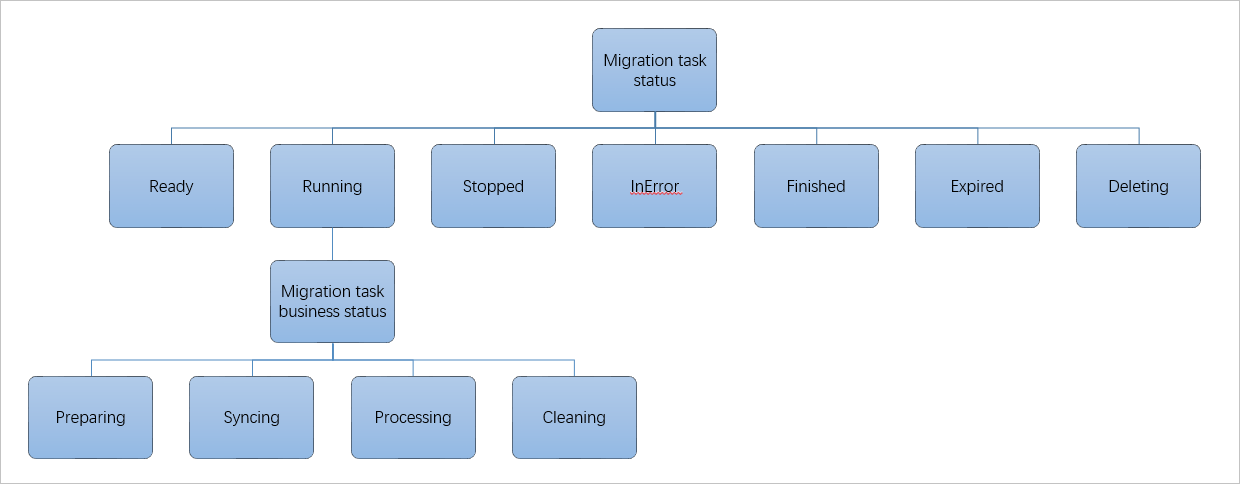
Table 1. Statuses of a migration job
Migration Job Status | Description | Supported operations |
Ready | The migration job is created but not started. | Start the migration job. |
Running | Although the migration job is running, the SMC console displays a business state in the Status column instead of the `Running` state. For more information about the business state table, see Business states. | You can wait for the migration job to complete, or pause it while it is in the Syncing state. Note You cannot delete a migration job that is running. |
Stopped | The migration job is paused. | Restart or delete the migration job. |
Error | The migration job failed. | Check the error message or migration logs on the client or in the console to identify the cause and fix the issue. If the failure is caused by the client, such as when the migration source is offline or abnormal, restart the client before you restart the migration task. |
Completed | The migration job is complete. | Go to the Custom Images tab in the ECS console to view the image generated by SMC. |
Waiting | The task is waiting for its next scheduled run. This state applies only to incremental migration tasks. For more information about incremental migration, see Migrate incremental data from a server. | In this state, you can perform the following operations:
|
Expired | The migration job has expired. | Delete the migration job. Note The default validity period for a migration job is 30 days. After a job expires, it is marked as Expired and retained for 7 days. SMC then automatically deletes the job. For more information, see What is the validity period of a migration job and what happens after it expires? |
Deleting | The migration job is being deleted. | Wait until the migration job is deleted, or create another migration job for the migration source. Note When a migration job is deleted, SMC automatically releases resources created during the migration, such as intermediate instances. This process can take a long time. |
Table 2. Business states of a migration job
Migration job status | Description | Supported operations |
Preparing | After you start a migration job, the state of the job changes to Preparing. | None. |
Syncing | The migration job is uploading the source data. | Pause the migration job. |
Processing | The migration job is creating the target image. | None. |
Purging | The intermediate environment is being cleaned up, and the migration job is almost complete. | None. |
What do I do if I cannot select a destination instance when creating a migration task?
When you create a migration task and select to migrate to a destination instance, if you cannot select a destination instance from the drop-down list, you can perform the following troubleshooting steps:
If you perform a cross-account migration, check whether the migration task is created in the destination account.
Check whether the correct destination region is selected.
If the source server is a Windows system, the corresponding destination instance must also be a Windows system. If the source server is a Linux system, the corresponding destination instance must also be a Linux system.
I have a single-instance Oracle database on a physical database server. When migrating to Alibaba Cloud, should I migrate the entire server (including the operating system and database) or only the database? What are the pros and cons of each method?
You can select the migration method based on your actual needs. The advantages and disadvantages of the two migration methods are as follows:
If you only need the Oracle database application, migrating only the Oracle application is a more lightweight and suitable option. The disadvantage is that you need to reconsider the deployment and connection method for the Oracle application.
If you need the Oracle application and depend on the overall operating system environment, migrating the entire server to Alibaba Cloud is more convenient. The disadvantage is that if the server has a large amount of data, the migration period will be longer.
How do I install the OpenSSH service on a Windows server?
The following example shows how to install the OpenSSH service on Windows Server 2016:
Download and decompress the OpenSSH-Win64.zip file to the specified directory, such as C:\OpenSSH-Win64.
Open Windows PowerShell with administrator privileges and go to the unzipped directory.
cd \OpenSSH-Win64Run the following command to install OpenSSH.
powershell.exe -ExecutionPolicy Bypass -File install-sshd.ps1PS C:\OpenSSH-Win64> powershell.exe -ExecutionPolicy Bypass -File install-sshd.ps1 [*] C:\OpenSSH-Win64\moduli Inheritance is removed from 'C:\OpenSSH-Win64\moduli'. 'BUILTIN\Users' now has Read access to 'C:\OpenSSH-Win64\moduli'. Repaired permissions [SC] SetServiceObjectSecurity SUCCESS [SC] ChangeServiceConfig2 SUCCESS [SC] ChangeServiceConfig2 SUCCESS sshd and ssh-agent services successfully installedRun the following commands to configure the SSH remote command.
cmd /c sc.exe config sshd start=auto
cmd /c sc.exe config ssh-agent start=auto
cmd /c net.exe start sshd
New-ItemProperty -Path "HKLM:\SOFTWARE\OpenSSH" -Name DefaultShell -Value "C:\Windows\System32\WindowsPowerShell\v1.0\powershell.exe" -PropertyType String -Force
New-ItemProperty -Path "HKLM:\SOFTWARE\OpenSSH" -Name DefaultShellCommandOption -Value "/c" -PropertyType String -Force
For more information, see Install Win32 OpenSSH.
Does an image generated by an incremental migration contain data from the start or the end of the migration task?
The data for each incremental migration is the data of the source server at the start time of the incremental migration task. Data generated on the source server during the incremental migration process is migrated in the next incremental task.
Does modifying the incremental synchronization frequency take effect immediately?
No, it does not. A modification to the synchronization frequency in an incremental task takes effect in the next cycle, not the current one.
After a Windows server migration is complete and an ECS instance is created from the image, why are there extra disks?
When you create a migration task, the disk size is set to an integer in GB. This is usually a few hundred megabytes larger than the system partition of the source server. If an extra drive letter appears after the migration, you can use Disk Management to delete it.
After a server migration fails or is interrupted, why does the disk space usage on the source server keep increasing?
If the disk space usage of a source server continuously increases after a migration fails or is interrupted, it may be because of the growing snapshot files created by SMC. If you confirm that the migration is no longer needed, you must clear the disk space as soon as possible. You can perform the following steps:
Linux server
You can remotely connect to the Linux source server.
Run the following command to go to the SMC client directory on the source system.
By default, the SMC client directory of the migration source that is automatically imported using the console is /smc/go2aliyun_client****. In this example, /smc/go2aliyun_client2.6.6_linux_x86_64 is used.
cd /smc/go2aliyun_client2.6.6_linux_x86_64Run the following command to clear the snapshots.
sudo ./Check/client_check --ssclear smcssThe following output indicates that the snapshots have been cleared.
[ecs-user@iZbp1dqulfhozse3jbp**** go2aliyun_client2.6.6_linux_x86_64]$ sudo ./Check/client_check --ssclear smcss
clear snapshot with smcss: smcssbd_destroy...
smcssbd_destroy ioctl return 0
Windows server
You can open Command Prompt on the Windows source server.
Run the following commands in sequence to query the list of existing VSS shadow copy snapshots and record the shadow_id of the snapshots.
cd \WINDOWS\System32
vssadmin list shadows
In the returned information,
Shadow Copy IDis the shadow_id. Example: {ad39055a-3aa0-494c-b787-f8589ab8****}.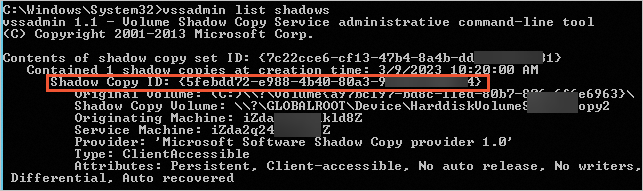
Run the following command to delete the VSS snapshots.
ImportantCheck whether the creation time matches the SMC migration task time. After you confirm the shadow_id of the VSS snapshot to delete, clear the VSS snapshot. If there are multiple snapshots, you must run the command for each shadow_id.
vssadmin delete shadows/shadow={shadow_id}Example command:
vssadmin delete shadows/shadow={ad39055a-3aa0-494c-b787-f8589ab8****}In the output, enter Y to delete the VSS snapshot.

How do I migrate an operating system?
CentOS has announced the end of life (EOL) for CentOS Linux versions, such as CentOS 7 and CentOS 8. If you require future technical support for your CentOS operating system, you must migrate your CentOS operating system to another Linux distribution that has long-term support (LTS). For more information, see Migrate a Linux operating system.
Does the instance information change after an operating system migration?
After an operating system migration, the instance ID, image ID, VPC, public and private IP addresses, and hostname remain unchanged, but the operating system is replaced with the target operating system. Subsequently, when you create a snapshot or an image from the instance, its system platform type is updated to that of the target operating system.
For example, if an operating system with the image ID win2008 is migrated to win2012, the instance image ID remains win2008 after the migration, but the operating system of the instance changes to win2012. This results in a mismatch between the image ID and the operating system. This is expected and does not affect the use of the system.
Which operating systems does OS migration support?
CentOS 7/8
Operating system architecture | Source operating system | Destination operating system |
x86 | CentOS 7.x |
|
CentOS 8.x |
| |
ARM64 | CentOS 7.x |
|
CentOS 8.x |
|
Red Hat 7/8
Operating system architecture | Source operating system | Destination operating system |
x86 | Red Hat 7.9 |
|
Red Hat 8.x |
|
Alibaba Cloud Linux 2
Operating system architecture | Source operating system | Destination operating system |
x86 | Alibaba Cloud Linux 2 | Alibaba Cloud Linux 3 |
For more information, see Migrate a Linux operating system.
What is agentless VMware migration?
Agentless VMware migration lets you migrate VMware VMs without agents. This way, the migration does not modify the operating system of the source server or occupy its computing resources. This can effectively eliminate your concerns about server security and performance. For more information, see Agentless migration for VMware VMs.
What are the benefits of agentless VMware migration?
Agentless VMware migration has the following benefits:
Zero resource consumption
The SMC client does not run inside the virtual machine, so it does not occupy any of the virtual machine's resources.
High migration efficiency
You do not need to install an agent on each virtual machine, which saves labor and time costs.
High security
No operations are performed within the operating system of the virtual machine, which eliminates user concerns about security.
High compatibility
It does not depend on the internal environment of the operating system of the virtual machine, which results in a higher migration success rate.
In a VMware agentless migration, how do you directly configure virtual machines on a specific host or specific virtual machines?
Log on to the VMware agentless connector.
The following example shows how to connect using an SSH remote connection:
From a terminal with network access to the VMware agentless connector, run the following command to connect to it remotely. By default, the username is
rootand the password is empty.ssh root@<IP address of the Server Migration Connector>ImportantFor security reasons, we recommend that you change the password at the earliest opportunity.
Run the following commands to configure the connection information.
cd /root/smc
./dist/connect_configure
Configure the IP address, username, password, and port number of VMware vCenter or ESXi in sequence (the default port 443 is recommended). The output is similar to the following.
[root@localhost ~]# cd /root/smc
[root@localhost smc]# ./configure.sh
Please input vCenter/ESXI IP:192.168.XX.XX
Please input username:administr****@vsphere.local
Please input password:
Please input port number(default 443):443
Test to connect the vCenter/ESXI...
Connect success!
save to ./vmware_connect_config.json
Run the following command to add a VM on a specific host or a specific VM.
Add a VM on a specific host
Run the following command to add a VM on a specific host.
./dist/migrate_configure -h <hostname>If you deploy the VMware agentless connector on vCenter, replace <hostname> with the actual hostname.
If you deploy the Server Migration Connector on ESXi, the default hostname is
localhost.localdomain.The following is an example of deploying the VMware agentless connector in an ESXi environment:
[root@smc-connector smc]# ./dist/migrate_configure -h localhost.localdomain
========Aliyun SMC VMware Configure Tool 1.2========
Connect success!

Host List:
------------------------------------------------------------------------
ID       Name                       Version                  Connected
1        localhost.localdomain      7.0.3                         *
------------------------------------------------------------------------
Please input the ID of Host(input 0 to exit):1
After you enter the host ID, a list of virtual machines is generated. Enter the ID of the virtual machine that you want to migrate (you must select a VM that is "connected", indicated by an asterisk * in the Connected column).
Test to connect localhost.localdomain
Connect success!
 Getting vm list progress:
 [>>>>>>>>>>>>>>>>>>>>>>>>>>>>>>>>>>>>>>>>>>>>>>>>>>100.00%]time:2.3s


VM List of 192.168.XX.XX:
------------------------------------------------------------------------
ID      Name                               Connected      CBT      Add
1080    test1                                  *
1084    win16bios                              *
1011    centos7-bios-2                         *
3008    centos7-uefi                           *
2001    centos-hw10                            *
------------------------------------------------------------------------
Please input the ID of VM to be migrated (input 0 to exit):1084
Add a specific VM
ImportantIf virtual machines have the same name in vCenter, we recommend that you do not add a specific virtual machine by name.
Run the following command to add a specific virtual machine, and enter the ID of the virtual machine to be migrated based on the output.
./dist/migrate_configure -v <VM name>Example command:
[root@smc-connector smc]# ./dist/migrate_configure -v centos7-sta
========Aliyun SMC VMware Configure Tool 1.2========
Connect success!

VM List of 192.168.XX.XX:
------------------------------------------------------------------------
ID          Name         Connected         CBT            Add
3005        centos7-sta      *
------------------------------------------------------------------------
Please input the ID of VM to be migrated (input 0 to exit):3005
Enter the ordinal number for the architecture of the virtual machine to be migrated. For example:
0.-------------------------------------------------------------- 0 x86_64 1 i386 2 arm64 -------------------------------------------------------------- Please choose the architecture:0Confirm whether the operating system type provided by the system is the actual operating system of the virtual machine.
Enter
yif the displayed operating system type is correct for your virtual machine.Enter
n: If the operating system type provided by the system is not correct for the virtual machine, enternand then enter the number that corresponds to the correct operating system from the provided list. For example:10.NoteThe preset operating system type that is specified when you create a virtual machine in VMware vCenter may not be accurate. You need to confirm whether the operating system type provided by the system is the actual operating system of the virtual machine.
Is [CentOS 7 (64-bit)]' truly the OS of VM (y or n)?n
------------------------------------------------------------------------
0  CentOS
1  Ubuntu
2  SUSE
3  OpenSUSE
4  Debian
5  RedHat
6  Others Linux
7  Windows Server 2003
8  Windows Server 2008
9  Windows Server 2012
10  Windows Server 2016
11  Windows Server 2019
12  Windows Server 2022
------------------------------------------------------------------------
Please choose the OS of VM:
Select the system disk. By default, the virtual disk with the number
0is selected.-------------------------------------------------------------- 0 [datastore1] win16bios/wins16bios-000001.vmdk 1 [datastore1] wins16bios/wins16bios_1-000001.vmdk -------------------------------------------------------------- Please choose the system disk (default 0):0If an asterisk
*is displayed in theAddcolumn that corresponds to the virtual machine name, the VM is successfully added.VM List of 192.168.XX.XX: -------------------------------------------------------------- ID Name Connected CBT Add 481 TEST_CLONE_1 * 389 win16bios * * 338 hanjun_test_001 * 386 Aliyun_SMC_Agent_6.5 * 393 win16uefi -------------------------------------------------------------- Please input the ID of VM to be migrated (input 0 to exit):0vCenter deployment of the VMware agentless connector:
To migrate multiple virtual machines, you can continue to enter the IDs of the virtual machines to be migrated.
If you are migrating only one virtual machine, enter 0 to return to the host selection. To continue to select virtual machines from other hosts for migration, you can repeat the preceding steps. Otherwise, enter 0 to exit the configuration.
Single ESXi environment deployment of the VMware agentless connector:
If you are migrating only one virtual machine, enter 0 to return to the host selection, and then enter 0 again to exit the configuration.
To reconfigure, you can continue to enter the IDs of the virtual machines to be migrated.
Which source servers can be migrated to Simple Application Server?
You can use SMC to migrate the lightweight servers provided by other cloud service vendors, such as Tencent Cloud Lighthouse, Amazon Web Services (AWS) Lightsail, and Huawei Hyper Elastic Cloud Server (HECS), to Alibaba Cloud Simple Application Server. For more information, see Migrate lightweight servers to Alibaba Cloud Simple Application Server.
Am I charged for the temporary disks and snapshots created during migration to Simple Application Server?
This service is provided free of charge.