Resolve pod scheduling failures, image pull errors, startup crashes, OOM kills, and runtime issues.
For console-based troubleshooting — viewing pod status, events, logs, accessing terminals, and running diagnostics — see Common Troubleshooting Procedures.
Quick diagnostic procedure
To diagnose an abnormal pod, go to the details page of the target Pods. Click the Events tab to review the descriptions of abnormal events. Then, click the Logs tab to check for recent abnormal logs.
Pod in Pending state
If a Pod has an Unschedulable status in its Status Details or a FailedScheduling event appears in Events, go to to check node health and resource levels (CPU and memory). Also check whether the pod's affinity rules — nodeSelector, nodeAffinity, and tolerations — are too restrictive. See Scheduling issues.
Image pull fails (ImagePullBackOff/ErrImagePull)
On the Pods details page, go to the Container tab and check the Image address. Log on to the pod's node and run crictl pull <image-address> or curl -v https://<image-address> to verify network connectivity to the image repository. In the upper-right corner, click Edit YAML and check that the Secret specified in the workload's spec.imagePullSecrets field exists and is valid. For further troubleshooting, see image pulling issues.
Pod fails to start (CrashLoopBackOff)
The application repeatedly crashes and restarts. On the Pods details page, click the Logs tab and select Show the log of the last container exit to view the cause of the failure. For further troubleshooting, see Troubleshoot pod startup failures.
Pod Running but not ready
The pod's readiness probe failed. On the Edit page of the target Workloads, verify that the health check request path (for example, /healthz) and port match those provided by the application. For further troubleshooting, see The pod is Running but not ready (Ready: False).
Temporarily disable the health check, then use curl from the pod terminal or host node to verify the endpoint responds correctly.Pod is OOMKilled
On the Pods details page, click the Logs tab and select Show the log of the last container exit to view OOM logs. Check if the application has a memory leak or an out-of-memory (OOM) error. For Java applications, you can optimize the -Xmx parameter. Adjust the application's memory resource limit (resources.limits.memory) as needed. For further troubleshooting, see OOMKilled.
If a liveness probe is configured, the pod remains in the OOMKilled state only briefly before it automatically restarts.
Diagnostic workflow
To diagnose an abnormal pod, inspect its events, logs, and configuration.

Phase 1: Scheduling issues
Pod not scheduled to a node
If a pod remains in the Pending state for an extended period, it has not been scheduled to a node.
Error message | Description | Solution |
| The cluster has no available nodes for pod scheduling. |
|
| No available nodes in the cluster can meet the pod's CPU or memory resource requests. A node is unschedulable when its total allocated | On the target cluster's details page, go to and check the CPU or memory requests allocation rate for the target node. You can hover over the allocation rate to view the specific resource allocation values.
To view detailed node resource usage, see Use kubectl to view node resource usage.
|
| The existing nodes do not match the pod's node affinity policy ( |
|
|
|
|
| Scheduling fails due to a volume node affinity conflict. This typically occurs because a cloud disk cannot be mounted across different zones. |
|
| The ECS instance does not support the specified cloud disk type. | See Instance families to confirm the cloud disk types supported by your ECS instance. When mounting, update the cloud disk type to one that is supported by the ECS instance. |
| The pod cannot be scheduled to a node because it lacks a toleration for one of the node's taints. |
|
| The node has insufficient ephemeral storage. |
|
| The pod failed to bind to a persistent volume claim (PVC). | Check if the PVC or PV specified by the pod has been created. Run |
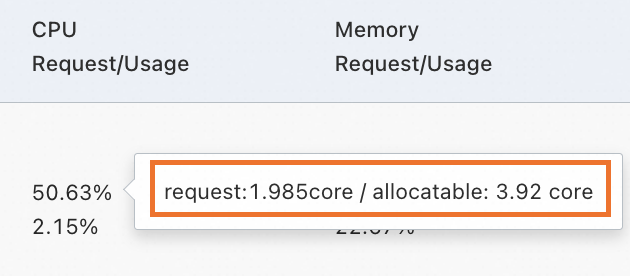
 > Node Affinity
Pod is scheduled but remains Pending
If a pod has been scheduled but remains Pending, follow these steps.
If a pod uses
hostPort, only one pod with thathostPortcan run per node, sohostPortlimits theReplicascount to the number of nodes. If the port is already in use, scheduling fails.hostPortadds scheduling complexity. Use a Service to expose pods instead.If the Pod is not configured with
hostPort, follow the steps below to troubleshoot.View the pod's events with
kubectl describe pod <pod-name>. Common causes include image pull failures, insufficient resources, security policy restrictions, and configuration errors.If no useful events are found, check kubelet logs on the node with
grep -i <pod name> /var/log/messages* | less.
Phase 2: Image pull issues
ImagePullBackOff or ErrImagePull
A pod status of ImagePullBackOff or ErrImagePull indicates that the image pull failed. Examine the pod events to identify the cause.
Error message | Description | Suggested solution | ||||||
| Access to the image repository is denied because an | Verify that the Secret specified in the When using ACR, use a credential helper to pull images without a password. See Pull images from the same account. | ||||||
| The image repository address could not be resolved when pulling an image over HTTPS. |
| ||||||
| The node has insufficient disk space. | Log on to the node (see Choose an ECS remote connection method) and run | ||||||
| The third-party image repository uses a certificate signed by an unknown or insecure Certificate Authority (CA). |
ConsoleProcedureChanges do not affect running containers. Perform this operation during off-peak hours.
Configuration examples
CLI
| ||||||
| The operation was canceled, possibly because the image file is too large. Kubernetes has a default timeout for pulling images. If the pull makes no progress for a specific period, Kubernetes assumes the operation has failed or is unresponsive and cancels the task. |
| ||||||
| Cannot connect to the image repository due to network issues. |
| ||||||
| Connection timed out due to network issues when pulling an image from an overseas repository. | Pulling images from overseas repositories, such as Docker Hub, may fail in ACK clusters due to unstable carrier networks. To resolve this, consider the following solutions:
| ||||||
| Docker Hub imposes rate limits on image pull requests. | Upload the image to Container Registry (ACR) and pull it from an ACR image repository. | ||||||
The status | The kubelet's image pull rate limiting mechanism may have been triggered. | Adjust the |
 > Containerd Configuration.
Phase 3: Startup issues
Pod is in the Init state
Error message | Description | Solution |
Stuck in the | The pod has M init containers; N completed, but the remaining M-N failed to start. |
|
Stuck in the | An init container in the pod failed to start. | |
Stuck in the | An init container in the pod failed to start and is in a restart loop. |
Pod is in the Creating state
Error message | Description | Solution |
| This is expected behavior due to the design of the Flannel network plugin. | Upgrade the Flannel component to v0.15.1.11-7e95fe23-aliyun or later. See Flannel. |
In clusters that run a Kubernetes version earlier than 1.20, an IP address leak can occur if a pod restarts repeatedly or if pods from a CronJob complete their tasks and exit quickly. | Upgrade the cluster to Kubernetes 1.20 or later (latest recommended). See Manually upgrade a cluster. | |
Defects in containerd and runC cause this issue. | For an emergency fix, see Why does my pod fail to start with the error "no IP addresses available in range"? | |
| The Terway network plugin maintains an internal database on the node to track and manage elastic network interfaces (ENIs). This error occurs when the database state is inconsistent with the actual network device configuration, causing ENI allocation to fail. |
|
| The Terway network plugin may have failed to request an IP address from the vSwitch. |
|
Pod fails to start (CrashLoopBackOff)
Error message | Description | Solution |
The log contains |
| |
The pod's events show | The liveness probe failed, causing the application to restart. |
|
The pod's events show | The startup probe failed, causing the application to restart. |
|
The pod log contains | Insufficient cloud disk space. |
|
Startup fails without event information. | This issue occurs when a container requires more resources than its declared limits, causing it to fail. | Check whether the pod's resource configuration is correct. You can enable resource profiling to get recommended Request and Limit configurations for the container. |
The pod log shows | A port conflict exists between containers in the same pod. |
|
The pod log shows | The workload mounts a Secret, but the value in the Secret is not Base64-encoded. |
|
Application-specific issue. | Examine the pod logs to troubleshoot the issue. | |
Pod is Running but not ready (Ready: False)
Error message | Description | Solution |
| The readiness probe failed, preventing the target pod from receiving traffic. |
|
The pod status is the same as above. The pod's events show | A failed startup probe causes the container to restart. This error should not result in a persistent Running/NotReady state but rather a 'CrashLoopBackOff' state. | Troubleshoot this issue as described in the "Pod fails to start (CrashLoopBackOff)" section for Startups. |
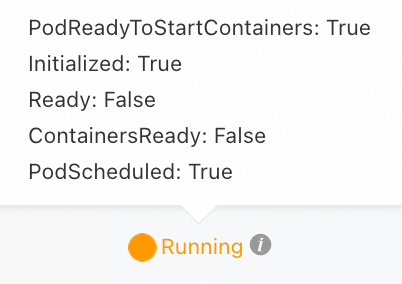 The pod's events show
 Phase 4: Pod runtime issues
OOMKilled
When a container exceeds its memory limit, it is terminated by an OOM kill. See Assign Memory Resources to Containers and Pods.
If the terminated process is the container's main process, the container might restart unexpectedly.
When an OOM event occurs, it appears on the Events tab of the pod details page in the console, such as
pod was OOM killed. node:XXX pod:XXX namespace:XXX.Configure a container replica exception alert to receive OOM notifications.
OOM level | Description | Recommended solution |
OS level | Check the kernel log at |
|
cgroup level | Check the kernel log at |
|
Terminating
Possible cause | Description | Recommended solution |
The node is in the NotReady state. | The pod is automatically deleted after the node recovers from the NotReady state. | |
The pod is configured with finalizers. | If a pod is configured with finalizers, Kubernetes performs the cleanup operations specified by the finalizers before deleting the pod. If a cleanup operation fails to respond, the pod remains in the Terminating state. | Check the pod's finalizer configuration with |
The pod's preStop hook is invalid or stuck. | If a preStop hook is configured for the pod, Kubernetes executes the hook before terminating the container. The pod remains in the Terminating state while the hook is running. | Check the pod's preStop hook configuration with |
A graceful shutdown period is configured for the pod. | If a Pod is configured with a graceful shutdown period ( | Kubernetes automatically deletes the pod after the container completes a graceful shutdown. |
The container is unresponsive. | When you request to stop or delete a pod, Kubernetes sends a |
|
Evicted
Possible cause | Description | Recommended solution |
The node is under resource pressure from factors like memory or disk usage. | The node may be experiencing memory pressure, disk pressure, or PID pressure.
|
|
An unexpected eviction occurs. | A manually added NoExecute taint on the pod's node caused an unexpected eviction. | Check for a NoExecute taint with |
Eviction does not proceed as expected. |
| In a small cluster (50 nodes or fewer), if more than 55% of nodes fail, pod eviction stops. See Rate limits on eviction. |
In a large cluster (more than 50 nodes), if the fraction of unhealthy nodes exceeds the | ||
A pod is frequently rescheduled to its original node after being evicted. | The kubelet evicts pods based on actual resource usage, whereas the scheduler places pods based on resource requests. Because an eviction frees up resources, the scheduler might reschedule a pod to the same node if its requests still fit. | Adjust the pod's resource requests to fit the node's allocatable resources. See Set CPU and memory resources for a container. Enable resource profiling to get recommended request and limit values. |
Completed
All containers exited successfully. Common for jobs and init containers.
FAQ
Pod is running but not working
YAML errors can cause a pod to enter Running but fail to function.
Verify the container settings in the pod's configuration.
Use the following methods to check your YAML configuration for spelling errors.
If a YAML key is misspelled (for example,
commandascommnd), the cluster creates the resource without error but cannot execute the misspelled key at runtime.The following example, in which
commandis misspelled ascommnd, describes how to troubleshoot spelling issues.Add
--validatetokubectl apply -fand runkubectl apply --validate -f XXX.yaml.If you misspell a word, an error is reported:
XXX] unknown field: commnd XXX] this may be a false alarm, see https://gXXXb.XXX/6842pods/test.Compare the output
pod.yamlwith the original YAML file used to create the pod.Note[$Pod]is the name of the abnormal Pod, which you can obtain by running thekubectl get podscommand.kubectl get pods [$Pod] -o yaml > pod.yamlIf the
pod.yamlfile has more lines than the original file, it means the pod was created as expected, and the cluster added default values.If lines from your original YAML file are missing from
pod.yaml, this indicates a spelling error in your original file.
Check the pod's logs to troubleshoot the issue.
Access the container through a terminal and verify that the local files within the container are as expected.
Check node resource usage with kubectl
Check the CPU and memory usage of all nodes in the cluster.
kubectl describe nodes | awk '/^Name:/{print "\n"$2} /Resource +Requests +Limits/{print $0} /^[ \t]+cpu.*%/{print $0} /^[ \t]+memory.*%/{print $0}'Expected output:
cn-hangzhou.192.168.0.xxx
  Resource           Requests      Limits
  cpu                1725m (44%)   10320m (263%)
  memory             1750Mi (11%)  16044Mi (109%)

cn-hangzhou.192.168.16.xxx
  Resource           Requests      Limits
  cpu                1885m (48%)   16820m (429%)
  memory             2536Mi (17%)  25760Mi (179%)
A node with high request utilization may be unable to satisfy the
requestsof a new Pod, preventing the Pod from being scheduled.Replace
YOUR_NODE_NAMEwith the actual node name to view the resource usage of all Pods on the node.kubectl describe node YOUR_NODE_NAME | awk '/Non-terminated Pods/,/Allocated resources/{ if ($0 !~ /Allocated resources/) print }'Expected output:
Non-terminated Pods:          (11 in total)
  Namespace                   Name                                                        CPU Requests  CPU Limits   Memory Requests  Memory Limits  Age
  ---------                   ----                                                        ------------  ----------   ---------------  -------------  ---
  arms-prom                   node-exporter-gp95p                                         20m (0%)      1020m (26%)  160Mi (1%)       1152Mi (7%)    6d21h
  csdr                        csdr-velero-77c8bbc9c7-w46lq                                500m (12%)    1 (25%)      128Mi (0%)       2Gi (13%)      6d19h
  kube-system                 ack-cost-exporter-5b647ffc65-zdrsl                          100m (2%)     1 (25%)      200Mi (1%)       1Gi (6%)       6d21h
  kube-system                 ack-node-local-dns-admission-controller-5dfd74f5f4-9rl6n    100m (2%)     1 (25%)      100Mi (0%)       1Gi (6%)       6d21h
  kube-system                 ack-node-problem-detector-daemonset-6wql2                   200m (5%)     1200m (30%)  300Mi (2%)       1324Mi (9%)    6d21h
  kube-system                 coredns-7784559f6-dr9sn                                     100m (2%)     0 (0%)       100Mi (0%)       2Gi (13%)      6d21h
  kube-system                 csi-plugin-knz7j                                            130m (3%)     2 (51%)      176Mi (1%)       4Gi (27%)      6d21h
  kube-system                 kube-proxy-worker-rkbzv                                     100m (2%)     0 (0%)       100Mi (0%)       0 (0%)         6d21h
  kube-system                 loongcollector-ds-kw7cj                                     100m (2%)     2 (51%)      256Mi (1%)       2Gi (13%)      6d21h
  kube-system                 node-local-dns-pgzcn                                        25m (0%)      0 (0%)       30Mi (0%)        1Gi (6%)       6d21h
  kube-system                 terway-eniip-lnn8n                                          350m (8%)     1100m (28%)  200Mi (1%)       256Mi (1%)     6d21h
You can adjust the
requestsconfiguration based on actual resource consumption.
Intermittent network disconnections from pods to databases
If a pod intermittently disconnects from a database, follow these steps.
1. Check pod
Check the pod's events for signs of connection instability, such as network issues, restarts, or insufficient resources.
Check the pod's logs for any error messages related to the database connection, such as timeouts, authentication failures, or reconnection triggers.
Monitor the pod's CPU and memory usage to ensure resource exhaustion does not cause the application or database driver to crash.
Review the pod's resource
requestsandlimitsto ensure it has sufficient CPU and memory.
2. Check node
Check the node for resource shortages (memory, disk). See Monitor nodes.
Test for intermittent network disruptions between the node and the target database.
3. Check database
Check the status and performance metrics of the database for any restarts or performance bottlenecks.
Review the number of abnormal connections and the connection timeout settings, and adjust them based on your application's requirements.
Inspect the database logs for any records related to disconnections.
4. Check cluster component status
Faulty cluster components can disrupt a pod's network communication.
kubectl get pod -n kube-system # Check the status of component pods.Also, check the following network components:
CoreDNS: Check the component's status and logs to ensure the pod can correctly resolve the database service address.
Flannel: Check the status and logs of the kube-flannel component.
Terway: Check the status and logs of the terway-eniip component.
5. Analyze network traffic
You can use tcpdump to capture packets and analyze network traffic to help identify the cause of the problem.
Get Pod and node information:
List pods and their nodes in a specific namespace:
kubectl get pod -n [namespace] -o wideLog on to the target node and run the following commands to find the container PID.
Containerd
View the container
CONTAINER.crictl ps |grep <Pod name keyword>Expected output:
CONTAINER           IMAGE               CREATED             STATE
a1a214d2*****       35d28df4*****       2 days ago          Running
View the container PID using the
CONTAINER ID.crictl inspect a1a214d2***** |grep -i PIDExpected output:
    "pid": 2309838,    # The PID of the target container.
            "pid": 1
            "type": "pid"
Docker
View the container's
CONTAINER ID.docker ps |grep <pod name keyword>Expected output:
CONTAINER ID        IMAGE                  COMMAND
a1a214d2*****       35d28df4*****          "/nginx
View the container PID using the
CONTAINER ID.docker inspect a1a214d2***** |grep -i PIDExpected output:
            "Pid": 2309838,  # The PID of the target container.
            "PidMode": "",
            "PidsLimit": null,
Capture packets.
Capture network packets between the pod and the target database using the container PID.
nsenter -t <container PID> tcpdump -i any -n -s 0 tcp and host <database IP address>Capture network packets between the pod and the host using the container PID.
nsenter -t <container PID> tcpdump -i any -n -s 0 tcp and host <node IP address>Capture network packets between the host and the database.
tcpdump -i any -n -s 0 tcp and host <database IP address>
6. Optimize application
Implement an automatic reconnection mechanism in your application to ensure it can restore connections automatically during a database switchover or migration.
Use persistent connections instead of short-lived connections to communicate with the database. Persistent connections can significantly reduce performance overhead and resource consumption, improving overall system efficiency.
Console troubleshooting
Log on to the ACK console and go to the details page of your cluster to troubleshoot Pod issues.
Actions | Console |
Check the status of a Pod |
|
Check the basic information of a Pod |
|
Check the configuration of a Pod |
|
Check the events of a Pod |
|
View the logs of a Pod |
Note ACK integrates with Simple Log Service (SLS) for container log collection. See Collect container logs from an ACK cluster. |
Check the monitoring data of a Pod |
Note ACK integrates with Managed Service for Prometheus for real-time cluster and container monitoring. See Configure Managed Service for Prometheus. |
Use a terminal to access a container and view local files |
|
Run Pod diagnostics |
Note Container Intelligent Service provides one-click diagnostics. See Use cluster diagnostics. |
Unexpected Pod deletion
The kube-controller-manager (KCM) garbage-collects pods in Completed status when their count exceeds the default threshold of 12,500. The --terminated-pod-gc-threshold parameter configures this threshold. See the KCM parameter documentation.
Recommendation: Periodically clean up Completed pods to prevent them from affecting controller efficiency.