Quick BI provides a dashboard Q Chat feature. On the dashboard preview page, you can use natural language to interact with your data and receive instant answers. This feature offers a new way to consume data and allows anyone to perform data analytics. This topic describes how to use the dashboard Q Chat feature.
This feature is currently available only in the China (Hong Kong), Malaysia, and Singapore sites. Support for other sites will be available soon.
Limits
Dashboards embedded into third-party systems using the enhanced embedding solution do not support the Quick BI Q Chat feature.
Configuration entry point
On the dashboard edit page, follow the steps in the figure to go to the Q Chat Configuration interface.
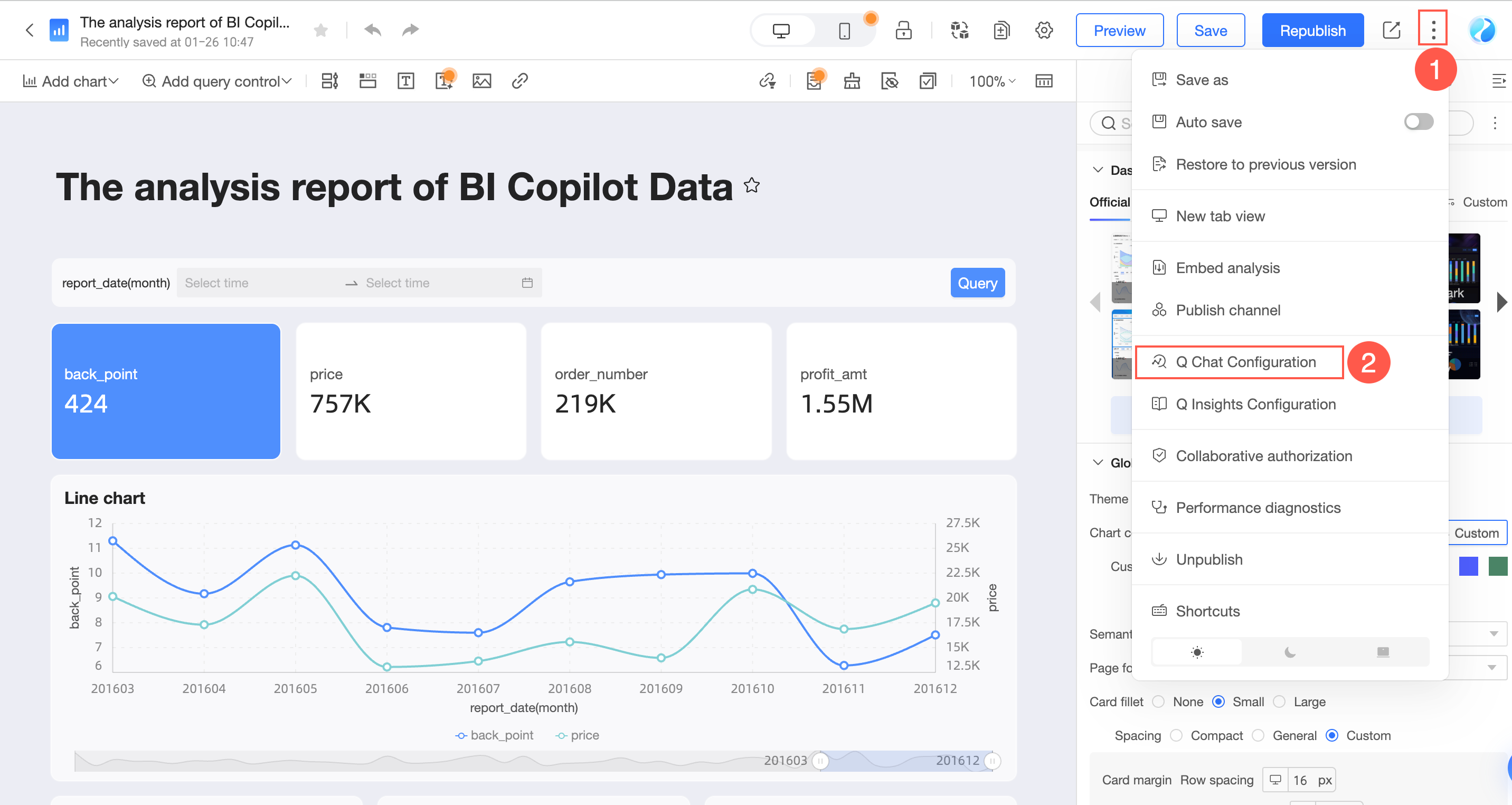
Click Enable Q Chat.
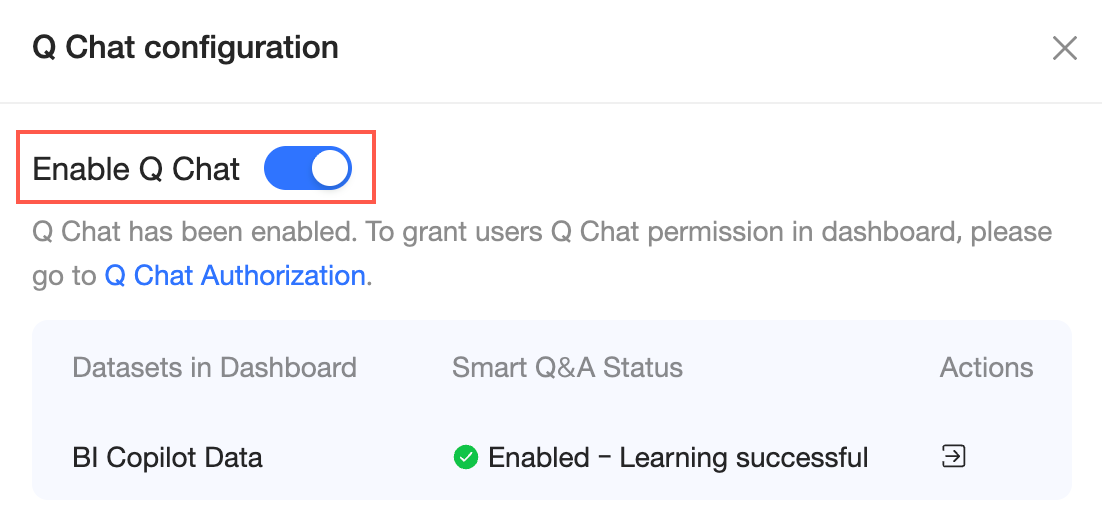
On the Q Chat configuration interface, you can view the enablement and learning status of the dashboard datasets. You can also configure Q Chat settings and permission management for the dashboard and its datasets.
NoteEnabled datasets are added to the Q Chat resource pool. Users can use natural language to retrieve data from these datasets.
Disabled datasets cannot be used for Q Chat. Users cannot ask questions about these datasets.
Ensure that at least one dataset is enabled.
Dataset Q Chat configuration and permission management
In the Q Chat configuration interface, click the
 icon in the Operations column to open the dataset. You can then configure its Q Chat settings and permissions.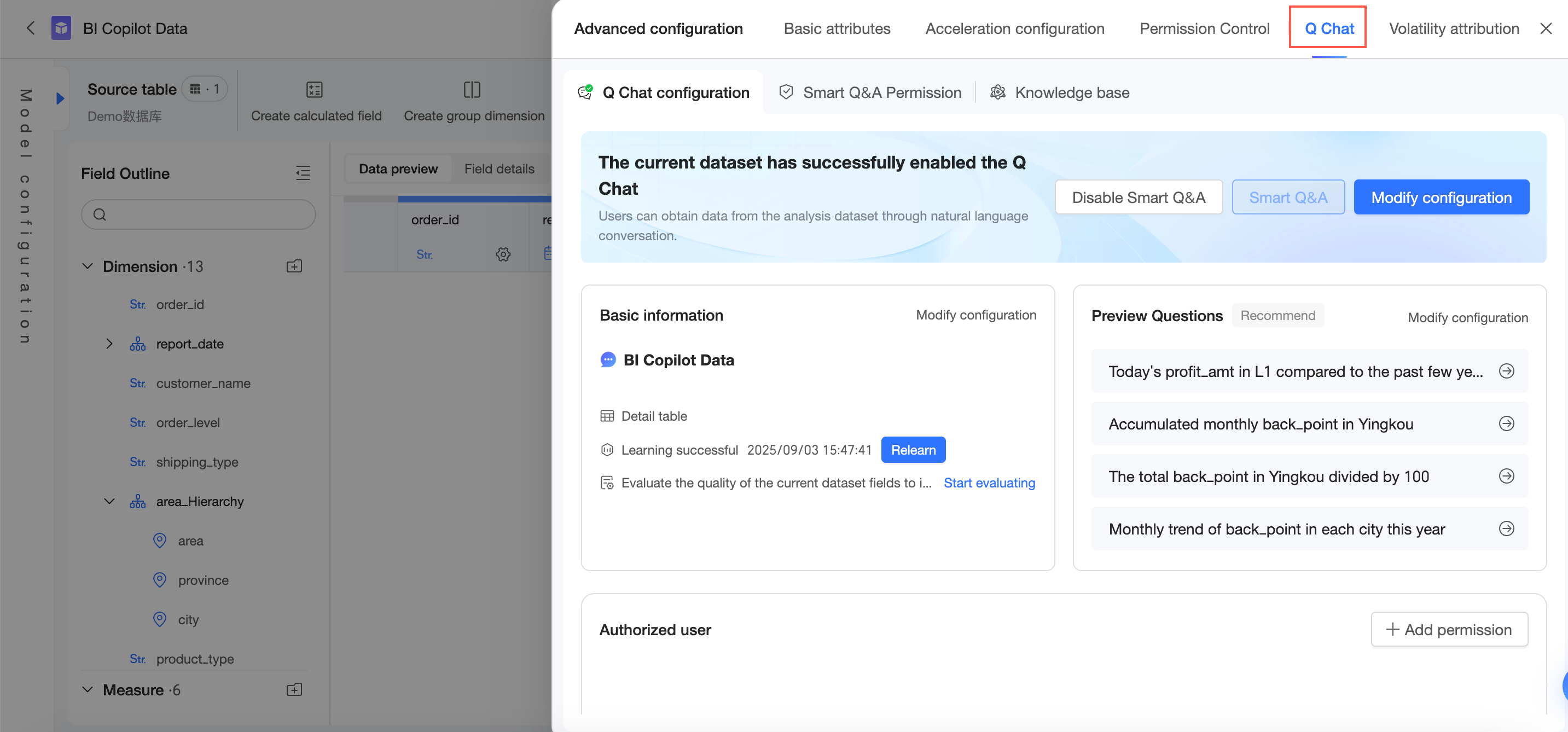
If a dataset used by the dashboard does not have the Q Chat feature enabled, click Enable Q Chat and configure the Q Chat settings. You can skip this step for datasets that already have the Q Chat feature enabled.
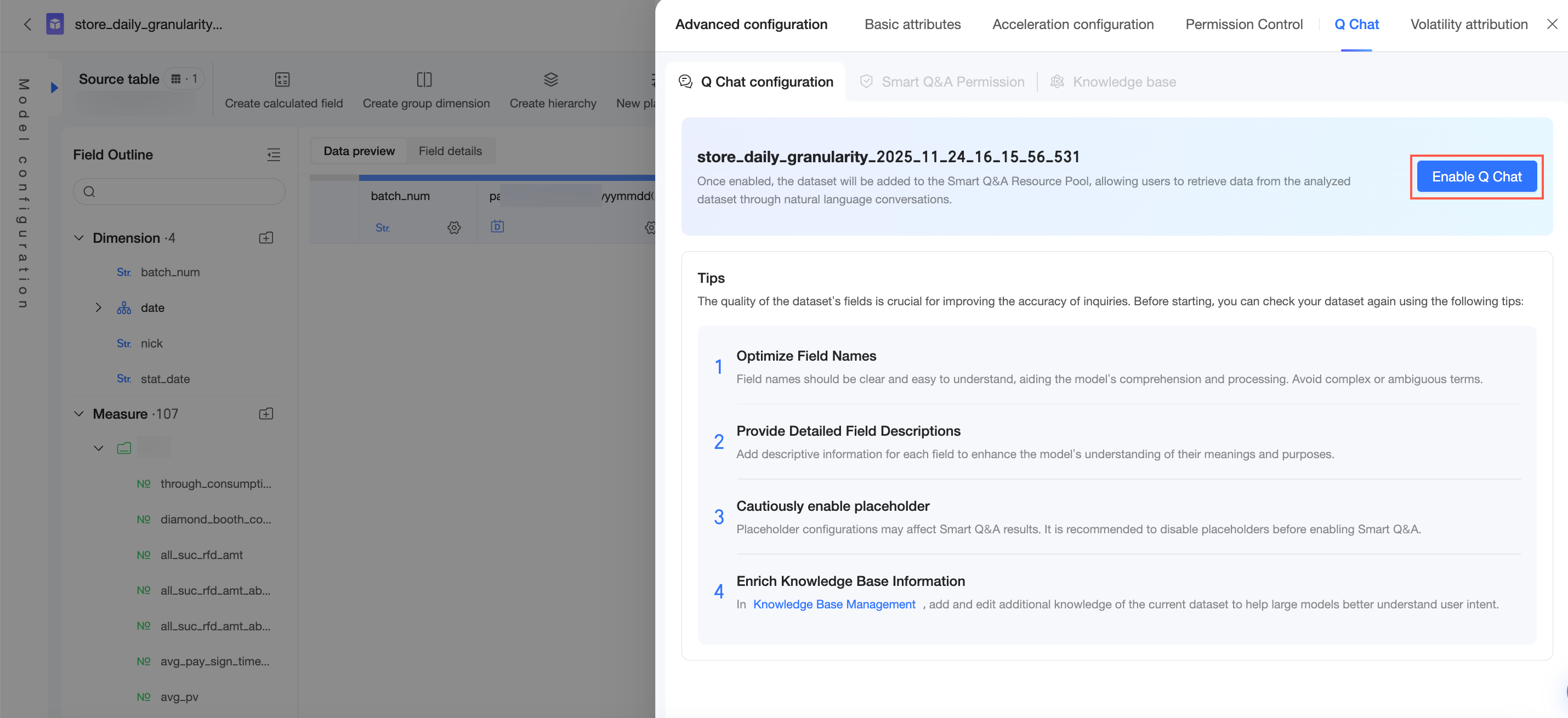
After you enable and configure the Q Chat feature, click Add Authorization in the Q Chat Permissions section.
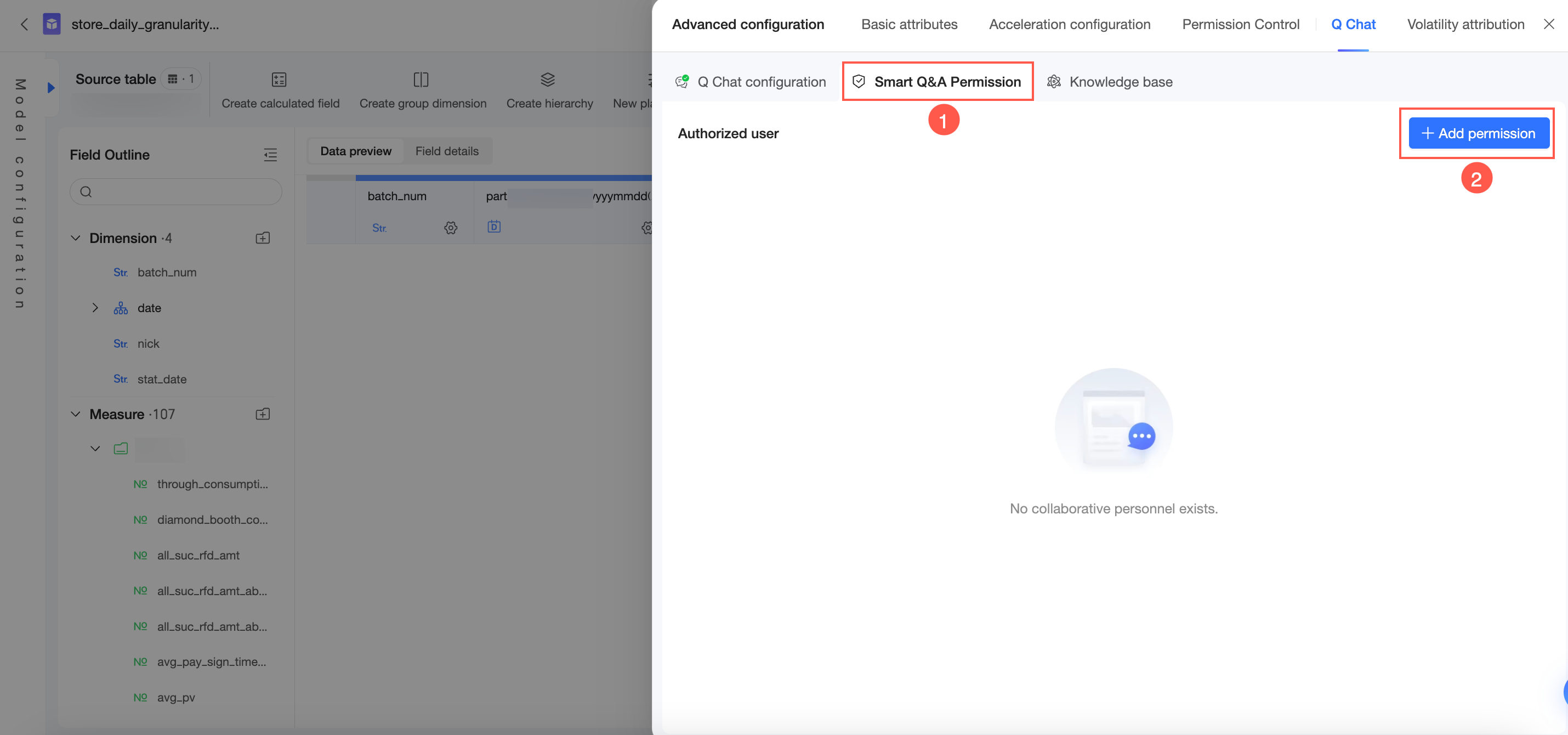
Select users to grant permissions to and set an expiration date.
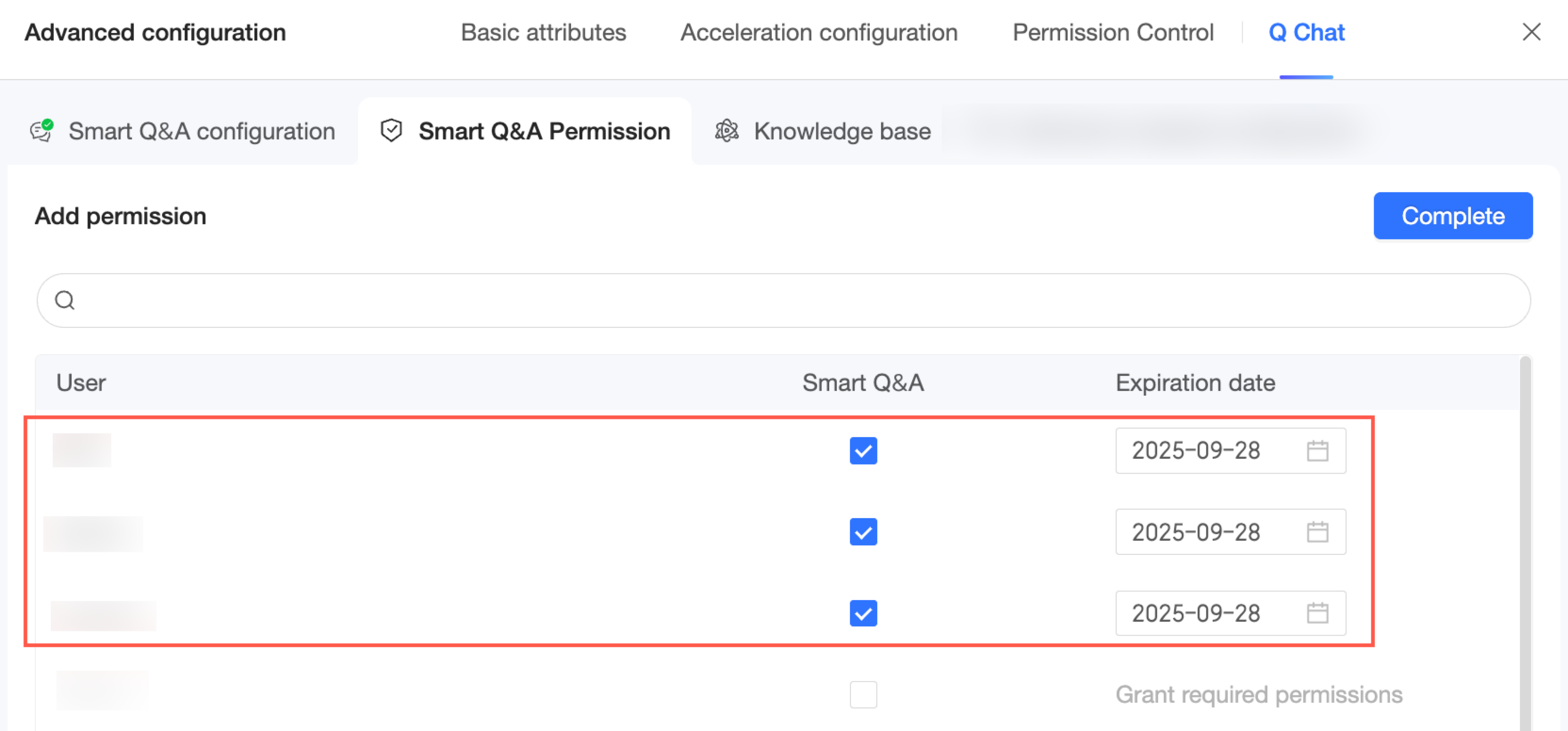
Click Finish. You can now view and manage the authorized users for this Q Chat dataset.
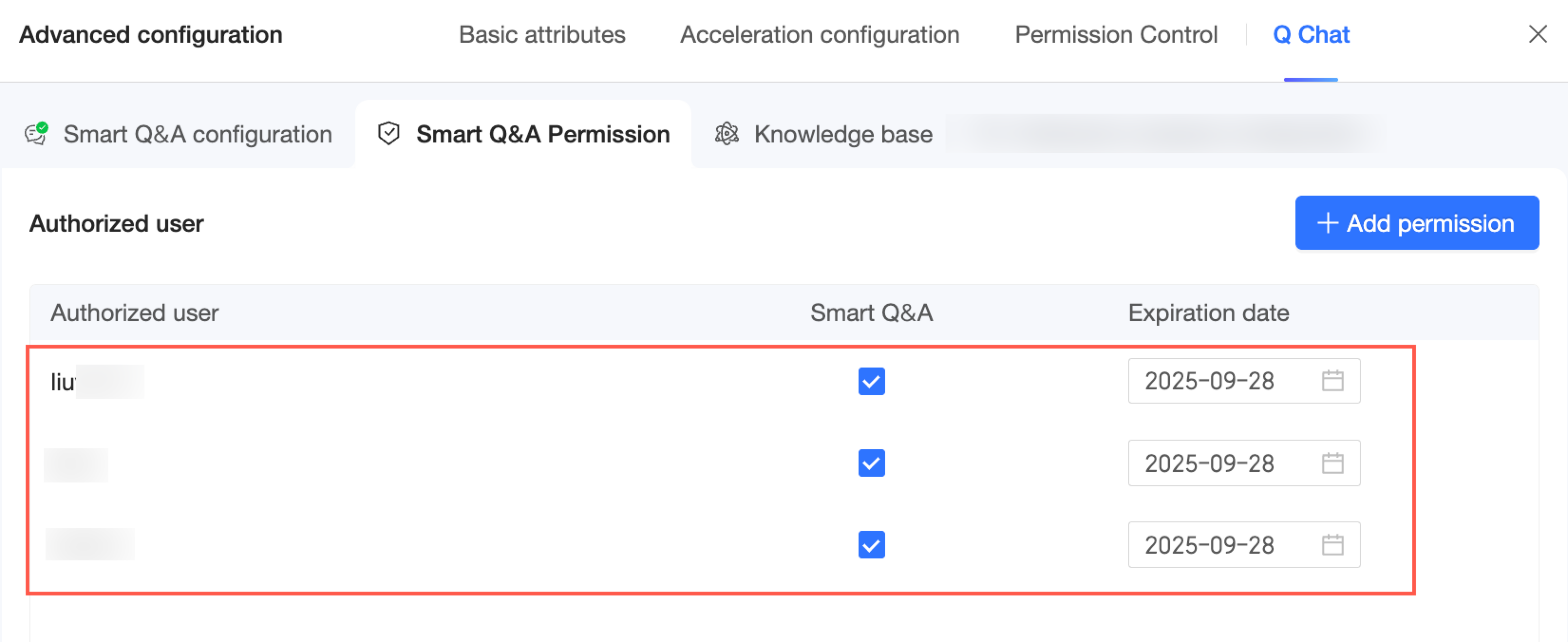
Dashboard Q Chat permission management
Click the Q Chat Permission Management button on the Q Chat configuration interface to grant users Q Chat permissions for the dashboard.
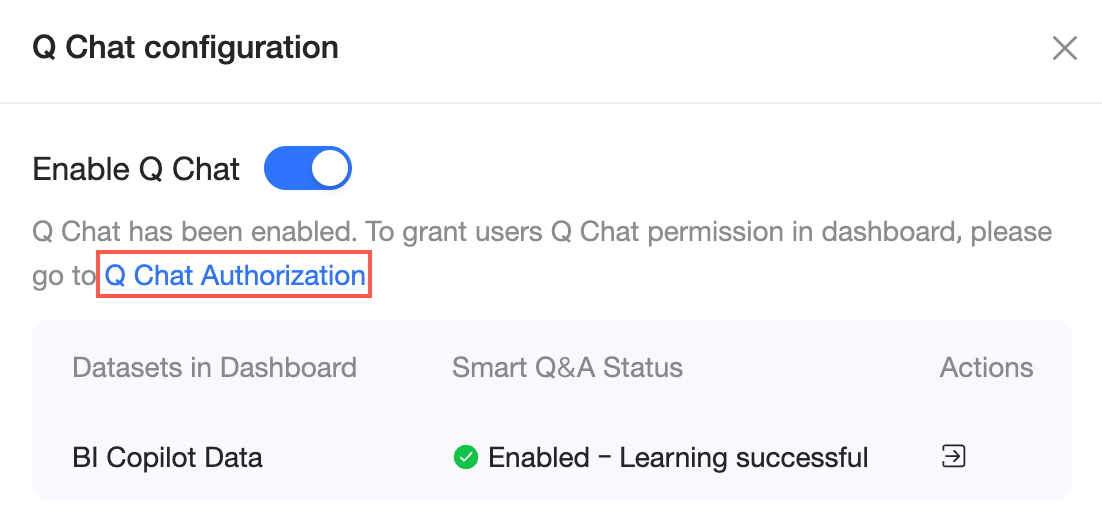
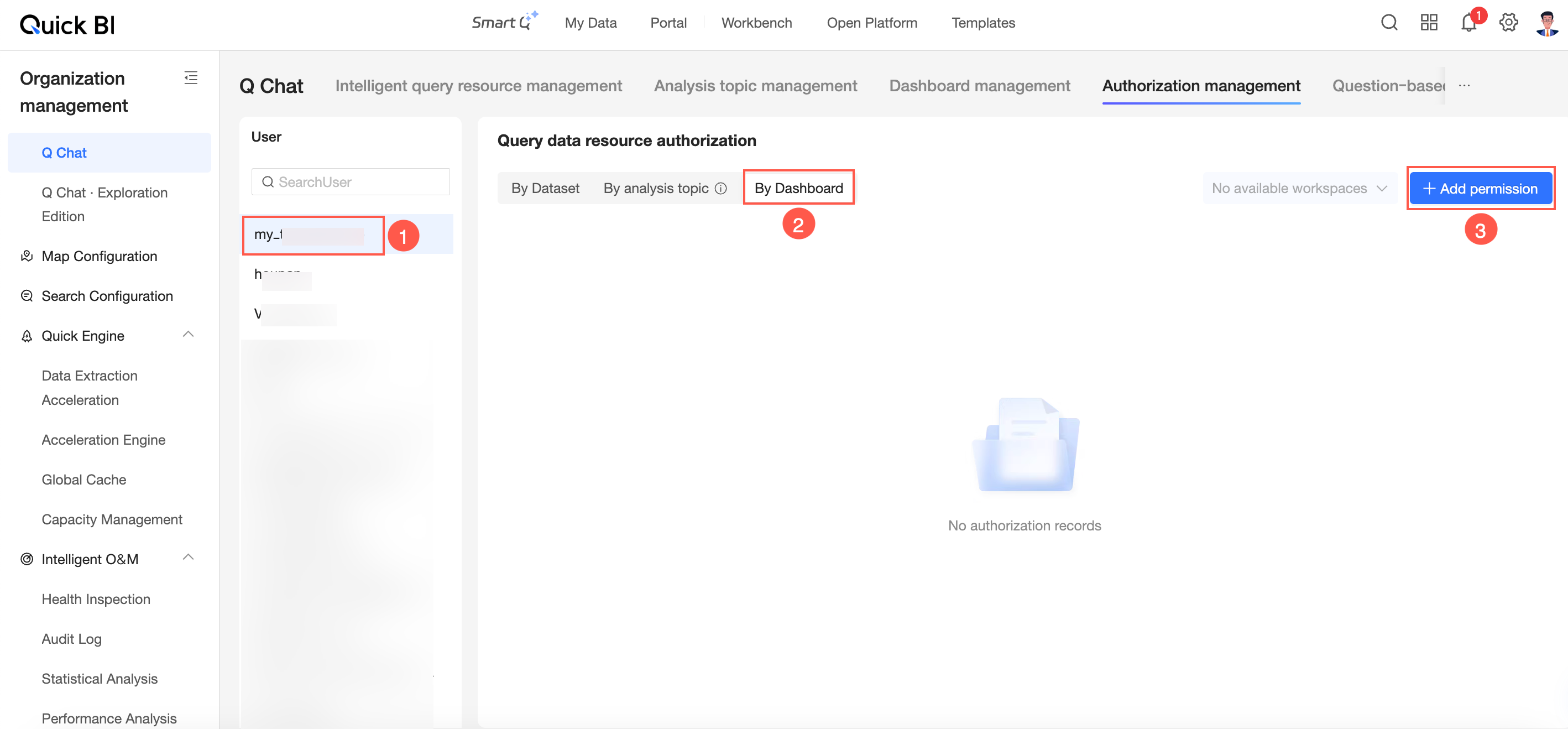
On the Q Chat permission management interface, follow the steps in the figure to select a user and click Add Authorization on the By Dashboard tab.
Select the dashboards in the target workspace for which you want to grant Q Chat permissions, and then click Finish.
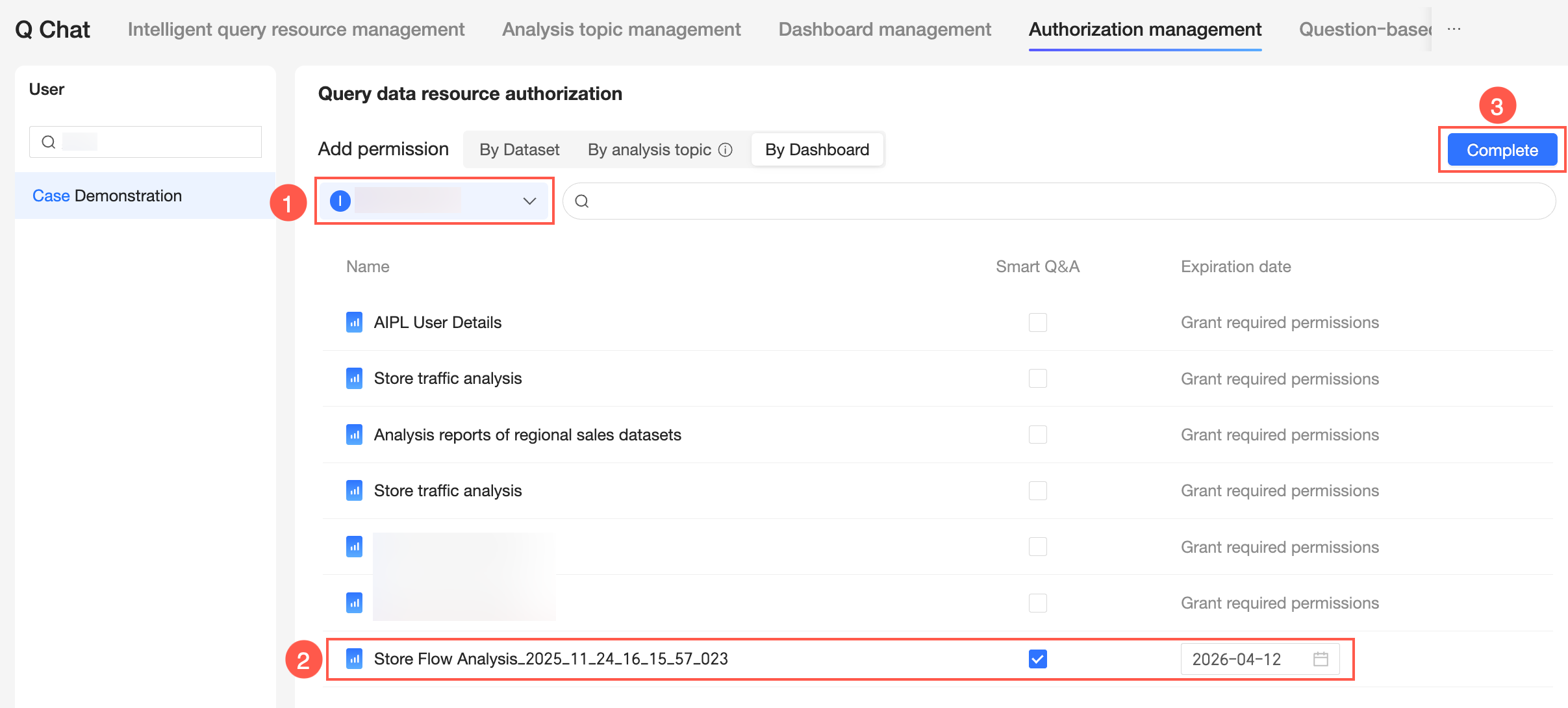
You can now view and manage the dashboard Q Chat resources available to the user.

Dashboard Q Chat entry point
On the dashboard preview page, click the
 icon to open the Quick BI AI Assistant data interpretation interface by default.Note
If data interpretation is not enabled for the dashboard, the Quick BI Q Chat interface opens directly.

Switch to Quick Q Chat.

On the dashboard, go to the Data Q Chat interface.
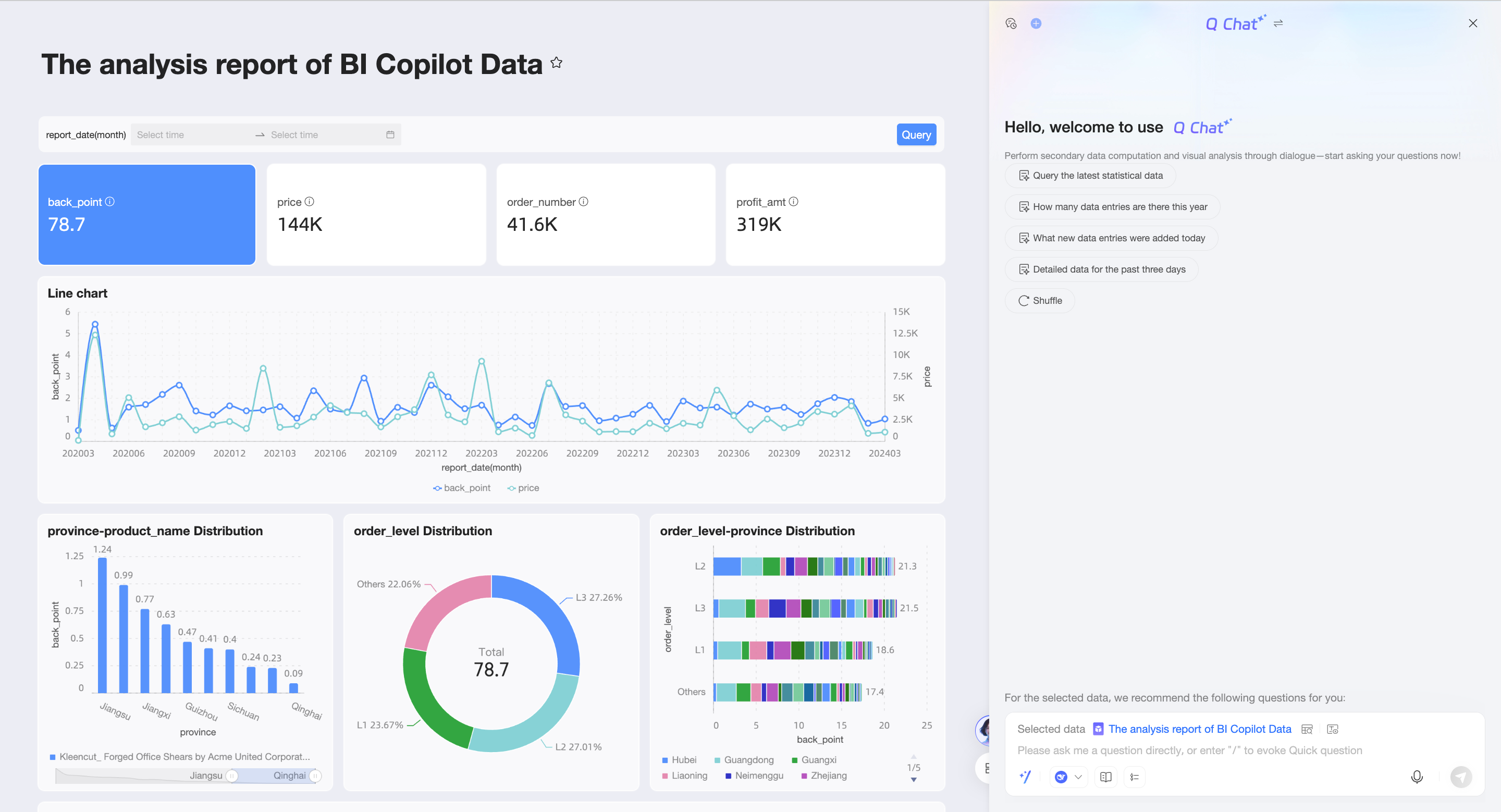
Adaptive Q Chat page
On the dashboard Q Chat page, you can manually drag the border to change the width of the panel. The page layout adjusts automatically.
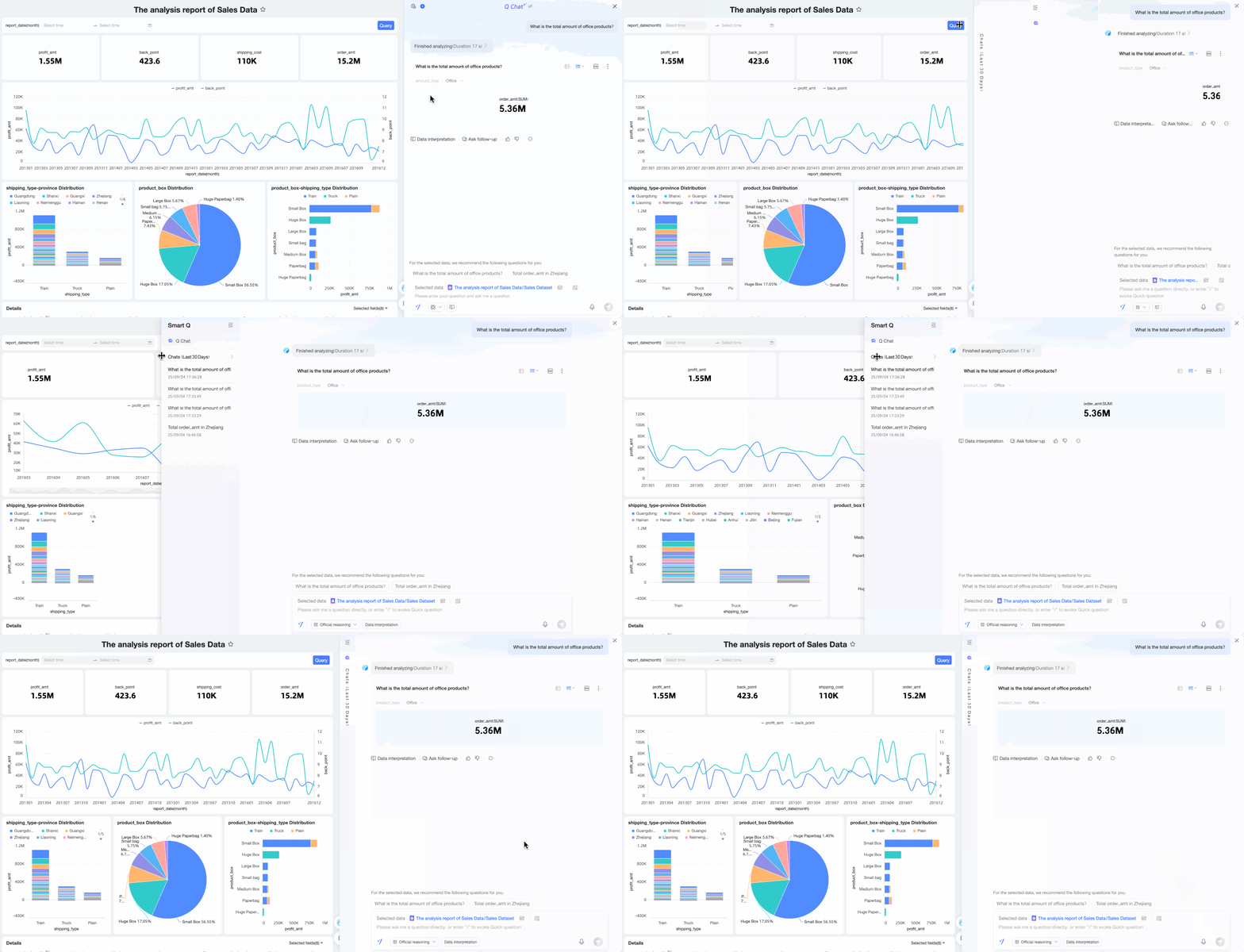
When the width of the Q Chat page is below a specific threshold, the page appears as follows:
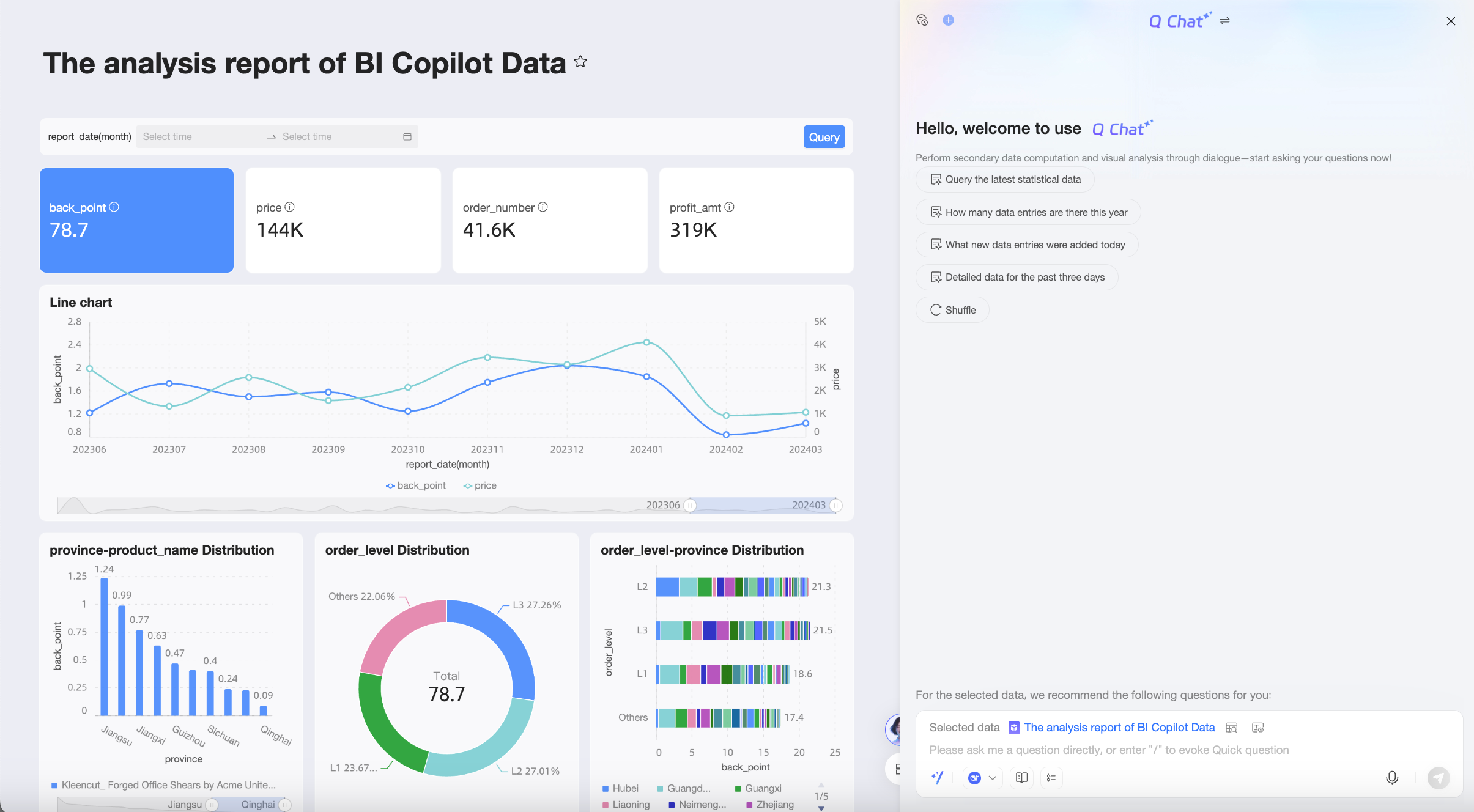
You can click the
 icon in the upper-left corner of the conversation interface to expand the conversation history list.
In the conversation history list, you can view and switch between historical conversations (①) or create a new conversation (②).

When the width of the Q Chat page is in a medium range, the page appears as follows:
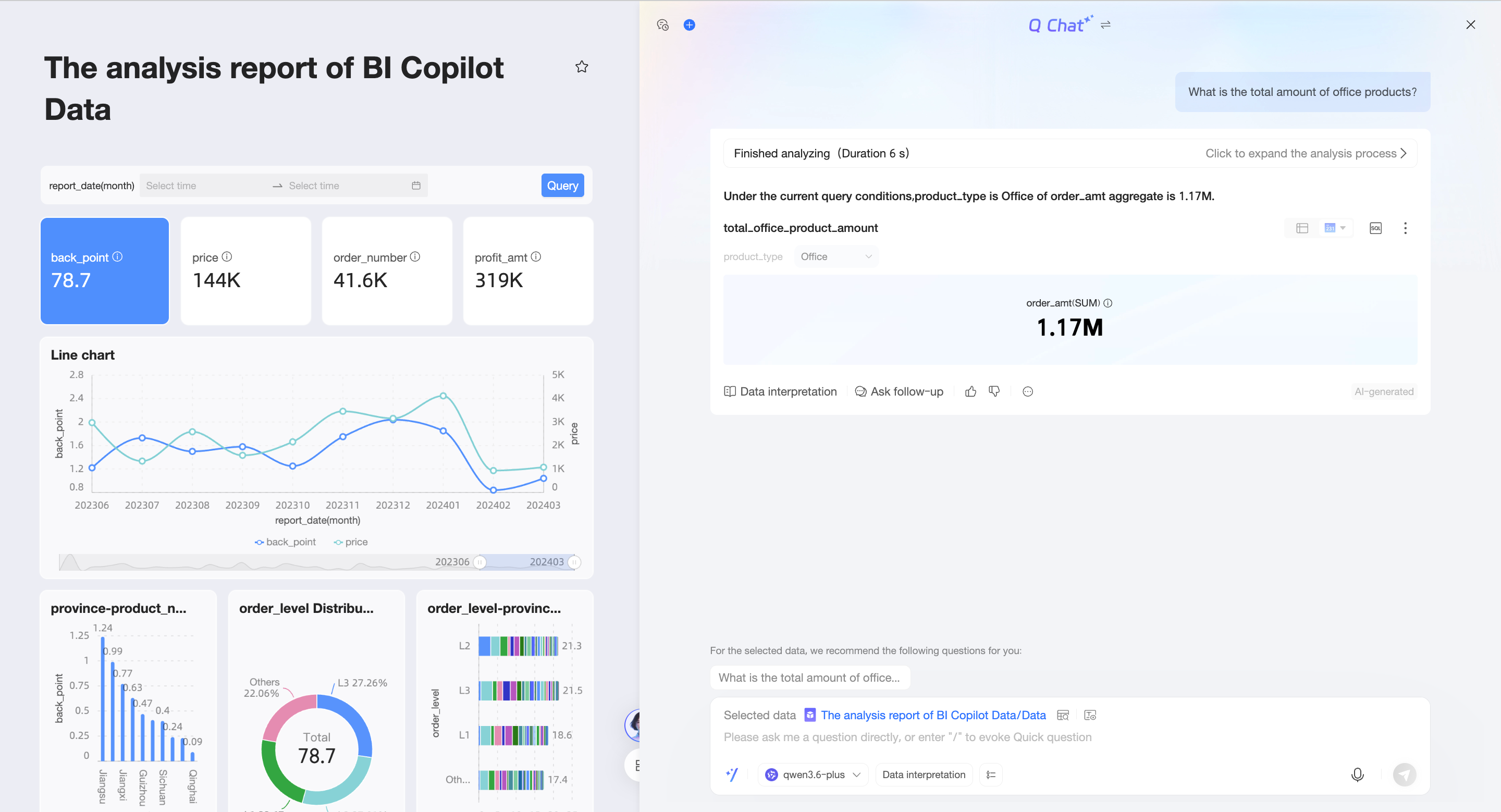
You can click the
 (①) icon to create a new conversation, or click the
  (②) icon to expand the conversation history list.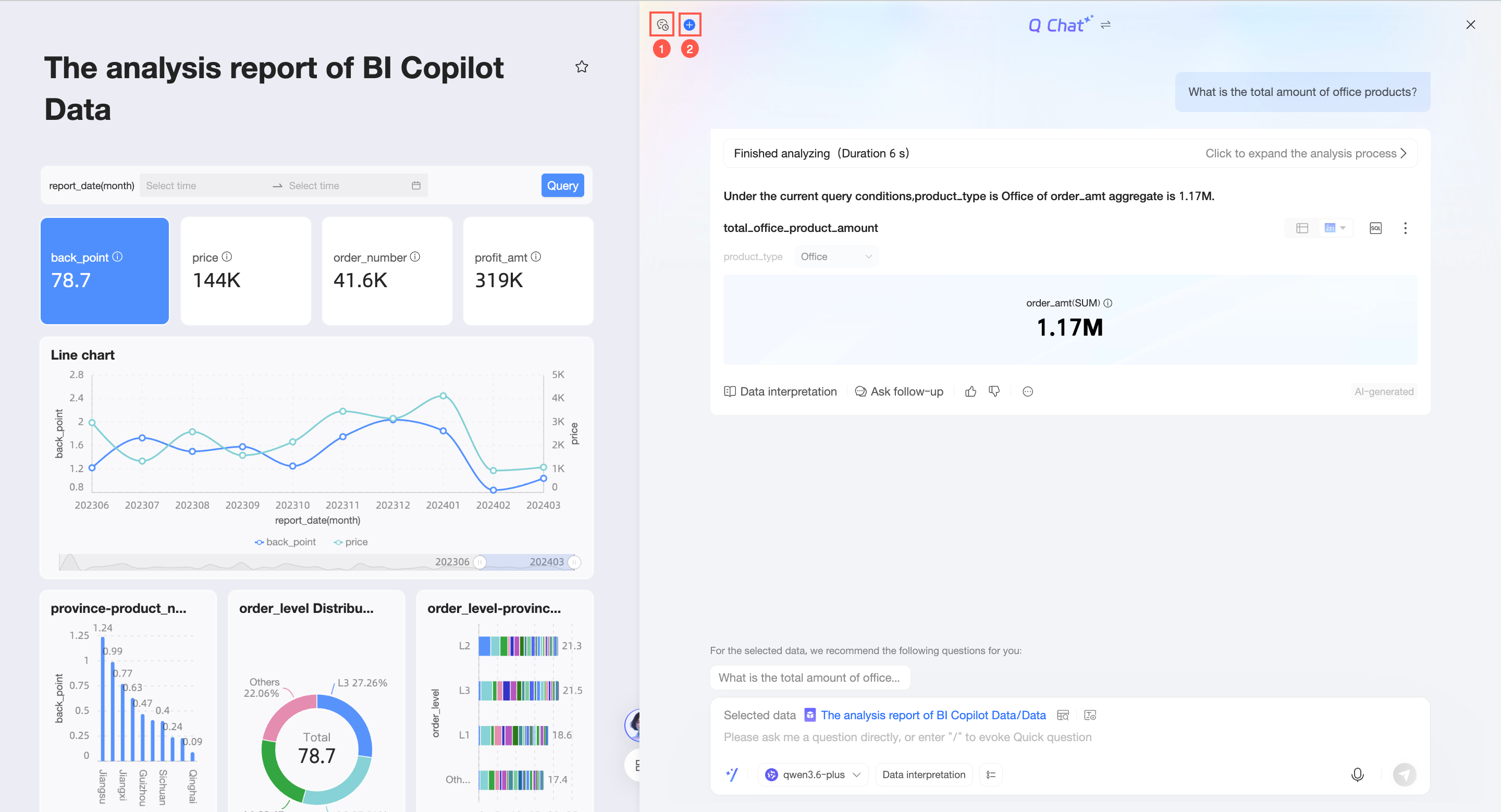
When the width of the Q Chat page exceeds the width threshold, the Q Chat page overlays the report. The page appears as follows:
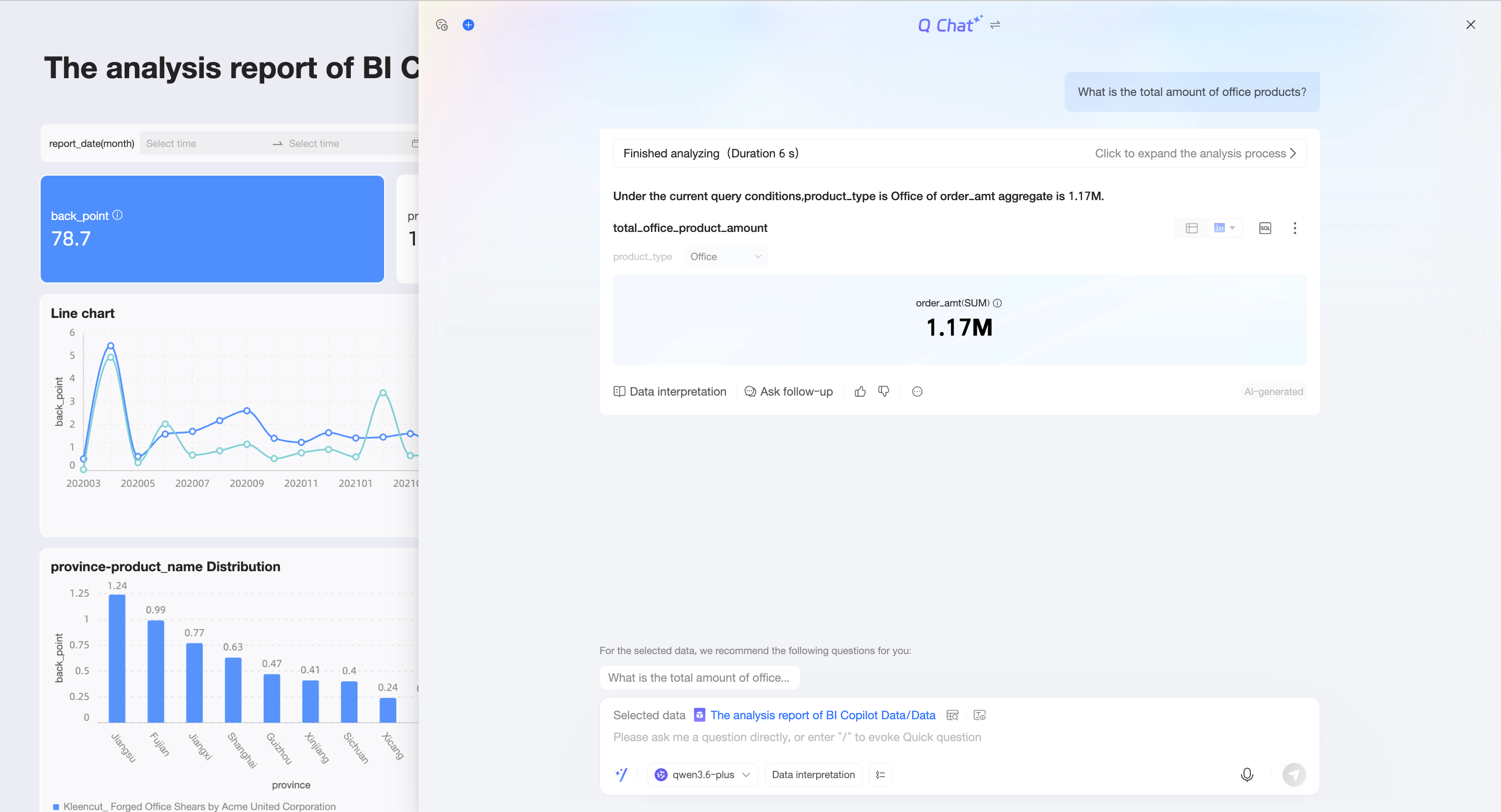 Note
NoteThe maximum width of the Q Chat page is 90%.
Preview and select datasets
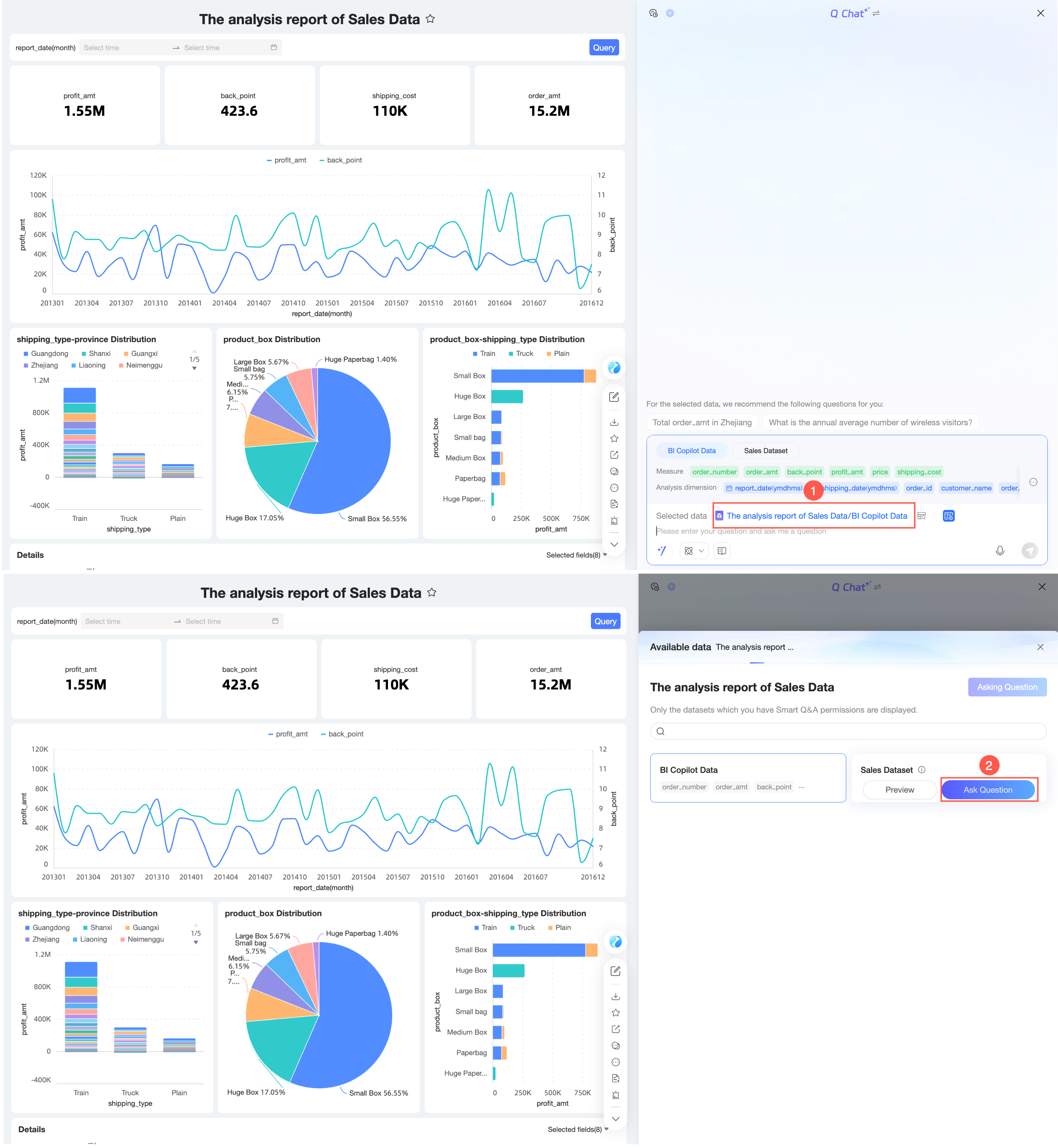
On the dashboard Q Chat interface, you can view the datasets used by the dashboard. Hover over a target dataset to preview it or ask questions based on it directly.
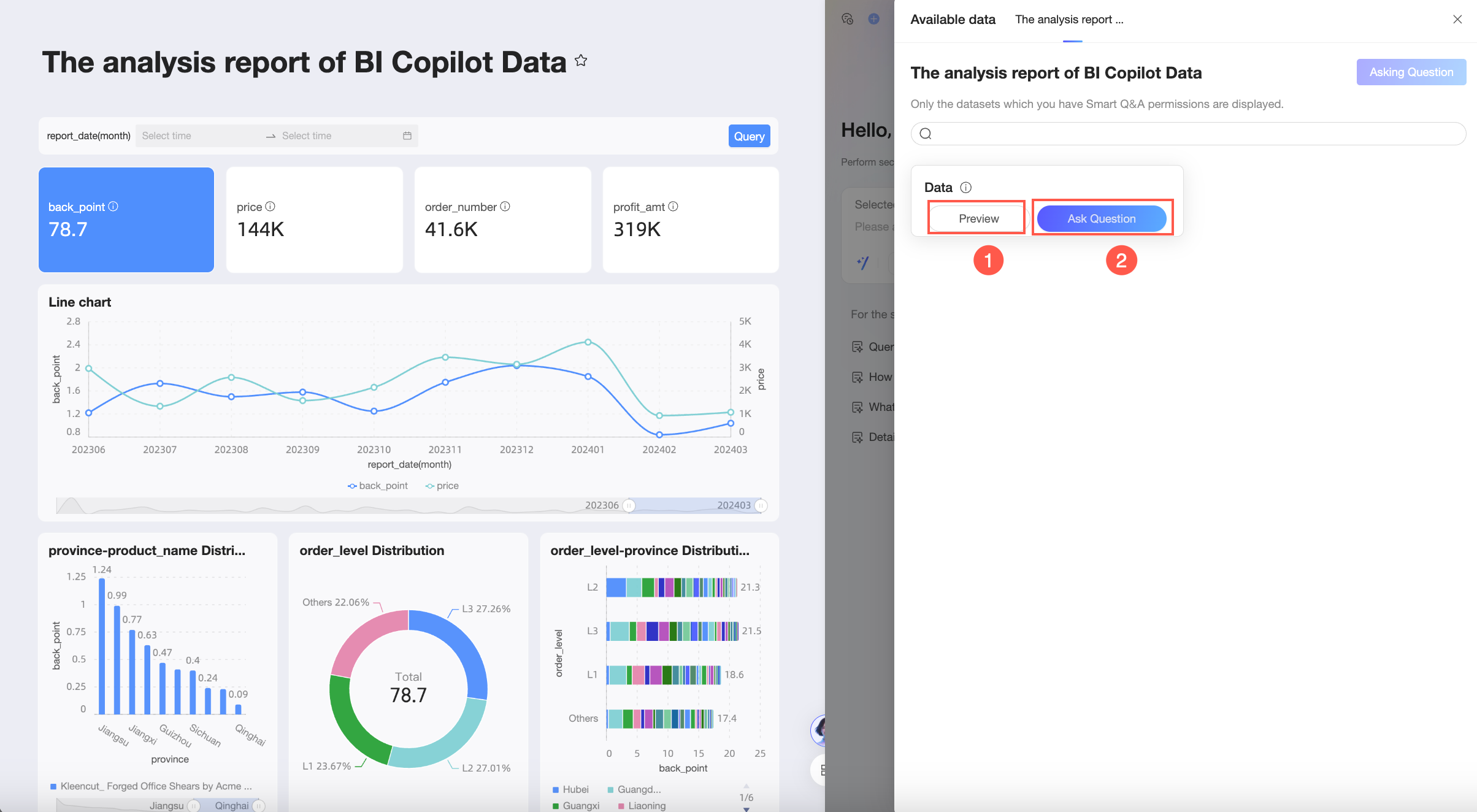
Click (①) to view the dataset field details and data preview. You can also ask a quick question or click Ask in the upper-right corner to open the dashboard Q Chat dialog box.
Field details

Data preview

Quick question
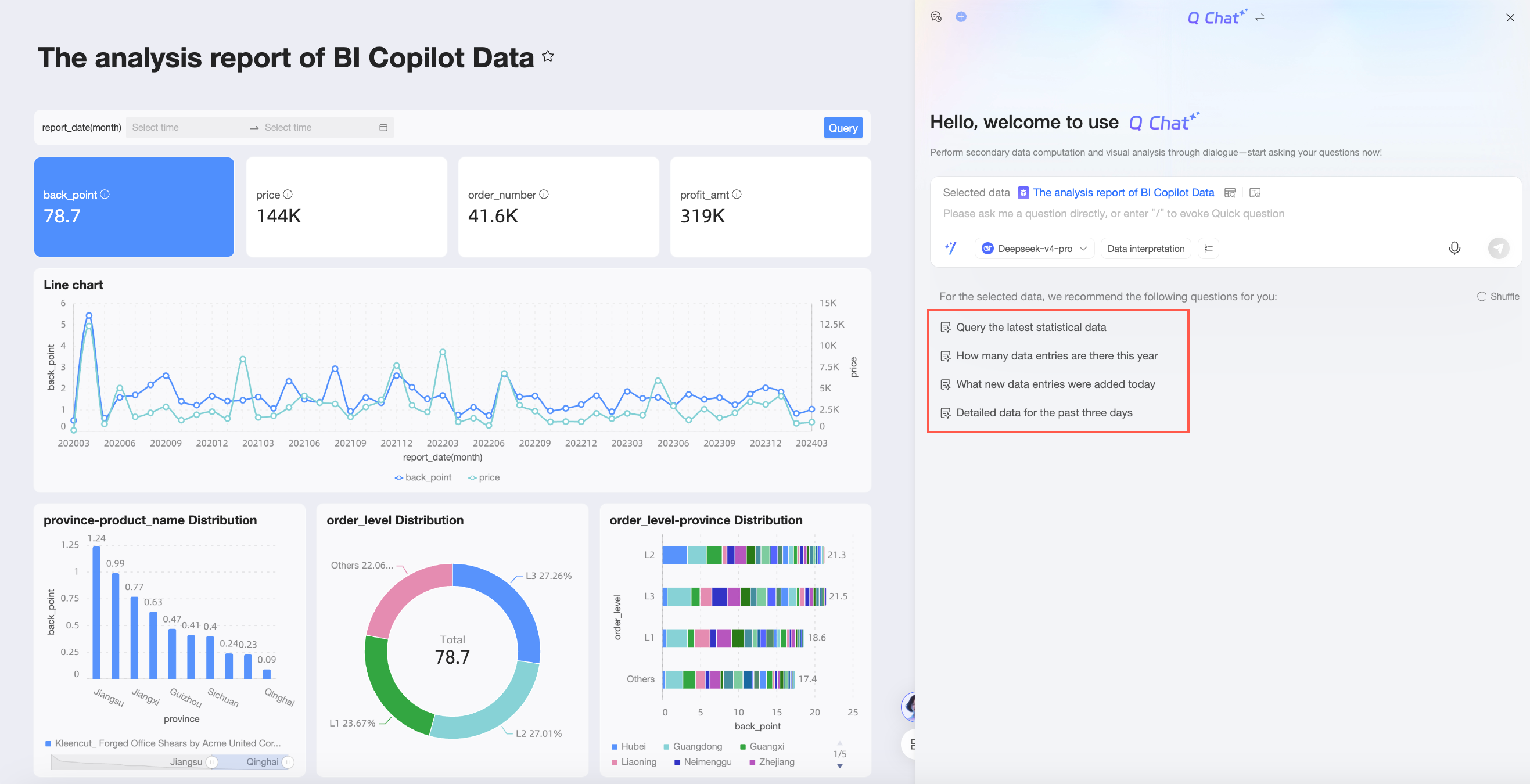
Ask

Click Ask (②) to open the dashboard Q Chat dialog interface and start a Q Chat session based on the current dataset.
After you select a dataset, click the
 icon to the right of the selected dataset to preview the data fields. You can view the Key Metrics and Analysis Dimensions fields.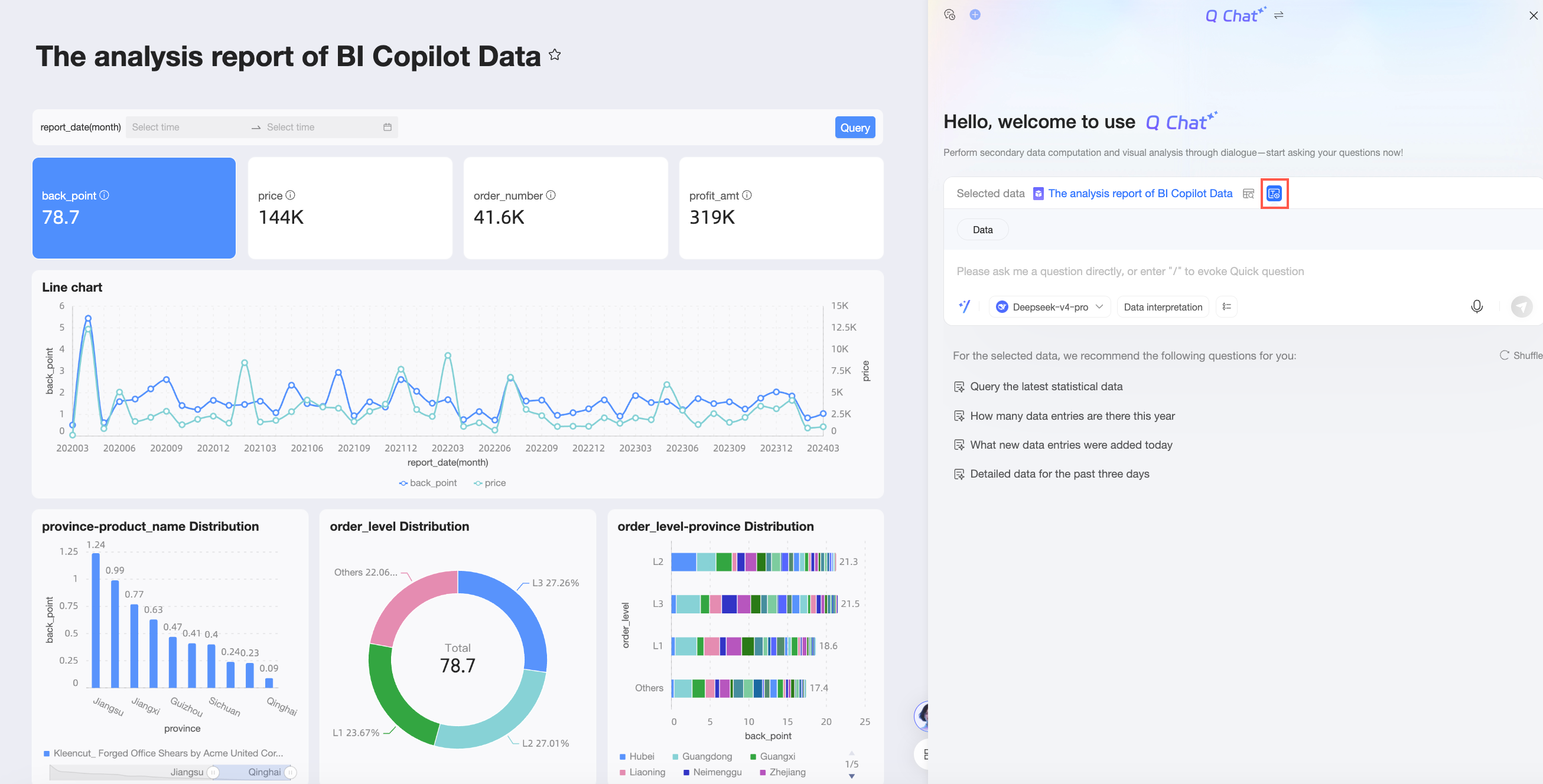
Click the icon again to collapse the data fields.
During the Q Chat process, you can preview data and switch datasets.
Preview data
Click the
 icon next to the selected dataset name to preview the data.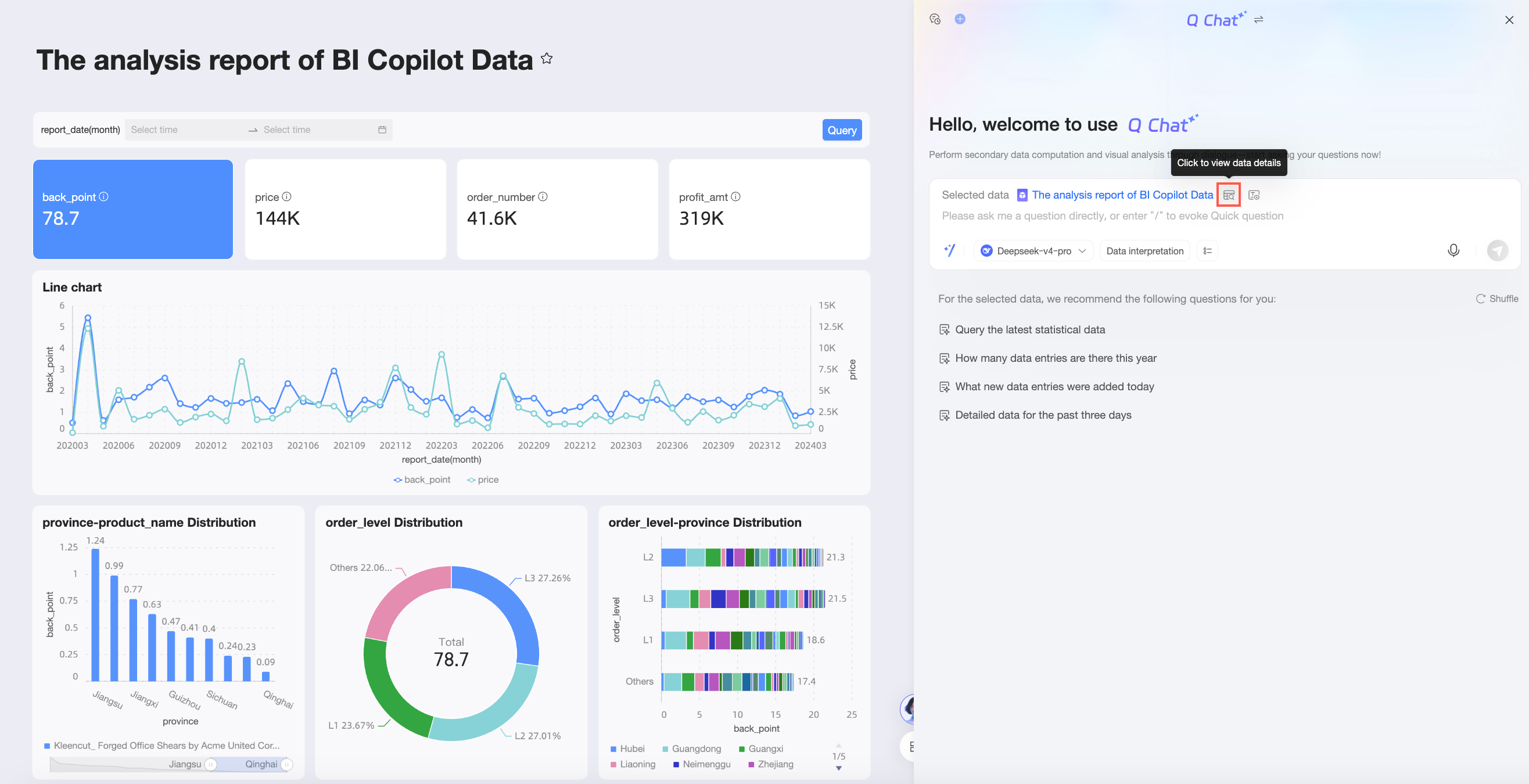
Switch datasets
Click the dataset name (①), hover over the target dataset, and then click Ask (②) to switch datasets.
Ask and answer questions
Quick BI Q Chat supports multiple inference and data interpretation methods. This topic uses the Qwen3.6-plus Large Language Model (LLM) for inference without a data interpretation method as an example. For analysis results from other methods, see Inference and interpretation methods.
You can enter a question in the dialog box and send it. You can directly type a question, use a quick question, or use speech input.
Directly type a question
For example, enter "What is the total order amount from wireless clients?" and send it. The system returns the data analytics result.
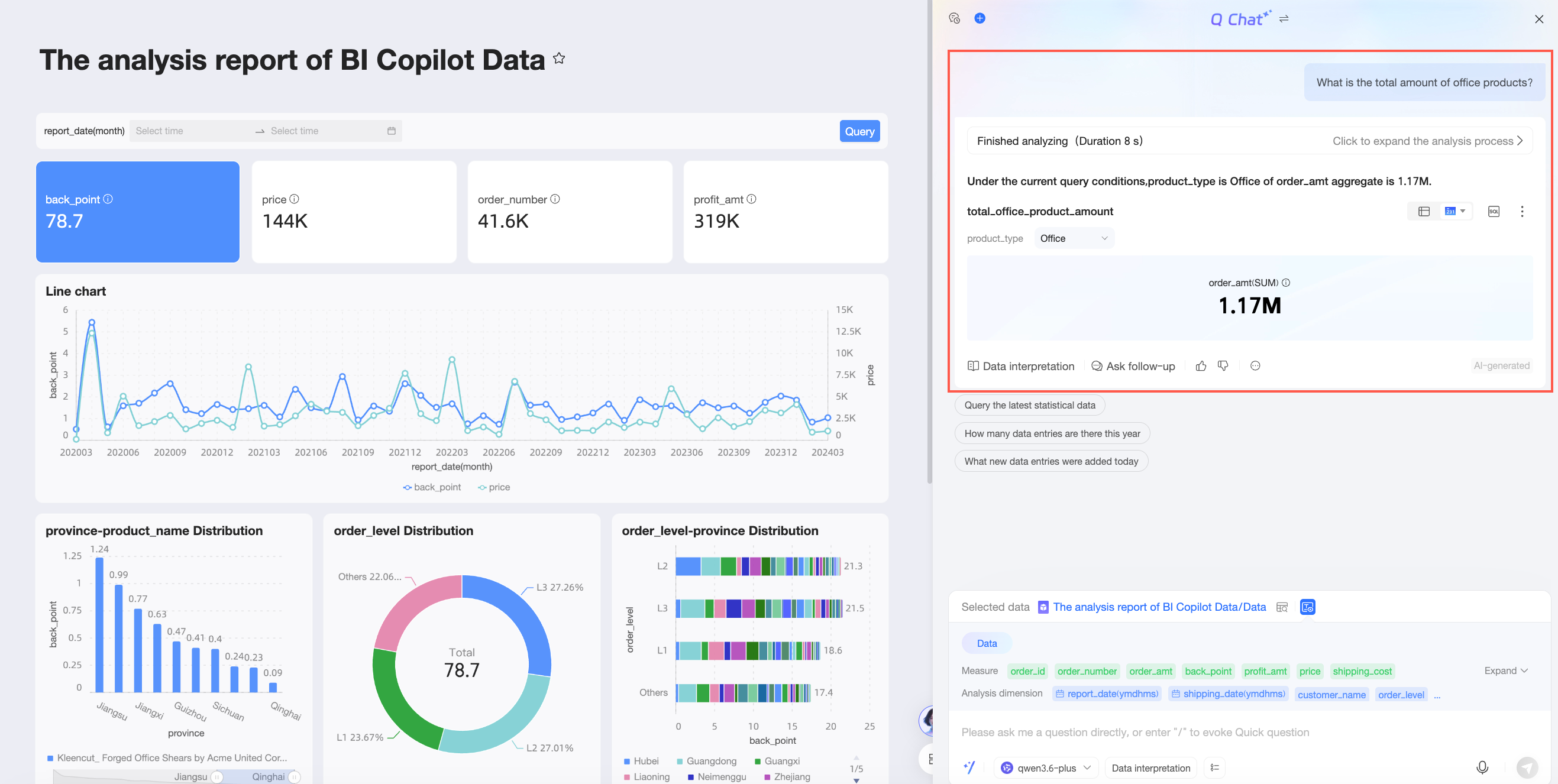
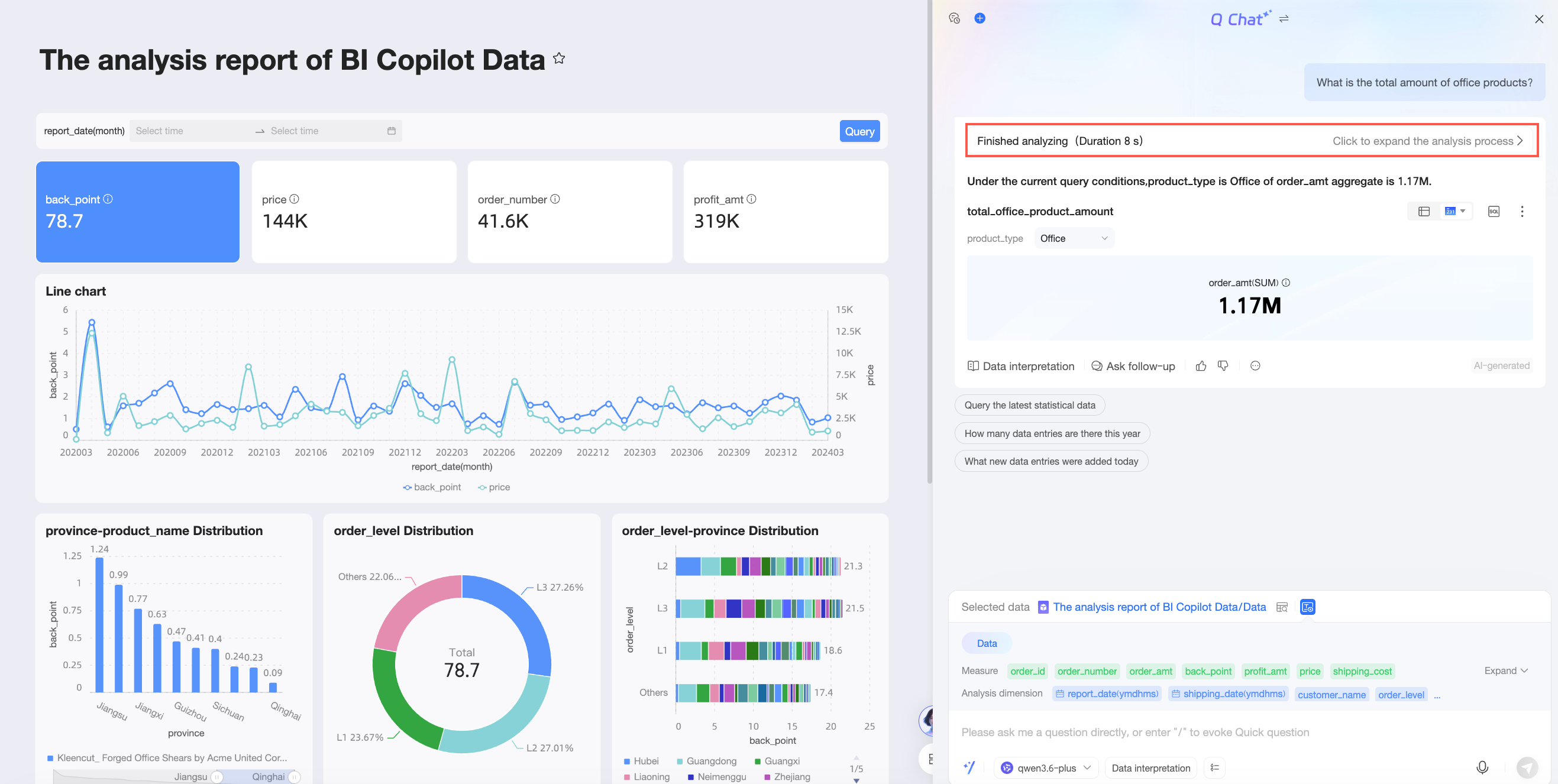
To view the analysis process, click Analysis complete to display the process.
When you type, recommended fields and recommended questions may appear.
Favorite questions
NoteYou can add up to 30 questions to your favorites.
Click the
 icon to the left of a question to add it to your favorites.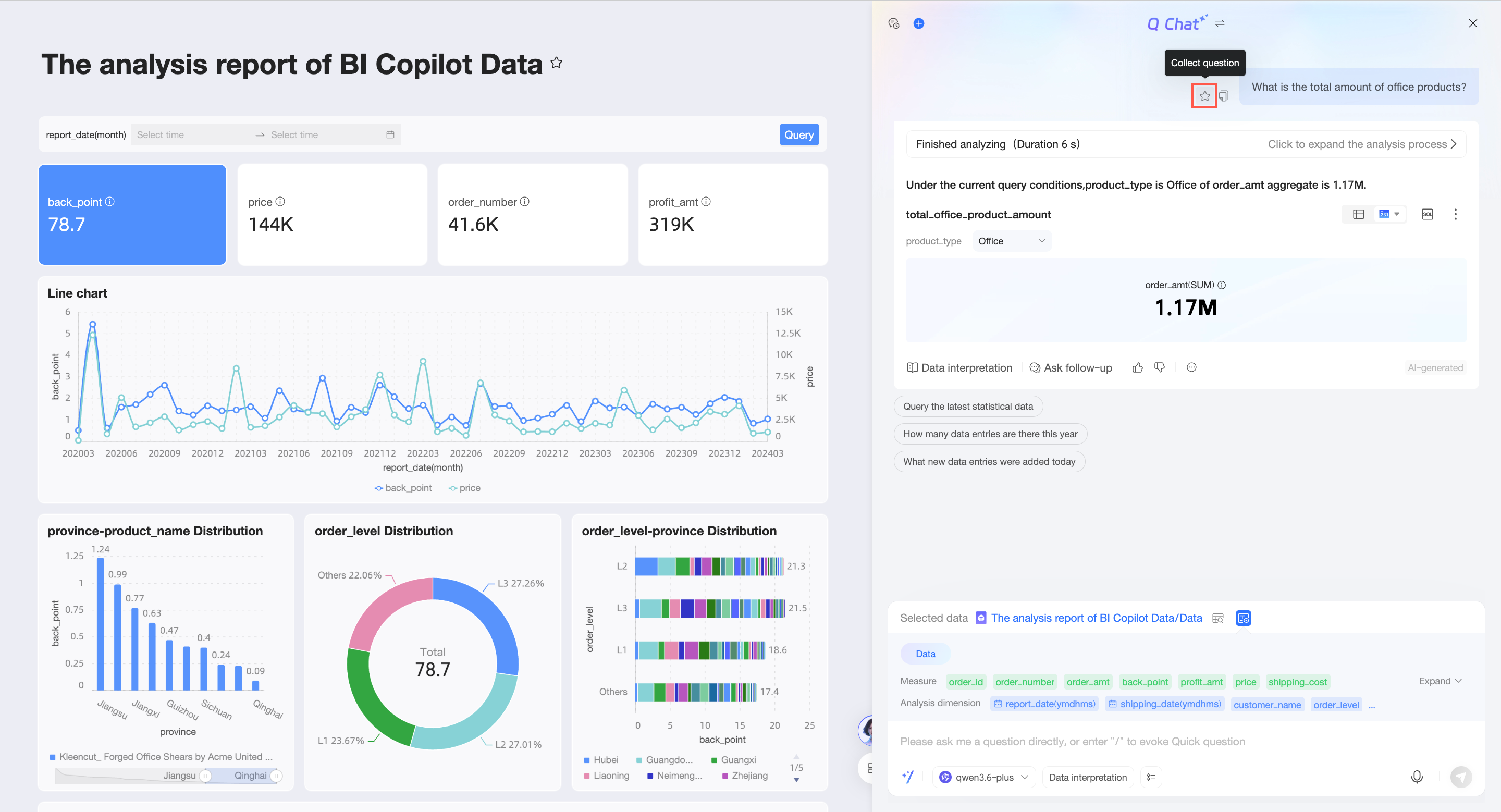
After a question is added to your favorites, it appears under Quick Questions.
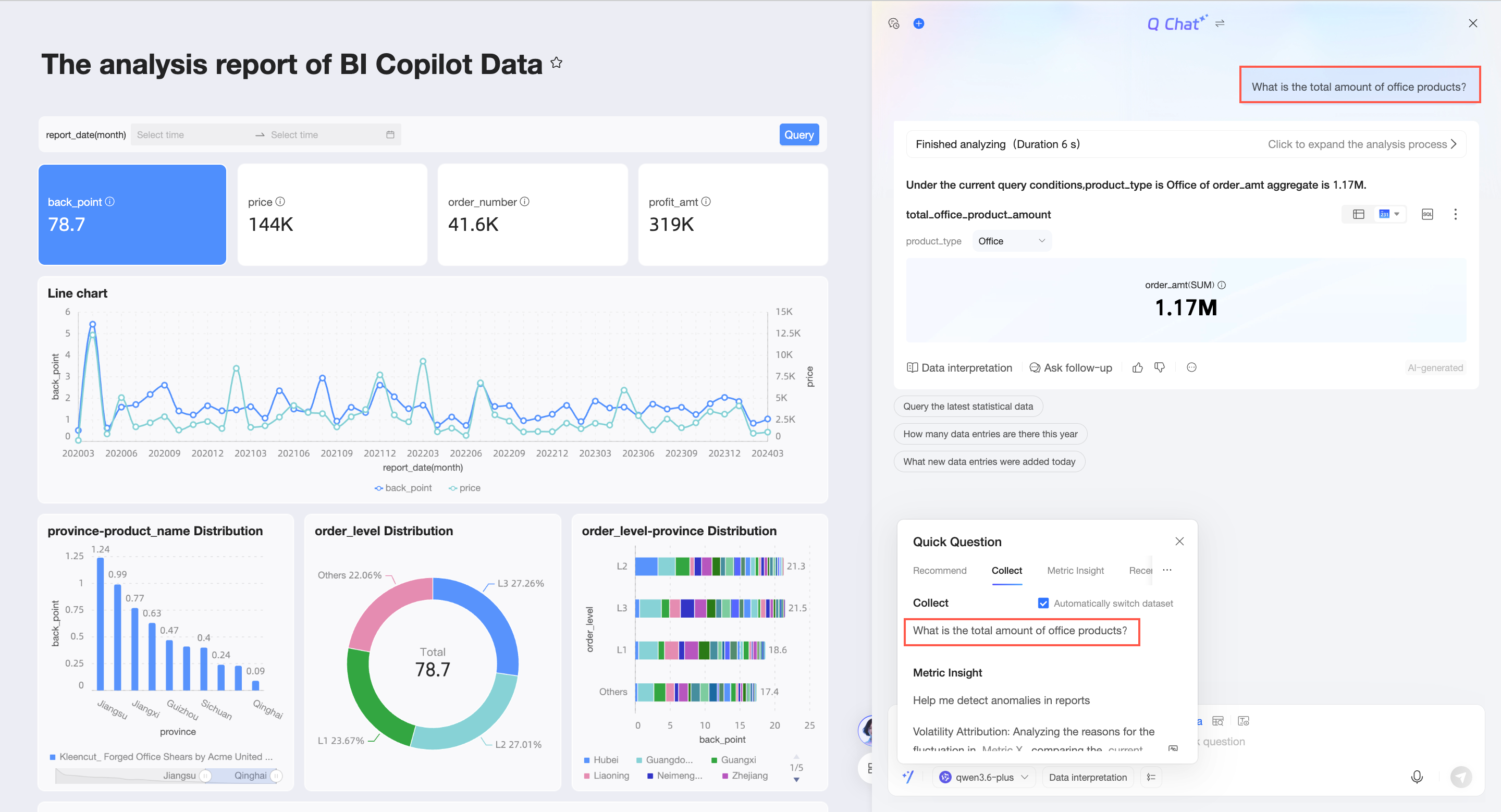
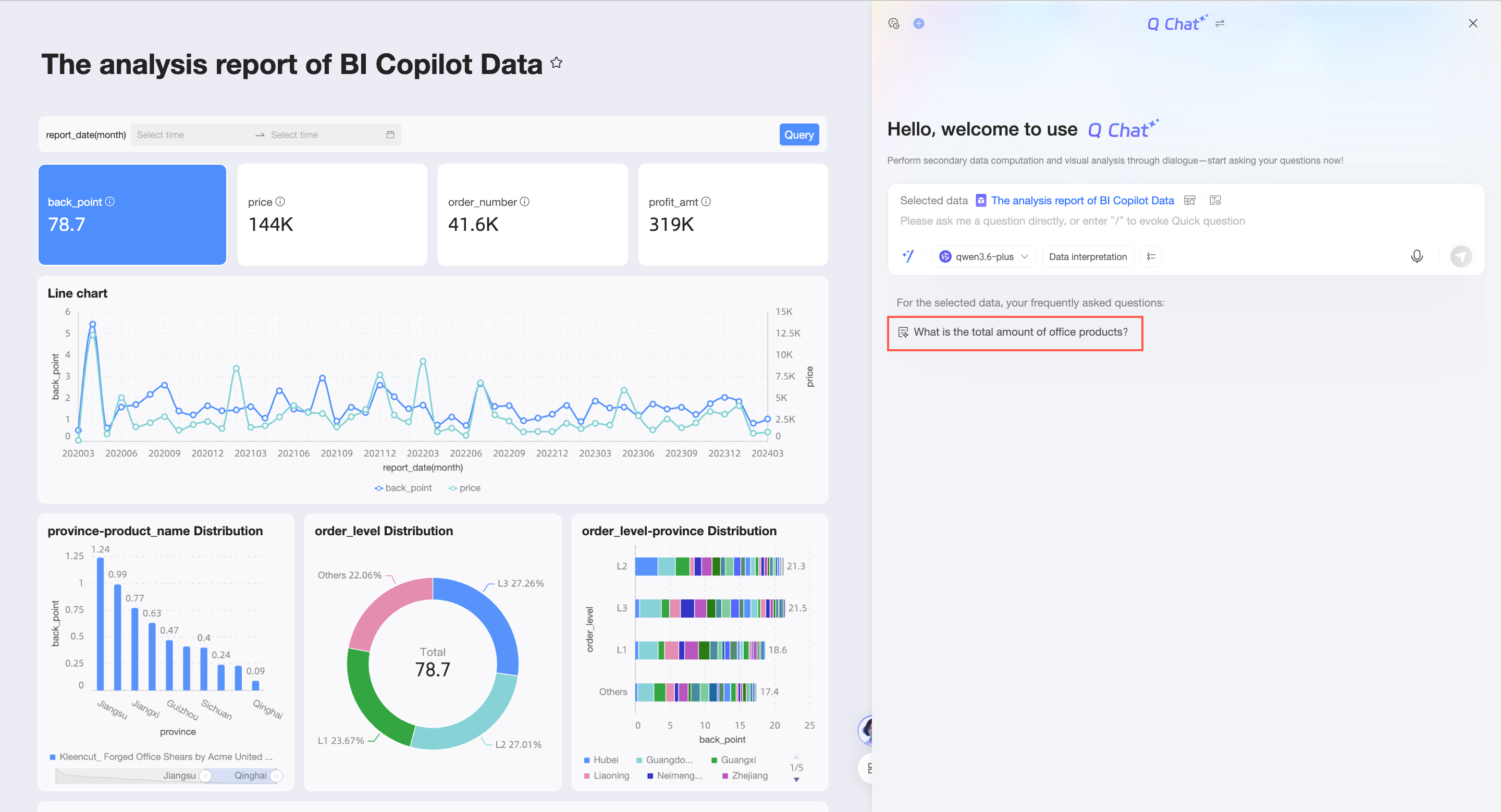
If no dataset is selected, you can directly click a favorite question to ask it.
Click the
 icon again to remove it from your favorites.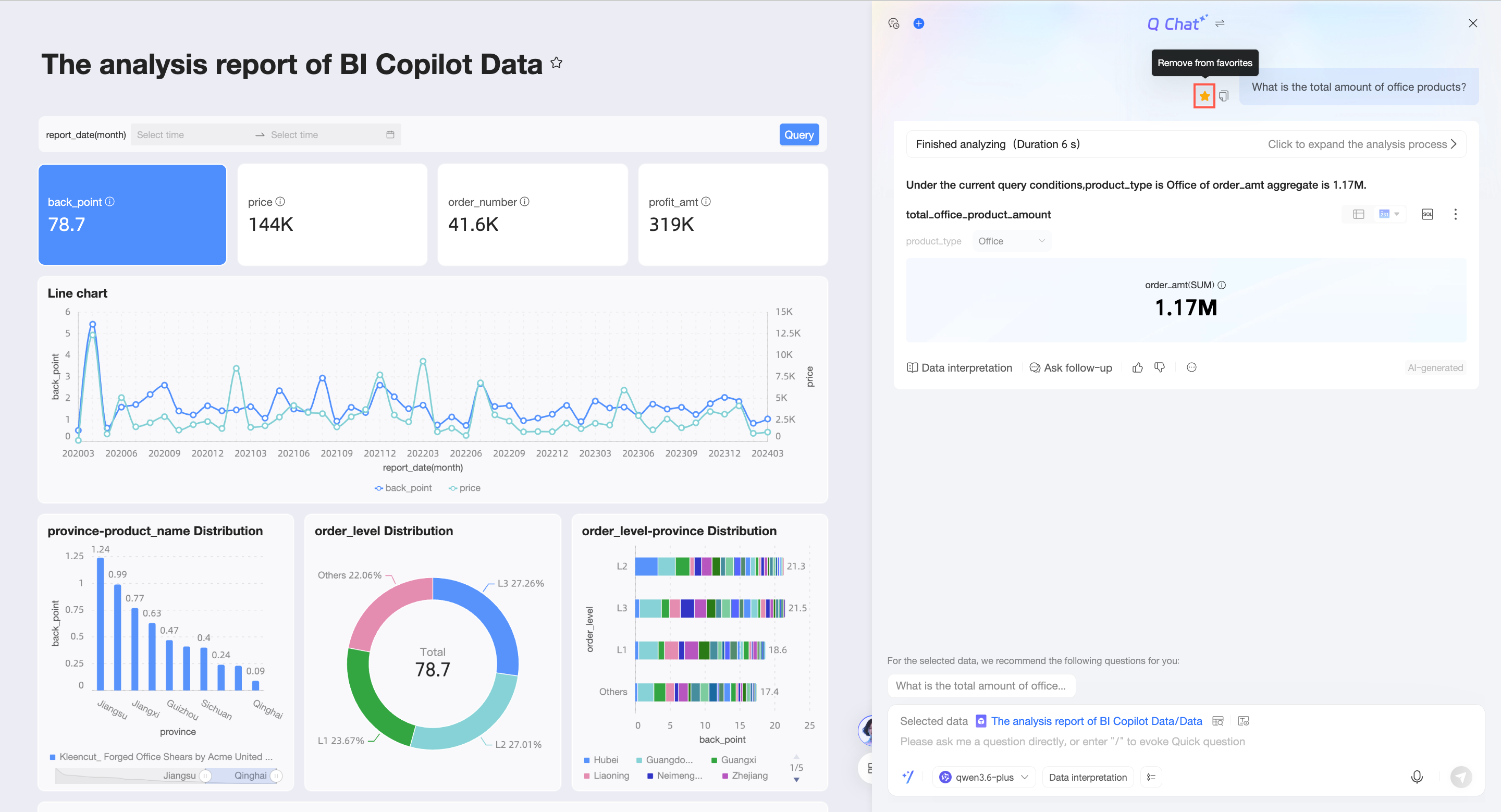
Copy question
Click the
 icon to the left of a question to copy it.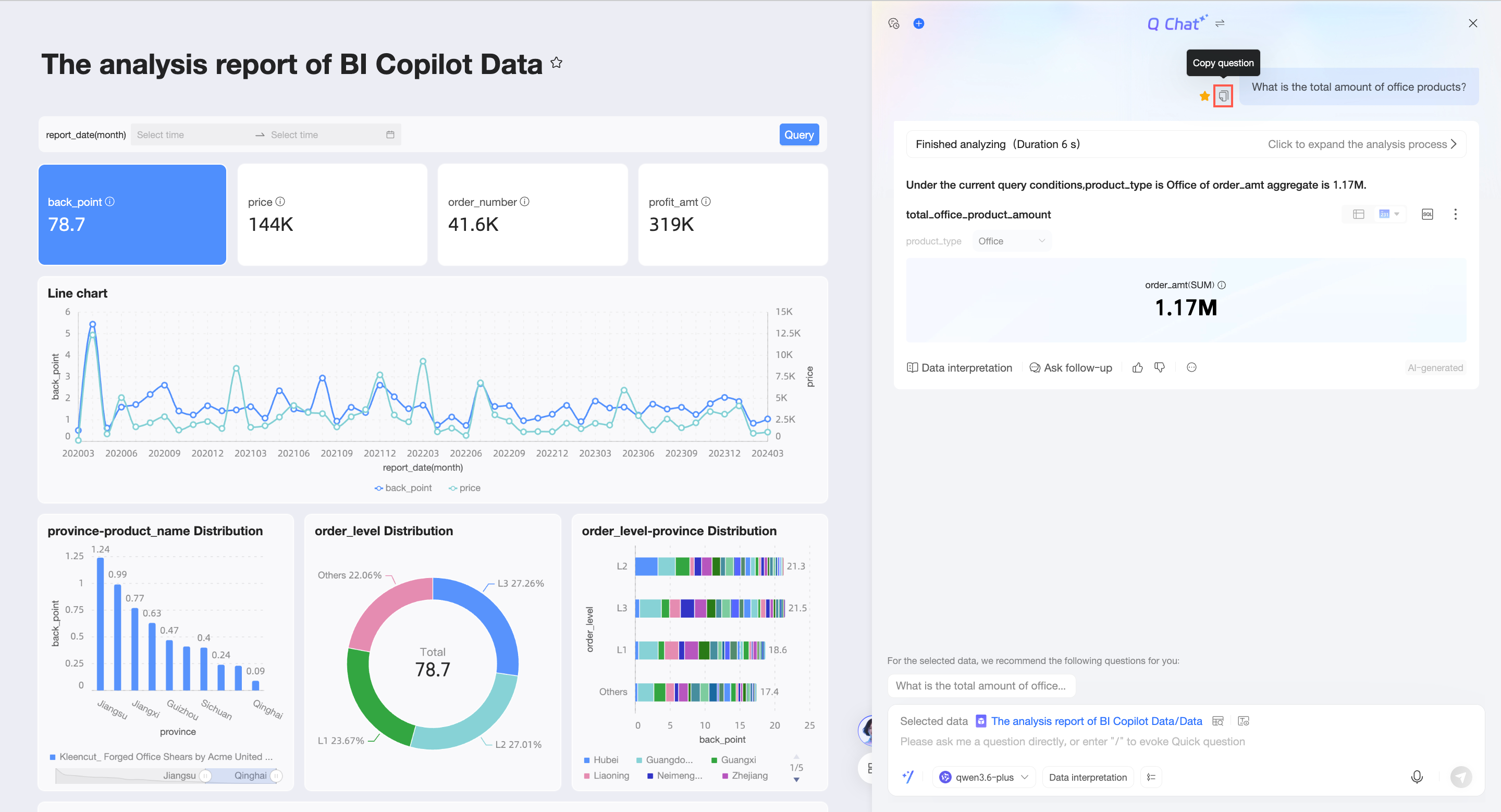
Quick Questions
Click the
 icon in the lower-left corner of the text box to open the quick questions interface. Then, click a question under Recommended, Favorites, Smart Insights, or Recent Questions to ask it.
For information about how to configure Recommended questions, see Quick questions. Click Try another to view a different set of recommended questions.

Smart Insights supports abnormal point detection and fluctuation attribution.

Click "Help me detect abnormal points in the report" to view the abnormal points in the data.
You can click to view the specific abnormal point details.

For information about operations related to fluctuation attribution, see Metric insights.

For questions in Favorites, you can select Automatic Dataset Switchover. This option is selected by default. If this option is selected, clicking a favorite question switches to the attached dataset and asks the question. If this option is not selected, the question is asked on the current dataset.

Speech input
NoteAfter you enable the speech Q Chat switch, you can ask questions using speech input.
Click the speech input icon to open the voice conversation interface.
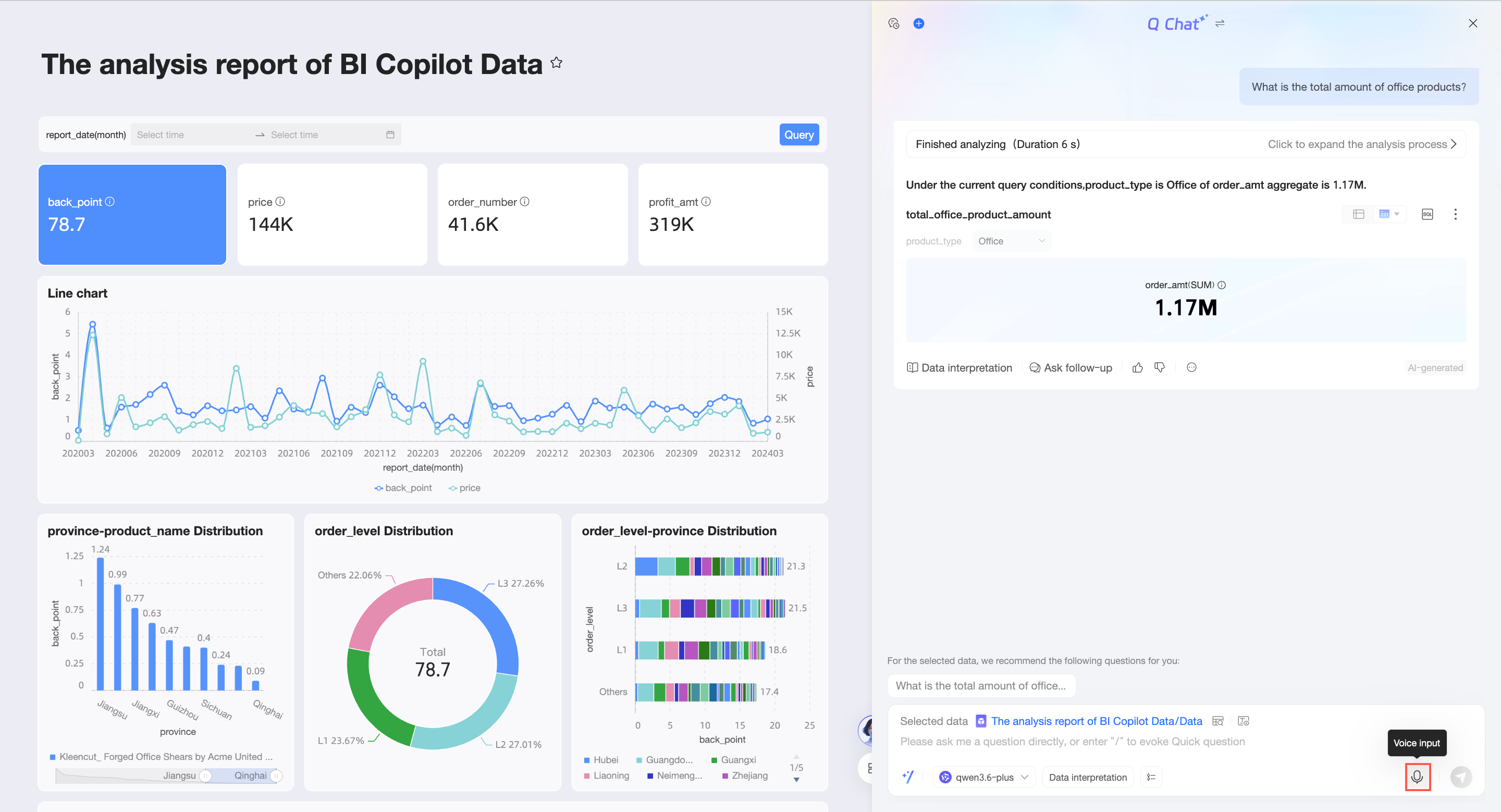
In the voice conversation interface, ask a question.

The system recognizes your speech and converts it to text.
You can click the
 icon on the left to cancel input, or click the
  icon on the right to switch to text input.
Click Send or press Enter. The system runs a query based on the converted text and returns the data analytics result.
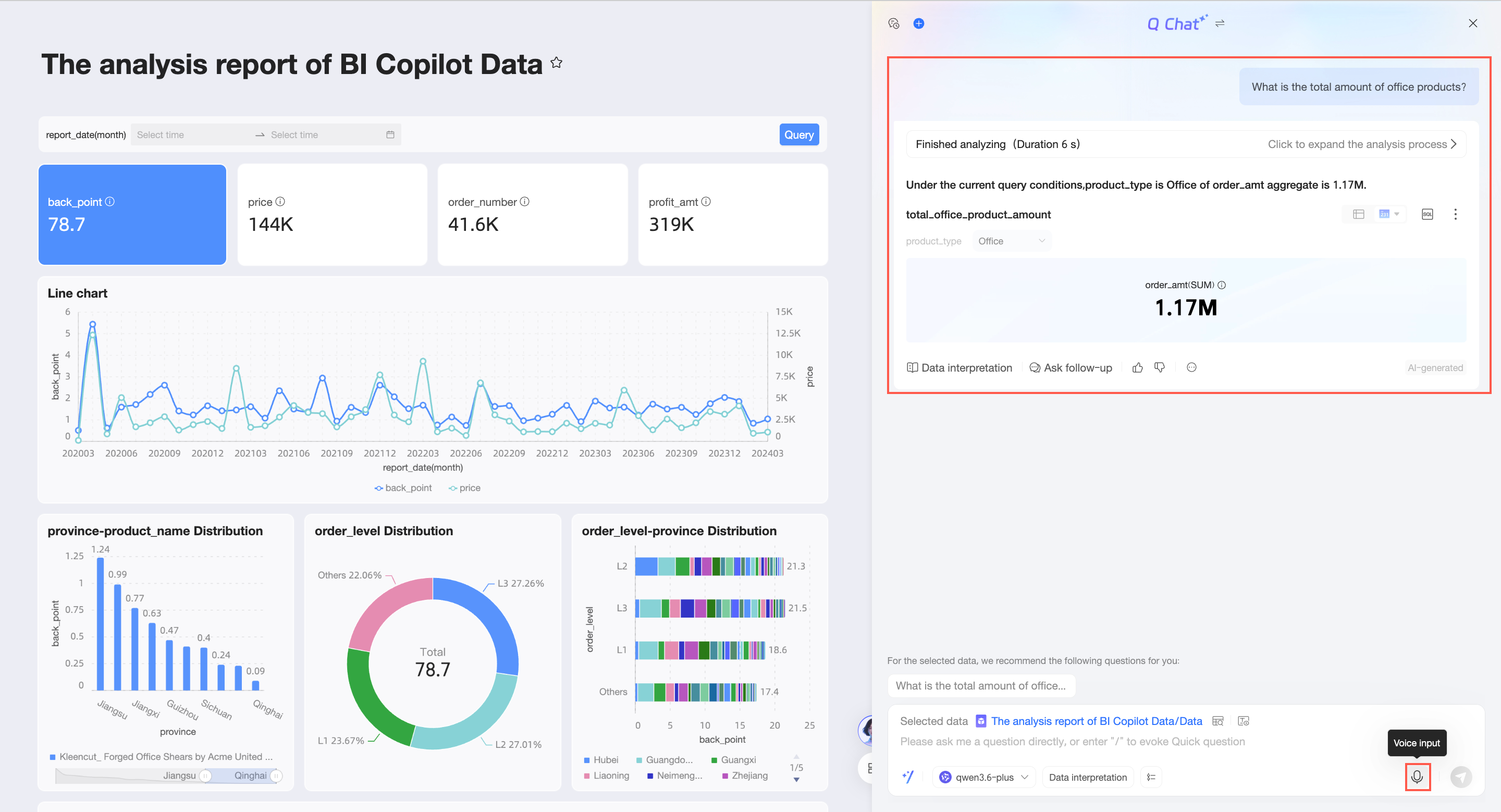
While viewing the data, you can use the following features.

Switch chart type (①)
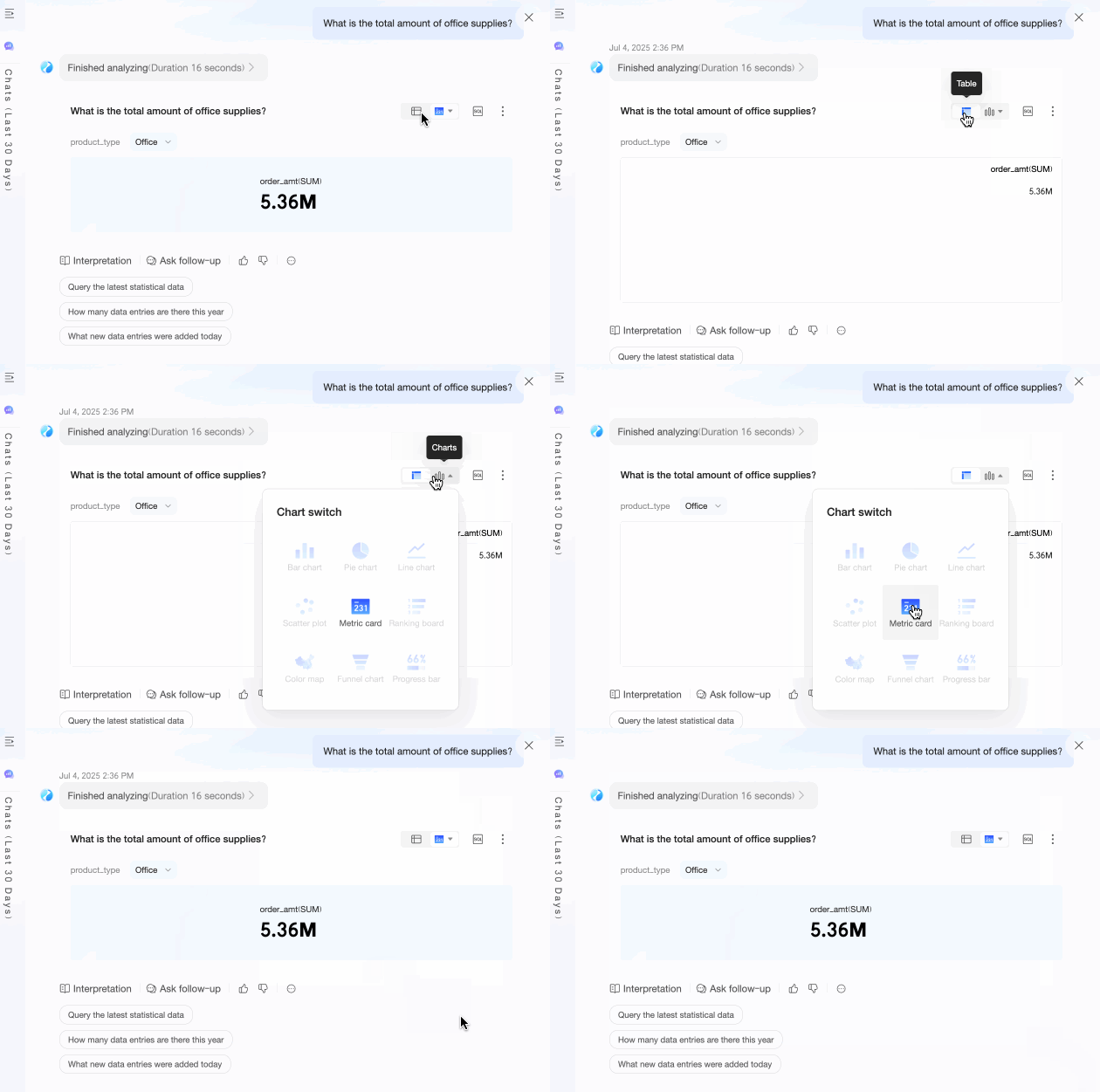
View AI data retrieval process (②)

View in full screen (③)

Rename (④)

Share (⑤)
You can copy the link to share it.

Export (⑥)
You can export the data to a local file in Excel format and specify a custom export name.
 Note
NoteThe export feature is supported only on PCs, not on mobile devices.
Data interpretation (⑦)
If you did not select a data interpretation model when you asked the question, you can perform data interpretation here. If you already selected a data interpretation model, you can perform a secondary interpretation.
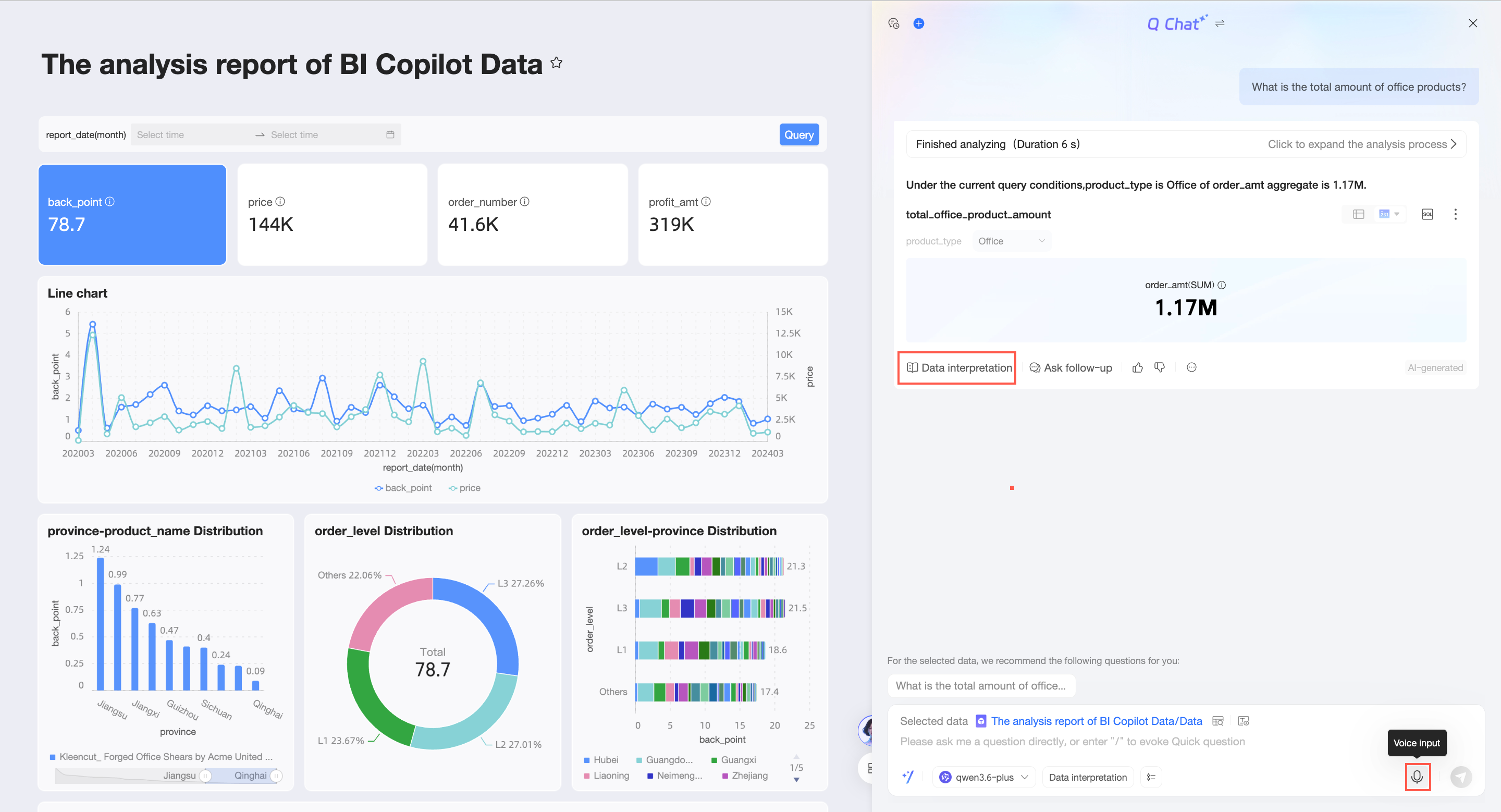
You can use the example interpretation ideas for reference, enter your own ideas, select a model, and click Generate Interpretation. The system then automatically interprets the data for you.
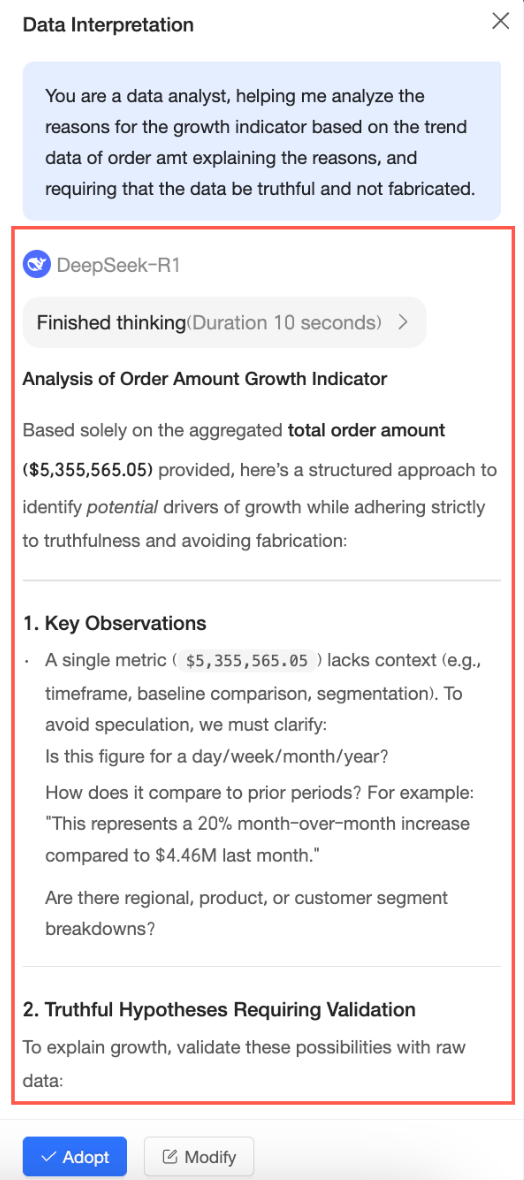
You can stop the interpretation while the result is being returned.
You can accept or modify the interpretation result. After you accept it, a data interpretation report is generated.

Follow-up question (⑧)
You can use the follow-up question feature to ask another question about the result of the previous question. This helps you understand the data from a more precise angle.
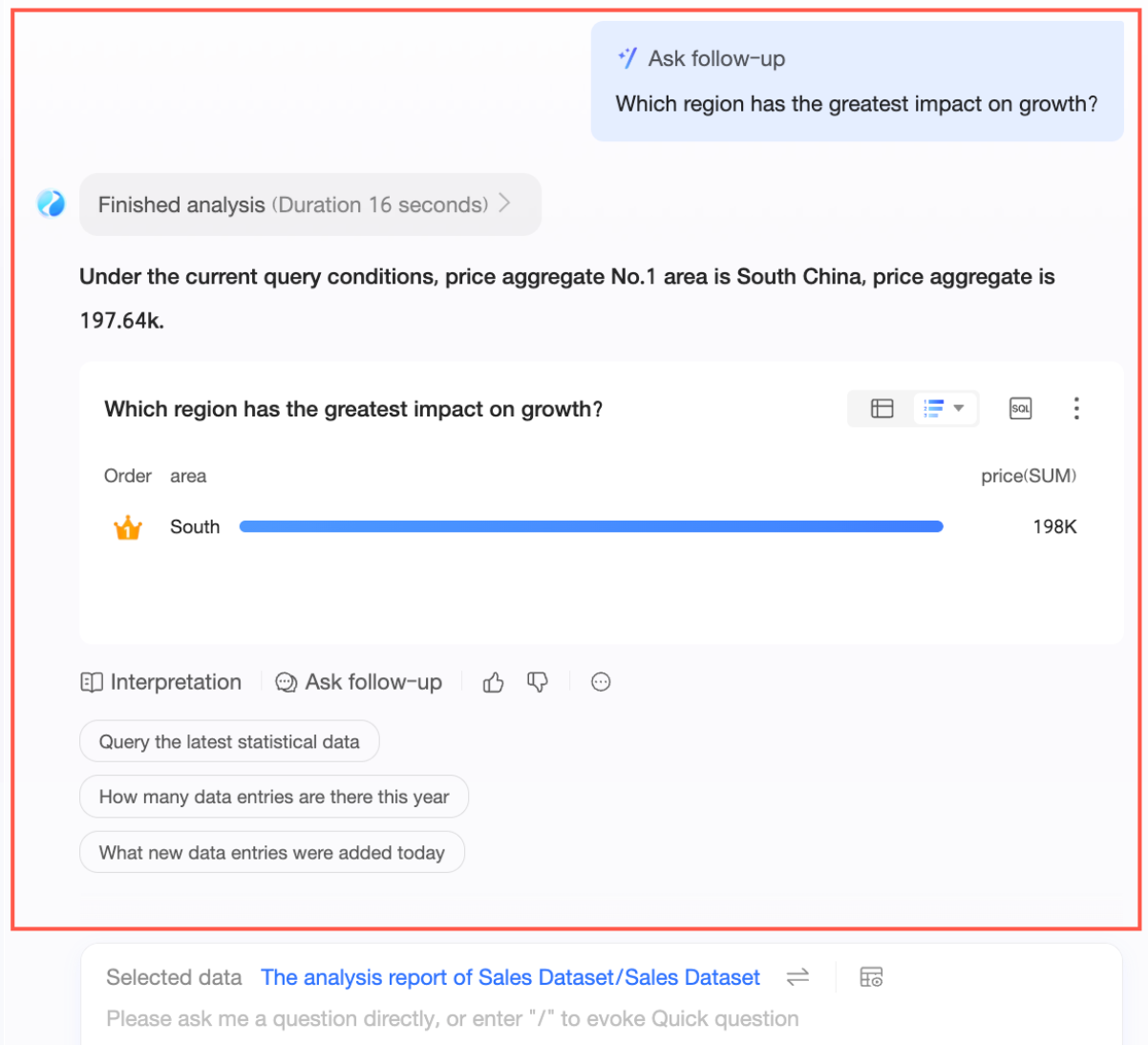
Like/Dislike (⑨)
Click
 to like the answer. Click
  to dislike it. When you dislike an answer, you can provide feedback.
Copy Trace_ID (⑩)

Inference and interpretation methods
Method description
The inference and interpretation methods use the official inference model by default. You can select a built-in Large Language Model (LLM) or a custom LLM. You can select the appropriate inference and interpretation methods to analyze your data.
For the analysis results from specific inference and data interpretation methods, see Examples.
Conversation history list
Entry points
When the width of the Q Chat page is below a specific threshold, you can click the
icon in the upper-left corner of the conversation interface to expand the conversation history list.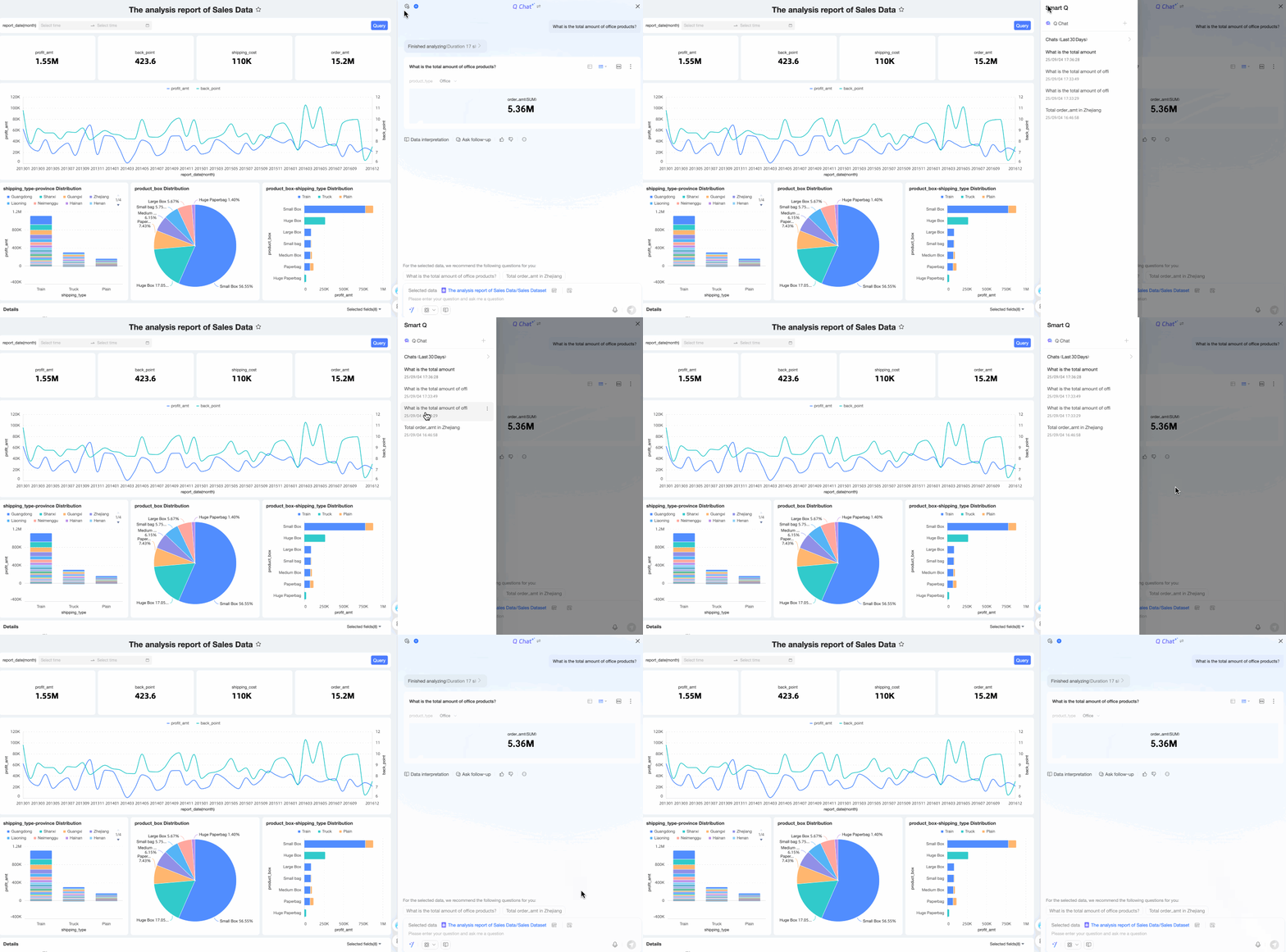
When the width of the Q Chat page is in a medium range, you can click the
icon to expand the conversation history list.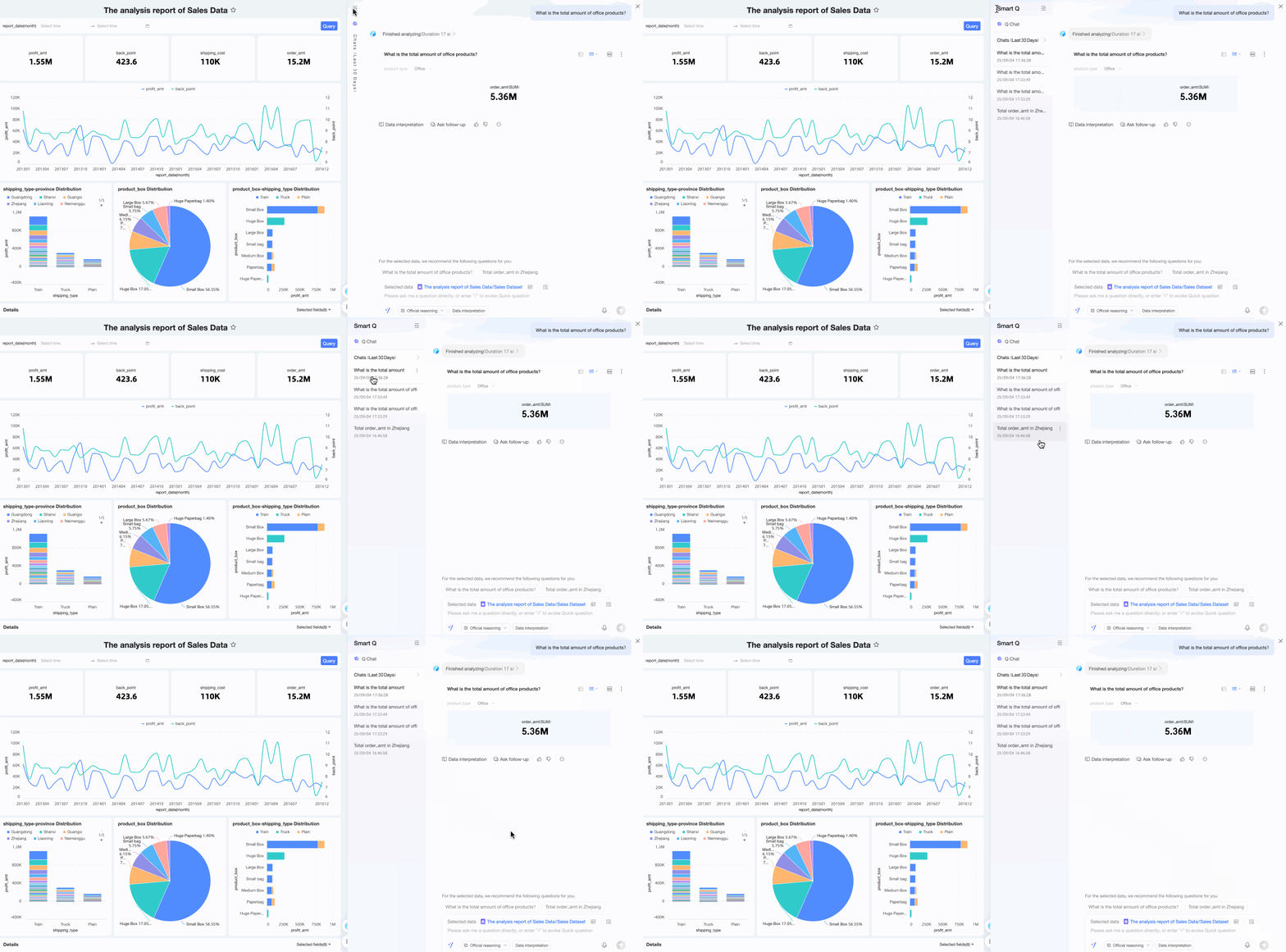
New conversation
At the top of the conversation history list, you can click Quick BI Q Chat to open a new dashboard Q Chat interface.

Rename
Click the
 icon to the right of the target conversation and select Rename.
You can also double-click the name of the target conversation to rename it.

Delete
Click the
icon to the right of the target conversation and select Delete.
In the confirmation dialog box that appears, click OK.
