Quick BI supports flexible configuration of large models. You can select and switch between different large models in intelligent feature modules such as Q-Copilot, Q-Analysis, Q-Report, and Q-Builder to meet the needs of various intelligent interaction and data analysis scenarios. This topic describes how to configure large models.
Entry point
Follow the steps shown in the figure to open the Large Model Configuration page.
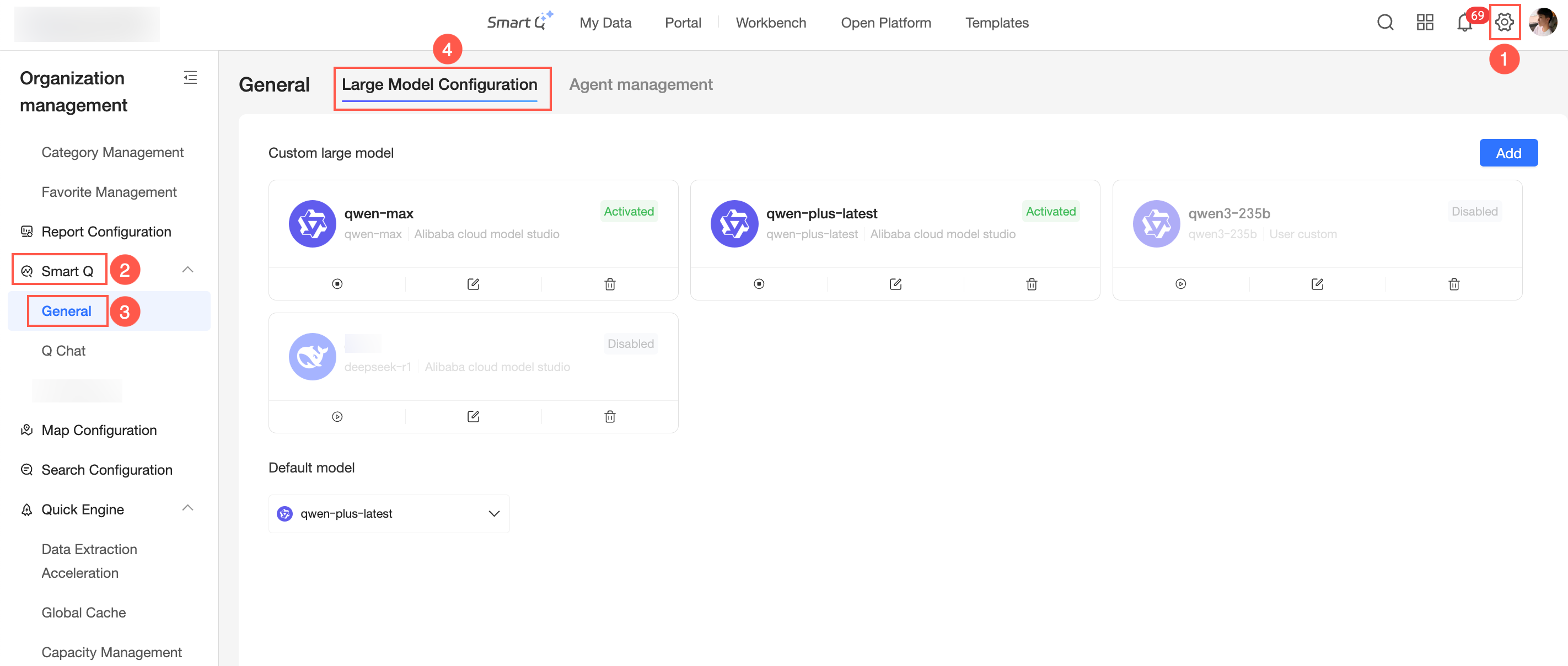
Built-in large models
The following built-in large models are supported: Deepseek-V4-PRO, Qwen3.6-plus, Qwen3-max, and DeepSeek-R1-0528.
Built-in large models are provided by Quick BI. To ensure data security, they operate with no logging and zero storage.
Custom large models
Add a custom large model
To add a purchased third-party large model, follow the steps shown in the figure.
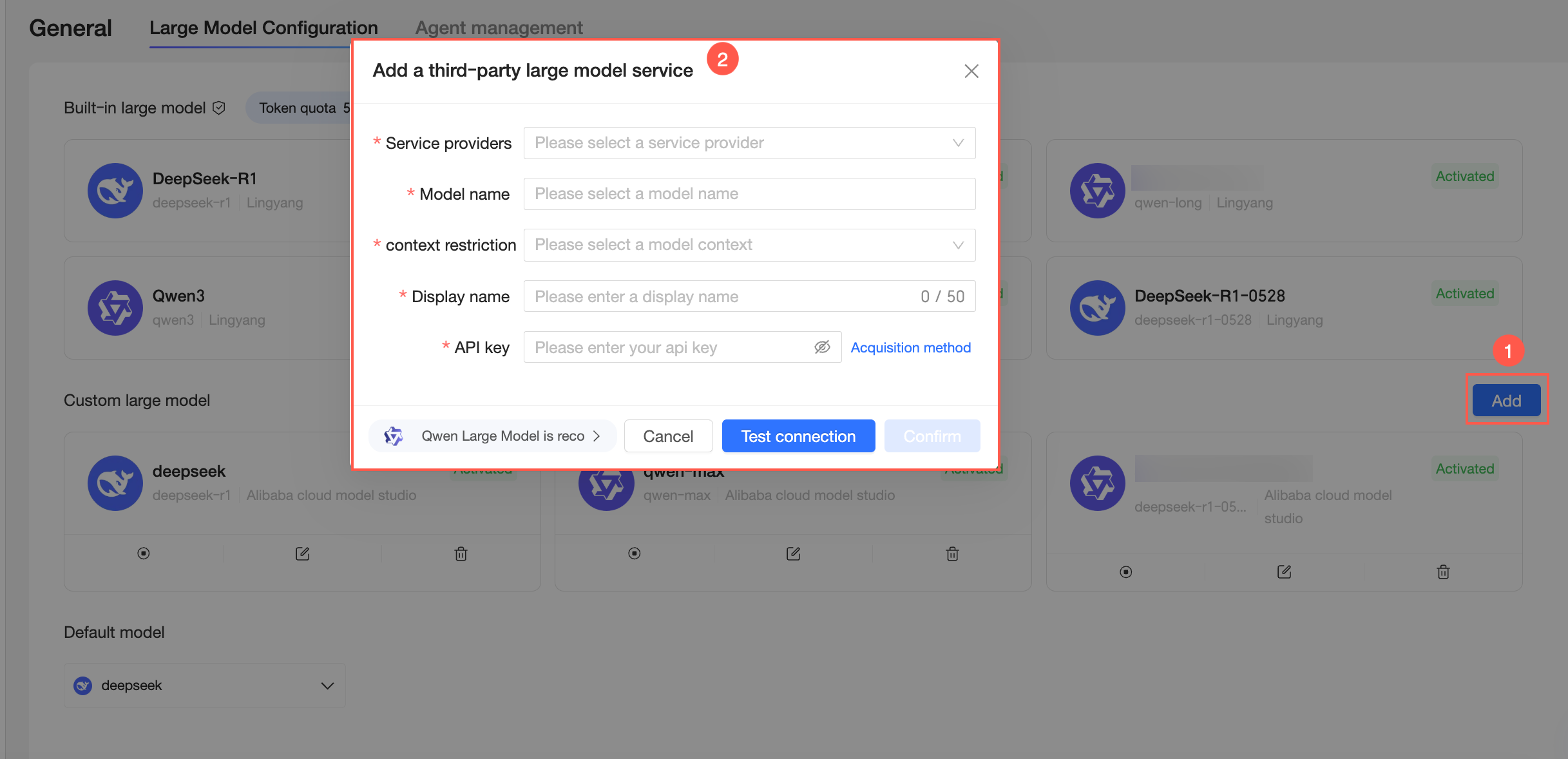
Click Add.
Select a Service Provider.
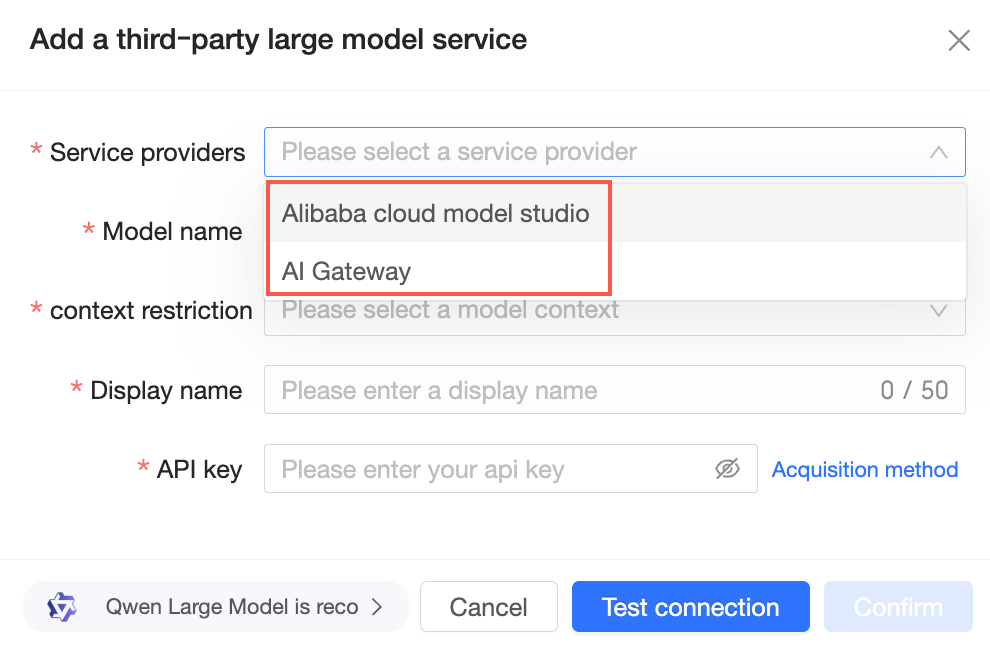
You can select Alibaba Cloud Model Studio (Bailian) or AI Gateway. Choose the service provider that fits your needs and configure the parameters as follows:
Alibaba Cloud Model Studio (Bailian)
Parameter
Description
Service provider
Select Alibaba Cloud Model Studio (Bailian).
Model name
You can either select a built-in large model or enter a custom model name.
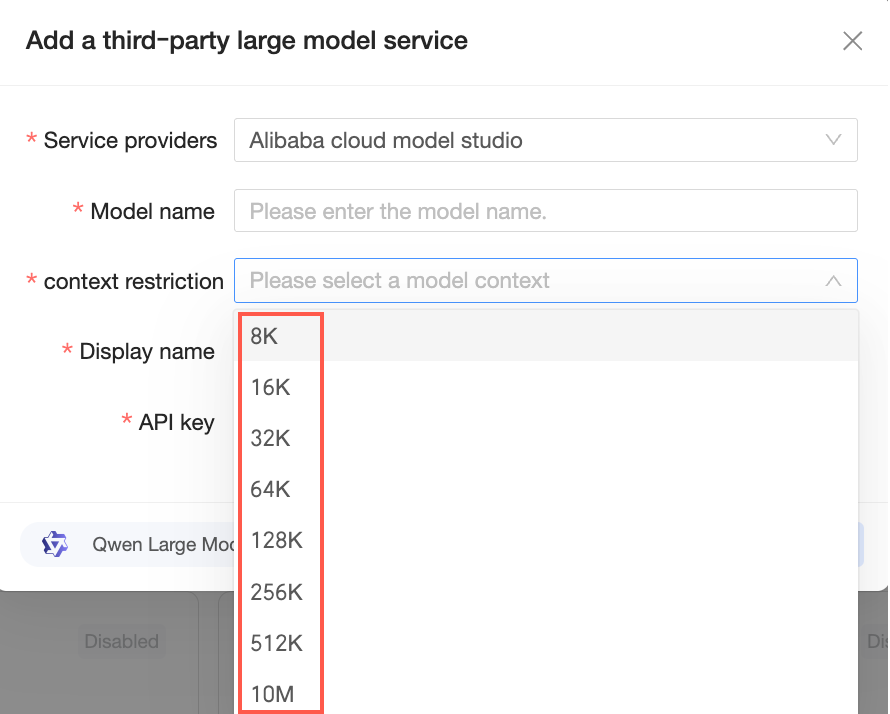
Context length limit
The maximum context length that the model supports.
Display name
The display name of the custom large model (up to 50 characters).
API key
For instructions, see Obtain API Key.
AI Gateway
Parameter
Description
Service provider
Select AI Gateway.
AI Gateway domain name
Enter the AI Gateway domain name. For example, https://gateway.example.com
Model name
Enter a model name.
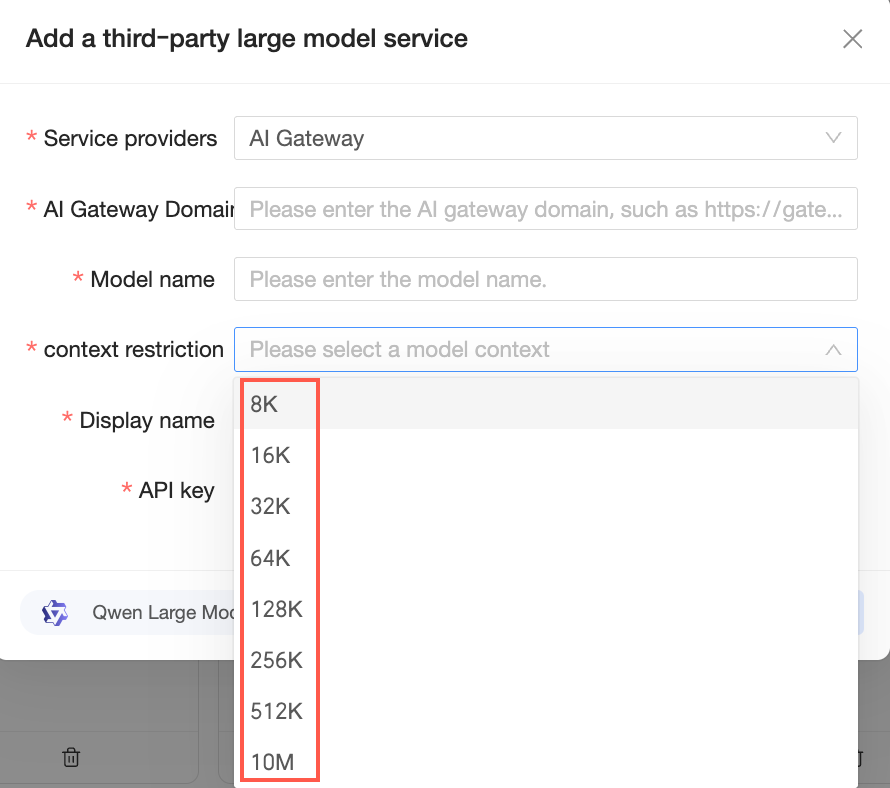
Context length limit
The maximum context length that the model supports.
Display name
The display name of the custom large model (up to 50 characters).
API key
Enter the API key.
Click Connection Test to verify the connection to the large model.
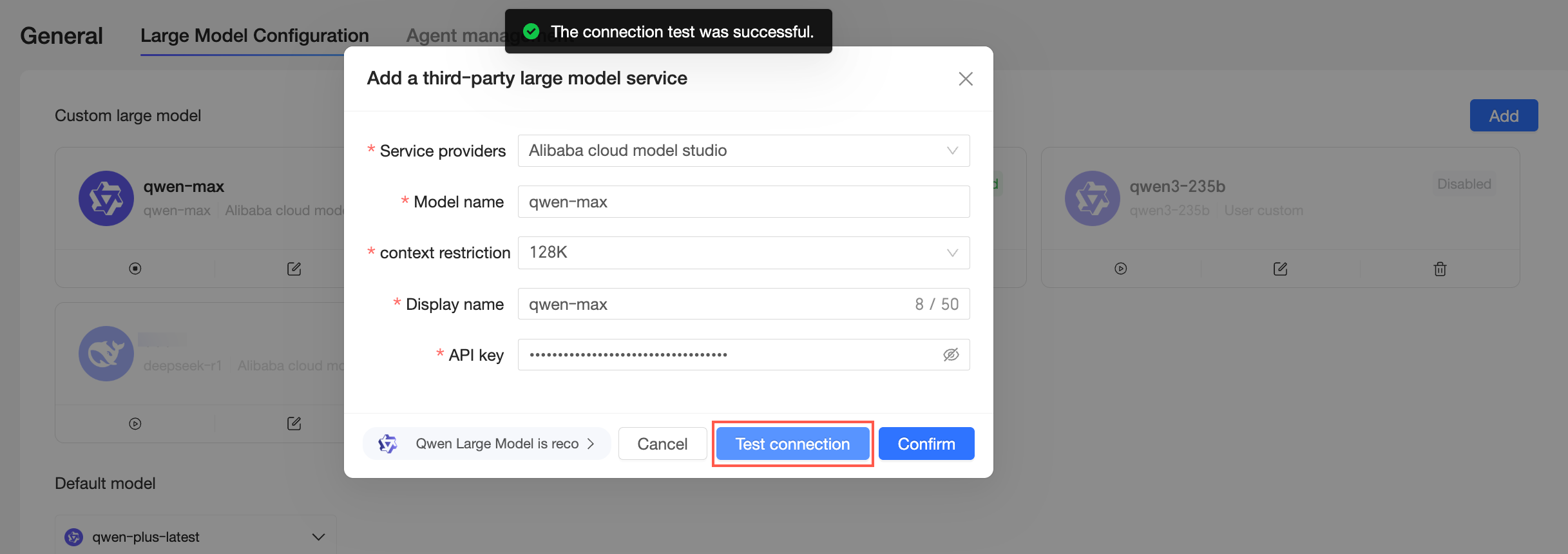
After a successful test, click Confirm to save the configuration.
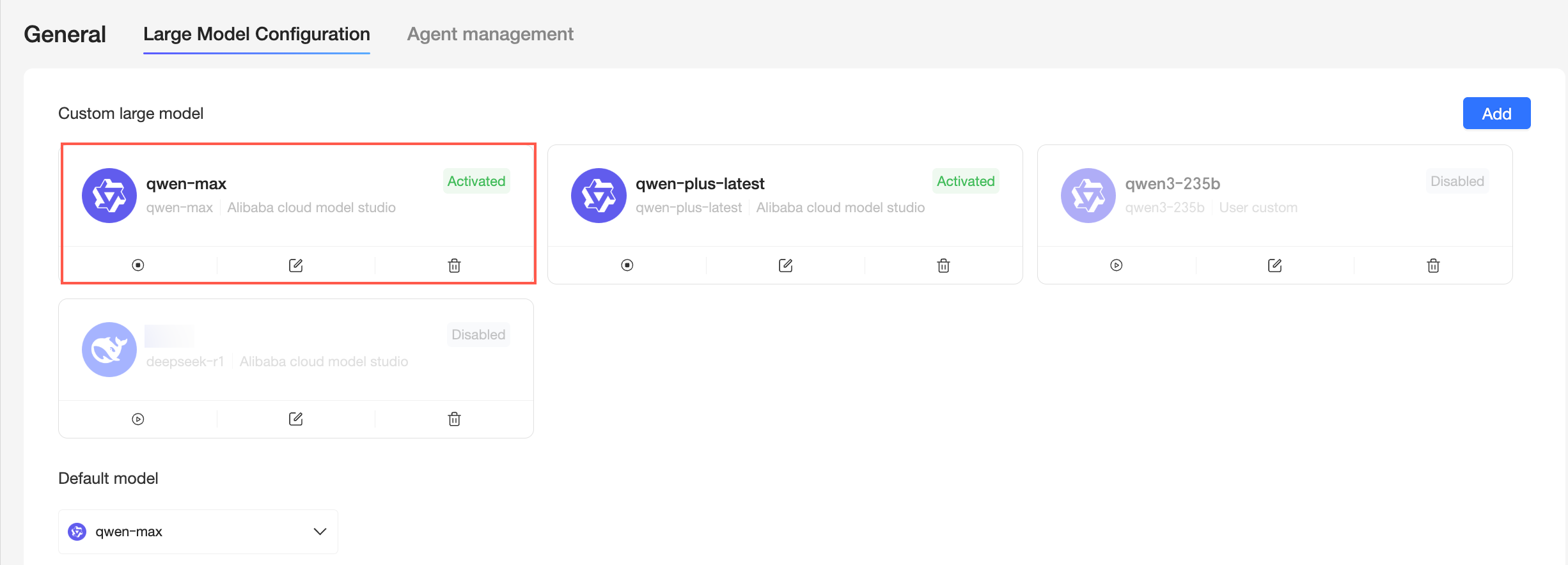
After adding the model, you can set it as the default or use it in features like Q-Copilot and Q-Analysis.
Manage custom large models
You can enable (①), disable (②), edit (③), or delete (④) a custom large model.

① When the model is disabled, click the  icon to enable it.
② When the model is enabled, click the  icon to disable it.
③ Click the  icon to edit the model. You can only modify the display name.
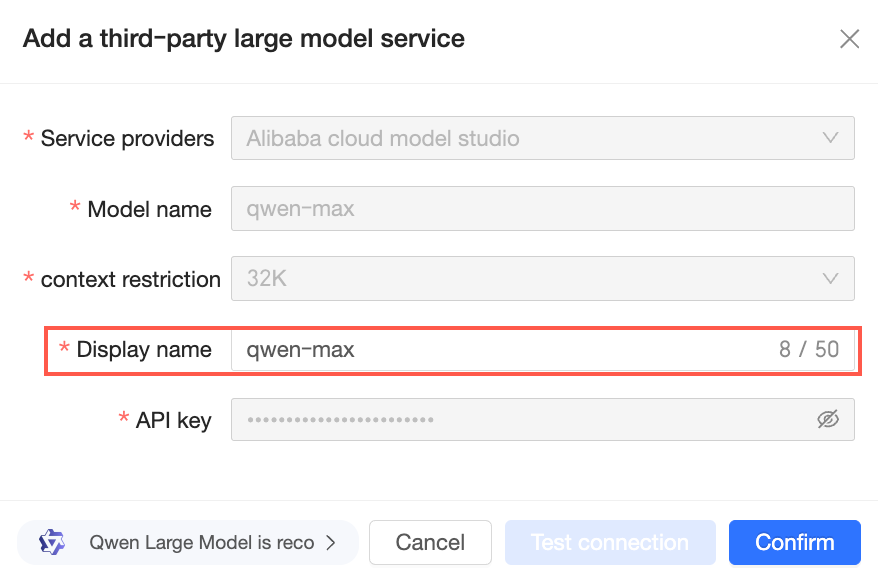
④ Click the  icon to delete the model.
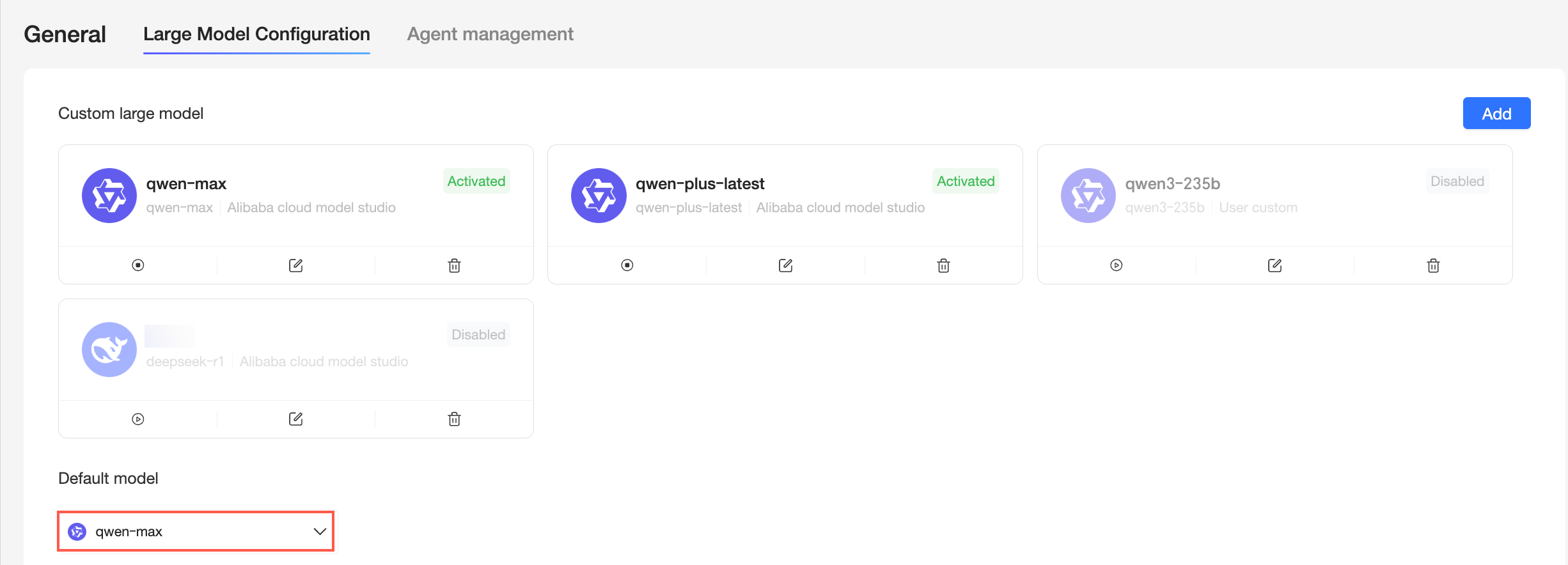
Default model
You can set a default large model to avoid selecting one for each use, which improves operational efficiency.
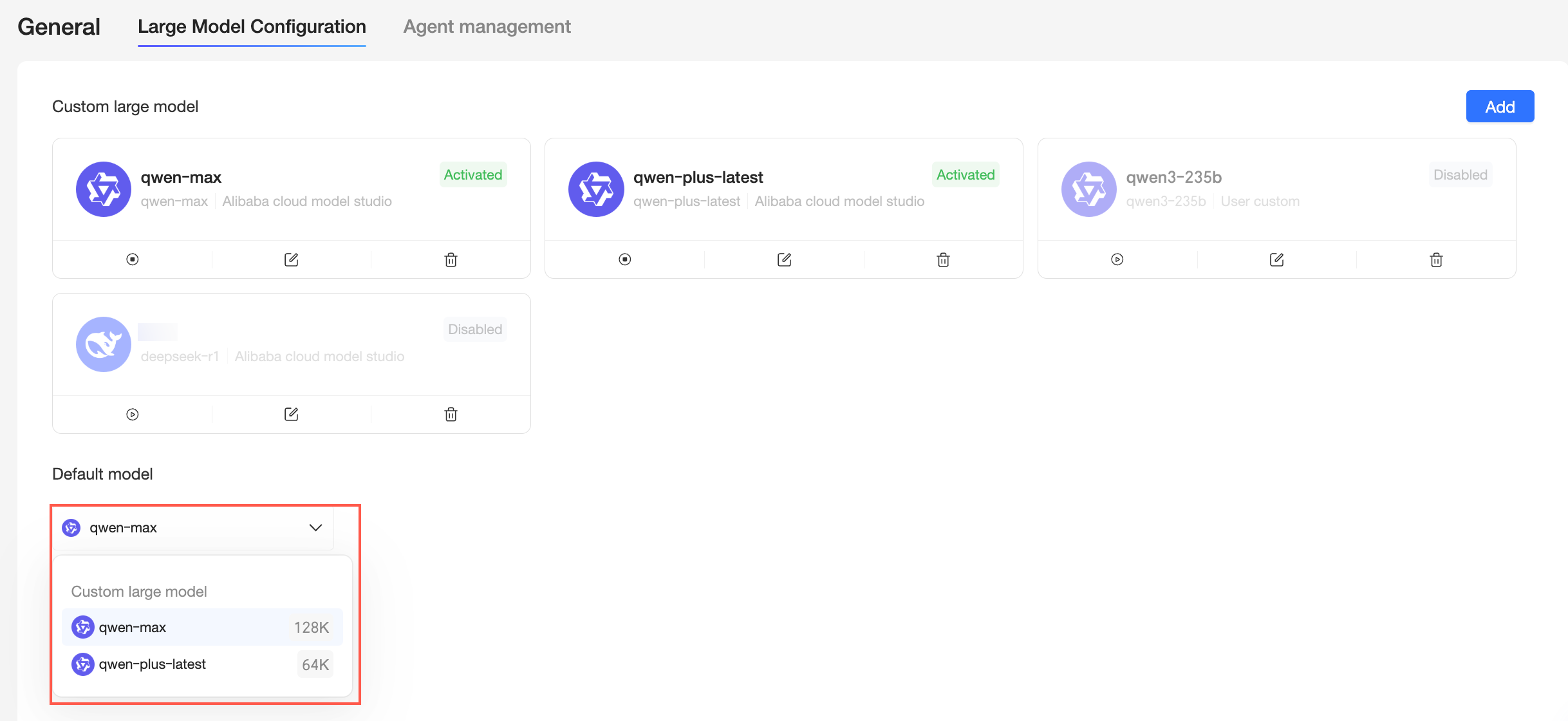
How it works:
Applicable scenarios
After you set a default model, it is automatically used in model-switching scenarios, such as Q-Copilot, Q-Analysis, and Insight Analysis on the Q-Report editing page.
For example, if you set DeepSeek-R1-0528 as the default large model,
 this model is selected by default when you use Q-Analysis. You can also switch to another large model as needed.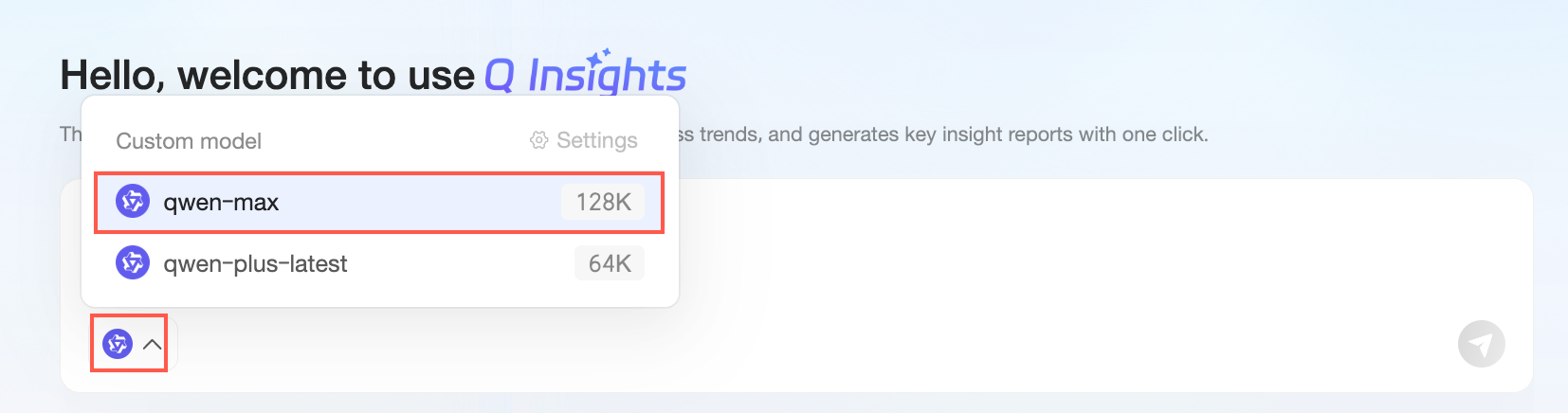
Non-applicable scenarios
In scenarios that do not allow model switching, such as one-click generation of intelligent reports, Quick BI automatically uses multiple models to produce the best possible report. The default model setting does not apply in these cases.