Use ticket-based report embedding to integrate Quick BI reports into third-party systems without user sign-in. Control per-user data permissions and prevent data leaks from shared links. This solution applies to Quick BI Professional Edition.
Parameter passing in embedded reports:
-
Global parameters enable different views of the same report for different users in embedded scenarios.
-
Parameter passing is available only to enterprise customers with 100 or more Quick BI Professional Edition users.
Background information
Quick BI Professional Edition provides a ticket-based report embedding solution with comprehensive security controls for link access, data viewing, and user permissions. This enables low-cost integration with enterprise business systems while maintaining brand consistency.
Limits
Note the following limits for ticket-based report embedding:
-
You can embed only dashboards, workbooks, data dashboards, ad hoc analysis reports, data entry reports, or reports from Downloads into other systems.
-
To try the global parameters feature, contact the Quick BI operations owner.
-
Quick BI Professional Edition supports the enhanced solution. The Pro edition supports only the basic solution.
The basic solution and the enhanced solution differ as follows.
Capability
Basic solution
Enhanced solution
Attached user
Report owner. This value cannot be modified.
Customizable. This lets you provide different views to different users.
Access count
Up to 100,000 times per ticket.
Unlimited. You can customize the access count.
Watermark
Not supported.
Supported.
(This does not apply if the large screen does not support watermarks.)
Validity period
Up to 240 minutes.
Customizable.
Global parameters
Not supported.
Supported.
Block embedding
Not supported.
Supported.
Number of redirects
NoteEmbedding must also be enabled for the report to which you are redirected.
Only one redirect is allowed.
For example, if Report A is redirected to Report B, Report B cannot be redirected to Report C.
An unlimited number of redirects are supported.
For example, if Report A is redirected to Report B, Report B can be redirected to Report C, and Report C can be redirected to another report.
This topic uses the China (Hong Kong) domain name (bi-cn-hongkong.data.aliyun.com) as an example. Replace it with your actual domain name.
Step 1: Enable Embedding for a Report
You can configure the report embedding feature only when the report is in the Published state.
Enable report embedding from the Open Platform:
-
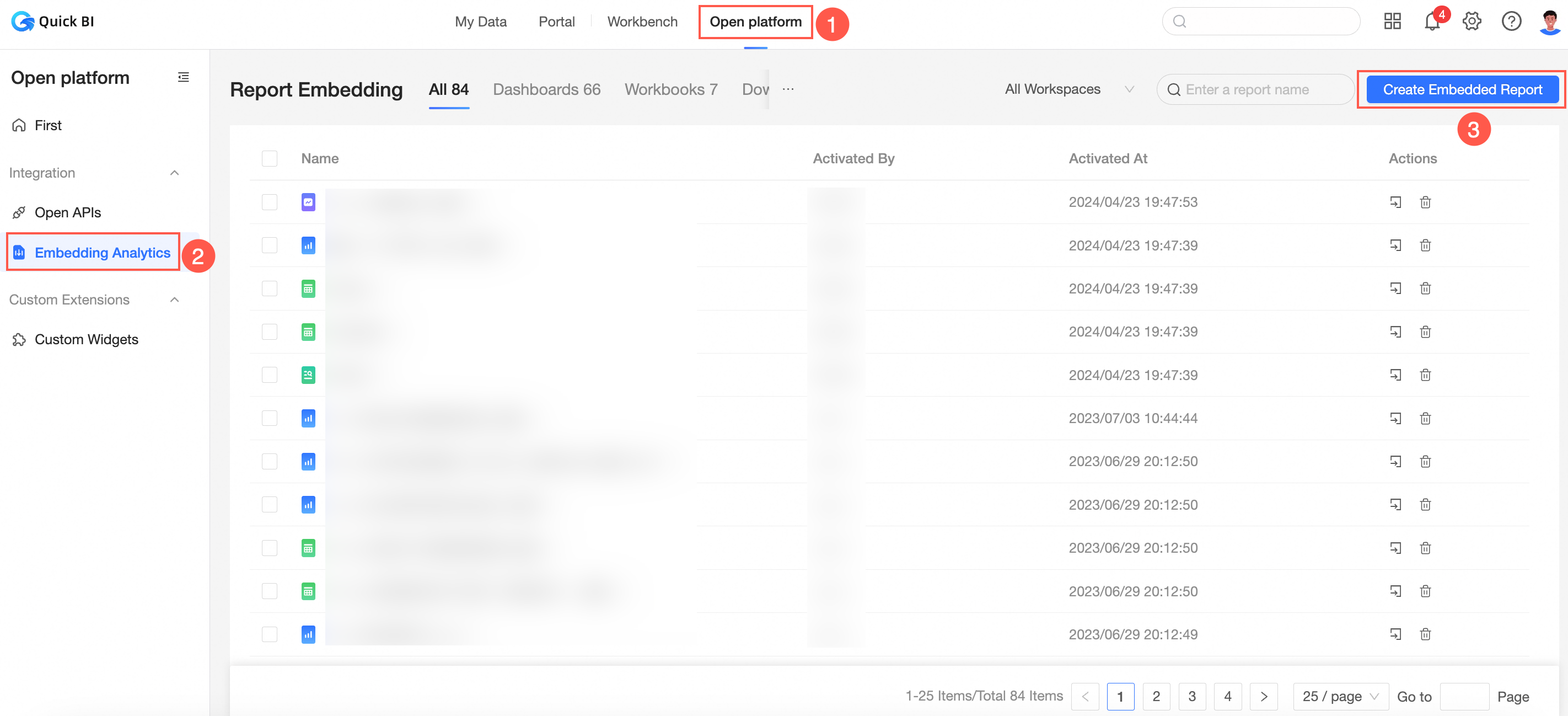
On the Quick BI home page, navigate to the embed report page as shown below.
-
On the Add Embedded Report page, select the target workspace and object type. In the list, select the data object name and click Enable Embedding.
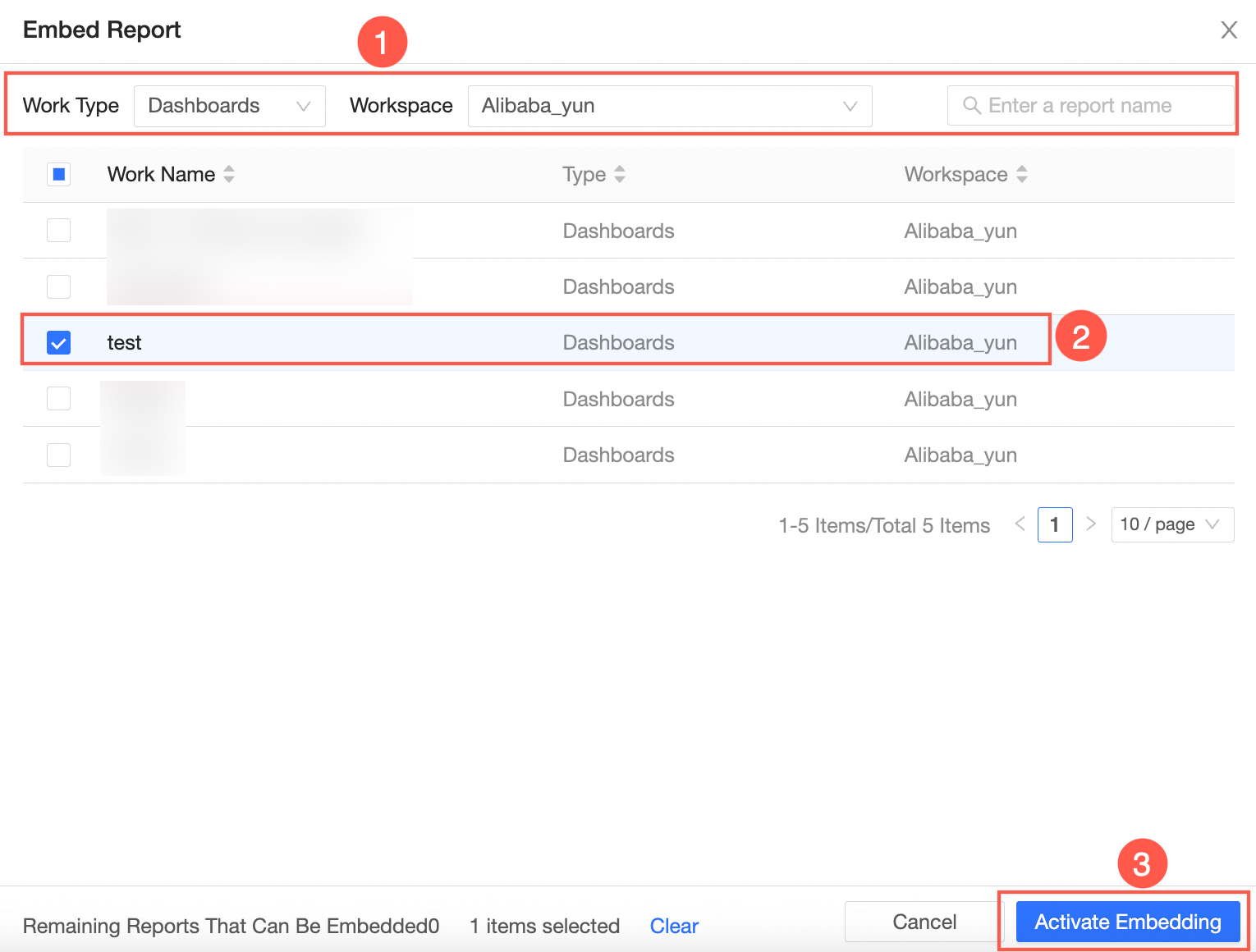
If the list contains many reports, you can enter a report name to quickly find the report.
-
In the Report Embedding Configuration dialog box, configure the parameters.
ImportantThe debugging feature is for trial purposes only. For production environments, you must complete Step 2: Generate an AccessTicket and Step 3: Concatenate the Single Sign-on URL.
Parameter Name
Description
Embedded Object
Select the object to embed:
-
If you select Entire Page, the current dashboard is embedded.
-
If you select a widget, the specified widget in the current dashboard is embedded.
Display Configuration
Whether to display the dashboard title after embedding.
Security Authentication Type and Ticket Link
Select Ticket Authentication and generate a ticket link.
You can manually enter a ticket link or click Quick Generate to generate a ticket.
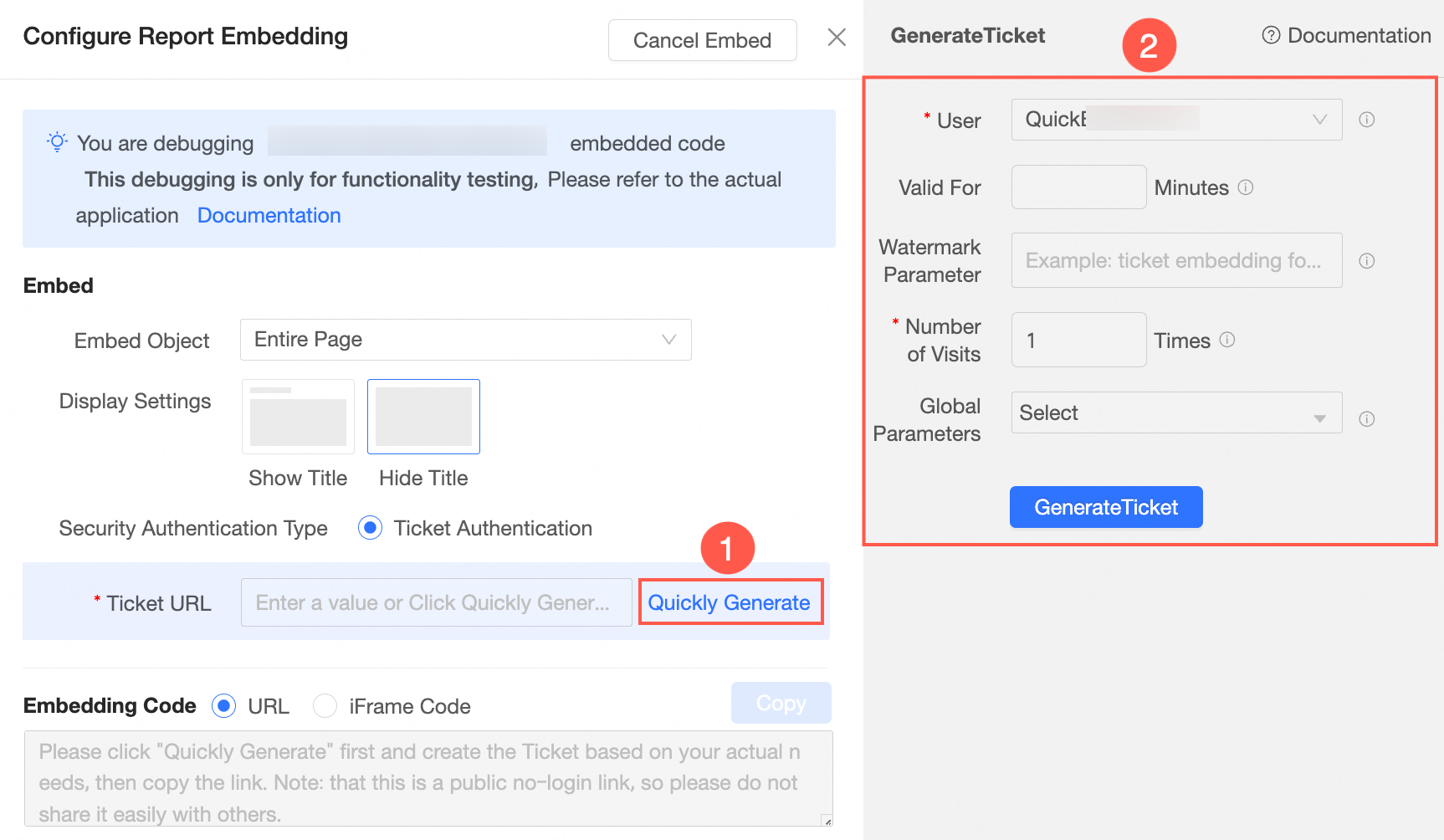
On the ticket generation page, configure the attached user, validity period, watermark, access count, and global parameters.
NoteThe following restrictions apply to accounts used to generate AccessTickets:
-
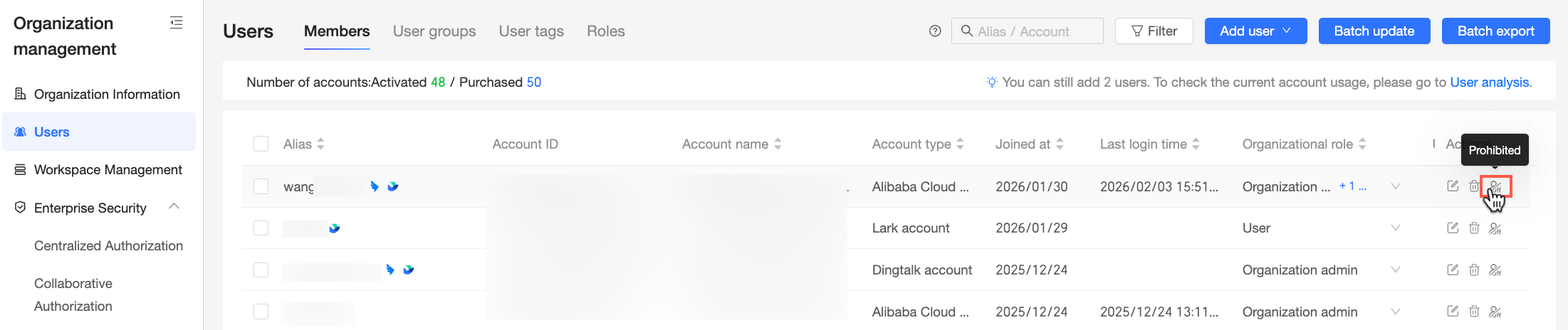
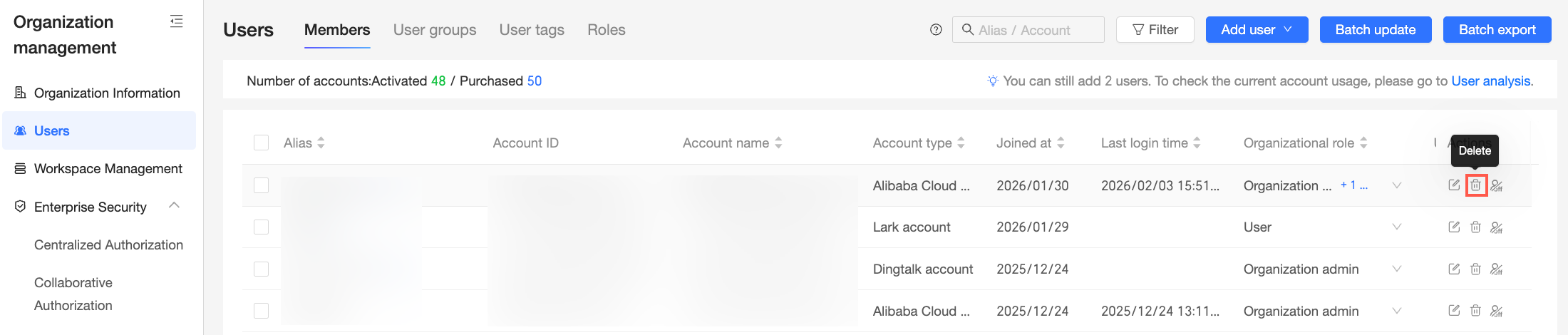
If the account is disabled in Tenant Management > User Management, you cannot generate new AccessTickets. However, existing AccessTickets remain usable.
-
If the account is deleted in Tenant Management > User Management, you cannot generate new AccessTickets, and existing AccessTickets become invalid.
Get Embedding Code
You can generate a URL Link and Iframe Code.
NoteYou can add the
localeparameter to the URL to specify the language of the embedded page. You can set thelocaleparameter tozh-CN(Chinese) oren-US(English). The following figure shows how to set the language of the embedded page to Chinese.
-
-
Click Copy.
Step 2: Generate an AccessTicket
-
Call the CreateTicket API operation to generate the ticket required for report embedding.
NoteThe following restrictions apply to accounts used to generate AccessTickets:
-
If the account is disabled in Tenant Management > User Management, you cannot generate new AccessTickets. However, existing AccessTickets remain usable.
-
If the account is deleted in Tenant Management > User Management, you cannot generate new AccessTickets, and existing AccessTickets become invalid.
The following table describes the parameters that you can configure to generate an AccessTicket.
Parameter name
Type
Description
WorksId
String
The ID of the report for which embedding is enabled.
Dashboards, workbooks, data dashboards, reports from Downloads, ad hoc analysis reports, and data entry reports are supported.
CmptId
String
The ID of a widget in one of the preceding reports.
To obtain the widget ID, call the QueryWorksBloodRelationship API operation.
TicketNum
Integer
Number of tickets.
-
Default value: 1.
-
Recommended value: 1.
-
Maximum value: 99999.
Each time the ticket is used for access, the remaining number of times that the ticket can be used is reduced by one.
UserId
String
The ID of the Quick BI user. This is not your Alibaba Cloud account ID.
You can call the QueryUserInfoByAccount API operation to obtain the user ID. Example:
fe67f61a35a94b7da1a34ba174a7****.NoteEnter a value for either UserId or AccountName. If you leave both empty, the report owner is used by default. To configure row-level permissions, see Appendix 1: Configure Row-level Permissions.
AccountName
String
The name of the user account.
-
If the user uses an Alibaba Cloud account, such as wangwu, the format is [Alibaba Cloud account]. Example: wangwu.
-
If the user uses a RAM user, such as zhangsan**@aliyun.cn, the format is [Alibaba Cloud account:RAM user]. Example: wangwu:zhangsan**.
NoteEnter a value for either UserId or AccountName. If you leave both empty, the report owner is used by default. To configure row-level permissions, see Appendix 1: Configure Row-level Permissions.
AccountType
Integer
The type of the user account.
-
1: Alibaba Cloud account
-
3: Quick BI-specific account
-
5: RAM user
NoteIf you specify AccountName, you must also specify AccountType.
ExpireTime
Integer
Expiration time.
-
Unit: minutes.
-
Default value: 240. Maximum for page debugging is 240. Through the API, the maximum is the Integer upper limit.
WatermarkParam
String
Watermark parameter for the report.
Maximum length: 50 characters.
GlobalParam
String
Global parameters for report filter conditions.
Value: JSON string.
NoteTo use the global parameters feature, contact the Quick BI operations owner.
Note-
To prevent link sharing, set TicketNum to 1. This setting means the generated third-party embedded link can be accessed only once.
-
When you embed a report, you can attach the WatermarkParam watermark parameter.
-
-
Generate the AccessTicket.
For sample code, see SDK example.
The following code shows an example of a returned result:
{ "requestId" : "7D784AB0-5B77-077E-B628-E782B58D3898", "result" : "fd138bcb-****-4fde-b413-81bcee59bdb6", "success" : true }NoteThe value of the
resultfield is the AccessTicket generated by this API call. In this example, the AccessTicket isfd138bcb-****-4fde-b413-81bcee59bdb6.
Step 3: Concatenate the Single Sign-on URL
The following table shows the concatenation process and provides examples.
|
Process |
Dashboard example |
Workbook example |
Downloads example |
Data dashboard example |
Ad hoc analysis example |
Data entry example |
|
|
|
|
|
|
|
|
|
|
|
|
|
|
|
|
|
|
|
|
|
|
|
|
|
|
|
|
|
|
|
Concatenation formats and example URLs:
-
Dashboard URL format:
https://<Quick BI domain name>/<Report preview URL>?pageId=<Report ID>&accessTicket=<AccessTicket>. Example:https://bi-cn-hongkong.data.aliyun.com/token3rd/dashboard/view/pc.htm?pageId=dd0****83f&accessTicket=fd138bcb-****-4fde-b413-81bcee59bdb6 -
Workbook URL format:
https://<Quick BI domain name>/<Report preview URL>?id=<Report ID>&accessTicket=<AccessTicket>. Example:https://bi-cn-hongkong.data.aliyun.com/token3rd/report/view.htm?id=<42****18ef6>&accessTicket=fd138bcb-****-4fde-b413-81bcee59bdb6 -
Downloads URL format:
https://<Quick BI domain name>/<Report preview URL>?pageId=<Report ID>&accessTicket=<AccessTicket>. The following example shows the URL for the China (Hong Kong) site:https://bi-cn-hongkong.data.aliyun.com/token3rd/offline/view/pc.htm?pageId=<42****18ef6>&accessTicket=fd138bcb-****-4fde-b413-81bcee59bdb6 -
Data dashboard URL format:
https://<Quick BI domain name>/<Report preview URL>?pageId=<Report ID>&accessTicket=<AccessTicket>. The following example shows the URL for the China (Hong Kong) site:https://bi-cn-hongkong.data.aliyun.com/token3rd/screen/view/pc.htm?pageId=<42****18ef6>&accessTicket=fd138bcb-****-4fde-b413-81bcee59bdb6 -
Ad hoc analysis URL format:
https://<Quick BI domain name>/<Report preview URL>?pageId=<Report ID>&accessTicket=<AccessTicket>. The following example shows the URL for the China (Hong Kong) site:https://bi-cn-hongkong.data.com/token3rd/analysis/view.htm?id=<xxx>&accessTicket=<xxx> -
Data entry URL format:
https://<Quick BI domain name>/<Report preview URL>?pageId=<Report ID>&accessTicket=<AccessTicket>. The following example shows the URL for the China (Hong Kong) site:http://bi-cn-hongkong.data.com/token3rd/dataform/view.htm?id=<xxx>&accessTicket=<xxx>
To embed a widget in a report, append &cmptId=XXX to the report URL. For example, to embed a widget in a workbook, use the following URL:
https://bi-cn-hongkong.data.aliyun.com/token3rd/report/view.htm?id=<42****18ef6>&accessTicket=fd138bcb-****-4fde-b413-81bcee59bdb6&cmptId=XXX-
Obtain the Quick BI domain name.
For example, the domain name for Quick BI in the China (Hong Kong) region is
bi-cn-hongkong.data.aliyun.com. Use the domain name of your environment. -
Obtain the report preview URL.
Preview page URLs by report type:
-
Dashboard:
token3rd/dashboard/view/pc.htm -
Workbook:
token3rd/report/view.htm -
Data dashboard:
token3rd/screen/view/pc.htm -
Downloads:
token3rd/offline/view/pc.htm -
Ad hoc analysis:
token3rd/analysis/view/pc.htm -
Data entry:
token3rd/dataform/view.htm
-
-
On the report editing page, obtain the report ID.
-
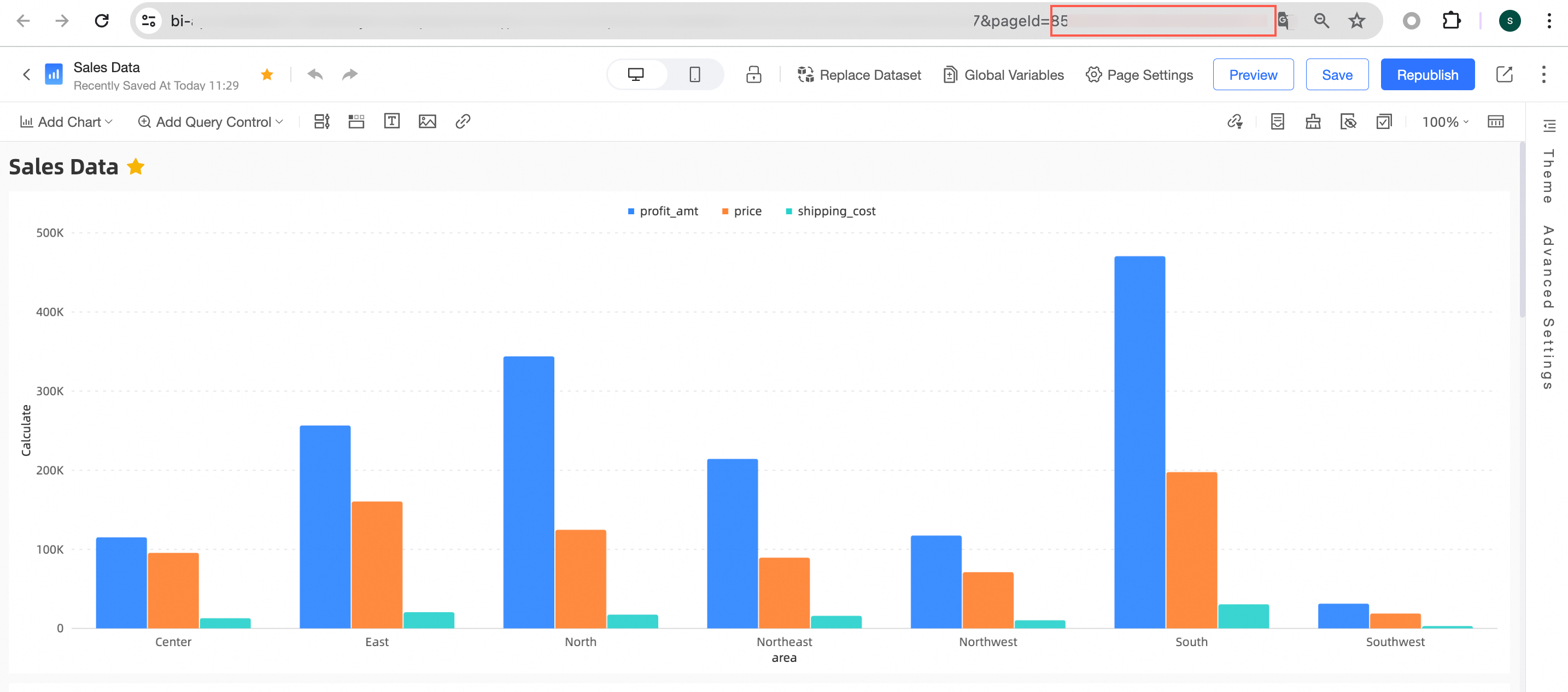
Dashboard ID. Example:
d01****c5f.On the dashboard editing page, obtain the value of pageId from the address bar.
-
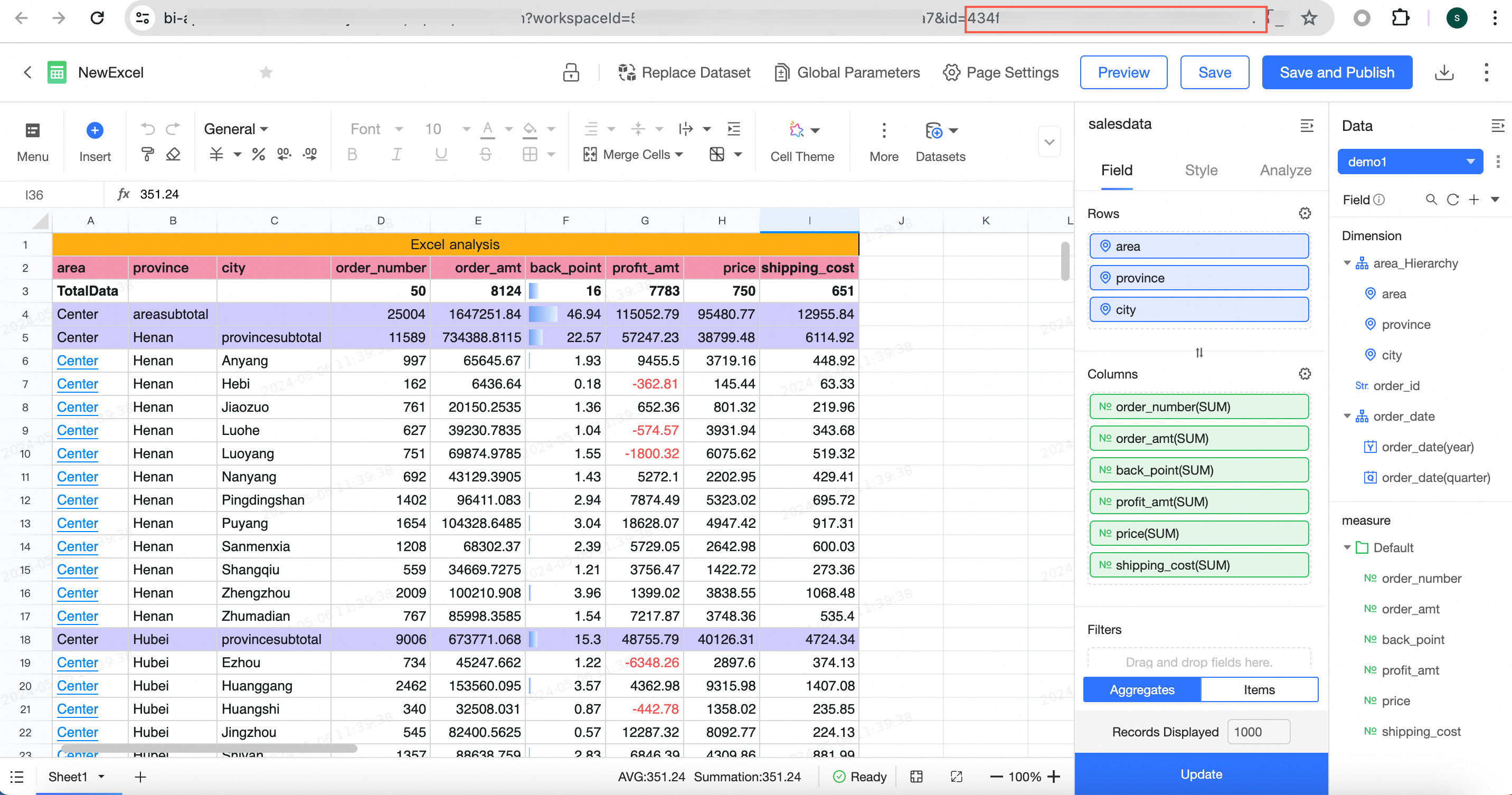
Workbook ID. Example:
d0****3ba88.On the workbook editing page, obtain the workbook ID from the address bar.
-
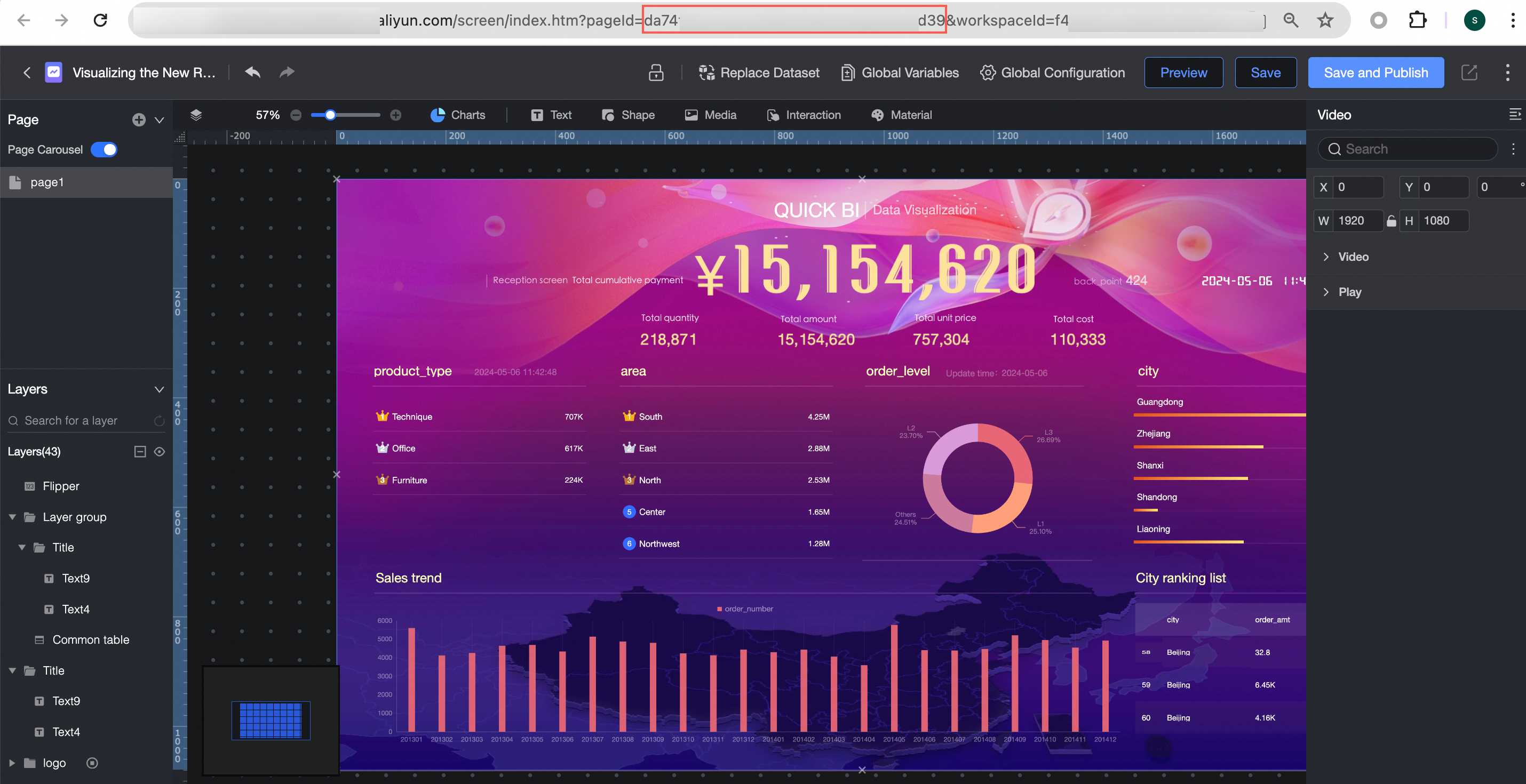
Data dashboard ID. Example:
3c****26b.On the data dashboard editing page, obtain the value of pageId from the address bar.
-
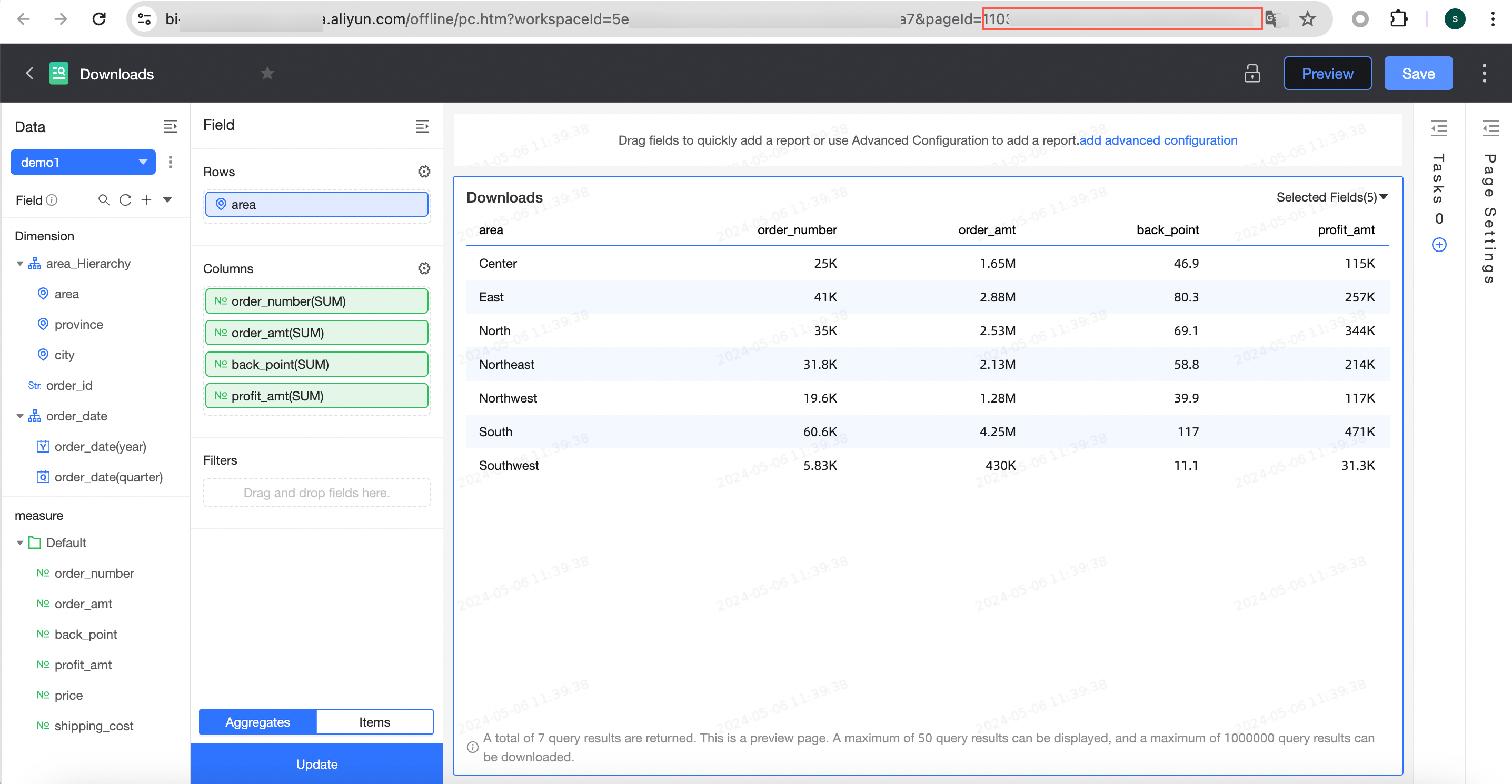
The Downloads ID. For example:
b2****47.On the Downloads editing page, obtain the value of pageId from the address bar.
-
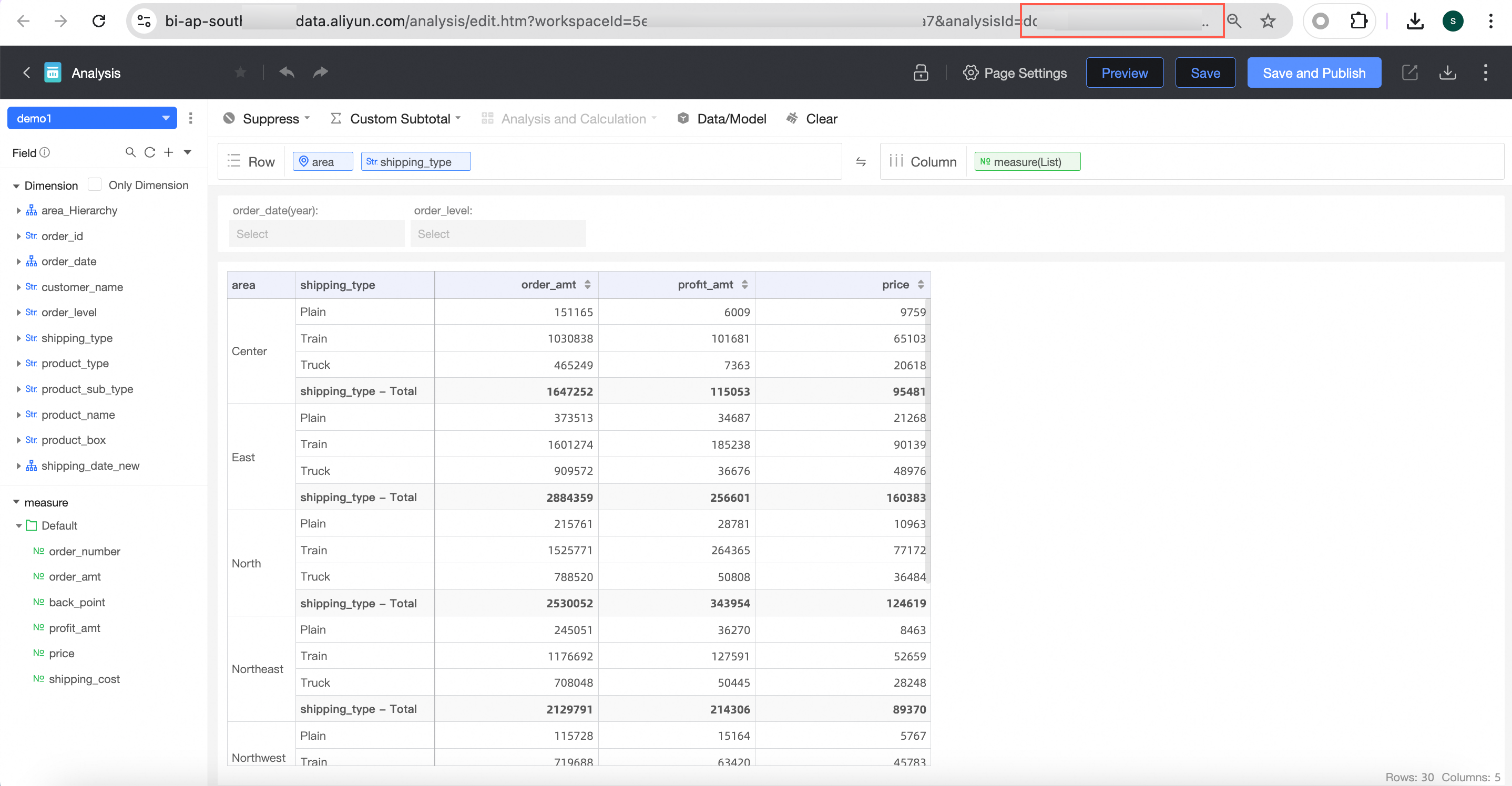
Ad hoc analysis ID. Example:
7f****da.On the ad hoc analysis editing page, obtain the value of pageId from the address bar.
-
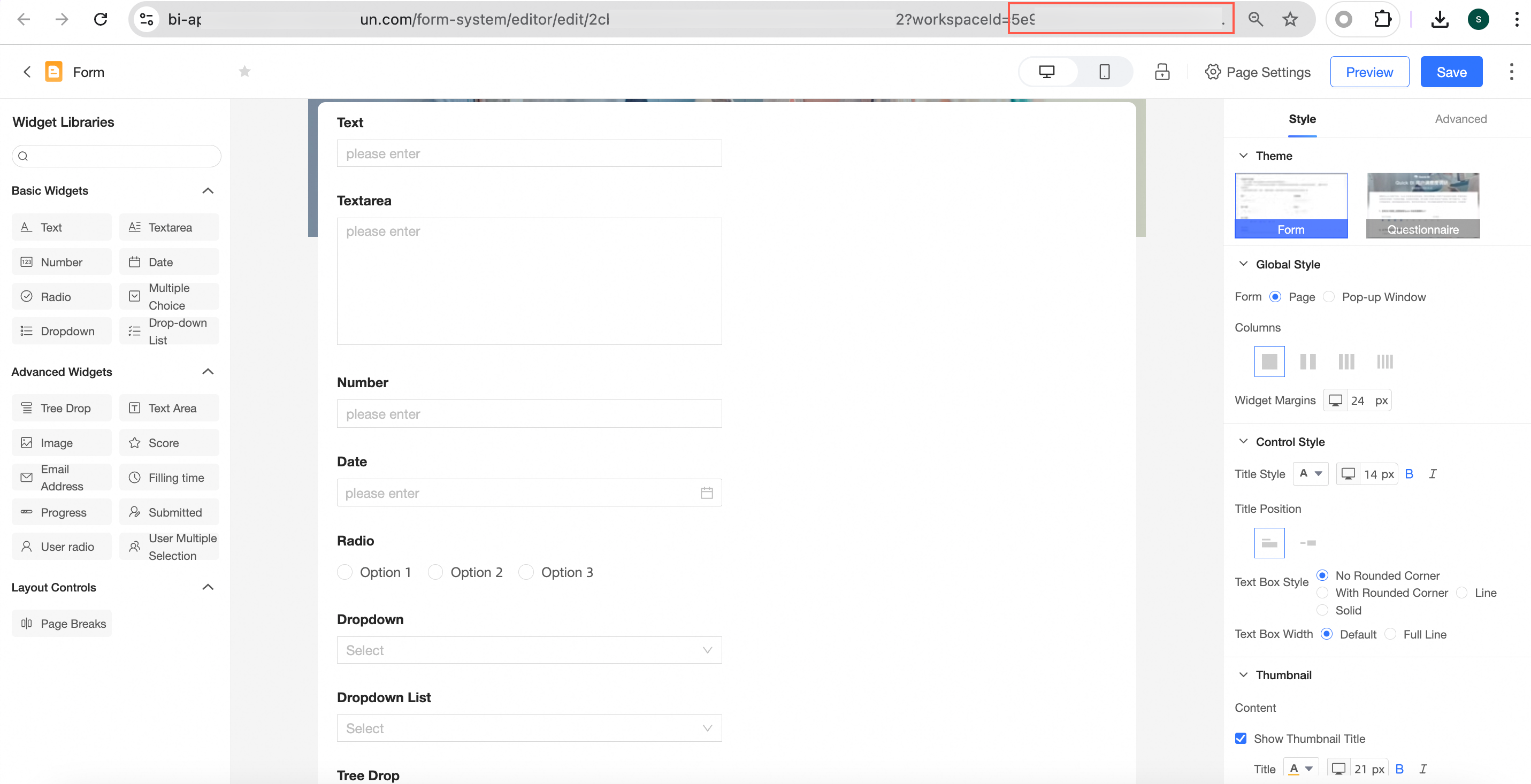
Data entry ID. Example:
29****53.On the data entry editing page, obtain the value of pageId from the address bar.
-
-
Concatenate the Quick BI domain name, report preview URL, report ID, and the AccessTicket from Step 2 to create the request URL.
-
Dashboard URL format:
https://<Quick BI domain name>/<Report preview URL>?pageId=<Report ID>&accessTicket=<AccessTicket> -
Workbook URL format:
https://<Quick BI domain name>/<Report preview URL>?id=<Report ID>&accessTicket=<AccessTicket> -
Data dashboard URL format:
https://<Quick BI domain name>/<Report preview URL>?pageId=<Report ID>&accessTicket=<AccessTicket> -
Downloads URL format:
https://<Quick BI domain name>/<Report preview URL>?pageId=<Report ID>&accessTicket=<AccessTicket> -
Ad hoc analysis URL format:
https://<Quick BI domain name>/<Report preview URL>?id=<Report ID>&accessTicket=<AccessTicket -
Data entry URL format:
https://<Quick BI domain name>/<Report preview URL>?id=<Report ID>&accessTicket=<AccessTicket>
-
Appendix 1: Configure Row-level Permissions
If you do not specify UserId or accountName, the embedded report uses the report owner's permissions. To attach a specific user's permissions, configure row-level permissions as shown in the following figure, then set UserId or AccountName.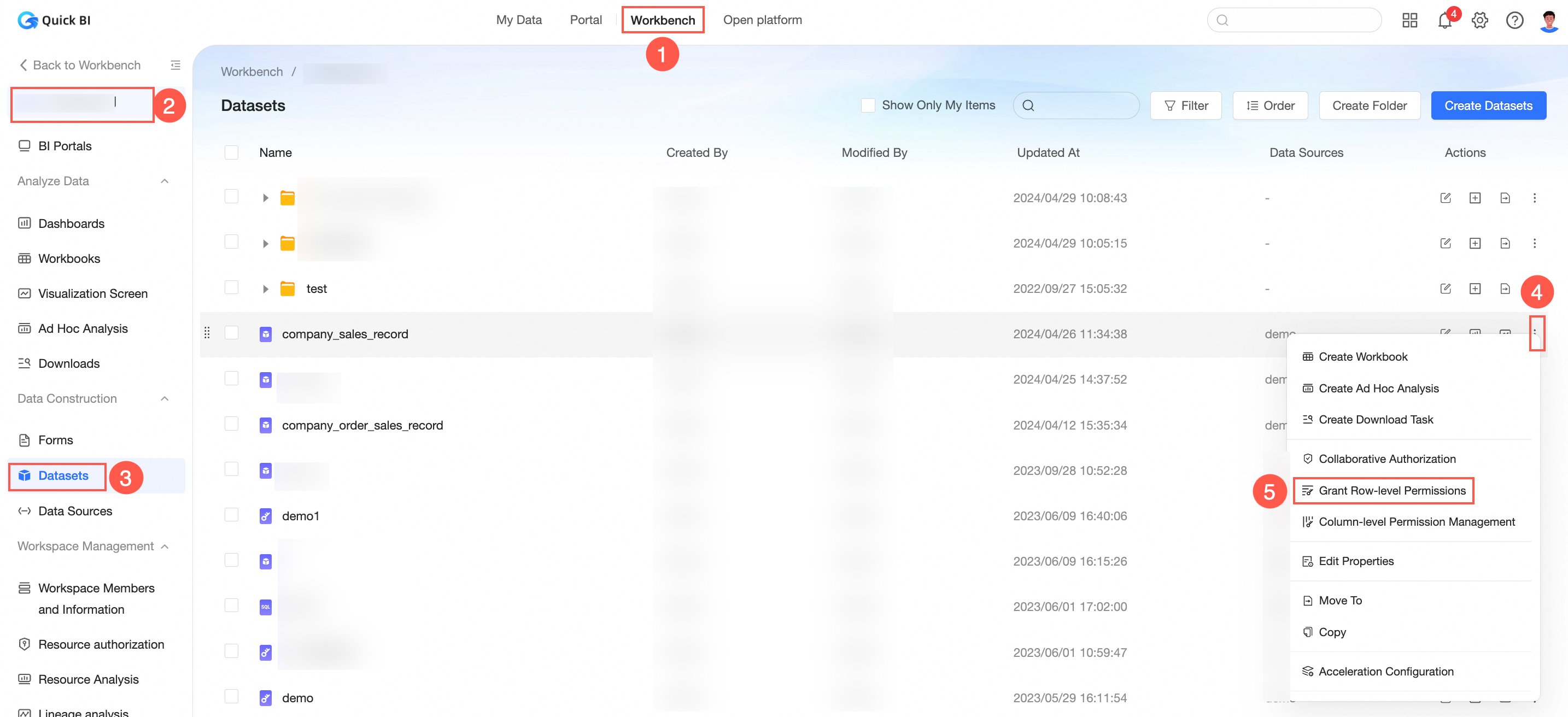 Row- and column-level permissions.
Appendix 2: Global Parameter Generation
Configure global parameters in the target dashboard or workbook. These parameters are used when generating AccessTickets.
The parameter name for global parameters is GlobalParam. The parameter value is a JSON array:
[
  {
    "paramKey": "price", // Global parameter key
    "joinType": "and",   // Join type. Use 'and'.
    "conditionList": [
      {
        "operate": "=", // Operator. See the description below.
        "value": "1"    // Value. For multiple values, use an array, such as ["1", "2"].
      },
      {
        "operate": "=", // Operator. See the description below.
        "value": "2"    // Value. For multiple values, use an array, such as ["1", "2"].
      }
    ]
  },
  {
    "paramKey": "area", // Global parameter key
    "joinType": "and",   // Join type. Use 'and'.
    "conditionList": [
      {
        "operate": "in",          // Operator
        "value": ["North China","South China"]    // Value. For multiple values, use an array.
      }
    ]
  }
]
Common enumerations for the operate field:
|
Operator |
Description |
Notes |
|
= |
Equal to |
- |
|
!= |
Not equal to |
- |
|
> |
Greater than |
- |
|
>= |
Greater than or equal to |
- |
|
< |
Less than |
- |
|
<= |
Less than or equal to |
- |
|
in |
in |
The parameter value must be an array. |
|
not-in |
not in |
The parameter value must be an array. |
|
like |
like |
Fuzzy match for keywords. SQL automatically parses this into |
|
contain |
String contains |
SQL automatically parses this into |
|
start-with |
String starts with |
SQL automatically parses this into |
|
end-with |
String ends with |
SQL automatically parses this into |
How to quickly obtain global parameter examples
To obtain global parameter examples, use the debugging page on the Open Platform:
-
Go to the embedded analytics page on the Open Platform, select a dashboard with global parameters configured, and click Debug.

-
Click Quick Generate. On the ticket generation page, configure the global parameters.

-
In Google Chrome, press F12 to open developer tools and view the network traffic.

-
Click Generate Ticket and view the API request in developer tools.

The request body contains the global parameter JSON for the current report.
Appendix 3: Number of Embeddable Reports
|
Number of purchased users |
Number of third-party embeddings |
|
50 |
100 |
|
100 |
200 |
|
200 |
500 |
|
300 |
1,000 |
These are the default embedding limits for Quick BI Professional Edition.