Visual analytics transforms complex data and results into intuitive graphs and charts. This lets you quickly access key information, identify trends, and make decisions more efficiently. This topic describes two visual analytics tools in Designer: the dashboard and TensorBoard.
Introduction
The dashboard and TensorBoard are common visualization tools used in data analytics and machine learning. Each tool is suited for different scenarios:
|
Comparison items |
Dashboard |
TensorBoard |
|
Purpose |
Used for visualizing business data. Suited for displaying data analytics results, business metrics, and real-time data monitoring. |
Used to visualize the machine learning model training process. It helps developers understand, debug, and optimize models. |
|
Features |
Provides various chart types and a drag-and-drop interface. This allows users to create interactive and visually compelling data dashboards. |
Includes tools to visualize loss function curves, accuracy curves, model structures, parameter distributions, and learning rate changes. |
|
Scenarios |
Enterprise-level data analytics, operational monitoring, and business reporting. |
Monitoring deep learning model training, analyzing model performance, and comparing experiments. |
|
Supported algorithm components |
|
|
|
Usage |
View analysis reports on the dashboard
Create a workflow and run it. Upon successful execution:
-
View all visual components: Click
 above the canvas to view the visualizations for all components in the current workflow that support the dashboard. This topic uses the Heart Disease Prediction preset template as an example.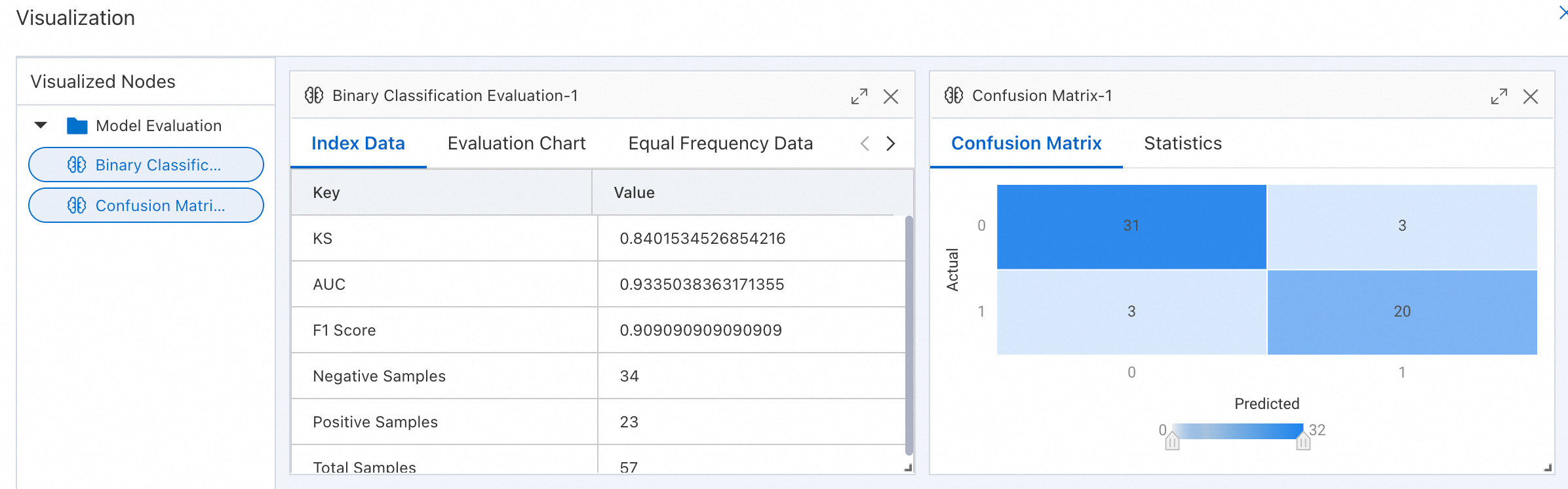
-
View a single visual component: Right-click the target component (a component that supports the dashboard, such as Confusion Matrix or Binary Classification Evaluation in this example) and select Visual Analysis. This displays the visualization for the component.
View model training results on TensorBoard
-
Create a workflow that uses components that support TensorBoard. For a list of supported components, see Introduction.
When you create the workflow, configure the Pipeline Data Storage path. The path that TensorBoard renders is determined by the algorithm's logic. The system automatically retrieves the pipeline's data storage path when TensorBoard starts.
-
Configure the workflow components as needed and run the workflow.
NoteIf the TensorBoard visualization component is Object Detection Training (easycv), set the Model Type parameter to YOLOX. Only YOLOX models currently support metric collection for TensorBoard.
-
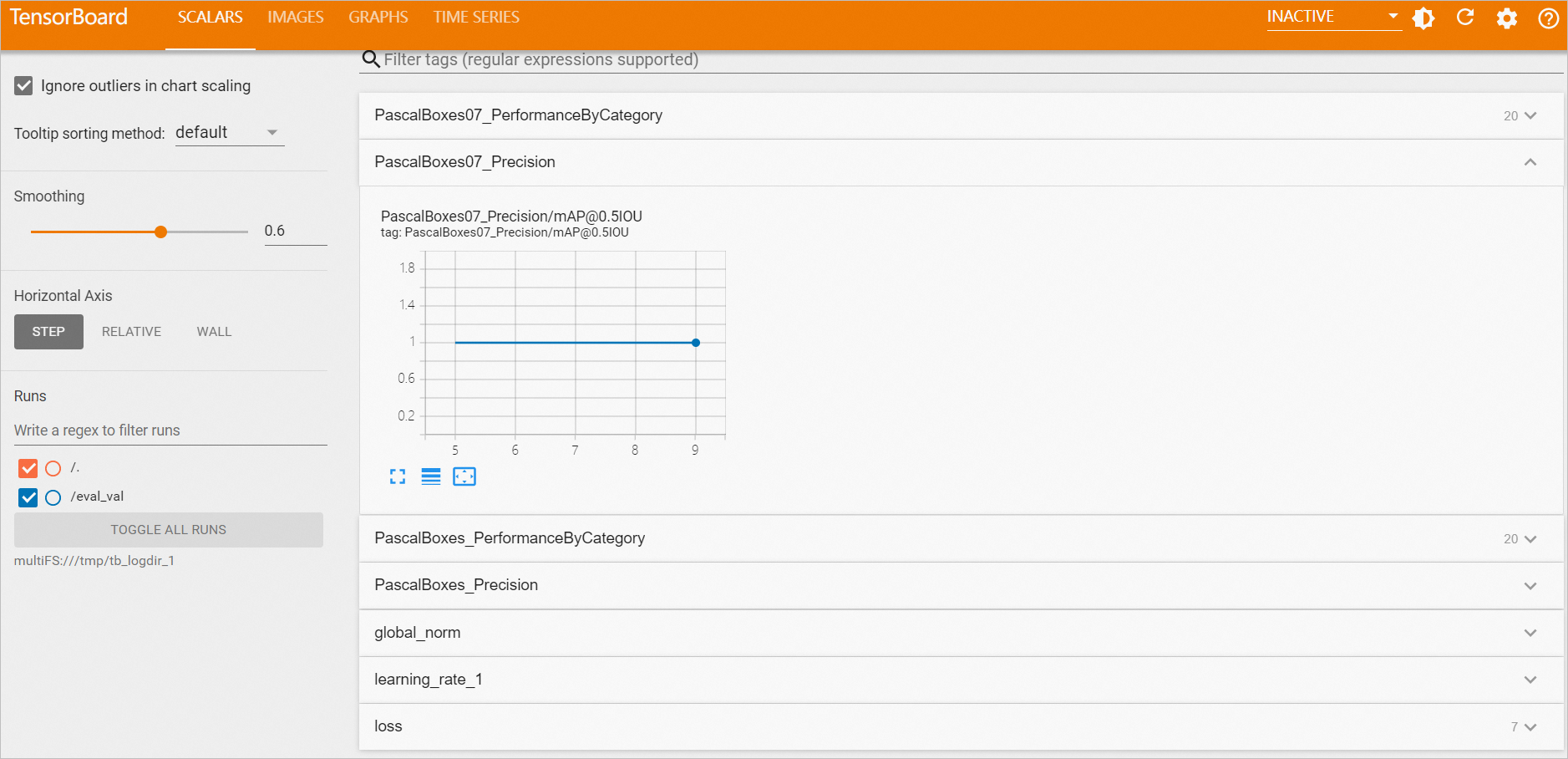
Upon successful execution, right-click the TensorBoard visualization component and select View TensorBoard.
-
Click Start TensorBoard.
If the Pipeline Data Storage path changes, rerun the TensorBoard visualization component by right-clicking the node and selecting Run This Node. Then, start TensorBoard again. The system deletes the running TensorBoard instance and starts a new one based on the updated storage path.