Learn the AOQ Client SDK workflow: obtain credentials, initialize the SDK, configure media directions, connect, exchange model events, and release resources.
AOQ transmits audio, video, and model events on separate tracks. The SDK handles media capture, encoding, decoding, transport, and playback. Your application sends model events and handles responses over Data tracks. Select the media directions and event protocol required by your target model.
Prerequisites
-
Complete the preparations in Connection overview and confirm the target model, region, and AOQ support.
-
Import the SDK for your platform from SDK download. Import the corresponding plugin if you use Opus.
-
Implement Token authentication on your application server (AppServer). Keep the API key on AppServer and provide temporary connection credentials to the client.
NoteRequest microphone or camera permission only if capture is required. For example, speech synthesis requires neither permission.
Workflow
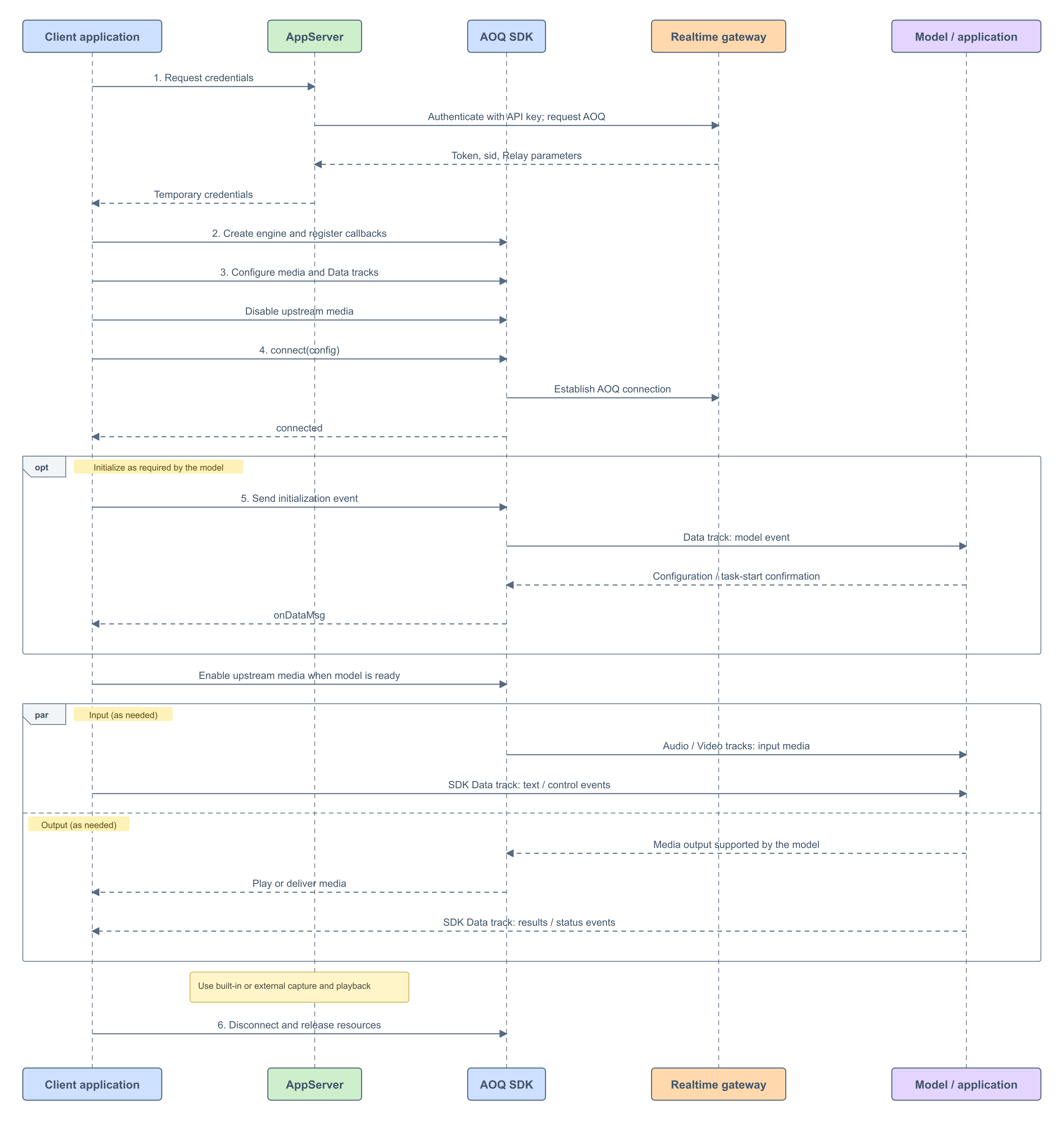
- Obtain connection credentials through AppServer.
- Create the SDK engine and register callbacks.
- Configure media and Data tracks, and disable upstream media transmission.
- Establish the AOQ connection and wait for it to connect.
- Configure the model according to its protocol. Enable the required upstream media after confirmation.
- Disconnect and release resources when interaction is complete.
Note
-
AOQ SDK handles media capture, processing, transmission, reception, and playback. Your application must send and receive Data messages according to the target model's event definitions.
-
A successful connection means that the transport channel to the model is established. If your application requires preliminary operations, such as configuring a voice, complete the model configuration before sending media. For example, Realtime models must wait for
session.updated, and Inference models must wait fortask-started. The client can enable the required upstream media only after model initialization succeeds.
1. Obtain connection credentials
The client requests credentials from AppServer. AppServer selects the Realtime or Inference connection endpoint for the target model and sends the API key and x-dashscope-rtc-transport: moq header to the gateway. For endpoints, requests, and fields, see Token authentication.
Map the response to AoqConnectConfig:
| Gateway response | SDK configuration |
|---|---|
aoqTokenForClient | token |
sid | sid |
clientRelayCertFingerprint | certFingerprint |
clientRelayEndpoints | relayEndpoints: convert each endpoint to the required structure |
extraInfo.workspaceIdHash | workspaceIdHash |
Obtain new credentials for each new connection. Whether a session can be reused or another task can start within the same connection depends on the target model's protocol.
2. Initialize the SDK and register callbacks
Create the engine and register callbacks for connection status, Data messages, and errors. The following example uses Swift on iOS:
let createConfig = AoqCreateConfig()
createConfig.workDir = workDir
createConfig.enableDumpAudio = false
engine = AoqClientEngine.createEngine(createConfig, delegate: self)
Implement AoqEngineDelegate: maintain connection status in onConnectionStatusChange, parse model events in onDataMsg, and handle SDK errors in onError. Handle model error events separately in the Data message handler. For SDK interfaces and errors, see AOQ client SDK.
3. Configure the SDK
Select media directions
Directions are relative to the client. Configure only the input and output modalities that your application needs. Do not add tracks for unused directions.
| Direction | Configuration | Typical use |
|---|---|---|
| Send audio | Publish an Audio track, configure the encoder, and use built-in or external capture | Speech recognition, conversation, and translation |
| Receive audio | Subscribe to an Audio track, configure the decoder, and use built-in or external playback | Speech synthesis and spoken responses |
| Send video | Publish a Video track and configure camera or external input and encoding | Provide images to a model that supports visual input |
| Receive video | Configure subscription and reception only if the target model or application explicitly supports video output | Follow the target model or application documentation |
Data tracks are independent of these four directions: publish a Data track to send model events and subscribe to receive responses. Text input and output also require Data tracks.
Choose directions for your model
The following table lists typical configurations. For supported models and versions, see Realtime API overview and the model documentation.
| Model or application | Send audio | Receive audio | Send video | Receive video |
|---|---|---|---|---|
| Qwen-Omni-Realtime | For speech input | For spoken responses | For visual input | Not supported |
| Qwen-Audio-Realtime | For voice conversations | For spoken responses | Not supported | Not supported |
| Qwen-Audio-TTS, CosyVoice | Not supported | Enabled | Not supported | Not supported |
| Qwen-Audio-ASR-Flash-Streaming, Fun-ASR-Realtime | Enabled | Not supported | Not supported | Not supported |
| Qwen-LiveTranslate-Realtime | For speech input | For spoken translations | Depends on the version and scenario | Not supported |
| multimodal-dialog | Based on application input | Based on application output | Based on application capabilities | Only if explicitly supported by the application |
Configure media parameters and tracks
Configure upstream and downstream audio separately: use setAudioEncoderConfig for upstream audio and setAudioDecoderConfig for downstream audio. These parameters control network transmission; the gateway converts audio to the format required by the model. Configure transport encoding and the audio format in model events according to the SDK and target model requirements, respectively.
Start startAudioCapture, startAudioPlayer, or startVideoCapture as needed. For custom input and output, see Advanced features below.
publishTracks are sent by the client, and subscribeTracks are received by the client:
| Scenario | publishTracks | subscribeTracks |
|---|---|---|
| Voice conversation | Audio, Data | Audio, Data |
| Voice conversation with visual input | Audio, Video, Data | Audio, Data |
| Speech recognition | Audio, Data | Data |
| Speech synthesis | Data | Audio, Data |
Disable upstream media before connecting to prevent input from reaching the model before it is ready:
engine.enableSendMediaStream(.audio, enable: false)
engine.enableSendMediaStream(.video, enable: false)
Capture, track publication, and permission to send are separate operations. Disabling transmission does not stop local capture or affect Data events. Enabling transmission does not create tracks that were not added.
4. Establish the connection
Populate AoqConnectConfig with credentials and track configuration, then call:
engine.connect(connectConfig)
Wait for .connected in onConnectionStatusChange before initializing the model. A return from connect does not mean that the connection has succeeded.
5. Exchange model events and media
Send and parse model events
Send events over the Data track. Example for Swift on iOS:
// Build eventJSON according to the target model client event protocol.
let msg = AoqDataMsg()
msg.data = eventJSON.data(using: .utf8)!
engine.send(msg)
Parse responses in onDataMsg. Do not assume that every event uses type: Realtime events typically use type, whereas Inference server events use header.event. Follow the target model's documentation for fields, parameters, and completion conditions.
Enable media after the model is ready
After the current model, session, or task satisfies its readiness conditions, enable only the configured upstream directions. For speech input, call:
engine.enableSendMediaStream(.audio, enable: true)
Enable .video only if video input is needed. TTS takes text input and requires no upstream audio or video.
Transmit audio and video on their media tracks, and model events and text on Data tracks. For example, Omni over AOQ does not require input_audio_buffer.append or input_image_buffer.append to send the same media again. Handle downstream audio with the configured player or external playback logic.
6. End interaction and release resources
When the connection is no longer needed, call the AOQ SDK disconnect and resource-release interfaces from your application:
engine.disconnect()
AoqClientEngine.destroy()
After an unexpected disconnection, clear the application's readiness state and follow Connection state management. Initialize the model again after reconnecting.
Send and receive events over Data tracks
Publish and subscribe to Data tracks when connecting. To send an event, serialize it into AoqDataMsg and call engine.send(msg). Parse received messages in onDataMsg.
Follow the target model's client event definitions for outgoing event names, fields, parameters, and timing. Follow its server event definitions for response parsing, state changes, results, and errors. Send initialization events as required by the model, and subsequent text and control events as required by your application.
| Model or application | Client events (send) | Server events (receive) |
|---|---|---|
| Qwen-Omni-Realtime | Client events | Server events |
| Qwen-Audio-Realtime | Client events | Server events |
| Qwen-Audio-TTS, CosyVoice | Client events | Server events |
| Qwen-Audio-ASR-Flash-Streaming, Fun-ASR-Realtime | Client events | Server events |
| Qwen-LiveTranslate-Realtime | Client events | Server events |
| multimodal-dialog | Input Message in the interaction protocol | Output Message in the interaction protocol |
The multimodal interaction suite defines both directions in one interaction protocol. Select event definitions for the actual model version; models do not share one fixed event schema.
Also follow these rules:
-
Identify event types and correlation identifiers according to the model. Realtime events typically use
type; Inference clients useheader.action, servers useheader.event, and tasks are correlated throughtask_id. -
Handle initialization confirmation, input submission, response cancellation, and task completion over Data tracks as required by the protocol. These operations are distinct from closing the transport connection.
-
For example, Inference models use
finish-taskto end a task andtask-finishedto confirm completion. Receive any remaining results before releasing the connection. If complete playback is required, also drain pending local audio. -
Media uses media tracks. When referring to model event documentation, follow this AOQ page for media transport and available interaction modes; do not copy WebSocket media-upload mechanisms.
Advanced features
| Capability | Use case | Documentation |
|---|---|---|
| Control audio and video transmission separately | Wait for model readiness, pause upstream media, or enable video as needed | Media transmission management |
| Audio devices and processing | Encoding, decoding, speakers, file mixing, and audio frame callbacks | Common audio features |
| External audio input | Use an application-provided audio source | Custom audio capture |
| External audio output | Process or play output audio in your application | Custom audio playback |
| Video capture and input | Use a camera or application-provided images | Common video features, Custom video input |
Media transmission controls affect media only. Model response cancellation and turn submission still require the target model's events.
Best practices
-
Omni real-time calls: audio/video input, spoken responses, and session events.
-
Omni push-to-talk: button-controlled input and manual turns.
-
Qwen-Audio voice conversations: bidirectional audio.
-
Qwen-Audio speech synthesis: text input on Data tracks and speech output on Audio tracks.
-
Fun-ASR speech recognition: audio input on Audio tracks and recognition results on Data tracks.