Use AOQ to connect to qwen3.8-omni-flash-realtime and let the client control turn boundaries for push-to-talk conversations and optional image questions. The client code uses iOS Swift.
Solution overview
Qwen-Omni-Realtime supports server-side VAD and client-controlled Manual mode. This tutorial sets session.turn_detection to null. The client sends audio while the user holds a button, and commits the audio and explicitly requests a response when the user releases the button.
Manual mode is suitable for hardware intercom buttons, press-and-hold controls, noisy environments in which the application determines turn boundaries, and turns that optionally include an image. Audio is transported over the AOQ Audio track. Do not send input_audio_buffer.append.
Item | VAD mode | Manual mode |
Turn boundary | Detected by server_vad or semantic_vad | Controlled by a button or application state |
Session setting | turn_detection contains VAD settings | turn_detection is null |
Audio commit | Performed automatically by the service | The client sends input_audio_buffer.commit |
Response trigger | Triggered automatically by the service | The client sends response.create |
Image input | Continuous Video track or an image over the Data track | Continuous Video track or an image over the Data track |
Prerequisites
- Activate Model Studio and follow Obtain and configure an API key. Store the API key only on your application server. Do not include it in client code or commit it to a code repository.
- Set
{endpoint}to{WorkspaceId}.cn-beijing.maas.aliyuncs.comfor China (Beijing) or{WorkspaceId}.ap-southeast-1.maas.aliyuncs.comfor Singapore. Replace{WorkspaceId}with your workspace ID and use the API key for the same region and workspace. - Download the latest AOQ Client SDK as described in SDK download.
- Build an application server and implement proxy authentication as described in Token authentication. Before each new connection, the client must obtain new connection credentials from the application server.
Import the SDK
Import the SDK for your development platform. The client implementation uses iOS Swift. Other platforms provide the same interfaces and event flow. This tutorial uses Opus audio streams. Import the Opus plugin before proceeding.
Android
- Place libPluginOpus.so from the Opus plugin in app/src/main/jniLibs/armeabi-v7a/ and app/src/main/jniLibs/arm64-v8a/ for the corresponding ABIs. Place AoqClientSdk-release.aar in app/libs, and configure the dependency and SDK-supported ABIs in app/build.gradle:
android {
    defaultConfig {
        minSdk 21
        ndk { abiFilters 'armeabi-v7a', 'arm64-v8a' }
    }
}

dependencies {
    implementation fileTree(dir: 'libs', include: ['*.aar'])
}
- Declare the following permissions in AndroidManifest.xml:
<uses-permission android:name="android.permission.INTERNET" />
<uses-permission android:name="android.permission.ACCESS_NETWORK_STATE" />
<uses-permission android:name="android.permission.RECORD_AUDIO" />
<uses-permission android:name="android.permission.MODIFY_AUDIO_SETTINGS" />
<uses-permission android:name="android.permission.CAMERA" />
- Request the RECORD_AUDIO and CAMERA permissions at runtime before the corresponding devices are used.
iOS
- Add AoqClientSdk.framework and PluginOpus.framework to the Xcode project and select Embed & Sign under Target > General > Frameworks, Libraries, and Embedded Content. The SDK supports arm64 devices running iOS 13.0 or later.
- Add NSMicrophoneUsageDescription and NSCameraUsageDescription to Info.plist and request authorization before the corresponding devices are used.
- Use import AoqClientSdk in Swift or #import <AoqClientSdk/AoqClientSdk.h> in Objective-C.
HarmonyOS
- Place libPluginOpus.so from the Opus plugin in entry/libs/arm64-v8a/. Place AoqClientSdk.har in entry/libs and declare the dependency in entry/oh-package.json5. The SDK is compatible with API 12 and supports arm64-v8a:
{
  "dependencies": {
    "@aoq/client-sdk": "file:./libs/AoqClientSdk.har"
  }
}
- Declare the following permissions in entry/src/main/module.json5:
"requestPermissions": [
  { "name": "ohos.permission.INTERNET" },
  { "name": "ohos.permission.MICROPHONE",
    "reason": "$string:perm_mic_reason",
    "usedScene": { "abilities": ["EntryAbility"], "when": "inuse" } },
  { "name": "ohos.permission.CAMERA",
    "reason": "$string:perm_camera_reason",
    "usedScene": { "abilities": ["EntryAbility"], "when": "inuse" } }
]
- Before the corresponding devices are used, call abilityAccessCtrl.createAtManager().requestPermissionsFromUser to request ohos.permission.MICROPHONE and ohos.permission.CAMERA.
Linux (Python)
- Extract the SDK and keep aoq_client_sdk.py, libAoqClientSdk.so, and libonnxruntime.so.1.16.3 in the same directory.
- Add the SDK directory to the Python and dynamic library search paths:
export PYTHONPATH="$PWD/AoqClientSdk:$PYTHONPATH"
export LD_LIBRARY_PATH="$PWD/AoqClientSdk:$LD_LIBRARY_PATH"
- Use import aoq_client_sdk in Python. You can also specify the absolute path of libAoqClientSdk.so by using AOQ_CLIENT_SDK_LIB.
Implementation flow
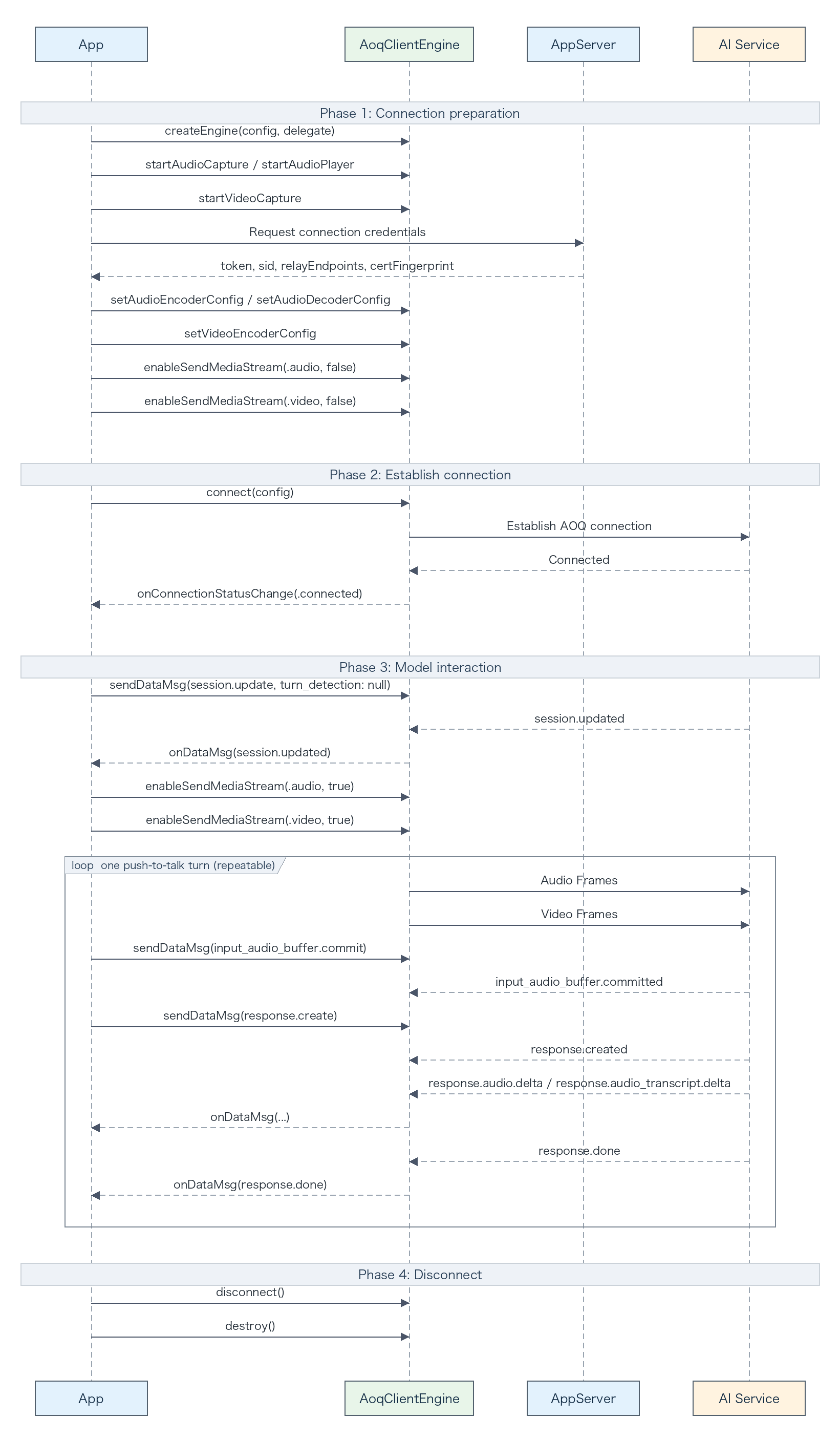
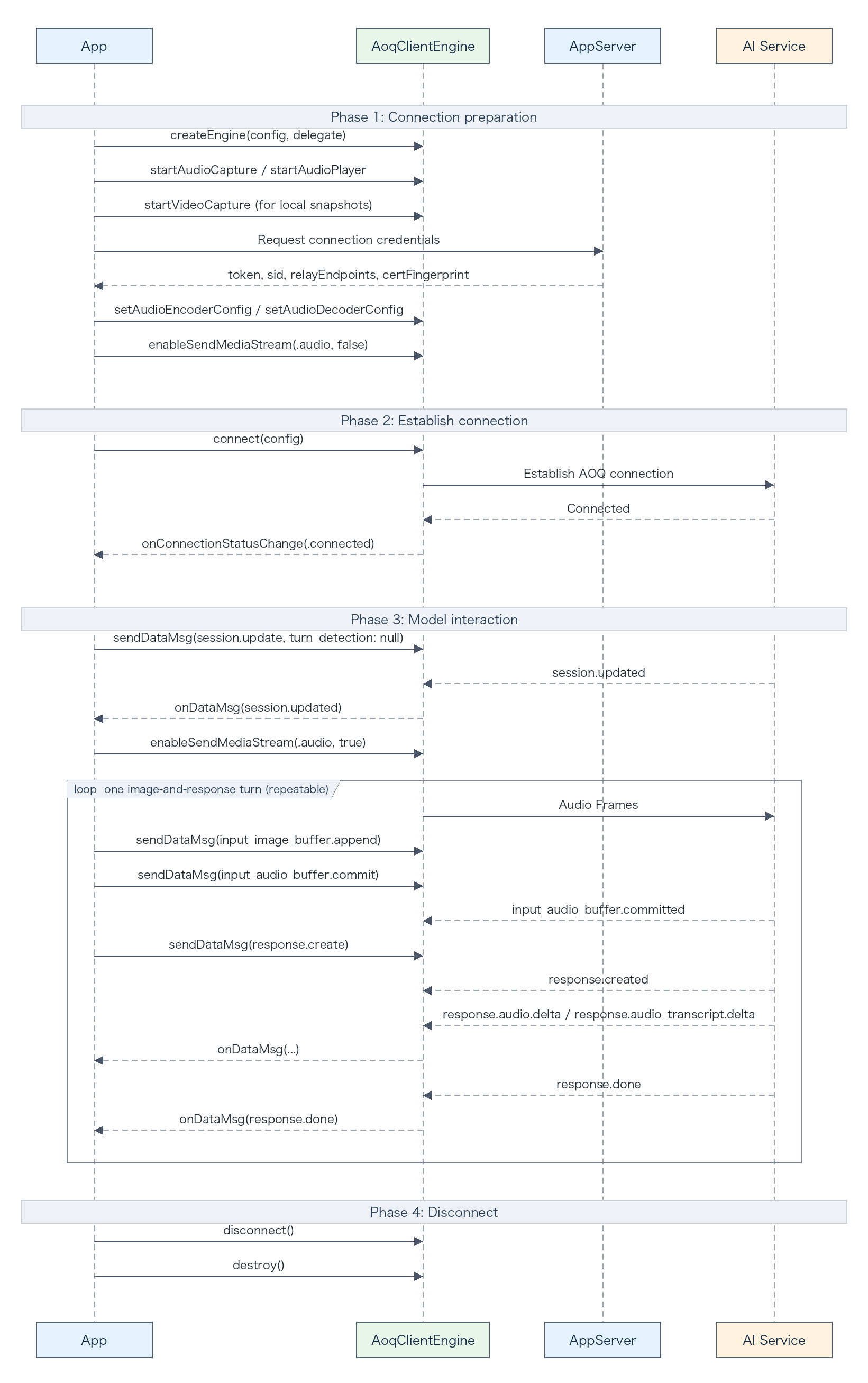
- The application server obtains AOQ connection parameters for qwen3.8-omni-flash-realtime from the Realtime token URL.
- The client creates the engine and configures audio codecs and tracks. It also configures the Video track if continuous visual understanding is required.
- The client starts local capture and playback, disables Audio-track sending by default, connects to AOQ, and sends session.update.
- After session.updated is received, the continuous-video option enables the Video track. The Audio track remains disabled until the user presses the talk button.
- When the user presses the button, the client enables the Audio track. On release, it disables the Audio track, optionally sends an image, and then sends input_audio_buffer.commit and response.create.
- After response.done is received, another turn can start. To finish, stop the devices, disconnect, and destroy the engine.
Continuous Video track
Publish the Video track and enable video sending after session.updated. The model continuously sees the latest frames. Each voice turn only needs to commit audio and request a response.
Send an image over the Data track
Do not publish the Video track. When an image is required, send input_image_buffer.append after the button is released, and then commit the audio and request a response.
Obtain a token from the application server
Set DASHSCOPE_API_KEY on the application server and send the request to the endpoint for the selected region. clientIp is the actual public IP address of the client. This field is optional, but specifying it helps the service allocate an appropriate relay endpoint.
curl -X POST \
  "https://{endpoint}/api/v1/webrtc/realtime?model=qwen3.8-omni-flash-realtime" \
  -H "Content-Type: application/json" \
  -H "Authorization: Bearer ${DASHSCOPE_API_KEY}" \
  -H "x-dashscope-rtc-transport: moq" \
  -d "{\"clientIp\": \"${CLIENT_REAL_IP}\"}"
NoteIf the application server cannot obtain the actual public IP address of the client, omit clientIp instead of passing an empty string.
The application server returns the following response fields to the client. Never return the API key to a client in production. For all request and response fields, see Token authentication.
Response field | SDK field |
aoqTokenForClient | AoqConnectConfig.token |
sid | AoqConnectConfig.sid |
clientRelayCertFingerprint | AoqConnectConfig.certFingerprint |
clientRelayEndpoints | AoqConnectConfig.relayEndpoints |
extraInfo.workspaceIdHash | AoqConnectConfig.workspaceIdHash |
Implement the iOS client
After the client obtains AoqConnectConfig from the application server, follow these steps to implement push-to-talk voice conversations on iOS.
1. Create the engine and register callbacks
Create the singleton AOQ engine and register the application object as the callback receiver. Handle connection states, server events, errors, and warnings in the callbacks.
let createConfig = AoqCreateConfig()
createConfig.workDir = workDir
engine = AoqClientEngine.createEngine(createConfig, delegate: self)
2. Start audio and video devices
Initialize audio capture and playback. Start the camera only for the continuous-video option. Obtain microphone and camera permissions before these methods are called.
let captureConfig = AoqAudioCaptureConfig()
captureConfig.channel = 1
captureConfig.isExternal = false
engine.startAudioCapture(captureConfig)

let playbackConfig = AoqAudioPlaybackConfig()
playbackConfig.channel = 1
playbackConfig.isExternal = false
playbackConfig.isDefaultSpeaker = true
engine.startAudioPlayer(playbackConfig)
3. Configure codecs and tracks
Configure the audio codecs for the selected model and the application's audio format, and select tracks for the image-input option. The following audio and video values are examples. Adjust them for the model requirements and application scenario. Disable Audio-track sending before the connection is established.
Continuous Video track
Configure the Audio, Video, and Data publish tracks. Adjust the video encoding settings for the required image quality and available bandwidth.
let audioEncoderConfig = AoqAudioCodecConfig()
audioEncoderConfig.trackType = .audio
audioEncoderConfig.codecType = .audioOpus
audioEncoderConfig.sampleRate = 16_000
audioEncoderConfig.channel = 1
engine.setAudioEncoderConfig(audioEncoderConfig)

let audioDecoderConfig = AoqAudioCodecConfig()
audioDecoderConfig.trackType = .audio
audioDecoderConfig.codecType = .audioOpus
audioDecoderConfig.sampleRate = 24_000
audioDecoderConfig.channel = 1
engine.setAudioDecoderConfig(audioDecoderConfig)

let videoEncoderConfig = AoqVideoCodecConfig()
videoEncoderConfig.trackType = .video
videoEncoderConfig.codecType = .videoJpeg
videoEncoderConfig.width = 960
videoEncoderConfig.height = 540
videoEncoderConfig.fps = 2
videoEncoderConfig.bitrate = 500_000
engine.setVideoEncoderConfig(videoEncoderConfig)

let publishAudioTrack = AoqTrackParam()
publishAudioTrack.trackType = .audio
let publishVideoTrack = AoqTrackParam()
publishVideoTrack.trackType = .video
let publishDataTrack = AoqTrackParam()
publishDataTrack.trackType = .data
let subscribeAudioTrack = AoqTrackParam()
subscribeAudioTrack.trackType = .audio
let subscribeDataTrack = AoqTrackParam()
subscribeDataTrack.trackType = .data
connectConfig.publishTracks = [publishAudioTrack, publishVideoTrack, publishDataTrack]
connectConfig.subscribeTracks = [subscribeAudioTrack, subscribeDataTrack]
Send an image over the Data track
Configure only the Audio and Data tracks. Do not configure a video encoder, which avoids continuous video capture, encoding, and transmission. The audio values are examples.
let audioEncoderConfig = AoqAudioCodecConfig()
audioEncoderConfig.trackType = .audio
audioEncoderConfig.codecType = .audioOpus
audioEncoderConfig.sampleRate = 16_000
audioEncoderConfig.channel = 1
engine.setAudioEncoderConfig(audioEncoderConfig)

let audioDecoderConfig = AoqAudioCodecConfig()
audioDecoderConfig.trackType = .audio
audioDecoderConfig.codecType = .audioOpus
audioDecoderConfig.sampleRate = 24_000
audioDecoderConfig.channel = 1
engine.setAudioDecoderConfig(audioDecoderConfig)

let publishAudioTrack = AoqTrackParam()
publishAudioTrack.trackType = .audio
let publishDataTrack = AoqTrackParam()
publishDataTrack.trackType = .data
let subscribeAudioTrack = AoqTrackParam()
subscribeAudioTrack.trackType = .audio
let subscribeDataTrack = AoqTrackParam()
subscribeDataTrack.trackType = .data
connectConfig.publishTracks = [publishAudioTrack, publishDataTrack]
connectConfig.subscribeTracks = [subscribeAudioTrack, subscribeDataTrack]
4. Configure a Manual session
After the connection is established, call sendDataMsg to send a session.update event. Set turn_detection to null and select the voice, instructions, and output modalities for your application. Keep the example audio parameters consistent with the SDK codec settings. For all fields, see Client events.
private func sendSessionUpdate() {
    let event: [String: Any] = [
        "type": "session.update",
        "session": [
            "modalities": ["text", "audio"],
            "voice": "Tina",
            "audio": [
                "input": ["format": ["type": "pcm", "sample_rate": 16_000]],
                "output": ["format": ["type": "pcm", "sample_rate": 24_000]]
            ],
            "turn_detection": NSNull()
        ]
    ]
    guard let data = try? JSONSerialization.data(withJSONObject: event) else { return }
    let dataMessage = AoqDataMsg()
    dataMessage.data = data
    engine.sendDataMsg(dataMessage)
}
5. Wait for the session configuration
Handle the session.updated event in the onDataMsg callback. Do not send media until this event is received. For the continuous-video option, call enableSendMediaStream to enable the Video track at this point, but keep the Audio track disabled so that audio before the user presses the button does not enter the input buffer.
func onDataMsg(_ msg: AoqDataMsg) {
    guard let event = try? JSONSerialization.jsonObject(with: msg.data) as? [String: Any],
          let type = event["type"] as? String else { return }
    if type == "session.updated", imageMode == .continuousVideo {
        engine.enableSendMediaStream(.video, enable: true)
    }
    // Keep Audio-track sending disabled until the talk button is pressed.
}
6. Implement push-to-talk interaction
When the button is pressed, call enableSendMediaStream to enable the Audio track. On release, call enableSendMediaStream to disable the Audio track, make sure that the turn contains audio, optionally send an image, and call sendDataMsg to send input_audio_buffer.commit followed by response.create.
func onPushToTalkPressed() {
    hasAudioInCurrentTurn = true
    engine.enableSendMediaStream(.audio, enable: true)
}

func onPushToTalkReleased(base64Jpeg: String? = nil) {
    engine.enableSendMediaStream(.audio, enable: false)
    guard hasAudioInCurrentTurn else { return }
    if imageMode == .singleImage, let base64Jpeg {
        let imageEvent: [String: Any] = [
            "type": "input_image_buffer.append",
            "image": base64Jpeg
        ]
        if let data = try? JSONSerialization.data(withJSONObject: imageEvent) {
            let dataMessage = AoqDataMsg()
            dataMessage.data = data
            engine.sendDataMsg(dataMessage)
        }
    }
    for event in [
        ["type": "input_audio_buffer.commit"],
        ["type": "response.create"]
    ] {
        guard let data = try? JSONSerialization.data(withJSONObject: event) else { continue }
        let dataMessage = AoqDataMsg()
        dataMessage.data = data
        engine.sendDataMsg(dataMessage)
    }
    hasAudioInCurrentTurn = false
}
7. Select an image-input option
Continuous visual understanding and occasional image questions use different track configurations and send behavior. Select an option based on bandwidth, power consumption, and interaction design.
Continuous Video track
Use this option for video calls, rapidly changing scenes, or continuous visual context. After the Video track is published, do not send input_image_buffer.append.
Send a single image over the Data track
Use this option for image questions or occasional images. Convert the image to JPG or JPEG, Base64-encode it, and send it after the button is released and before the audio is committed:
{
  "type": "input_image_buffer.append",
  "image": "<Base64-encoded JPEG data>"
}
- Use 480p or 720p for best performance. Do not exceed 1080p.
- The Base64-encoded image cannot exceed 256 KB. Keep the source image at or below 190 KB and reserve space for the JSON wrapper.
- The Audio track must have sent at least one audio frame in the turn before the image is sent. The subsequent input_audio_buffer.commit event commits both audio and image buffers.
8. Disconnect and destroy the engine
When the session ends, disconnect and destroy the engine. disconnect or destroy automatically closes media devices, so you do not need to call stop methods separately. AoqClientEngine is a singleton and cannot be created again until destroy is called.
engine.disconnect()
AoqClientEngine.destroy()
Complete example
The following class accepts an AoqConnectConfig that was mapped from the application-server token response. Add UI state, permissions, error recovery, and image compression in production.
import Foundation
import AoqClientSdk

final class ManualPushToTalkClient: NSObject, AoqEngineDelegate {
    enum ImageMode: Equatable {
        case none
        case continuousVideo
        case singleImage
    }

    private var engine: AoqClientEngine!
    private let imageMode: ImageMode
    private var hasAudioInCurrentTurn = false

    init(workDir: String, connectConfig: AoqConnectConfig, imageMode: ImageMode) {
        self.imageMode = imageMode
        super.init()
        let createConfig = AoqCreateConfig()
        createConfig.workDir = workDir
        self.engine = AoqClientEngine.createEngine(createConfig, delegate: self)

        // Example values. Match these settings to the selected model and application format.
        let audioEncoderConfig = AoqAudioCodecConfig()
        audioEncoderConfig.trackType = .audio
        audioEncoderConfig.codecType = .audioOpus
        audioEncoderConfig.sampleRate = 16_000
        audioEncoderConfig.channel = 1
        engine.setAudioEncoderConfig(audioEncoderConfig)

        let audioDecoderConfig = AoqAudioCodecConfig()
        audioDecoderConfig.trackType = .audio
        audioDecoderConfig.codecType = .audioOpus
        audioDecoderConfig.sampleRate = 24_000
        audioDecoderConfig.channel = 1
        engine.setAudioDecoderConfig(audioDecoderConfig)

        let publishAudioTrack = AoqTrackParam()
        publishAudioTrack.trackType = .audio
        let publishDataTrack = AoqTrackParam()
        publishDataTrack.trackType = .data
        let subscribeAudioTrack = AoqTrackParam()
        subscribeAudioTrack.trackType = .audio
        let subscribeDataTrack = AoqTrackParam()
        subscribeDataTrack.trackType = .data

        connectConfig.publishTracks = [publishAudioTrack, publishDataTrack]
        connectConfig.subscribeTracks = [subscribeAudioTrack, subscribeDataTrack]

        if imageMode == .continuousVideo {
            let videoEncoderConfig = AoqVideoCodecConfig()
            videoEncoderConfig.trackType = .video
            videoEncoderConfig.codecType = .videoJpeg
            videoEncoderConfig.width = 960
            videoEncoderConfig.height = 540
            videoEncoderConfig.fps = 2
            videoEncoderConfig.bitrate = 500_000
            engine.setVideoEncoderConfig(videoEncoderConfig)

            let publishVideoTrack = AoqTrackParam()
            publishVideoTrack.trackType = .video
            connectConfig.publishTracks = [publishAudioTrack, publishVideoTrack, publishDataTrack]
        }

        let captureConfig = AoqAudioCaptureConfig()
        captureConfig.channel = 1
        captureConfig.isExternal = false
        engine.startAudioCapture(captureConfig)

        let playbackConfig = AoqAudioPlaybackConfig()
        playbackConfig.channel = 1
        playbackConfig.isExternal = false
        playbackConfig.isDefaultSpeaker = true
        engine.startAudioPlayer(playbackConfig)

        if imageMode == .continuousVideo {
            let videoCaptureConfig = AoqVideoCaptureConfig()
            videoCaptureConfig.width = 1280
            videoCaptureConfig.height = 720
            videoCaptureConfig.fps = 15
            engine.startVideoCapture(videoCaptureConfig)
        }

        engine.enableSendMediaStream(.audio, enable: false)
        if imageMode == .continuousVideo {
            engine.enableSendMediaStream(.video, enable: false)
        }
        engine.connect(connectConfig)
    }

    func onPushToTalkPressed() {
        hasAudioInCurrentTurn = true
        engine.enableSendMediaStream(.audio, enable: true)
    }

    func onPushToTalkReleased(base64Jpeg: String? = nil) {
        engine.enableSendMediaStream(.audio, enable: false)
        guard hasAudioInCurrentTurn else { return }
        if imageMode == .singleImage, let base64Jpeg {
            let imageEvent: [String: Any] = [
                "type": "input_image_buffer.append",
                "image": base64Jpeg
            ]
            if let data = try? JSONSerialization.data(withJSONObject: imageEvent) {
                let dataMessage = AoqDataMsg()
                dataMessage.data = data
                engine.sendDataMsg(dataMessage)
            }
        }
        for event in [
            ["type": "input_audio_buffer.commit"],
            ["type": "response.create"]
        ] {
            guard let data = try? JSONSerialization.data(withJSONObject: event) else { continue }
            let dataMessage = AoqDataMsg()
            dataMessage.data = data
            engine.sendDataMsg(dataMessage)
        }
        hasAudioInCurrentTurn = false
    }

    private func sendSessionUpdate() {
        let event: [String: Any] = [
            "type": "session.update",
            "session": [
                "modalities": ["text", "audio"],
                "voice": "Tina",
                "audio": [
                    "input": ["format": ["type": "pcm", "sample_rate": 16_000]],
                    "output": ["format": ["type": "pcm", "sample_rate": 24_000]]
                ],
                "turn_detection": NSNull()
            ]
        ]
        guard let data = try? JSONSerialization.data(withJSONObject: event) else { return }
        let dataMessage = AoqDataMsg()
        dataMessage.data = data
        engine.sendDataMsg(dataMessage)
    }

    func close() {
        engine.disconnect()
        AoqClientEngine.destroy()
    }

    func onConnectionStatusChange(_ status: AoqConnectionStatus) {
        if status == .connected { sendSessionUpdate() }
    }

    func onDataMsg(_ msg: AoqDataMsg) {
        guard let event = try? JSONSerialization.jsonObject(with: msg.data) as? [String: Any],
              let type = event["type"] as? String else { return }
        if type == "session.updated", imageMode == .continuousVideo {
            engine.enableSendMediaStream(.video, enable: true)
        }
    }

    func onError(_ code: Int, message: String) {}
    func onWarning(_ code: Int, message: String) {}
    func onStats(_ stats: AoqStats) {}
    func onAudioDeviceStateChanged(_ state: AoqAudioDeviceState) {}
    func onAudioDeviceRouteChanged(_ routeType: Int) {}
    func onAudioDeviceInterrupted(_ interrupt: Bool) {}
    func onAudioFileState(_ state: AoqAudioFileState) {}
    func onVideoDeviceStateChanged(_ state: AoqVideoDeviceState) {}
}
Run and verify
Complete one audio-only push-to-talk turn and one turn with an image. Expected results:
- The Audio track is disabled before the button is pressed and sends audio continuously while the button is held.
- After release, input_audio_buffer.committed, response.created, and response.done are received in sequence, and model audio is played over the subscribed Audio track.
- With the single-image option, the model responds using the image and audio from the turn. With continuous video, it uses the latest video frames.
For server event fields and complete response schemas, see Server events.
Important considerations
- AOQ transports audio over the Audio track. Do not also send input_audio_buffer.append.
- input_audio_buffer.commit only commits the turn and does not trigger a model response. Send response.create afterward.
- Do not commit an empty audio buffer. The service returns an error.
- Do not enable media sending before session.updated. In Manual mode, do not enable the Audio track before the user presses the button.
Related information
For all parameters, event fields, and interfaces for other platforms, see: