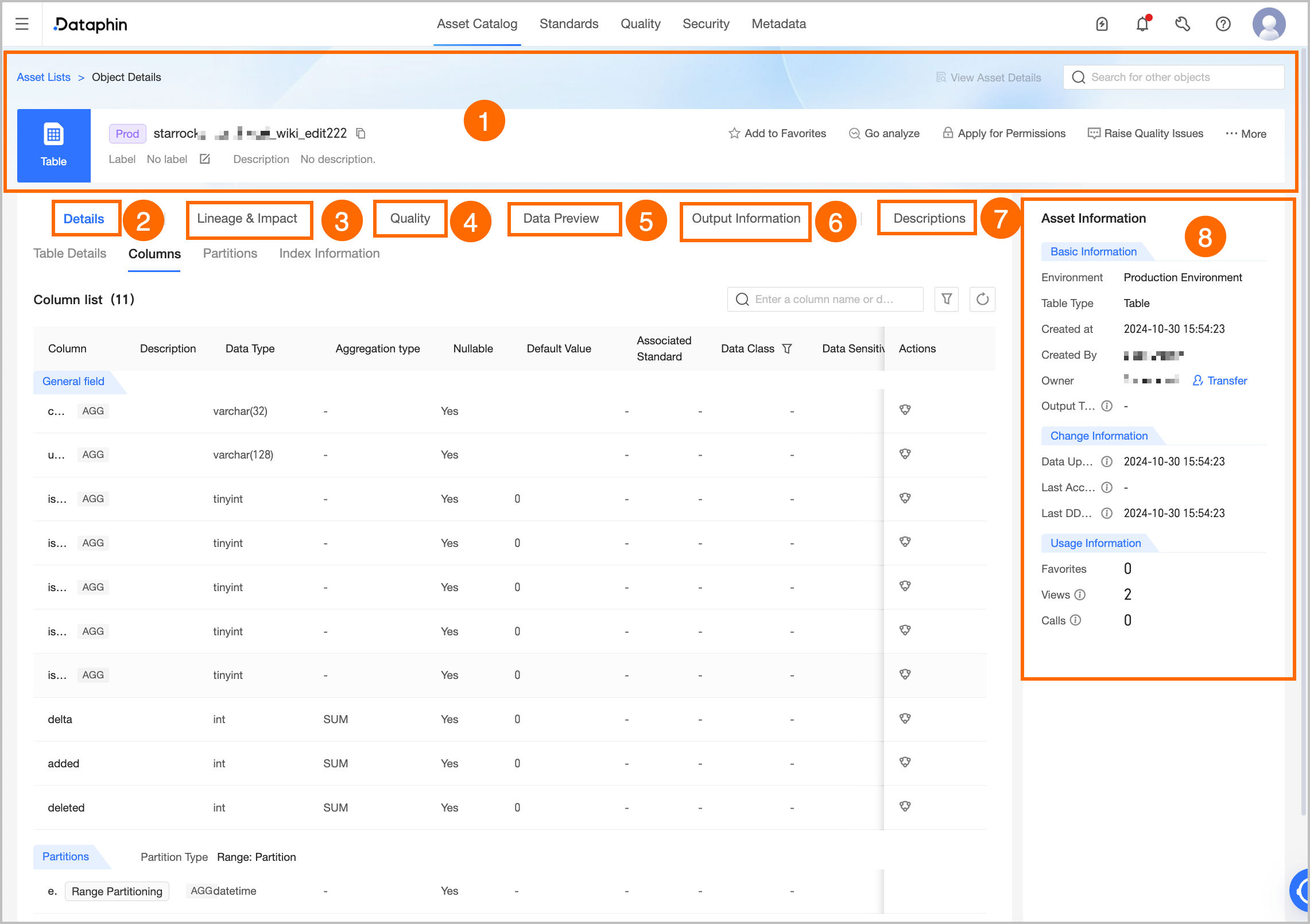
Area | Description |
①Summary | Displays information about the table, such as its type, name, owner, description, and tags. You can also perform the following operations: Search for other assets: Quickly search for and switch to the details pages of other assets. View Asset Details: If the current object is listed in the Asset Catalog, you can go to the catalog details page to view the listing information. View Production/development Object: Quickly switch to the details page of the current object in the production or development environment. Tag: Displays the tags that are configured for the current asset. To modify the tags, click Edit. Each tag value can be up to 128 characters in length. You can configure a maximum of 20 tags for each asset. A super administrator can modify the asset tags of all table types. A table owner can modify the asset tags for tables they own. A project administrator can modify the asset tags for physical tables in the projects they manage.
Favorite: Click to add the asset to or remove it from your favorites. After you add an asset to your favorites, you can view the 30 most recently added assets on the My Footprints tab of the Asset Checklist page for easy reference. You can also view all your favorite assets in the Personal Data Center. For more information, see View and manage my favorite assets. Go To Analysis: Click to go to the Notebook page and automatically create a Notebook. For more information, see Create a Notebook. Request Permission: Click to go to the permission request page for the current table. For more information, see Request, renew, and return table permissions. Report quality issue: Use this feature to report quality issues that you encounter when you use the asset, such as unstable data output or inaccurate data content, to the owner. This notifies the owner to make timely corrections, which helps improve the availability and health of the asset. For more information about the configuration, see Add and manage an issue checklist. You must enable the Data Quality module to use the report quality issue feature. You can then view the processing flow and results of the reported issues in the issue checklist of the Data Quality module. Generate SELECT Statement: In the upper-right corner, click More and select Generate SELECT Statement to generate a query statement for the current table. You can choose whether to add escape characters. You can copy the query statement to the ad hoc query or analysis page to query data. 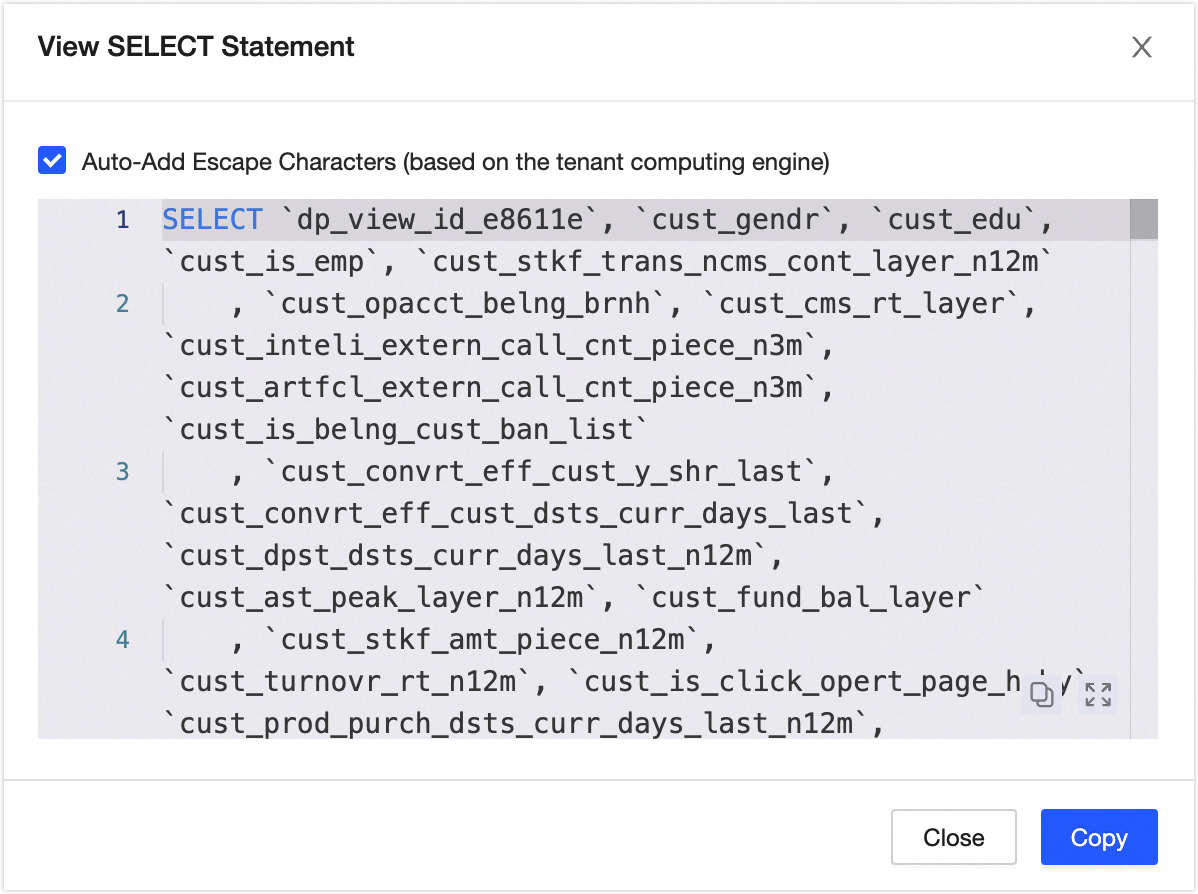
View DDL Statement: In the upper-right corner, click More and select View DDL Statement to view the DDL statement for the current data table in the tenant compute engine. You can also select a Data Source Type and click Generate DDL Statement. The system generates a DDL statement to create a table that has the same structure as the current table in a data source of the specified type. If you select Automatically Add Escape Characters, the generated DDL statement automatically includes the corresponding escape characters based on the selected source type. This reduces issues such as incorrect escaping of system keywords. 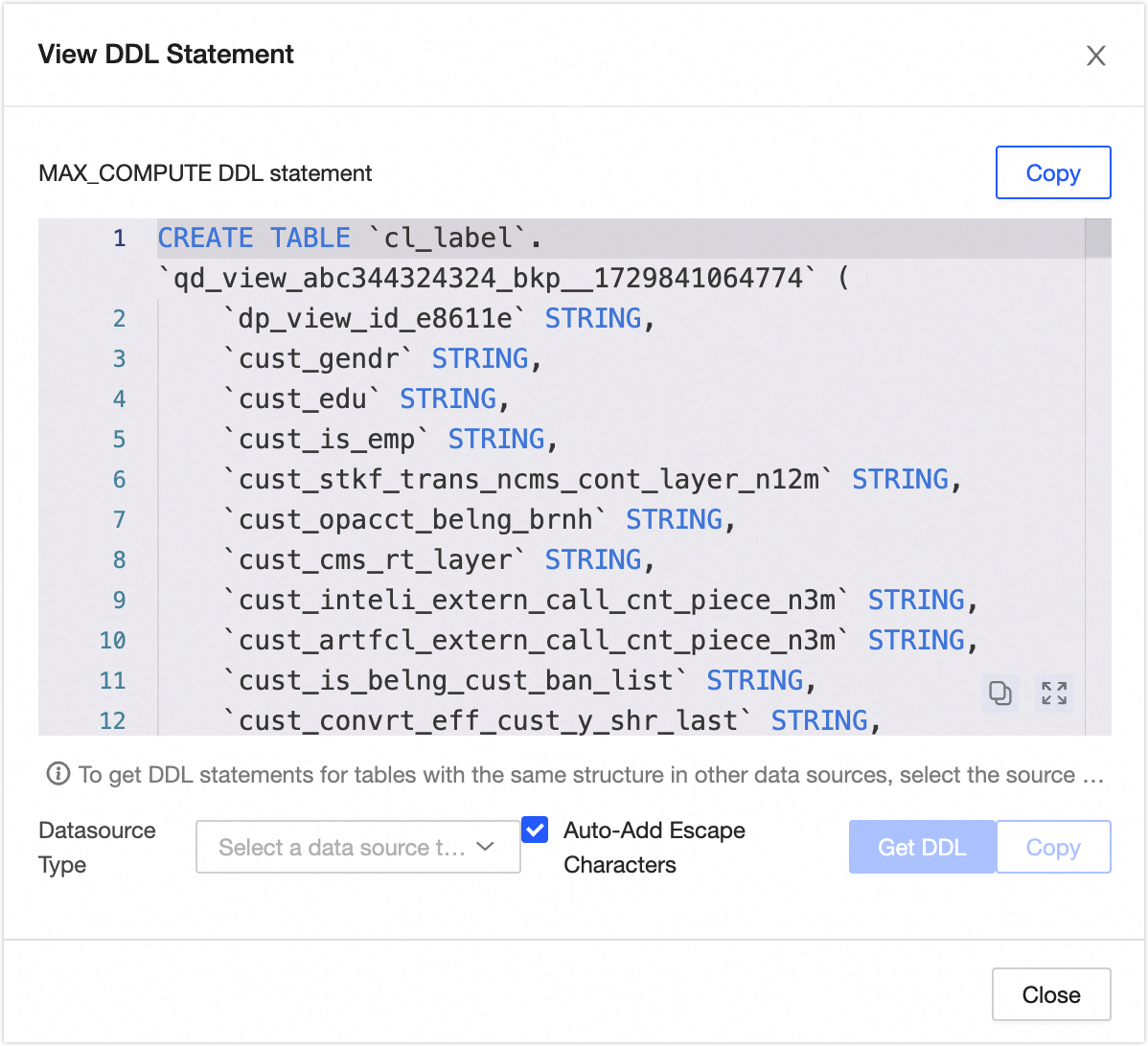
Edit Table: In the upper-right corner, click More and select Edit Table. You are redirected to the Developer > Table Management page to edit the DDL information of the table. For more information, see Create an offline physical table. Export Fields: In the upper-right corner, click More and select Export Fields to export field information from the table in CSV format. This allows other developers or business personnel to quickly analyze and use the information. View Change Records: In the upper-right corner, click More and select View Change Records to view the 100 most recent owner change records for the current data table. View Permission List: In the upper-right corner, click More and select View Permission List to view the permission information of the data table. Refresh Metadata: In the upper-right corner, click More and select Refresh Metadata. If a data table was not created on the Dataphin platform, or if a query for a new table returns no results due to a delay in metadata retrieval, click Refresh Metadata. This retrieves the latest metadata and refreshes the metadata of the specified data table in the Dataphin system.
Note Tables on the analysis platform do not support the Go to Analysis, Request Permission, Report Quality Issue, Edit Table, View Change Records, or View Permission List operations. |
②Details | Displays information about the table, fields, partitions, and indexes. Detail: Displays the properties of the table. Properties include Data Plate, Subject Area, Project, Highest Sensitivity Level (requires the Data Security feature), Is Partitioned Table, Is Manually Created Table on Analysis Platform, Storage Class, Storage Format, Storage Size, Partition Granularity, and Number of Retained Partitions. Project: The project to which the current table belongs. Click the project name to go to the asset details page of the project. Highest Sensitivity Level: The highest sensitivity level among the fields in the current table. This helps you quickly understand the data confidentiality of the table. Data classification levels range from L1 (Public) to L4 (Top Secret), from lowest to highest. You can also use custom data classification levels. Storage Class: The storage class of the current table. The storage class can be internal table or foreign table. Storage Size: The actual storage size of the current table. This is updated on a T+1 basis. Partition Granularity: The partition granularity of the current table. Number Of Retained Partitions: The number of recent partitions that are retained for the current table.
Note The physical information that is displayed varies based on the table type. The following list describes the details:
Field Information: The field list includes Field Name, Key Type, Description, Data Type, Aggregation Type, Nullable, Default Value, Associated Standard (requires the Data Standard module), Sample Data (displayed only if the data sampling feature is enabled), Data Classification (requires the Data Security module), Sensitivity Level (requires the Data Security module), and Heat. You can also search for, filter, and view the lineage of fields. View field lineage: In the Actions column, click the field lineage  icon to view the field lineage centered on the specified field. icon to view the field lineage centered on the specified field. Search and filter: You can search for fields by name or description. You can also filter fields by data classification and sensitivity level (requires Data Security).
Range partitioning is supported for fields. If the compute engine is Doris or SelectDB, Range partition information cannot be retrieved. The distribution key includes a list of fields and the number of buckets. If the number of buckets is not specified, it is displayed as -. If the table uses a primary key model, the sort key information is displayed, which includes a list of fields.
Note If the data table is a physical table (foreign table), the table details do not include partition, distribution key, or sort key information. The field list does not include key type, aggregation type, nullable, or default value information.
Partition Info: You can view the partition information of the data table. Multi-level partitions are displayed as a combination of each partition level, separated by a forward slash (/). For example, ds=20221001/pt1=a/pt2=b. Note: The number of partition records and storage size are for reference only.
Note If the data table is a physical table (internal table) and you use Less Than and fixed range to create partitions, the partition name, partition filter expression, number of records, storage size, and creation time are displayed. If the compute engine is SelectDB or the data table is a physical table (foreign table), partition information cannot be retrieved.
Index Information: If the data table is a physical table (internal table), its index information is displayed. This includes the index name, index type, included columns, and description.
Note If the compute engine is SelectDB, index information cannot be retrieved.
|
③Lineage & Impact | |
④Quality overview | If you enabled the Data Quality feature, you can view the quality monitoring report for the data. This section describes rule checks and a list of quality monitoring rules for the current data table. Click the View Report Details button or the View Rule Details button to go to the corresponding page in the Data Quality module for more details.
Note Tables on the analysis platform do not support viewing quality overviews. |
⑤Data preview | If a data table contains sample data, the sample data is displayed by default. You can also manually trigger a query to retrieve the latest data. If no sample data exists, a data preview query is automatically triggered. Sample data: This is displayed when the data sampling switch is enabled and the data preview switch in the use configuration is also enabled. Only sample data for fields for which you have column-level permissions and that do not require data masking is queried. The system stores and sorts the sample data for each field independently, but does not guarantee the existence or correctness of row records. Data preview: If you have permission to query data in the current table, you can use the data preview feature. You can preview the first 50 rows of data from only the fields for which you have permissions for SELECT statement (including field and row-level permissions). To request permissions, see Request, renew, and return table permissions.
You can search or filter the data by field, view the details of a single row, automatically adjust column widths, and transpose rows and columns. You can also click the sort icon next to a field to sort the data by selecting No Sort, Ascending, or Descending. Double-click a field value to copy the value.
Note If the field type is HyperLogLog (HLL), the information preview for the field cannot be displayed. |
⑥Output information | Output nodes include data write nodes for the object, nodes with auto-parsed or custom-configured lineage that use the current table as the output table, and nodes whose output name is `Project Name.Table Name`. The list of output nodes is updated in near real-time. The output details are updated on a T+1 basis. 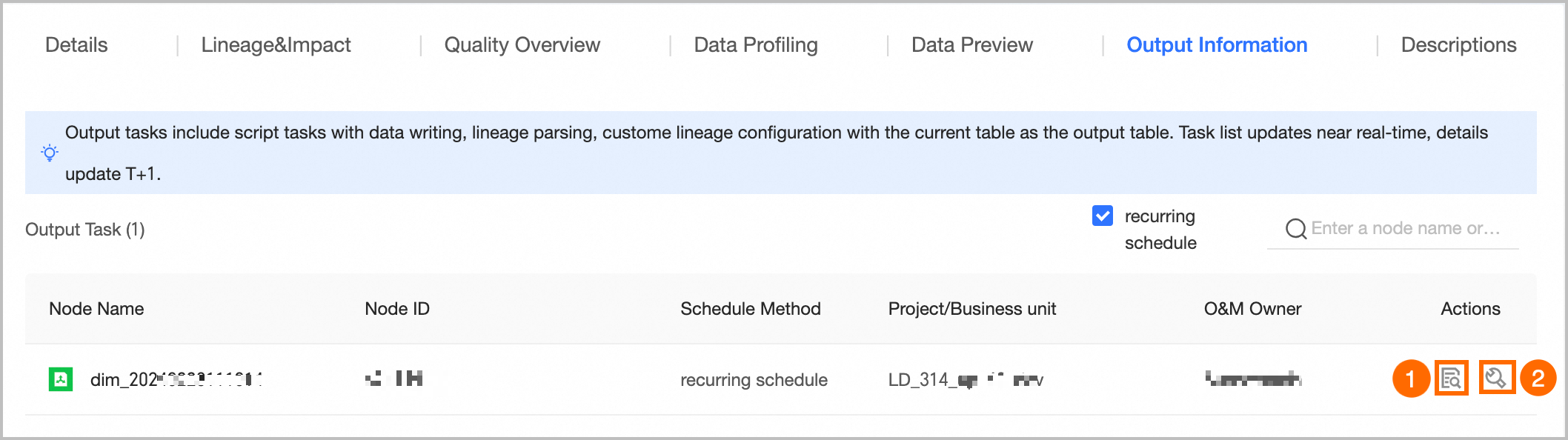
① View Output Details: You can view output details for auto triggered tasks only. For more information, see Output details. ② Go To O&M: Click the Go To O&M button to go to the node list page in the Operation Center and filter for the current node to view more information.
|
⑦Usage instructions | You can add usage instructions to a data table to provide information for data viewers and consumers. Click Add Usage Instructions, and then enter a title and content to add the instructions.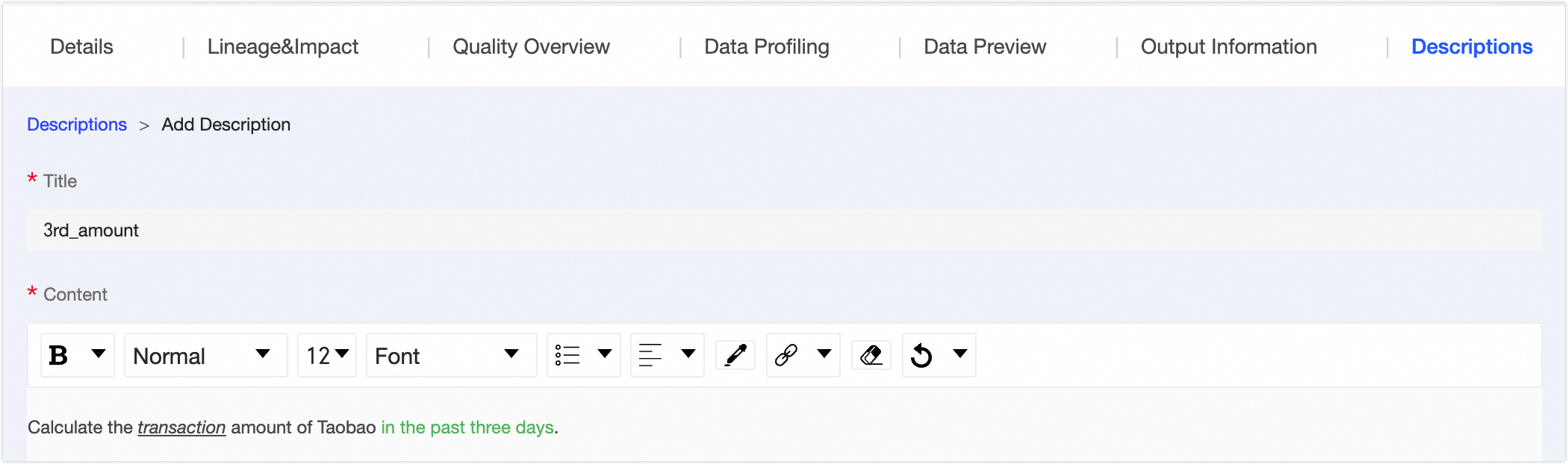 |
⑧Asset information | Displays detailed information about the physical table, including Basic Information, Change Information, and Usage Information. Basic Information: Includes Environment, Table Type, Creation Time, Creator, Owner, and Output Node. Owner: The owner of the current table. You can transfer ownership of the table to another user. In the Change Owner dialog box, you can select whether to transfer ownership of the table in the development and production environments at the same time. After you select a Recipient, click OK to immediately complete the transfer. We recommend that you inform the recipient after the transfer. You can view the transfer information on the change records page. For more information, see View change records.
Note A super administrator can transfer the ownership of all table types. A table owner can transfer the ownership of tables they own. A project administrator can transfer the ownership of physical tables in the projects they manage.
Output Node: You can view the output nodes for the current table. These nodes include data write nodes for the object, nodes that parse data lineage or are configured to use the current table as the output table, and nodes whose output name is `Project Name.Table Name`. Click the name of an output node to go to the O&M details page for the data table.
Note You can view output details for auto triggered tasks only.
Change Information: Includes Data Updated At, Last Accessed At, and Last DDL Time. Data Updated At: The time of the last table content change (DML operation) that Dataphin parsed from SQL. Changes that are triggered by external systems are not recorded. This value is updated in real time. Last Accessed At: The time of the most recent SELECT statement (a DQL operation) that Dataphin parsed from SQL. Accesses that are triggered by external systems are not recorded. This value is updated in real time. Last DDL Time: The time of the most recent schema evolution (DDL operation) that Dataphin parsed from SQL. Changes that are triggered by external systems are not recorded. This value is updated in real time.
Usage Information: Includes Number Of Favorites, Page Views, and Visits. Number Of Favorites: The number of users who have added the current table to their favorites. This value is updated in real time. Page Views: The number of page views (PV) for the current data table. This value increases by one each time the page is refreshed and is updated in real time. Visits: The total number of visits in the last 30 days. A visit is counted when the table is selected in a Dataphin node (a DQL operation). The count is determined by SQL parsing and is updated on a T+1 basis.
|
 icon in the Actions column to open the object details page.