Data sampling helps business users better understand data patterns and develop SQL. This topic describes how to configure data sampling.
Prerequisites
The sampling configuration feature requires the Agile R&D Edition or a higher version, or the Asset Operations feature to be enabled.
Limitations
Automatic data sampling is supported only for data tables with 1,500 or fewer fields. Tables that exceed this limit are automatically skipped.
Permissions
Super administrators, operations administrators, and custom global roles with the Sampling Configuration-Management permission can manage sampling configurations.
Procedure
In the top navigation bar of the Dataphin homepage, choose Governance > Metadata.
In the left-side navigation pane, choose General Configuration > Sampling Configuration. On the Sampling Configuration page, you can configure data sampling for compute source tables and data source tables separately.
Basic
Click Edit at the bottom of the page and configure the parameters.
Parameter
Description
Data sampling
The master switch for all sampling configurations.
When enabled, you can configure settings on the Basic configuration, Compute source, and Data source tabs. Verify the automatic sampling settings on the Compute source and Data source tabs to ensure they meet your expectations.
When disabled, you cannot trigger automatic or manual sampling, nor can you use sample data in related scenarios. You can choose to either delete the existing sample data or keep it.
Delete synchronously: Deletes all existing sample data.
Keep existing data: Retains the sample data, but you cannot view or use it. The data becomes available again if you re-enable sampling later.
Query configuration
Auto-sampling trigger scenarios
Specifies the task types that automatically trigger a data sampling query. Supported types include Metadata collection, Data profiling, and Execution of security identification rules/standard-to-field mapping rules. The system automatically determines whether to initiate a new sampling query based on the last sampling time and the sampling update policy.
Data profiling: To use data profiling, you must have the Global Quality or Domain Quality feature enabled.
Execution of security identification rules/standard-to-field mapping rules: Enable this option if your security rules involve content-based identification or if standard-to-field mapping is configured for intelligent mapping by recognition features. Otherwise, each identification task runs a temporary data query, consuming significant compute resources.
Auto-sampling update policy
Controls the update frequency for data sampling queries. The system uses the last sampling time (from both automatic and manual sampling) and this policy to determine whether to start a new query for the trigger scenarios. You can choose to update at a fixed interval or not to update.
Update at a fixed interval: Resamples the data if the last sampling time is more than N days ago. N can be an integer from 1 to 60. For example, if N is 7, the system resamples the data when a task runs if the last successful sampling occurred more than 7 days ago.
Do not update: Samples and stores the data only once. If the initial sampling is successful, the data is not automatically updated afterward.
Null value compensation
Defines the strategy for handling fields that contain only null values after sampling. You can choose not to perform compensation or to run a compensation query for fields that contain only nulls.
No compensation: If a field in the sample data contains only null values, the system does not perform another sampling query to find non-null values and does not perform identification on that field.
Run a compensation query if some fields are null: If a field in the sample data contains only null values, the system runs a second sampling query to find non-null values for that field. If the compensation query succeeds, the system uses its result for the next identification task. If it fails, the field is not identified. The following code shows an example:
-- The first sampling query selects fields a, b, and c from tableA. select a,b,c from tableA limit 100; -- Because the first 100 rows for field 'a' are all null, a second query is run for field 'a'. select distinct a from tableA where a is not null limit 100;ImportantNull value compensation can improve identification accuracy but also consumes more compute resources. Configure this setting based on your business requirements.
Null value compensation concurrency
Controls the number of null value compensation tasks that can run concurrently. The default is 30. You can enter an integer from 1 to 50.
Storage configuration
Sample storage
Specifies the number of sample values to store for each field. The default is 100. You can enter an integer from 1 to 100.
Usage configuration
For data preview
Enables the use of sample data for data previews in the asset inventory and asset catalog. If sample data exists for a data table, the system displays it by default, but you can also manually trigger a query to get the latest data. If no sample data exists, a data preview query is triggered automatically.
The system stores and displays sample data for each field independently, but does not guarantee the integrity of the original row records.
During a preview, the system first validates your column-level security and the field’s data masking policy. You can view sample data only for fields that you have permission to access. Data is not filtered based on row-level security.
For example, a data masking policy is configured for
field_bin tableA. The original data and sample data are shown in the following figure: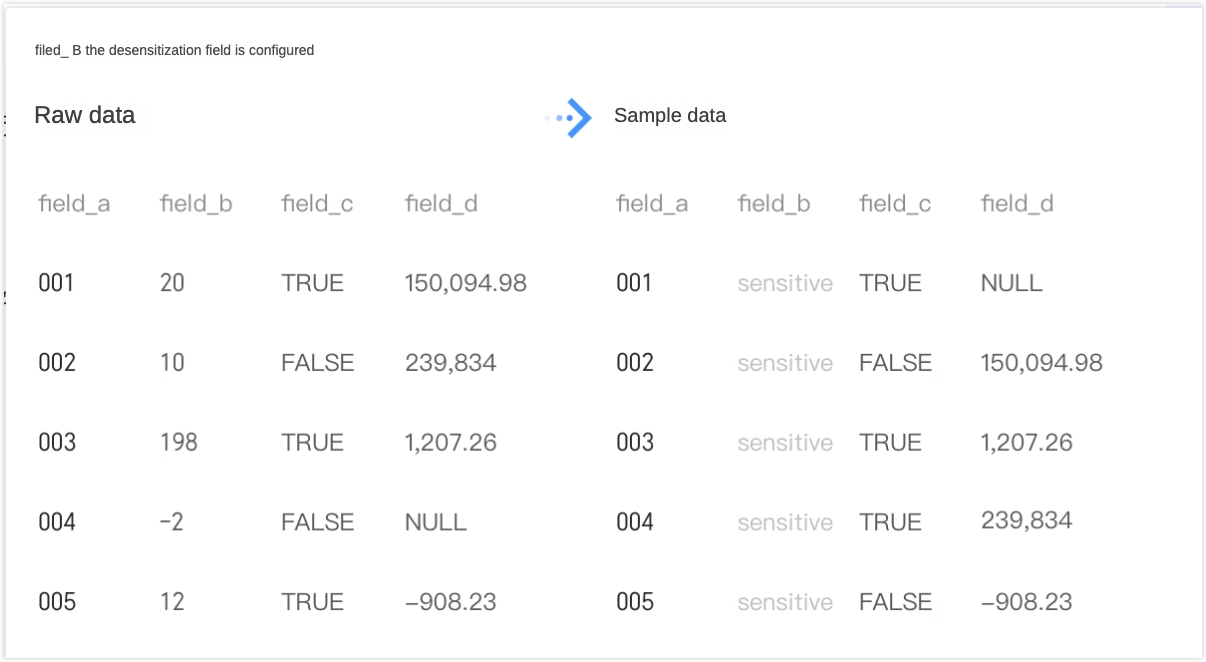
For security/standard identification
This setting is displayed only if you have purchased either the Data Security or Data Standard feature. When security rules involve content-based identification or when standard-to-field mapping is configured for intelligent mapping by recognition features, the system uses sample data by default. If no sample data is available, a temporary data query is run.
For intelligent applications
This setting is displayed only if at least one intelligent application is enabled. You can configure sample data settings when you edit an intelligent application on the SuperX > Intelligent Application Management > Intelligent Application page.
Click OK to save the basic configuration.
Compute source
Configure the scope of data tables for automatic data sampling.
Click Edit at the bottom of the page and configure the parameters.
Parameter
Description
Auto-sampling
When enabled, you can configure automatic data sampling for compute source tables. You can modify the trigger scenarios for automatic sampling on the Basic configuration tab.
Auto-sampling configuration
Physical table scope
You can define the scope of physical tables and physical views for which automatic sampling is enabled by selecting all projects, all production projects (Basic and Prod), or specific projects.
All projects: Enables automatic sampling for physical tables and views in all projects, including existing and future ones.
All production projects (Basic and Prod): Enables automatic sampling for physical tables and views in all production projects, including existing and future ones.
Specified projects: Select one or more projects for which to enable automatic sampling.
Logical table scope
You can define the scope of logical tables and logical views for automatic sampling by selecting all data boards, all production data boards (Basic and Prod), or specific data boards.
All business categories: Enables automatic sampling for logical tables and views in all business categories, including existing and future ones.
All production business categories (Basic and Prod): Enables automatic sampling for logical tables and views in all production business categories, including existing and future ones.
Specified business categories: Select one or more business categories for which to enable automatic sampling.
Sampling execution
NoteThese settings apply to automatic sampling and temporary sampling queries triggered for content-based identification when automatic sampling is disabled.
Execution space
Select the compute resources for the data sampling query task. You can use resources from the project where the data resides or from a specified project.
Data's source project: Runs sampling queries in the project where the data asset is located.
Specified project: Runs sampling queries in a specified project that corresponds to the data asset's environment. For example, queries for development tables use compute resources from a development project, while queries for production tables use resources from a production project.
NoteData sampling queries consume compute resources. We recommend that you use the project where the data asset is located.
To reduce the resource load and query costs on the source project and to avoid interference with regular business operations, you can allocate a dedicated project or queue for sampling queries, such as a separate subscription project.
Ensure that the account configured in the compute source of the selected project has read permissions for the relevant data tables.
Concurrency limit
Controls the number of data sampling queries that can run concurrently. The default is 16. You can enter an integer from 1 to 100.
NoteA concurrency limit helps maintain cluster stability and prevents system failures caused by a large volume of queries in a short period.
Increasing the concurrency limit can speed up sampling queries but places a higher load on the cluster. Configure this setting based on your business requirements.
Scanning consumes cluster compute resources.
Query timeout
If a data sampling query runs longer than the specified threshold, the system automatically terminates it and marks it as failed. This duration measures the active running time and does not include time spent waiting for resources or scheduling. The default is 0.5 hours. You can set a value from 0 to 12 hours, with up to one decimal place.
Scan blackout period
When enabled, you must configure a start and end time. During this specified period, the system does not initiate automatically triggered data sampling queries and instead marks them as failed. This prevents sampling from consuming compute resources needed for production tasks, thereby ensuring the stability of online data operations.
Click OK to save the sampling configuration for compute source tables.
Data source
The Data source tab displays data source types that support data sampling and for which metadata has been collected. On this tab, you can configure the scope of data source tables for which to enable automatic data sampling.
You can view the name, type, maximum task concurrency, automatic data sampling status, query timeout, and last modification time for each data source.
You can search by data source name or filter by data source type.
To configure data sampling for a target data source, click the Edit icon in the Actions column. In the Sampling configuration dialog box, configure the parameters.
Parameter
Description
Auto-sampling scope
Development/production environment
This option is available only if you have configured a metadata collection task for the corresponding environment in the data source settings. You can configure the automatic sampling scope for the production environment and development environment separately. When enabled, you can define different collection scopes based on the data source type. For more information, see Collection Scope.
Sampling execution
NoteThese settings apply to automatic sampling and temporary sampling queries triggered for content-based identification when automatic sampling is disabled.
Concurrency limit
Controls the number of data sampling queries that can run concurrently. The default is 16. You can enter an integer from 1 to 100.
NoteA concurrency limit helps maintain cluster stability and prevents system failures caused by a large volume of queries in a short period.
Increasing the concurrency limit can speed up sampling queries but places a higher load on the cluster. Configure this setting based on your business requirements.
Scanning consumes cluster compute resources.
Query timeout
If a data sampling query runs longer than the specified threshold, the system automatically terminates it and marks it as failed. This duration measures the active running time and does not include time spent waiting for resources or scheduling. The default is 0.5 hours. You can set a value from 0 to 12 hours, with up to one decimal place.
Scan blackout period
When enabled, you must configure a start and end time. During this specified period, the system does not initiate automatically triggered data sampling queries and instead marks them as failed. This prevents sampling from consuming compute resources needed for production tasks, thereby ensuring the stability of online data operations.
Click OK to save the sampling configuration for data source tables.