On the issue list page, you can view exceptions detected by data quality rules and issues reported on assets or tags. You can perform governance actions on these issues, such as initiating rectification, ignoring exceptions, and adding issues to an allowlist.
Usage notes
The data quality module must be activated.
Permissions
A super administrator or quality administrator can view and manage all issue details. They can perform actions such as initiating rectification, adding issues to an allowlist, ignoring exceptions, and returning issues for rework.
Other members can view the issues they submitted. As an issue owner, you can perform actions on issues you own, such as initiating rectification, adding issues to an allowlist, ignoring exceptions, and returning issues for rework.
Any user with permission to view an object can add issues for it.
The actions you can perform vary based on the object type. For more information, see Issue list permissions.
Issue list perspectives
Dataphin allows you to view the issue list from three perspectives: Global, Project, and Personal.
Global: A super administrator or quality administrator can view all issue lists from a global perspective.
Project: A super administrator or quality administrator can switch to any project to view the issue list for assets within that project. Other members can only select and view issue lists for projects they have joined.
NoteIn the Project perspective, the Global Data Table, Data Source, and Tag object types are not displayed.
Personal: A super administrator or quality administrator can switch to any member to view that member's issue list. Other members can only view the issues they submitted or own, and they cannot switch to other users.
Add an issue
On the Dataphin homepage, choose Governance > Data Quality from the top navigation bar.
In the left-side navigation pane, click Issue List. Then, click Add Issue to open the Report Quality Issue dialog box.
In the Report Quality Issue dialog box, configure the following parameters.
Parameter
Description
Issue Object
Select the object for which you want to report an issue. Configure the parameters based on the object type. For data tables and real-time metatables, if you do not select a specific field, the issue is recorded at the table level. If you select a specific field, the issue is recorded at the field level.
Issue Type
Select a type for the issue. If no suitable type is available, contact an administrator to create one. For more information, see Custom issue types.
Issue Description
Provide a brief description of the issue to help the issue owner understand the context. The description can be up to 1,000 characters long.
Attachment
Click Upload to select and upload local files. You can upload a maximum of five files for a single issue.
Supported file formats include Doc (.doc, .docx, .dot, .dotx, .rtf, .html, .xml, .txt), Excel (.xls, .xlsx, .csv), PDF, and images (.jpg, .png, .jpeg). Each file must be no larger than 10 MB.
Contact Information
Provide your contact information so the issue owner can contact you for more details. Supported contact methods are Phone, Email, and Other.
Phone: You can enter numbers, hyphens (-), plus signs (+), half-width parentheses, and spaces. The maximum length is 20 characters.
Email: Enter a valid email address.
Other: Enter a description up to 100 characters in length.
Click OK to add the issue.
View the issue list
The issue list page displays issues identified by data quality checks and issues reported on assets or tags. You can perform actions on these issues, such as initiating rectification, adding issues to an allowlist, ignoring issues, and sending notifications.
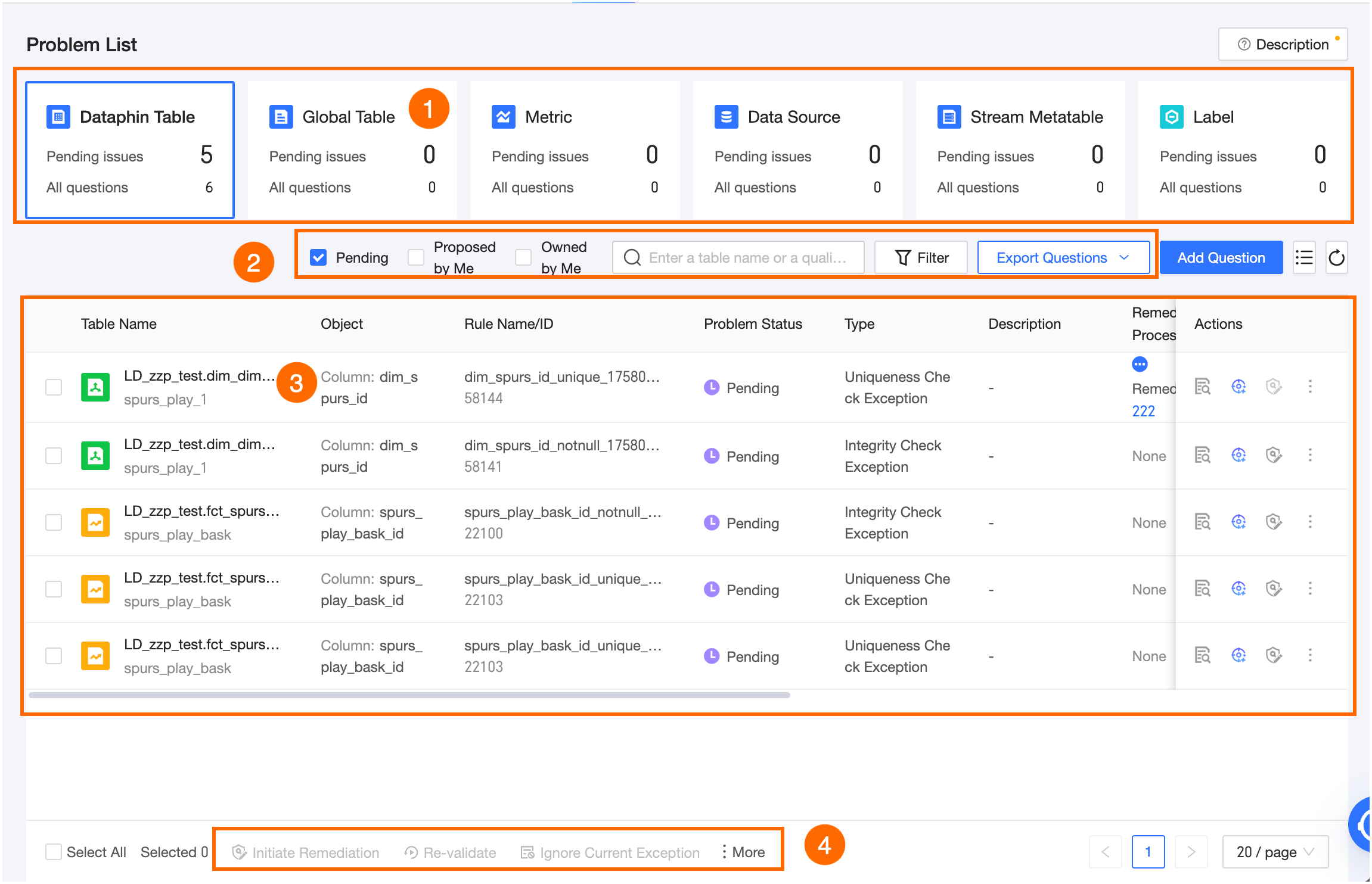
Parameter | Description |
① Summary Card | Displays the Number of Pending Issues and Total Number of Issues for different object types, including Dataphin Table, Global Data Table, metrics, Data Source, Real-time Metatable, and Tag. You can click a card to view the corresponding issue list. |
② Search and filter area | You can search by the name of the monitored object or quality rule. For Dataphin Table, Global Data Table, metrics, Data Source, and Real-time Metatable, you can filter by Pending, Submitted by Me, Assigned to Me, Rule Severity, Issue Status, Issue Type, Submission Method/Submitter, and issue owner. For Tag, you can filter by Pending, Submitted by Me, Assigned to Me, Issue Status, Issue Type, and issue owner. Custom issue types: Click Manage next to Issue Type. In the Manage Issue Types dialog box, enter a name for the issue type. The name can be up to 20 characters long. Click OK to create the issue type. You cannot edit or delete built-in issue types. You can edit or delete custom issue types. You can create a maximum of 50 issue types.
|
③ Issue List | Only system-identified issues generated by quality rule checks display information such as Rule Name, Rule Severity, Validation Scope, and Validation Time. Manually-entered issues display submitter information. The available governance actions vary depending on the issue status. For more information, see Individual actions.
|
④ Batch actions area | For system-identified issues, you can perform batch actions such as Ignore This Exception, Unignore, Add to allowlist, Initiate Rectification, Modify Issue Type, and Associate Knowledge Base Document. For manually-entered issues, you can perform batch actions such as Ignore This Exception, Unignore, Initiate Rectification, Mark as Resolved, Return for Rework, Modify Issue Type, and Reassign (for Tag objects only). The available batch governance actions vary depending on the issue status. For more information, see Batch actions. |

 icon next to the refresh button to select the columns you want to display in the issue list.
Actions
Issue Status
Issue Status | Actions |
Pending |
|
Validating | For system-identified issues, you can perform actions such as View Details, Initiate Rectification, Notify Issue Owner, Add to allowlist, Modify Issue Type, View Operation Log, and Associate Knowledge Base Document. |
Resolved |
|
Ignored |
|
Individual actions
Action | Description |
View Details |
|
Initiate Rectification | After you initiate rectification, you can track the entire rectification process. For information about configuring the rectification process, see Initiate a rectification. To learn how to manage the rectification process, see View and manage a rectification process. Note Only the super administrator, quality administrator, issue owner, and custom global roles with permissions to manage governance workflows can initiate a process. |
Ignore This Exception | You can change the status of a Pending issue to Ignored. After an issue is ignored, you do not need to take any action on it. Ignore only unimportant issues. Use cases: The data source connection was temporarily unstable but is now stable, so no fix is needed. Alternatively, an exception occurred in a historical task that is no longer used in the latest data processing, so you can ignore it. |
Unignore |
|
Notify Issue Owner | You can notify the issue owner by using Internal Message, Phone, SMS, Email, or DingTalk. |
Reassign | You can reassign ownership of the current issue to another user. In the Reassign dialog box, select a new owner and click OK. Inform the new owner after the transfer. |
Mark as Resolved | This action is available only for manually-entered issues with a Pending status. If rectification is required, you can return the resolved issue for rework. |
Return for Rework | This action is available only for manually-entered issues with a Resolved status. After you return an issue, its status changes to Pending. You can notify the issue owner by using an internal message so they can process it promptly. Note Only the super administrator, quality administrator, issue owner, and custom global roles with permissions to manage governance workflows can return an issue for rework. |
Modify Issue Type | You can classify issues by type to facilitate filtering and statistical analysis. For system-identified issues, a system issue type is automatically added based on the quality rule type and cannot be modified. You can add or delete manually configured issue types. If no suitable issue type is available, you can create one. For more information, see Custom issue types. |
Delete Issue | Deleting an issue also removes it from the rectification process. This action cannot be undone. Please assess the impact before proceeding. |
Add to allowlist | Use cases: A table is in the testing phase, and its data is unstable. You can wait until the data is stable before monitoring it. To learn how to add an issue to an allowlist, see Add issues to an allowlist. To learn how to manage the allowlist, see View and manage governance allowlists. Note
|
Re-validate | This action is available only for system-identified issues with a Pending or Ignored status. If a data quality issue has been resolved, you can re-run the validation rule for the current issue. The issue status is updated based on the validation result. If the validation passes, the status changes to Resolved. If it fails, the status changes to Pending. |
View Operation Log | Displays the operation records for the current issue, including the issue object name, operation type, issue status, operation description, operator, and operation time. |
Associate Knowledge Base Document | This action is available only for system-identified issues. After you associate a rule with a knowledge base, you can view the associated information in the quality rule and the issue list. You can associate a knowledge base with issue objects in batches. To create a knowledge base, see Create a knowledge base. |
 icon. In the View Details dialog box, click the Validation Details tab to view the details of the most recent validation for the current issue, including basic information, validation configuration, and validation results.
Batch actions
Action | Description |
Ignore This Exception | You can change the status of Pending issues to Ignored. After an issue is ignored, you do not need to take any action on it. Ignore only unimportant issues. Use cases: The data source connection was temporarily unstable but is now stable, so no fix is needed. Alternatively, an exception occurred in a historical task that is no longer used in the latest data processing, so you can ignore it. |
Unignore | This action is available only for Ignored issues. After you unignore issues, the status of manually-entered issues changes to Pending. For system-identified issues, the latest rule validation result determines the status. If the validation passes, the status changes to Resolved. If it fails, the status changes to Pending. |
Add to allowlist | Use cases: A table is in the testing phase, and its data is unstable. You can wait until the data is stable before monitoring it. To learn how to add an issue to an allowlist, see Add issues to an allowlist. To learn how to manage the allowlist, see View and manage governance allowlists.
|
Initiate Rectification | After you initiate rectification, you can track the entire rectification process for the issue. The batch process is the same as the individual action. For more information, see Initiate a rectification. To learn how to manage the rectification process, see View and manage a rectification process.
|
Re-validate | This action is available only for system-identified issues with a Pending or Ignored status. If data quality issues have been resolved, you can re-run the validation rules for the selected issues on the current page. The issue statuses are updated based on the validation results. If a validation passes, the status changes to Resolved. If it fails, the status changes to Pending. |
Mark as Resolved | This action is available only for manually-entered issues with a Pending status. If rectification is required, you can return the resolved issue for rework. |
Return for Rework | This action is available only for manually-entered issues with a Resolved status. After you return an issue, its status changes to Pending. Note Only the super administrator, quality administrator, issue owner, and custom global roles with permissions to manage governance workflows can return an issue for rework. |
Modify Issue Type | You can append or modify issue types. This action applies only to custom issue types and does not affect system issue types that are automatically generated based on rule types.
|
Export Issues | Exports the issues selected on the current page. In the dialog box, select the content to export and click OK. |
Reassign | You can reassign ownership of the selected issues to another user. In the Reassign dialog box, select a new owner and click OK. Inform the new owner after the transfer. |
Associate Knowledge Base Document | This action is available only for system-identified issues. After you associate a rule with a knowledge base, you can view the associated information in the quality rule and the issue list. You can associate a knowledge base with issue objects in batches. To create a knowledge base, see Create a knowledge base. |
Add to allowlist
You can add issues to an allowlist individually or in batches.
On the Issue List page, select the target issue, click the
 icon in the Actions column, and choose Add to allowlist.
In the Add to allowlist dialog box, configure the following parameters.
Parameter
Description
Allowlist Scope
Only system-identified issues that have not been ignored can be added to an allowlist.
When adding a single issue, you can set the allowlist scope to Current Rule or Current Monitored Object.
Current Rule: During the validity period, new validation failures for the current issue and all other Pending or Validating issues under the same quality rule are automatically ignored.
Current Monitored Object: During the validity period, new validation failures for all Pending or Validating issues under the same monitored object as the current issue are automatically ignored.
Validity Period
You can select 7 Days, 30 Days, 90 Days, 180 Days, Permanent, or Custom. The application day is not included.
NoteAfter the allowlist expires, historical issues are not retroactively reported, but new issues that occur are reported.
Operation Description
Required. Enter the reason for adding the issue to the allowlist. The description cannot exceed 128 characters.
Click OK to add the issue to the allowlist.
Initiate a rectification
You can initiate rectification for issues individually or in batches.
On the Issue List page, select the target issue and click the
 icon in the Actions column to open the Initiate Rectification dialog box.
In the Initiate Rectification dialog box, configure the following parameters.
Parameter
Description
Rectification Scope
For system-identified issues, you can initiate rectification for the Current Issue, Current Rule, or Current Monitored Object. For manually-entered issues, you can only initiate rectification for the Current Issue.
Current Issue: Includes only the issue from the current validation record. It does not include other Pending issues that belong to the same rule.
Current Rule: Includes the issue from the current validation record and all other Pending system-identified issues under the same quality rule. This may include multiple validation scopes.
Current Monitored Object: Includes the issue from the current validation record and all other Pending system-identified issues under the same monitored object. This may include multiple issue objects and validation scopes.
NoteIf a selected issue is already in a rectification process, it remains in the original process. The system does not initiate a new rectification process.
Initiation Method
You can select New Process or Associate with Existing Process.
New Process: Enter a custom name for the rectification process. The name cannot exceed 128 characters.
Associate with Existing Process: You can associate the issue with an existing process that is in the Rectifying or Reworking status for the same object type. Only the super administrator, quality administrator, issue owner, and custom global roles with permissions to manage governance workflows can select from all processes.
Assignee
The assignee is responsible for the rectification phase of the process. We recommend selecting the quality steward of the issue object as the assignee, as they can edit system-identified issues in the rectification process or re-run validation to update the issue status. If you select Associate with Existing Process, the assignee defaults to the assignee of the selected process and cannot be changed.
Approver
The approver is ultimately responsible for the rectification result. If you select Associate with Existing Process, the approver defaults to the approver of the selected process and cannot be changed.
Priority
The levels are High, Medium, and Low. If you select Associate with Existing Process, the priority defaults to the priority of the selected process and cannot be changed.
Operation Description
Enter the reason for initiating the rectification. The description cannot exceed 128 characters.
Click OK to initiate the rectification.
Export the issue list
You can export only the issue lists that you have permission to view.
Each tenant can run a maximum of five concurrent export tasks.
If the issue list is large, it may take some time to generate the file. You can view your historical export records in the batch export panel. For more information, see Issue export history.
On the Issue List page, click Export Issues in the upper-right corner and select either Export All Issues or Export by Search and Filter Criteria.
Export All Issues: Exports all issues of the specified object type within the current perspective.
Export by Search and Filter Criteria: Exports all issues that match the current keyword search and filter criteria within the current perspective. For example, you can filter and export all issues with a Pending status.

In the dialog box, select the content you want to export.
Click OK to export the issues.
Issue export history
The panel displays your last 50 export operation records.
You can download files that were successfully exported within the last 7 days.
On the Issue List page, click Export Issues in the upper-right corner and select View Batch Export History.
In the Batch Export History panel, check the status of your export tasks. The panel displays the sequence number, issue object type, submission time, and operation status. You can also click the
 icon in the Actions column to download the file to your local machine for statistical analysis and archiving.