Offline physical tables allow you to centrally configure and manage the physical tables used in compute task development to improve efficiency.
Limits
If you have not purchased the Data Standard module, you cannot set the Data Standard field in a table.
If you have not purchased the Asset Security module, you cannot set the Data Sensitivity Level and Data Class fields in a table.
Only the MaxCompute, Hadoop, Lindorm, Databricks, GaussDB (DWS), TDH 6.x, TDH 9.3.x, StarRocks, Doris, SelectDB, and AnalyticDB for PostgreSQL compute engines are supported.
In multi-engine mode, table management is supported only when the engine type of the compute source bound to the project is MaxCompute, Hadoop, AnalyticDB for PostgreSQL, GaussDB (data warehouse service (DWS)), Databricks, Lindorm (compute engine), Transwarp TDH 6.x, Transwarp TDH 9.3.x, StarRocks, Doris, or SelectDB.
Create an offline physical table
Step 1: Configure basic information
In the top menu bar of the Dataphin homepage, go to R&D > Data Development.
In the top menu bar, select a Project. If you are in Dev-Prod mode, you also need to select an Environment.
In the navigation pane on the left, choose Data Processing > Tables.
In the list of tables, click the
 icon and select Offline Physical Table.
In the Create Physical Table configuration wizard, configure the following parameters. The required parameters vary depending on the compute engine type.
MaxCompute compute engine
Parameter
Description
Table name
Enter the name of the offline physical table. The name can contain only letters, digits, and underscores (_). The name can be up to 128 characters long.
Directory
Select the directory where the offline physical table is stored.
If no directory is created, you can create a New Folder as follows:
Above the compute node list on the left side of the page, click the
 icon to open the New Folder dialog box.
In the New Folder dialog box, enter a folder Name, set Type to Offline, and Select Directory as needed.
Click Confirm.
Data Domain (Optional)
Select the data domain to which the table belongs. If no data domains are available, you can create one. For more information, see Create a data domain.
Description (Optional)
Enter a brief description of up to 1,000 characters.
Hadoop compute engine
Parameter
Description
Table name
Enter the name of the offline physical table. The name can contain only letters, digits, and underscores (_). The name can be up to 128 characters long.
Directory
Select the directory where the offline physical table is stored.
If no directory is created, you can create a New Folder as follows:
Above the compute node list on the left side of the page, click the
icon to open the New Folder dialog box.In the New Folder dialog box, enter a folder Name, set Type to Offline, and Select Directory as needed.
Click Confirm.
Data Domain (Optional)
Select the data domain to which the table belongs. If no data domains are available, you can create one. For more information, see Create a data domain.
Description (Optional)
Enter a brief description of up to 1,000 characters.
Storage File Format
Select the storage format for the offline physical table. The following formats are supported.
hudi, delta (Delta Lake): These formats can be selected only when Spark SQL is enabled for the compute source corresponding to the project. If Spark SQL is not enabled for the compute source, but the Default Storage Format in R&D Platform - Table Management settings is set to hudi or delta (Delta Lake), the storage format here defaults to Engine default (can be specified in the DDL statement).
If you select hudi, the storage format clause in the DDL statement is
using hudi. If you select delta (Delta Lake), the storage format clause isusing delta.paimon
iceberg
parquet: The storage format clause in the DDL statement is
stored as parquet.avro: The storage format clause in the DDL statement is
stored as avro.rcfile: The storage format clause in the DDL statement is
stored as rcfile.orc: The storage format clause in the DDL statement is
stored as orc.textfile: The storage format clause in the DDL statement is
stored as textfile.sequencefile: The storage format clause in the DDL statement is
stored as sequencefile.
Lindorm compute engine
Parameter
Description
Table name
Enter the name of the offline physical table. The name can contain only letters, digits, and underscores (_). The name can be up to 128 characters long.
Directory
Select the directory where the offline physical table is stored.
If no directory is created, you can create a New Folder as follows:
Above the compute node list on the left side of the page, click the
icon to open the New Folder dialog box.In the New Folder dialog box, enter a folder Name, set Type to Offline, and Select Directory as needed.
Click Confirm.
Data Domain (Optional)
Select the data domain to which the table belongs. If no data domains are available, you can create one. For more information, see Create a data domain.
Description (Optional)
Enter a brief description of up to 1,000 characters.
Storage File Format
Select the storage format for the offline physical table. By default, it is the same as the default storage format in R&D Platform - Table Management settings. The following formats are supported.
Engine default (can be specified in the DDL statement): The DDL statement has no storage format setting clause (using or stored as).
iceberg
parquet
avro
rcfile
orc
textfile
sequencefile
Databricks compute engine
Parameter
Description
Table name
Enter the name of the offline physical table. The name can contain only letters, digits, and underscores (_). The name can be up to 128 characters long.
Directory
Select the directory where the offline physical table is stored.
If no directory is created, you can create a New Folder as follows:
Above the compute node list on the left side of the page, click the
icon to open the New Folder dialog box.In the New Folder dialog box, enter a folder Name, set Type to Offline, and Select Directory as needed.
Click Confirm.
Data Domain (Optional)
Select the data domain to which the table belongs. If no data domains are available, you can create one. For more information, see Create a data domain.
Description (Optional)
Enter a brief description of up to 1,000 characters.
Storage File Format
Select the storage format for the offline physical table. By default, it is the same as the default storage format in R&D Platform - Table Management settings. The following formats are supported.
Engine default (can be specified in the DDL statement): The DDL statement has no storage format setting clause (using or stored as).
avro
binaryfile
csv
delta (Delta Lake)
json
orc
parquet
text
GaussDB (DWS)/AnalyticDB for PostgreSQL compute engines
Parameter
Description
Table name
Enter the name of the offline physical table. The name can contain only letters, digits, and underscores (_). The name can be up to 63 characters long.
Directory
Select the directory where the offline physical table is stored.
If no directory is created, you can create a New Folder as follows:
Above the compute node list on the left side of the page, click the
icon to open the New Folder dialog box.In the New Folder dialog box, enter a folder Name, set Type to Offline, and Select Directory as needed.
Click Confirm.
Data Domain (Optional)
You can select a data domain only when the project's business segment is bound.
Description (Optional)
Enter a brief description of up to 1,000 characters.
StarRocks compute engine
Parameter
Description
Table name
Enter the name of the offline physical table. The name can contain only letters, digits, and underscores (_). The name can be up to 1,024 characters long.
Table Type
You can select Primary Key Table, Detail Table, Aggregation Table, or Update Table.
Directory
Select the directory where the offline physical table is stored.
If no directory is created, you can create a New Folder as follows:
Above the compute node list on the left side of the page, click the
icon to open the New Folder dialog box.In the New Folder dialog box, enter a folder Name, set Type to Offline, and Select Directory as needed.
Click Confirm.
Data Domain (Optional)
You can select a data domain only when the project's business segment is bound.
Description (Optional)
Enter a brief description of up to 1,000 characters.
Doris/SelectDB compute engines
Parameter
Description
Table name
Enter the name of the offline physical table. The name can contain only letters, digits, and underscores (_). The name can be up to 1,024 characters long.
Table Type
You can select Primary Key table, Duplicate Key table, or Aggregate table.
Directory
Select the directory where the offline physical table is stored.
If no directory is created, you can create a New Folder as follows:
Above the compute node list on the left side of the page, click the
icon to open the New Folder dialog box.In the New Folder dialog box, enter a folder Name, set Type to Offline, and Select Directory as needed.
Click Confirm.
Data Domain (Optional)
You can select a data domain only when the project's business segment is bound.
Description (Optional)
Enter a brief description of up to 1,000 characters.
After completing the configuration, click Next.
Step 2: Configure the field list
Different compute engines support different storage formats. For more information, see Table management settings. The supported configurations for the field list vary depending on the Storage File Format, as shown in the following table.
For offline physical tables in the Databricks compute engine, if the storage format is Engine default (can be specified in the Data Definition Language (DDL) statement), the supported configurations for the field list are the same as those for the delta (Delta Lake) storage format.
Storage format is hudi, delta (Delta Lake), iceberg, or paimon
On the Field List configuration page, you can configure the structure of the physical table, including its fields, data types, and data classification.

Block
Description
① Field list operations
Search: You can search for a field by its table field name.
Edit DDL: Edit the DDL statement for the current physical table.
Add Data Field: Click Add Data Field, and in the newly added field row, enter information such as Column Name, Data Type, and Remark.
Import from DDL Statement: Import new fields using a DDL statement. Click Import from DDL Statement. In the Import from DDL Statement dialog box, follow the instructions in the figure below, enter the DDL statement, and click Parse SQL. Select the fields you want to import from the parsed fields, and click Add to import them.
Import from Table: Click Import from Table. In the Import from Table dialog box, select the source table containing the fields to import, select the desired fields, and click Add to import them.
② Field list
The field list displays detailed information for fields, including Serial Number, Column Name, Data Type, Remark, Recommend Standards, Data Class, and Data Sensitivity Level.
Serial Number: The serial number of the table field. It increments for each new field.
Column Name: The name of the table field. You can search by entering the full name of a root word, and the system will automatically match the root words configured in Administration > Data Standard > Root Words.
Data Type: Supports string, bigint, double, timestamp, decimal, Text, Numeric, Datetime Variable, and Other data types.
Text: varchar, char.
Numeric: int, smallint, tinyint, float.
Date and time: date. The MaxCompute compute engine supports datetime.
NoteThe Hadoop compute engine does not support datetime.
Other: boolean, binary.
Remark: The description of the table field, up to 512 characters.
Data Standard: Select the data standard for the field. To create a data standard, see Create and manage data standards.
Data Class: Select the data classification for the field. To create a data classification, see Create a data classification.
Data Sensitivity Level: After selecting a data classification, the system automatically identifies the data sensitivity level.
You can also perform a Delete operation on a field in the Actions column.
NoteFields cannot be recovered after deletion.
③ Batch Operations
You can select multiple table fields and perform the following operations.
Delete: Click the
 icon to delete the selected data fields in a batch.
Recommend Names: Click the
 icon. The system tokenizes the Remark content of the fields, matches it with created root words, and recommends field names. In the Root Word Naming dialog box, you can replace the names of the selected fields with the modified values.Note
If none of the recommended field names meet your needs, you can modify them in the Corrected Column Name input box.
Clicking Reset will reset the Corrected Column Name to the system's matched root words.
Recommend Standards: Click the
 icon. The system recommends field standards based on the field names. In the Field Standard dialog box, you can set the fields to the recommended standards.
Add the fields and click Next.
Storage formats other than hudi, delta (Delta Lake), iceberg, or paimon
On the Field List configuration page, you can configure the structure of the current physical table, such as its fields, data types, and data classification.

Area
Description
① Field list operations
Search: You can search for a field by its table field name.
Edit DDL: Edit the DDL statement for the current physical table.
Add Data Field: Click Add Field, select a field type such as Data Field, Partition Field, or Add Date Partition, and in the newly added field row, enter information such as Column Name, Data Type, and Remark.
Add Data Field: Click to add a data field row to the table fields.
Partition Field: Click to add a partition field row to the table fields.
Add Date Partition: Click to add a date partition row to the table fields. The default is
ds.
Import from DDL Statement: Import new fields using a DDL statement. Click Import from DDL Statement. In the Import from DDL Statement dialog box, follow the instructions in the figure below, enter the DDL statement, and click Parse SQL. Select the fields you want to import from the parsed fields, and click Add to import them.
Import from Table: Click Import from Table. In the Import from Table dialog box, select the source table containing the fields to import, select the desired fields, and click Add to import them.
② Field list
The field list displays detailed information for fields, including Serial Number, Column Name, Data Type, Remark, Recommend Standards, Data Class, and Data Sensitivity Level.
Serial Number: The serial number of the table field. It auto-increments by 1 for each new field.
Column Name: The name of the table field. You can search by entering the full name of a root word, and the system will automatically match the root words configured in Administration > Data Standard > Root Words.
Data Type: Supports string, bigint, double, timestamp, decimal, Text, Numeric, Datetime Variable, and Other data types.
Text: varchar, char.
Numeric: int, smallint, tinyint, float.
Date and time: date. The MaxCompute compute engine supports datetime.
NoteThe Hadoop compute engine does not support datetime.
Other: boolean, binary.
Remark: The description of the table field, up to 512 characters.
Recommend Standards: Select the field standard for the field. To create a standard, see Create and manage data standards.
Data Class: Select the data classification for the field. To create a data classification, see Create a data classification.
Data Sensitivity Level: After selecting a data classification, the system automatically identifies the data sensitivity level.
You can also perform a Delete operation on a field in the Actions column.
NoteFields cannot be recovered after deletion.
③ Batch Operations
You can select multiple table fields and perform the following operations.
Delete: Click the
icon to delete the selected data fields in a batch.Recommend Names: Click the
icon. The system tokenizes the Remark content of the fields, matches it with created root words, and recommends field names. In the Root Word Naming dialog box, you can replace the names of the selected fields with the modified values.NoteIf none of the recommended field names meet your needs, you can modify them in the Corrected Column Name input box.
Clicking Reset will reset the Corrected Column Name to the system's matched root words.
Recommend Standards: Click the
icon. The system recommends field standards based on the field names. In the Field Standard dialog box, you can set the fields to the recommended standards.
After adding the fields, click Next.
GaussDB (DWS)/AnalyticDB for PostgreSQL compute engines

Block | Description |
① Field list operations |
|
② Field list | The field list displays detailed information for fields, including Serial Number, Column Name, Data Type (Length), Primary Key, Not Null, Remark, Recommend Standards, Data Class, and Data Sensitivity Level.
You can also perform a Delete operation on a field in the Actions column. Note Fields cannot be recovered after deletion. |
③ Batch Operations | You can select multiple table fields and perform the following operations.
|
StarRocks compute engine
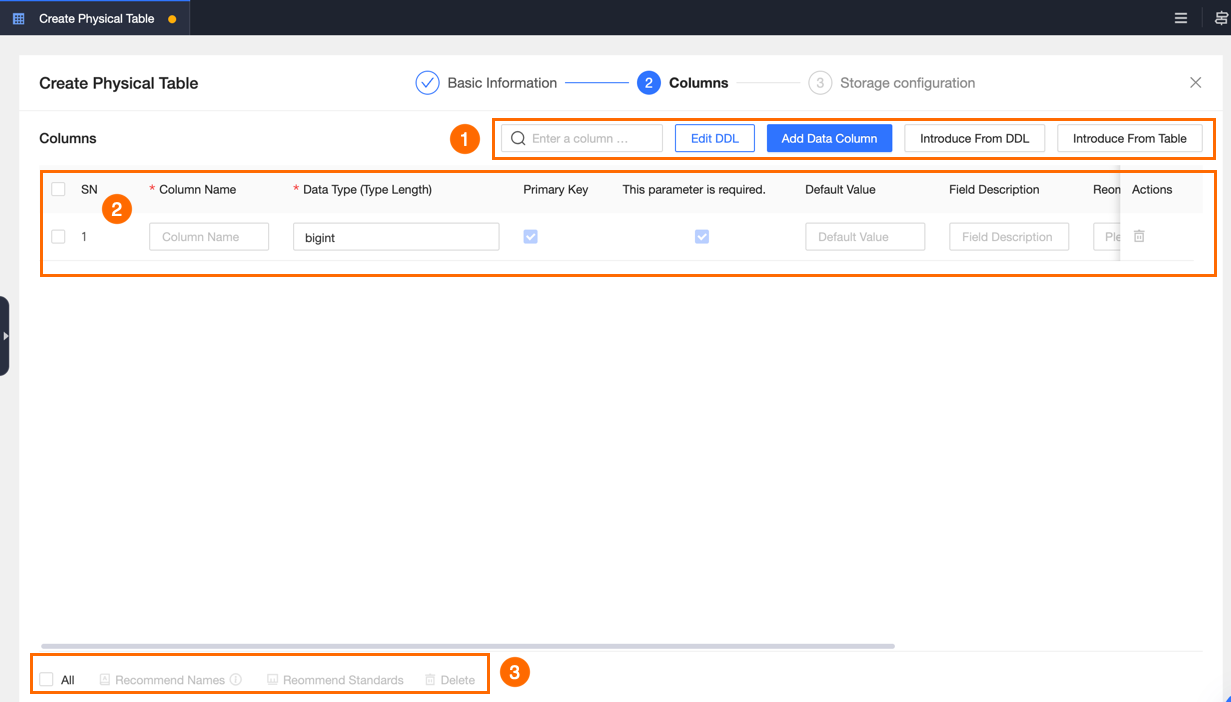
Area | Description |
① Field list operations |
|
② Field list | The field list displays detailed information for fields, including Serial Number, Column Name, Data Type (Length), Primary Key (Primary Key and Duplicate Key tables only), Aggregate Key (Aggregate tables only), Unique Key (Unique Key tables only), Not Null, Aggregation Method (Aggregate tables only), Default Value, Remark, Recommend Standards, Data Class, and Data Sensitivity Level. Note
You can also perform a Delete operation on a field in the Actions column. Note Fields cannot be recovered after deletion. |
③ Batch Operations | You can select multiple table fields and perform the following operations.
|
Doris/SelectDB compute engines
Block | Description |
① Field list operations |
|
② Field list | The field list displays detailed information for fields, including Serial Number, Column Name, Data Type (Length), Primary Key (Primary Key tables only), Aggregate Key (Aggregate tables only), Not Null, Aggregation Method (Aggregate tables only), Default Value, Remark, Recommend Standards, Data Class, and Data Sensitivity Level. Note
You can also perform a Delete operation on a field in the Actions column. Note Fields cannot be recovered after deletion. |
③ Batch Operations | You can select multiple table fields and perform the following operations.
|
Step 3: Configure storage
The supported storage configurations vary by Storage File Format for the MaxCompute compute engine and Hadoop compute engine, and also by different compute engines, as shown in the following table.
Storage format is hudi
Parameter | Description |
Data Update Type (Optional) | Select a type. You can choose cow (Copy on Write) or mor (Merge on Read). |
Primary Key and Pre-combine Key (Optional) |
|
Data Distribution | Enable or disable Partition. It is disabled by default. If you enable Partition, you also need to select Partitioned By. You can select one or more fields from the field list. Note Partitioned By does not support using all fields as partition fields, meaning you cannot select all fields in the list. |
Storage Location (Optional) | Enter the Location (storage address). Global variables are supported. The location can be up to 512 characters long. Note For external tables, the external keyword can be omitted. If the DDL statement includes a location clause, the created table is an external table. |
After you configure the parameters, click Submit. In the Submit dialog box, review and confirm the SQL statement to create the table, and then click Confirm and Submit.
For more information about editing DDL statements for hudi, see SQL DDL and Schema Evolution.
If Location (storage address) is empty, the DDL statement will not have a location clause.
If the current compute engine is Hadoop compute engine, Spark SQL is used. If the current compute engine is Lindorm (compute engine) or Databricks, the default SQL of the compute source is used.
Storage format is delta (Delta Lake)
Parameter | Description |
Data Distribution |
Note
|
Storage Location (Optional) | Enter the Location (storage address). Global variables are supported. The location can be up to 512 characters long. Note For external tables, the external keyword can be omitted. If the DDL statement includes a location clause, the created table is an external table. |
After you configure the parameters, click Submit. In the Submit dialog box, review and confirm the SQL statement for table creation, then click Confirm and Submit.
For more information about editing DDL statements for delta, see ALTER TABLE.
If Location (storage address) is empty, the DDL statement will not have a location clause.
If the current compute engine is Hadoop compute engine, Spark SQL is used. If the current compute engine is Lindorm (compute engine) or Databricks, the default SQL of the compute source is used.
Storage format is iceberg
Parameter | Description |
Partition | Disabled by default. If enabled, you need to configure Partitioned By. Partitioned By: You can select multiple fields from the field list or manually enter fields. Separate multiple fields with a comma (,). |
Location | Enter the Location (storage address). Global variables are supported. The location can be up to 512 characters long. Note For external tables, the |
After you configure the parameters, click Submit. In the Submit dialog box, review the SQL statement to create the table and click Confirm and Submit.
If Location (storage address) is empty, the DDL statement will not have a location clause.
If the current compute engine is Hadoop compute engine, Spark SQL is used. If the current compute engine is Lindorm (compute engine), the default SQL of the compute source is used.
Storage format is paimon
Parameter | Description |
Primary Key | Select one or more primary keys. After selection, you also need to configure the Table Mode. |
Table Mode | Select the Table Mode (data update type). You can choose MOR, COW, or MOW. |
Partition | Disabled by default. If enabled, you need to configure Partitioned By. Partitioned By: You can select one or more fields from the field list. |
Location | Enter the Location (storage address). Global variables are supported. The location can be up to 512 characters long. Note For external tables, the |
After you configure the parameters, click Submit. In the Submit dialog box, review the SQL statement for creating the table, and then click Confirm and Submit.
If Location (storage address) is empty, the DDL statement will not have a location clause.
If the current compute engine is Hadoop compute engine, Spark SQL is used.
Other storage formats
Parameter | Description |
Storage Type | You can select Managed Table or External Table. If you select External Table, you also need to configure Location. |
Location | Enter the Location (storage address). Global variables are supported. The location can be up to 512 characters long. |
After configuring the parameters, click Submit. In the Submit dialog box, review the table creation SQL statement and click Confirm and Submit.
If the current compute engine is Hadoop compute engine and the storage format is kudu, Impala SQL is used.
MaxCompute compute engine
MaxCompute internal table
Parameter
Description
Storage Type
Select Managed Table.
Is Transactional Table
Select Yes or No. If you select Yes, you can also configure a Primary Key to create the table as a Delta table.
Primary Key (Optional)
Select one or more primary keys. All fields in the field list are available. If you select multiple primary keys, they will be sorted in the order of selection.
Lifecycle (Optional)
The retention period for the current table. You can enter a positive integer for the number of days, or quickly select 7, 14, 30, or 360 days.
MaxCompute external table
Parameter
Description
Storage Type
Select External Table.
Storage File Format
Select the storage format. By default, it is the same as the default storage format for external tables in R&D Platform - Table Management settings. You can select parquet, avro, rcfile, orc, textfile, or sequencefile.
Location
Enter the Location (storage address). Global variables are supported. The location can be up to 512 characters long.
After configuring the parameters, click Submit. In the Submit dialog box, review the table creation SQL statement and click Confirm and Submit.
GaussDB (DWS)/AnalyticDB for PostgreSQL compute engines
Table Constraint: Click Add Constraint and configure the Constraint Type, Constraint Settings, and Deferrable Policy.
Parameter
Description
Constraint Type
You can select Primary Key, UNIQUE constraint, or CHECK constraint.
Constraint Settings
When the constraint type is Primary Key: You can select one or more fields with data types of text, character varying (varchar), bigint (int8), smallint(int2), or integer(int/int4).
NoteA table can have only one PRIMARY KEY constraint.
If you have already selected a primary key in the field list, the system automatically adds a PRIMARY KEY constraint in the table constraints, with the constraint settings matching the selected fields from the field list.
When the constraint type is UNIQUE constraint: You can select one or more fields. All fields in the field list are available.
When the constraint type is CHECK constraint: You can enter any character string, up to 512 characters long.
Deferrable Policy
You can select not deferrable, initially immediate, or initially deferred. The default is not deferrable.
NoteThis parameter is not supported when the constraint type is CHECK constraint.
To delete the corresponding constraint row, click the Delete icon.
Distributed by (Optional):
AnalyticDB for PostgreSQL compute engine: Select RANDOMLY, BY(<columns>), or REPLICATED.
GaussDB (DWS) compute engine: You can select REPLICATION, ROUNDROBIN, or BY HASH(<columns>). If you select BY HASH(<columns>), you must also select distribution fields from the field list.
Partition: Click Add Partition to add a partition field. Configure parameters based on the Partition Type. Click the Delete icon to delete a partition field and all the data partition information that it contains.
When the partition type is LIST or RANGE:
Partition Field: You can select a partition field or manually enter an expression.
The AnalyticDB for PostgreSQL compute engine (database version 6.x) supports only single-field partitioning. The AnalyticDB for PostgreSQL compute engine (database version 7.x) and GaussDB (DWS) compute engine support entering an expression.
Partition Name and Partition Value: Click the Add icon to add a data partition row. Click the Delete icon to delete the corresponding data partition row.
NoteFor AnalyticDB for PostgreSQL (database version 6.x), the system automatically adds a default partition row. The partition name for the default partition is optional. If the default partition name is empty, you must add at least one data partition.
For GaussDB (DWS), you must add at least one data partition.
For AnalyticDB for PostgreSQL (database version 7.x), you do not need to add any data partitions.
Partition Name: The name can contain only letters, digits, and underscores (_) and can be up to 63 characters long.
NoteA partition is a table. The default full partition table name format is
{primary_table_name}_{partition_level#}_prt_{partition_name}.Partition Value:
When the partition type is LIST: You can enter any character string up to 512 characters long. If the input value is a text type, such as text, varchar, or char, it must be enclosed in single quotation marks ('').
For the RANGE partition type: You must configure START, END, and EVERY. The value can be any string of up to 512 characters. For text data types, such as text, varchar, or char, the value must be enclosed in single quotation marks ('').
For the START and END parameters, select either INCLUSIVE or EXCLUSIVE. By default, START is INCLUSIVE and END is EXCLUSIVE.
NoteThe validity of the partition value depends on the type of the partition field.
When the partition type is HASH: You only need to configure the partition field, not the data partitions. The partition field configuration is the same as for LIST and RANGE types.
NoteTables with a distribution method of REPLICATED do not support partitioning.
When the compute engine is GaussDB (DWS), multi-level partitioning is not supported.
The HASH partition type is supported only when the compute engine is AnalyticDB for PostgreSQL (database version 7.x).
StarRocks compute engine
Primary Key table
Parameter
Description
Distributed By
Bucket Key (Optional)
You can select one or more bucket keys from all primary key fields.
Number of Buckets (Optional)
Auto: The number of buckets is not specified during table creation and is determined by the system.
Custom: Specify the number of buckets. Supports integers from 1 to 128.
Order By
Sort Key (Optional)
You can select multiple fields as sort keys.
Partition
Partitioned, Partition Expression
If enabled, you need to fill in the Partition Expression. You can implement manual partitioning (List or Range) by modifying the DDL in the submission confirmation dialog.
Partition Expression
You can select a field or enter an expression. The fields can be selected from all primary key fields.
Details
Parameter
Description
Distributed By
Bucket Type
You can select RANDOM or HASH.
Bucket Key
You can select multiple fields as bucket keys.
NoteThis item can be configured only when the bucket type is HASH.
Number of Buckets
Auto: The number of buckets is not specified during table creation and is determined by the system.
Custom: Specify the number of buckets. Supports integers from 1 to 128.
NoteThis item can be configured only when the bucket type is HASH.
Order By
Sort Key (Optional)
You can select multiple fields as sort keys.
Partition
Partitioned, Partition Expression
If enabled, you need to fill in the Partition Expression. You can implement manual partitioning (List or Range) by modifying the DDL in the submission confirmation dialog.
Partition Expression
You can select a field or enter an expression. The fields can be selected from all primary key fields.
Aggregation and Update Tables
Parameter
Description
Distributed By
Bucket Key
You can select one or more bucket keys from all aggregate column fields (Aggregate tables only) or unique key fields (Unique Key tables only).
Number of Buckets
Auto: The number of buckets is not specified during table creation and is determined by the system.
Custom: Specify the number of buckets. Supports integers from 1 to 128.
Order By
Sort Key (Optional)
The sort key must include all aggregate key fields (Aggregate tables only) or unique key fields (Unique Key tables only). The field order is the selection order.
Partition
Partitioned, Partition Expression
If enabled, you need to fill in the Partition Expression. You can implement manual partitioning (List or Range) by modifying the DDL in the submission confirmation dialog.
Partition Expression
You can select a field or enter an expression. The fields can be selected from all aggregate fields.
Doris/SelectDB compute engines
Primary Key table, Aggregate table
Parameter
Description
Distributed By
Bucket Key
You can select one or more bucket keys from all primary key fields (Primary Key tables only) or aggregate key fields (Aggregate tables only).
Number of Buckets
Auto: The number of buckets is not specified during table creation and is determined by the system.
Custom: Specify the number of buckets. Supports integers from 1 to 128.
Partition
Partitioned, Partition Expression
If enabled, you need to fill in the Partition Expression. You can implement manual partitioning (List or Range) by modifying the DDL in the submission confirmation dialog.
Partition Expression
You can select a field or enter an expression. The fields can be selected from all primary key fields (Primary Key tables only) or aggregate key fields (Aggregate tables only).
Details
Parameter
Description
Order By
Sort Key (Optional)
You can select multiple fields as sort keys. Sort keys must be defined before all other columns.
Distributed By
Bucket Type
You can select RANDOM or HASH.
Bucket Key (Optional)
You can select multiple fields as bucket keys.
NoteThis item can be configured only when the bucket type is HASH.
Number of Buckets (Optional)
Auto: The number of buckets is not specified during table creation and is determined by the system.
Custom: Specify the number of buckets. Supports integers from 1 to 128.
NoteThis item can be configured only when the bucket type is HASH.
Partition
Partitioned, Partition Expression
If enabled, you need to fill in the Partition Expression. You can implement manual partitioning (List or Range) by modifying the DDL in the submission confirmation dialog.
Partition Expression
You can select a field or enter an expression. The fields can be selected from all primary key fields.
Import data
After submitting the offline physical table, you can import data into it.
In the table management list, click the target offline physical table. You can search by table name.
On the table details page, click Import Data to open the Import Data dialog box.
In the Import Data dialog box, on the Basic Configuration step, upload the data and configure the import parameters.
Parameter
Description
Upload File
Click Select File to upload the data file to be imported. Only .txt and .csv files are supported. The file size cannot exceed 10 MB.
Separator
The data separator. Supports comma (,), tab character (\t), vertical bar (|), and forward slash (/). You can also enter other specified separators.
Character Set Encoding
Select the character set encoding of the uploaded data file. Supports parsing utf-8 (without BOM), utf-8 (with BOM), gbk, big5, gb2312, ascii, and utf-16 character sets.
First Row as Header
Based on the uploaded data file, select whether the first row is a header.
Target Partition
If the table is a partitioned table, enter the name of the Target Partition for data import.
Click Next.
In the Import Data step, configure the mappings for the data table fields.
Mapping:
Map by Row: Maps items that have the same row number.
Map by Name: Maps items that have the same name.
Import File Data Column: You can set this parameter to a data column, NULL, or a static field.
You can click Start Import to import the data into the table.
Edit an offline physical table
After submitting an offline physical table, you can edit its data.
In the table management list, click the target offline physical table. You can search by table name.
On the table details page, click Edit to open the Edit Physical Table page.
The editable parameters vary depending on the storage format, as shown in the following table.
Storage format is hudi
Tab
Description
Basic Information
Only Table name and Description can be edited. The parameter requirements are the same as when creating an offline physical table.
Field List
You can edit and delete the names and types of fields other than hudi system fields. Hudi system fields include the following:
_hoodie_commit_time
_hoodie_commit_seqno
_hoodie_record_key
_hoodie_partition_path
_hoodie_file_name
NoteWhen modifying field names, field types, or adding/deleting fields, an error may occur if the operation is not supported by the engine's settings.
Storage Configuration
Only type, primaryKey, preCombineField, and Location can be edited. Location can be edited only if the current data table is an external table.
After you finish editing, click Submit. In the Submit dialog box, review the SQL statement for creating the table. The submission uses the default SQL from the compute source. Then, click Confirm and Submit.
NoteIf you encounter an engine error when performing operations such as renaming fields, deleting fields, or modifying field types on a hudi table, contact the engine service provider to check the engine settings.
Storage format is delta (Delta Lake)
Tab
Description
Basic Information
Only Table name and Description can be edited. The parameter requirements are the same as when creating an offline physical table.
Field List
You can edit and delete existing fields, and add new fields. The field requirements are the same as when creating an offline physical table.
Storage Configuration
Data Distribution
When Liquid Clustering is enabled, you can disable it or re-select the Cluster By fields.
When Liquid Clustering is disabled and Partition is also disabled, you can enable Liquid Clustering and specify the Cluster By fields.
When Liquid Clustering is disabled and Partition is also disabled, Partition cannot be enabled.
When Partition is enabled, Liquid Clustering, Partition, and Partitioned By cannot be modified.
Storage Location: Location can be edited only if the current data table is an external table.
After editing, click Submit. In the Submit dialog box, review the default SQL statement from the compute source that is used to create the table, and then click Confirm and Submit.
Storage format is iceberg
Tab
Description
Basic Information
Only Table name and Description can be edited. The parameter requirements are the same as when creating an offline physical table.
Field List
You can edit field names and types, along with add and delete fields.
NoteWhen modifying field names, field types, or adding/deleting fields, an error may occur if the operation is not supported by the engine's settings.
Storage Configuration
Location can be edited only if the current data table is an external table.
After editing, click Submit. The system uses Spark SQL for the Hadoop compute engine and the default SQL of the compute source for Lindorm.
In the Submit dialog box, review the table creation SQL statement, and then click Confirm and Submit.
Storage format is paimon
Tab
Description
Basic Information
Only Table name and Description can be edited. The parameter requirements are the same as when creating an offline physical table.
Field List
You can edit field names and types, along with add and delete fields.
NoteWhen modifying field names, field types, or adding/deleting fields, an error may occur if the operation is not supported by the engine's settings.
Storage Configuration
Location can be edited only if the current data table is an external table.
After editing, click Submit. In the Submit dialog box, review the Spark SQL statement for creating the table, and then click Confirm and Submit.
MaxCompute compute engine
MaxCompute internal table
Tab
Description
Basic Information
Only Table name and Description can be edited. The parameter requirements are the same as when creating an offline physical table.
Field List
You can edit and delete existing fields, and add new fields. The field requirements are the same as when creating an offline physical table. A DDL statement is generated when you modify a field type.
You can deselect the Not Null option for a field.
If the current table is an internal transactional table, fields set as primary keys cannot be deselected and cannot be null.
You can only deselect the Not Null option for fields that are already selected as Not Null.
Storage Configuration
You can edit the Lifecycle. The requirements are the same as when creating an offline physical table.
MaxCompute external table
Tab
Description
Basic Information
Only Table name and Description can be edited. The parameter requirements are the same as when creating an offline physical table.
Field List
You can edit and delete existing fields, and add new fields. The field requirements are the same as when creating an offline physical table. A DDL statement is generated when you modify a field type.
You can only deselect the Not Null option for fields that are already selected as Not Null.
Storage Configuration
You can edit the Storage Location (Location). The parameter requirements are the same as when creating an offline physical table.
After editing, click Submit. In the Submit dialog box, review and confirm the SQL statement to create the table, then click Confirm and Submit.
NoteIf the changes include operations such as deleting fields or modifying field types, you must first enable the project-level setting in MaxCompute:
setproject odps.schema.evolution.enable=true;.GaussDB (DWS)/AnalyticDB for PostgreSQL compute engines
Tab
Description
Basic Information
Only Table name, Data Domain, and Description can be edited. The parameter requirements are the same as when creating an offline physical table.
Field List
You can edit and delete existing fields, and add new fields. The field requirements are the same as when creating an offline physical table. A DDL statement is generated when you modify a field type.
You can modify the Not Null option for a field.
You cannot re-select the primary key. If needed, you can modify the primary key by editing the table-level constraints.
Storage Configuration
You can edit Table Constraint and Distributed By. The requirements are the same as when creating an offline physical table. Partition information can be found in Asset Manifest > Object Details > Fields.
StarRocks/Doris/SelectDB compute engines
Tab
Description
Basic Information
Only Table name, Data Domain, and Description can be edited. The parameter requirements are the same as when creating an offline physical table.
Field List
You can edit and delete existing fields, and add new fields. The field requirements are the same as when creating an offline physical table. A DDL statement is generated when you modify a field type.
You can modify the Not Null option for a field.
Primary key, aggregate key, and unique key fields cannot be deleted.
You cannot add new primary key, unique key, or aggregate key fields. You also cannot deselect existing primary key, unique key, or aggregate key fields.
You cannot modify field names or use Root Naming.
Storage Configuration
Only Distributed By can be edited.
Single tenant multi-engine
When using the Import from Table method to configure the field list, you can only import tables from projects with the same engine type.
What to do next
If your development mode is Dev-Prod, you need to publish the offline physical table. For more information, see Manage publish tasks.
If your development mode is Basic, the submitted offline physical table can be managed in Asset Catalog. For more information, see .