Breach Detection identifies compromised servers and intrusion events to help prevent business losses.
Prerequisites
-
The internet firewall is enabled. Enable the firewall switch.
-
Block mode is enabled for the threat engine. IPS Configuration.
Procedure
-
Log on to the Cloud Firewall console.
-
In the left-side navigation pane, select .
-
On the Breach Detection page, view intrusion event details.
On the Breach Detection page, you can:

-
View the event list
The event list shows each intrusion event's risk level, affected asset IP, UID, and handling status.
-
Find a specific event
Filter events by risk level, time type, handling status, or detection time range. You can also perform a fuzzy search by instance IP, instance ID, name, or UID.
-
Enable Block Mode for the threat engine
Block Mode is enabled by default when the internet firewall is active. If disabled, Breach Detection detects but does not block risk events. In the Actions column, click Quick Blocking to enable Block Mode in IPS Configuration.
ImportantThe Quick Blocking switch controls intrusion prevention for the entire Cloud Firewall, not individual events.
-
Ignore an intrusion event
If an event is expected activity, click Ignore in the Actions column.
NoteEvents marked as Ignore are removed from the list and no longer trigger alerts.
-
View event details
Click Details in the Actions column for event details and security recommendations.
-
Analyze events with AI: Click the
 icon in the AI Analysis column to analyze alerts with the Security AI Assistant.
The analysis includes:
Payload content analysis: Alert details and AI analysis results.
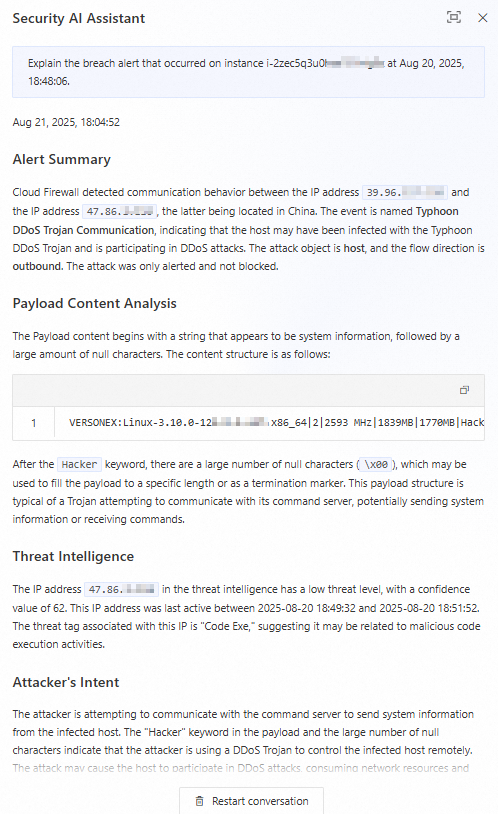
Attacker intent: Predicts the attacker's likely next actions.
Defense recommendations: Suggested Cloud Firewall configurations (ACL policies, IPS Configuration) and investigation steps.
-
Related documents
-
IPS Configuration: Configure the threat engine mode, threat intelligence, basic protection, intelligent defense, and virtual patches.
-
IPS overview and Intrusion prevention: Detect and block malicious traffic, including vulnerability exploits, brute-force attacks, worms, mining programs, backdoor trojans, and DoS attacks.
-
Vulnerability Prevention: Syncs with Security Center to identify and defend against vulnerabilities exploited by network attacks.