The Vulnerability Prevention page displays network-based vulnerabilities that can be exploited by attackers. These vulnerabilities are automatically detected by Security Center and synced to Cloud Firewall. You can manually enable Cloud Firewall and IPS rules to prevent these vulnerabilities from being exploited and protect your assets from intrusion. This topic describes the types of vulnerabilities that Cloud Firewall can detect and how to enable vulnerability prevention.
Supported vulnerability types
Cloud Firewall syncs only network-based vulnerabilities. For a complete list of supported vulnerability types, see the information on the console.
If an asset is not vulnerable or has not been attacked, Cloud Firewall does not display its vulnerability prevention data.
Cloud Firewall syncs specific vulnerability types detected by Security Center and displays them on the Vulnerability Prevention page. If a protected asset is at risk, Cloud Firewall can analyze attack traffic for exploit attempts and take protective action.
If you use the Enterprise Edition or Ultimate Edition of Cloud Firewall, you can view the vulnerabilities that Cloud Firewall protects against in the section. For more information, see IPS Configuration.
Limitations
The pay-as-you-go edition and subscription edition of Cloud Firewall support vulnerability prevention. The Free Edition does not.
The vulnerability prevention feature supports automatic vulnerability detection but does not support manual scans.
NoteTo manually scan for vulnerabilities in real time, go to the Vulnerabilities page on the Security Center console. For more information, see Scan for vulnerabilities.
For SLB instances in a classic network, only threat intelligence-based blocking is supported.
The intrusion prevention system (IPS) module cannot inspect traffic that is encrypted by using Transport Layer Security (TLS) or SSL. Therefore, this type of traffic is not detected or blocked.
Prerequisites
On the page, the Threat Engine Mode is set to Block Mode.
If you do not set the Threat Engine to Block Mode, on the Vulnerability Prevention page, the protection status for all vulnerabilities is Alert Only. This means that Cloud Firewall only generates alerts and logs for detected vulnerabilities and does not block them. For more information about the Threat Engine Mode, see Threat Engine Mode.
Procedure
Log on to the Cloud Firewall console.
In the left-side navigation pane, choose .
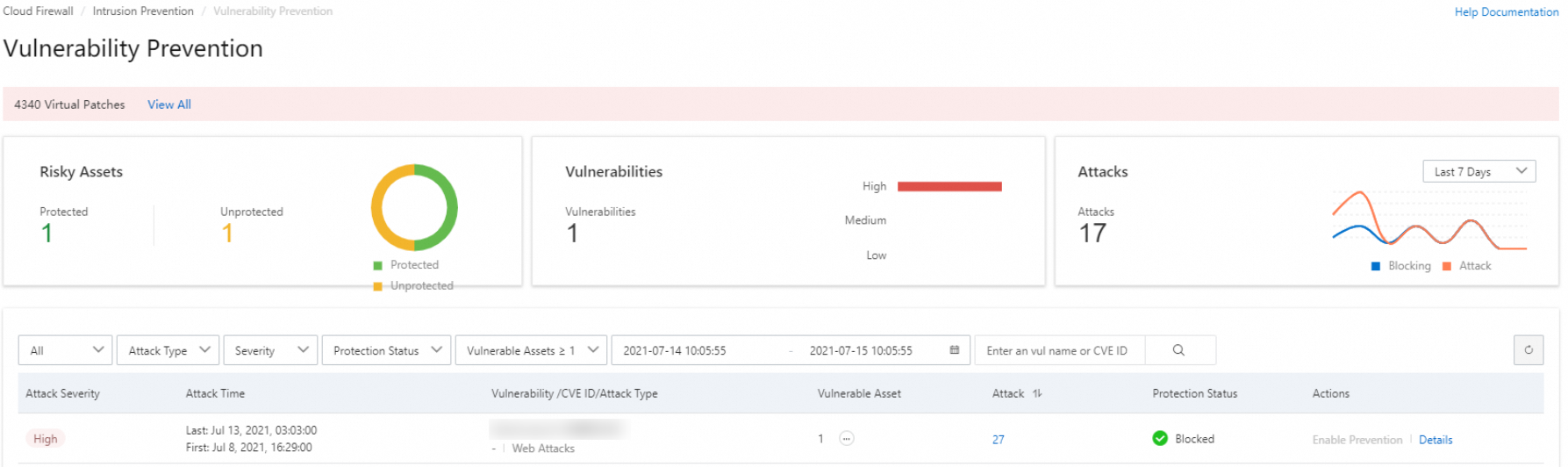
On the Vulnerability Prevention page, view the detected vulnerability attacks on your assets.
The Vulnerability Prevention page displays vulnerability detection results from the last 1 month, 7 days, and 24 hours.
Hover over the
 icon in the Internet ECS with Vulnerabilities column to view the IP addresses of the affected servers.
Attacks: The number of times this vulnerability has been exploited against your assets.
Protection Status: Shows how Cloud Firewall responds to exploitation attempts. The following protection statuses are supported:
Blocked: Cloud Firewall blocked the attack.
Alert Only: Cloud Firewall detected the vulnerability and generated an alert, but did not block the attack.
Partial Protection: Cloud Firewall protects only some of the affected servers.
Details: Click Details to open the Vulnerability and Protection Details page, where you can view details about the vulnerability, such as its name, risk level, CVE ID, and affected assets.
On the Vulnerability Prevention page, find a vulnerability whose status is Alert Only and click Enable Protection in the Actions column.
Clicking Enable Protection has two possible outcomes. If the Internet Firewall is not enabled for the affected server, this action enables it. If the Internet Firewall is already enabled, this action switches the Threat Engine Mode to Block Mode on the IPS Configuration page. The vulnerability status may take one to two minutes to update.
NoteAfter you enable vulnerability prevention, existing access control policies continue to apply to the newly protected assets. You must ensure that the required public ports of these assets are allowed on the Inbound tab of the Internet Firewall page.
Related topics
Use the prevention configuration feature to set the threat engine mode and configure threat intelligence, basic defense, smart defense, and virtual patching. This helps you more accurately identify and block intrusions. For more information, see IPS Configuration.
The intrusion prevention system (IPS) protects your cloud environment from intrusion by detecting and blocking malicious traffic in real time, such as from hacker attacks, exploits, brute-force attacks, worms, mining programs, trojans, and DoS attacks. For more information, see IPS overview and Intrusion prevention.