This topic explains how to choose a certificate deployment plan based on your business needs to secure your websites and applications with HTTPS.
Deploy an SSL certificate on the server (Required): This enables HTTPS for a website, API, or application.
Install a root certificate on the client: A pre-installed root certificate allows a client to ensure secure communication and verify the server's identity. Most client operating systems and browsers have root certificates pre-installed. Install a root certificate on the client only if you are accessing a system that uses a self-signed certificate, the client cannot recognize the certification authority, or the root certificate is missing or has expired.
Deploy an SSL certificate
Prerequisites
Ensure the following conditions are met:
Certificate status: Your SSL certificate is issued by a certification authority and has a Certificate Status of Issued. To purchase and request a certificate, see Purchase a commercial certificate and Submit a certificate request to a CA.
Domain name matching: Make sure that the certificate matches all domain names that you want to secure. To add or modify domain names, you can Purchase a commercial certificate or Append and replace domain names.
Exact-match domain name: Applies only to the specified domain.
example.comprotects onlyexample.com.www.example.comprotects onlywww.example.com.
Wildcard domain name: Applies only to its first-level subdomains.
*.example.comapplies to first-level subdomains such aswww.example.comanda.example.com.*.example.comdoes not protect the root domainexample.comor multi-level subdomains such asa.b.example.com.
NoteTo match multi-level subdomains, the Bound Domains field must contain the exact domain, such as
a.b.example.com, or a corresponding wildcard domain, such as*.b.example.com.Domain name resolution: The domain's DNS record is configured and resolves to the server's public IP address.
Determine the certificate deployment location
To process HTTPS traffic securely, deploy SSL certificates on all relevant network nodes. These include web servers (such as Nginx, Apache, and IIS), Application Load Balancer (ALB), CDN, WAF, and API Gateway. Deploying SSL certificates on these nodes provides end-to-end encryption from the client to the server, preventing plaintext transmission over intermediate links and ensuring secure communication.
Traffic directly reaches the server: When an end user accesses a website using a server's public IP address, traffic reaches the server directly without passing through intermediate nodes.
Traffic passes through multiple network nodes: When an end user accesses a website using a domain name, the traffic usually passes through multiple network nodes, such as CDN and Application Load Balancer (ALB), before being forwarded to the origin server.
Direct traffic
If internet traffic directly accesses the origin server without any intermediate network proxies, deploy the SSL certificate only on that origin server.

Proxied traffic
If traffic passes through multiple intermediate nodes, such as CDN and WAF, before it reaches the origin server, deploy an SSL certificate on each node that processes HTTPS traffic.
This topic uses the complex architecture "End user → CDN → WAF → Application Load Balancer (ALB) → origin server" as an example. This architecture only demonstrates the certificate deployment strategy in a multi-node scenario. For your actual deployment, deploy certificates on the appropriate nodes based on your network architecture.
The following table describes the certificate deployment nodes and the scope of encryption in different scenarios.
Scenario | Encrypted link (HTTPS) | Plaintext link (HTTP) | Certificate nodes | Description |
Scenario 1 | End user ↔ CDN | CDN → WAF → ALB → origin server | CDN | Encrypts only the traffic from the client to CDN. This is the most cost-effective option, but risks plaintext transmission on the private network. |
Scenario 2 | End user ↔ WAF | WAF → ALB → origin server | CDN, WAF | Extends encryption to WAF for improved security. |
Scenario 3 | End user ↔ ALB | ALB → origin server | CDN, WAF, ALB | Only the final hop to the origin server uses plaintext transmission, providing high security. |
Scenario 4 | End user ↔ origin server | None | CDN, WAF, ALB, origin server | Implements end-to-end encryption for the highest level of security. |

Certificate plan
If you need help with certificate deployment, contact your account manager.
Before selecting an SSL certificate deployment plan, identify the deployment target (a server or a cloud product) and choose a plan according to the following rules:
Deploy to a server: This applies to Alibaba Cloud ECS and Simple Application Server instances, non-Alibaba Cloud servers, and self-managed servers.
Deploy to a cloud product: This applies to Alibaba Cloud products such as SLB, CDN, and WAF (excluding ECS and Simple Application Server), as well as CDN, WAF, and CLB on third-party platforms such as Tencent Cloud, Huawei Cloud, and AWS.
Deploy to a server
Select a method below to deploy the certificate to your server.
ECS and Simple Application Server
Select a certificate deployment tutorial based on your web server and operating system. To identify your web server type, see How do I determine the type of a web server?.
From the console
You can deploy a certificate to a specified trusted ECS instance with one click, or automatically update an existing certificate on an ECS or Simple Application Server instance. This method improves deployment efficiency and reduces configuration risks. For more information, see Deploy an SSL certificate to an ECS or Simple Application Server instance.
Via server login
Server operating system | Deployment tutorials |
Linux | Install an SSL certificate on an Nginx or Tengine server (Linux) |
Install an SSL certificate in a Spring Boot application (Linux) | |
Install an SSL certificate for a Python Flask application (Linux) | |
Windows | |
Non-Alibaba Cloud servers
Select a certificate deployment tutorial based on your web server and operating system. To identify your web server type, see How do I determine the type of a web server?.
Server operating system | Deployment tutorials |
Linux | Install an SSL certificate on an Nginx or Tengine server (Linux) |
Install an SSL certificate in a Spring Boot application (Linux) | |
Install an SSL certificate for a Python Flask application (Linux) | |
Windows | |
Deploy to a cloud product
Alibaba Cloud
Deploy a standard SSL certificate (RSA/ECC)
Deploy from the console
For the scenarios listed below, use the Cloud Product Deployment feature in the Certificate Management Service console. This feature lets you deploy certificates to supported cloud products in one click, which eliminates manual SSL certificate uploads. For detailed instructions, see Deploy an SSL certificate to cloud products such as SLB, CDN, and WAF.
NoteIf the Cloud Product Deployment feature does not support your cloud product, refer to that product's documentation for deployment instructions.
In the table below, "Update existing certificate" means replacing a certificate that is already deployed to a cloud product.
Cloud product
Deployment scenarios
Scenario
Container Service for Kubernetes (ACK)
Update existing certificate
ACK managed and dedicated clusters: update AlbConfig certificate configurations and Secret certificates
ImportantWhen you deploy a certificate to a Secret, do not manually modify it in the Container Service for Kubernetes (ACK) console.
Serverless App Engine - gateway routing
Update existing certificate
Gateway routing with HTTPS forwarding (ALB and CLB)
Function Compute (FC)
Update existing certificate
HTTP-triggered functions
Microservices Engine - cloud-native gateway
Update existing certificate
Cloud-native gateway routing
API Gateway
Update existing certificate
Accessing an API over HTTPS by using a domain name
Global Accelerator (GA)
Update existing certificate
HTTPS secure acceleration for domain access
Application Load Balancer (ALB)
Network Load Balancer (NLB)
Update existing certificate
Using an HTTPS listener to forward HTTPS requests (server certificate)
NoteTo deploy a client certificate, see Configure end-to-end HTTPS to encrypt communication.
Content Delivery Network (CDN)
Initial deployment, Update existing certificate
HTTPS secure acceleration
Dynamic Content Delivery Network (DCDN)
Initial deployment, Update existing certificate
HTTPS secure acceleration
Edge Security Acceleration (ESA)
Update existing certificate
HTTPS secure acceleration
Object Storage Service (OSS)
Update existing certificate
Accessing OSS over HTTPS
NoteIf a domain name is accelerated by CDN, you must replace the certificate in the CDN console.
Web Application Firewall (WAF)
Update existing certificate
CNAME access
Anti-DDoS Pro and Anti-DDoS Premium
Update existing certificate
Domain name access for Anti-DDoS Pro and Anti-DDoS Premium
Platform for AI (PAI)
Update existing certificate
Elastic Algorithm Service (EAS) for online model services: use a custom domain name for a dedicated gateway
Deploy from product console
Find your cloud product in the table below. To deploy the certificate, go to the product's console and follow the instructions in the document listed in the References column.
Cloud product
Scenario
References
Container Service for Kubernetes (ACK)
ACK managed and dedicated clusters: update AlbConfig certificate configurations and Secret certificates
ImportantWhen you deploy a certificate to a Secret, do not manually modify it in the Container Service for Kubernetes (ACK) console.
Serverless App Engine - gateway routing
Gateway routing with HTTPS forwarding (ALB and CLB)
Function Compute (FC)
HTTP-triggered functions
Microservices Engine - cloud-native gateway
Cloud-native gateway routing
API Gateway
Accessing an API over HTTPS by using a domain name
Global Accelerator (GA)
HTTPS secure acceleration for domain access
Application Load Balancer (ALB)
Network Load Balancer (NLB)
Using an HTTPS listener to forward HTTPS requests (server certificate)
NoteTo deploy a client certificate, see Configure end-to-end HTTPS to encrypt communication.
Content Delivery Network (CDN)
HTTPS secure acceleration
Dynamic Content Delivery Network (DCDN)
HTTPS secure acceleration
Edge Security Acceleration (ESA)
HTTPS secure acceleration
Object Storage Service (OSS)
Accessing OSS over HTTPS
NoteIf a domain name is accelerated by CDN, you must replace the certificate in the CDN console.
Web Application Firewall (WAF)
CNAME access
Anti-DDoS Pro and Anti-DDoS Premium
Domain name access for Anti-DDoS Pro and Anti-DDoS Premium
Platform for AI (PAI)
Elastic Algorithm Service (EAS) for online model services: use a custom domain name for a dedicated gateway
Tencent Cloud, Huawei Cloud, and AWS
Deploy from the console
You can use the Certificate Management Service console to deploy certificates to third-party cloud platforms. For instructions, see Deploy a certificate to a third-party cloud platform. The following cloud platforms and services are supported:
Tencent Cloud: Content Delivery Network (CDN), Web Application Firewall (WAF), and Cloud Load Balancer (CLB)
AWS: Amazon CloudFront (CDN) and Elastic Load Balancing (ALB, NLB, and CLB)
Huawei Cloud: Content Delivery Network (CDN) and Elastic Load Balancing (ELB)
Deploy using provider documentation
To deploy the certificate, refer to the official documentation of the respective cloud provider.
Install a root certificate on a client
Some clients, such as IoT devices, embedded systems, internal enterprise systems, offline apps, older browsers, and Java clients, do not have pre-installed CA root certificates. After you deploy an SSL certificate, these clients may not trust it. To resolve this, you must manually download and install the root certificate on the client. For more information, see Download and install root certificates.
FAQ
Download a root certificate
To download the root certificate for your certificate brand, see Download and install root certificates.
Incomplete certificate chain
If a root certificate or intermediate certificate on the client is missing or expired, see Resolve an incomplete SSL certificate chain to download and install the missing certificate. Then, try accessing the website again.
"Intermediate certificates are missing" error
This error can occur when you deploy an SSL certificate on certain server systems, such as Internet Information Services (IIS) on Windows Server 2008 R2. To resolve this issue, install the missing root or intermediate certificate on the server.
Find your web server type
Browser developer tools
Use a browser to access your domain name.
Press F12 to open the developer tools and find the web server type, as shown in the following figure.
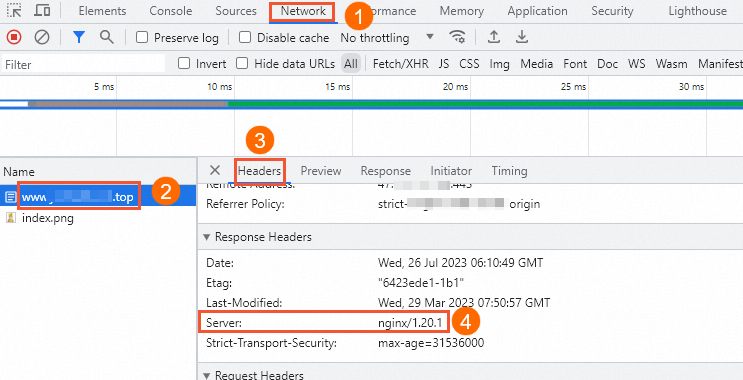
Commands
Log on to your server.
On your server, run the following command to find the web server type.
curl -i yourdomainNoteReplace the
yourdomainplaceholder with your actual domain name. For example,curl -i www.aliyundoc.com.The following figure shows an example of the command output.
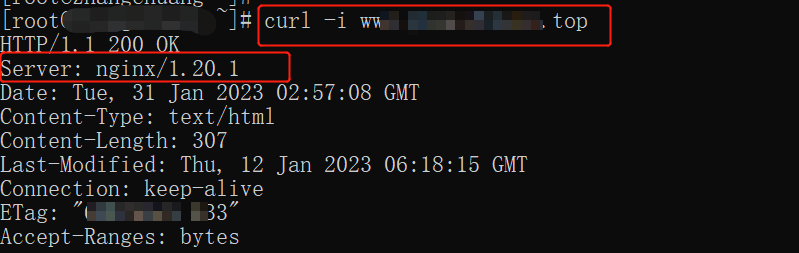
Web developer
If you still cannot determine the web server type, consult your web developer. If you encounter other issues, contact your account manager.