Deploy EAS services with dedicated gateways for custom domains, access control, and high-concurrency support.
Gateway types
EAS provides two types of dedicated gateways:
Use an Application Load Balancer (ALB) dedicated gateway in production environments for better performance, stability, and extensibility.
|
|
Application Load Balancer (ALB) dedicated gateway |
Fully-managed dedicated gateway |
|
Overview |
Manages Layer 7 traffic using Application Load Balancer (ALB). |
The original EAS dedicated gateway. |
|
Core features |
|
|
|
Scenarios |
Production environments that require high performance, stability, and extensibility. |
Scenarios that require specific network features not yet available in ALB. |
Billing
-
Application Load Balancer (ALB) dedicated gateway: Fees are generated by the associated ALB instance. See ALB billing rules.
-
Fully-managed dedicated gateway:
-
Gateway fees: Supports pay-as-you-go and subscription billing. See Elastic Algorithm Service (EAS) billing.
-
Additional fees:
-
Private network access: Incurs PrivateLink fees (instance fees and traffic processing fees). See PrivateLink billing.
-
Public network access: Internet traffic fees are charged through Cloud Data Transfer (CDT). See the CDT console.
-
-
Procedure
1. Create and configure a dedicated gateway
[Recommended] Application Load Balancer (ALB) dedicated gateway
1.1 Create an ALB gateway
Create a logical configuration for the gateway. This step does not create cloud resources or generate fees.
-
Log on to the PAI console. Select a region on the top of the page. Then, select the desired workspace and click Elastic Algorithm Service (EAS).
-
On the Inference Gateway tab, click Create Dedicated Gateway and select Application Load Balancer.
-
The system checks your permissions for the service-linked role. If not activated, follow the prompts to grant permissions.
-
Enter a gateway name and click Submit.
1.2 Enable network access
After creating the gateway, enable private or public network access. This creates and associates an ALB instance with your account and starts billing.
To enable public and private network access for an ALB dedicated gateway, select the same virtual private cloud (VPC). The EAS service deployed using this gateway must also be configured with the same VPC.
-
In the list on the Inference Gateway tab, click the name of the ALB gateway to go to its details page.
-
In the Gateway Access Control section, go to the VPC and Internet tabs.
Enable virtual private cloud (private network) access
-
On the VPC tab, click Add VPC.
-
In the configuration panel, select a VPC and vSwitches. For high availability, select at least two vSwitches in different zones. Select only one vSwitch per zone.
ImportantIf public network access is already enabled for the gateway, the VPC you select here must be the same.
-
Click OK. The system starts to create the ALB instance.
Enable public network access
-
Switch to the Internet tab and click Enable Public Network.
-
In the configuration panel, select a VPC and vSwitches. For high availability, select at least two vSwitches in different zones. Select only one vSwitch per zone.
ImportantIf virtual private cloud access is already enabled for the gateway, the VPC you select here must be the same.
-
Click OK. The system starts to create the ALB instance.
-
Fully-managed dedicated gateway
A fully-managed dedicated gateway supports these features:
-
Access control: Controls public and private network access using whitelists.
-
Custom domain name access: Supports configuring custom domain names and certificates to provide external services.
-
Cross-account VPC access: Allows servers in a VPC that belongs to another account in the same region to access EAS services through a private endpoint.
-
Authoritative DNS resolution: Supports authoritative DNS resolution for the gateway domain name. This is used when calling EAS services from other clouds or on-premises data centers. First establish a connection with the Alibaba Cloud network.
1.1 Create a fully-managed dedicated gateway
-
Log on to the PAI console. Select a region on the top of the page. Then, select the desired workspace and click Elastic Algorithm Service (EAS).
-
On the Inference Gateway tab, click Create Dedicated Gateway and select Fully managed dedicated gateway.
-
On the EAS Dedicated Gateway purchase page, configure the parameters. For more information, see Appendix: Dedicated gateway capacity planning to select a Gateway Specification that ensures service stability.
-
After configuring the parameters, click Buy Now. Follow the on-screen instructions to confirm the order and complete the payment.
View the purchased fully-managed dedicated gateway in the inference gateway list. Use the gateway when its Status is Running.
After creating a fully-managed dedicated gateway, update its specifications and the number of nodes. Changes take about 3 to 5 minutes to take effect.
1.2 Configure access control
On the Inference Gateway tab, click the name of the target fully-managed dedicated gateway to go to its details page. Configure access control in Gateway Access Control section.
Public network access control
-
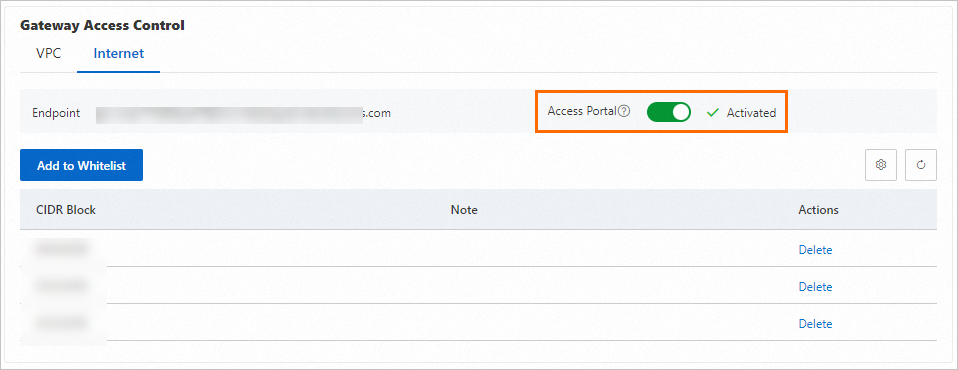
On the Internet tab, turn on Access Portal switch. When the status is Activated, the public access channel for the fully-managed dedicated gateway is enabled.
-
By default, the fully-managed dedicated gateway is not accessible from the internet. Click Add to Whitelist and enter the public IP address CIDR blocks that are allowed access (for example, 192.0.2.0/24).
-
Separate multiple entries with a comma (,) or a line feed.
-
To allow access from any public IP address, add the 0.0.0.0/0 CIDR block. Add up to 15 CIDR blocks.
-
-
Verify the public network connectivity of the fully-managed dedicated gateway.
-
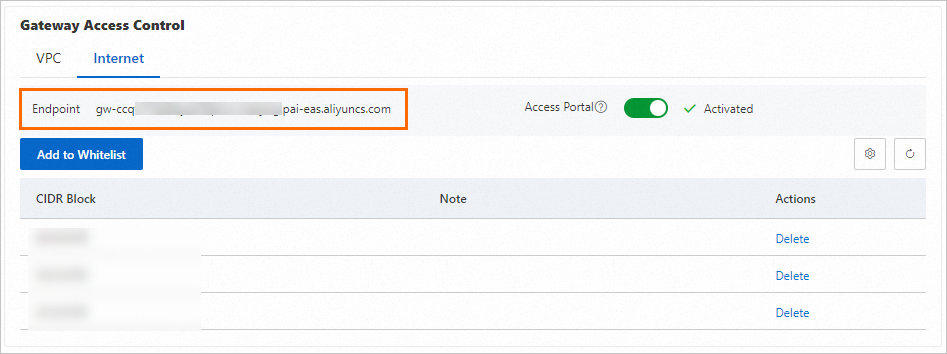
On the Internet tab, find the Endpoint.
-
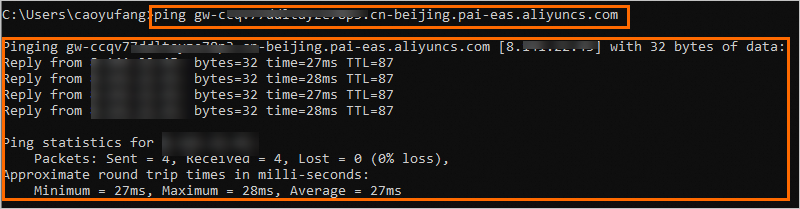
On a device within the whitelisted CIDR block, access the domain name address. If the output is as follows, the connection is successful.
-
-
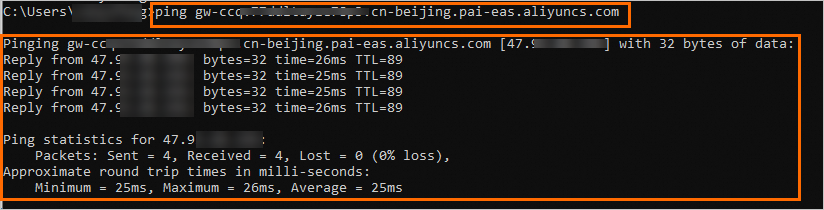
To disable public network access, on the Internet tab, turn off the Access Portal switch.
From a local terminal, access the domain name address. If the output is as follows, the public access channel for the gateway is disabled.

Private network access control
-
On the VPC tab, click Add VPC and select the VPC and vSwitches to connect.
-
Add a VPC that belongs to another account in the same region. After adding the VPC of Account B, servers in that VPC can access the EAS service that uses this dedicated gateway through the VPC endpoint.
NoteThis is a whitelist feature. To use it, submit a ticket.

-
Authoritative DNS resolution for the gateway domain name is supported. This is used when calling EAS services from other clouds or on-premises data centers. First establish a connection with the Alibaba Cloud network. Currently, use authoritative DNS resolution in the configuration of only one VPC.
-
-
When adding a VPC, the system configures a default whitelist of 0.0.0.0/0, which allows access from all IP addresses within the VPC. Modify Whitelist as needed.
-
Verify the private network connectivity of the dedicated gateway.
-
On the VPC tab, find the Endpoint.
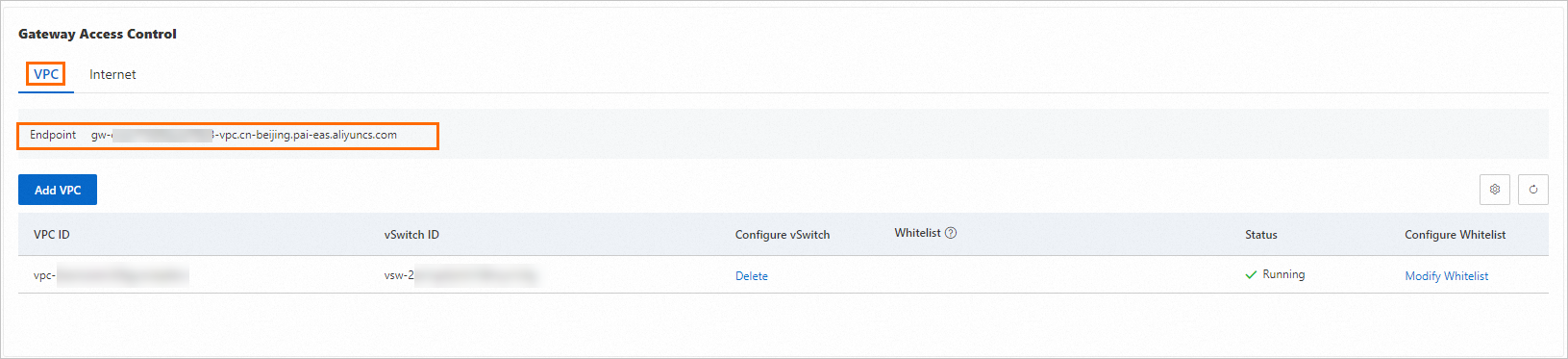
-
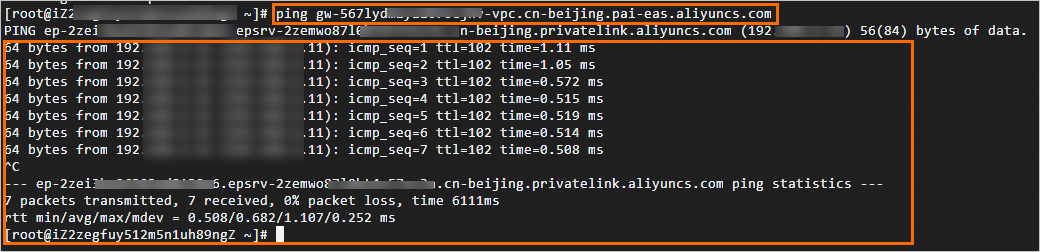
On a terminal within the VPC, access the domain name address. If the output is as follows, the connection is successful.
NoteWithin the VPC, access the dedicated gateway from any zone by configuring the whitelist. Access is not limited to zones of vSwitches added to the gateway.
-
-
To disable VPC access, in the VPC list, click Delete in the Configure vSwitch column.
On a terminal within the VPC, access the domain name address. If the output is as follows, the private access channel for the dedicated gateway is disabled.


1.3 Configure a custom domain name
-
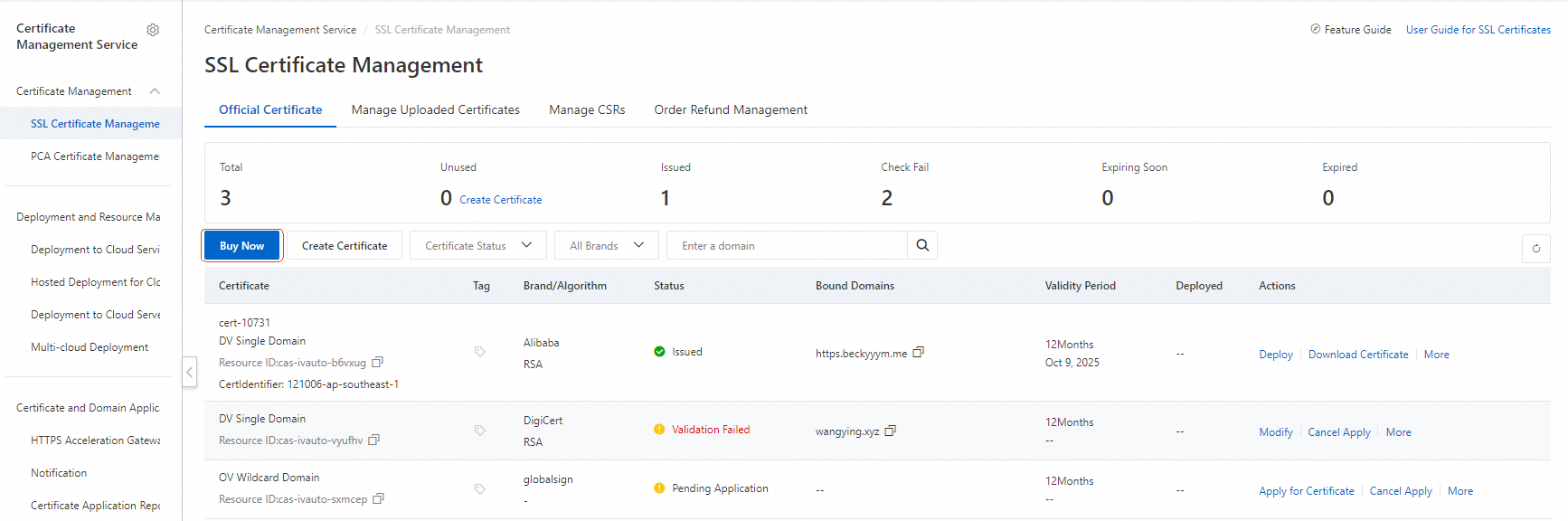
(Optional) Manage digital certificates. To use the HTTPS protocol to access the service, first manage the SSL Certificate for the custom domain name in Certificate Management Service.
-
Log on to the Certificate Management Service console and select SSL Certificate Management.
-
Select Purchase Certificate or upload an existing certificate. For more information, see Purchase an SSL Certificate and Upload an SSL Certificate.
-
-
Configure public and private custom domain names.
Configure a public custom domain name
-
On the dedicated gateway details page, switch to the Domain Name tab, click Create Domain Name, and configure the parameters as shown.
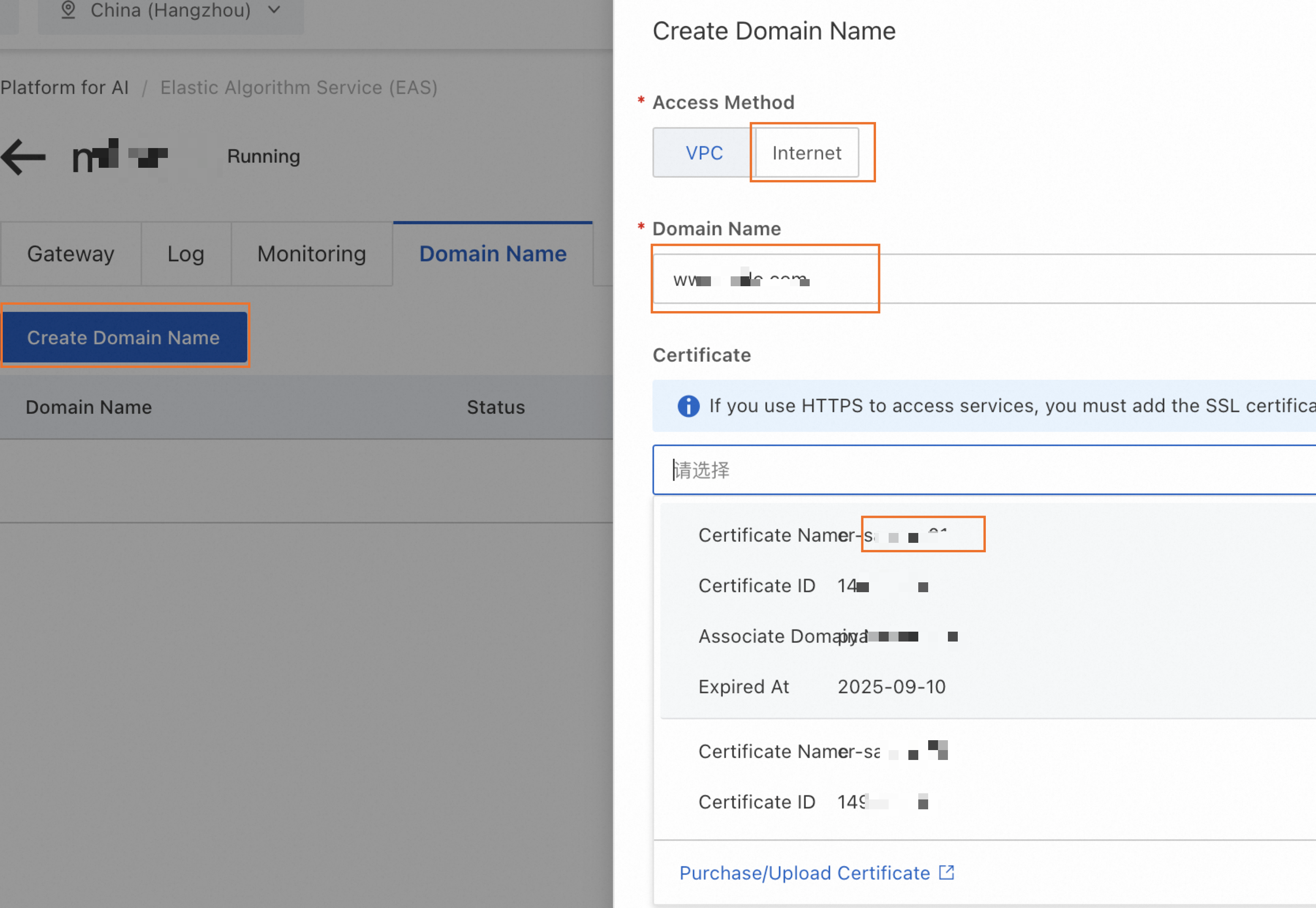 Note
Note-
If a service is already deployed using this dedicated gateway, wait a few moments (up to 5 minutes) for the public custom domain name settings to take effect.
-
Check the service invocation information to confirm that the domain name for the public endpoint has been updated to the public custom domain name configured for the gateway.
-
-
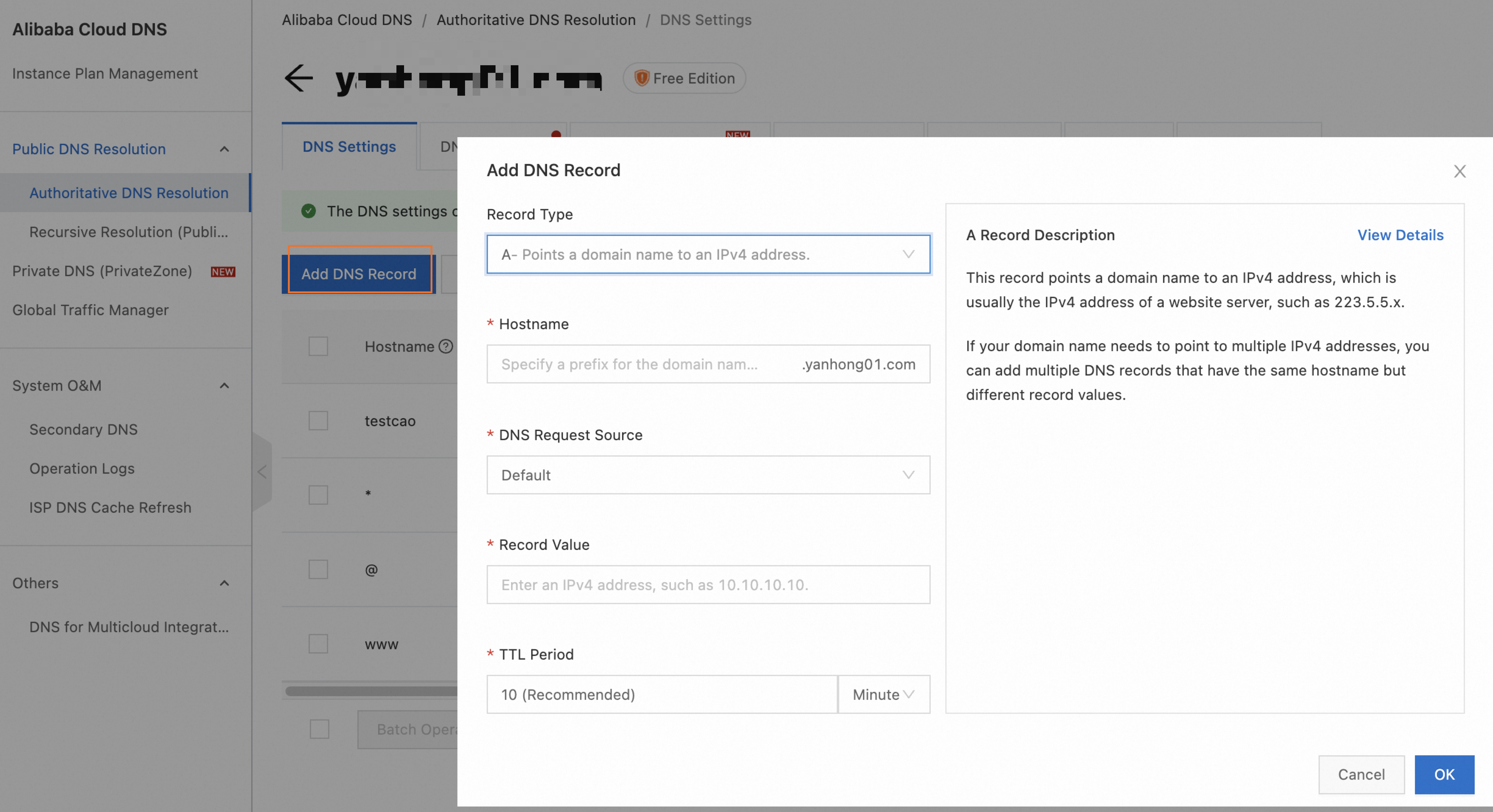
Configure public domain name resolution. Add a CNAME record for the public custom domain name to point it to the public domain name of the dedicated gateway.
-
On the Gateway tab of the dedicated gateway, view the public domain name address of the gateway.
-
Take Alibaba Cloud DNS as an example. The procedure is similar for other cloud providers. Log on to the Alibaba Cloud DNS console. On the Authoritative Domain Names tab, find the custom domain name. If the domain name is not registered with Alibaba Cloud, add it manually. Click the domain name to go to the DNS Settings page, and then click Add Record. Set Record Type to CNAME. Set Host to the custom domain name. Set Record Value to the public domain name of the dedicated gateway from step a. For more information, see Add a domain name and Add a DNS record.
-
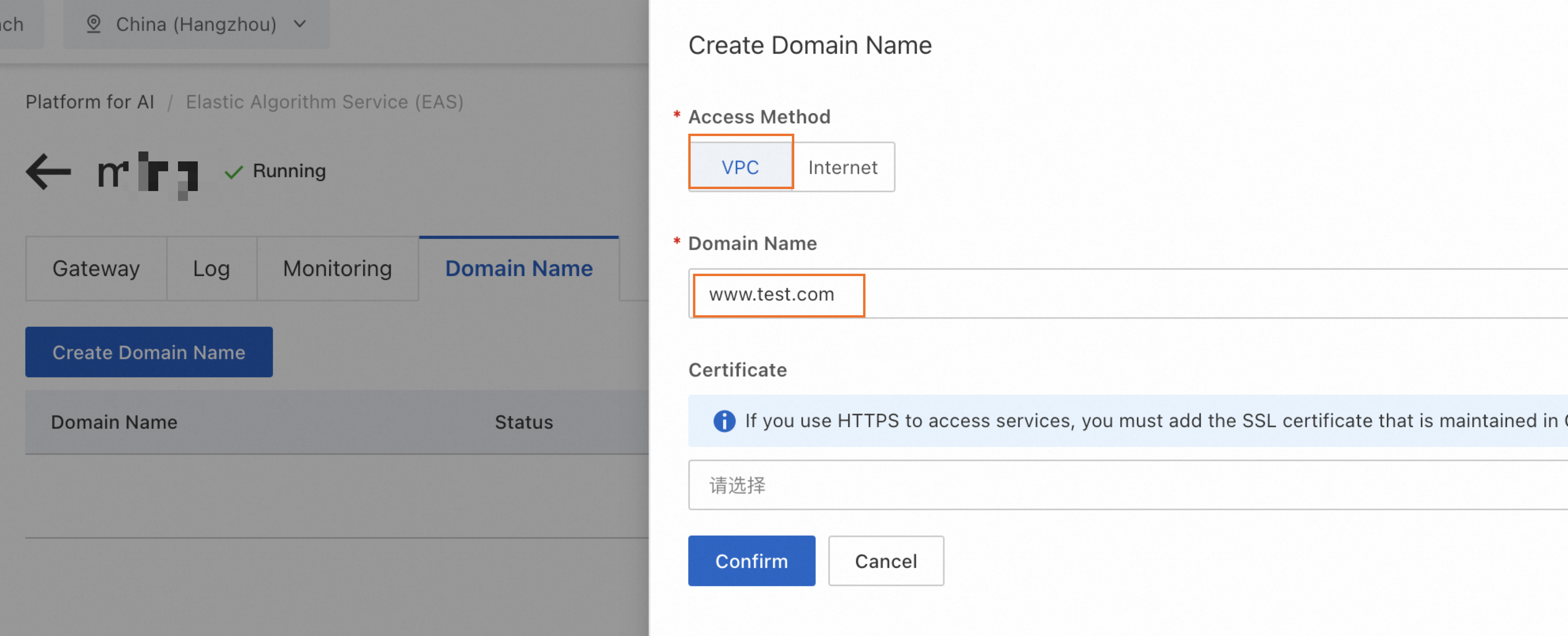
Configure a private custom domain name
-
On the dedicated gateway details page, switch to the Domain Name tab and click Create Domain Name. Configure the parameters as follows.
-
If a service is already deployed using this dedicated gateway, wait a few moments (up to 5 minutes) after the private custom domain name is successfully configured. Check the service invocation information. If the domain name in the VPC endpoint is the private domain name configured for the gateway, the domain name has taken effect.
-
Set a dedicated gateway as the default gateway. The system will then automatically select it when deploying services.
2. Bind service to dedicated gateway
To deploy a new service from the console:
-
Log on to the PAI console. Select a region on the top of the page. Then, select the desired workspace and click Elastic Algorithm Service (EAS).
-
On the Inference Service tab, click Deploy Service. In the Custom Model Deployment section, click Custom Deployment.
-
In the Network Information section, select Dedicated Gateway and select the created dedicated gateway from the drop-down list.
ImportantIf you use an ALB dedicated gateway, the service must be configured with the same VPC as the gateway.
3. Test service invocation
-
On the Inference Service tab, find the target service. In the Service Type column, click Invocation Method.
-
On the Dedicated Gateway tab, get the Internet Endpoint, VPC Endpoint, and Token.

-
Use a curl command to send a request and verify that the returned data is correct.
-
Public invocation: Run the command on any machine that can access the internet.
-
Private invocation: Run the command on a terminal within the VPC.
curl <interface_URL> -H'Authorization:<token>'The following shows a GET request with no parameters. Expected return value: True.

-
Monitoring and alerts
Application Load Balancer (ALB)
For advanced network configuration and monitoring features, go to the Application Load Balancer (ALB) console to manage them centrally for maximum flexibility.
Fully-managed dedicated gateway
To ensure the service stability of the fully-managed gateway and promptly detect runtime exceptions, enable logs, monitoring, and alerting.
Procedure
-
Enable logs, monitoring, and alerting. On the gateway details page, go to Logs, Monitoring, and Alert tabs and follow the on-screen instructions to enable them.
-
Create an alert policy: After enabling alerting, the Create EAS Dedicated Gateway Alert Policy button appears. Click this button. For more information, see Manage alert rules to create an alert rule for the gateway.
ImportantIn the alert content, the variable
{{$labels.envoy_clusterid}}used to identify the gateway displays an internal ID and does not include your custom gateway name. This makes it difficult to quickly locate the specific gateway when receiving an alert. For easier identification, we strongly recommend manually modifying the notification template when creating the alert rule. Replace or supplement this variable with an easily identifiable gateway name.
Alert metric details
|
Metric name |
Definition and formula |
Recommended threshold and scenario |
|
EAS dedicated gateway CPU usage |
The CPU usage percentage of the gateway instance (pod). |
Recommendation: |
|
EAS dedicated gateway memory usage |
The memory usage percentage of the gateway instance (pod). |
Recommendation: |
|
EAS dedicated gateway overall success rate |
|
Recommendation: |
|
EAS dedicated gateway certificate expiration |
Monitors the remaining validity period in days of the HTTPS certificate configured on the gateway. |
Recommendation: |
|
EAS dedicated gateway 4xx/5xx request ratio |
|
5xx recommendation: |
|
EAS dedicated gateway average RT |
The average response time of all requests within a statistical period, in milliseconds (ms). |
Recommendation: Set based on your business baseline, such as |
|
EAS dedicated gateway request volume compared to the previous day |
The percentage change in the number of requests within N minutes at the current time compared to the number of requests within N minutes at the same time on the previous day. |
Recommendation: |
|
EAS dedicated gateway request rate limiting |
The total number of requests rejected by the gateway's rate limiting policy within a statistical period. |
Recommendation: |
Usage notes
When a service uses a dedicated gateway, Auto Scaling does not support scaling out from zero. The minimum number of replicas must be greater than 0.
FAQ
Q: An error occurs when adding a VPC: Vswitch vsw-2zeqwh8hv0gb96zcd**** in zone cn-beijing-g is not supported, supported zones: [cn-beijing-i cn-beijing-l cn-beijing-k]
The zone where the selected vSwitch resides is not supported. Select a vSwitch in a supported zone.
Appendix: Network structure

Reference
-
To learn more about service registration methods, see Service invocation overview.
-
Properly configuring the timeout for a dedicated gateway can prevent resource exhaustion and request backlogs, and improve user experience. For more information about how to configure the timeout, see Configure the timeout for a dedicated gateway.