Edge Security Acceleration (ESA) supports HTTPS acceleration. Deploy an SSL/TLS certificate to ESA and enable SSL/TLS to encrypt traffic between clients and ESA edge points of presence (POPs). ESA edge certificates are configured and take effect at edge nodes. You do not need to deploy an SSL certificate on the origin server. You can enable HTTPS access by configuring certificates in the ESA console.
Configure certificates
Certificate types
ESA supports free and custom certificates. Free certificates are automatically issued and renewed by trusted certification authorities (CAs) such as Let's Encrypt. Custom certificates allow you to upload enterprise certificates, such as those from GlobalSign, for branding or compliance needs. You must manage the renewal of custom certificates.
-
If you run a website for a small-to-medium business or a personal blog with a single exact-match domain name, we recommend applying for a free certificate.
-
If you require a certificate from a highly trusted certification authority (CA) or already have a certificate for your domain name, we recommend uploading a custom certificate.
|
Certificate type |
Let's Encrypt free certificate |
DigiCert free certificate |
Custom certificate |
|
Renewal method |
Automatic |
Automatic |
Manual |
|
Certificate type |
DV |
DV |
DV, OV, EV |
|
Certificate algorithm |
RSA |
RSA |
RSA, ECC |
|
Domain type |
Exact-match domain name, wildcard domain name |
Single exact-match domain name |
Single exact-match domain name, wildcard domain name |
You can configure both free and custom certificates for the same website. All certificates are added to a certificate pool. When an edge point of presence (POP) receives a client request, it automatically selects the optimal certificate from the pool to send to the client.
Differences between ESA free certificates and SSL personal test certificates
Both ESA free certificates and personal test certificates in the SSL Certificate console are free Domain Validated (DV) certificates, but they apply to different scenarios.
|
Dimension |
ESA free certificate (Let's Encrypt) |
SSL personal test certificate (DigiCert) |
|
Domain support |
Single domains and wildcard domains (up to 50 domains per certificate) |
Single domain only |
|
Management |
Available only within ESA; cannot be downloaded |
Can be downloaded and deployed on your own server |
|
Renewal |
Automatically issued and renewed by ESA |
Valid for 90 days; requires manual renewal; no auto-renewal |
|
Applicable scenario |
HTTPS for ESA-accelerated websites |
Test environments only; not for production use |
Apply for a free certificate
The free certificate feature simplifies certificate management. Enter your domain name, and the system automatically handles the application, domain control validation (DCV), renewal, and deployment.
-
Free certificates cannot be downloaded.
-
During the application process, ESA automatically completes the domain control validation (DCV). You do not need to perform manual validation. For more information, see Automatic domain control validation for free certificates.
-
ESA automatically renews free certificates 30 days before they expire. If a renewal fails, you are notified by SMS and email. In this case, you must upload a custom certificate to prevent service disruptions.
-
In the ESA console, select Websites, and in the Website column, click the target website.
-
In the navigation pane on the left, choose .
-
In the Certificate Management section, click Apply for Free Certificate. Select a Certificate Authority and enter a Domain Name:
-
Let's Encrypt (No SLA): Each free certificate can include a maximum of 50 domains. You can enter single domains and wildcard domains. A wildcard domain must start with
*, and the domains must match the website. A certificate forexample.comcovers only that domain and does not include subdomains, such aswww.example.com. To cover subdomains such aswww.example.com, you must apply for a separate wildcard certificate (*.example.com) or add the subdomain separately. -
DigiCert: For a Digicert single-domain certificate, you can select only one website domain. After you apply for a certificate for
example.com, the issued certificate will include bothexample.comandwww.example.com. If you use a subdomain to access ESA (such aswww.example.com), you must perform domain control validation for the root domain (such asexample.com) when you apply for a Digicert certificate.
-
-
Click OK and wait for the certificate application to complete. After the certificate is successfully issued, its status in the Status column changes to Normal.

Upload a custom certificate
You can deploy certificates from Alibaba Cloud Certificate Management Service or a third-party provider to ESA.
-
To purchase an advanced certificate, go to the SSL Certificate console.
-
Ensure that certificates from third-party providers are in the required format. For more information, see Certificate format requirements.
-
You can view certificate details, but for security reasons, the private key is not displayed. Keep your certificate information secure.
Cloud Monitor does not support monitoring the expiration of uploaded custom certificates. The Cloud Monitor metrics for ESA only include operational metrics such as bandwidth, traffic, status codes, and connections, and do not include certificate lifecycle metrics. To get certificate expiration alerts, use the notification feature of Certificate Management Service, or use ESA free certificates (automatically renewed before expiration).
-
In the ESA console, select Websites, and in the Website column, click the target website.
-
In the navigation pane on the left, choose .
-
In the Certificate Management section, click Upload Custom Certificate.
-
If you purchased a certificate from Certificate Management Service, set Certificate Source to Certificate Purchased by Using Certificate Management Service, and select your certificate from the Certificate Name drop-down list.
NoteIf your certificate is not in the list, verify that the domain name bound to the certificate matches the acceleration domain name.
-
If you are using a certificate from a third-party provider, set Certificate Source to Custom Certificate. Then, enter a Certificate Name and paste the content of your Certificate (Public Key) and Private Key. The certificate is saved in Certificate Management Service. You can view it in SSL Certificate Management.
Parameter
Description
Certificate Name
Enter a name for the certificate.
You can use letters, periods, numbers, underscores
_, and hyphens-.Note-
The certificate name must be unique. You can view your existing certificates in SSL Certificate Management.
-
If the system indicates that the name is a duplicate, enter a different name and upload the certificate again.
Certificate (Public Key)
Paste the PEM-encoded content of your certificate file.
You can use a text editor to open the PEM-formatted certificate file, copy its content, and paste it into this field.
Private Key
Paste the PEM-encoded content of your certificate's private key.
You can use a text editor to open the PEM-formatted private key file, copy its content, and paste it into this field.
-
-
-
Click OK to upload the certificate.
Enable SSL/TLS
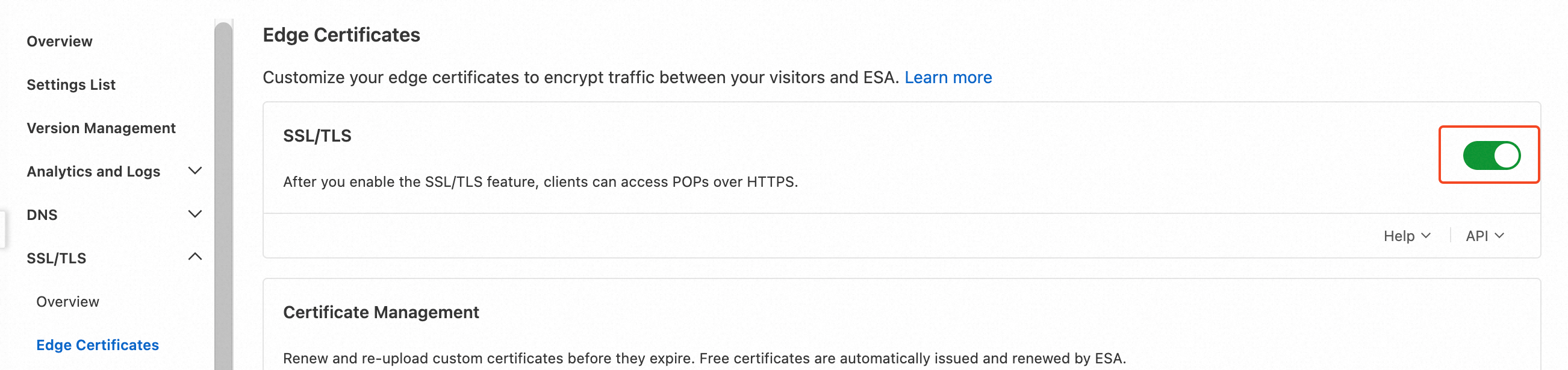
After deploying an SSL/TLS certificate, enable SSL/TLS to activate encrypted HTTPS connections between clients and edge POPs. Once enabled, plain-text HTTP requests are automatically redirected to HTTPS.
-
In the ESA console, select Websites, and in the Website column, click the target website.
-
In the navigation pane on the left, choose .
-
Turn on the SSL/TLS switch.
NoteThis configuration applies to all domain names for the website. If you want to enable SSL/TLS encryption for specific domain names only, you can create a rule for those domain names. For more information, see SSL/TLS rules.
Verify the HTTPS configuration
After configuring the certificate and enabling SSL/TLS, access your website over HTTPS in a browser. A lock icon next to the URL confirms that HTTPS is active.

Update a custom certificate
ESA does not automatically renew custom certificates. Update or reconfigure certificates in the console before they expire to prevent service disruptions. The system sends reminder notifications by email 30 days before expiration.
Update an existing certificate
-
In the ESA console, select Websites, and in the Website column, click the target website.
-
In the navigation pane on the left, choose .
-
In the Certificate Management section, find the certificate that you want to update, and click Modify in the Certificate Management column.
-
Update the certificate content as needed, and then click OK.
Configure a new certificate
-
In the ESA console, select Websites, and in the Website column, click the target website.
-
In the navigation pane on the left, choose .
-
In the Certificate Management section, click Upload Custom Certificate. Based on the Certificate Source, enter the required information, and then click OK.
-
After confirming that the new certificate is uploaded, find the expiring certificate and click Delete in the Actions column. Follow the on-screen prompts to delete the certificate.
Site-level and rule-based features
Site-level configurations apply to all requests for the website. To target specific requests, configure the feature as a rule with matching conditions.
|
Site-level feature |
Corresponding rule-based feature |
|
SSL/TLS |
|
|
Enforce HTTPS |
|
|
TLS Cipher Suites and Protocol Version Configuration |
|
|
OCSP stapling |
|
|
Opportunistic Encryption |
|
|
HSTS |
References
Automatic domain control validation for free certificates
To verify domain ownership, certification authorities (CAs) require applicants to complete validation using one of the following methods:
-
DNS validation (for websites added by using NS records): After applying for a free certificate, ESA automatically adds a TXT record to your DNS configuration for domain control validation.
-
HTTP validation (for websites added by using CNAME records): After applying for a free certificate, domain control is confirmed by verifying that a specific file can be placed on the web server of the specified domain.
When you apply for a free certificate for a website that is active in ESA, ESA handles domain control validation (DCV) by using hosted DCV.
Certificate selection priority
If a website has multiple certificates in its certificate pool, an edge point of presence (POP) selects the optimal one to send to the client based on the following priority:
-
Available certificates are prioritized, such as certificates that are within their validity period and match the SNI.
-
Newer certificates are prioritized over older ones.
Plan support
|
Certificate type |
Entrance |
Pro |
|
Enterprise |
|
Let's Encrypt free certificate |
10 |
50 |
70 |
100 |
|
DigiCert free certificate |
|
10 |
20 |
50 |
|
custom certificate |
5 |
10 |
20 |
50 |
FAQ
DigiCert free certificate features
Does each website require a separate certificate?
Can the same certificate be used for different websites?
For more frequently asked questions, see SSL/TLS FAQ.