OSS bucket domain names support HTTPS by default. To enable HTTPS for custom domain names, configure an SSL certificate to encrypt data in transit and meet compliance requirements.
How it works
HTTPS uses TLS/SSL to encrypt data end-to-end and verifies server identity through certificate chains. To enable HTTPS, configure a valid SSL certificate for the correct domain name.
Certificate configuration depends on the domain name type:
-
Bucket domain name
For example,
example.oss-cn-hangzhou.aliyuncs.com. Alibaba Cloud manages SSL certificates for these domain names. They support HTTPS natively — use thehttps://prefix directly. -
Custom domain name
For custom domain names, the certificate configuration location depends on whether CDN acceleration is enabled:
-
CDN is not enabled: Traffic accesses OSS directly. You must configure certificate hosting for the mapped custom domain name in the OSS console. For more information, see Enable HTTPS access by configuring certificate hosting in OSS.
-
CDN is enabled: Traffic passes through CDN points of presence (POPs) before it is forwarded to OSS. You must configure an HTTPS certificate for the CDN-accelerated domain name in the CDN console. For more information, see Enable HTTPS access by configuring an HTTPS certificate in CDN.
Determine whether CDN acceleration is enabled for your custom domain name before configuring the certificate. Use one of the following methods:
-
Method 1: Use the OSS console
Go to the Buckets page, click the target bucket, and then in the left-side navigation pane, click . The domain list shows all configured CDN-accelerated domain names for the bucket. The HTTPS certificates for these domains must be managed in the Alibaba Cloud CDN console.

-
Method 2: Use the CDN console
Go to the CDN Domain Name List page to view the configured and active CDN-accelerated domain names and their origin bucket information. This method lets you directly check the CDN acceleration status and origin configuration details for your domains.

-
-
Enable HTTPS access by configuring certificate hosting in OSS
Enable HTTPS for a custom domain name mapped to a bucket by hosting an SSL certificate in OSS.
Before you begin, make sure that you have mapped a custom domain name to an OSS bucket. You must also have a valid SSL Certificate that matches the domain name in SSL Certificates Service. You can obtain a certificate by purchasing a new certificate, applying for a free certificate, or uploading a third-party certificate.
Step 1: Configure certificate hosting
Host an SSL Certificate in OSS to enable HTTPS encrypted access for a custom domain name.
-
Go to the Buckets page. Click the target bucket. In the left-side navigation pane, click .
-
In the Actions column for the target custom domain name, click Certificate Hosting. Select a certificate from the Certificate Name drop-down list. If you cannot select the desired certificate, go to the SSL Certificate Management page and make sure that the certificate meets the following conditions:
-
The certificate is issued and valid.
-
The certificate is valid for the domain name that you are configuring.
-
-
Click Upload Certificate to finish configuring certificate hosting.

Step 2: Verify HTTPS access
After certificate hosting takes effect, verify the setup by accessing a resource in a browser.
-
Go to the Buckets page and click the name of the target bucket.
-
In the Actions column of the object file you want to access, click View Details.
-
Set Domain Name to Custom Domain Name. From the drop-down list, select the mapped custom domain name. Then, click Copy Object URL.
-
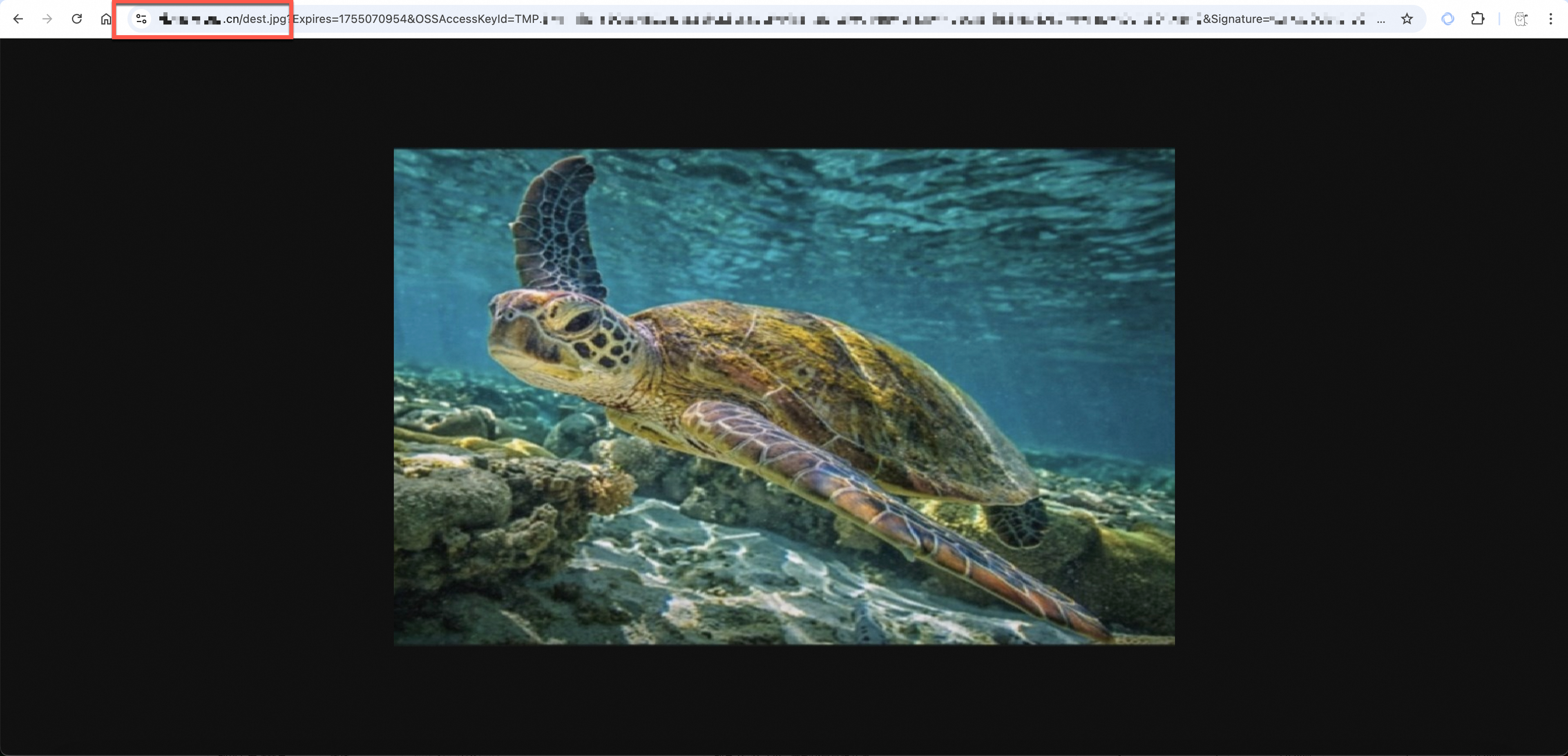
Access the URL in a browser to verify the HTTPS encrypted access. The browser's address bar should display a lock icon, which indicates that the connection is encrypted.
Enable HTTPS access by configuring an HTTPS certificate in CDN
Enable HTTPS for a custom domain name with CDN acceleration by configuring an SSL certificate in the CDN console.
Before you begin, make sure that you have configured CDN acceleration for an OSS bucket and are using the accelerated domain name as the endpoint. You must also have a valid SSL Certificate that matches the domain name in SSL Certificates Service. You can obtain a certificate by purchasing a new certificate or applying for a free certificate. You can also upload a third-party certificate or directly enter the third-party certificate content and private key in the following steps.
Step 1: Configure the CDN HTTPS certificate
Configure an SSL Certificate for the accelerated domain name in the CDN console to enable HTTPS secure acceleration.
-
Go to the CDN console. Click the target accelerated domain name. Click HTTPS. Next to HTTPS Certificate, click Modify.
-
Select HTTPS Secure Acceleration. Read the billing reminder and click OK.
-
Based on the Certificate Source drop-down list, select an SSL Certificate or enter third-party certificate information.
-
SSL Certificates Service: From the Certificate Name drop-down list, select a certificate. If you cannot select the target certificate, go to the SSL Certificate Management page and make sure the certificate meets the following conditions:
-
The certificate has been issued and is within its validity period.
-
The certificate is valid for the domain name that you are configuring.
-
-
Custom Certificate (Certificate + Private Key): Enter the Certificate Name, Certificate (Public Key), and Private Key.
-
-
Click OK to complete the HTTPS certificate configuration.
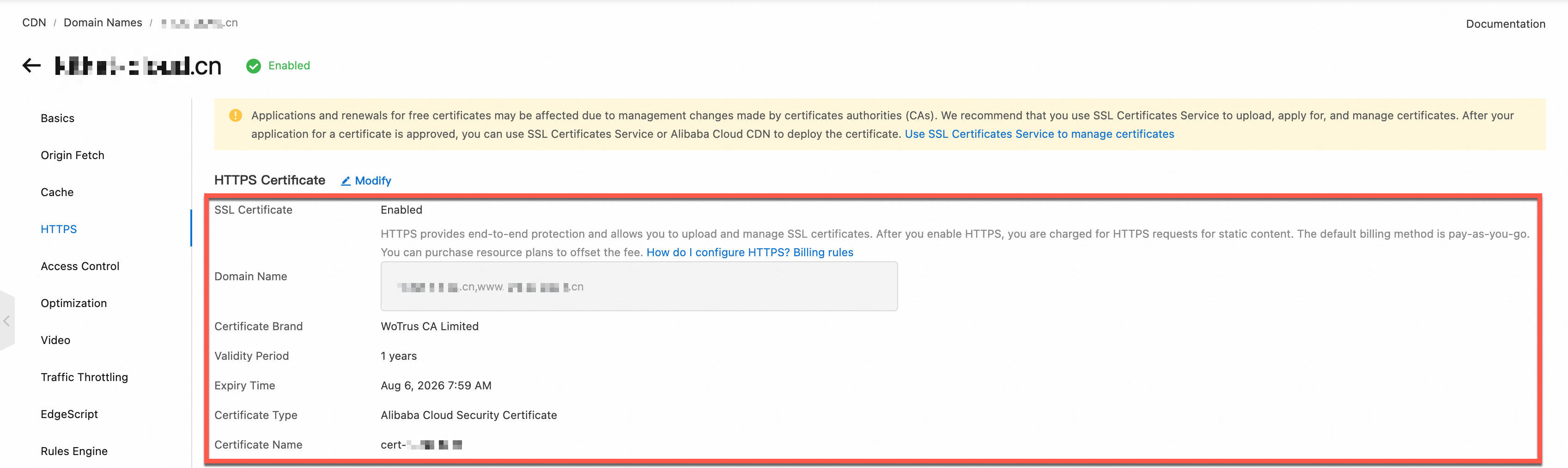
Step 2: Verify CDN HTTPS access
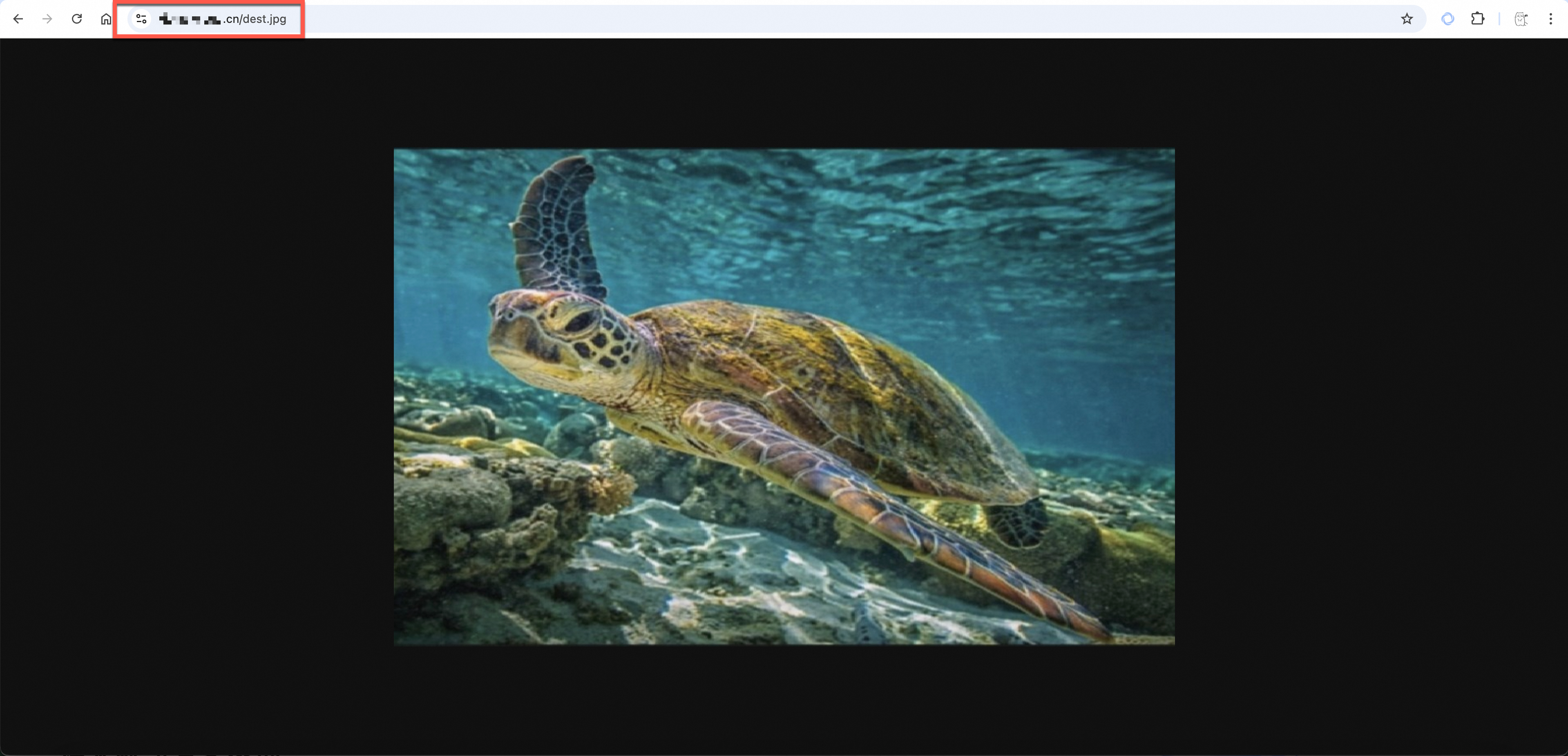
The HTTPS configuration takes about one minute to deploy. Verify by accessing an OSS resource over HTTPS (for example, https://example.com/dest.jpg, where example.com is your accelerated domain name). A lock icon in the browser address bar confirms encrypted transmission.
Apply in production
Optimize your HTTPS configuration for security, reliability, and performance in production.
Best practices
-
Force HTTPS access: Configure an access control policy
Enforce HTTPS for all clients to prevent data interception and meet compliance requirements.
-
For custom domain names, deny all HTTP requests by configuring a bucket policy.
Go to the Buckets page. Click the target bucket. In the navigation pane on the left, click . Select Add by Syntax to add the following bucket policy.
When adding the policy, replace bucketname in the sample configuration with your bucket name.
{
	"Version": "1",
	"Statement": [{
		"Effect": "Deny",
		"Action": [
			"oss:*"
		],
		"Principal": [
			"*"
		],
		"Resource": [
			"acs:oss:*:*:bucketname",
			"acs:oss:*:*:bucketname/*"
		],
		"Condition": {
			"Bool": {
				"acs:SecureTransport": [
					"false"
				]
			}
		}
	}]
}
After you configure the bucket policy, all HTTP requests are denied.

-
For CDN-accelerated domain names, configure a force redirect or enable HTTP Strict Transport Security (HSTS) to force clients to use HTTPS, enhancing the overall security level.
-
Configure a force redirect
Go to the CDN console page. Click the target accelerated domain name. Click HTTPS, and then next to HTTP/S Redirect, click Modify. Configure the redirection as shown in the following figure. After the configuration is complete, CDN uses a 301 redirect to change HTTP requests from clients to CDN nodes into HTTPS requests.

-
Enable HSTS
Go to the CDN console page. Click the target accelerated domain name. Click HTTPS, and then next to HSTS, click Modify. Enable HSTS as shown in the following figure. After the configuration is complete, client HTTP requests are forcibly converted to HTTPS requests.

-
-
-
Automatic renewal: Manage the certificate lifecycle
SSL certificates have a fixed validity period — an expired certificate causes service interruptions. Monitor expiration and renew at least 30 days in advance. For Alibaba Cloud certificates, enable certificate hosting to automate renewals. For third-party certificates, establish a regular update process.
-
Performance optimization: Enable HTTP/2 and compression
HTTP/2 provides multiplexing, header compression, and server push, improving page load speeds over HTTP/1.1. Enable the HTTP/2 protocol and Gzip compression in your CDN configuration to reduce bandwidth and improve performance.
Risk mitigation
-
Certificate failure contingency: Establish a backup certificate mechanism
Prepare a backup SSL certificate from a different CA for critical systems. If the primary certificate fails, switch to the backup to minimize downtime.
-
Access downgrade policy: Revert to HTTP in emergencies
Maintain an emergency plan to temporarily revert to HTTP if a severe certificate issue occurs. Document the procedure, enhance monitoring, and restore HTTPS as soon as possible.
OSS root certificate upgrade
Root certificates anchor the SSL/TLS trust chain. Browsers and operating systems maintain built-in root certificate stores and only trust server certificates signed by a recognized root CA.
Background
In early 2023, Mozilla implemented a policy to distrust root certificates older than 15 years for server authentication. Under this policy, GlobalSign Root R1 became invalid on April 15, 2025. See Mozilla's root CA lifecycle policy and GlobalSign's root certificate upgrade notice.
OSS response strategy
Alibaba Cloud OSS adopted the following strategies for a smooth transition.
-
Certificate update plan
Starting from July 1, 2024, new certificates issued by OSS use GlobalSign Root R3 to ensure compatibility with the latest security standards and to prevent access interruptions caused by changes in the root certificate trust policy.
-
Cross-certificate compatibility solution
Existing OSS certificates use cross-certificates to migrate from GlobalSign Root R1 to R3. The R1-based cross-certificate expires January 28, 2028. Because certificate applications must be submitted 13 months before expiration, complete all root certificate update preparations by December 28, 2026.
-
Future plans and recommendations
GlobalSign Root R3 will cease to be trusted by Mozilla on April 15, 2027, and expires March 18, 2029. Ensure your root certificate list includes GlobalSign R1, R3, R6, and R46 to accommodate future rotations.
What you need to do
For most users, no action is required. Modern operating systems (Windows 7+, macOS 10.12.1+, major Linux distributions from the last 5 years) and browsers (Chrome, Firefox, Safari) automatically update root certificate stores.
Follow the steps below only if you encounter certificate errors when accessing OSS over HTTPS on legacy operating systems, embedded devices, or outdated custom clients.
Step 1: Check for the 'GlobalSign Root CA - R3' root certificate
Windows
-
Press Win+R, enter
certmgr.msc, and press Enter to open Certificate Manager. -
In the navigation pane on the left, expand .
-
In the list on the right, find the certificate where Issued To is GlobalSign and Friendly Name is GlobalSign Root CA - R3.
Linux
Using Ubuntu as an example, open a terminal and run the following command to check if GlobalSign-related certificates exist in the system's certificate directory.
ls /etc/ssl/certs/ | grep GlobalSignmacOS
-
Open Finder, search for Keychain Access, and double-click it to open.
-
Click System Roots. Enter GlobalSign in the search box in the upper-right corner. Double-click a certificate to view its details.
Step 2: Install the missing root certificate
If the root certificate is missing, install it using the method for your operating system:
Billing
After you enable HTTPS in CDN, you are billed for the number of static HTTPS requests. For more information, see Billing of HTTPS requests for static content.
FAQ
How do I update a certificate that is replaced or has expired?
The update procedure is the same as the initial configuration. Choose the update path corresponding to your domain name type.
-
OSS custom domain name: Go to the Buckets page, and in the Certificate Hosting section for the target bucket's domain management, select the new certificate.
-
CDN-accelerated domain name: Go to the CDN console. In the HTTPS settings for the target accelerated domain name, select or upload the new certificate.
After I configure an SSL Certificate, why does my browser still show an 'insecure' or 'certificate error' message?
If a security warning persists after configuration, troubleshoot the issue as follows:
-
Check the configuration location: If CDN acceleration is enabled, configure HTTPS in the CDN console — the OSS certificate hosting setting does not apply to CDN-accelerated domains.
-
Clear the browser cache: The browser may have cached the old certificate status. Clear the cache and retry.
-
Wait for the configuration to take effect: Certificate configurations may take a few minutes to deploy.
-
Check the certificate chain integrity: Certificates from intermediate CAs contain multiple certificates. Concatenate the server certificate with the intermediate certificate to form a complete chain before uploading.
How do I handle certificate exceptions when accessing OSS over HTTPS?
Resolve based on the exception type:
-
Certificate not configured: The browser displays "Your connection is not private," with the error message:
NET::ERR_SSL_PROTOCOL_ERROR. This error may indicate that the certificate is missing or configured in the wrong location (for example, using certificate hosting in OSS when CDN acceleration is enabled). Reconfigure HTTPS using the correct method. -
Certificate expired: The browser displays "Your connection is not private," with the error message:
NET::ERR_CERT_DATE_INVALID. The certificate bound to the domain has expired. View the expiration date in the browser. Purchase or apply for a new certificate, then update it following the configuration procedure. -
Certificate mismatch: The browser displays "Your connection is not private," with the error message:
NET::ERR_CERT_COMMON_NAME_INVALID. The domain in the access URL is not included in the certificate's domains. For example, the access domain iscdn.example.com, but the certificate is bound tooss.example.com. Configure the correct certificate for the access domain.
Why can't I find my target certificate in the drop-down list when selecting a certificate?
The certificate might not appear in the drop-down list for the following reasons:
-
Certificate and domain name mismatch: The system only lists certificates that match the domain you are currently configuring. For example, when configuring a certificate for
oss.example.com, you cannot select a certificate issued tocdn.example.com. -
Certificate is not under the current account: Confirm whether the certificate is under the current Alibaba Cloud account. If not, you need to upload the certificate on the SSL Certificate Management page.
-
Wildcard certificate level mismatch: A wildcard certificate only supports subdomains at the same level. For example,
*.example.comcan matchwww.example.comandoss.example.com, but notcdn.oss.example.com.
When I configure an HTTPS certificate in CDN, a message indicates that the certificate format is incorrect. How do I convert the format?
CDN HTTPS configuration only supports certificates in PEM format. Different CAs have different requirements for uploading certificate content. If the certificate is not in PEM format, see Certificate format. Follow the instructions in the document to convert the format before uploading.
How do I update a certificate using the command line or an API?
-
CDN-accelerated domain name: Use the Alibaba Cloud CLI to set the CDN domain certificate. See Cloud Assistant CLI integration example and SetDomainServerCertificate API.
-
OSS custom domain name: Use ossutil to bind a certificate to a custom domain name. See put-cname command. Updating the certificate does not affect the existing CNAME record or its binding to the bucket. You do not need to recreate the CNAME record or the bucket.
How do I disable HTTPS access?
-
Custom domain name
Delete the certificate to disable HTTPS:
-
Go to the Buckets page. Click the target bucket. In the navigation pane on the left, click .
-
Click the delete icon next to Certificate Details for the target domain name, and then click OK.

-
-
CDN-accelerated domain name
Disable HTTPS in the CDN console:
ImportantTo avoid access interruptions, first restore the URL Redirection type to its default setting and disable the HSTS feature before disabling HTTPS.
-
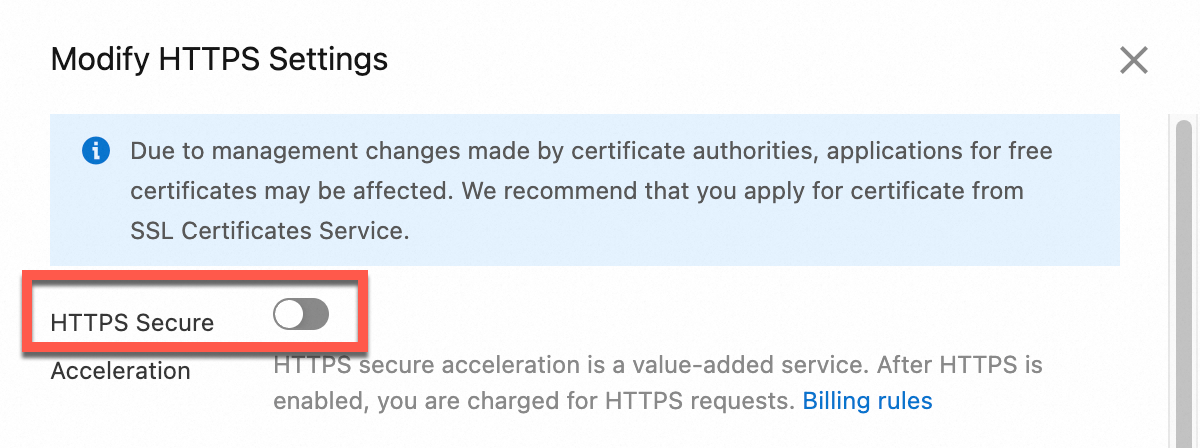
Go to the CDN console, click the target accelerated domain name, click HTTPS, then click Modify next to HTTPS Certificate.
-
Disable HTTPS Secure Acceleration as shown in the following figure, then click OK.
-
How do I troubleshoot an upload failure over a custom domain name in the OSS console?
When you upload an object in the OSS console, the upload panel provides two Domain Name options: the bucket domain name and a custom domain name. The bucket domain name is selected by default. This choice only determines the endpoint that is used for the upload. The resulting object in the bucket is identical either way.
-
Bucket domain name: Alibaba Cloud manages the SSL certificate for this domain name. The domain name supports HTTPS natively, and uploads succeed without extra configuration. For more information, see How it works.
-
Custom domain name: When you switch to a custom domain name, the console displays a warning that prompts you to confirm that the CNAME record and the certificate of the mapped custom domain name are configured correctly. Otherwise, access may fail. This warning indicates the root cause of upload failures: a custom domain name requires configuration on your side.
If an upload over a custom domain name fails, troubleshoot the issue as follows:
-
Confirm that the custom domain name is mapped to the current bucket and that its CNAME record resolves to the endpoint of the bucket. For more information, see Access OSS through a custom domain name.
-
Confirm that a valid SSL certificate that matches the custom domain name is configured.
If CDN acceleration is not enabled, configure certificate hosting in the OSS console: Go to the Buckets page and click the target bucket. In the left-side navigation pane, click Bucket Settings > Domain Names. Then, click Certificate Hosting in the Actions column of the target custom domain name and select a certificate from the Certificate Name drop-down list.
If CDN acceleration is enabled, configure the certificate in the CDN console instead. Certificate hosting in OSS does not apply to CDN-accelerated domain names. For more information, see Enable HTTPS access by configuring certificate hosting in OSS and Enable HTTPS access by configuring an HTTPS certificate in CDN.
-
If certificate-related errors persist, see the certificate exception entries in this FAQ section.
-
To restore uploads immediately, switch the upload panel back to the default bucket domain name. The uploaded object is identical regardless of the domain name that you use.