Oleh Ferdin Joe
Ini adalah demo untuk membuat antarmuka gradio di Alibaba Cloud Elastic Compute Service (ECS) dan mengaktifkan gradio untuk terhubung dengan model pratinjau Wan 2.5 di Alibaba Cloud Model Studio melalui kunci API serta membuat gambar dan video untuk prompt teks yang diberikan sebagai input. Demo ini terdiri dari bagian berikut:
● Pembuatan instans ECS
● Menyusun kode untuk gradio
● Menginstal kode tersebut di ECS menggunakan skrip bash
● Panduan eksplorasi untuk menggunakan solusi tersebut
Pembuatan instans ECS
Buat instans ECS dengan konfigurasi normal dengan alamat IP publik atau EIP. IP yang berinteraksi dengan publik harus memiliki alokasi bandwidth yang layak. Tambahkan instans dalam grup keamanan tempat Anda mengizinkan port 7860 dalam koneksi masuk.
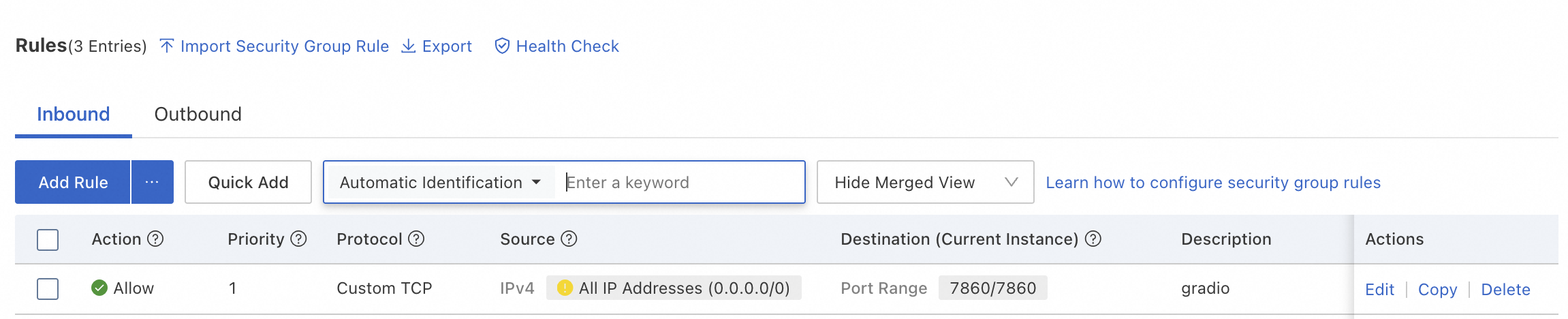
Aturan lain untuk aturan masuk dan keluar sama seperti aturan umumnya.
Menyusun kode untuk gradio
Gradio menggunakan python dan diperlukan untuk menginstal dependensi yang diperlukan. Kunci API Model Studio diperlukan. Buat satu dari konsol Model Studio. Kita memerlukan komponen kode berikut:
Filename: .env
Ini tempat menyimpan kunci API untuk menarik permintaan
DASHSCOPE_API_KEY=<Your Model Studio API Key>Filename: gradio_wan_app.py
#!/usr/bin/env python3
"""
Antarmuka Web Gradio untuk Pembuatan Teks ke Gambar WAN
Menggunakan API DashScope Model Studio
"""

from http import HTTPStatus
from urllib.parse import urlparse, unquote
from pathlib import PurePosixPath
import requests
from dashscope import ImageSynthesis, VideoSynthesis
from dashscope.audio.tts_v2 import SpeechSynthesizer
import os
import dashscope
import gradio as gr
from dotenv import load_dotenv
from PIL import Image
from io import BytesIO
import logging
import json

# Setup logging
logging.basicConfig(
  level=logging.INFO,
  format='%(asctime)s - %(name)s - %(levelname)s - %(message)s'
)
logger = logging.getLogger(__name__)

# Load environment variables
load_dotenv()

# Configuration - Use Singapore region API
dashscope.base_http_api_url = 'https://dashscope-intl.aliyuncs.com/api/v1'

# Get API key from environment
DASHSCOPE_API_KEY = os.getenv("DASHSCOPE_API_KEY", "<Model Studio API>")
dashscope.api_key = DASHSCOPE_API_KEY

logger.info(f"🚀 Gradio WAN Image Generator starting...")
logger.info(f"API Endpoint: {dashscope.base_http_api_url}")


def generate_image(
  prompt: str,
  negative_prompt: str = "",
  num_images: int = 1,
  size: str = "1024*1024",
  seed: int = None,
  prompt_extend: bool = True,
  watermark: bool = False
):
  """
    Buat gambar menggunakan model WAN 2.5

    Args:
        prompt: Text description of the image to generate
        negative_prompt: What to avoid in the image
        num_images: Number of images to generate (1-4)
        size: Image size (1024*1024, 720*1280, 1280*720)
        seed: Random seed for reproducibility (optional)
        prompt_extend: Whether to automatically expand the prompt
        watermark: Whether to add watermark

    Returns:
        List of PIL Images or error message
    """
  if not prompt or prompt.strip() == "":
    return None, None, "❌ Please provide a prompt description!"

    try:
      logger.info(f"🎨 Generating image with prompt: {prompt}")

      # Prepare parameters
      params = {
        'api_key': DASHSCOPE_API_KEY,
        'model': 'wan2.5-t2i-preview',
        'prompt': prompt,
        'negative_prompt': negative_prompt,
        'n': num_images,
        'size': size,
        'prompt_extend': prompt_extend,
        'watermark': watermark
      }

      # Add seed if provided
      if seed is not None and seed > 0:
        params['seed'] = seed

        # Call WAN API
        logger.info(f"Calling WAN 2.5 API with parameters: {params}")
      rsp = ImageSynthesis.call(**params)

      logger.info(f"Response status: {rsp.status_code}")

      if rsp.status_code == HTTPStatus.OK:
        images = []

        # Download and convert each generated image
        for idx, result in enumerate(rsp.output.results):
          logger.info(f"Downloading image {idx + 1}: {result.url}")

          # Download image data
          image_data = requests.get(result.url).content

          # Convert to PIL Image
          image = Image.open(BytesIO(image_data))
          images.append(image)

          logger.info(f"✅ Image {idx + 1} downloaded successfully")

          success_msg = f"✅ Successfully generated {len(images)} image(s)!"
        # Always return as list for Gallery component
        return images, None, success_msg
      else:
        error_msg = f"❌ Generation failed!\n\nStatus: {rsp.status_code}\nCode: {rsp.code}\nMessage: {rsp.message}"
        logger.error(error_msg)
        return None, None, error_msg

    except Exception as e:
      error_msg = f"❌ Error during image generation:\n\n{str(e)}"
      logger.error(f"Error in generate_image: {e}", exc_info=True)
      return None, None, error_msg


def generate_video(
  prompt: str,
  resolution: str = "1280*720",
  duration: str = "5s",
  enable_audio: bool = False
):
  """
    Buat video menggunakan model WAN 2.5 T2V Preview

    Args:
        prompt: Text description of the video to generate
        resolution: Video resolution (1280*720, 960*960, 1280*768, 768*1280)
        duration: Video duration (5s or 10s)
        enable_audio: Whether to generate audio for the video

    Returns:
        Video file path and status message
    """
  if not prompt or prompt.strip() == "":
    return None, None, "❌ Please provide a prompt description!"

    try:
      logger.info(f"🎬 Generating video with prompt: {prompt}")
      logger.info(f"Using WAN 2.5 T2V Preview model with resolution: {resolution}")
      logger.info(f"Duration: {duration}")
      logger.info(f"Audio enabled: {enable_audio}")

      # Call WAN 2.5 T2V Preview API using VideoSynthesis
      # Note: Audio generation is done through a separate parameter
      logger.info("Calling VideoSynthesis API...")

      # Convert duration string to seconds (e.g., "10s" -> 10)
      duration_seconds = int(duration.replace('s', ''))

      if enable_audio:
        # Use model with audio support
        rsp = VideoSynthesis.call(
          model='wan2.5-t2v-preview',
          prompt=prompt,
          size=resolution,
          duration=duration_seconds,
          audio=True  # Enable audio generation
        )
      else:
        # Standard video without audio
        rsp = VideoSynthesis.call(
          model='wan2.5-t2v-preview',
          prompt=prompt,
          size=resolution,
          duration=duration_seconds
        )

        logger.info(f"Response status: {rsp.status_code}")

      if rsp.status_code == HTTPStatus.OK:
        video_url = rsp.output.video_url
        logger.info(f"Video URL received: {video_url}")

        # Download the video
        logger.info("Downloading video...")
        video_data = requests.get(video_url).content

        # Save to file
        import time
        video_filename = f"generated_video_{int(time.time())}.mp4"
        with open(video_filename, 'wb') as f:
          f.write(video_data)

          logger.info(f"✅ Video downloaded successfully: {video_filename}")
        audio_status = " with audio" if enable_audio else " (no audio)"
        success_msg = f"✅ Successfully generated video{audio_status}!\n\nDuration: {duration}\nResolution: {resolution}\nModel: WAN 2.5 T2V Preview"
        return None, video_filename, success_msg
      else:
        error_msg = f"❌ Video generation failed!\n\nStatus: {rsp.status_code}\nCode: {rsp.code}\nMessage: {rsp.message}\n\nNote: Video generation may not be available with your current API key."
        logger.error(error_msg)
        logger.error(f"Full response: status_code={rsp.status_code}, code={rsp.code}, message={rsp.message}")
        return None, None, error_msg

    except Exception as e:
      error_msg = f"❌ Error during video generation:\n\n{str(e)}\n\nNote: Video generation requires API access to WAN T2V models."
      logger.error(f"Error in generate_video: {e}", exc_info=True)
      return None, None, error_msg


def generate_content(
  mode: str,
  prompt: str,
  negative_prompt: str,
  num_images: int,
  image_size: str,
  video_resolution: str,
  video_duration: str,
  enable_audio: bool,
  seed: int,
  prompt_extend: bool,
  watermark: bool
):
  """
    Arahkan ke fungsi pembuatan yang sesuai berdasarkan mode
    """
  if mode == "Text to Image":
    return generate_image(
      prompt=prompt,
      negative_prompt=negative_prompt,
      num_images=num_images,
      size=image_size,
      seed=seed,
      prompt_extend=prompt_extend,
      watermark=watermark
    )
  else:  # Text to Video
    return generate_video(
      prompt=prompt,
      resolution=video_resolution,
      duration=video_duration,
      enable_audio=enable_audio
    )


# Create Gradio interface
def create_interface():
  """Create and configure the Gradio interface"""

  with gr.Blocks(
    title="WAN Text-to-Image & Text-to-Video Generator",
    theme=gr.themes.Soft()
  ) as demo:
    gr.Markdown(
      """
            # 🎨 WAN 2.5 Text-to-Image & Text-to-Video Generator

            Buat gambar atau video yang menakjubkan dari deskripsi teks menggunakan model WAN Alibaba Cloud.

            ### How to use:
            1.  Choose generation mode (Image or Video)
            2.  Enter a detailed description
            3.  (Optional) Adjust settings
            4.  Click **Generate** button
            5.  Wait for your creation!  🎞️
            """
    )

    with gr.Row():
      with gr.Column(scale=1):
        # Mode selection
        mode_radio = gr.Radio(
          choices=["Text to Image", "Text to Video"],
          value="Text to Image",
          label="🎭 Generation Mode",
          info="Choose what you want to generate"
        )

        # Input controls
        prompt_input = gr.Textbox(
          label="✏️ Prompt",
          placeholder="Describe what you want to generate... (e.g., 'A beautiful sunset over mountains')",
          lines=3,
          max_lines=5
        )

        # Image-specific settings
        with gr.Group(visible=True) as image_settings:
          gr.Markdown("### 🖼️ Image Settings")

          negative_prompt_input = gr.Textbox(
            label="🚫 Negative Prompt (Optional)",
            placeholder="What to avoid... (e.g., 'blurry, low quality')",
            lines=2,
            max_lines=3
          )

          num_images_slider = gr.Slider(
            minimum=1,
            maximum=4,
            value=1,
            step=1,
            label="Number of Images"
          )

          image_size_dropdown = gr.Dropdown(
            choices=["1024*1024", "720*1280", "1280*720"],
            value="1024*1024",
            label="Image Size"
          )

          seed_number = gr.Number(
            label="Seed (Optional)",
            value=None,
            precision=0,
            info="Use same seed for reproducible results"
          )

          prompt_extend_checkbox = gr.Checkbox(
            label="Auto-expand Prompt",
            value=True,
            info="Let AI enhance your prompt"
          )

          watermark_checkbox = gr.Checkbox(
            label="Add Watermark",
            value=False
          )

          # Video-specific settings
          with gr.Group(visible=False) as video_settings:
            gr.Markdown("### 🎬 Video Settings")

            video_resolution_dropdown = gr.Dropdown(
              choices=["1280*720", "960*960", "1280*768", "768*1280"],
              value="1280*720",
              label="Video Resolution"
            )

            video_duration_radio = gr.Radio(
              choices=["5s", "10s"],
              value="5s",
              label="Video Duration",
              info="Longer videos take more time to generate"
            )

            enable_audio_checkbox = gr.Checkbox(
              label="🔊 Enable Audio",
              value=False,
              info="Generate audio for video (Note: Audio support depends on API availability)"
            )

            generate_btn = gr.Button(
              "🎨 Generate",
              variant="primary",
              size="lg"
            )

        status_output = gr.Textbox(
          label="Status",
          interactive=False,
          show_label=True
        )

        with gr.Column(scale=1):
          # Output display
          image_output = gr.Gallery(
            label="Generated Images",
            show_label=True,
            visible=True,
            columns=2,
            rows=2,
            object_fit="contain"
          )

          video_output = gr.Video(
            label="Generated Video",
            show_label=True,
            visible=False
          )

      # Example prompts
      gr.Markdown("### 💡 Example Prompts")

    with gr.Tab("Image Examples"):
      gr.Examples(
        examples=[
          ["A serene Japanese garden with cherry blossoms, koi pond, and traditional pagoda at sunset"],
          ["A futuristic cyberpunk city with neon lights, flying cars, and towering skyscrapers"],
          ["A cozy coffee shop interior with warm lighting, wooden furniture, and plants"],
          ["A majestic dragon flying over snow-capped mountains under the northern lights"],
          ["A cute robot reading a book in a library filled with ancient tomes"],
        ],
        inputs=[prompt_input]
      )

      with gr.Tab("Video Examples"):
        gr.Examples(
          examples=[
            ["A time-lapse of clouds moving across a blue sky over a mountain landscape"],
            ["Ocean waves gently rolling onto a sandy beach at sunset"],
            ["A butterfly landing on a flower and slowly opening its wings"],
            ["Rain drops falling on a window with a blurred city background"],
            ["Northern lights dancing in the night sky over a snowy landscape"],
          ],
          inputs=[prompt_input]
        )

        # Toggle visibility based on mode
        def update_visibility(mode):
          if mode == "Text to Image":
            return (
              gr.update(visible=True),   # image_settings
              gr.update(visible=False),  # video_settings
              gr.update(visible=True),   # image_output
              gr.update(visible=False),  # video_output
              gr.update(value="🎨 Generate Image")  # button text
            )
          else:
            return (
              gr.update(visible=False),  # image_settings
              gr.update(visible=True),   # video_settings
              gr.update(visible=False),  # image_output
              gr.update(visible=True),   # video_output
              gr.update(value="🎬 Generate Video")  # button text
            )

    mode_radio.change(
      fn=update_visibility,
      inputs=[mode_radio],
      outputs=[image_settings, video_settings, image_output, video_output, generate_btn]
    )

    # Connect the generate button
    generate_btn.click(
      fn=generate_content,
      inputs=[
        mode_radio,
        prompt_input,
        negative_prompt_input,
        num_images_slider,
        image_size_dropdown,
        video_resolution_dropdown,
        video_duration_radio,
        enable_audio_checkbox,
        seed_number,
        prompt_extend_checkbox,
        watermark_checkbox
      ],
      outputs=[image_output, video_output, status_output]
    )

    return demo


if __name__ == "__main__":
  # Validate API key
  if not DASHSCOPE_API_KEY or DASHSCOPE_API_KEY == "":
    logger.error("❌ DASHSCOPE_API_KEY not found in environment variables!")
    print("\n⚠️  Please set DASHSCOPE_API_KEY in your .env file\n")
    exit(1)

    # Create and launch interface
    demo = create_interface()

  logger.info("🌐 Launching Gradio interface...")
  demo.launch(
    server_name="0.0.0.0",
    server_port=7860,
    share=False,
    show_error=True
  )
Filename: deploy_to_ecs.sh
#!/bin/bash
# Deployment script for Gradio WAN App on Alibaba Cloud ECS
# Run this script on your ECS instance after transferring files

set -e  # Exit on error

echo "🚀 Starting deployment of Gradio WAN App..."

# Colors for output
GREEN='\033[0;32m'
BLUE='\033[0;34m'
RED='\033[0;31m'
NC='\033[0m' # No Color

# Configuration
APP_DIR="/root/financeapp"
SERVICE_NAME="gradio-wan"

echo -e "${BLUE}📦 Step 1: Installing system dependencies...${NC}"
if command -v apt &> /dev/null; then
    # Ubuntu/Debian
    sudo apt update
    sudo apt install -y python3 python3.12-venv python3-pip git build-essential
elif command -v yum &> /dev/null; then
    # CentOS/RHEL
    sudo yum update -y
    sudo yum install -y python39 python39-pip git gcc gcc-c++ make
fi

echo -e "${BLUE}📂 Step 2: Setting up application directory...${NC}"
cd $APP_DIR

echo -e "${BLUE}🐍 Step 3: Creating Python virtual environment...${NC}"
python3 -m venv .venv
source .venv/bin/activate

echo -e "${BLUE}📥 Step 4: Installing Python dependencies...${NC}"
pip install --upgrade pip
pip install gradio==4.16.0 gradio-client==0.8.1
pip install dashscope>=1.23.4
pip install python-dotenv>=1.0.0
pip install requests>=2.31.0
pip install pillow>=10.0.0
pip install "huggingface_hub<1.0.0"
pip install numpy>=1.24.0

echo -e "${BLUE}⚙️  Step 5: Creating systemd service...${NC}"
sudo tee /etc/systemd/system/${SERVICE_NAME}.service > /dev/null <<EOF
[Unit]
Description=Gradio WAN Image and Video Generator
After=network.target

[Service]
Type=simple
User=root
WorkingDirectory=$APP_DIR
Environment="PATH=$APP_DIR/.venv/bin"
ExecStart=$APP_DIR/.venv/bin/python gradio_wan_app.py
Restart=always
RestartSec=10
StandardOutput=append:/var/log/${SERVICE_NAME}.log
StandardError=append:/var/log/${SERVICE_NAME}.error.log

[Install]
WantedBy=multi-user.target
EOF

echo -e "${BLUE}🔄 Step 6: Enabling and starting service...${NC}"
sudo systemctl daemon-reload
sudo systemctl enable ${SERVICE_NAME}
sudo systemctl restart ${SERVICE_NAME}

echo -e "${GREEN}✅ Deployment completed successfully!${NC}"
echo ""
echo "📊 Service Status:"
sudo systemctl status ${SERVICE_NAME} --no-pager

echo ""
echo "🌐 Your Gradio app should now be accessible at:"
echo "   http://$(curl -s ifconfig.me):7860"
echo ""
echo "📝 Useful commands:"
echo "   View logs:     sudo journalctl -u ${SERVICE_NAME} -f"
echo "   Stop service:  sudo systemctl stop ${SERVICE_NAME}"
echo "   Start service: sudo systemctl start ${SERVICE_NAME}"
echo "   Restart:       sudo systemctl restart ${SERVICE_NAME}"
echo "   Status:        sudo systemctl status ${SERVICE_NAME}"
echo ""
echo "⚠️  Important: Make sure port 7860 is open in your ECS security group!"
Muat ke-3 file di atas ke dalam folder root yang ditetapkan dengan .venv lingkungan virtual. Perintah untuk menginstal semua yang diperlukan diberikan di bagian berikutnya.
Menginstal kode tersebut di ECS menggunakan skrip bash
Unggah file tersebut ke ECS menggunakan perintah berikut dari terminal lokal Anda.
# Transfer all necessary files (replace <ECS_IP> with your actual ECS public IP)
scp gradio_wan_app.py root@<ECS_IP>:/root/targetfolder/
scp .env root@<ECS_IP>:/root/targetfolder/
scp deploy_to_ecs.sh root@<ECS_IP>:/root/targetfolder/
Untuk menginstal semua yang diperlukan mulai dari python, pip, lingkungan virtual dan pustaka yang diperlukan, jalankan perintah berikut.
cd /root/targetfolder
chmod +x deploy_to_ecs.sh
./deploy_to_ecs.sh
Ini akan menjalankan skrip shell dan membuat antarmuka dapat dijalankan dengan alamat berikut: http://ECS-Public-IP:7860
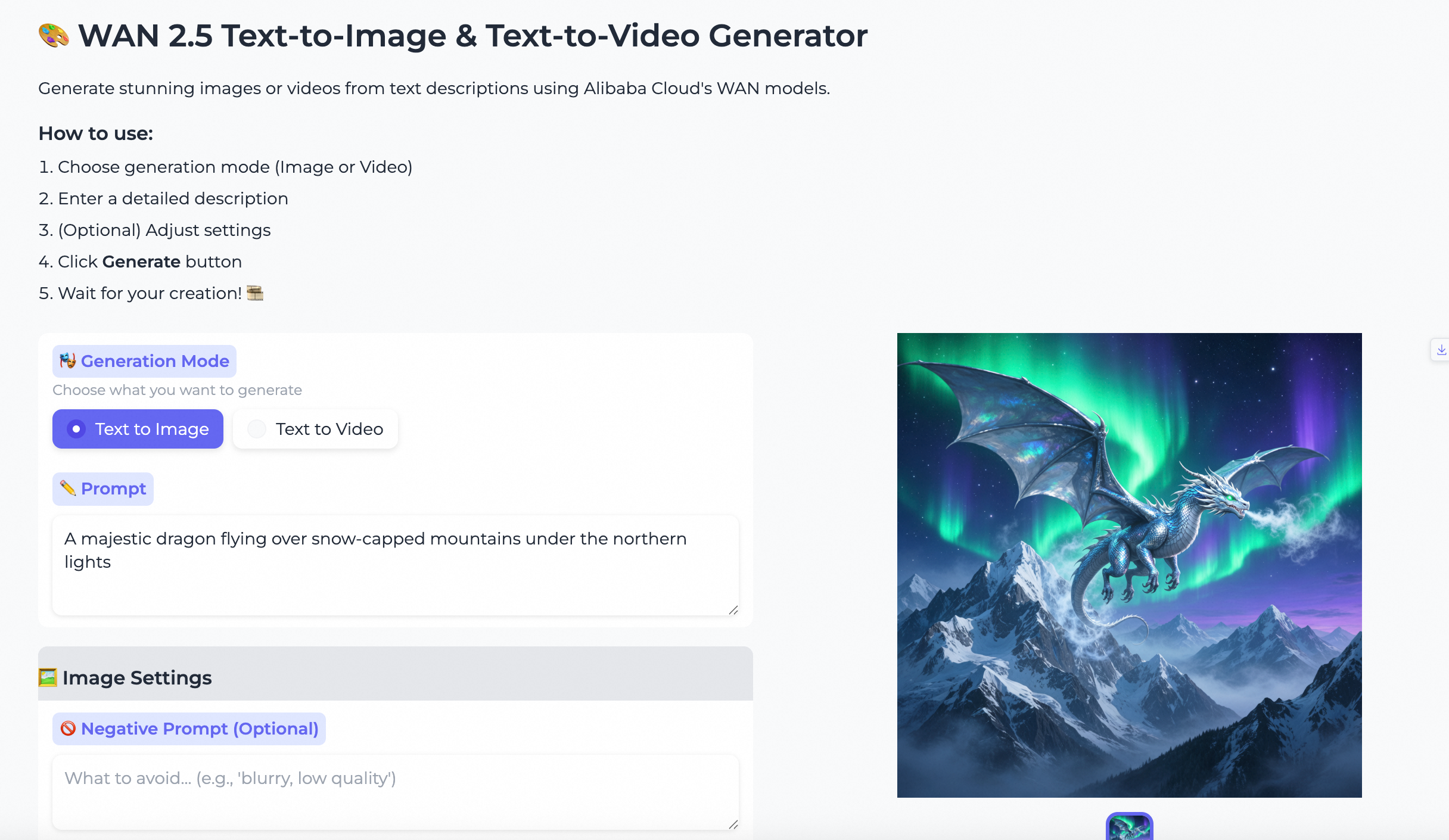
Untuk teks ke gambar, Anda dapat membuat 4 gambar bersamaan. Untuk teks ke video, Anda dapat membuat video WAN dengan berbagai resolusi, mengaktifkan/menonaktifkan audio dan mendapatkan video dengan panjang 5 atau 10 detik. Aplikasi ini dikembangkan menggunakan Qoder IDE menggunakan mode agen.
Artikel ini adalah terjemahan dari versi bahasa Inggris asli. Untuk konten sumber, kunjungi: https://www.alibabacloud.com/blog/image-and-video-generation-from-text-prompts-using-wan-2-5-preview-model-from-model-studio_602726
จากการทดลองทุกความเป็นไปได้สู่ความประณีต: วิวัฒนาการและอนาคตของโครงสร้างพื้นฐานการฝึก AI

144 posts | 4 followers
FollowRegional Content Hub - April 21, 2025
Alibaba Cloud Indonesia - November 7, 2025
Regional Content Hub - November 25, 2024
Regional Content Hub - December 30, 2024
Regional Content Hub - July 14, 2025
Regional Content Hub - May 13, 2025
144 posts | 4 followers
Follow Alibaba Cloud Model Studio
A one-stop generative AI platform to build intelligent applications that understand your business, based on Qwen model series such as Qwen-Max and other popular models
Learn More ECS(Elastic Compute Service)
Elastic and secure virtual cloud servers to cater all your cloud hosting needs.
Learn More Container Compute Service (ACS)
A cloud computing service that provides container compute resources that comply with the container specifications of Kubernetes
Learn More Qwen
Qwen
Full-range, open-source, multimodal, and multi-functional
Learn MoreMore Posts by Regional Content Hub

