Alibaba Cloud E-MapReduce Serverless Spark データベースを Quick BI に接続するための E-MapReduce Serverless Spark データソースを追加します。接続後、Quick BI を使用してそのデータを分析および可視化できます。
前提条件
Alibaba Cloud E-MapReduce Serverless Spark データベースが必要です。詳細については、「EMR Serverless Spark」をご参照ください。
操作手順
ホワイトリストを構成します。
インターネット経由でご利用の E-MapReduce Serverless Spark データベースに接続するには、Quick BI の IP アドレス をデータベースのホワイトリストに追加する必要があります。構成方法については、「ホワイトリストの構成」をご参照ください。
Quick BI コンソールにログインします。
データソース作成ページに移動します。詳細については、「データソースの作成」をご参照ください。
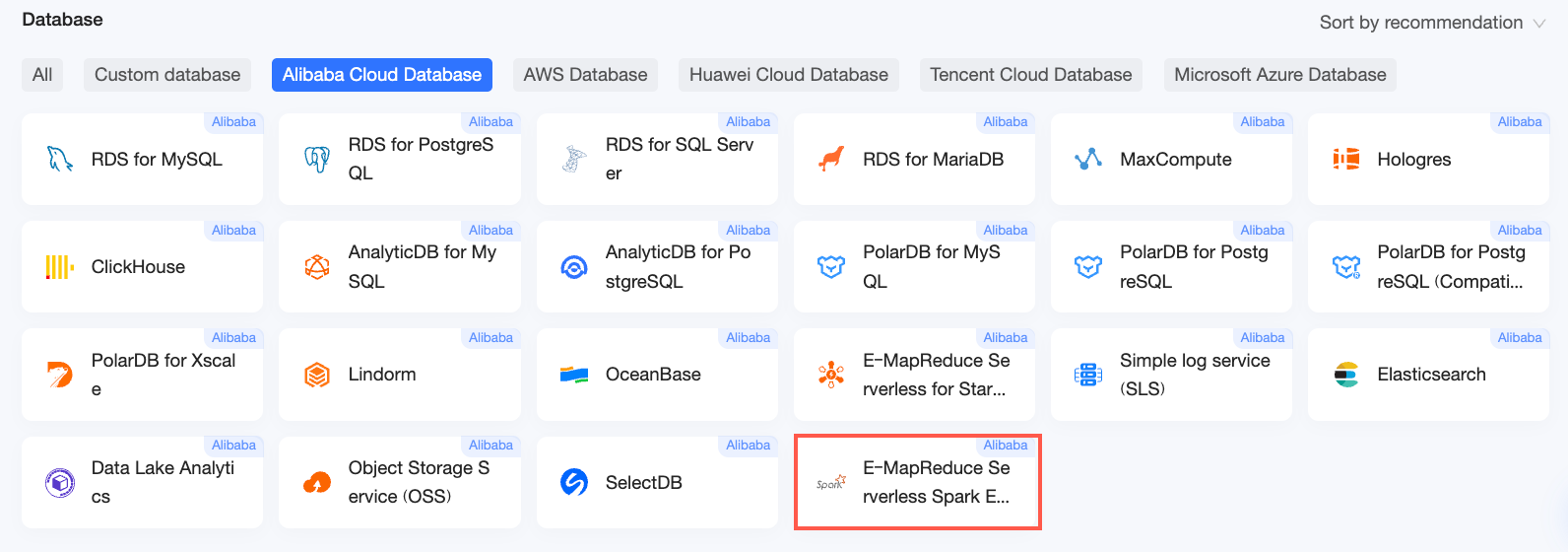
Alibaba Cloud データベース タブで、E-MapReduce Serverless Spark をクリックします。
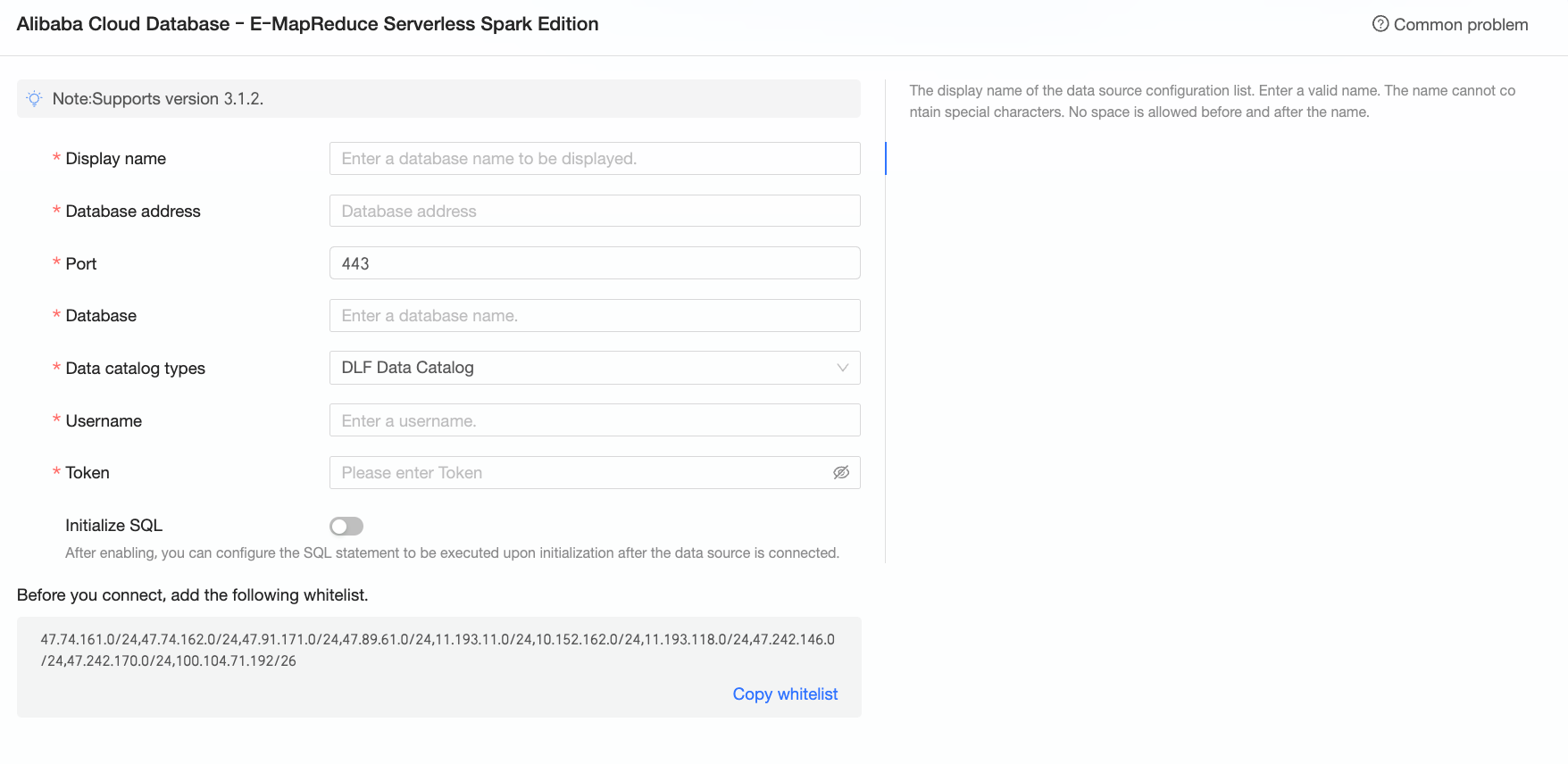
接続の構成 ダイアログボックスで、以下のパラメーターを設定します。
パラメーター
説明
表示名
データソースの表示名です。データソース一覧にこの名前が表示されます。
特殊文字を含めず、先頭および末尾に空白文字を含めないでください。
データベースアドレス
ご利用の E-MapReduce Serverless Spark データベースのエンドポイントです。パブリック接続のみがサポートされています。
エンドポイントを確認するには、E-MapReduce コンソール にログインし、Kyuubi ゲートウェイの詳細概要ページに移動します。例:
emr-xxxxxxxxxxxxxxxxx.aliyuncs.com。ポート
データベースのポート番号です。デフォルト値は 443 です。
データベース
接続先のデータベース名です。
データカタログタイプ
ご利用の E-MapReduce Serverless Spark データベースを含むデータカタログのタイプです。「DLF データカタログ」または「その他」から選択できます。
ユーザー名/トークン名
データカタログタイプが「DLF データカタログ」の場合、Resource Access Management (RAM) で追加した RAM ユーザーまたは RAM ロールを入力する必要があります。事前に適切な権限付与が必要です。
説明ユーザーがデータベーステーブルに対して
CREATE、INSERT、UPDATE、DELETE権限を持っていることを確認してください。詳細については、「Kyuubi トークンを使用した DLF データへのアクセス制御」をご参照ください。データカタログタイプが「その他」の場合、EMR Serverless Spark データベースへのアクセスに使用するトークン名を入力します。E-MapReduce 管理コンソールにログインし、ゲートウェイページのトークンページからトークン名を取得してください。
トークン
E-MapReduce Serverless Spark データベースへのアクセスに使用するトークンです。
トークンを取得するには、E-MapReduce コンソールにログインし、ゲートウェイのトークンページに移動します。
初期 SQL
(任意)接続時に自動的に実行される SQL ステートメントを指定します。
SETステートメントのみ許可されます。複数のステートメントを指定する場合は、セミコロン (;) で区切ります。接続テスト をクリックして、接続を検証します。

接続テストが成功した場合、OK をクリックしてデータソースを追加します。
次のステップ
データソースを作成した後、データセットを作成してデータ分析を開始できます。
E-MapReduce Serverless Spark データベースからテーブルを追加するか、カスタム SQL を使用してデータセットを作成するには、「データセットの作成」をご参照ください。
可視化チャートを追加してデータを分析するには、「ダッシュボードの作成」および「可視化チャートの概要」をご参照ください。
データを深く掘り下げて詳細分析を行うには、「ステップ 3:ドリルダウンデータの構成と表示」をご参照ください。