Add your E-MapReduce Serverless Spark database as a Quick BI data source to analyze and visualize your data.
Prerequisites
An E-MapReduce Serverless Spark database is required. For more information, see EMR Serverless Spark.
Procedure
-
Add IP addresses to the whitelist.
Before you connect to an E-MapReduce Serverless Spark database over the internet, you must add the IP addresses of Quick BI to the whitelist of the database. For more information, see Configure IP address whitelist.
-
Log on to the Quick BI console.
-
Go to the page for creating a data source. For more information, see Create a data source.
-
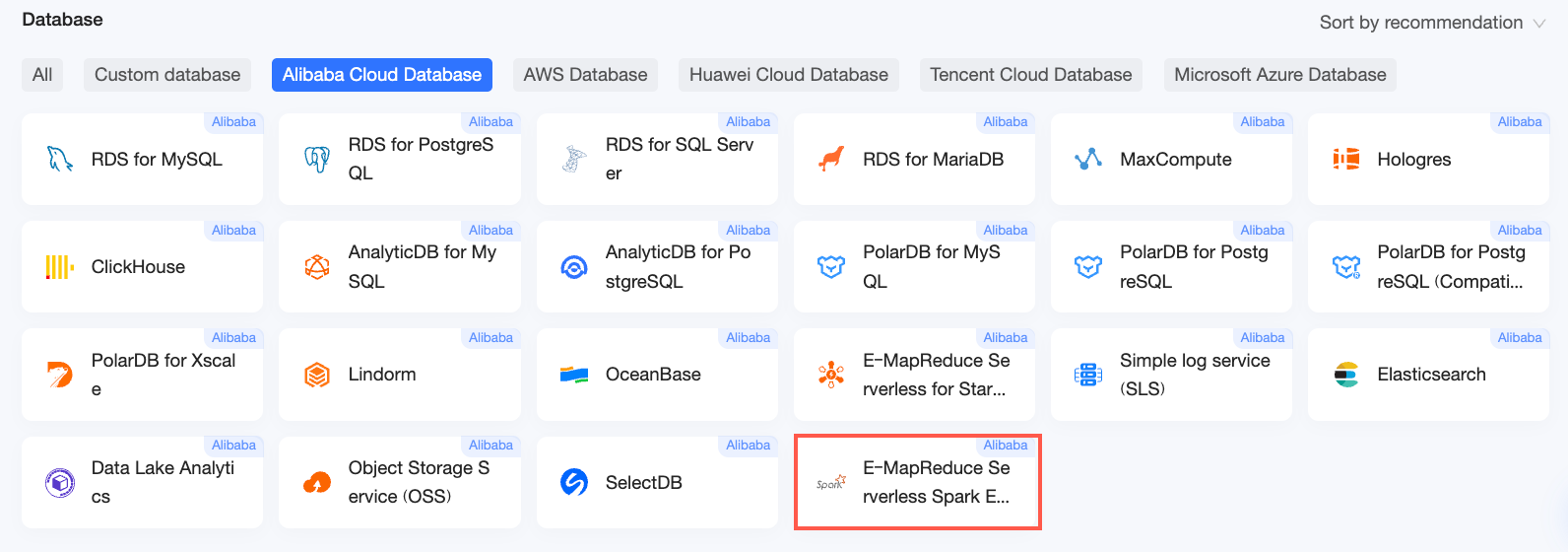
On the Alibaba Cloud Databases tab, select the E-MapReduce Serverless Spark data source.
-
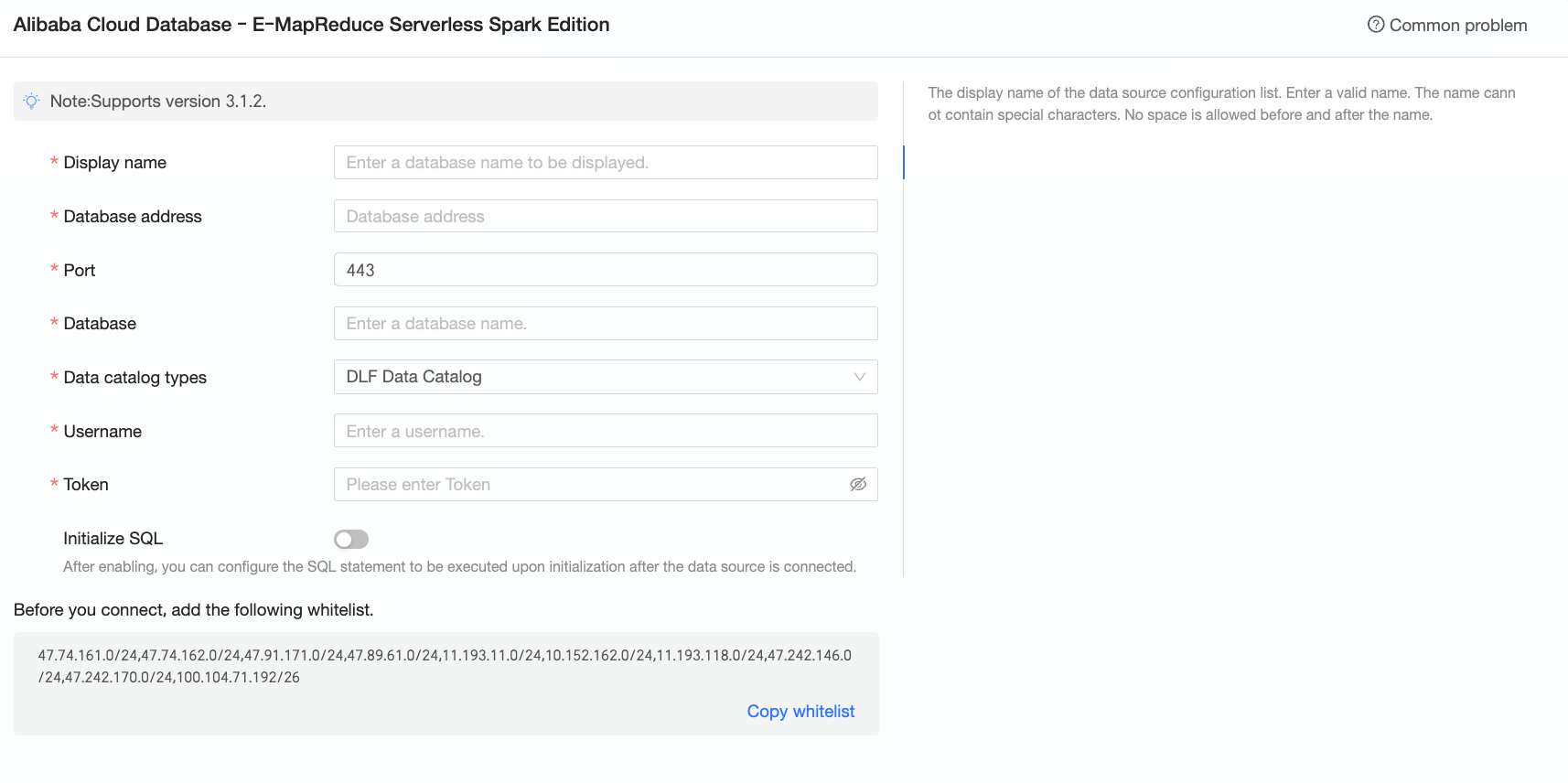
In the Configure Connection dialog box, configure the following parameters.
Parameter
Description
Display name
The display name of the data source in the data source list.
Enter a valid name. Do not use special characters or include leading or trailing spaces.
Endpoint
The public endpoint of the E-MapReduce Serverless Spark database. Only public endpoints are supported.
Log on to the E-MapReduce console. On the Overview tab of the Kyuubi Gateway page, find the endpoint. Example:
emr-xxxxxxxxxxxxxxxxx.aliyuncs.com.Port
The port number of the database. Default: 443.
Database
The name of the database to connect to.
Data catalog type
The data catalog type. Valid values: DLF Data Catalog and Other.
Username/Token name
-
If you select DLF Data Catalog for data catalog type, enter the RAM user or RAM role. Ensure the RAM user or RAM role has the required permissions.
NoteMake sure that the user has the
create,insert,update, anddeletepermissions on the tables in the database. For more information, see Manage permissions on DLF data by using Kyuubi tokens. -
If you select Other for data catalog type, enter the name of the token used to access the E-MapReduce Serverless Spark database. To obtain the name, log on to the E-MapReduce console and go to the Token tab of the Gateway page.
Token
The access token for the E-MapReduce Serverless Spark database.
To obtain the token, log on to the E-MapReduce console and go to the Token tab of the Gateway page.
Initialization SQL
SQL statements to run each time Quick BI connects to the data source.
Only SET statements are allowed. Use semicolons (;) to separate multiple statements.
-
-
Click Test Connection to verify the connection.

-
After the connection test is successful, click OK to add the data source.
Next Steps
After creating the data source, you can create a dataset and analyze data.
-
Add tables from the E-MapReduce Serverless Spark database or use custom SQL to create a dataset in Quick BI. For more information, see Create a dataset.
-
Add charts to a dashboard to analyze data. For more information, see Create a dashboard and Overview of charts.
-
Drill down into your data for in-depth analysis. For more information, see Step 3: Configure and use drill down.