Send messages to 200+ countries and regions from the SMS console with no coding. This guide covers setup, test messaging, campaigns, and delivery tracking.
Before you begin
Complete these preparations:
-
Create an account: If you don't have an Alibaba Cloud account, create one.
-
Complete enterprise identity verification: Personal accounts have low delivery rates. Complete enterprise identity verification for better deliverability.
-
Activate SMS: Log on to the SMS console and follow the prompts to activate the service.
-
Purchase a resource package: By default, SMS uses prepaid resource packages. Purchase a resource package before use.
-
Add a credit card or PayPal account to your Alibaba Cloud account.
-
Choose a package based on your destinations and package specifications. For pay-as-you-go billing, contact sales.
-
-
Carrier compliance requirements vary by country and region. Complete the required procedures for your destinations:
-
To send messages to the Chinese mainland (Go China), create an SMS signature and message template. They must be approved before use.
-
To send messages to regions outside the Chinese mainland (Go Globe), check if the destination country or region requires sender ID registration.
-
Send a test message with Quick Start
Use Quick Start to test the service or verify your message content.
-
Log on to the SMS console. In the left navigation pane, choose Quick Start.
-
Enter the Mobile Phone Number. Find destination dialing codes in Dialing code.
-
The dialing code determines your sending requirements:
-
For messages to the Chinese mainland: Select your approved signature and message template. If the template contains variables, enter their values.
-
For messages to regions outside the Chinese mainland: Fill in the SenderID and Message fields.
-
-
Click Send.
Send messages with SMS Campaign
Go Globe
-
Log on to the SMS console. In the left navigation pane, choose .
-
On the Mass Messaging page, click Create Campaign.
-
Fill in the campaign information:
Parameter
Description
Message Type
Select the message type. Valid values:
Notification
Promotional Message
Campaign Name
The name of the campaign. It can be up to 30 characters.
Sender ID
The sender ID supports letters and digits. An alphanumeric ID can be up to 11 characters, while a numeric-only ID can have up to 15 digits. Use your application, website, or company name to build brand awareness. For more information, see Register a sender ID.
Content
You can use variables in your message. The variable format is
${name}. Example: Your verification code is${code}. This code is valid for 5 minutes. Do not share it with others.Mobile Phone Numbers
You can add recipient numbers by either importing a file or entering them manually.
Import Data
Download a template and fill in the recipient numbers.
Click Import Mobile Phone Numbers.
Manual Input (Variables Unsupported)
Enter the recipient numbers.
NoteTo include variables in your message template, add by importing a file.
Manual input supports entering up to 100 recipient numbers. For larger batches, import a file.
Schedule Campaign
Enable Schedule Campaign to specify the time zone, date, and time for sending the message.
NoteTo cancel a scheduled campaign, return to the Mass Messaging page and click Cancel in the Actions column at least 5 minutes before the scheduled time.
-
If you have configured scheduled sending, click Schedule Campaign. Otherwise, click Submit Campaign.
Go China
Due to policy restrictions, Go China is not available for new users. For accounts that already have this feature enabled, your SMS signatures must undergo identity verification. Unverified signatures may be forcibly deactivated, causing service disruptions. The requirements and procedures for identity verification have been sent to your Alibaba Cloud Message Center and associated email address.
-
Log on to the SMS console. In the left navigation pane, choose Go China.
-
On the Go China page, click the Broadcast tab.
-
Click Create Campaign.
-
Fill in the campaign information as prompted on the page.
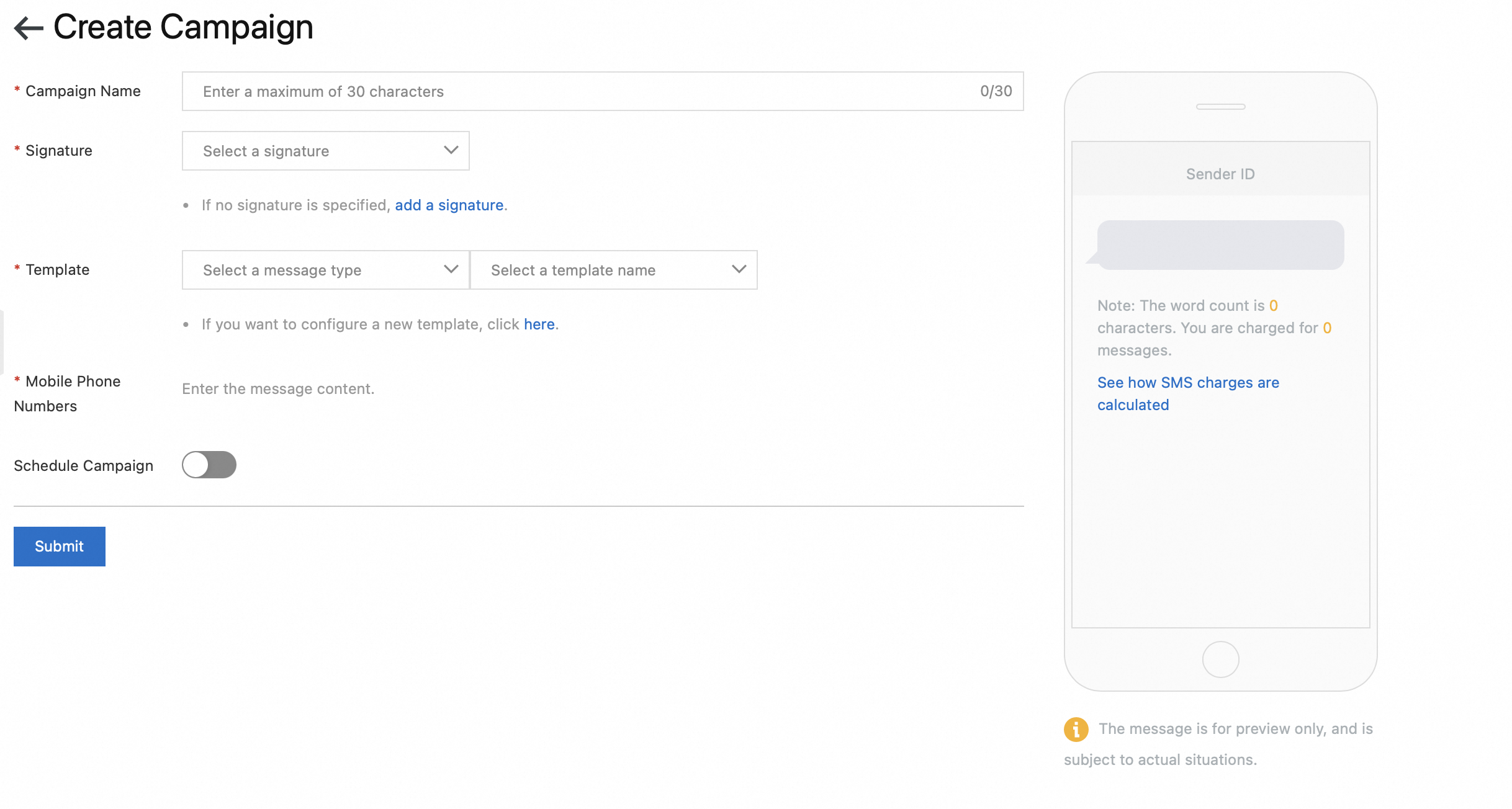
Parameter
Description
Campaign Name
The name of the campaign. It can be up to 30 characters.
Signature
Select a signature for the message.
Template
Select a message type and template.
Mobile Phone Numbers
You can add recipient numbers by either importing a file or entering them manually.
-
Import Data
-
Download a template and fill in the recipient numbers.
-
Click Import Mobile Phone Numbers.
-
-
Manual Input (Variables Unsupported)
Enter the recipient numbers manually.
Note-
To include variables in your message template, add by importing a file.
-
Manual input supports entering up to 100 recipient numbers. For larger batches, import a file.
Schedule Campaign
Enable Schedule Campaign to specify the time zone, date, and time for sending the message.
NoteTo cancel a scheduled campaign, return to the Broadcast page and click Cancel in the Actions column at least 5 minutes before the scheduled time.
-
-
If you have configured scheduled sending, click Schedule Campaign. Otherwise, click Submit.
Check sending details
Check campaign results
-
Log on to the SMS console.
-
Go Globe: In the left navigation pane, choose .
-
Go China: In the left navigation pane, click Go China, then click the Broadcast tab.
-
-
Find your campaign and click View Details in the Actions column.
-
View sending details, including reception time and delivery result.

Check delivery reports
-
In the SMS console, choose .
-
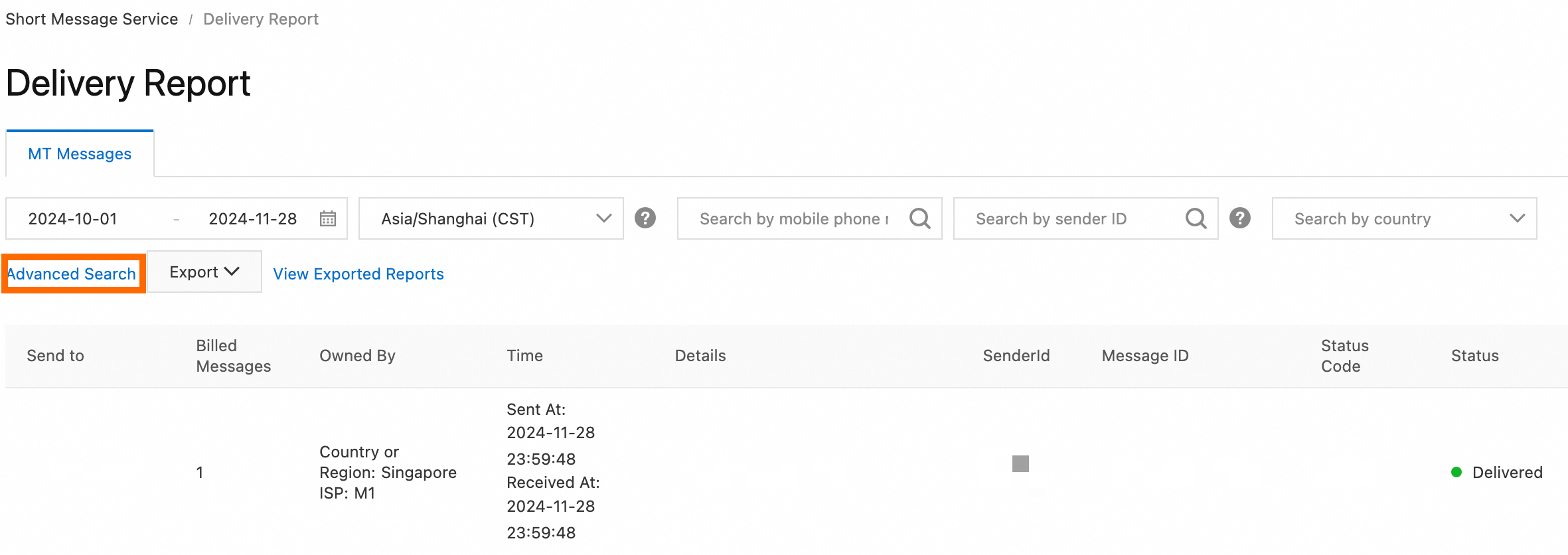
You can filter records by various conditions. Click Advanced Search to view all available filters:
-
Basic search: Filter by send date, time zone, mobile phone numbers, sender ID, and destination country/region.
-
Advanced search: Filter by Message Content, Carrier MCC & MNC, Delivery Status, Status Code, and Billed Messages.
 Note
Note-
Default time zone: UTC+8.
-
Available data range: Data from the past 180 days.
-
-
You can export the delivery report. For more information, see Query delivery reports.