If an on-premises device cannot connect to a Tair (Redis OSS-compatible) instance over the Internet, the most common causes are: using the wrong endpoint type, missing or incorrect whitelist configuration, or invalid credentials. Work through the steps below to identify and fix the issue.
Cloud-native cluster instances in direct connection mode do not support public endpoints. If your instance is of this type, Internet access is not available.
Troubleshooting process for Internet connection issues of an on-premises device

Step 1: Check for authentication errors
Skip this step if the error is connection timed out or no error message appears. Go directly to Step 2.
If you see any of the following errors, the credentials are incorrect:
invalid passwordWRONGPASS invalid username-password pairNOAUTH Authentication required
Solution
Reconnect using the
<user>:<password>format. For example, if the username istestaccountand the password isRp829dlwa, entertestaccount:Rp829dlwaas the password.If the error persists after using the
<user>:<password>format, the password itself is wrong. Reset the password and reconnect. For details, see Change or reset the password.
Step 2: Run ping to test network connectivity
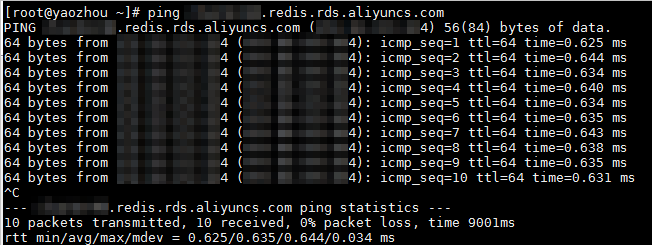
Run the following command on the on-premises device:
Ping <host>Example: Ping r-bp1zx****.redis.rds.aliyuncs.com
Interpreting the results
Ping succeeds — The network is reachable. Proceed to Step 3. Linux On Linux, ping runs continuously. Press Ctrl+C to stop and view statistics. Windows On Windows, ping runs four times and then returns a summary.

`0 packets received, 100.0% packet loss` — The network is unreachable. Check that you are using the public endpoint, not the Virtual Private Cloud (VPC) endpoint.
`Unknown host` or `Name or service not known` — DNS resolution failed. Check the endpoint for typos.
Common causes and solutions
| Cause | Solution |
|---|---|
| Using a VPC endpoint instead of the public endpoint | In the Tair (Redis OSS-compatible) console, go to the Instance Information page and find the Internet Access endpoint in the Connection Information section. Copy it and retry. If no public endpoint is listed, click Apply for Endpoint in the Actions column. For details, see Apply for a public endpoint for an instance. |
| Endpoint has a typo | Double-check the endpoint string and correct any mistakes. |
| DNS resolution fails even with the correct endpoint | See Troubleshoot connection issues caused by failed DNS resolution. |
Step 3: Run telnet to test port availability
Run the following command on the on-premises device:
telnet <host> <port>Example: telnet r-bp1zx****.redis.rds.aliyuncs.com 6379
Interpreting the results
`Connected to ...` is returned or the telnet interface appears — The port is reachable. Linux Windows
ImportantFor classic instances, a successful telnet result does not guarantee access. Only IP addresses in the whitelist can connect. Proceed to Step 4 to verify. For information about how to check the whitelist, see Step 4: Check the whitelist.


`Connection timed out` or `Connect failed` — The connection fails. A common cause is that the whitelist is incorrectly configured or no whitelist is configured. Proceed to Step 4.
Step 4: Check the whitelist
Check the whitelist when:
The domain name is pingable but telnet fails.
Connecting with redis-cli returns
(error) ERR illegal addressor(error) ERR client ip is not in whitelist.
Common causes
The public IP address of the on-premises device is not added to the whitelist.
No whitelist is configured.
Solution
Find the public IP address of the on-premises device.
OS Command Linux curl ifconfig.meWindows curl ip.memacOS curl ifconfig.meAdd the retrieved IP address to the whitelist of the Tair instance. For details, see Configure an IP address whitelist.