To connect an Elastic Compute Service (ECS) instance to a Redis instance over a virtual private cloud (VPC), the ECS instance and the Redis instance must be in the same region and the same VPC. A whitelist and valid credentials must also be configured on the Redis instance.
Use the following four-step process to identify and fix the most common causes of ECS-to-Redis connection failures.
Before you begin: identify your situation
Different failure patterns point to different root causes. Identify which applies to you before starting Step 1:
| Situation | Likely cause | Start at |
|---|---|---|
You see invalid password, WRONGPASS, or NOAUTH Authentication required | Authentication error | Step 1 |
You see connection timed out or no error at all | Network issue | Step 2 |
redis-cli returns ERR illegal address or ERR client ip is not in whitelist | Whitelist misconfiguration | Step 4 |

Step 1: Check for authentication errors
Skip this step if the error message is connection timed out or no explicit error is displayed. Go to Step 2.
Error messages
The following error messages indicate incorrect credentials:
invalid passwordWRONGPASS invalid username-password pairNOAUTH Authentication required
Fix
For custom accounts, use the <user>:<password> format. For example, if the username is testaccount and the password is Rp829dlwa, enter testaccount:Rp829dlwa as the password.
If a password error persists after using the correct format, reset the password and reconnect. For instructions, see Change or reset the password.
If you copied the password from another source, formatting errors may occur. Type the password manually.
Step 2: Run ping to check network connectivity
Log in to the ECS instance and run:
ping <host>Example:
ping r-bp1zx****.redis.rds.aliyuncs.comInterpret the result
Linux: The system sends ping requests continuously. Press Ctrl+C to stop and view statistics.
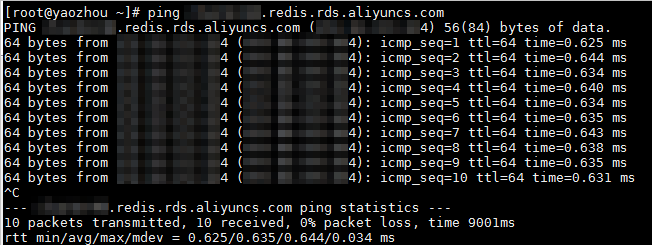
Windows: The system returns results after four ping requests.

If the ping succeeds, the network is connected. Proceed to Step 3.
If the ping fails, the network is not connected. Check the causes below.
Common causes and fixes
The ECS instance and the Redis instance are in different VPCs
Verify the network configuration. For instructions, see How do I check whether an ECS instance and a Redis instance are of the same network type?
If they are in different VPCs, use one of the following approaches:
Change the VPC of the ECS instance to match the Redis instance's VPC. For instructions, see Change the VPC for an ECS instance.
Apply for a public endpoint on the Redis instance and connect over the Internet. For instructions, see Apply for a public endpoint for an instance.
VPC connections provide better security and performance than Internet connections. Use the VPC endpoint where possible.
The ECS security group blocks ICMP traffic
Check whether the ECS security group has an outbound rule for protocol type ICMP (IPv4) that blocks traffic to the vSwitch or VPC IP address range of the Redis instance.
If yes, add an outbound rule to allow ICMP traffic to that address range. For instructions, see Add a security group rule.
To find the vSwitch or VPC IP address range, go to the Redis console, open the Instance Information page, click the vSwitch or VPC ID, and then check the IPv4 CIDR block.
If the connection still fails after these checks, see Run the PING command to check the connection between an ECS instance and a Tair instance.
Step 3: Run telnet to check port connectivity
Log in to the ECS instance and run:
telnet <host> <port>Example:
telnet r-bp1zx****.redis.rds.aliyuncs.com 6379Interpret the result
If Connected to ... appears or the telnet interface is displayed, the port is reachable.
Linux:
Trying <host>...
Connected to <host>.
Escape character is '^]'.
Windows:

If Connection timed out or Connect failed appears, the port is not reachable. Check the causes below.
Common causes and fixes
The whitelist is missing or misconfigured
Go to Step 4.
The ECS security group blocks TCP traffic on the Redis port
Check whether the ECS security group has an outbound rule for protocol type TCP that blocks traffic on the Redis service port (default: 6379).
If yes, add an outbound rule to allow TCP traffic on that port. For instructions, see Add a security group rule.
If the connection still fails after these checks, see Use the telnet command to check port connectivity for a Tair instance.
Step 4: Check the whitelist
A misconfigured or missing whitelist is the most common cause of connection failures. Check the whitelist in either of these situations:
The domain name responds to ping but telnet fails.
redis-clireturns(error) ERR illegal addressor(error) ERR client ip is not in whitelist.
Common mistake
The most frequent error is adding the wrong IP address type to the whitelist:
| Endpoint type | Correct IP to whitelist | Incorrect IP (common mistake) |
|---|---|---|
| VPC endpoint | Primary private IP of the ECS instance | Public IP of the ECS instance |
| Public endpoint | Public IP of the ECS instance | Primary private IP of the ECS instance |
Solution 1: Use connection diagnostics (recommended)
Run a connection diagnostic to check whether the ECS IP address is in the whitelist and add it automatically if it is not. For instructions, see Perform diagnostics on connections.
When selecting the ECS IP address in the diagnostic tool, choose the IP type that matches your endpoint type (VPC or public).

Solution 2: Add the IP address manually
Check which endpoint type you are using — VPC or public. For instructions, see View endpoints.
Add the correct IP address to the Redis whitelist: For instructions, see Configure an IP address whitelist.
VPC endpoint: Add the primary private IP address of the ECS instance.
Public endpoint: Add the public IP address of the ECS instance.
For instructions on finding the IP address of your ECS instance, see Network FAQ.