The Quick BI relational model is a data modeling framework for joining and analyzing multiple tables. It addresses challenges in traditional physical modeling, such as low efficiency, poor accuracy, and limited analytical flexibility, making it suitable for multidimensional data analysis in complex business scenarios.
Prerequisites
You have created a dataset. For more information, see Create a dataset.
Procedure
-
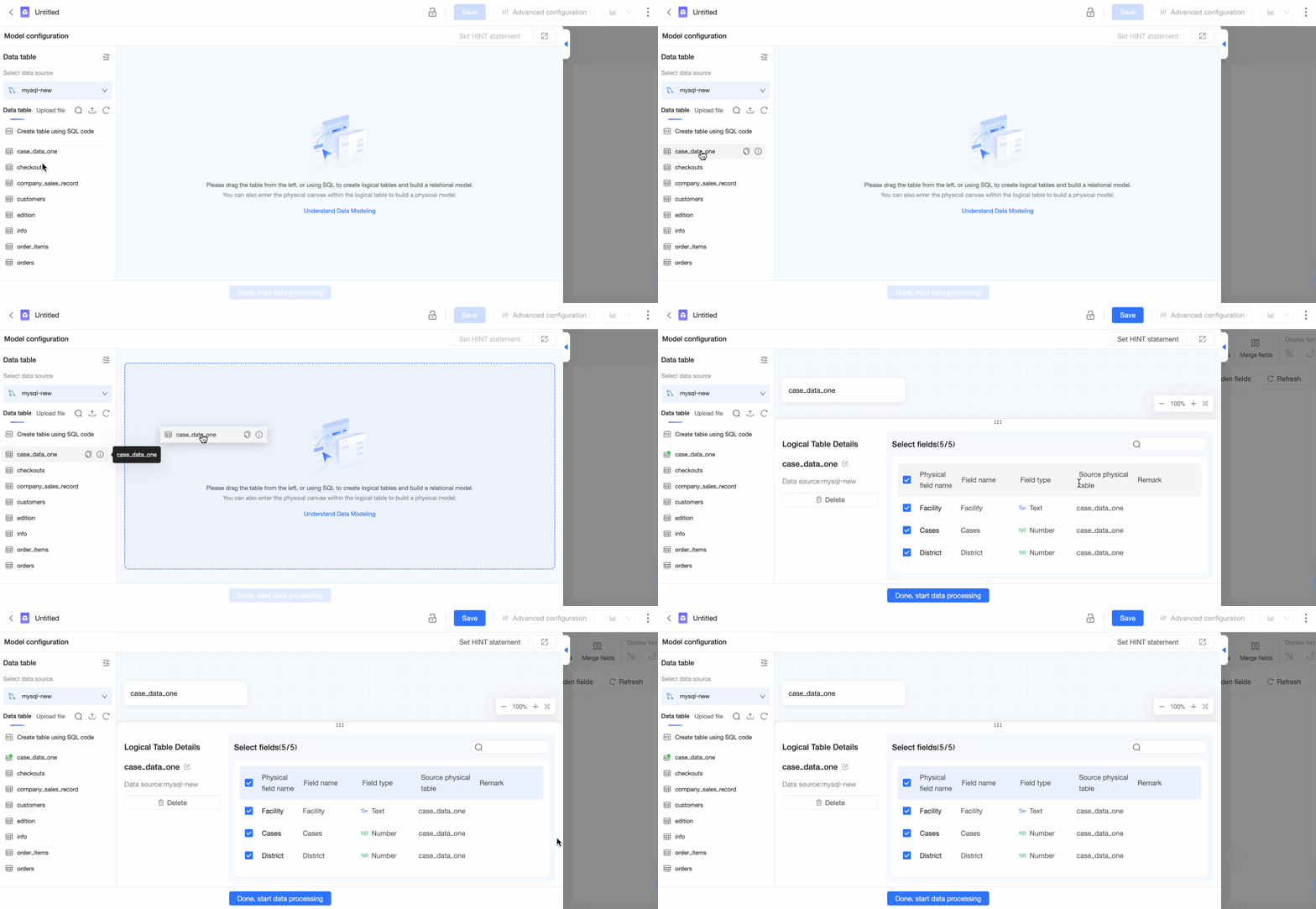
On the dataset editing page, double-click or drag a data table onto the canvas, or use Custom SQL to create a table.
-
After you select a data table, you can view the Logical table details:
-
You can Rename the logical table.
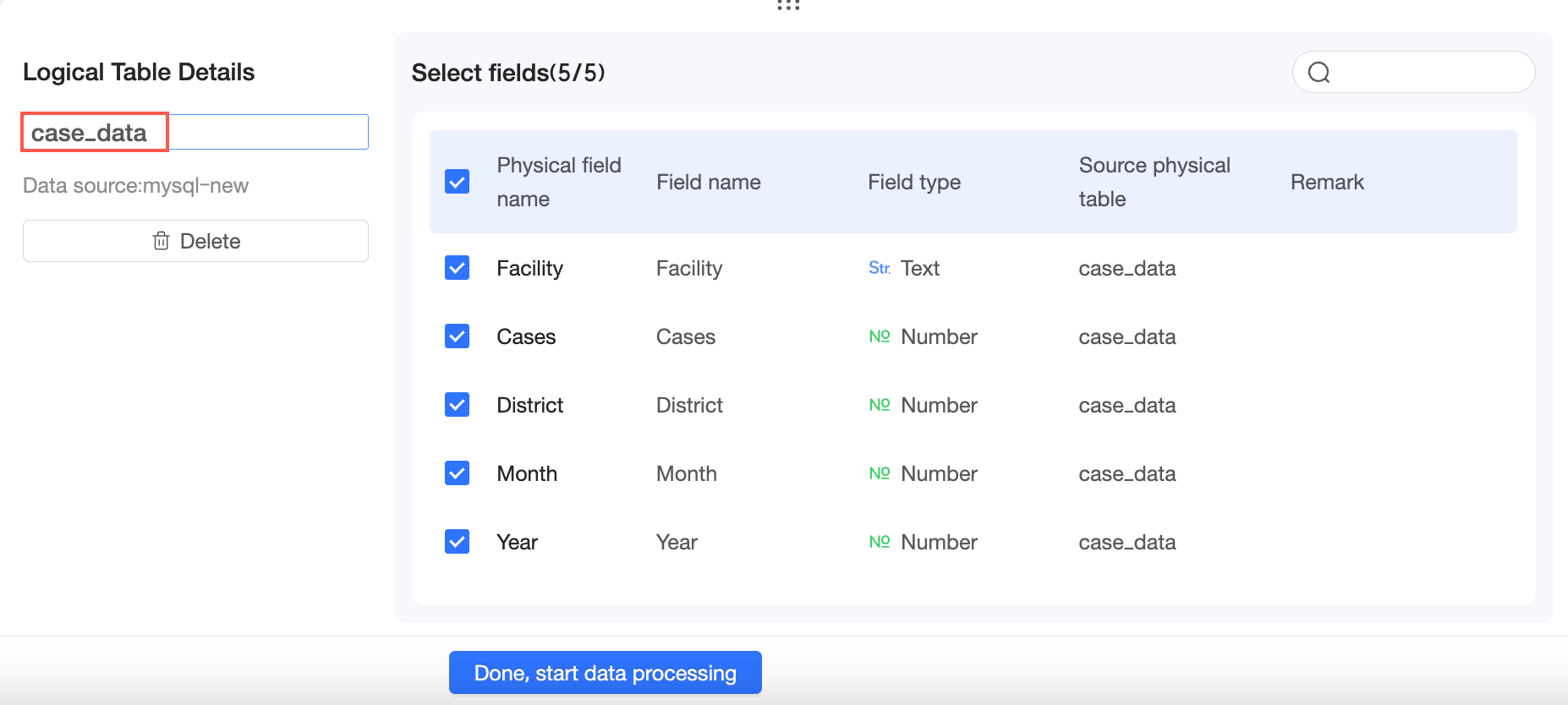
You can also click the
 icon to the right of the logical table and select Rename.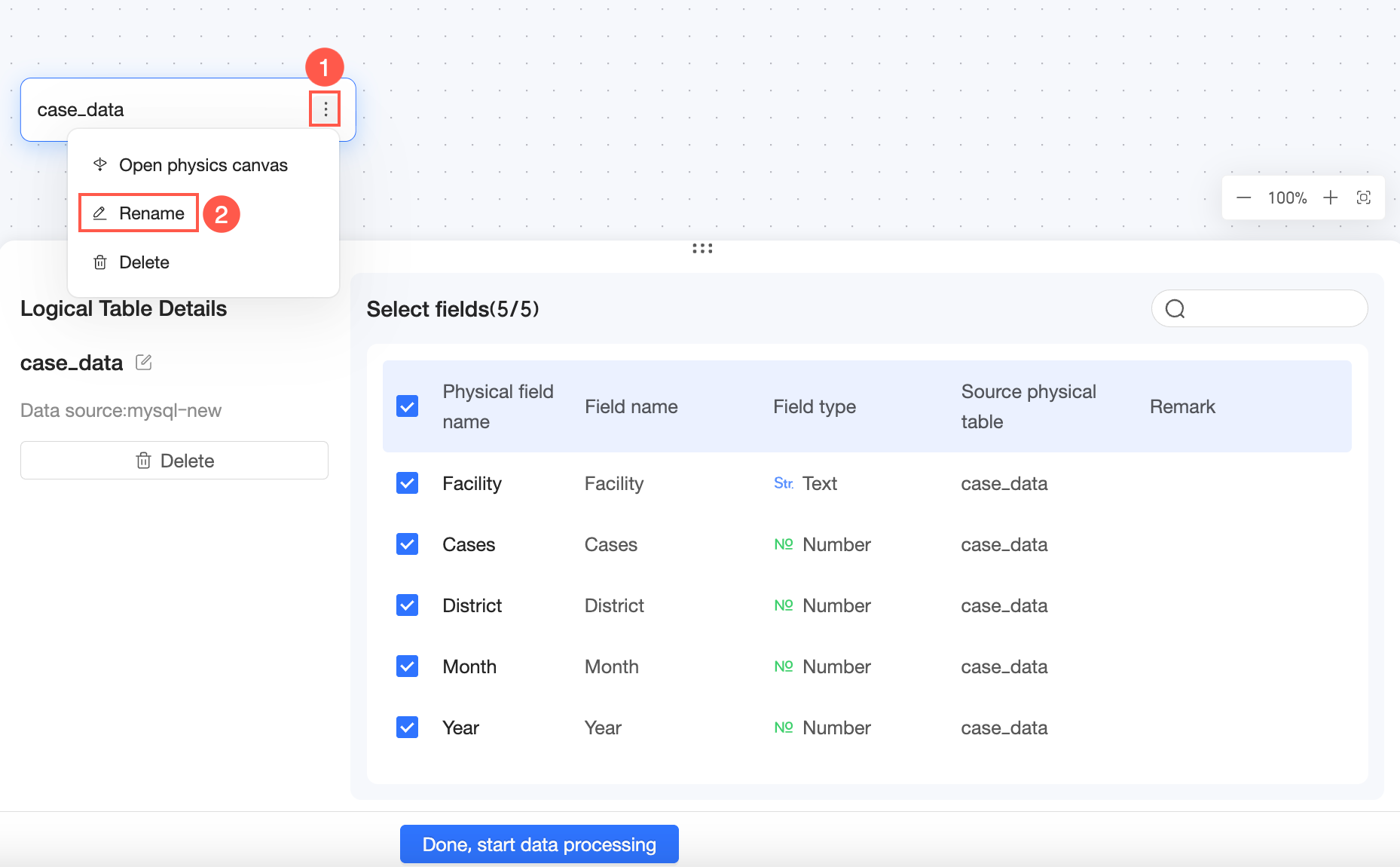
-
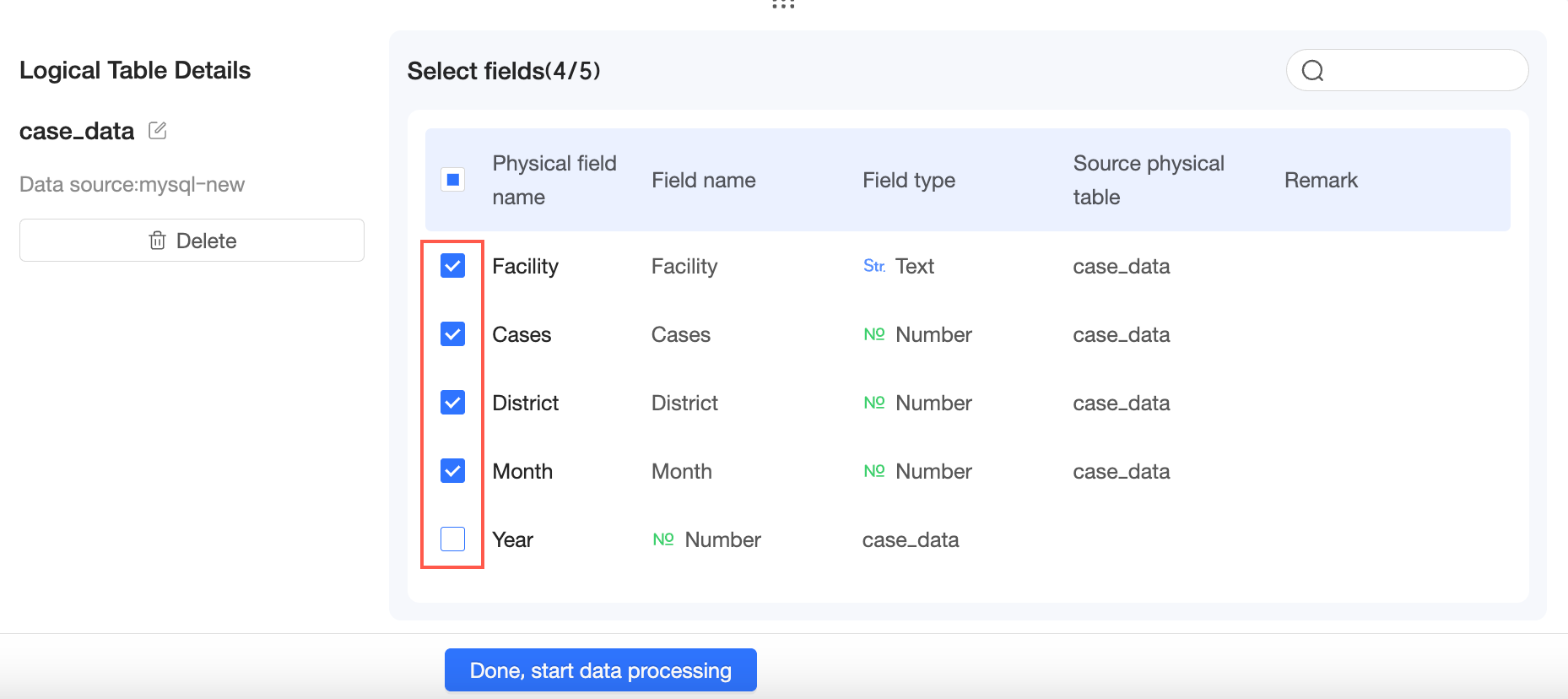
You can select the fields to include.
-
If you no longer need the data table, you can Delete it.
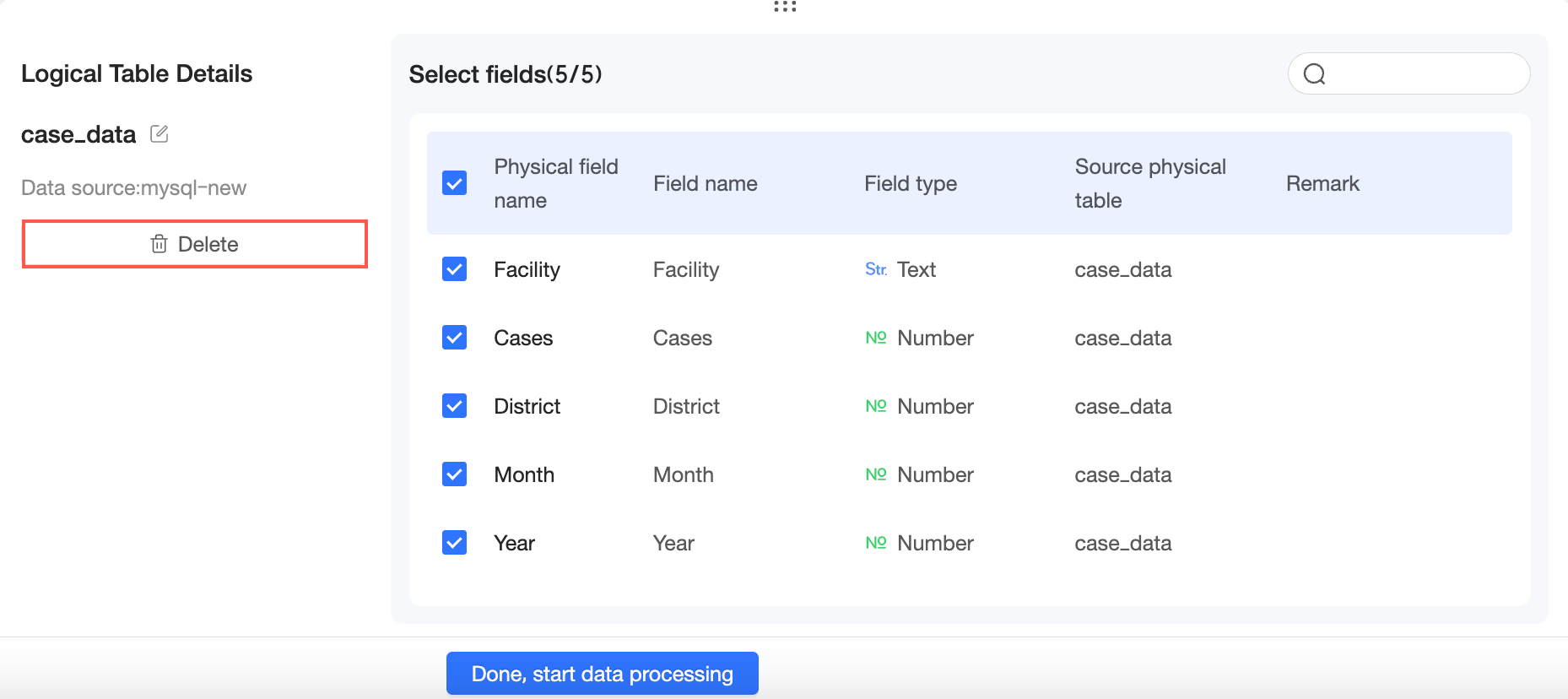
You can also click the
icon to the right of the logical table and select Delete.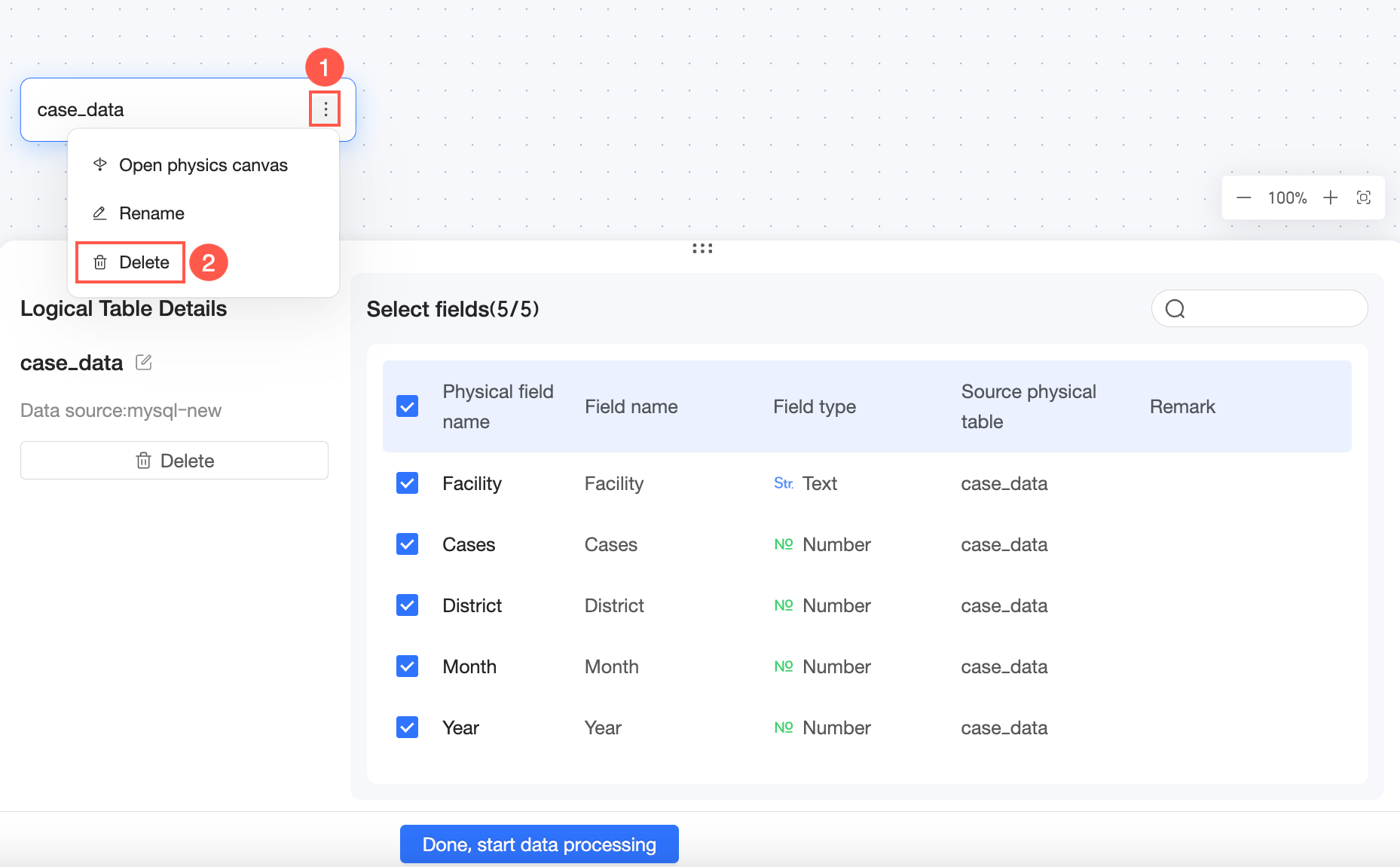
-
-
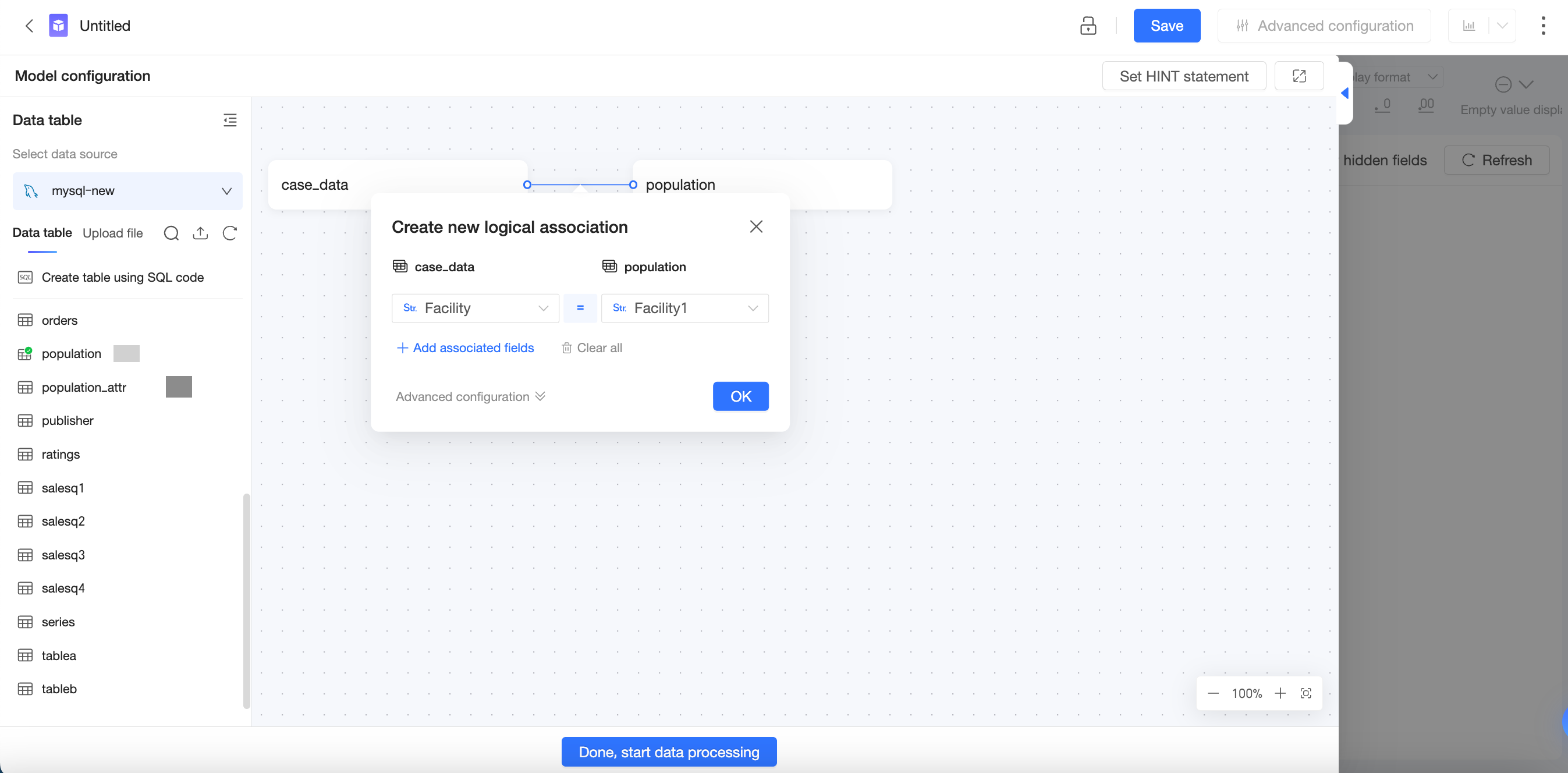
Drag another data table onto the canvas and configure the association.
-
Select association fields
-
Quick BI can automatically suggest association fields, or you can select them manually.
NoteTo ensure calculation accuracy, use only dimension fields as association keys in a relational model.
If you select a measure field as an association key, Quick BI converts it to a dimension field upon confirmation. If this field is already used in other features such as reports, create a copy of the field and convert the copy to a dimension field to avoid impacting existing reports and other assets.
-
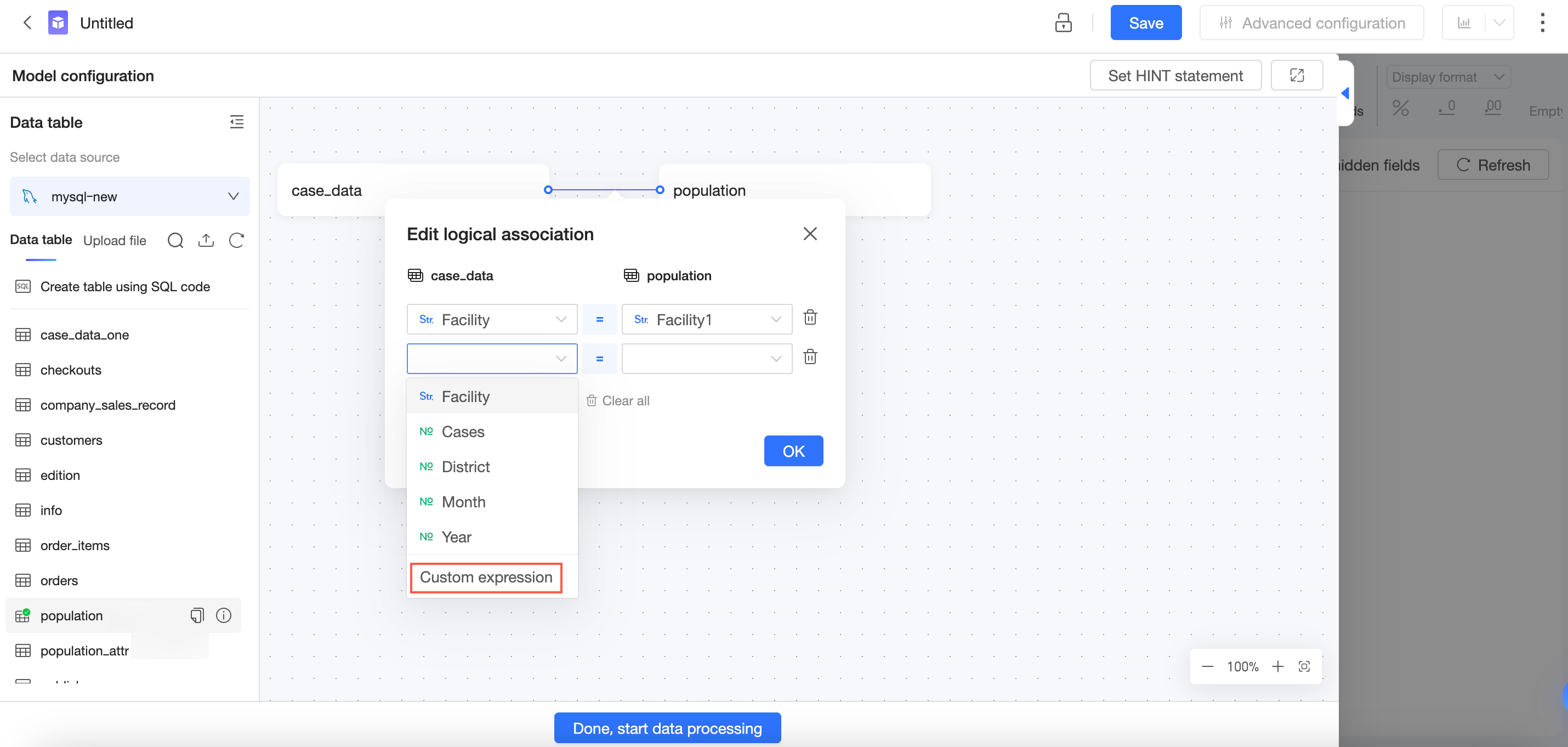
You can use Create Custom Calculation to create an association field.
-
You can click Add association field to add multiple association fields.
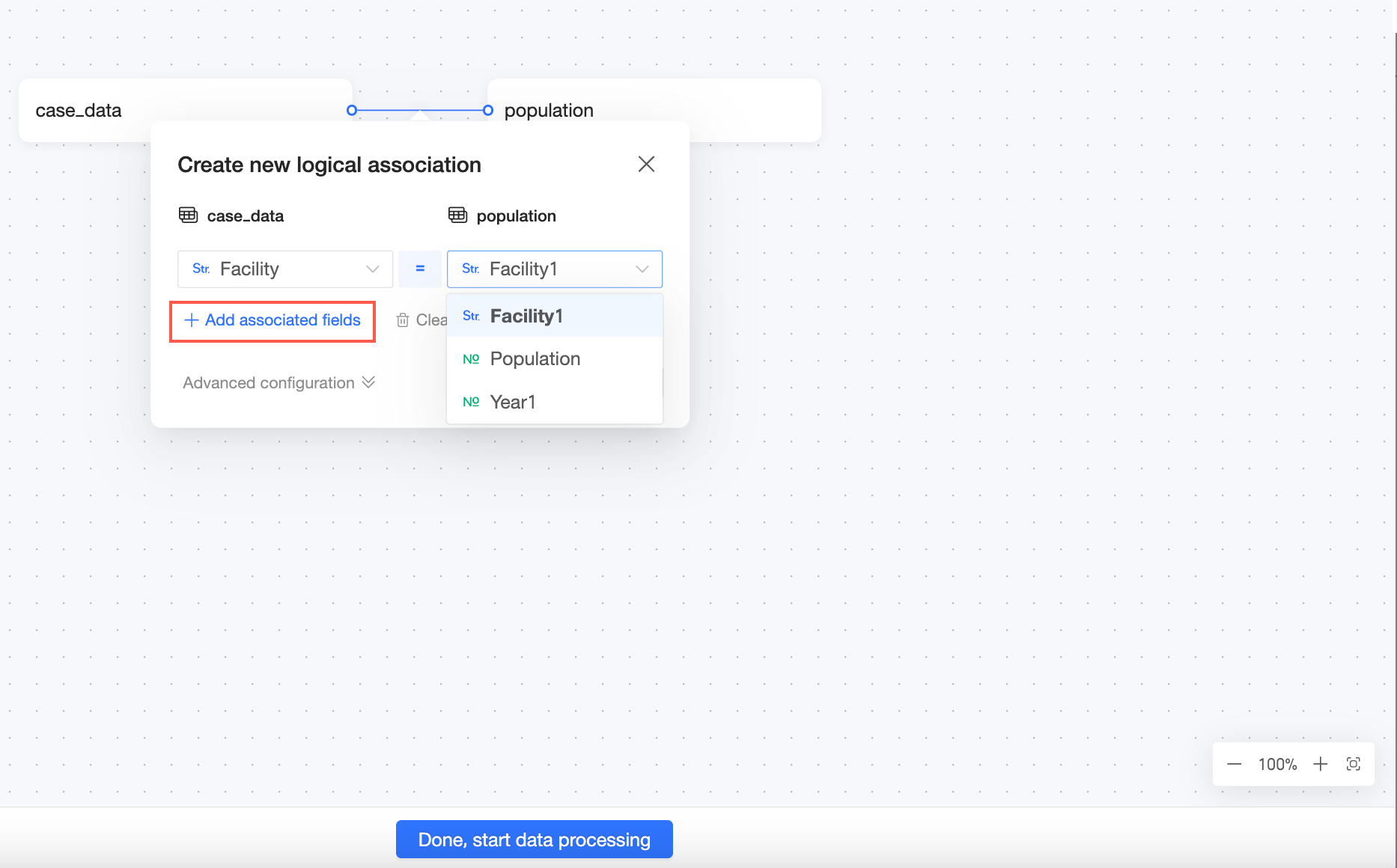
-
You can Delete an association field or click Clear All to remove all association fields.
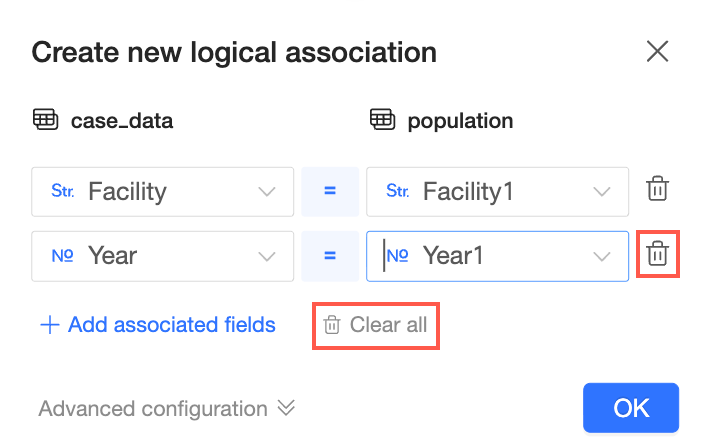
-
-
Advanced settings
Click More Options to open the advanced settings page.
-
Cardinality
You can set the cardinality to 1:1, 1:N, N:1, or N:N. For more information, see cardinality.
-
Data matching
You can set it to partial match or full match. For more information, see data matching.
-
-
-
Click OK to create the association.
Repeat these steps to join multiple logical tables based on your business requirements.
In a relational model, each logical table is based on a physical model. When you drag a table onto the logical canvas, its corresponding physical model is a single-table model. For more complex physical modeling, click the icon to the right of the logical table and select Enter physical canvas, or double-click the logical table. This opens the physical canvas for that logical table node, where you can configure physical joins, unions, and more. For more information, see Joins and Unions.