This section introduces how to configure a download task.
Prerequisites
You have logged on to the or Quick BI console and initiated a download task.
Data Configuration
On the data page, select an existing dataset or create a new one. Clicking 'create a new dataset' will take you to the dataset editing page. For details on editing datasets, see Create and Manage Datasets.

Double-click or drag dimensions/measures fields to rows/columns. For instance, drag area to rows and order amount, shipping cost, and profit amount to columns.

Configure the format of the fields.
Configuration item
Description
Date display format
Default is automatic. Supports setting YYYY-MM-DD, YYYYMMDD, YYYY/MM/DD, MMDD, MM-DD, MM/DD, and DDMMYYYY formats.
NoteOnly date fields support setting the date display format.
Alignment
Default is automatic. Supports setting align left, align center, and align right.
Sort
Default is no sort. Supports setting ascending or descending order.
Field display content
Supports setting display name and field description
Data display format
Default is automatic. Supports setting integer, retain 1 decimal place, retain 2 decimal places, percentage, percentage 1 decimal place, percentage 2 decimal places, and custom.
NoteOnly column fields support setting the data display format.
When the custom format type is numeric or percentage, supports setting the format of negative numbers as: -1234 or (1234), and supports checking use thousands separator.
Aggregation method
Supports setting sum, average, count, remove duplicates count, maximum, minimum, population standard deviation, sample standard deviation, population variance, and sample variance.
NoteOnly column fields support setting the data display format.
Row fields support setting date display format (only for date fields), alignment, sort, and field display content.

Column fields support setting data display format, alignment, sort, aggregation method, and field display content.

You can also click the
 icon on the right of the row/column to batch configure field formats.
 Note
NoteNote: Download tasks do not support advanced calculations such as year-on-year, percentage, or cumulative calculations.
Based on business needs, you may add filters. For more information, see Field Filtering.

Click update.

Page Settings
In the page settings, you can configure the following.
Category | Configuration item | Description |
Feature item configuration | Display field selection | After checking display field selection, you can see the selected fields in the upper right corner in edit or preview status and choose to display the fields.
|
Display query control | After checking display query control, the query control will appear on the download task editing page, and you can perform control configuration.
| |
Remember query conditions |
| |
Table settings | Display main title | You can choose whether to display the main title and customize the main title.
|
Display link jump | You can choose whether to display link jump and set the link text, link address, and opening method
| |
Remarks | Supports setting remarks content and position.
|


Control Configuration
When the page setting selects display query control, you can configure the query control.
Create a new query control
Follow the steps in the diagram to add a query control.

Specify query conditions.

Click OK to create the query control.

For detailed configuration, see Create a New Query Control.
Configure control style.

In title, you can choose whether to display the main title and customize its name.

In position and layout, you can set whether to default expand all filter conditions, condition arrangement, position of conditions within the container, and spacing between conditions.
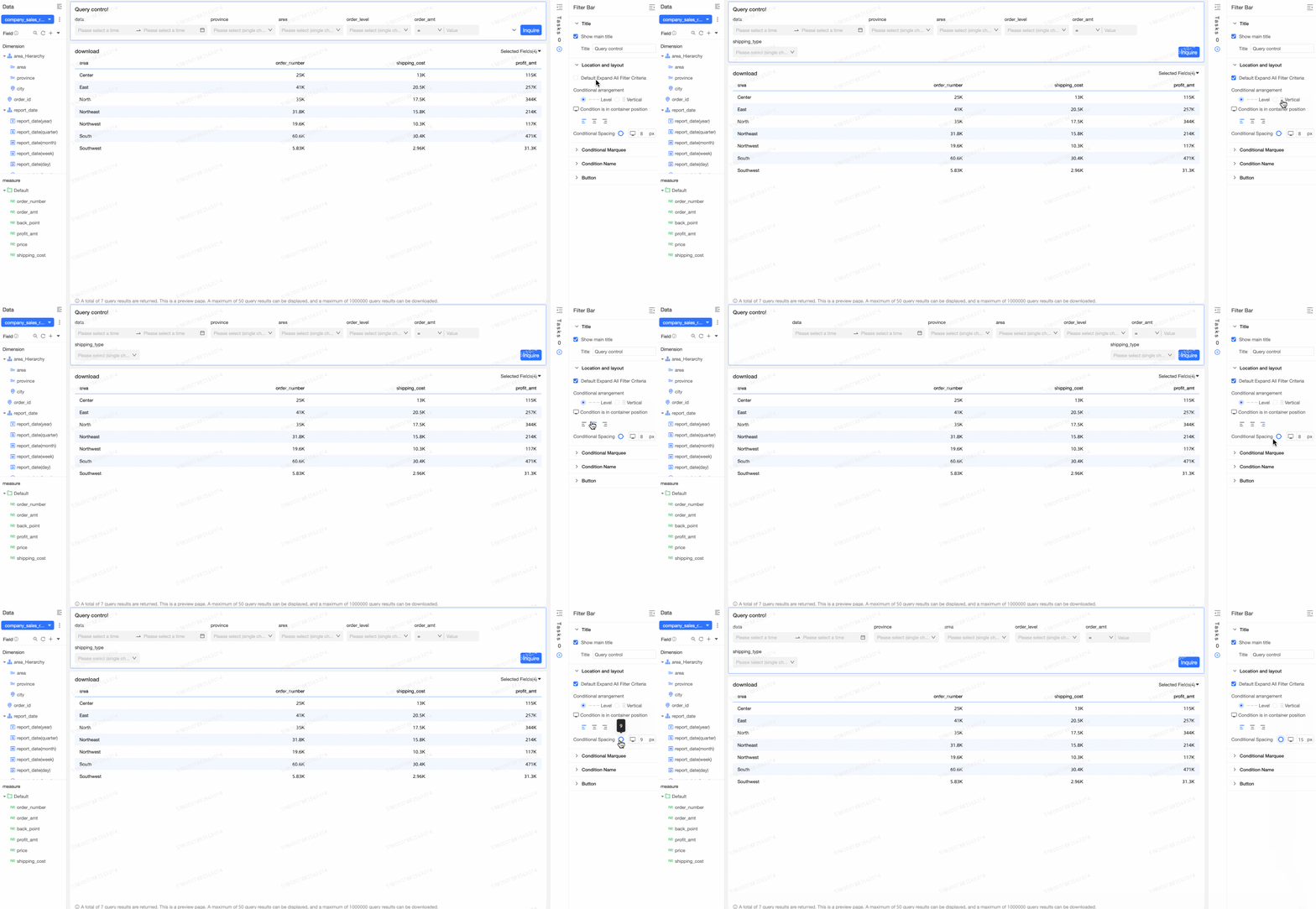
In condition selection box, you can set the general style, background color, border, border radius, text style, and custom condition style.
In condition name, set the position of the condition name, alignment, text style, and spacing with selection box.

In button, set the button display, button color, button border radius, and text style.
 For detailed configuration, see Configure Query Control Style.
Switch Between Light and Dark Theme Modes
On the download task management page, click the target download task.
On the download task editing page, click the
 icon in the upper right corner and find the icon at the bottom for switching patterns to toggle between the light and dark theme modes of the download task.
 Note
NoteThe theme mode switch affects the entire account, not just individual modules. For instance, if you switch the download task to light mode, other modules with theme mode options, like dashboards and reports, will also switch to light mode.
Light mode

Dark mode

Follow system
Adopt the system style in custom configuration.

For more information, see System Theme Customization.
NoteTenant management is the only place where you can set the system style in custom configuration. The module-level mode takes precedence over the organization-level setting.