You can create a download task to retrieve data from datasets in Quick BI.
Procedure
-
Login Quick B console.
-
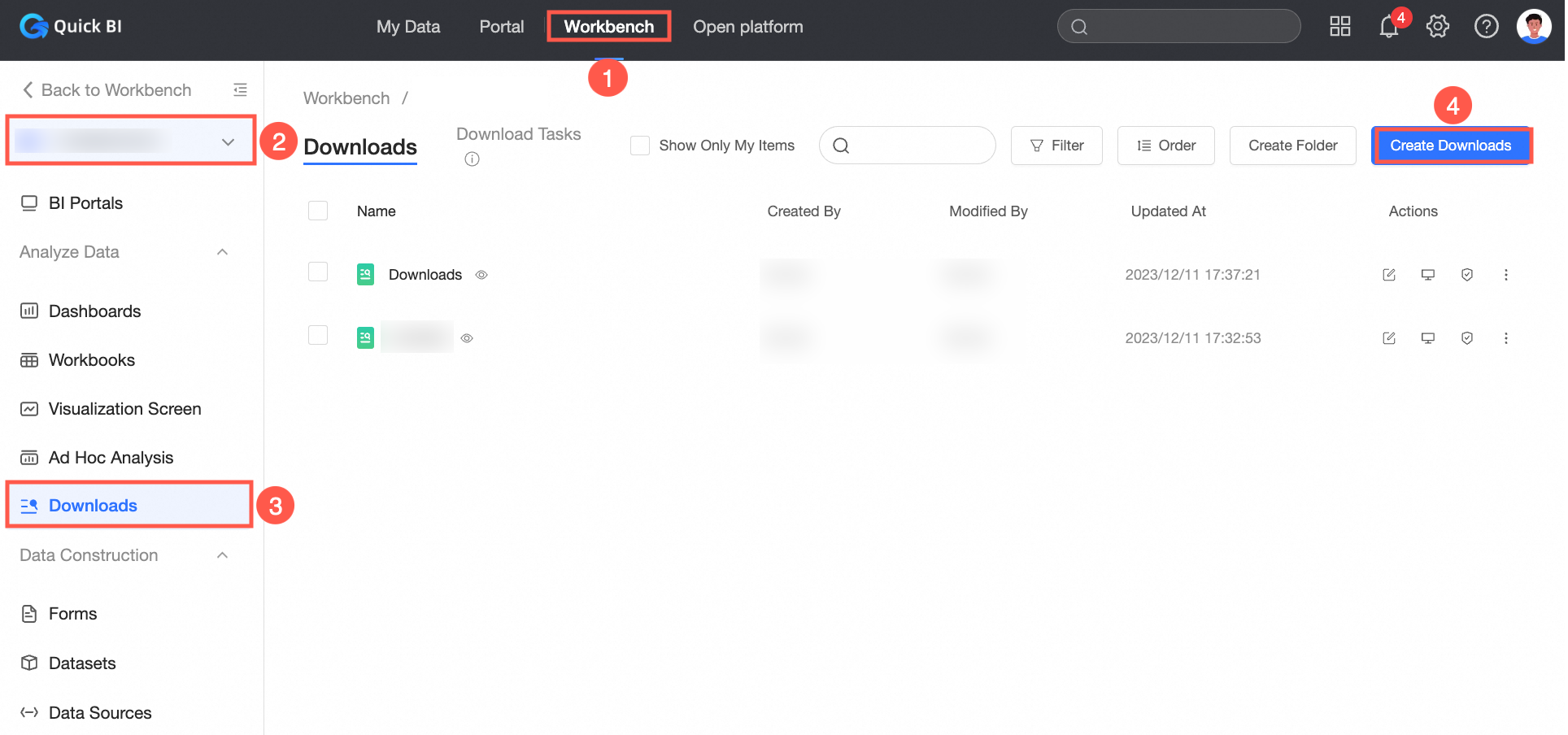
On the Quick BI homepage, create a download task by using one of the following methods.
Entry 1: console-> select a workspace-> click downloads-> click create downloads
Entry 2: console-> select a workspace-> click the icon to the right of the
 self-service data retrieval to quickly create a self-service data retrieval.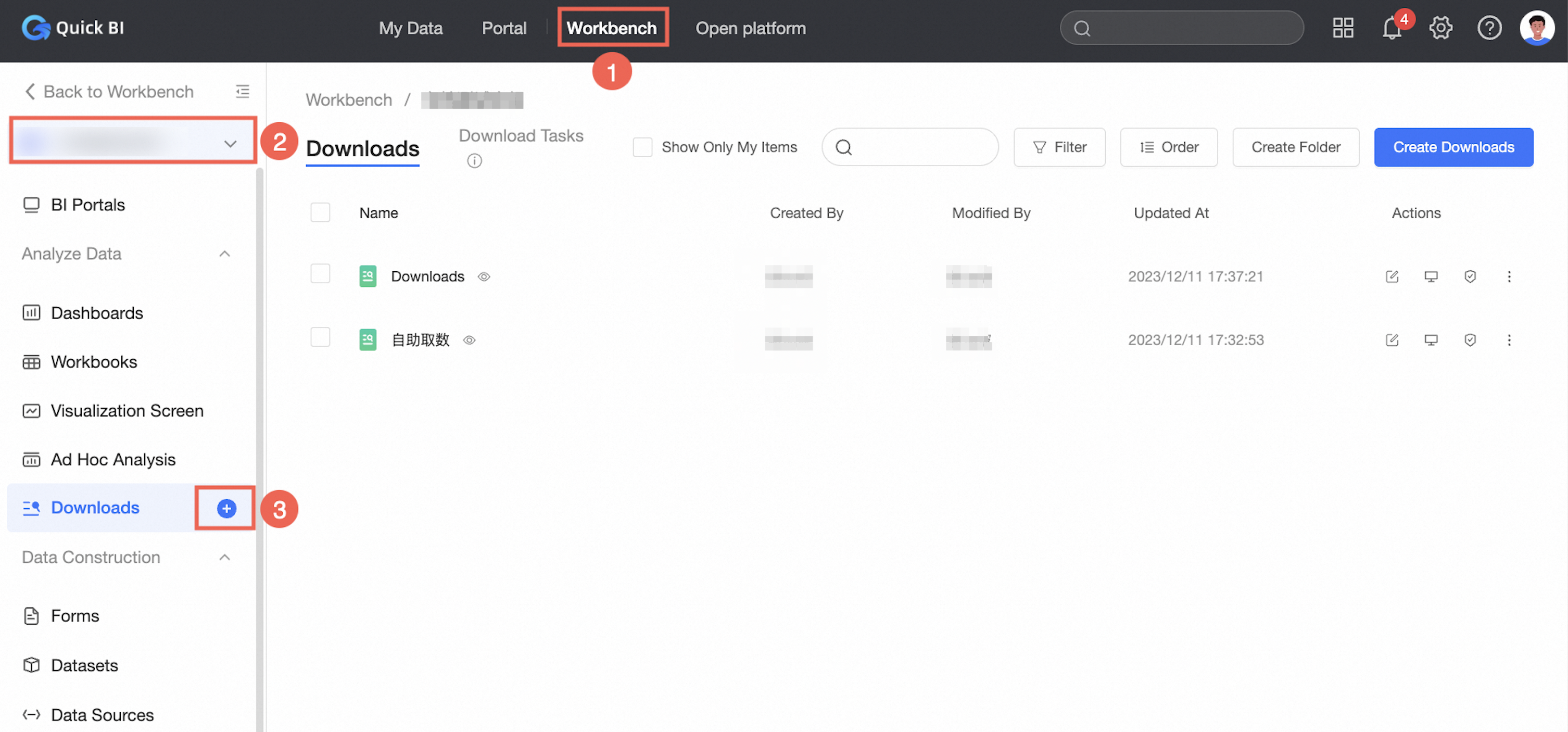
Entry 3: console-> select a workspace-> click dataset -> select the target dataset and click the
 icon on the right of the dataset-> click create download task.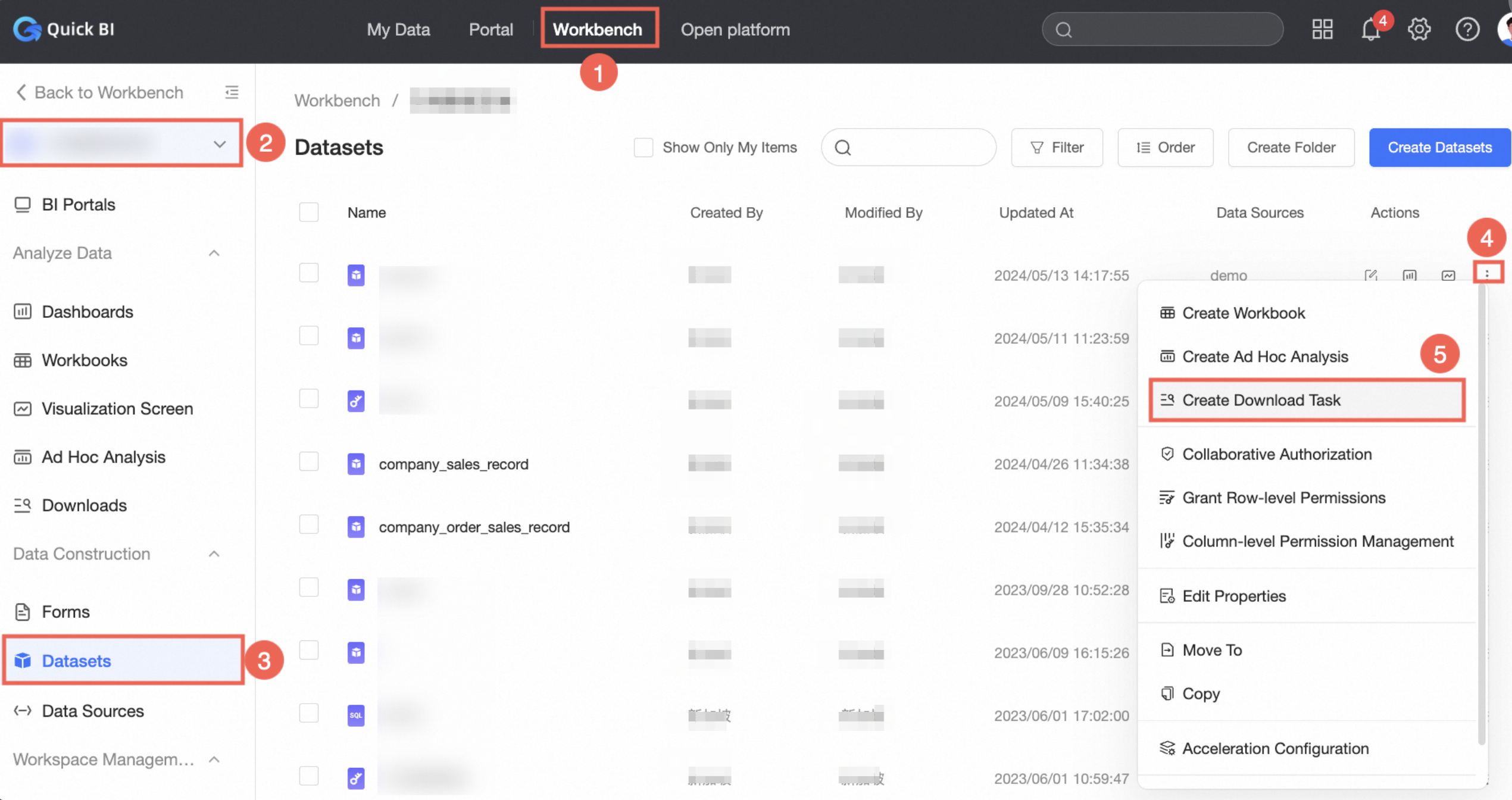
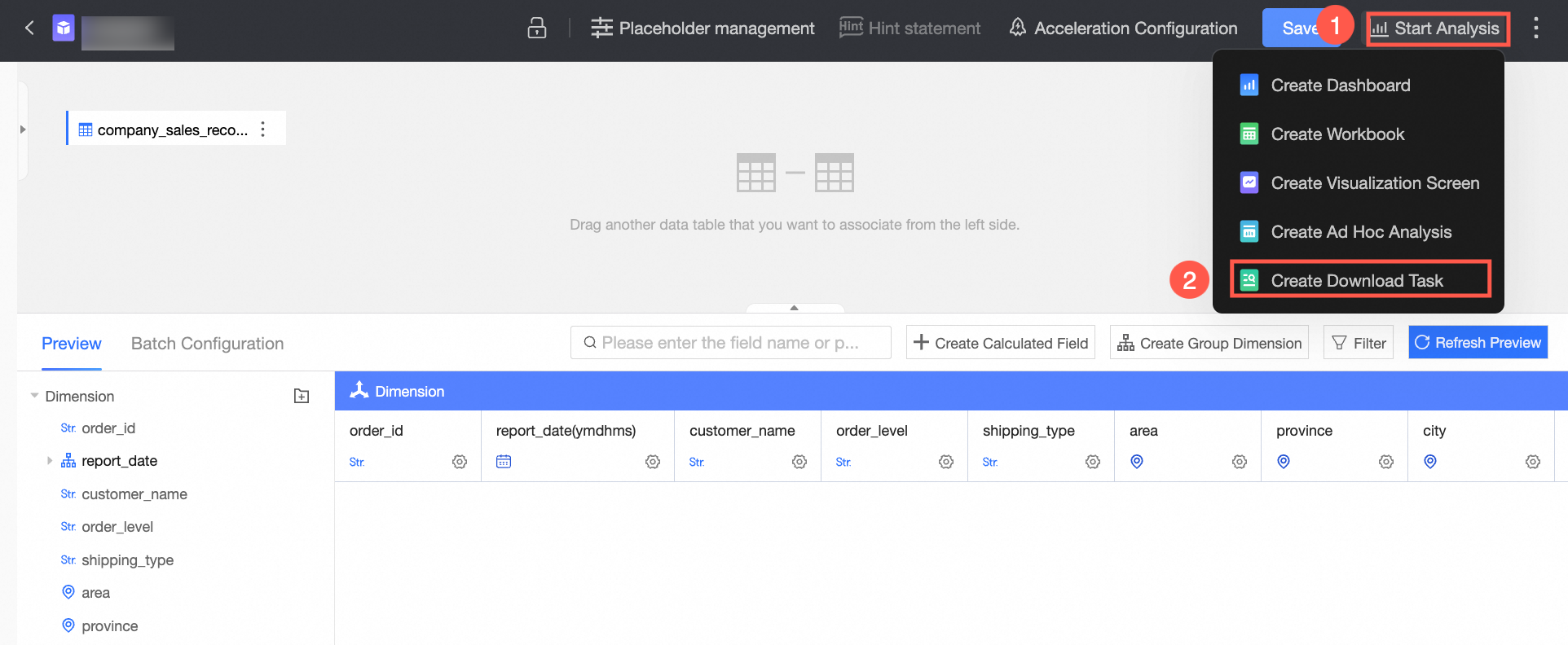
Step 4: On the dataset editing page, click Start Analysis in the upper-right corner to create a download task.
-
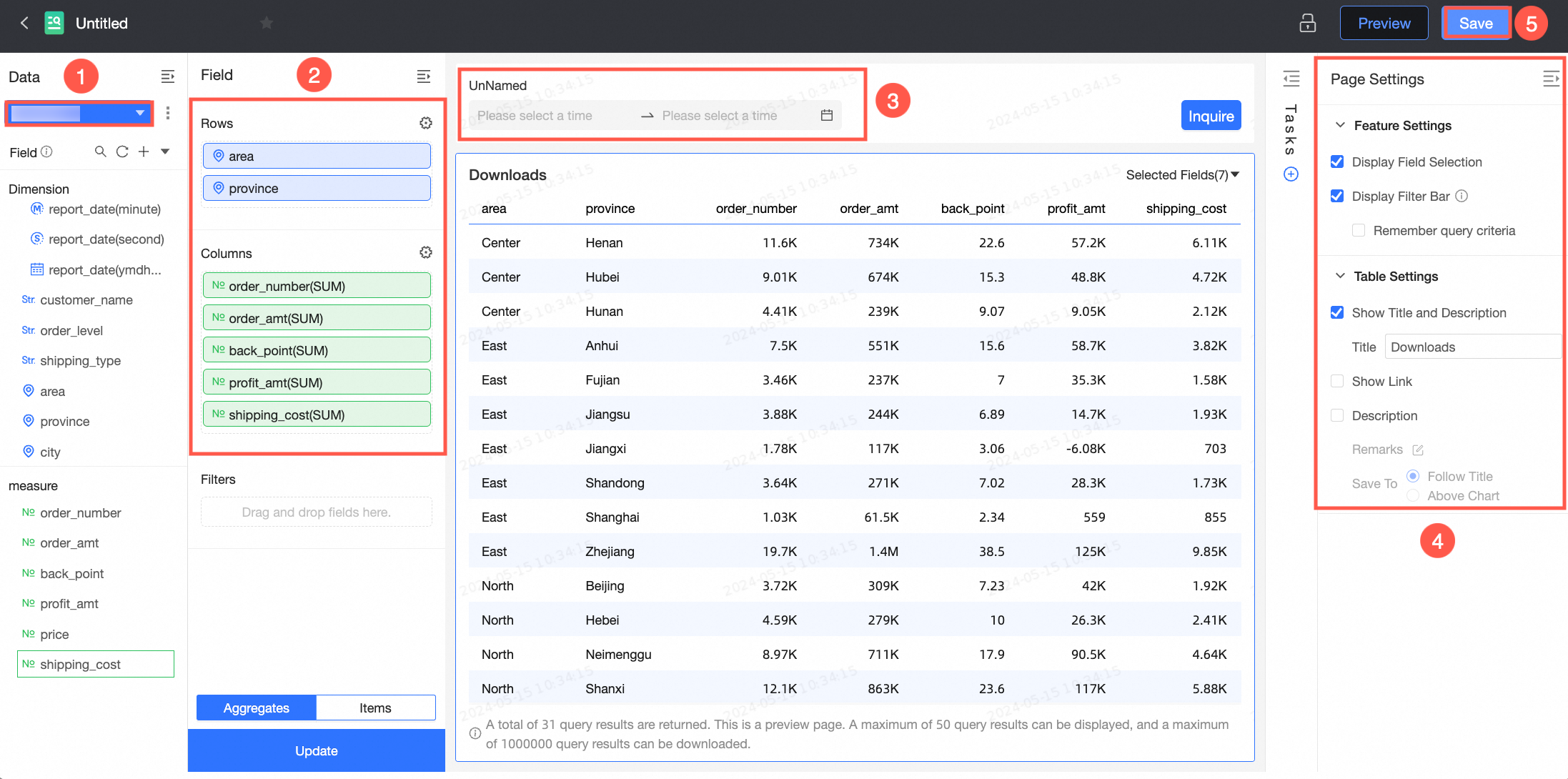
On the self-service retrieval creation page, you can ① select a dataset, ② configure row and column data and filters, ③ configure query controls, ④ configure page settings, and ⑤ click Save.
For more information, see Configure data retrieval.
 Note
NoteBy default, the current dataset is selected for the download created through entry 3 and entry 4. You can also select another dataset by clicking the dataset.