Organization administrators can enable the approval flow to let users request permissions for data works, and configure approval channels and default approvers.
Limitations
This feature is available only in Quick BI Pro Edition.
Accessing the configuration page
Log on to the Quick BI console as a permission administrator and open the settings page as shown in the following figure.

Authorization settings
In the Approval Settings area on the Collaborative Authorization Settings tab, enable Enable Approval Flow and configure the following parameters.
|
Parameter |
Description |
|
Basic settings |
Controls whether users can request permissions for data works across all workspaces in the organization.
|
|
Approval channel |
The channel through which the approval flow is processed. Available channels include in-platform approval, custom approval channel, DingTalk approval channel, Feishu approval channel, and Lark approval channel.
Note
|


Approval entry points
You can configure two types of approval entry points: Data works page application and Column-level permission application.
-
Data works page application: Controls whether a permission request entry point is available for data works in all workspaces within the organization.
-
If you select Data works page application, users see permission request entry points in the data works list within a workspace or when viewing a specific data work.
Data works within a workspace include data portals, dashboards, workbooks, self-service queries, ad hoc analysis, data screens, and data entry. Organization-level data works include exploratory analysis. The following figures use a dashboard as an example.
-
Request edit permissions from the list page within a workspace

-
Request view permissions from the list page within a workspace

-
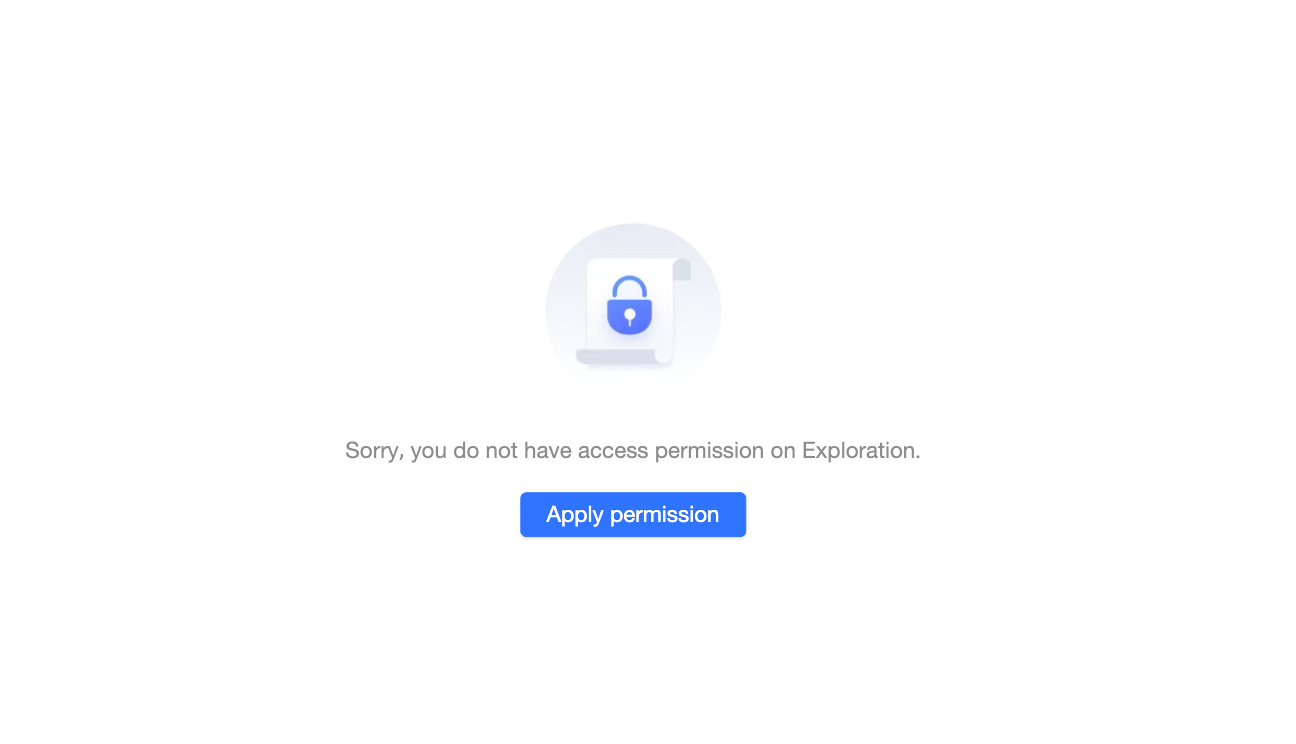
Request view permissions from outside the workspace
-
-
If you do not select Data works page application, users can only see the list of data works but cannot request permissions for them.
-
-
Column-level permission application: Controls whether to display an entry point for requesting to view masked data.
-
If you select Column-level permission application, the result is shown in the following figure, which uses a line chart as an example.

-
If you do not select Column-level permission application, the result is shown in the following figure, which uses a line chart as an example.

-
Custom approval flow
After an organization administrator enables a custom approval flow, users can request permissions for Quick BI resources, and approval notifications are sent to the custom channel.
-
On the configuration management page, create a custom channel as shown in the following figure.

-
On the Collaborative Authorization Settings page, enable the custom approval channel as shown in the following figure.

Now, when users request permissions for Quick BI resources, the custom channel also receives the request notification.
DingTalk approval channel
When the DingTalk approval channel is enabled, permission requests initiated in Quick BI are routed to DingTalk for processing.
-
If your organization has not bound a DingTalk micro-application and authorized the necessary APIs, go to the configuration page and follow the instructions in the figure to bind a micro-application and authorize the necessary APIs. For detailed instructions, see DingTalk API Authorization.

-
If your organization has already bound a DingTalk micro-application, you can select the checkbox to enable the DingTalk approval channel and create an approval template.

-
After creating the template, test it by selecting a recipient and clicking Send Test.

-
Click Confirm to save the configuration, then test the setup.

Feishu approval channel
When the Feishu approval channel is enabled, permission requests initiated in Quick BI are routed to Feishu for processing.
-
If your organization has not bound a Feishu micro-application and authorized the necessary APIs, go to the configuration page and follow the instructions in the figure to bind and authorize it. For detailed instructions, see Feishu API Authorization.

-
If your organization has already bound a Feishu micro-application, you can select the checkbox to enable the Feishu approval channel and create an approval template.
-
After creating the template, test it by selecting a recipient and clicking Send Test.

-
Click Confirm to complete the channel configuration.
Lark approval channel
When the Lark approval channel is enabled, permission requests initiated in Quick BI are routed to Lark for processing.
-
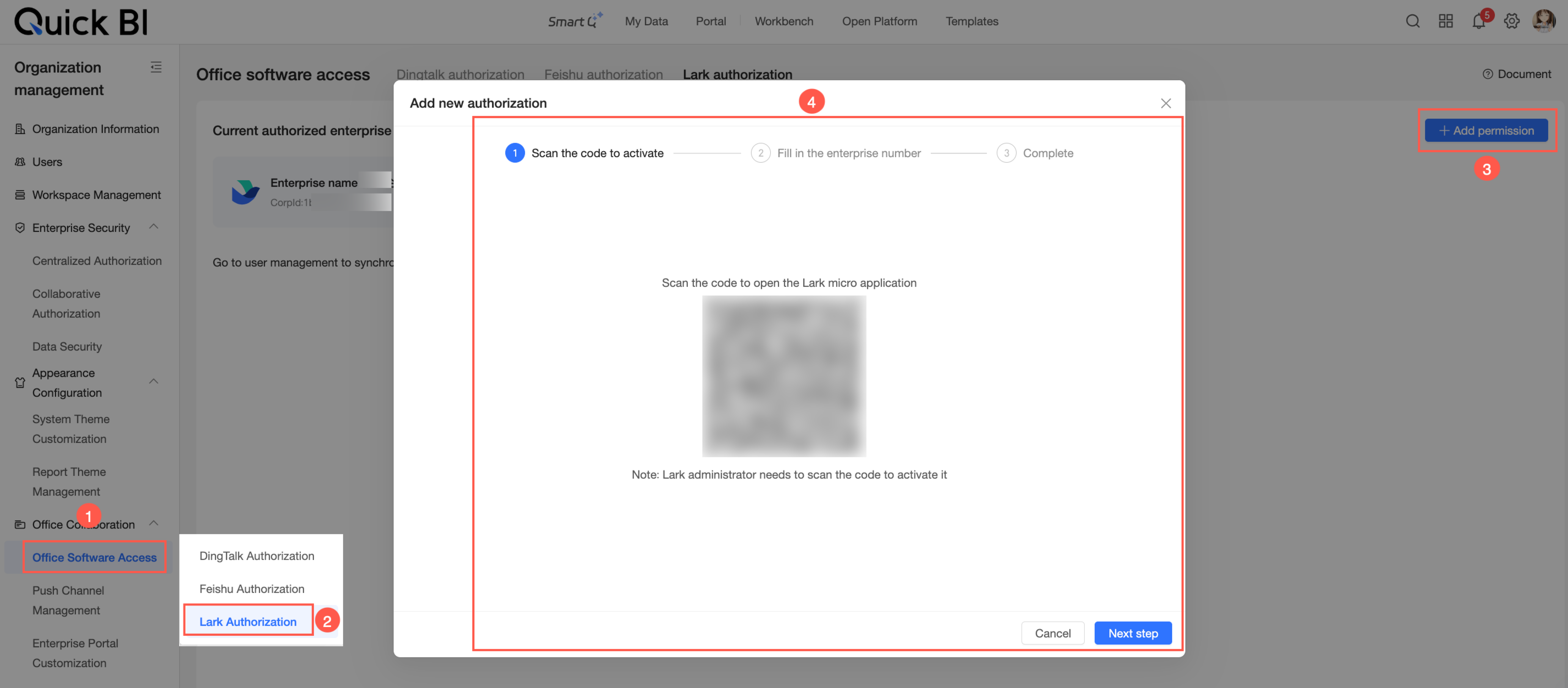
If your organization has not bound a Lark micro-application and authorized the necessary APIs, go to the configuration page and follow the instructions in the figure to bind and authorize it. For detailed instructions, see (Public Cloud) Activate Lark Micro-application.
-
If your organization has already bound a Lark micro-application, you can select the checkbox to enable the Lark approval channel and create an approval template.
-
After creating the template, test it by selecting a recipient and clicking Send Test.

-
Click Confirm to complete the channel configuration.