The mounted drive feature maps cloud storage space to a local drive. This lets you access cloud files or back up local files to the cloud as if they were local files. This topic describes how to enable this feature for seamless file management and efficient data synchronization.
Notes
Only a super administrator or drive administrator can enable this feature.
After you enable the mounted drive, all users must restart the Cloud Drive for Enterprises client to display the mounted drive page correctly and install the required plug-in.
Prerequisites
File versioning is enabled.
Procedure
Log on to CDE and go to the admin console.
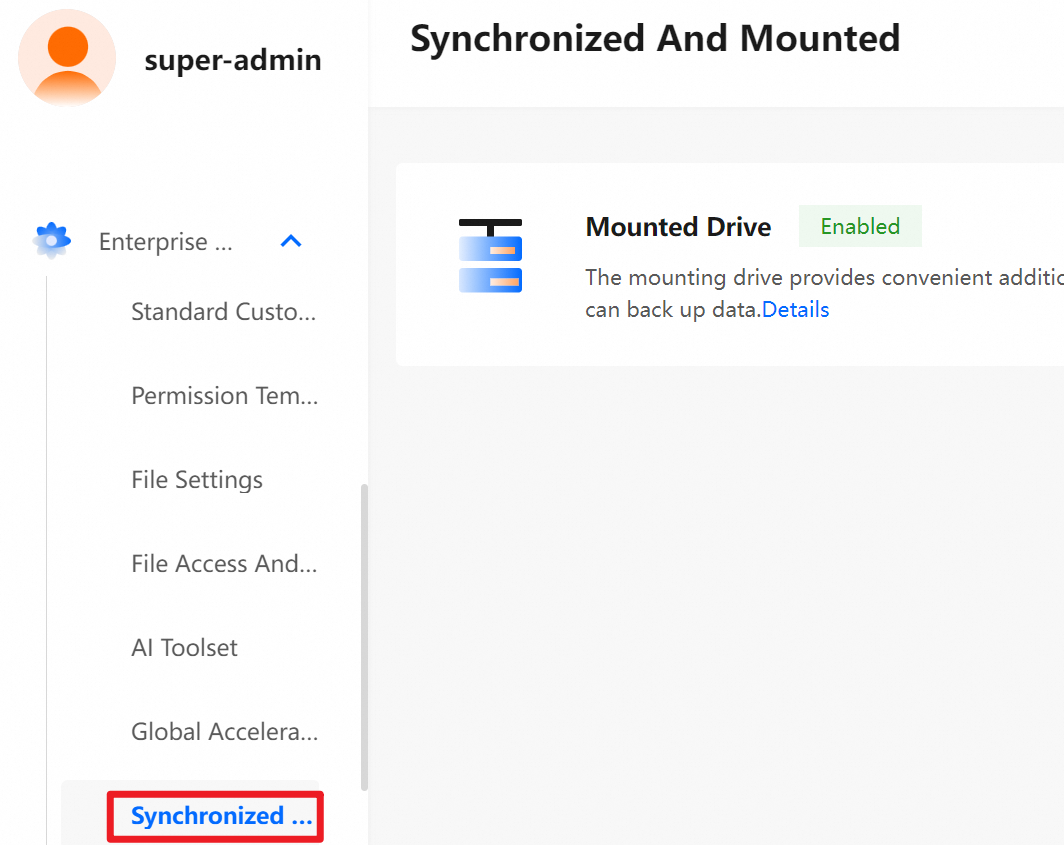
In the navigation pane on the left, choose , and turn on the Mounted Drive switch.
Note: After you enable the mounted drive feature for the first time, log out of your account and then log on again to ensure that the feature works correctly.
Disable the mounted drive
You cannot manually disable the mounted drive feature. To disable it, contact us and provide your enterprise code.
References
After the mounted drive is enabled, you can use its features. For more information, see Mounted drive.