This topic describes how administrators can enable and configure version history. This feature backs up multiple versions of your files, providing secure storage for files and their version history. If a file is overwritten or modified by mistake, you can easily recover a previous version.
Only super administrators and drive administrators can enable the version history feature.
You cannot disable this feature after it is enabled. To stop creating new versions, set the maximum number of versions to 1. This effectively disables the feature.
How to enable
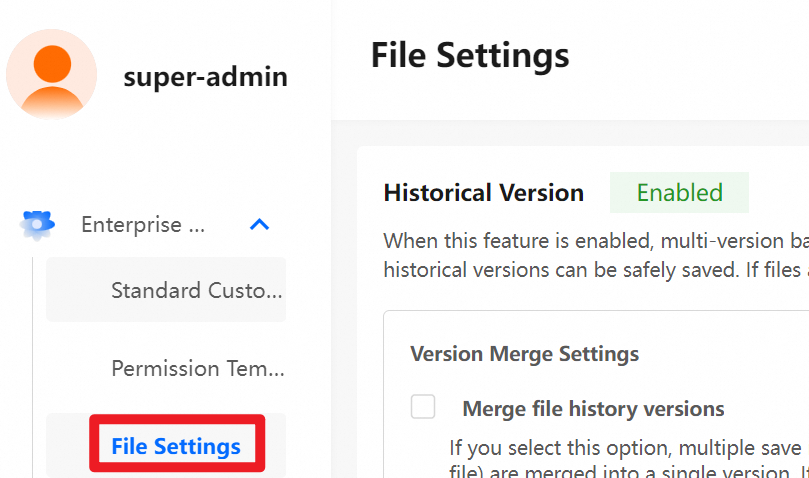
Log on to the enterprise drive as a super administrator or drive administrator.
In the , and then enable version history.
Feature description
Version merge settings
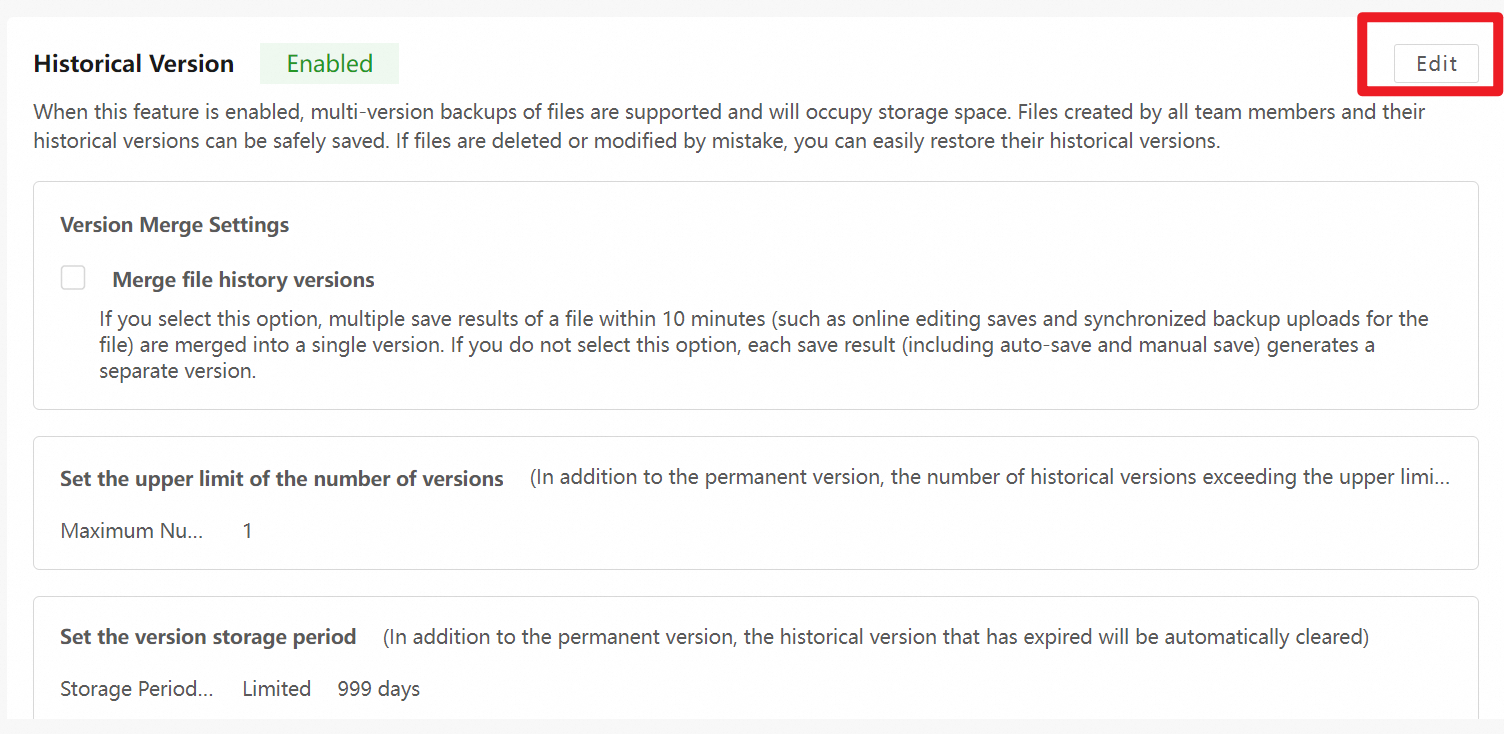
Click Edit. Select Merge File History Versions. When this option is selected, multiple saves of a file within a 10-minute period are merged into a single version. This includes online edits and sync uploads. If you clear this option, each save creates a new version.
Maximum number of versions
Click Edit and set the maximum number of versions from 1 to 999. Older versions that exceed this limit are automatically purged. This does not apply to permanently retained versions. Set a reasonable limit to simplify management and save storage space.
Version retention period
Click Edit and set the version retention period from 1 to 999 days. Versions older than this period are automatically purged. This does not apply to permanently retained versions. Set a reasonable period to prevent version redundancy and save storage space.
Permanently retained versions
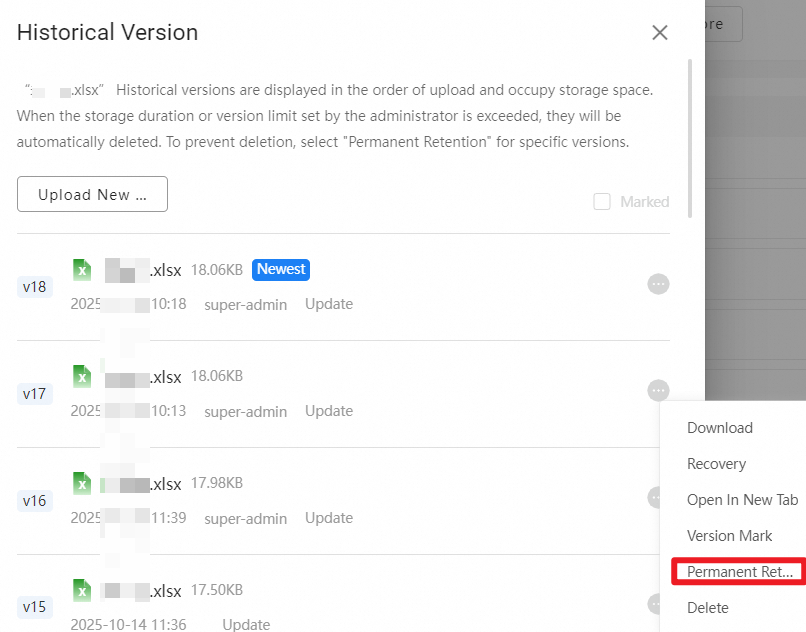
You can set a specific version to be permanently retained. A permanently retained version is not affected by the maximum version limit or the retention period and will not be automatically purged.
Permanently retained versions are removed only when you manually delete them.
You can permanently retain a maximum of 50 versions for a single file.
FAQ
How version history affects parent folder size
How version history affects parent folder size
When you check the size of a parent folder, you may find that it is larger than the combined size of the current versions of its files. This is because the folder size calculation includes all historical file versions. To optimize storage, periodically purge historical versions that you no longer need.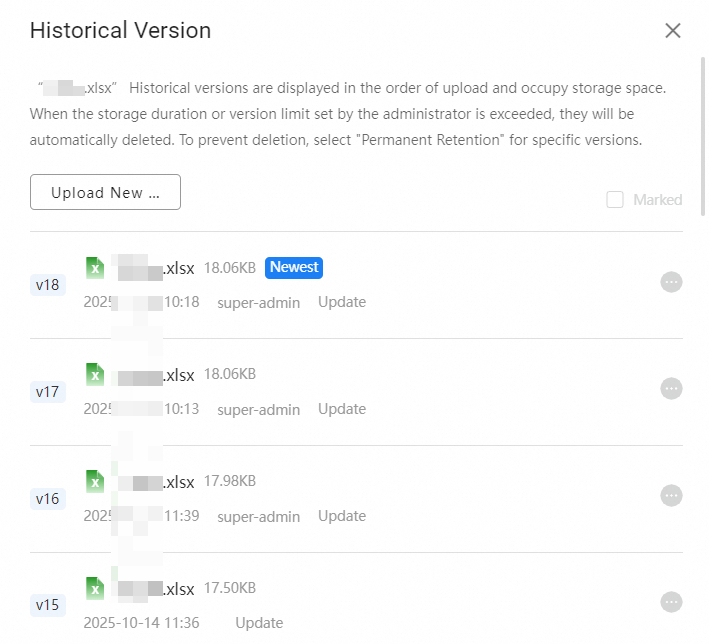
References
For more information about how to use and view version history, see Version history operations.