If you need to synchronize data from an ApsaraDB RDS for MySQL instance to an Alibaba Cloud Elasticsearch cluster, you can use the logstash-input-jdbc plug-in of Alibaba Cloud Logstash. The plug-in is installed by default and cannot be uninstalled. With a pipeline configuration, the plug-in synchronizes full data or incremental data to the Alibaba Cloud Elasticsearch cluster in real time. This topic describes how to implement the synchronization.
Limits
Make sure that the ApsaraDB RDS for MySQL instance, the Alibaba Cloud Logstash cluster, and the Alibaba Cloud Elasticsearch cluster reside in the same time zone. Otherwise, when time-related data is synchronized, a time zone difference may exist between the data before and after synchronization.
The
_idfield in Elasticsearch must be the same as theidfield in MySQL.This condition ensures that when a record in MySQL is written to Elasticsearch, the synchronization task can establish a direct mapping between the MySQL record and the Elasticsearch document. For example, when a record is updated in MySQL, the synchronization task overwrites the Elasticsearch document that has the same ID as the updated record.
NoteBased on the internals of Elasticsearch, an update is essentially a deletion of the old document followed by the indexing of the new document. Therefore, overwriting a document in Elasticsearch is as efficient as an update operation.
When data is inserted or updated in MySQL, the corresponding record must contain a field that stores the update time or the insert time.
Each time Logstash polls MySQL, Logstash saves the update time or insert time of the last record that it read from MySQL. When Logstash reads data, Logstash reads only the records that meet the condition, that is, the records whose update time or insert time is later than that of the last record in the previous poll.
ImportantThe
logstash-input-jdbcplug-in cannot synchronize deletions. You must run the relevant command in Elasticsearch to delete the documents manually.
Prerequisites
We recommend that you create the following instances in the same virtual private cloud (VPC):
You can also use services that are deployed on the Internet. In this case, you must configure SNAT, enable the public endpoint of the ApsaraDB RDS for MySQL instance, and remove the whitelist limit. For more information about how to configure SNAT, see Configure a NAT gateway for public data transfer. For more information about how to configure a whitelist, see Configure an IP address whitelist.
Create an ApsaraDB RDS for MySQL instance. For more information, see Create an ApsaraDB RDS for MySQL instance. In this topic, MySQL 5.7 is used.
Create an Alibaba Cloud Elasticsearch cluster. For more information, see Create an Alibaba Cloud Elasticsearch cluster. In this topic, an Elasticsearch V8.17 cluster is used.
Create an Alibaba Cloud Logstash cluster. For more information, see Create an Alibaba Cloud Logstash instance. In this topic, a Logstash V8.11.4 cluster is used.
Background information
Alibaba Cloud Logstash is a data collection and processing tool that provides data collection, transformation, optimization, and output capabilities. The logstash-input-jdbc plug-in of Logstash is installed by default and cannot be uninstalled. You can use the plug-in to query data in an ApsaraDB RDS for MySQL instance in batches and synchronize the data to Elasticsearch. The plug-in also periodically polls the data in the ApsaraDB RDS for MySQL instance and synchronizes the records that were inserted or changed since the previous poll to Elasticsearch. For more information, see How to keep Elasticsearch synchronized with a relational database using Logstash in the official documentation. This solution is suitable for scenarios in which full data is synchronized and a latency of seconds is acceptable, or scenarios in which data that meets specific conditions is queried in batches and then synchronized.
Synchronize data
Step 1: Prepare the environment
Enable the Auto Indexing feature for your Elasticsearch cluster so that Logstash can create indexes automatically. For details, see Access and configure an Elasticsearch cluster.
Upload a JDBC driver that is compatible with your MySQL version to the Logstash cluster. This example uses
mysql-connector-java-5.1.48.jar. For details, see Configure third-party libraries.Prepare test data. The following statement is used to create a table:
CREATE table food (
  id int PRIMARY key AUTO_INCREMENT,
  name VARCHAR (32),
  insert_time DATETIME,
  update_time DATETIME
);
The following statement is used to insert data:
INSERT INTO food values(null,'Chocolates',now(),now());
INSERT INTO food values(null,'Yogurt',now(),now());
INSERT INTO food values(null,'Ham sausage',now(),now());
Add the IP addresses of the Alibaba Cloud Logstash nodes to the whitelist of the ApsaraDB RDS for MySQL instance. You can obtain the IP addresses on the Basic Information page of the Logstash cluster.
Step 2: Configure a Logstash pipeline
Go to the Logstash Clusters page.
Navigate to the target cluster.
In the top navigation bar, select the region where the cluster resides.
On the Logstash Clusters page, find the cluster and click its ID.
-
In the left-side navigation pane, click Pipelines.
-
Click Create Pipeline.
On the Create Pipeline page, enter a Pipeline ID, and configure Config.
The following Config configuration is used in this topic.
input { jdbc { jdbc_driver_class => "com.mysql.jdbc.Driver" jdbc_driver_library => "/ssd/1/share/<Logstash cluster ID>/logstash/current/config/custom/mysql-connector-java-5.1.48.jar" jdbc_connection_string => "jdbc:mysql://rm-bp1xxxxx.mysql.rds.aliyuncs.com:3306/<Database name>?useUnicode=true&characterEncoding=utf-8&useSSL=false&allowLoadLocalInfile=false&autoDeserialize=false" jdbc_user => "xxxxx" jdbc_password => "xxxx" jdbc_paging_enabled => "true" jdbc_page_size => "50000" statement => "select * from food where update_time >= :sql_last_value" schedule => "* * * * *" record_last_run => true last_run_metadata_path => "/ssd/1/<Logstash cluster ID>/logstash/data/last_run_metadata_update_time.txt" clean_run => false tracking_column_type => "timestamp" use_column_value => true tracking_column => "update_time" } } filter { } output { elasticsearch { hosts => "http://es-cn-0h****dd0hcbnl.elasticsearch.aliyuncs.com:9200" index => "rds_es_dxhtest_datetime" user => "elastic" password => "xxxxxxx" document_id => "%{id}" } }NoteReplace the
<Logstash cluster ID>placeholder in the code with the ID of the Logstash cluster that you created. For more information about how to obtain the ID, see View the basic information of a cluster.Configuration
Description
inputSpecifies the input data source. For the supported data source types, see Input plugins. A JDBC data source is used in this topic. For the parameter description, see input parameters.
filterSpecifies the plug-in that is used to filter the input data. For the supported plug-in types, see Filter plugins.
outputSpecifies the type of the destination data source. For the supported data source types, see Output plugins. In this topic, data in MySQL is synchronized to Elasticsearch. Therefore, the information about the destination Elasticsearch cluster must be specified in
output. For the parameter description, see Step 3: Create and run a pipeline.ImportantIf the
file_extendparameter is used inoutput, thelogstash-output-file_extendplug-in must be installed first. For more information, see Install or remove plugins.Parameter
Description
jdbc_driver_classThe JDBC class configuration.
jdbc_driver_librarySpecifies the JDBC driver file that is used to connect to MySQL. The format is
/ssd/1/share/<Logstash cluster ID>/logstash/current/config/custom/<driver file name>. You must upload the driver file in the console in advance. For the driver files that Alibaba Cloud Logstash supports and how to upload them, see Configure third-party libraries.jdbc_connection_stringSpecifies the domain name, the port, and the database of the database connection. The format is
jdbc:mysql://<MySQL endpoint>:<Port>/<Database name>?useUnicode=true&characterEncoding=utf-8&useSSL=false&allowLoadLocalInfile=false&autoDeserialize=false.<MySQL endpoint>: specify the internal endpoint of MySQL. If you use the public endpoint, you must configure a NAT gateway for Logstash and setjdbc:mysql://<MySQL endpoint>:<Port>to the public domain name so that data is transmitted over the Internet. For more information, see Configure a NAT gateway for public data transfer.<Port>: the port must be consistent with the outbound port of MySQL. In most cases, the port is 3306.
jdbc_userThe database username.
jdbc_passwordThe database password.
jdbc_paging_enabledSpecifies whether to enable paging. Default value:
false.jdbc_page_sizeThe paging size.
statementSpecifies the SQL statement. For a query across multiple tables, you can use a join statement.
Notesql_last_valueis used to determine which row to query. Before any query is run, this value is set to Thursday, 1 January 1970. For more information, see Jdbc input plugin.scheduleSpecifies the scheduled operation. The value
* * * * *indicates that data is synchronized every minute. This parameter uses a Rufus-style cron expression.record_last_runSpecifies whether to record the result of the previous run. If this parameter is set to
true, the value of thetracking_columnfield in the previous run is recorded and saved to the file thatlast_run_metadata_pathspecifies.last_run_metadata_pathSpecifies the path of the file that stores the last run time. The backend currently opens up the
/ssd/1/<Logstash cluster ID>/logstash/data/path to store the file. After you specify the path, Logstash automatically generates a file in the path, but the file content cannot be viewed.NoteWhen you configure a Logstash pipeline, we recommend that you configure this parameter based on the
/ssd/1/<Logstash cluster ID>/logstash/data/path. If you do not use this path, the conditional records that are synchronized cannot be stored in the configuration file under thelast_run_metadata_pathpath because the permissions are insufficient.clean_runSpecifies whether to clear the records of
last_run_metadata_path. Default value:false. If this parameter is set totrue, all database records are queried from the beginning each time.use_column_valueSpecifies whether the value of a column must be recorded. If this parameter is set to
true, the system records the latest value of the column thattracking_columnspecifies, and uses the value of that column in the next pipeline run to determine the records that must be updated.tracking_column_typeThe type of the tracking column. Default value:
numeric.tracking_columnSpecifies the tracking column. The column must be incremental. In most cases, it is the MySQL primary key.
ImportantThe preceding configuration is based on the test data. In actual business scenarios, configure the parameters based on your business requirements. For the other configuration options that the input plug-in supports, see the official Logstash Jdbc input plugin topic.
If the configuration contains a parameter such as
last_run_metadata_path, Alibaba Cloud Logstash must provide the file path. The backend currently opens up the/ssd/1/<Logstash cluster ID>/logstash/data/path for testing, and the data in that directory is not deleted. Therefore, make sure that the disk has sufficient available space. After you specify the path, Logstash automatically generates a file in the path, but the file content cannot be viewed.To improve security, if a JDBC driver is used when you configure the pipeline, you must append
allowLoadLocalInfile=false&autoDeserialize=falseto thejdbc_connection_stringparameter. Otherwise, the scheduling system reports a verification failure when you add the Logstash configuration file. Example:jdbc_connection_string => "jdbc:mysql://xxx.drds.aliyuncs.com:3306/<Database name>?allowLoadLocalInfile=false&autoDeserialize=false".
For more Config configurations, see Logstash configuration files.
Click Next to configure pipeline parameters.
WarningSaving and deploying the pipeline triggers a restart of the Logstash cluster. Confirm that a restart will not affect your workloads before proceeding.
Parameter
Description
Default
Pipeline Workers
Number of threads running filter and output plug-ins in parallel. Increase this value when CPU resources are underutilized or events are backing up.
Number of vCPUs
Pipeline Batch Size
Maximum events a single worker collects from inputs before running filters and outputs. Higher values increase throughput but require more JVM heap memory.
125
Pipeline Batch Delay
How long a worker waits for additional events before starting a small batch, in milliseconds.
50
Queue Type
Internal queue model for buffering events. MEMORY: in-memory queue. PERSISTED: disk-based ACKed queue for durability.
MEMORY
Queue Max Bytes
Maximum size of the queue on disk. Must be less than your available disk capacity.
1024 MB
Queue Checkpoint Writes
Maximum events written before a checkpoint is forced (persistent queues only). Set to 0 for no limit.
1024
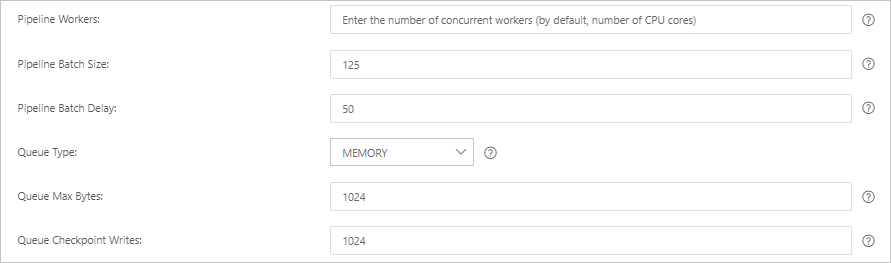
Click Save and Deploy to restart the Logstash cluster and apply the configuration immediately. Alternatively, click Save to store the configuration and trigger a cluster change, but the settings do not take effect yet. To deploy later, go to the Pipelines page, find the pipeline, and click Deploy Now in the Actions column.
Step 3: Verify the result
Log on to the Kibana console of your Elasticsearch cluster. For details, see Log on to the Kibana console.
In the upper-left corner, click the
 icon and choose .
On the Console tab, run the following command to confirm the three rows were synchronized:
GET rds_es_dxhtest_datetime/_count
{
  "query": {"match_all": {}}
}
Expected response:
{
  "count" : 3,
  "_shards" : {
    "total" : 1,
    "successful" : 1,
    "skipped" : 0,
    "failed" : 0
  }
}
Update and insert rows in MySQL to test incremental synchronization:
UPDATE food SET name='Chocolates',update_time=now() where id = 1;
INSERT INTO food values(null,'Egg',now(),now());
In the Kibana console, view the updated data.
Search for the updated row:
GET rds_es_dxhtest_datetime/_search
{
  "query": {
    "match": {
      "name": "Chocolates"
    }
  }
}
{ "took" : 2, "timed_out" : false, "_shards" : { "total" : 1, "successful" : 1, "skipped" : 0, "failed" : 0 }, "hits" : { "total" : { "value" : 1, "relation" : "eq" }, "max_score" : 1.5580825, "hits" : [ { "_index" : "rds_es_dxhtest_datetime", "_type" : "_doc", "_id" : "1", "_score" : 1.5580825, "_source" : { "update_time" : "2020-03-23T03:43:19.000Z", "@version" : "1", "name" : "Chocolates", "insert_time" : "2020-03-23T03:00:36.000Z", "@timestamp" : "2020-03-23T03:44:00.1857", "id" : 1 } } ] } }Query all documents:
GET rds_es_dxhtest_datetime/_search
{
  "query": {
    "match_all": {}
  }
}
The response includes the newly added document with id=4 and name=Egg, which confirms that the data synchronization was successful.
{
  "_index" : "rds_es_dxhtest_datetime",
  "_type" : "_doc",
  "_id" : "1",
  "_score" : 1.0,
  "_source" : {
    "update_time" : "2020-03-23T03:43:19.000Z",
    "@version" : "1",
    "name" : "Chocolates",
    "insert_time" : "2020-03-23T03:00:36.000Z",
    "@timestamp" : "2020-03-23T03:44:00.185Z",
    "id" : 1
  }
},
{
  "_index" : "rds_es_dxhtest_datetime",
  "_type" : "_doc",
  "_id" : "4",
  "_score" : 1.0,
  "_source" : {
    "update_time" : "2020-03-23T04:05:01.000Z",
    "@version" : "1",
    "name" : "Egg",
    "insert_time" : "2020-03-23T04:05:01.000Z",
    "@timestamp" : "2020-03-23T04:06:00.192Z",
    "id" : 4
  }
}
FAQ
My pipeline is stuck in the initializing state, data is inconsistent after sync, or the database connection fails. What should I do?
Check the Logstash cluster logs first. Go to the Logstash console and use the Query logs feature to view error details. For details, see Query logs.
If a cluster update is in progress when you apply a fix, pause the update first. See View the progress of a cluster task. After the fix, the system restarts the cluster and resumes the update automatically.
The following table lists common causes and solutions:
Cause | Solution |
The IP addresses of the Logstash nodes are not added to the MySQL whitelist. | Add the IP addresses of the Logstash nodes to the MySQL whitelist by following the instructions in Use a database client or the CLI to connect to an ApsaraDB RDS for MySQL instance. Note For more information about how to obtain the IP addresses of the Logstash nodes, see View the basic information of a cluster. |
Syncing from a self-managed MySQL on ECS: node private IPs and ports not in the ECS security group | Add the Logstash node private IP addresses and internal ports to the ECS security group. See Add a security group rule. |
Elasticsearch cluster not in the same VPC as the Logstash cluster | Either purchase an Elasticsearch cluster in the same VPC, or configure a NAT gateway for cross-Internet access. See Create an Alibaba Cloud Elasticsearch cluster and Configure a NAT gateway for data transmission over the Internet. |
The MySQL endpoint is incorrect, or the port is not 3306. | Obtain the correct endpoint and port by following the instructions in Manage instance endpoints and ports. Then, use the correct endpoint and port to replace the value of the Important
|
Auto Indexing disabled on the Elasticsearch cluster | Enable Auto Indexing. See Configure the YML file. |
The load on the Elasticsearch or Logstash cluster is too high. | Upgrade the configuration of the cluster by following the instructions in Upgrade cluster configuration. Note You can view the load on Elasticsearch through the monitoring metrics in the console. For more information, see Monitoring metrics and exception handling. You can view the load on Logstash through X-Pack monitoring in Kibana. For more information, see Configure X-Pack monitoring. |
JDBC driver not uploaded | Upload the driver file. See Configure third-party libraries. |
| Install the plug-in, or remove the |
For more troubleshooting guidance, see FAQ about data transfer by using Logstash.
How do I sync data from multiple MySQL tables to separate Elasticsearch indexes?
Define multiple jdbc blocks in the input section, assign a type value to each, and use if[type] conditions in the output section to route each table's data to a different index:
input {
    jdbc {
      jdbc_driver_class => "com.mysql.jdbc.Driver"
      jdbc_driver_library => "/ssd/1/share/<Logstash cluster ID>/logstash/current/config/custom/mysql-connector-java-5.1.48.jar"
      jdbc_connection_string => "jdbc:mysql://rm-bp1xxxxx.mysql.rds.aliyuncs.com:3306/<Database name>?useUnicode=true&characterEncoding=utf-8&useSSL=false&allowLoadLocalInfile=false&autoDeserialize=false"
      jdbc_user => "xxxxx"
      jdbc_password => "xxxx"
      jdbc_paging_enabled => "true"
      jdbc_page_size => "50000"
      statement => "select * from tableA where update_time >= :sql_last_value"
      schedule => "* * * * *"
      record_last_run => true
      last_run_metadata_path => "/ssd/1/<Logstash cluster ID>/logstash/data/last_run_metadata_update_time.txt"
      clean_run => false
      tracking_column_type => "timestamp"
      use_column_value => true
      tracking_column => "update_time"
      type => "A"
    }
    jdbc {
      jdbc_driver_class => "com.mysql.jdbc.Driver"
      jdbc_driver_library => "/ssd/1/share/<Logstash cluster ID>/logstash/current/config/custom/mysql-connector-java-5.1.48.jar"
      jdbc_connection_string => "jdbc:mysql://rm-bp1xxxxx.mysql.rds.aliyuncs.com:3306/<Database name>?useUnicode=true&characterEncoding=utf-8&useSSL=false&allowLoadLocalInfile=false&autoDeserialize=false"
      jdbc_user => "xxxxx"
      jdbc_password => "xxxx"
      jdbc_paging_enabled => "true"
      jdbc_page_size => "50000"
      statement => "select * from tableB where update_time >= :sql_last_value"
      schedule => "* * * * *"
      record_last_run => true
      last_run_metadata_path => "/ssd/1/<Logstash cluster ID>/logstash/data/last_run_metadata_update_time.txt"
      clean_run => false
      tracking_column_type => "timestamp"
      use_column_value => true
      tracking_column => "update_time"
      type => "B"
    }
}
output {
    if[type] == "A" {
        elasticsearch {
            hosts => "http://es-cn-0h****dd0hcbnl.elasticsearch.aliyuncs.com:9200"
            index => "rds_es_dxhtest_datetime_A"
            user => "elastic"
            password => "xxxxxxx"
            document_id => "%{id}"
        }
    }
    if[type] == "B" {
        elasticsearch {
            hosts => "http://es-cn-0h****dd0hcbnl.elasticsearch.aliyuncs.com:9200"
            index => "rds_es_dxhtest_datetime_B"
            user => "elastic"
            password => "xxxxxxx"
            document_id => "%{id}"
        }
    }
}